How to export cellular logs?
This tutorial introduces the steps to export Cellular-related logs from KVM device for troubleshooting.
The following steps take Comet 5G (GL-RM10RC) as an example.
-
Log in to the KVM console, navigate to Virtual Media and make sure it is enabled.
-
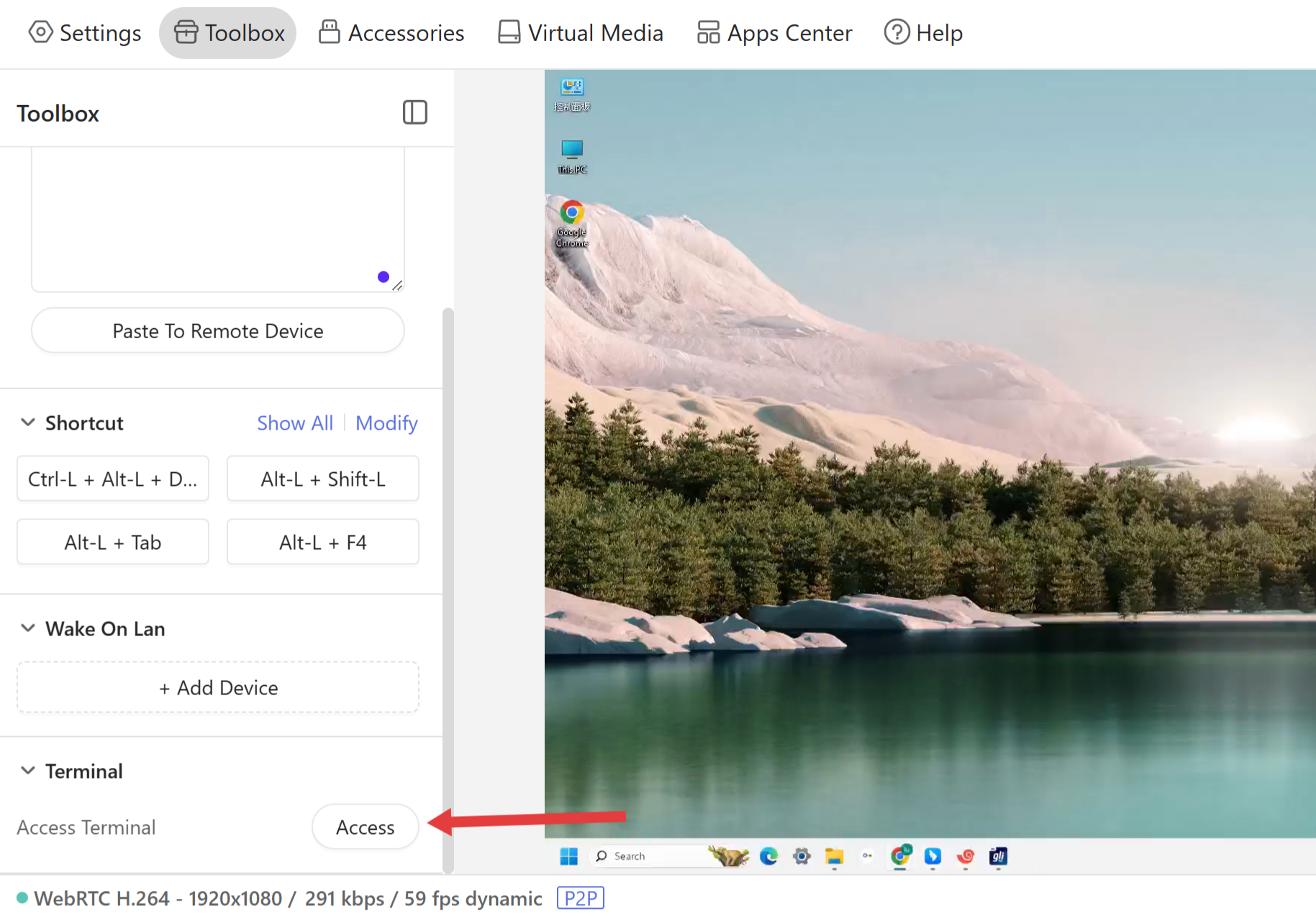
Navigate to Toolbox -> Terminal. Click Access to enter the KVM Terminal.
-
In the Terminal window, execute the following command to launch the QLog program.
QLog_1.5.22 -s /userdata/media/ -f /etc/HN_default.cfg & ubus call modem at '{"AT":"AT+QCFG=\"DBGCTL\",0"}'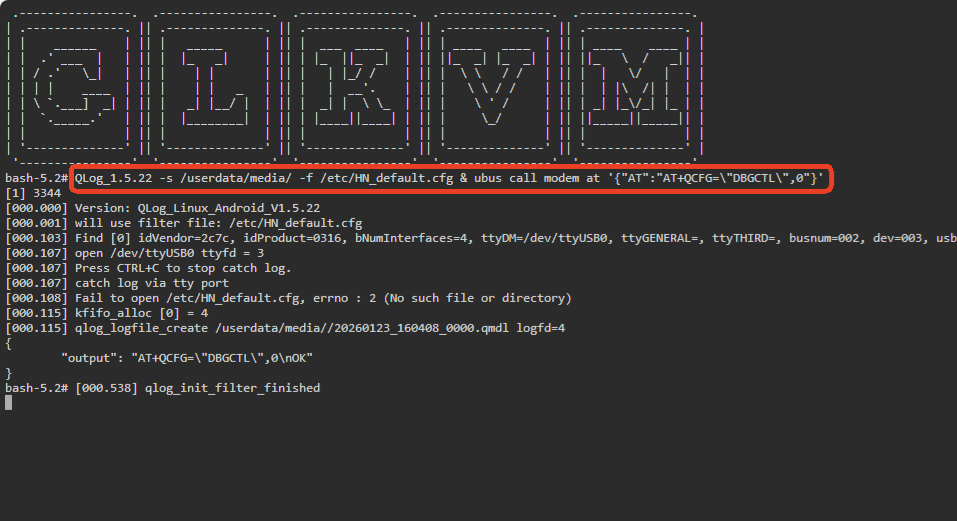
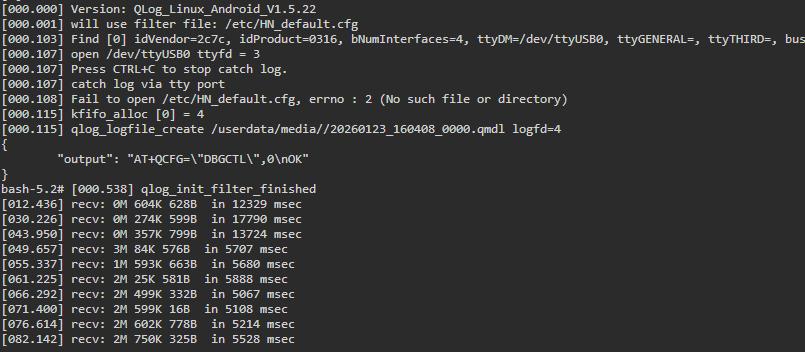
The page will then display the initialization related to QLog startup, followed by the real-time data statistics (e.g., data volume received and time elapsed), as shown below.
-
Press Enter key and execute the following commands in sequence to restart the modem, ensuring the device captures complete startup process logs.
ubus call modem at '{"AT":"AT+CFUN=0"}'ubus call modem at '{"AT":"AT+CFUN=1"}'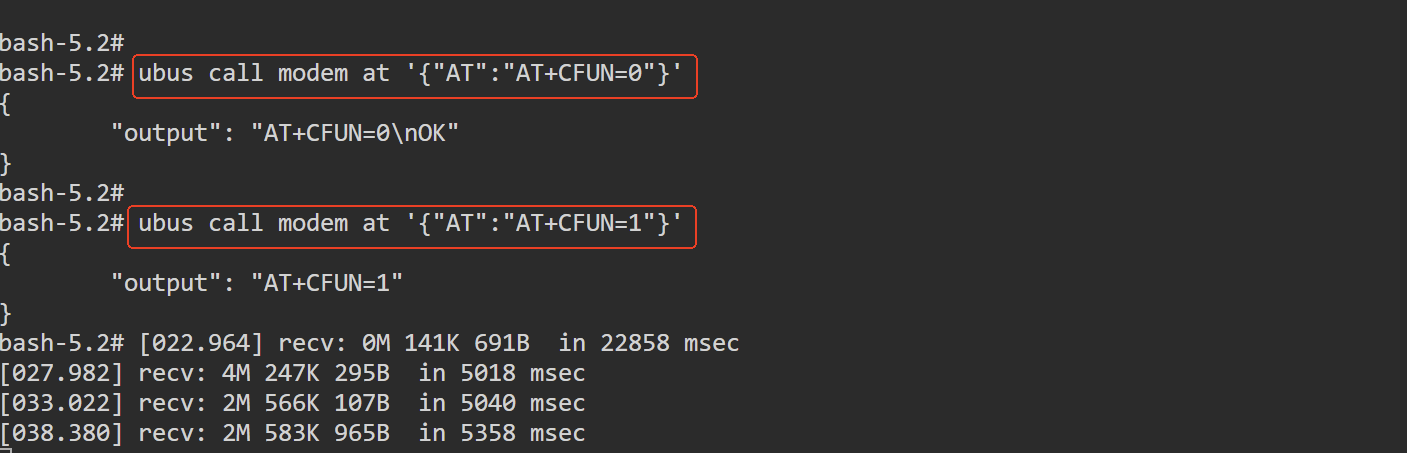
-
Wait for 3-5 minutes to ensure sufficient log data is collected. After that, enter the following command to stop the QLog process.
ps | grep QLog | grep -v grep | awk '{print $1}' | xargs kill -9
-
Export Logs.
Cellular modem logs are saved in the /userdata/media/ directory with the filename suffix
xxx.qmdl.Log in to the KVM console, navigate to Virtual Media and locate the target file(s) with the suffix
xxx.qmdl. Download these files and share them with GL.iNet technical support.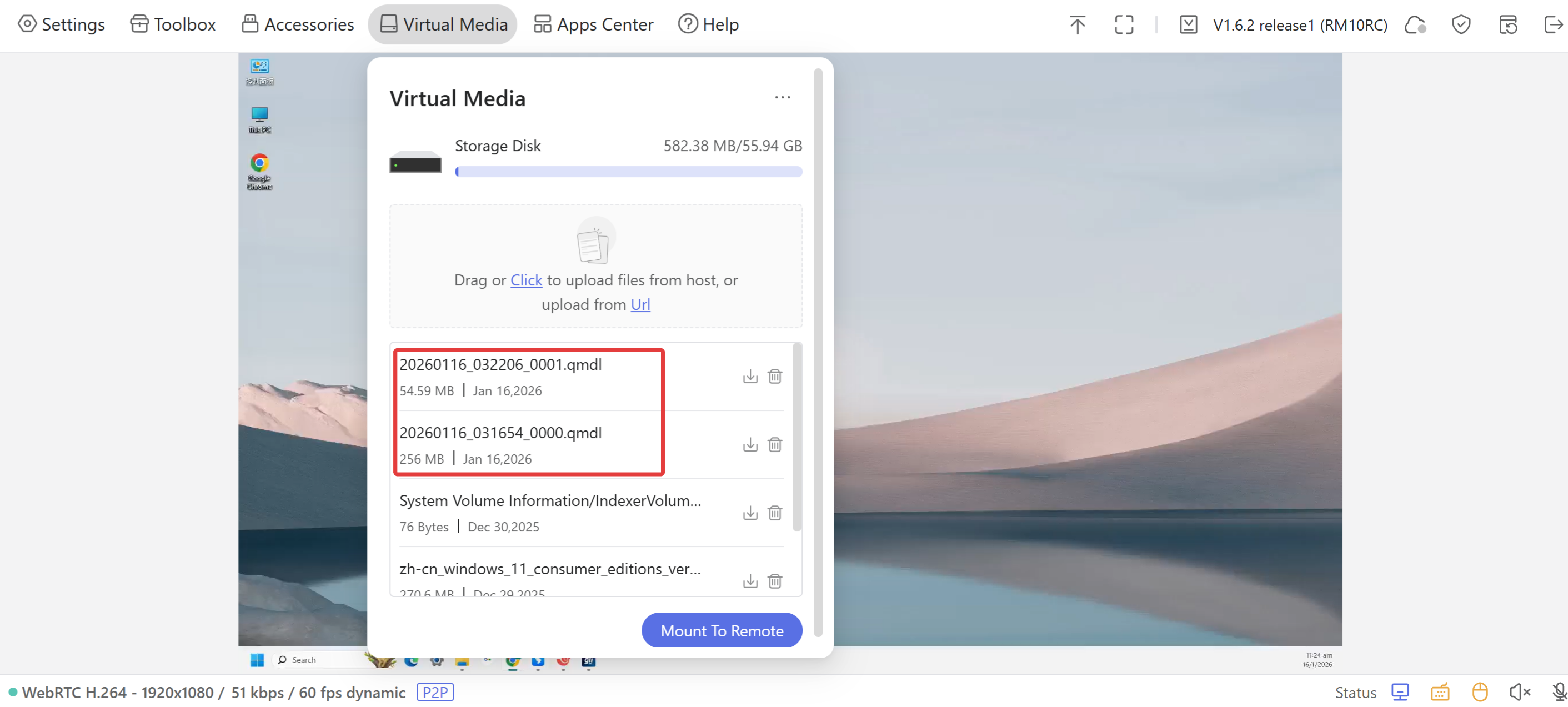
Still have questions? Visit our Community Forum or Contact us.