How to install an OS on the controlled computer remotely using Virtual Media?
This tutorial will introduce how to remotely install an operating system on the controlled computer using Virtual Media, a feature of GL.iNet KVM.
-
Log in to your GL.iNet KVM, and navigate to Virtual Media.
-
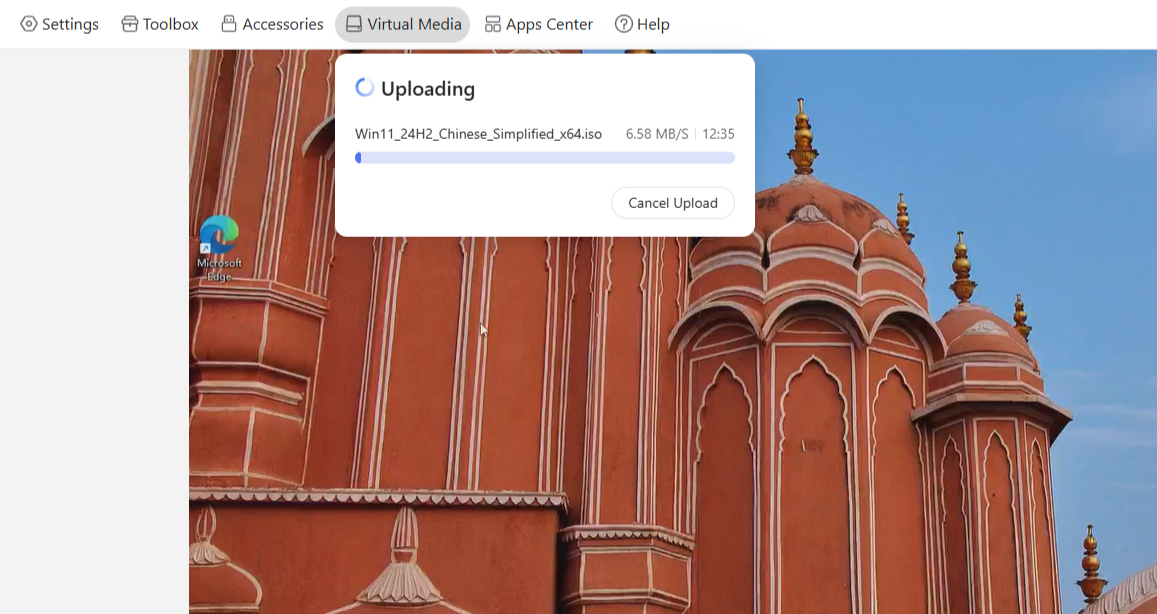
Upload the OS ISO file to Virtual Media.
-
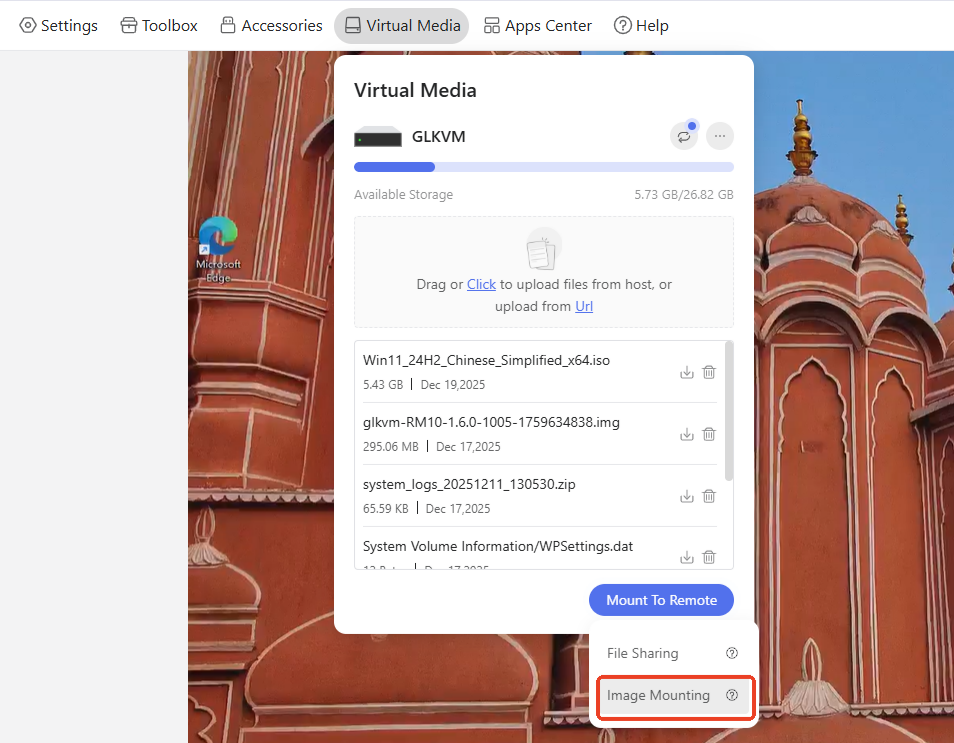
After uploaded, click Mount To Remote and select Image mounting to mount the ISO image.
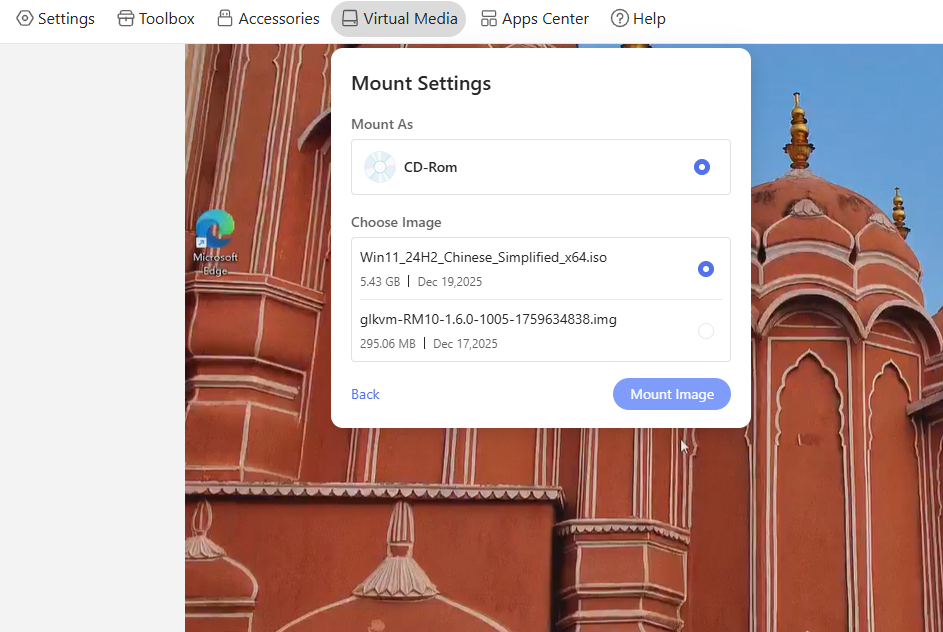
Select the image file and click Mount Image.
-
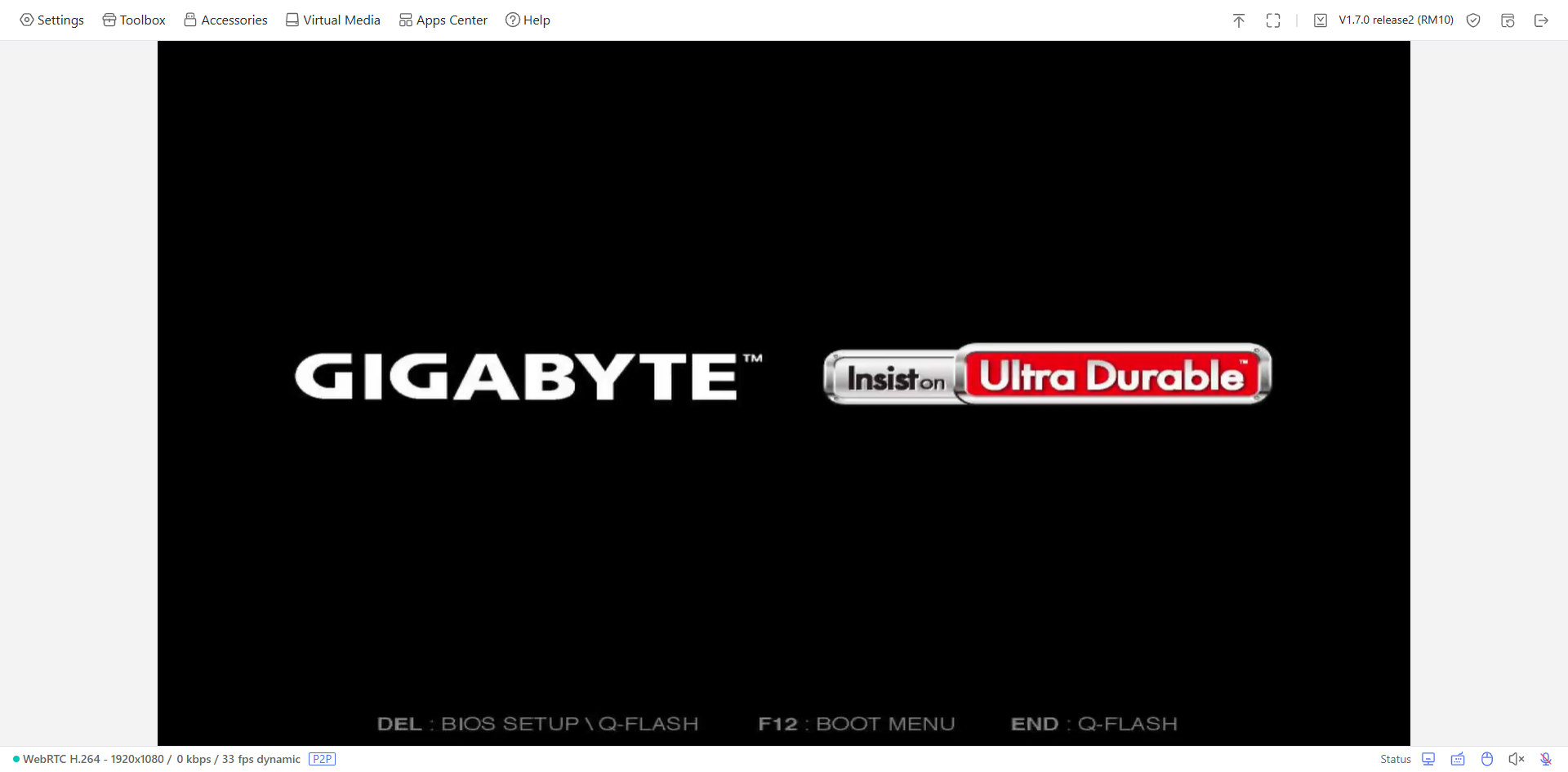
Reboot the remotely controlled computer and press the appropriate key immediately (e.g., DEL in this example) during boot to enter BIOS/UEFI.
-
In the boot menu, set "Glinet Flash Drive 1.00" as Boot Option #1.
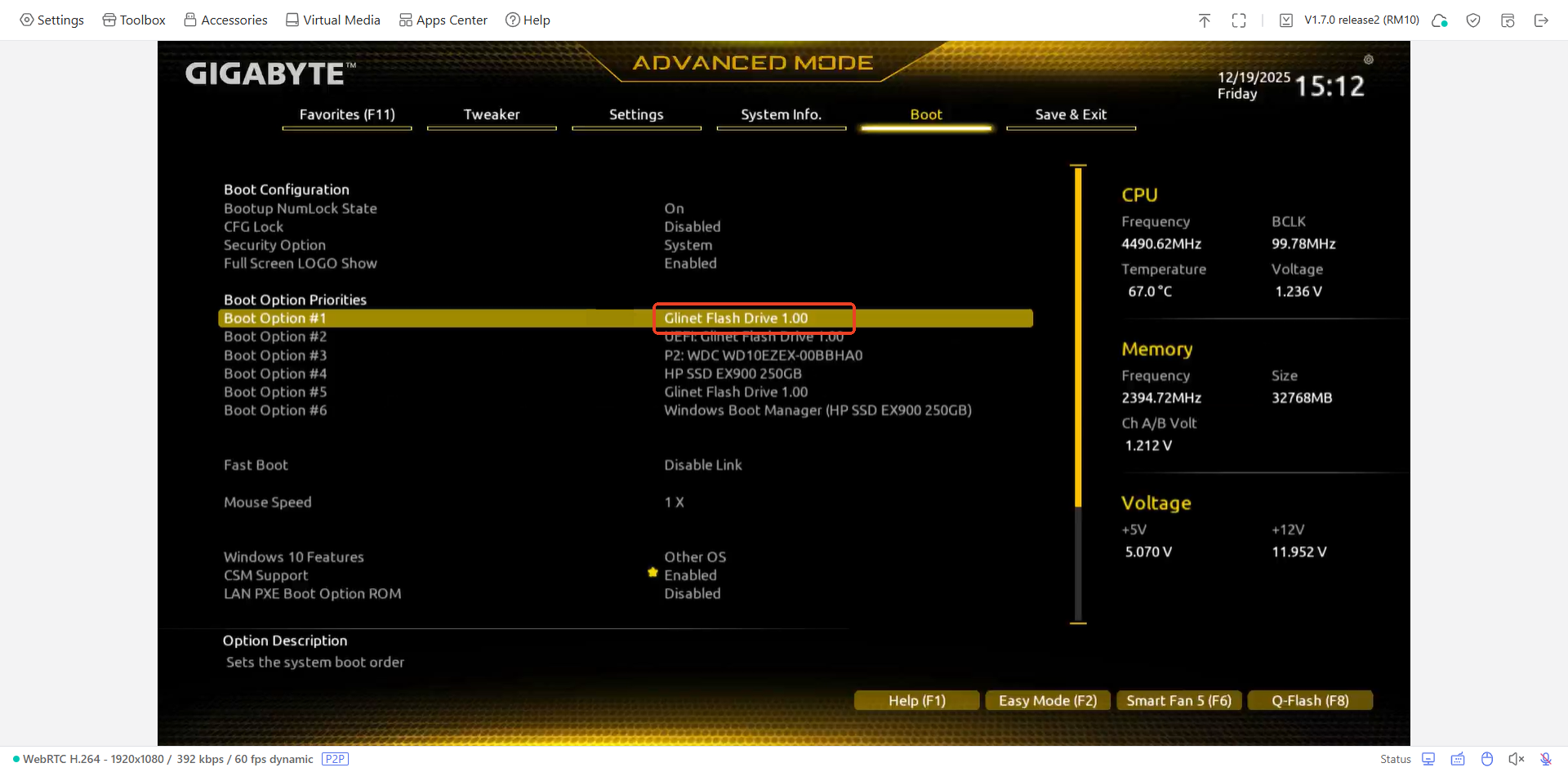
-
Save and exit BIOS. The system will then boot from the mounted ISO to begin OS installation.
Still have questions? Visit our Community Forum or Contact us.