How to use the cloud-based screen wall feature?
With the Screen Wall, you can view the screens of multiple devices on a single page and keep track of their statuses easily.
This tutorial will introduce how to use the cloud-based screen wall feature.
Note: Please upgrade your KVM firmware to version 1.7 before using this feature.
-
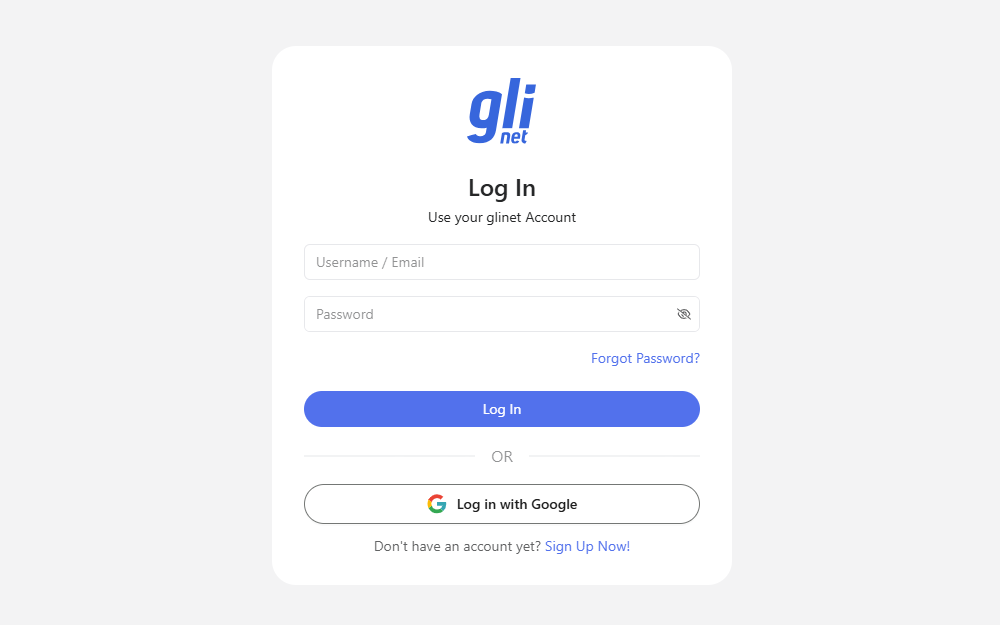
Bind your KVM device to your Cloud account, then log in to the Cloud. Click here for detailed instructions.
-
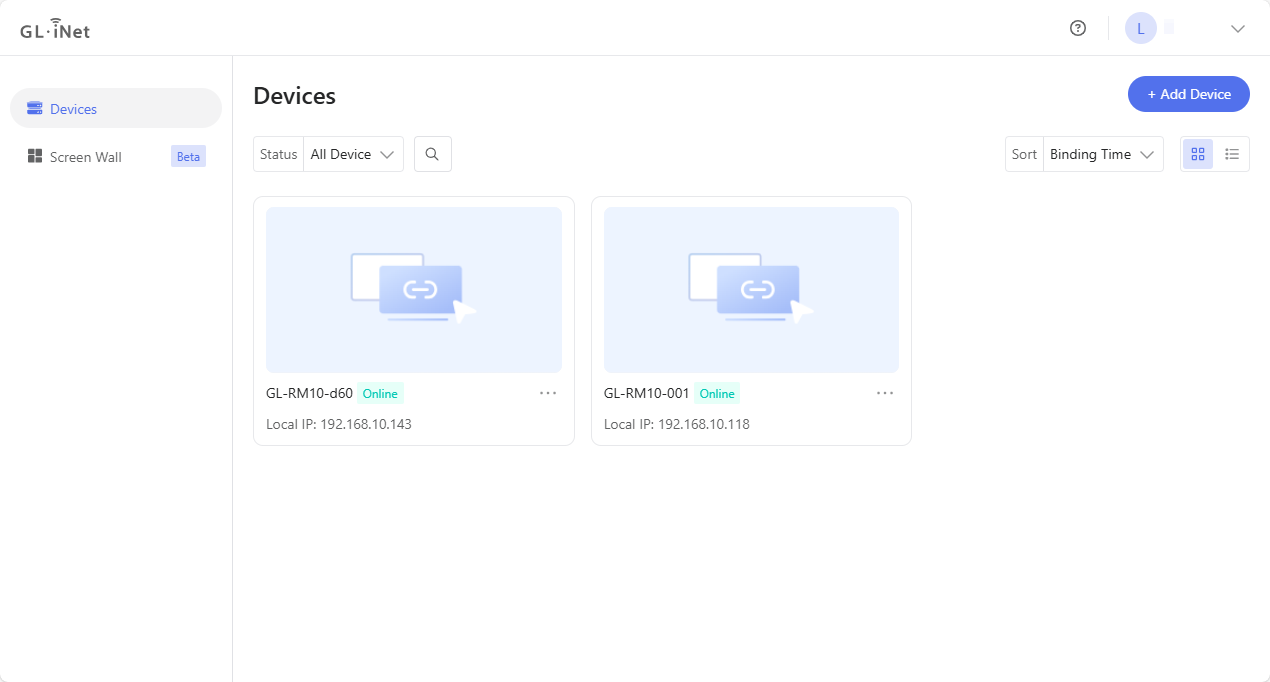
After login, you will see the bound devices in the device list. Make sure they are online.
-
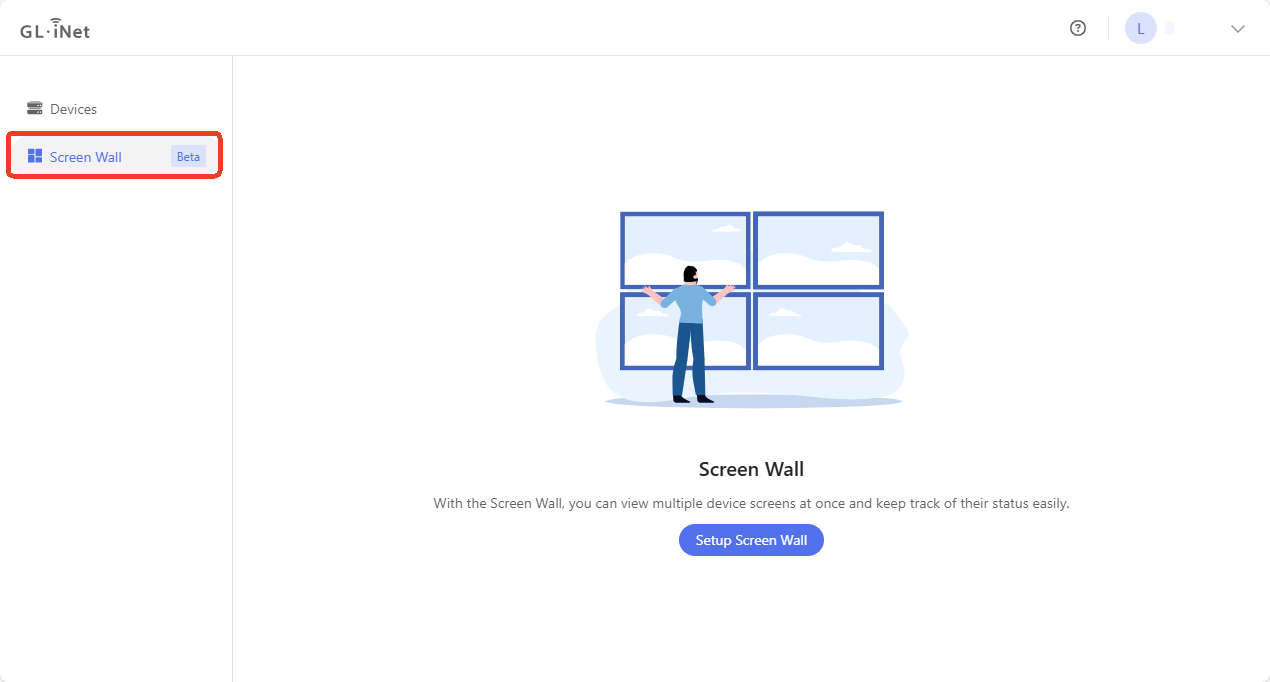
Click Screen Wall in the left side menu, and click Setup Screen Wall.
-
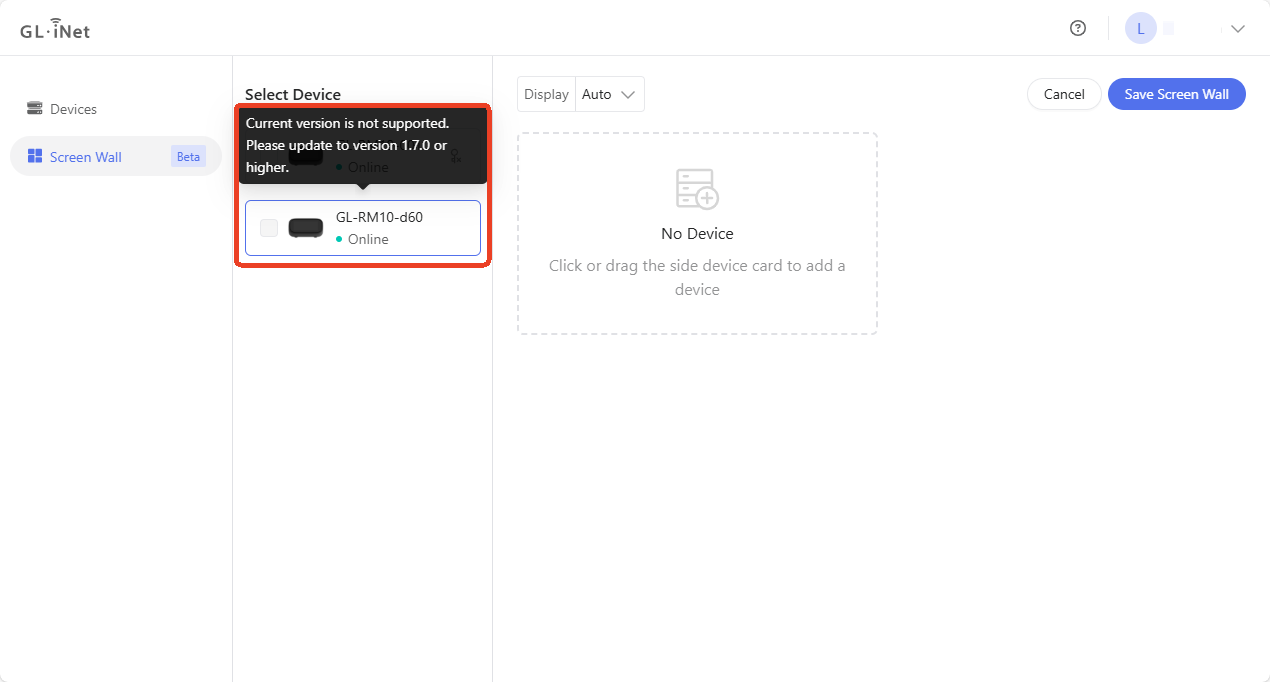
Select the KVM devices you want to view on the screen wall, and click Save Screen Wall in the upper right corner.
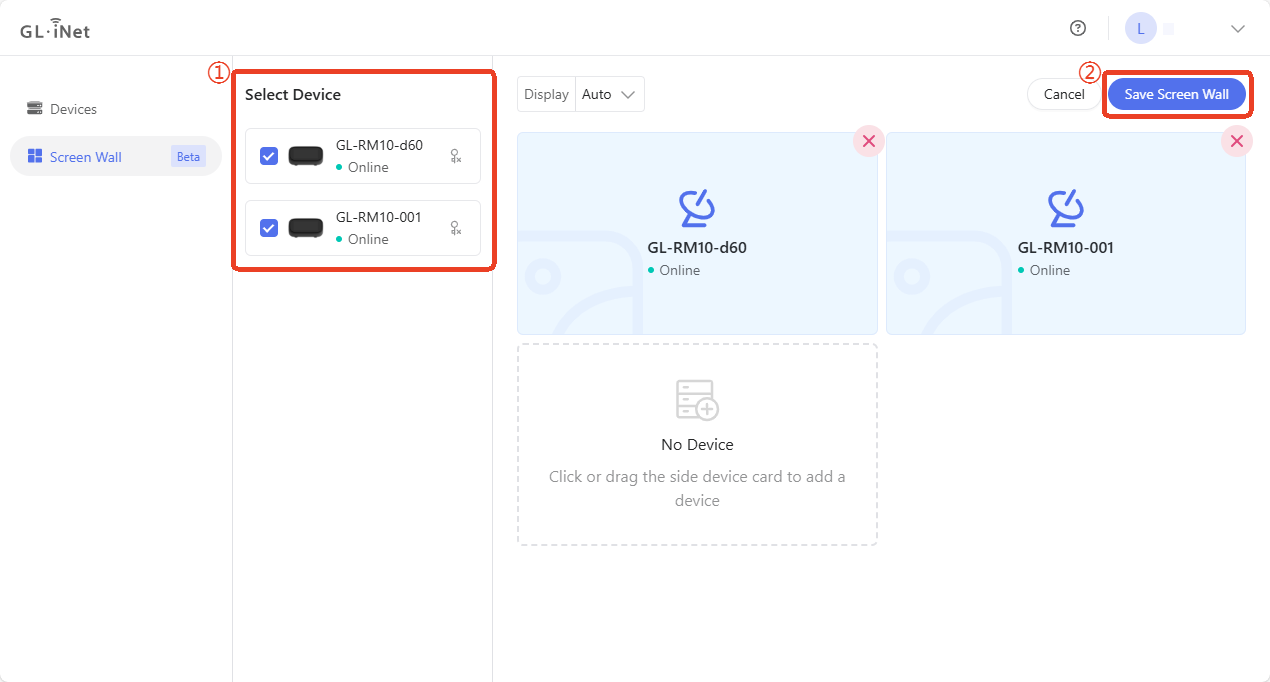
If your device is running firmware lower than version 1.7, it will be grayed-out and unselectable. Please upgrade the firmware first before using this feature.
-
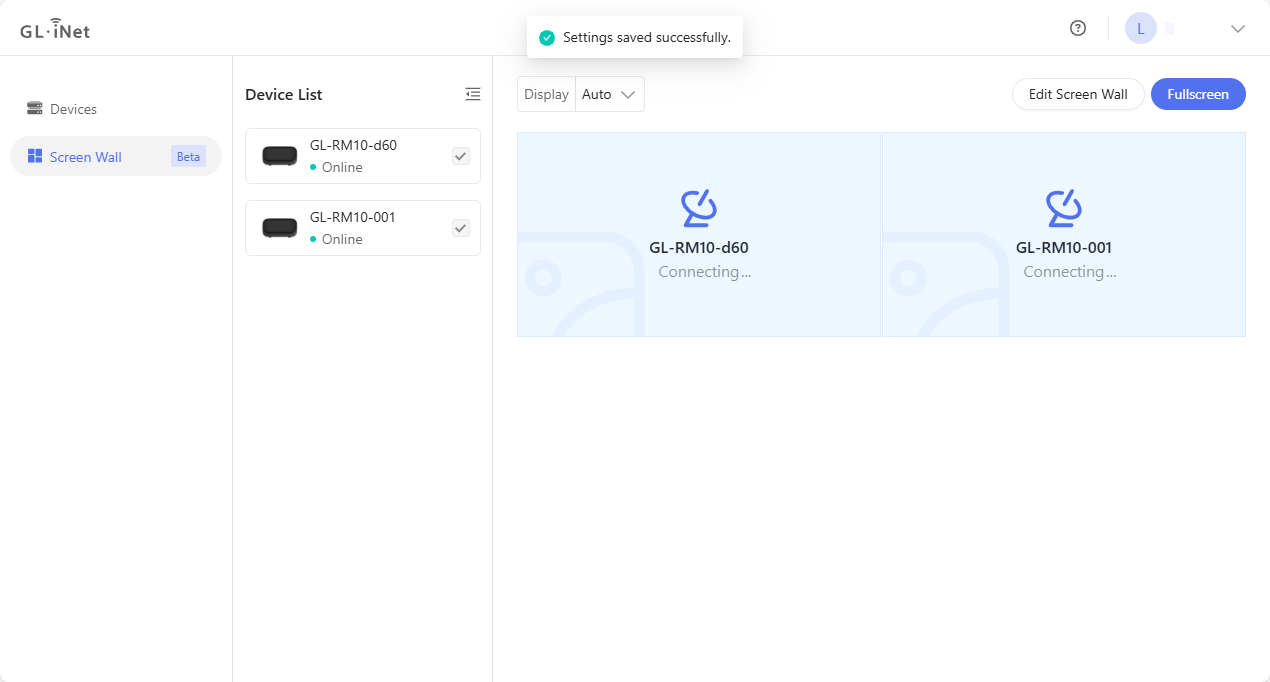
After saving the settings, it will start connecting to the selected device over the Cloud.
-
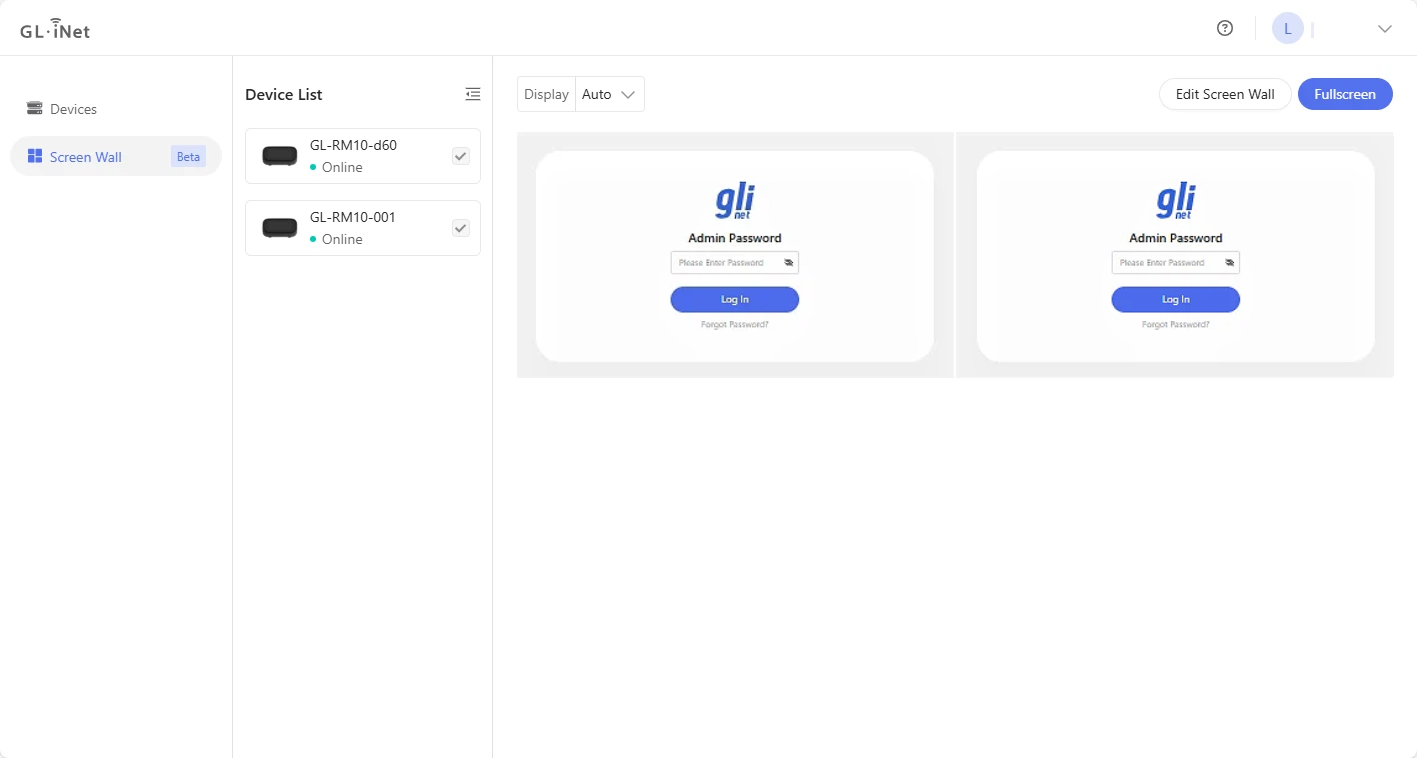
Once connected, enter the admin password for each of your KVM devices.
-
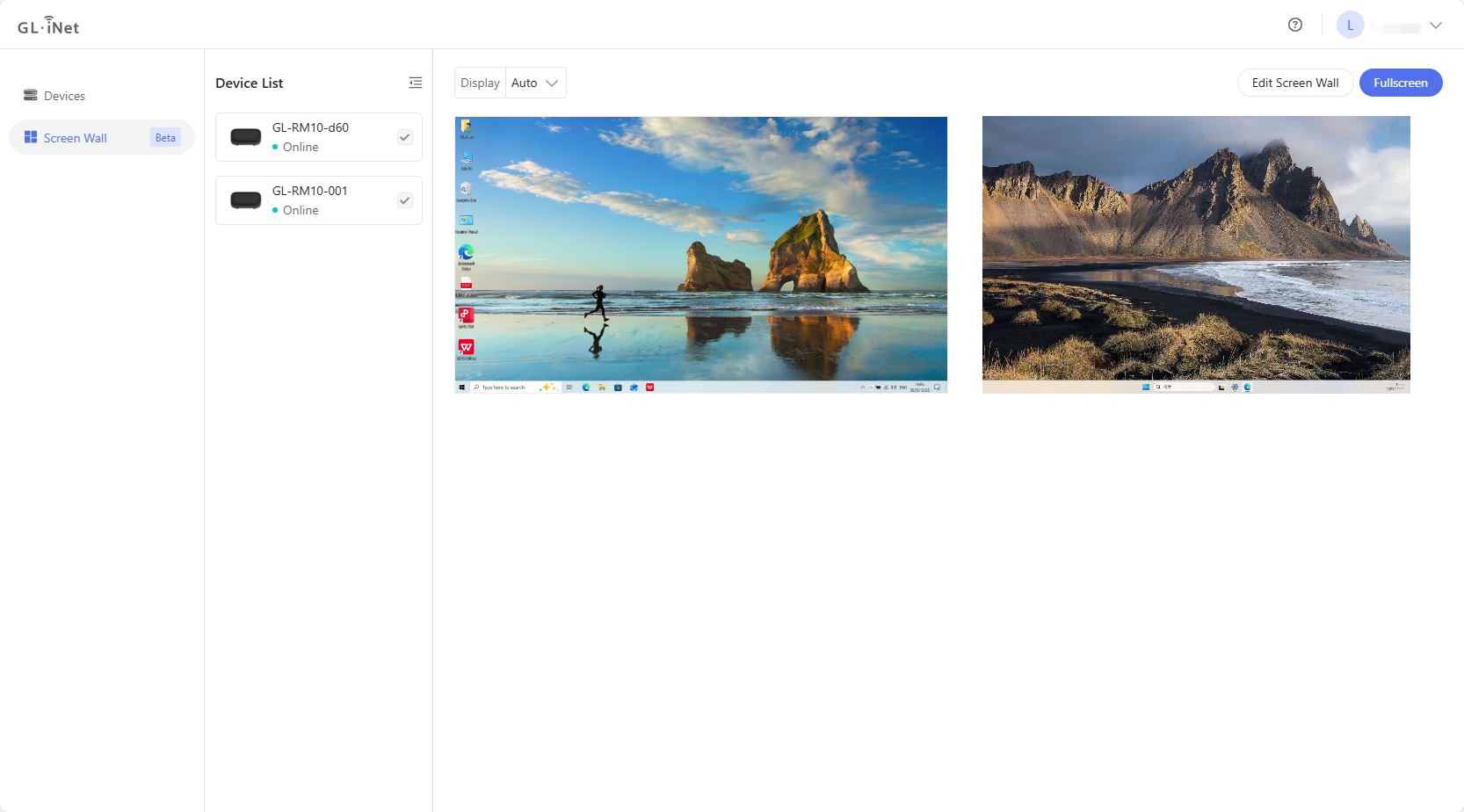
You will then be able to view the screens of multiple devices on a single page.
Still have questions? Visit our Community Forum or Contact us.