Comet Pro (GL-RM10) Console Guide
Settings
On the console, navigate to Settings. The settings page includes four sections:
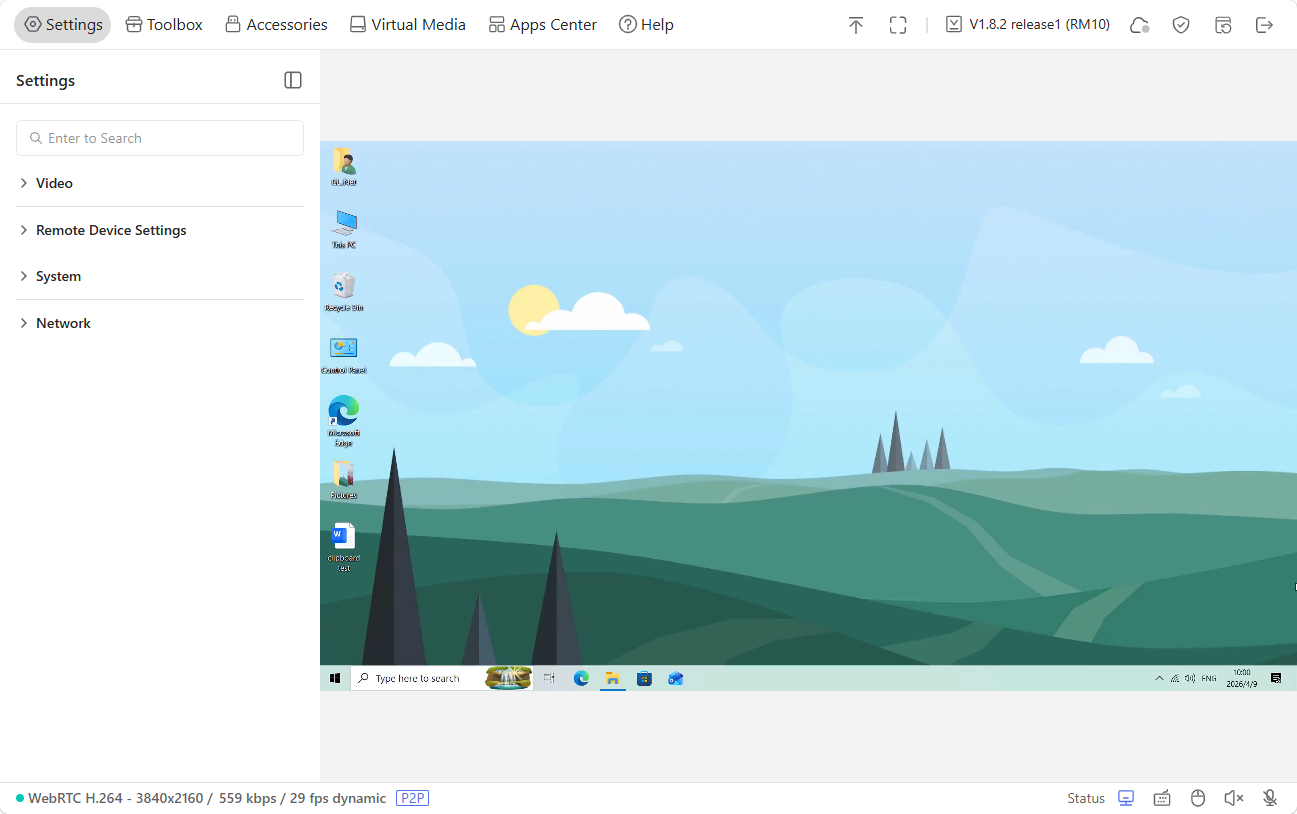
Video
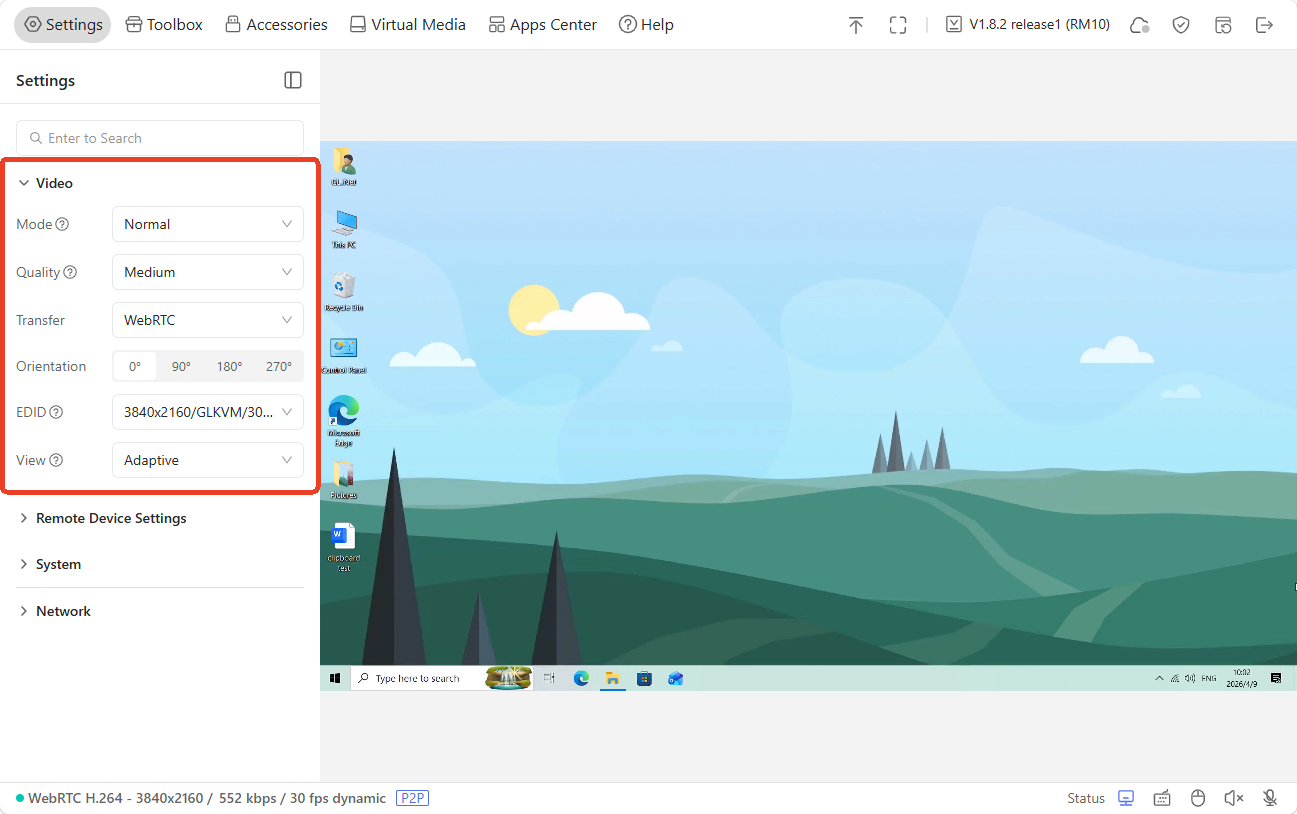
You can customize video settings on the console, such as display mode, video quality, video transmission, screen orientation, and EDID.
-
Mode: Switch between Normal and Smart mode. Smart mode balances latency and video quality for a better experience, especially in weak networks.
-
Quality: Adjust the video quality to low/medium/high/ultra-high according to your network and resolution requirements.
-
Transfer: Switch the video transmission method between WebRTC H.264 and Direct H.264. Note that the Direct H.264 has no sound.
-
Orientation: Adjust the console's rotation angle to 0°/90°/180°/270°.
-
EDID: Extended Display Identification Data (EDID) automatically matches the display's optimal parameters.
The default configuration is suitable for most scenarios and usually does not need to be modified. Click here for details.
Remote Device Settings
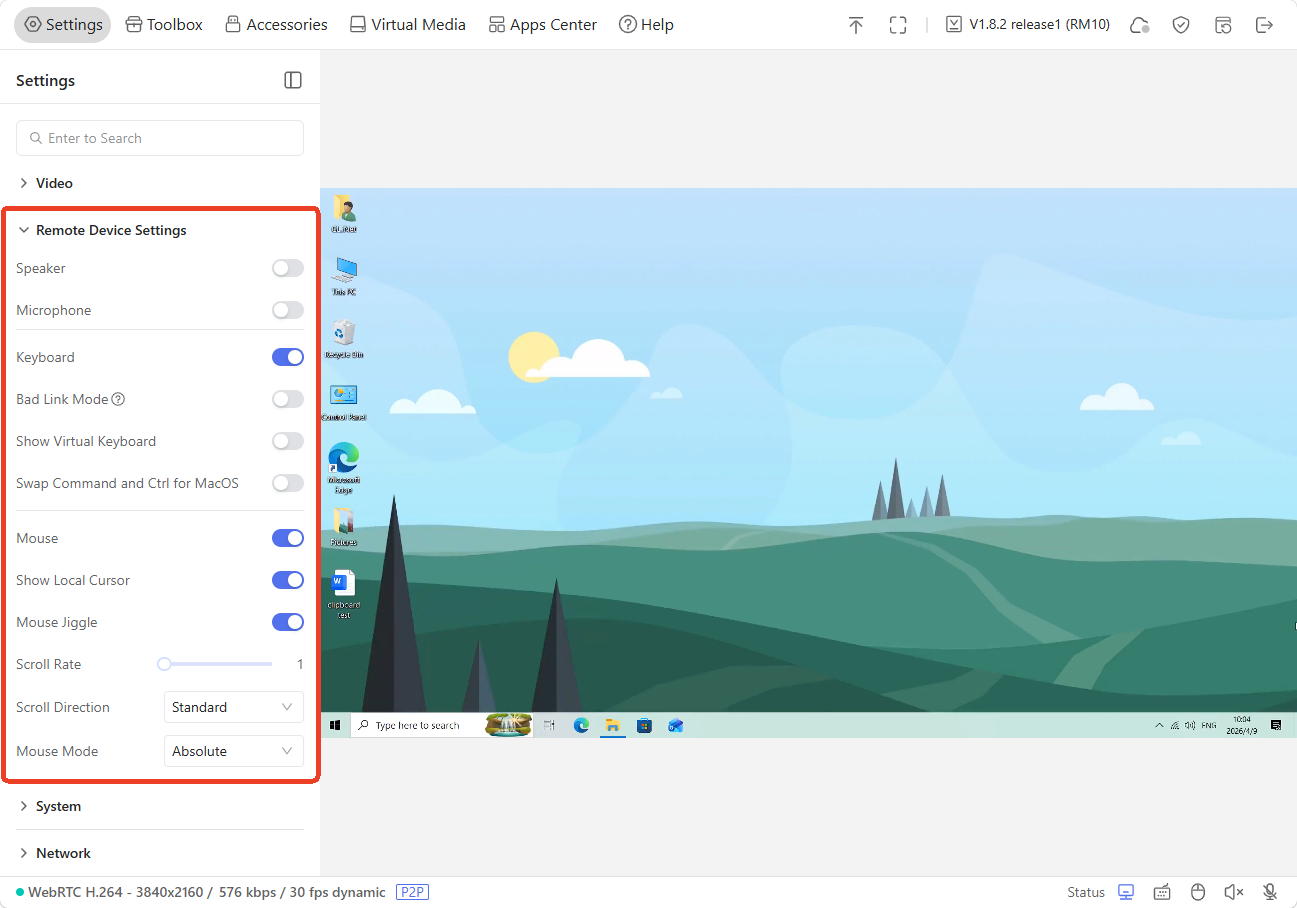
You can adjust the relevant settings of the controlled device.
-
Speaker: Control audio output from the controlled device (e.g., system sounds, video audio)
-
Microphone: Transmit local audio input (e.g., your voice) to the controlled device for remote interaction. It supports one-click mute, and a long-press shortcut to activate the microphone.
-
Keyboard: Turn on or off the keyboard of the controlled device.
-
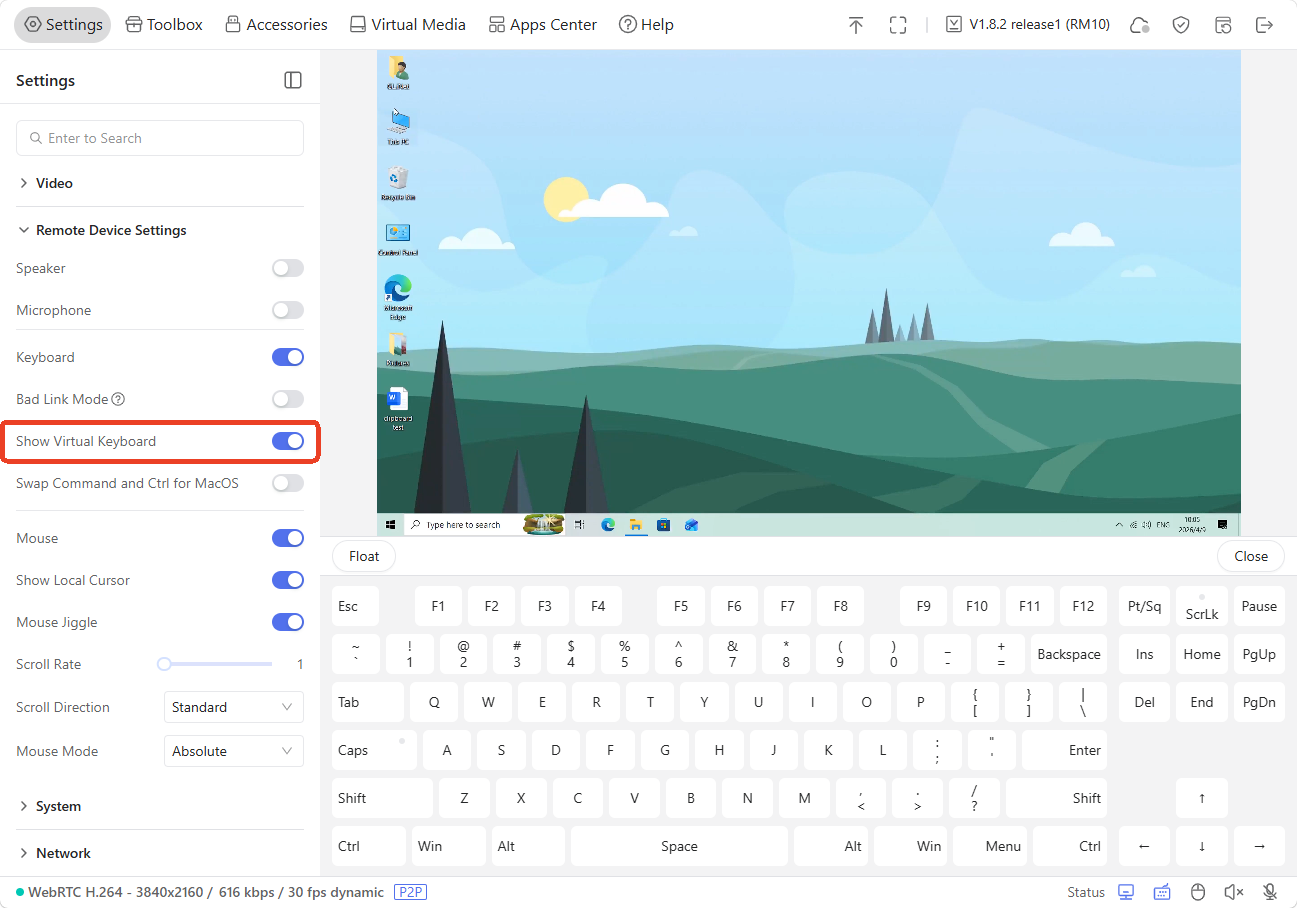
Show Virtual Keyboard: Show and use the virtual keyboard on the console.
-
Mouse: Turn on or off the mouse of the controlled device.
-
Show Local Cursor: Display the mouse of the current device on the screen.
-
Mouse Jiggle: It is applied to prevent the computer from entering sleep due to prolonged inactivity (e.g., remote meetings, server management).
-
Scroll Rate: It refers to the speed at which the mouse wheel scrolls or the number of lines/units scrolled per wheel rotation, affecting how quickly content moves on the remote.
-
Scroll Direction: It determines whether scrolling the mouse wheel up/down moves content on the remote screen in the same direction (natural scrolling) or the opposite direction (traditional scrolling).
Four direction modes are available: Standard, Vertical Invert, Horizontal Invert, and Both Invert.
-
Mouse Mode: Including Absolute Mode and Relative Mode.
-
Relative Sensitivity: It is available when the Mouse Mode is Relative.
System
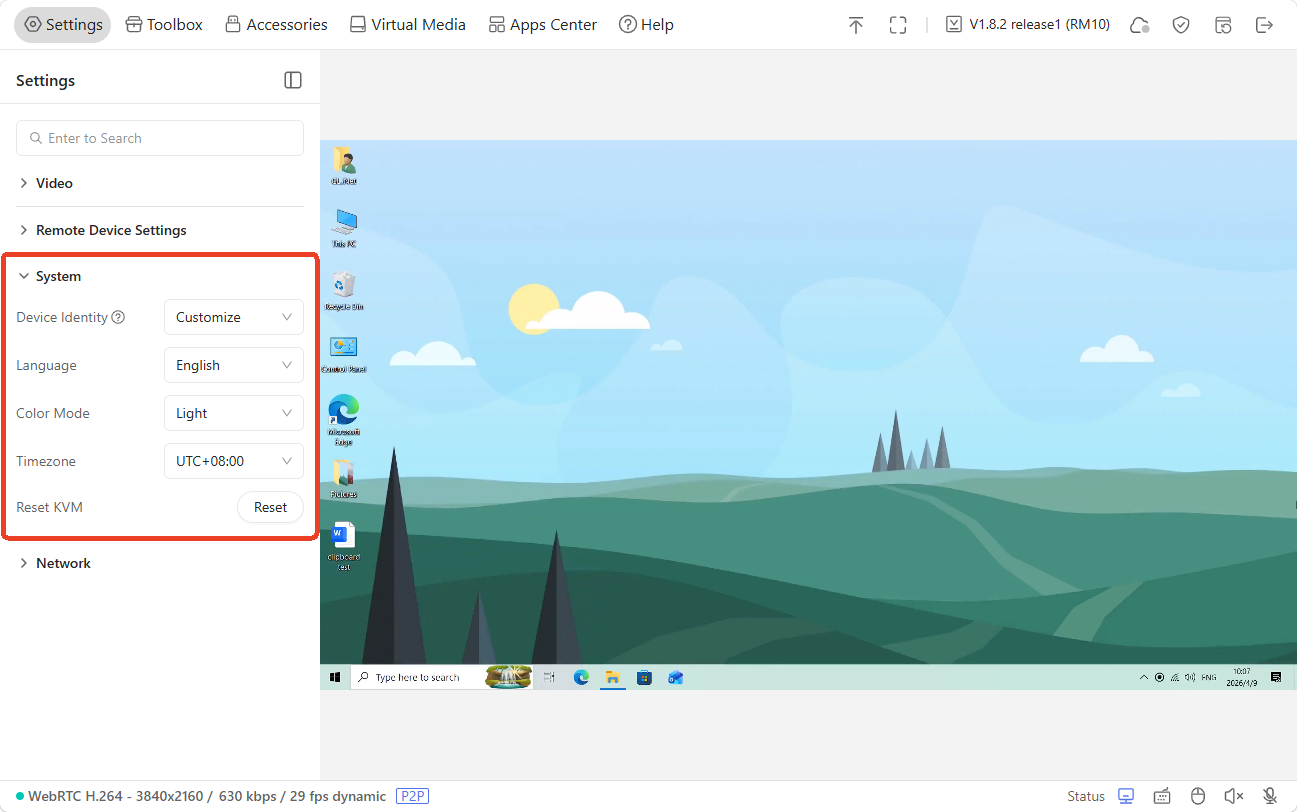
You can customize the system display settings of the console, or reset the device with one click.
-
Device Identity: Customize or modify the KVM's identity recognized by the controlled device. Note that the EDID and device identification will remain synchronized; changing one of them will make the other one automatically updated to ensure correct recognition.
-
Language: Set the console's language to Chinese or English.
-
Color Mode: Customize the theme color to dark and light mode.
-
Time Zone: Customize the time zone of the KVM console.
-
Reset KVM: Factory reset your KVM with just one click.
Network
You can check Comet Pro's network details, e.g., Hostname and IP address.
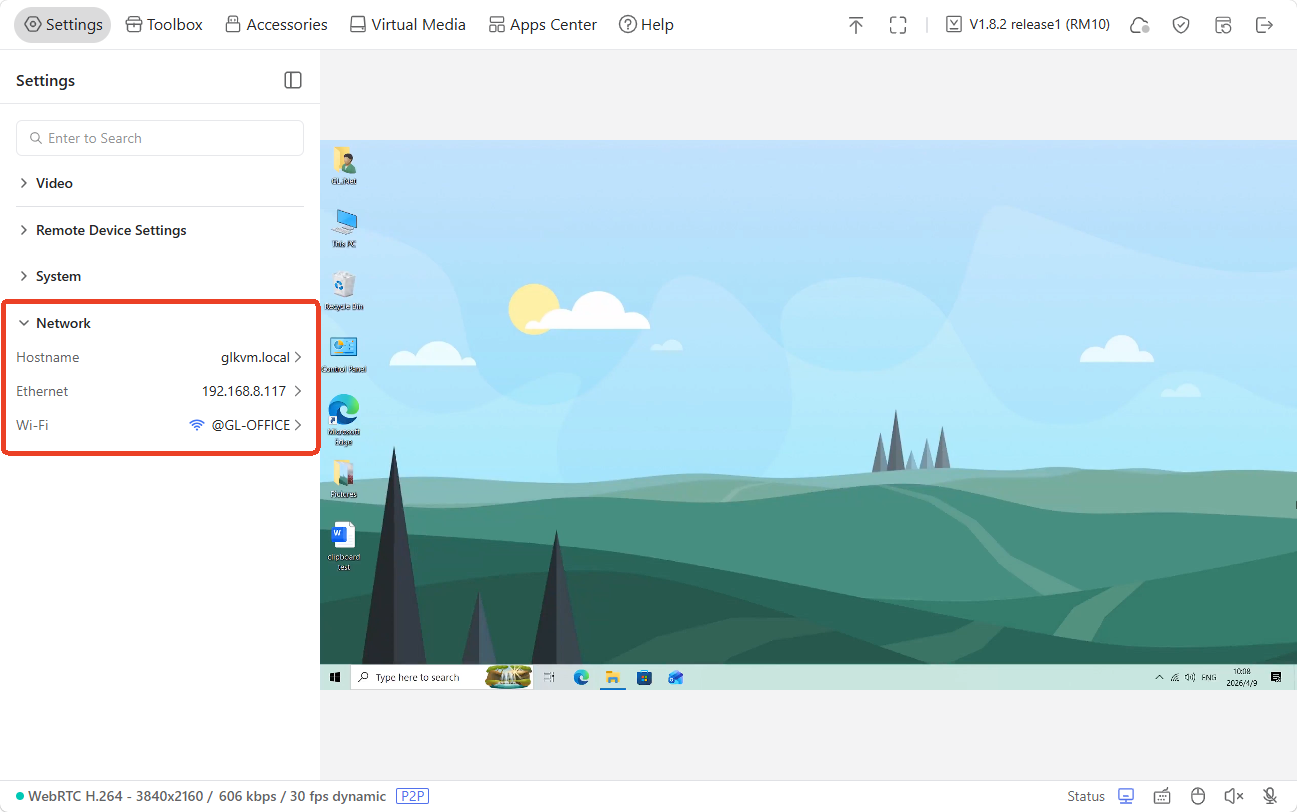
As shown above, Comet Pro connects to an upstream network device via an Ethernet cable and Wi-Fi simultaneously.
You can modify the ethernet settings (e.g., assign a static IP) or wireless settings (e.g., switch networks) as needed.
-
Ethernet Settings
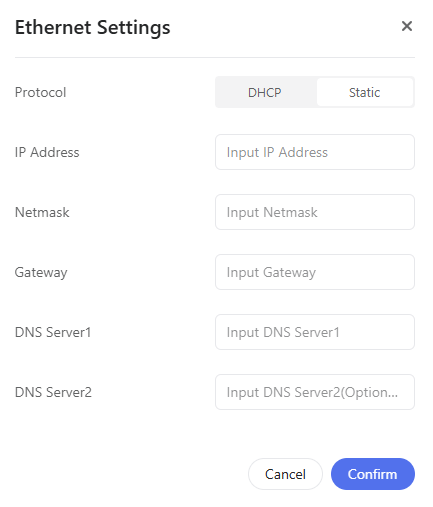
When Comet Pro connects to an upstream device via an Ethernet cable, if the connection protocol is DHCP, it will be dynamically assigned an IP address.
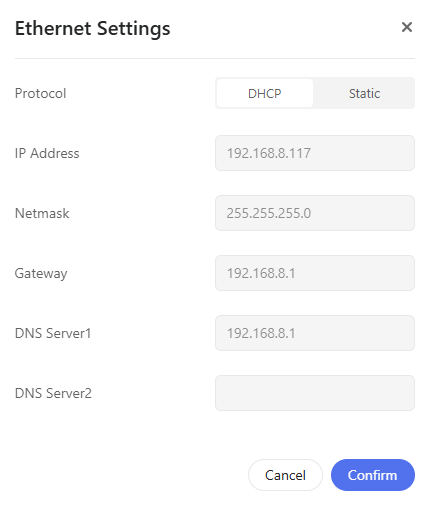
If you want to set a static IP address, switch the protocol to Static and enter the required network parameters (e.g., IP address, netmask, gateway) accordingly.
-
Wireless Settings
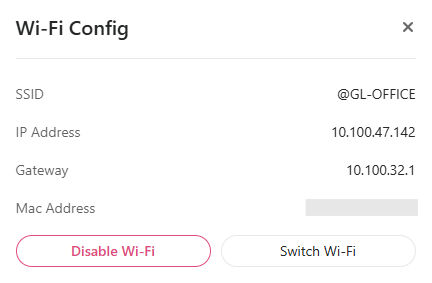
When Comet Pro connects to a Wi-Fi network, you can view the SSID, the assigned IP address, gateway, and its MAC address.
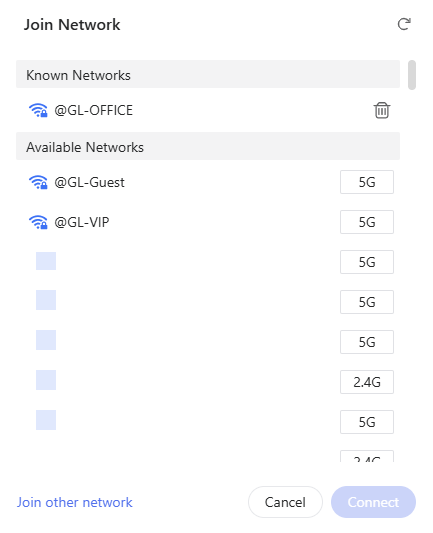
If you want to connect it to another Wi-Fi network, click Switch Wi-Fi and select the network from available Wi-Fi networks.
Toolbox
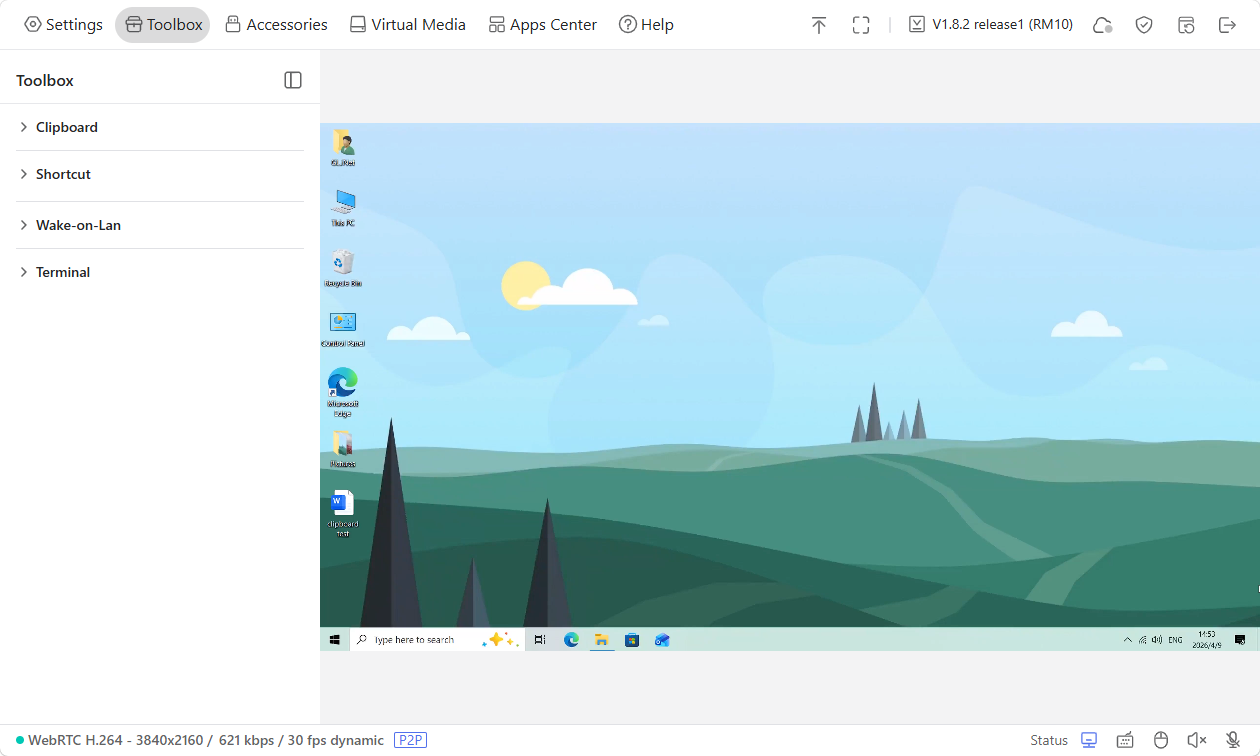
On the console, navigate to Toolbox. The toolbox page includes four sections:
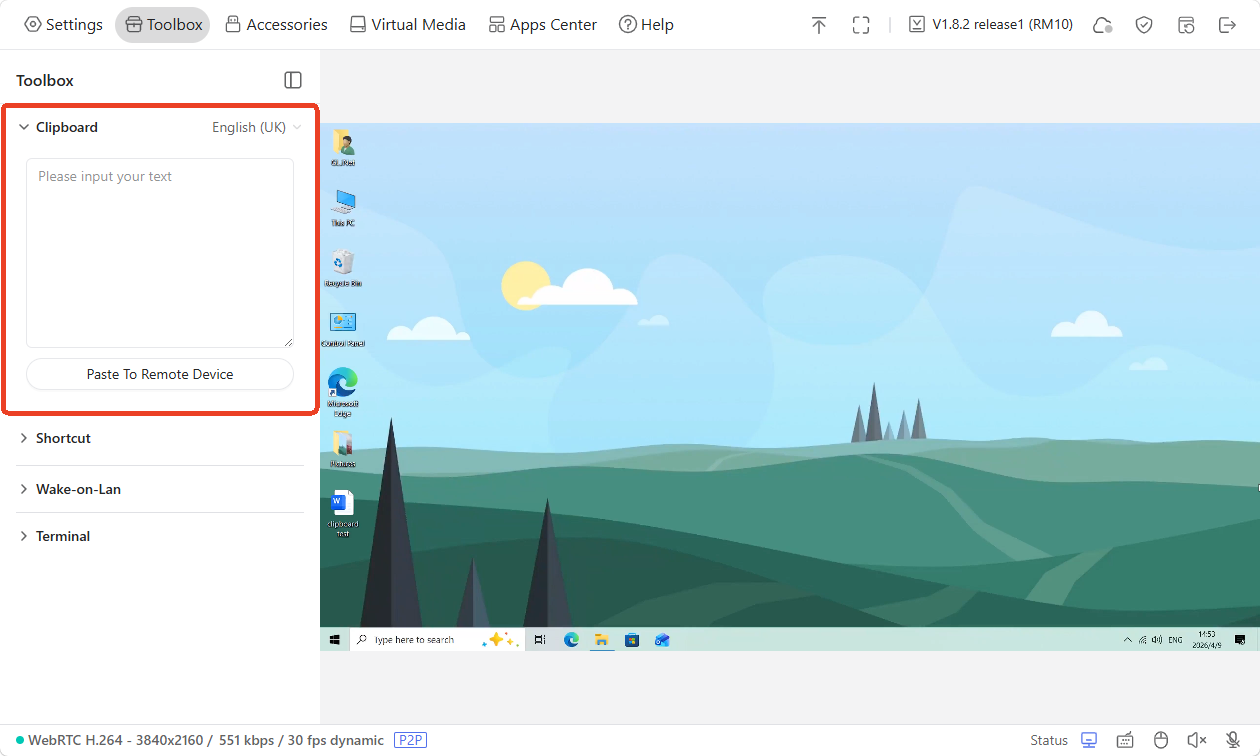
Clipboard
The clipboard allows you to easily paste text from the controlling device to the controlled device, without the need to transfer files.
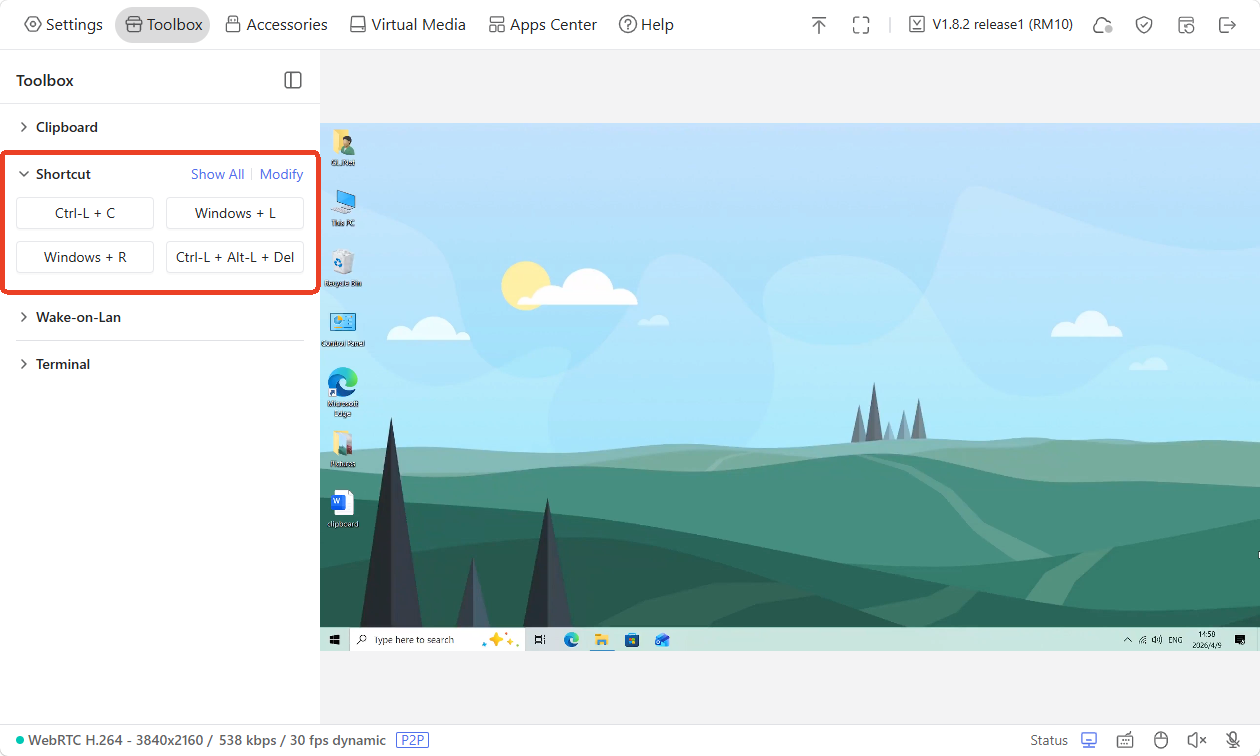
Shortcut
The shortcut let you perform actions faster without using the mouse, helping you work more efficiently and save time on daily tasks. You can find some common shortcuts here.
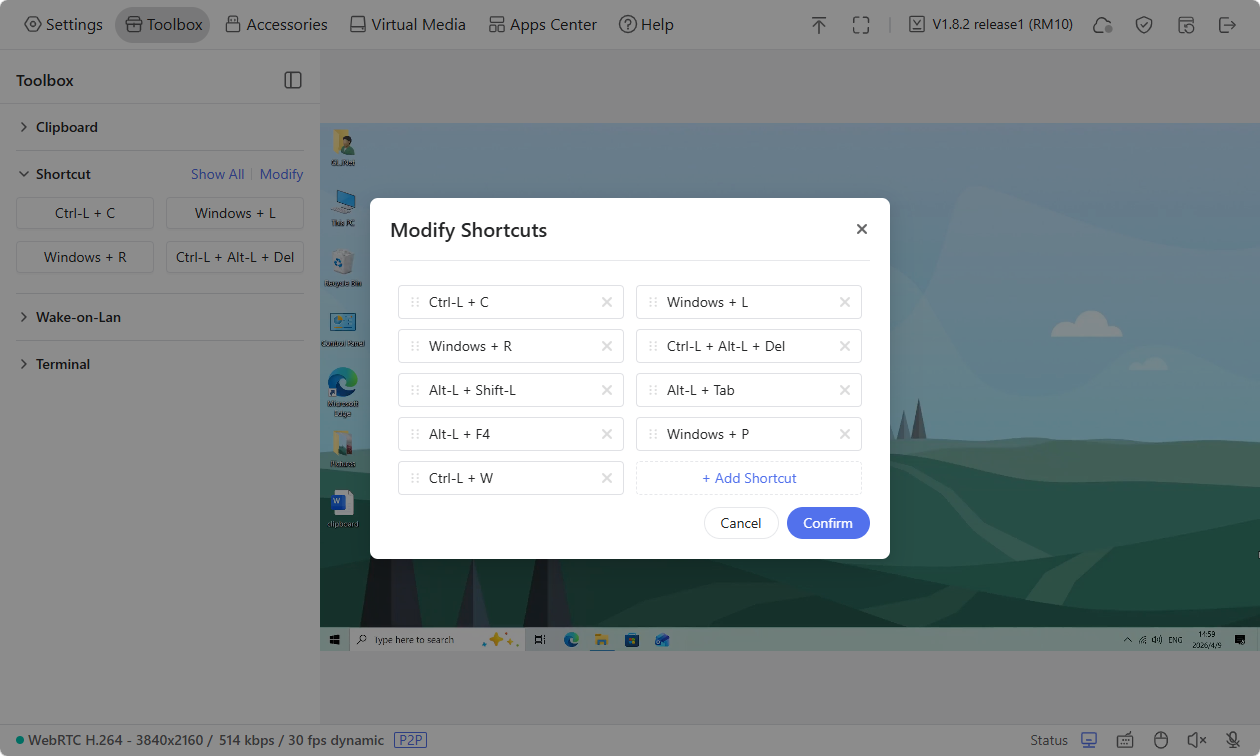
Click Modify to adjust the shortcuts options as needed.
Wake On Lan
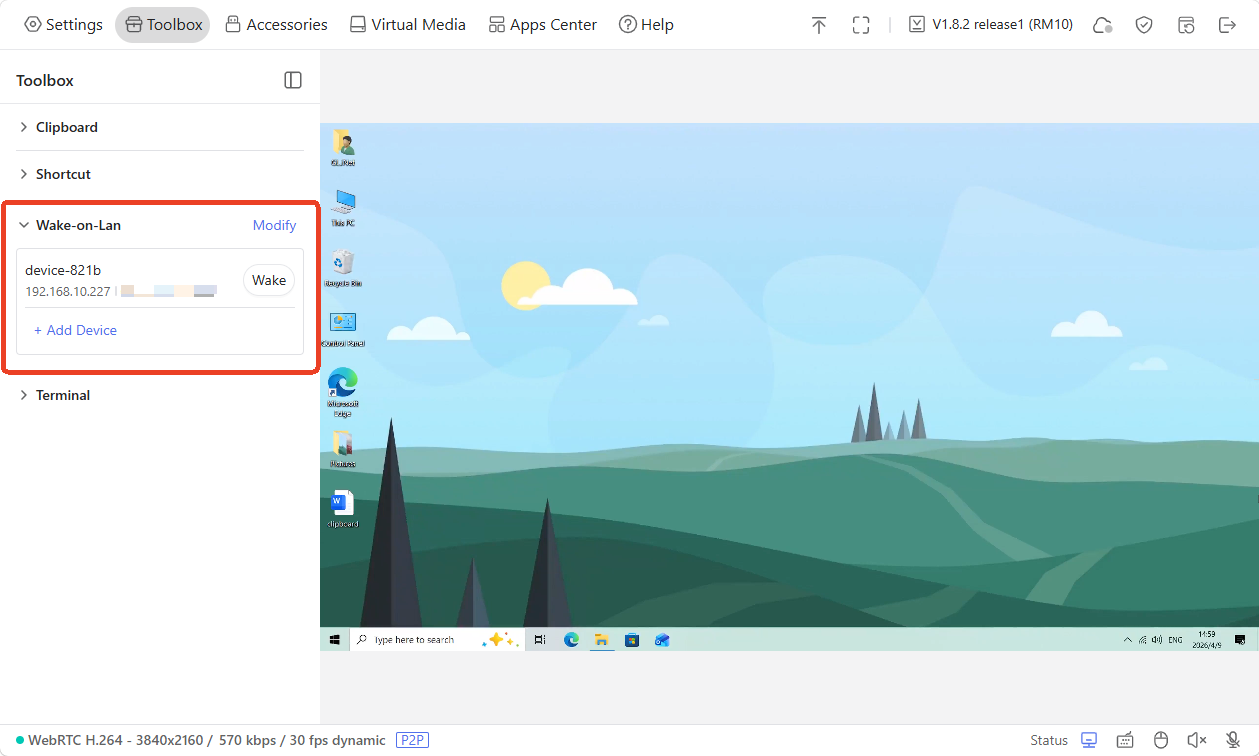
Wake-on-LAN (WOL) is a technology that allows the controlled device to be remotely powered on or awakened from a low-power state.
Click Add Device to choose a device from the same LAN and set up Wake-on-LAN.
Terminal
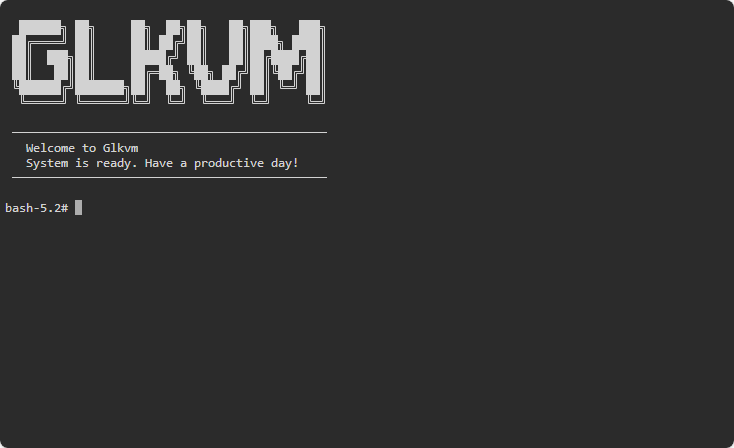
You can access Comet Pro's terminal to perform advanced settings.
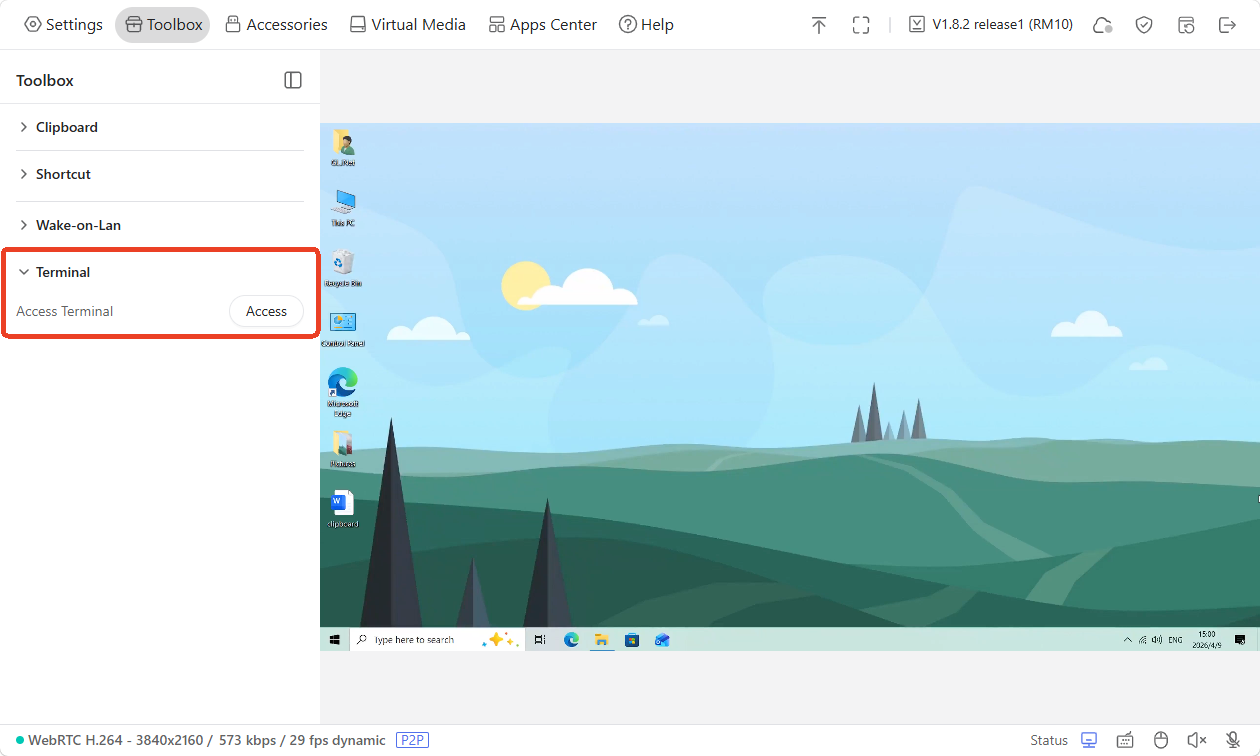
Click Access, and you will be re-directed to the GLKVM terminal, as shown below.
Accessories
GL.iNet offers optional accessories for KVM devices to provide additional convenience for remote control.
First, refer to the corresponding user guide for connecting the accessory to the controlled device.
Second, log in to the KVM console and navigate to Accessories. You will be able to control the device's power on/off through the accessories.
Note: Accessory settings are only available after the accessory is installed.
Fingerbot
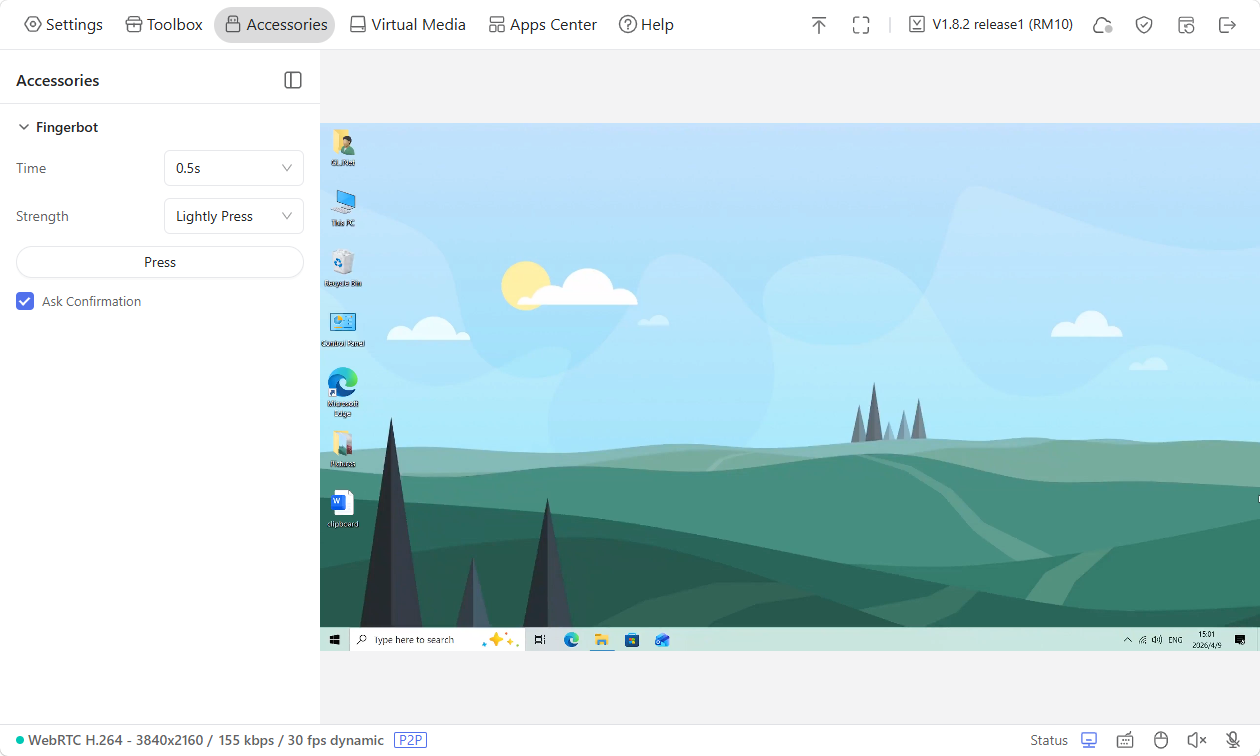
The Fingerbot is adhered to the physical power button of the controlled device, to achieve remote control of the controlled device's power supply.
It works according to the settings configured on the console.
-
Time: The press duration of the Fingerbot. You can set it to 0.5s/3s/8s.
-
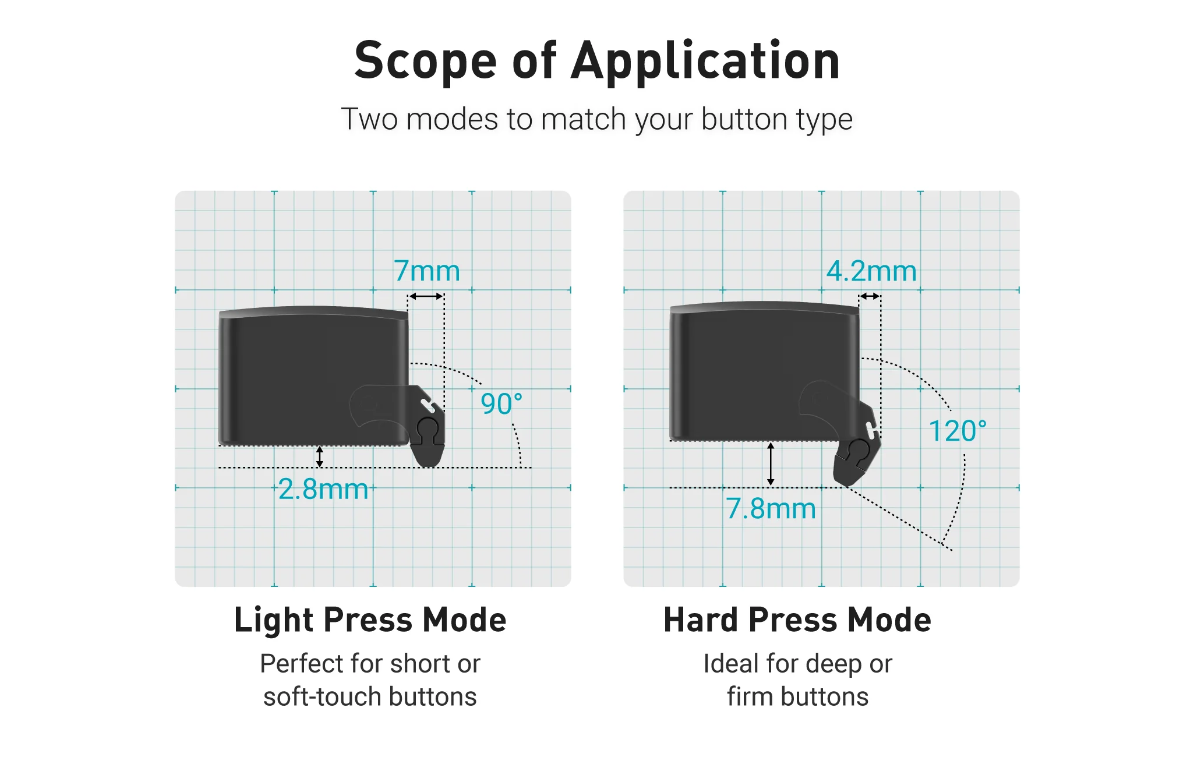
Strength: There are two levels of pressing strength: Lightly Press and Firmly Press.
-
Lightly Press: Perfect for short or soft-touch buttons.
-
Firmly Press: Ideal for deep or firm buttons.
-
ATX Power
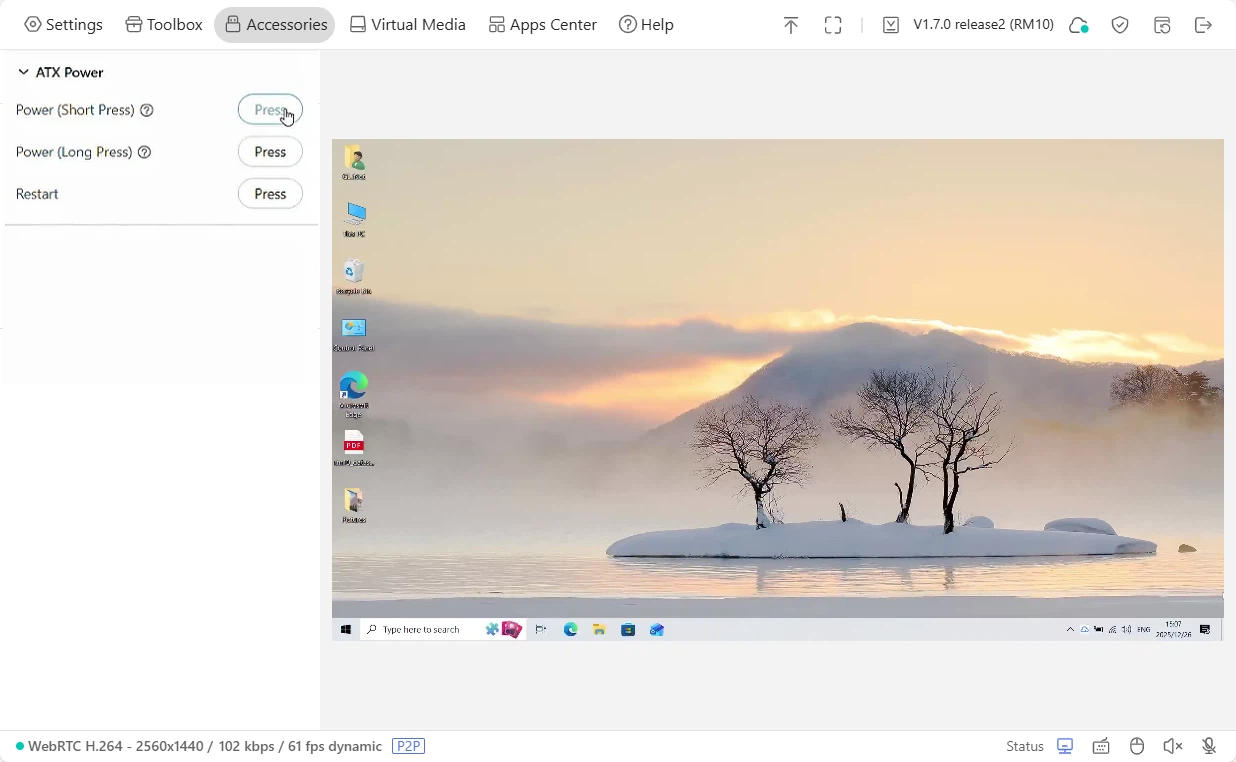
The ATX Board is installed in the computer case to achieve remote control of the device's power on/off/reboot.
It works according to the settings configured on the console.
-
Power (Short Press): Used for regular power-on or system wake-up.
-
Power (Long Press): Performs a forced shutdown operation.
-
Restart: Restart the device.
Virtual Media
Comet Pro allows you to transfer files or mount images between the controlling device and the controlled device.
On the console, navigate to Virtual Media. Here you can perform the following operations:
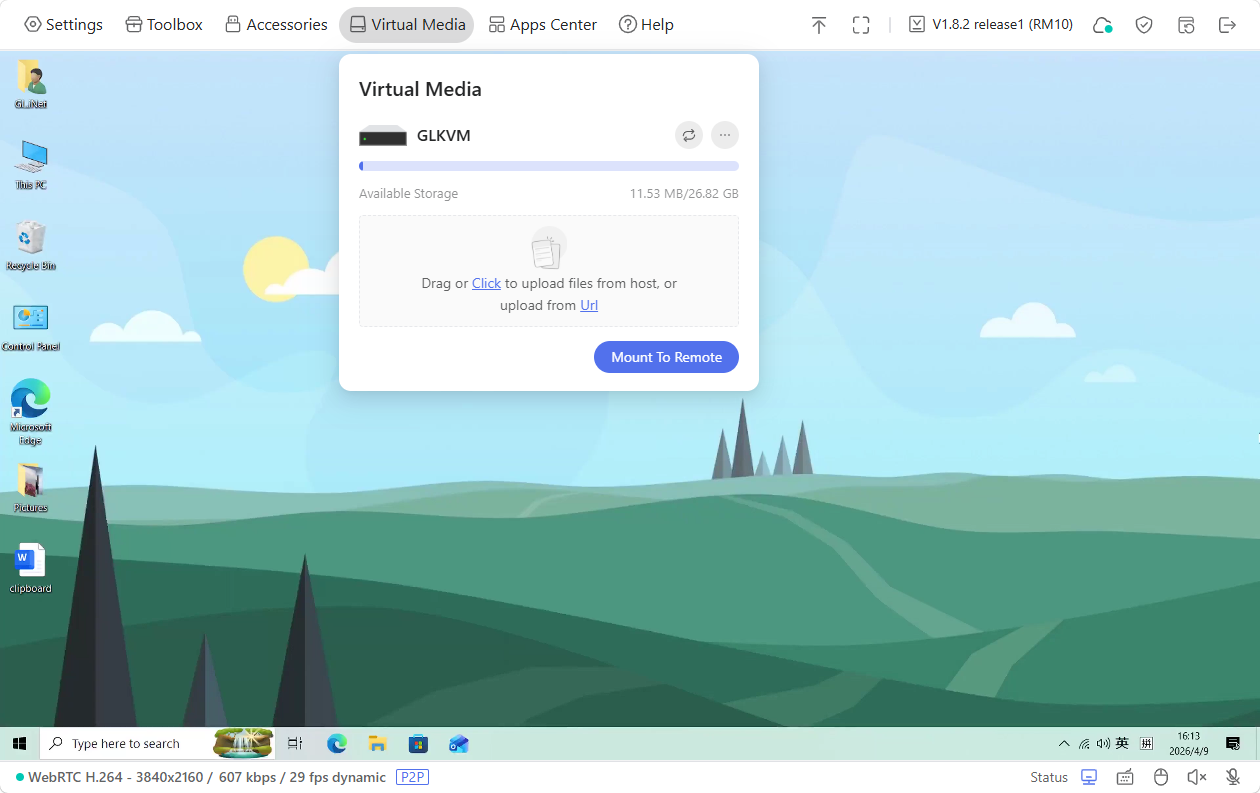
File Sharing
It emulates a read-write USB drive, allowing you to share and manage files between the controlling device and the controlled device.
To share files from the controlling device to the controlled one, follow the steps below.
-
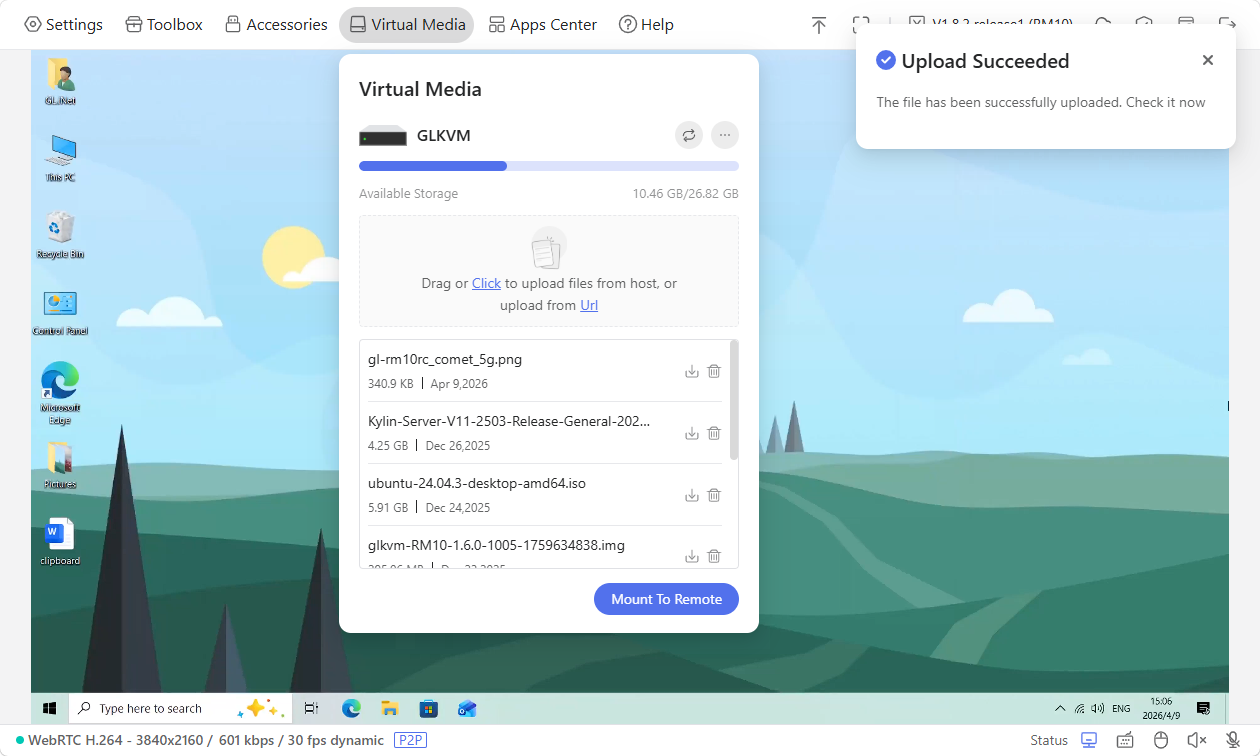
Drag or click the box to upload files from your controlling device or upload from URL.
Once uploaded, the files will be displayed as follows.
-
Click Mount To Remote -> File Sharing.
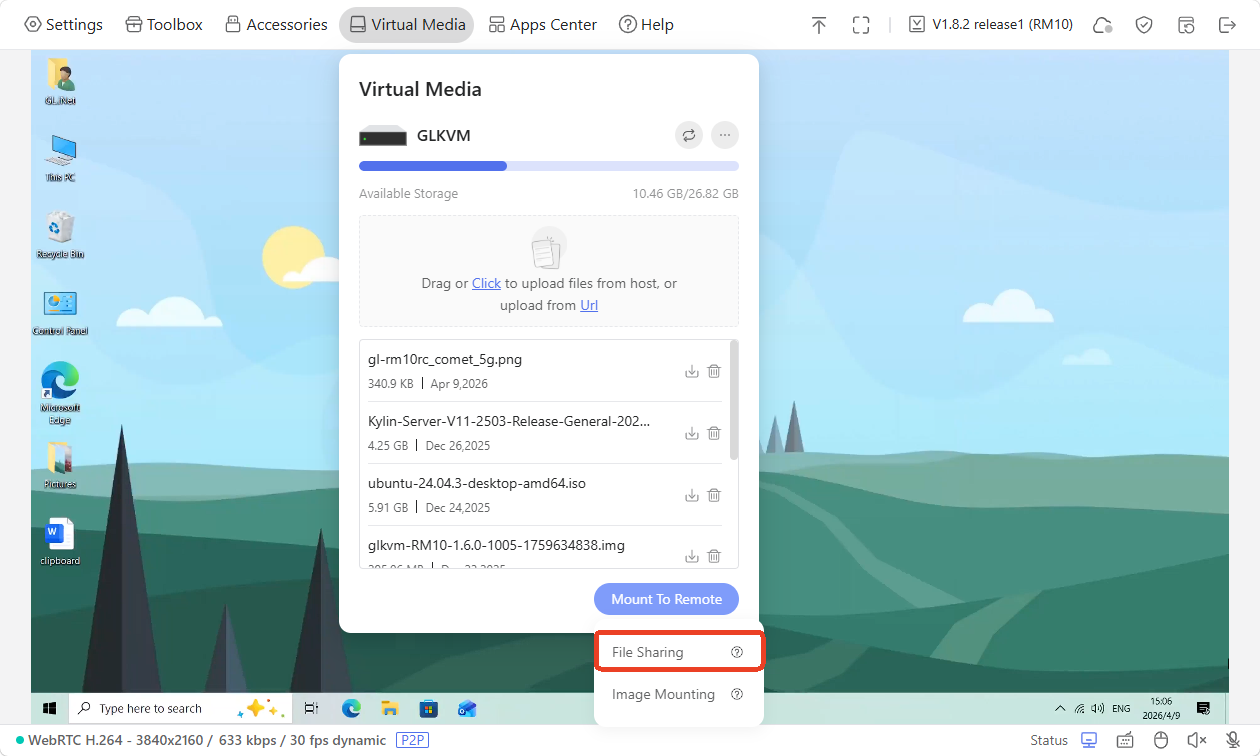
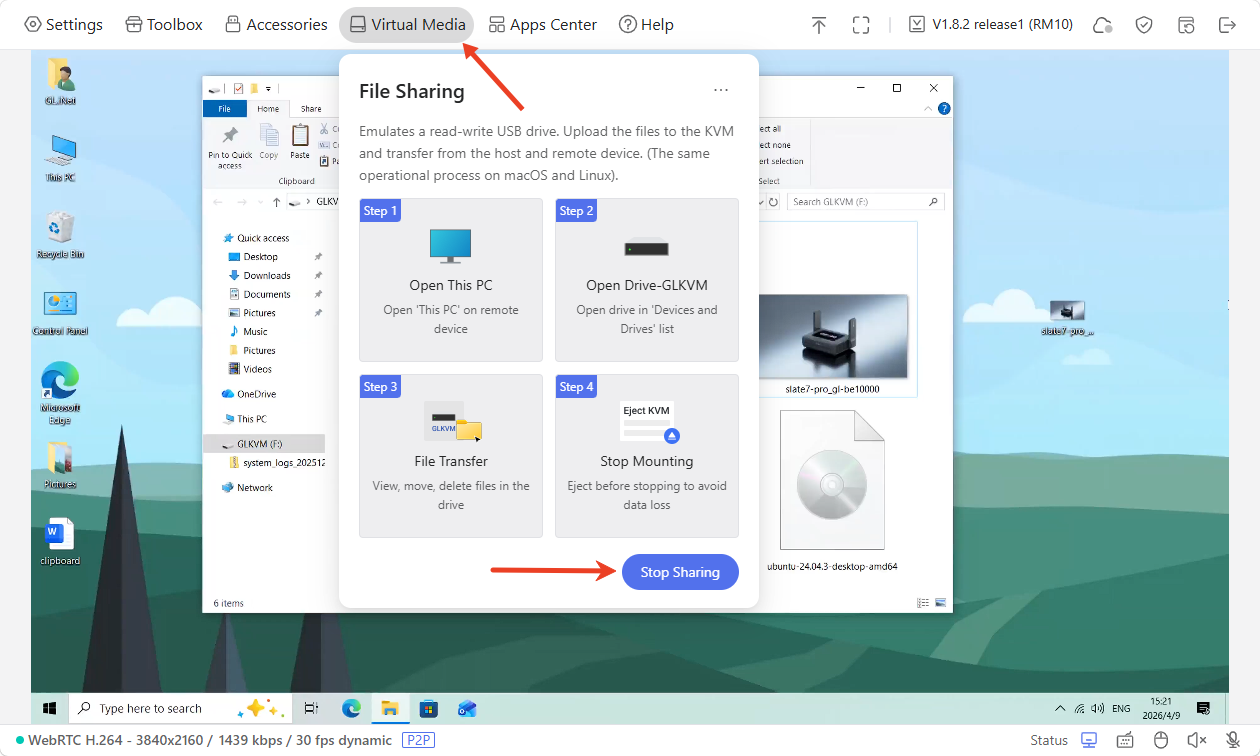
A window will pop up on the console, indicating the file sharing steps, as shown below.
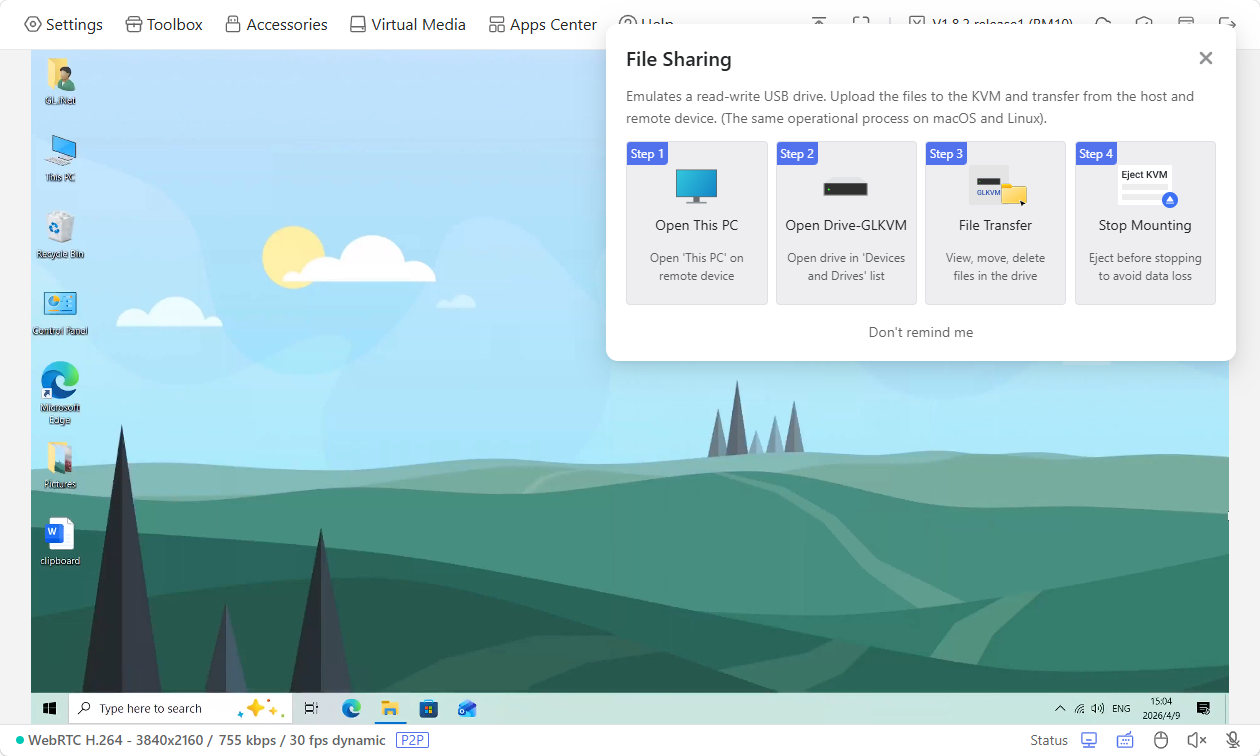
-
Wait a second, and a drive named "GLKVM" will pop up on the screen automatically. You will then see the files you previously uploaded from the controlling device to Comet Pro have been shared to the controlled device. Now you can view, move or delete the files in this drive on the controlled end.
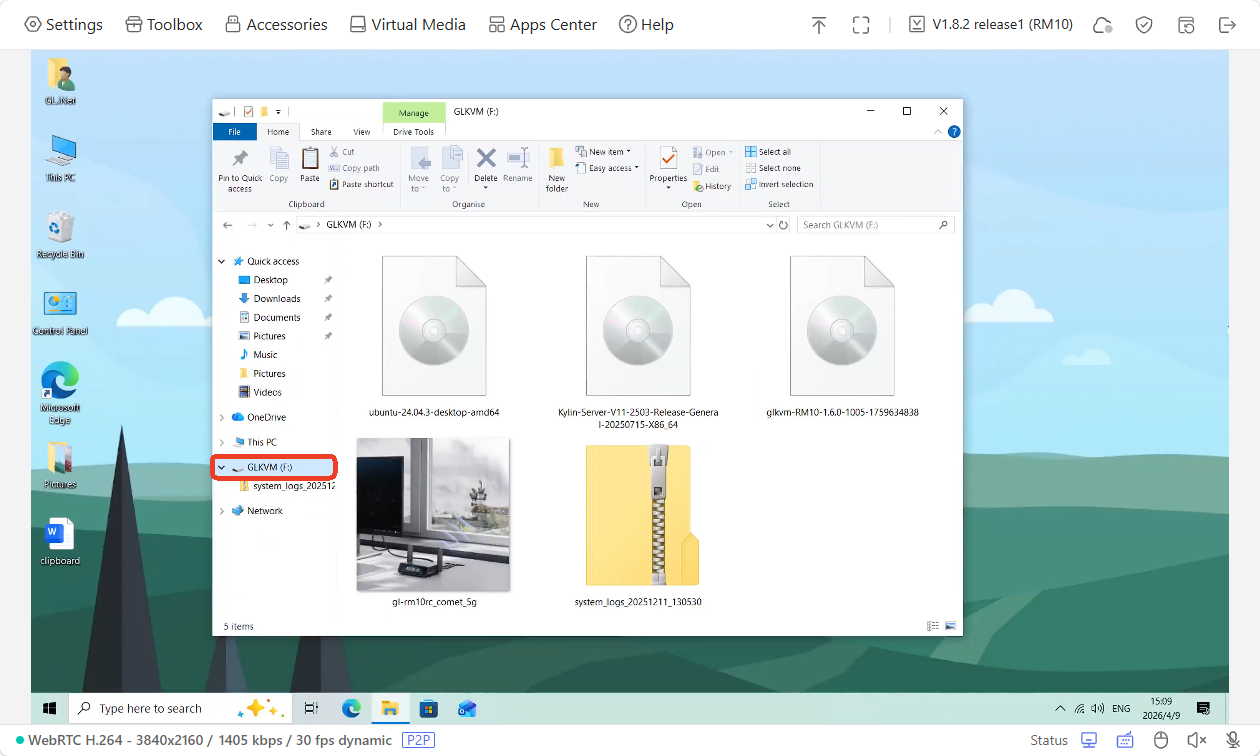
Tips: If the drive does not pop up automatically, go to This PC of your controlled device.
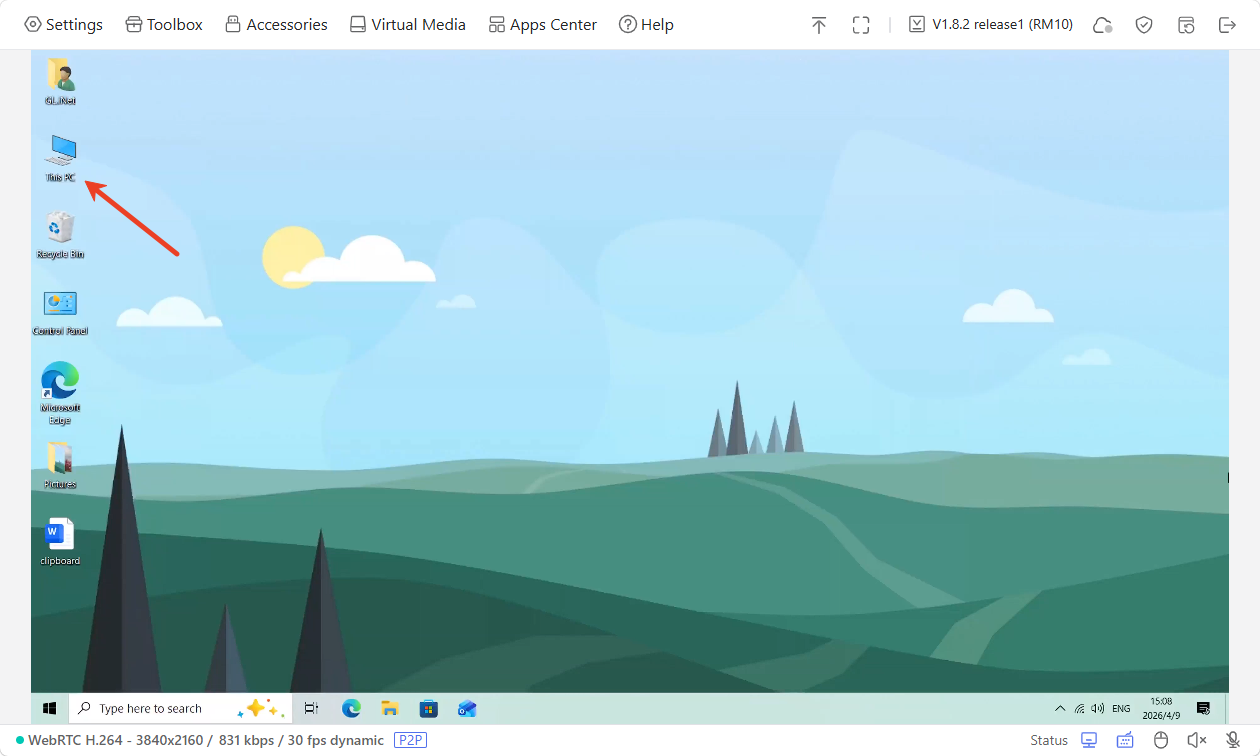
Then find a drive named GLKVM. Now you can view, move or delete the files in this drive.
-
If you want to stop the sharing, click Virtual Media in the toolbar and click Stop Sharing.
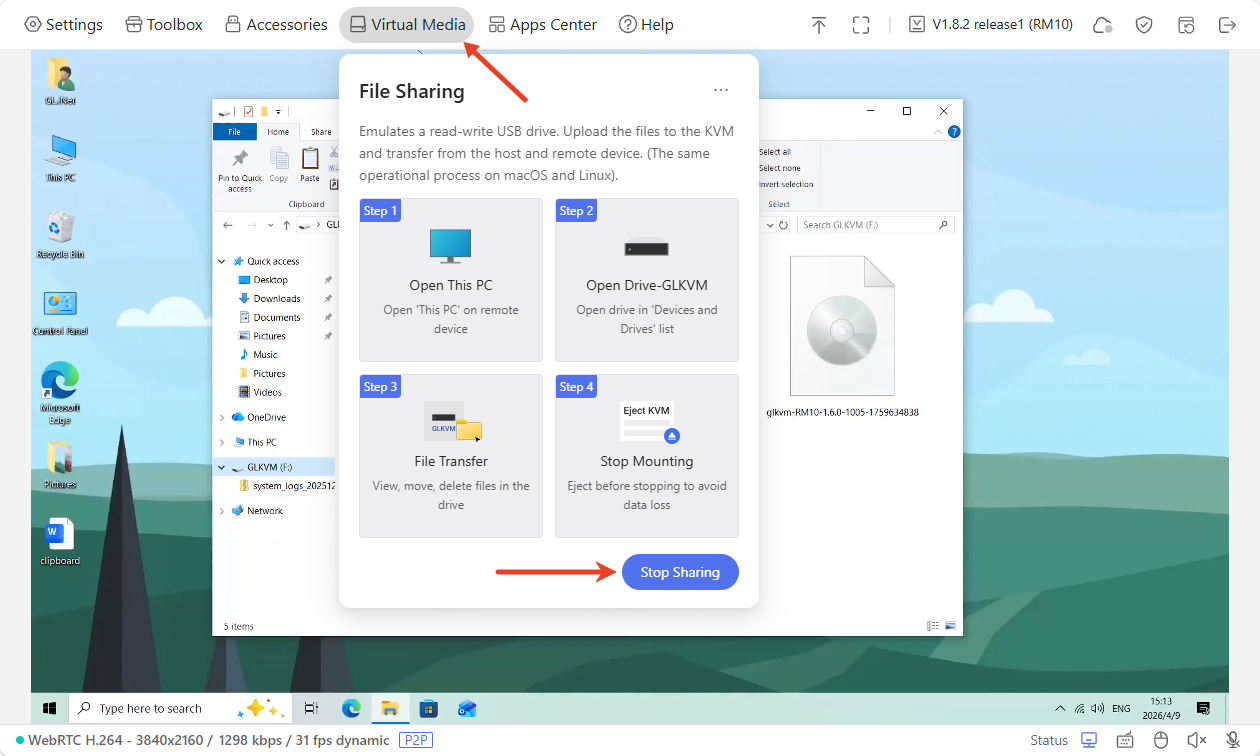
To share files from the controlled device to the controlling one, follow the steps below.
-
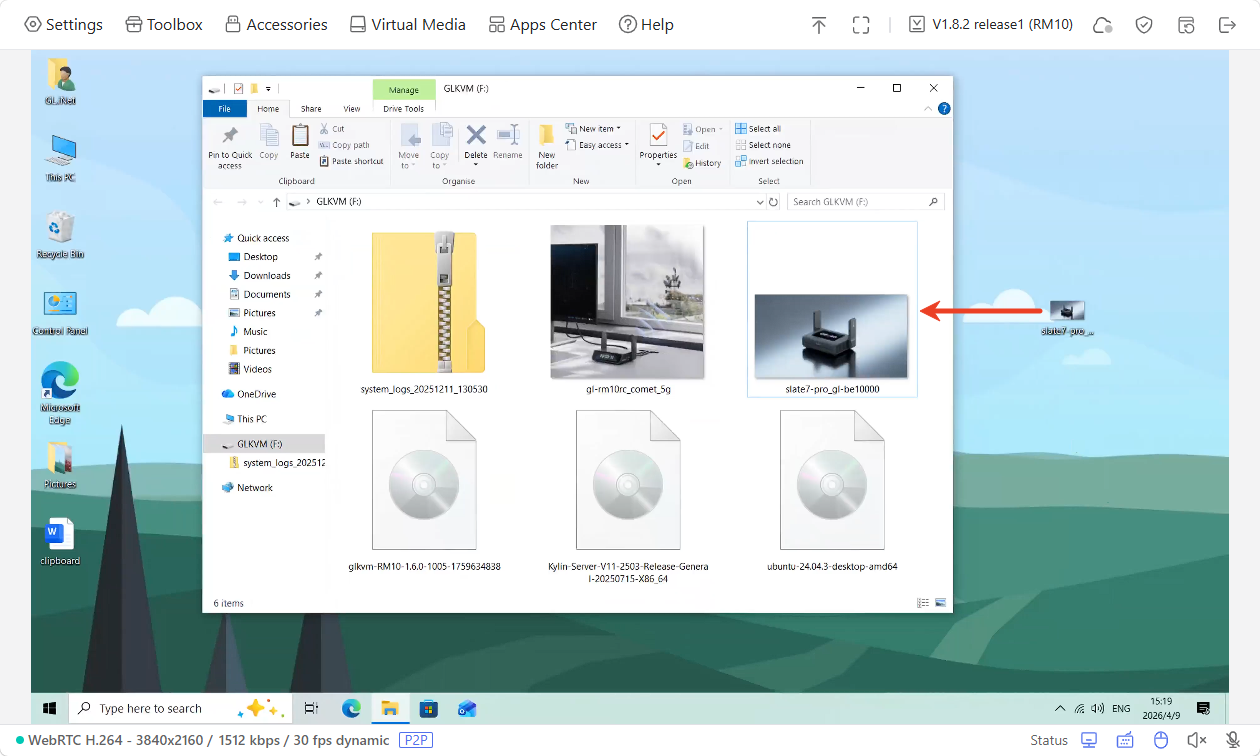
On the controlled device, move or copy the files you want to share into the drive GLKVM.
For example, an image named "slate7-pro_gl-be10000" has been moved from the controlled device's Desktop to the drive GLKVM.
-
Turn to the Comet Pro's console, click Virtual Media in the toolbar and click Stop Sharing.
-
This file will then be displayed under the Virtual Media, as shown below. Now you can download this file from Comet Pro to your controlling device.
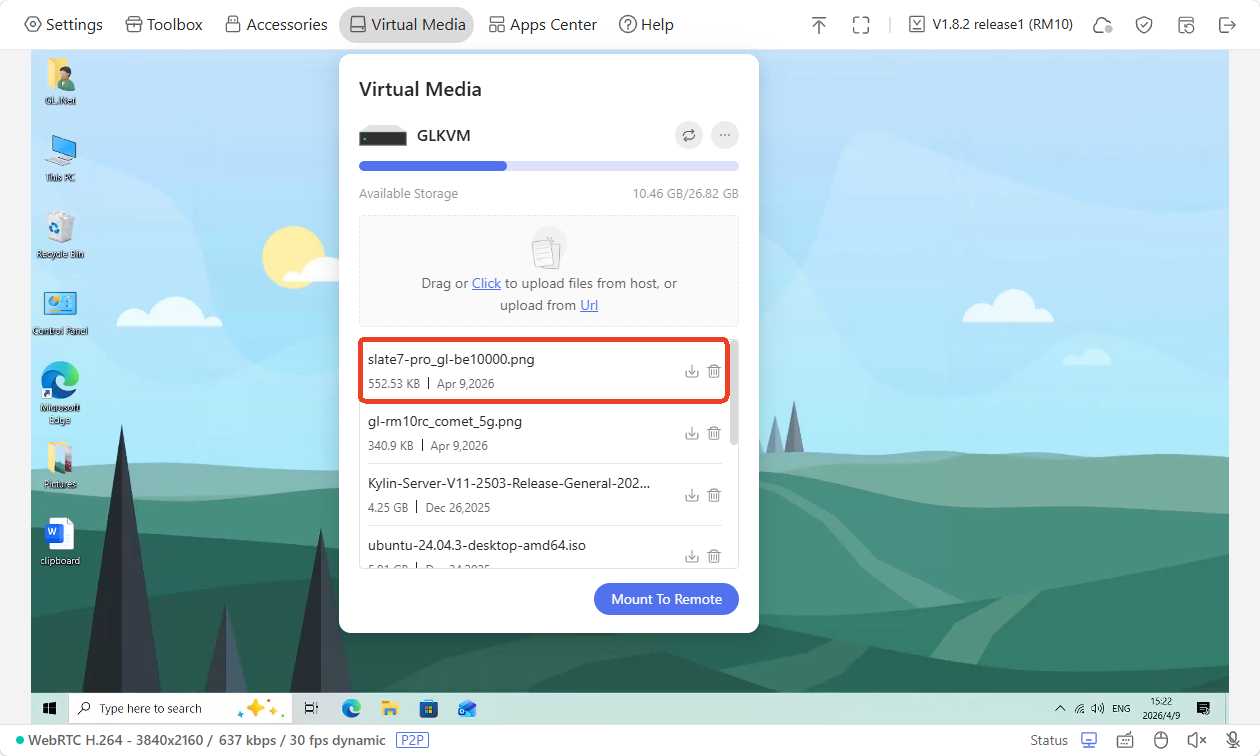
Image Mounting
Comet Pro can simulate a read-only virtual CD/DVD or a disk drive on the controlled device. You can access this drive during the BIOS or UEFI startup process.
This function can help you reinstall the operating system or mount an ISO to install applications on the device being controlled, or perform other tasks.
-
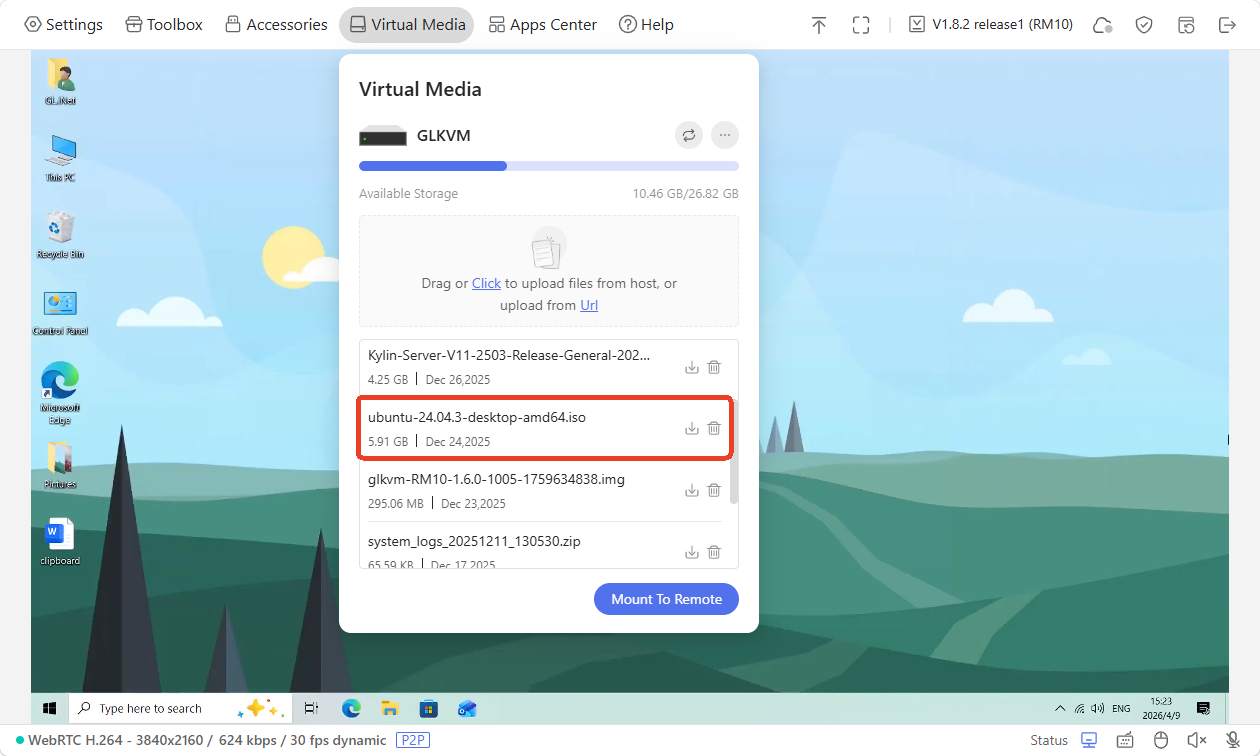
Drag or click the box to upload files. Ensure this file can be mounted as an iso format.
Once uploaded, the files will be displayed as follows.
-
Click Mount To Remote -> Image Mounting.
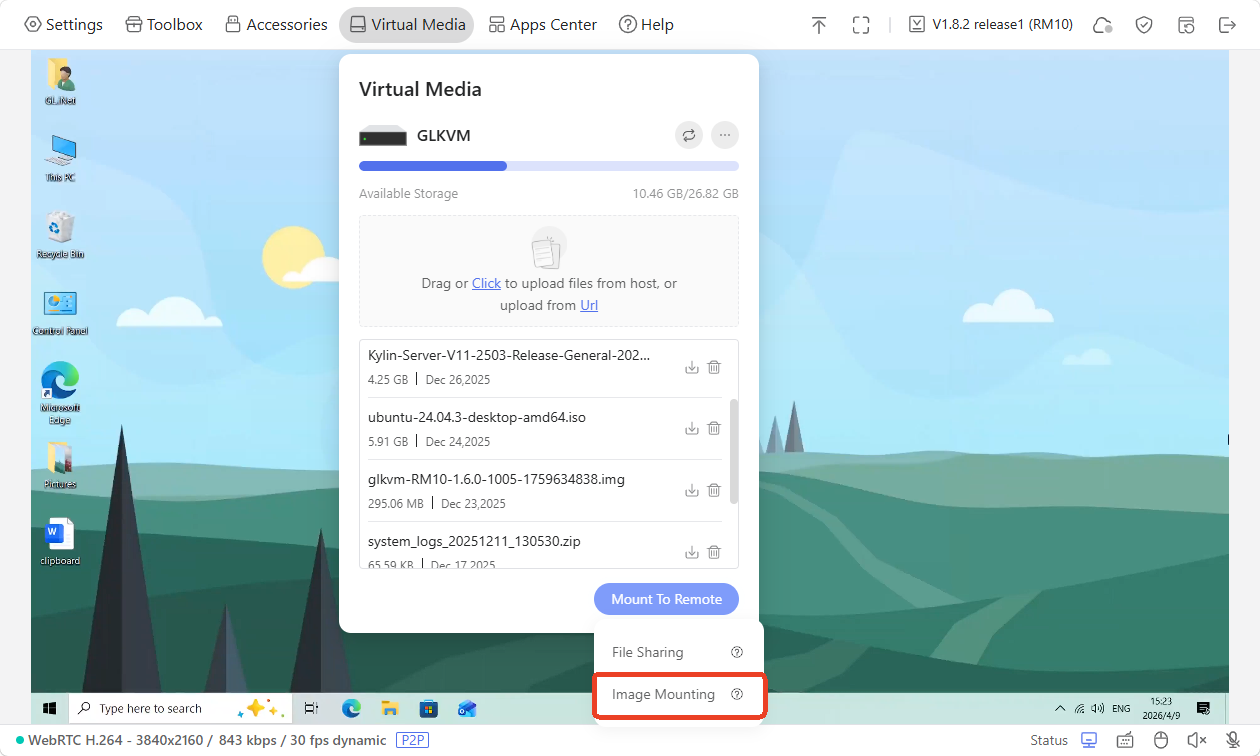
-
In the pop-up window, select the file and click Mount Image.
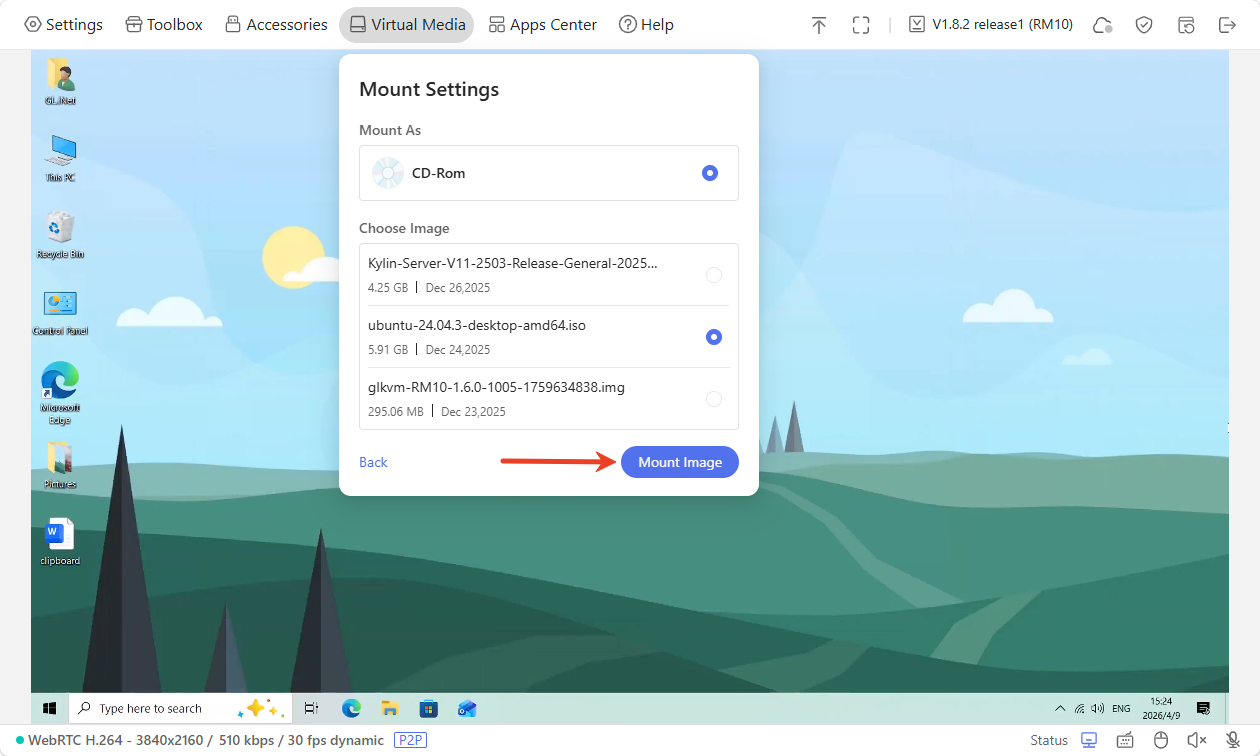
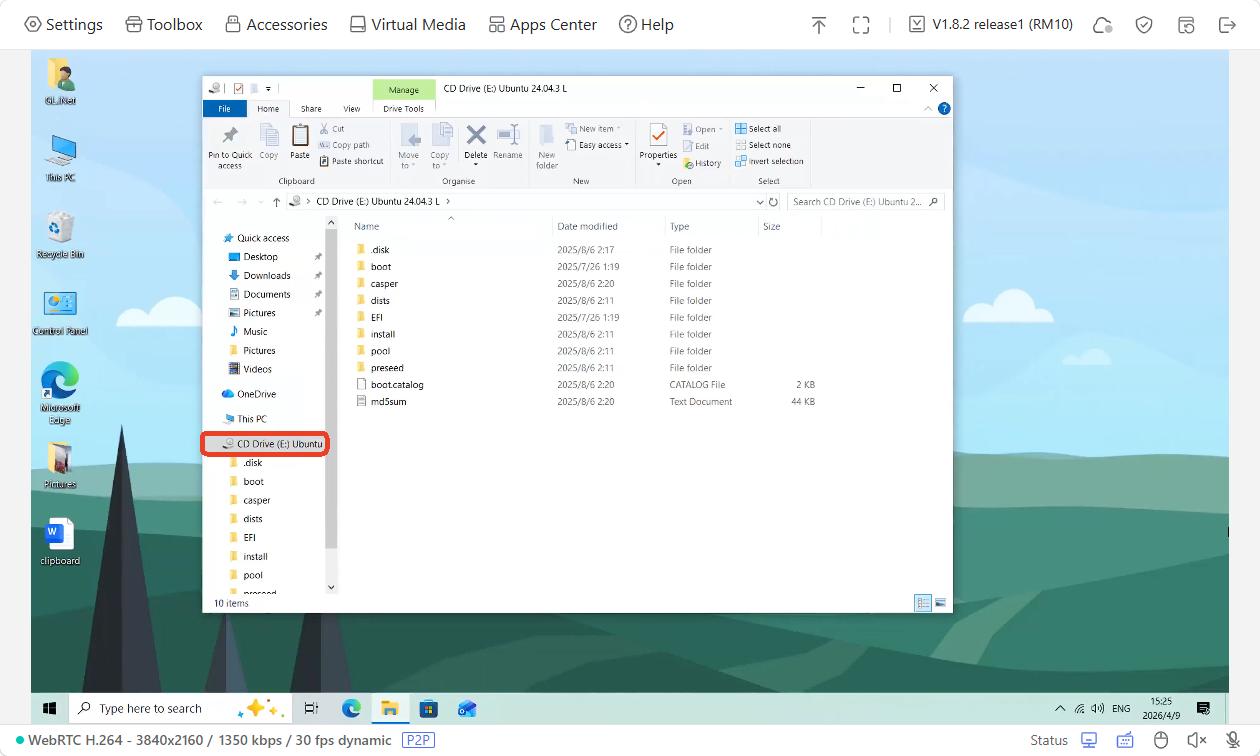
Then you can use this file from the CD drive on the controlled device.
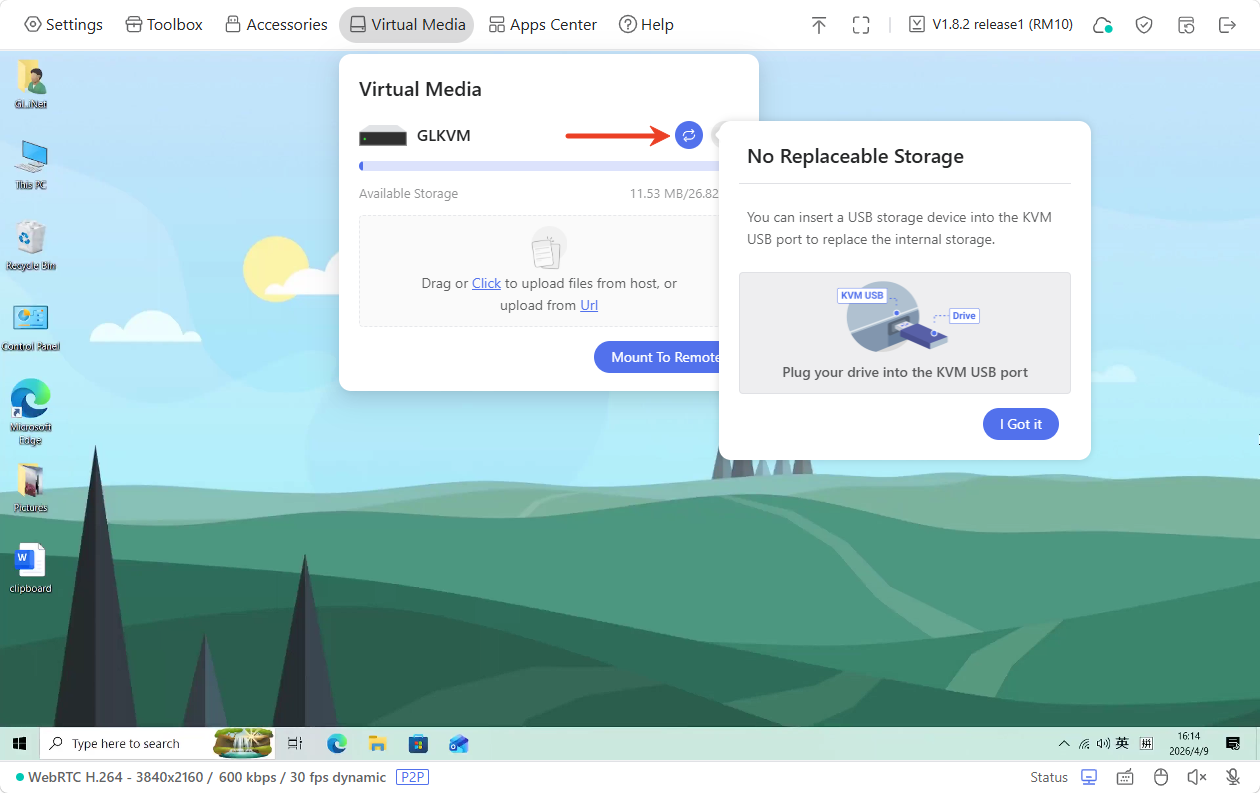
Replace Storage Drive
You can insert a USB storage device into the KVM USB port to replace the internal storage.
Format Disk
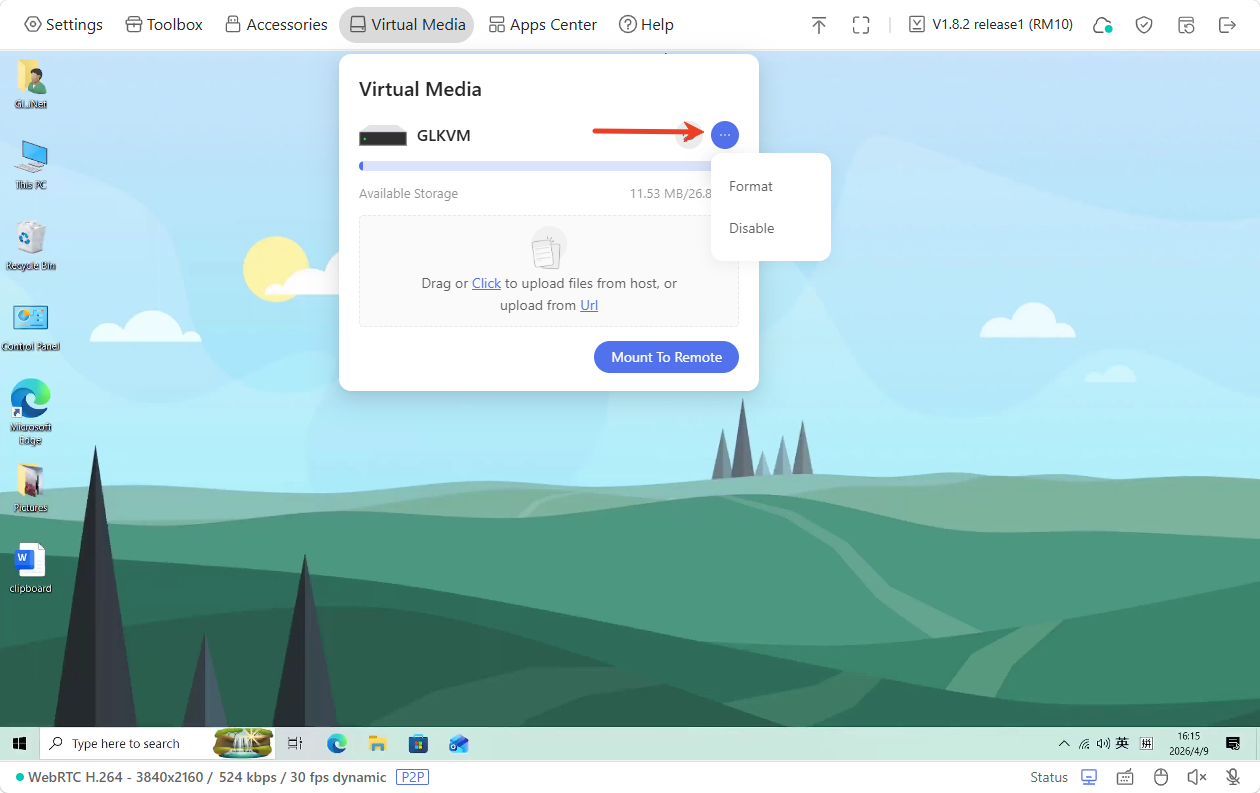
You can format the disk or disable the virtual media with one click.
-
Format: Erase all data on the disk and reinitialize its file system structure.
-
Disable: Disable the virtual media will immediately reboot the KVM device.
Apps Center
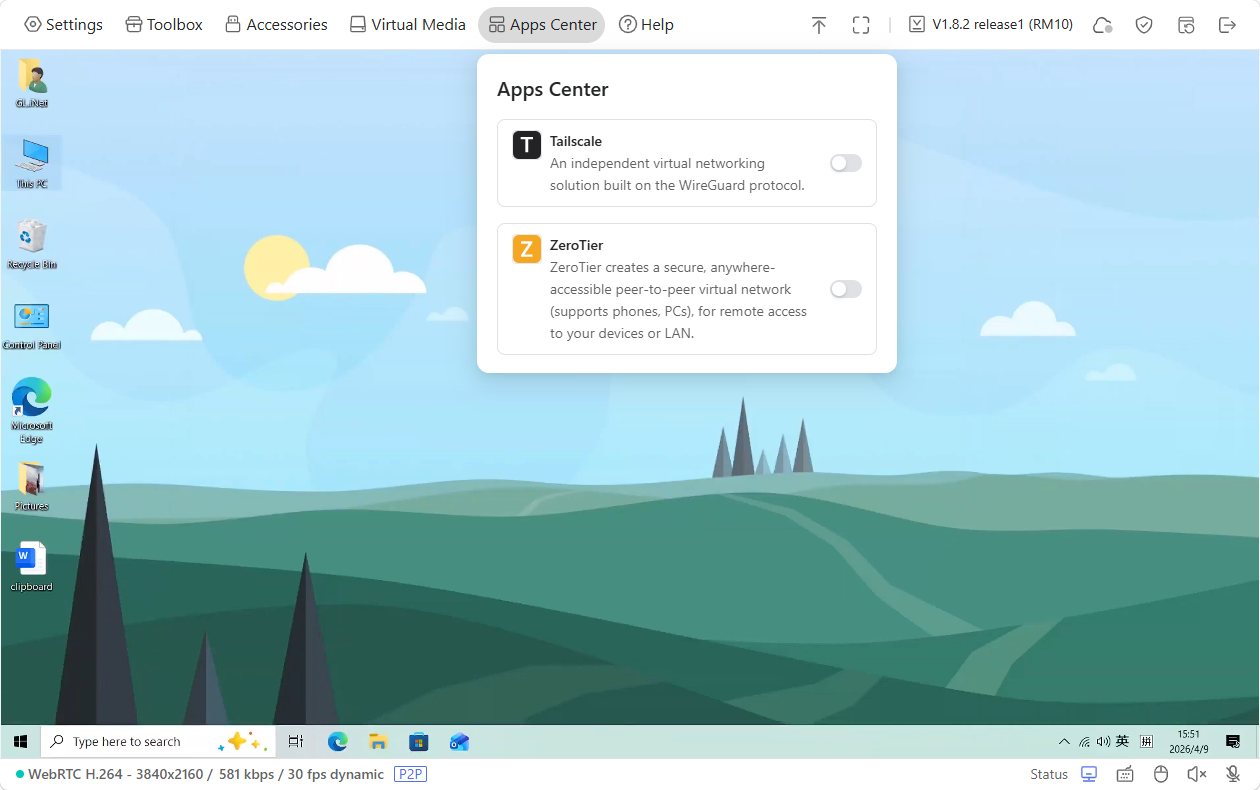
On the console, navigate to Apps Center. The integrated applications can be found here.
Tailscale
Comet Pro integrates with Tailscale, allowing you to access it remotely through the Tailscale virtual network.
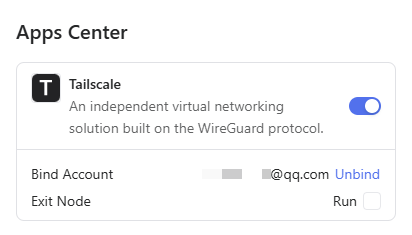
Simply bind both Comet Pro and your controlling device to the same Tailscale account, and you will be able to remotely access the Comet Pro by entering its Tailscale virtual IP into a web browser on the controlling device, without installing the GLKVM app.
Click here for detailed instructions.
After binding, the Comet Pro's console will show the bound Tailscale account as follows.
ZeroTier
Comet Pro integrates with ZeroTier, allowing you to access it remotely through the ZeroTier virtual network.
Simply join both Comet Pro and your controlling device to the same ZeroTier network (using a 16-character alphanumeric Network ID), and you can remotely access Comet Pro by entering its ZeroTier Managed IP in a web browser on the controlling device, with no need to install the GLKVM app.
Help
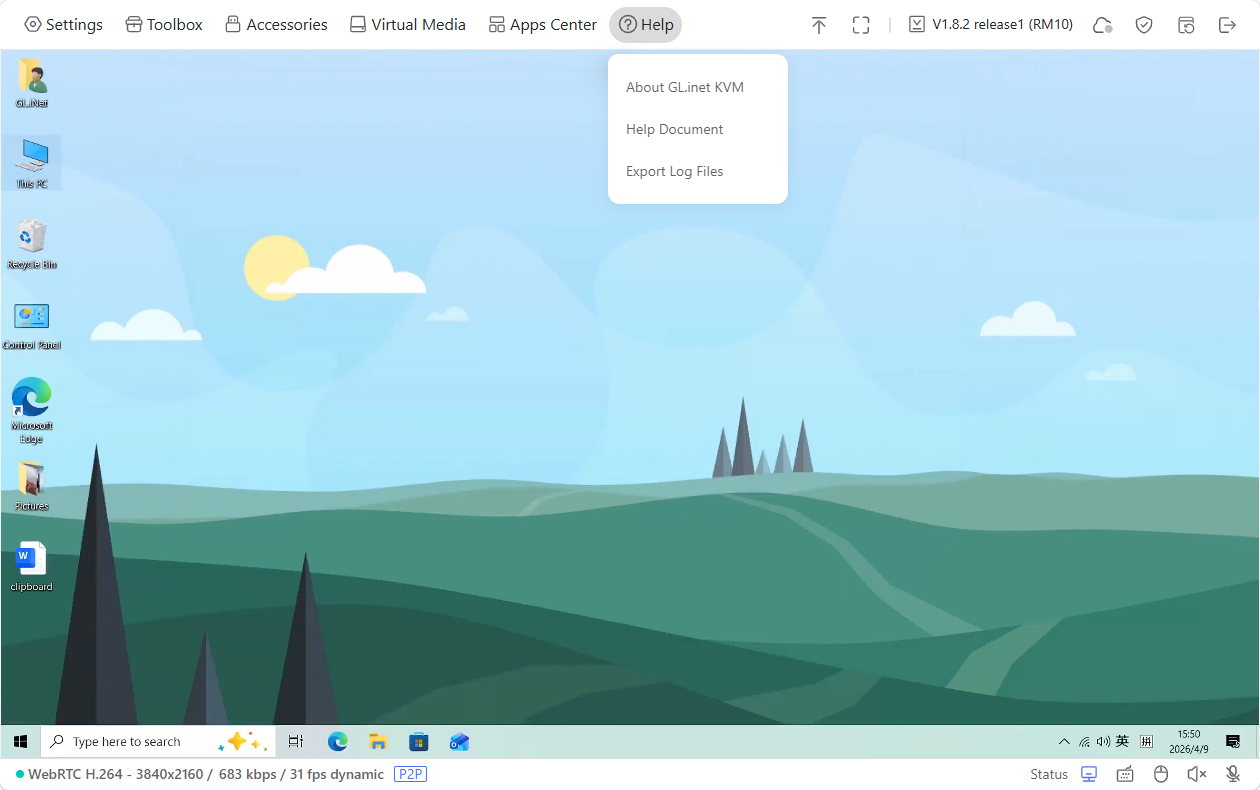
On the console, navigate to Help. Here you can find more information about GL.iNet KVM and help documentation, as well as export logs for troubleshooting.
Toolbar
On the console, navigate to the top right corner to access the following tools:
- Collapse Toolbar
- Fullscreen
- Upgrade
- Cloud Service
- Security
- Reboot
- Logout
Collapse
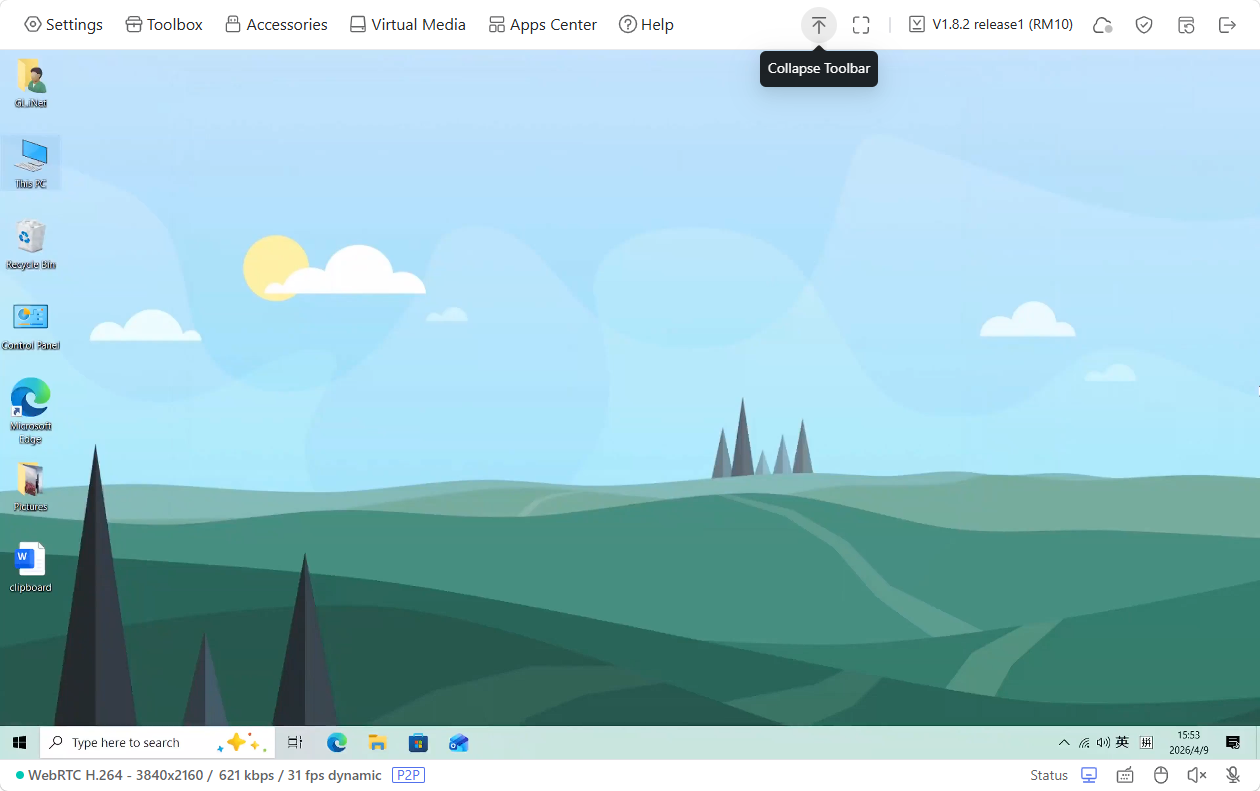
Click the upward arrow icon in the top right corner to collapse the toolbar.
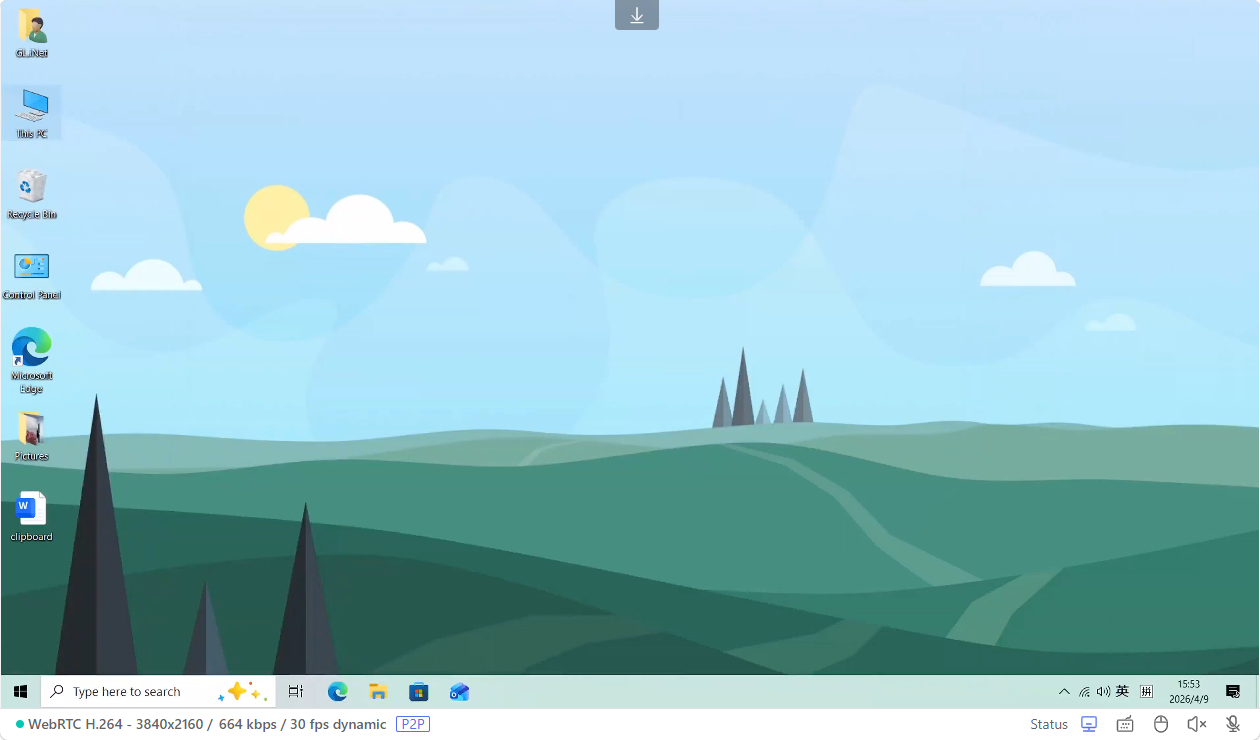
When the toolbar is collapsed, click the downward arrow icon at the top to expand it.
Fullscreen
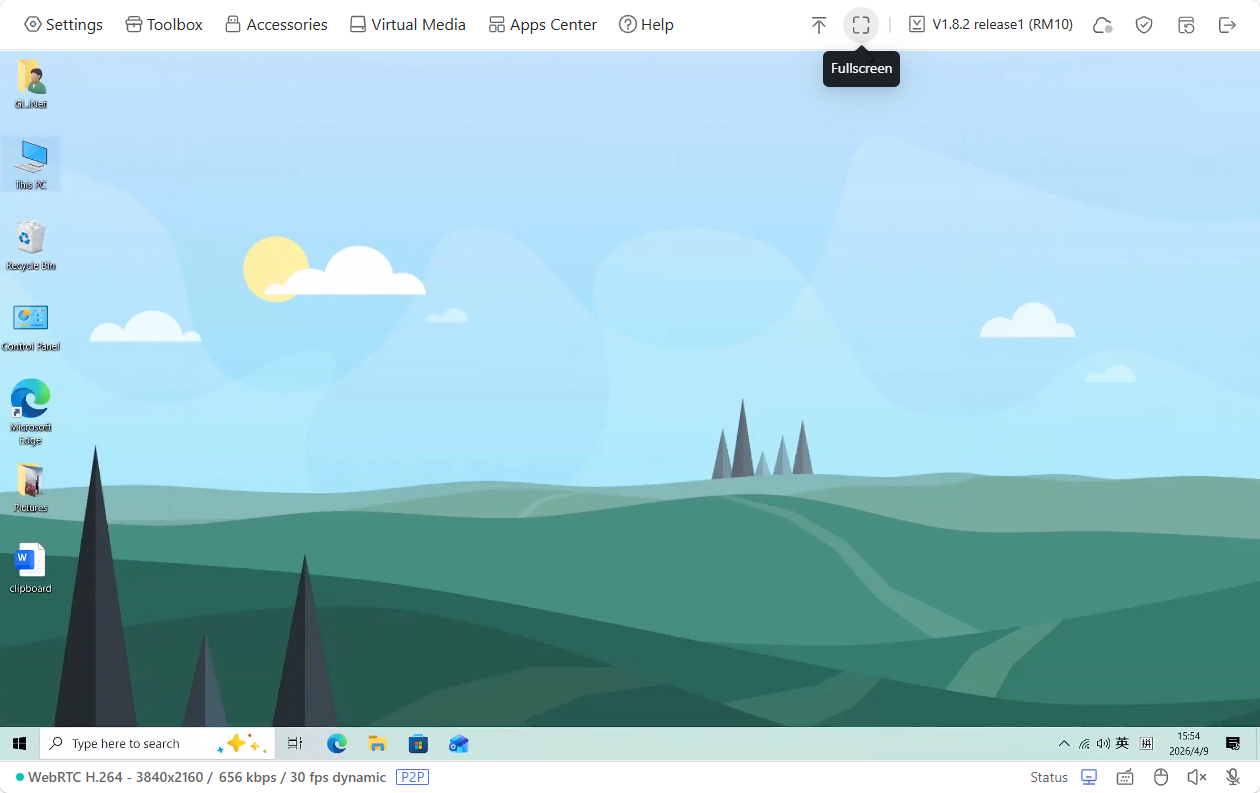
Click the fullscreen icon (square-shaped) in the upper right corner to switch to fullscreen mode.
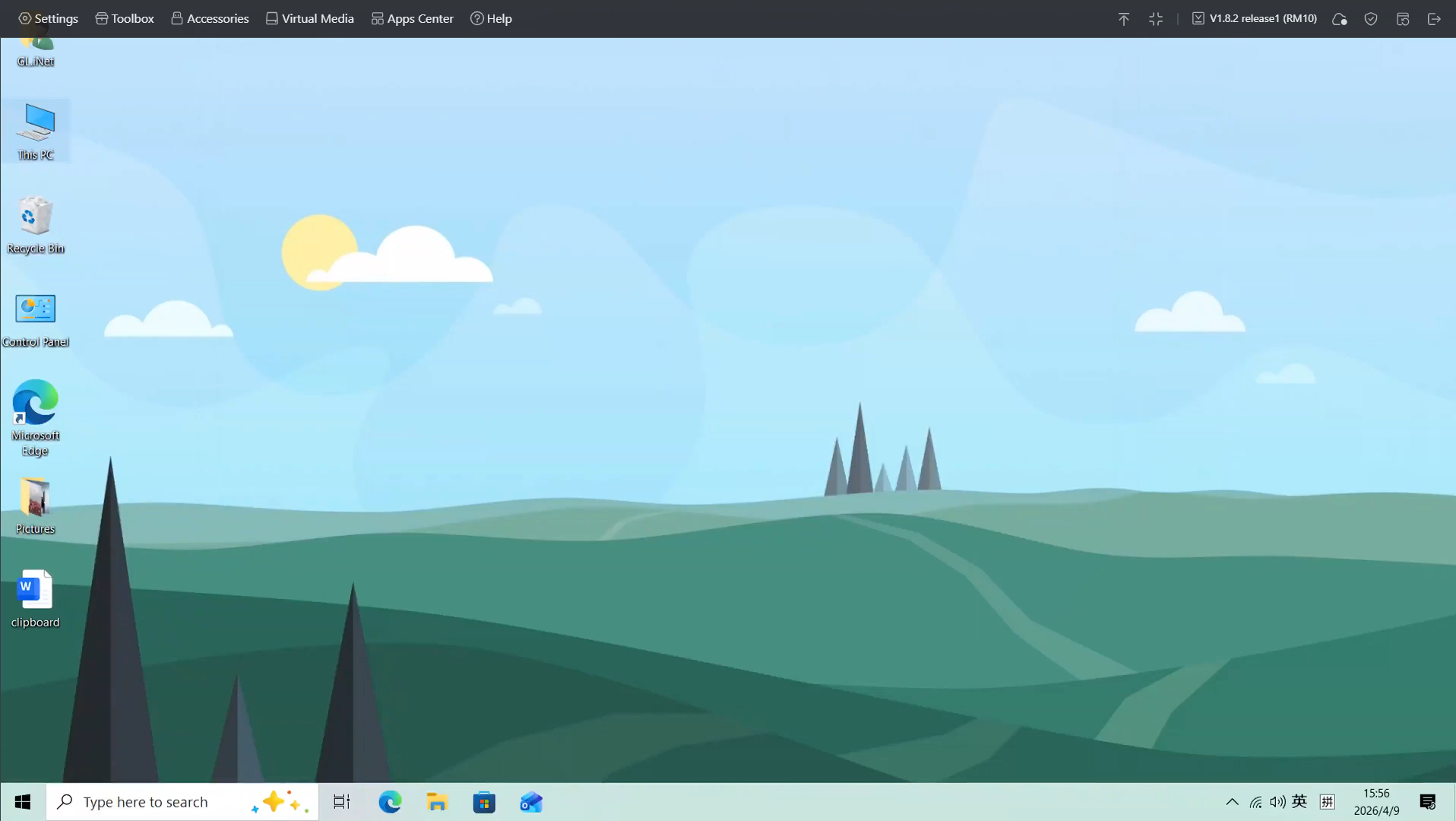
To exit fullscreen, press and hold the Esc key, or click the exit fullscreen icon (grid-shaped) in the upper right corner.
Upgrade
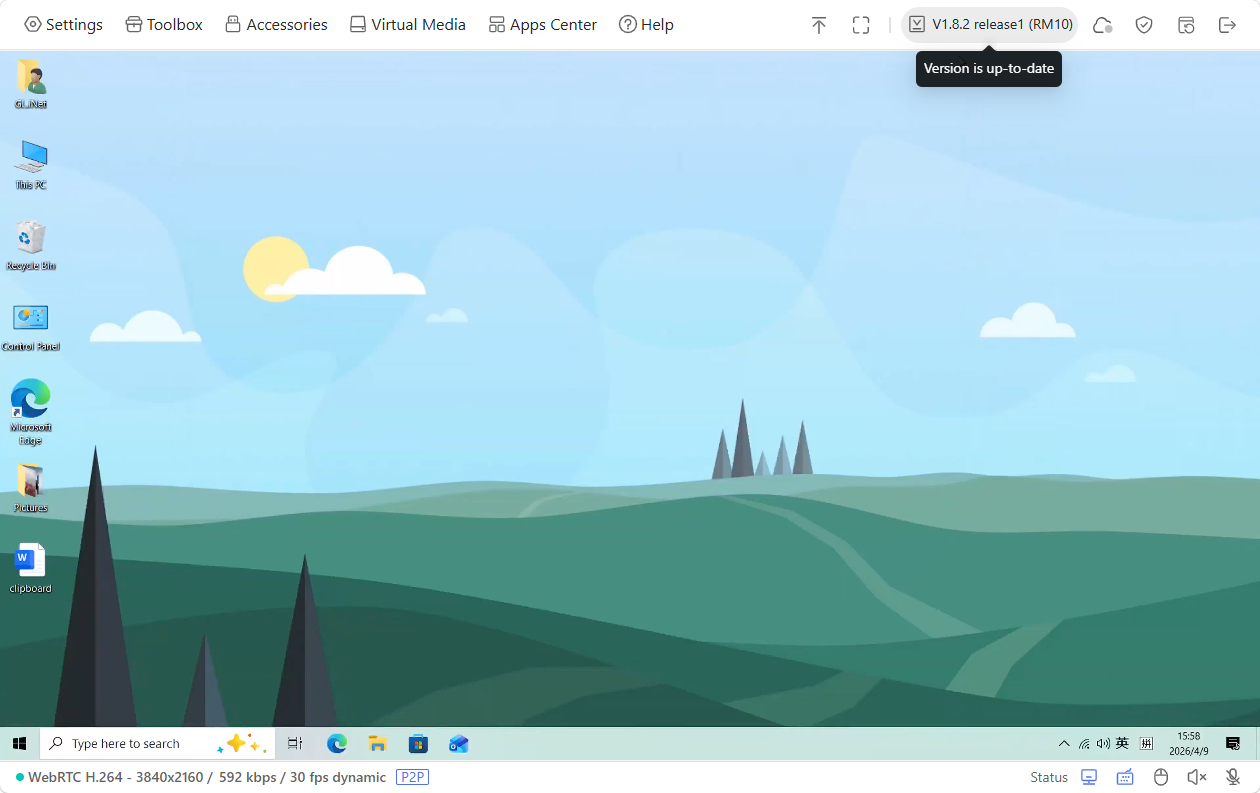
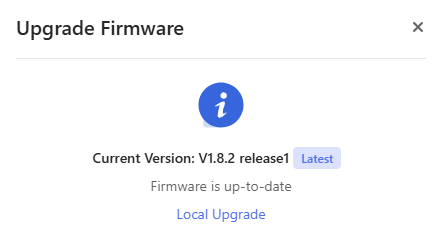
Click the firmware version in the upper right corner to check for updates.
You can upgrade your Comet Pro online if newer firmware is available. Alternatively, download the latest firmware from the Firmware Download Center and perform a local upgrade.
Cloud Service
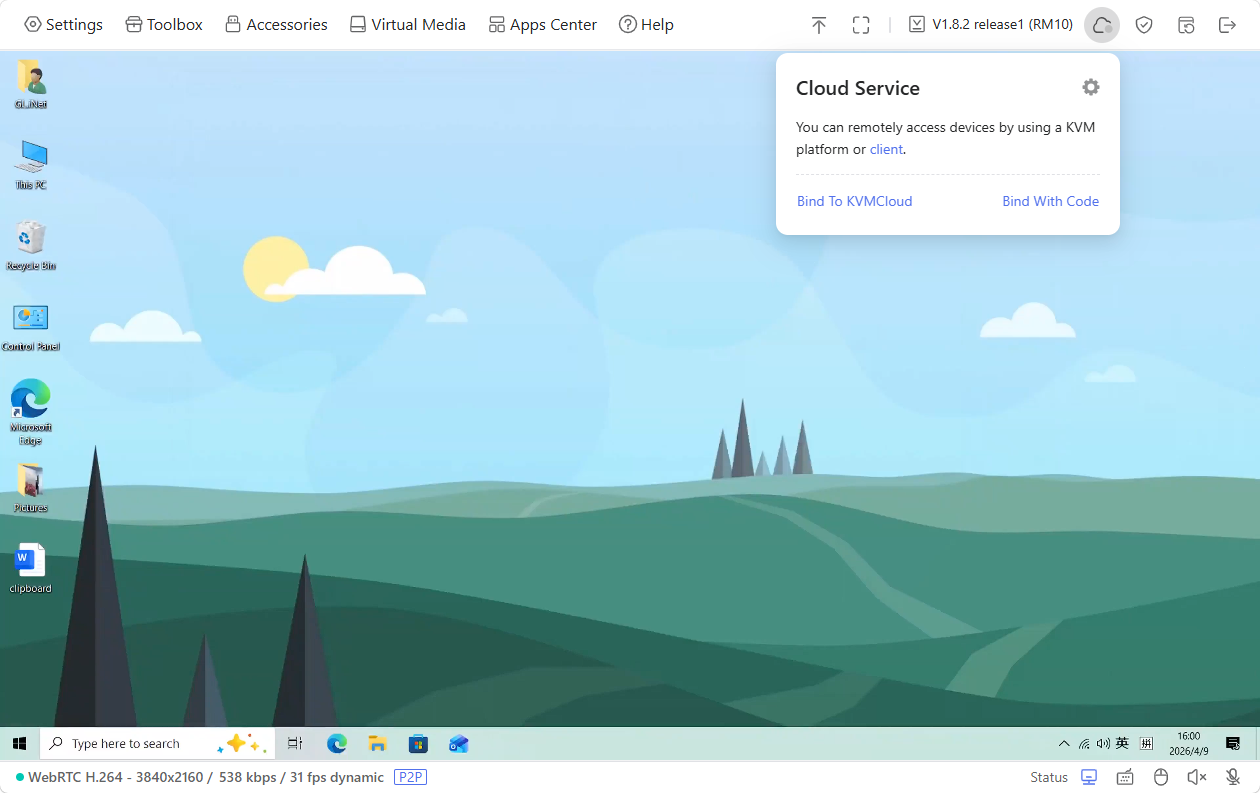
GL.iNet KVM Cloud Service allows you to access the controlled device remotely. Click here for details.
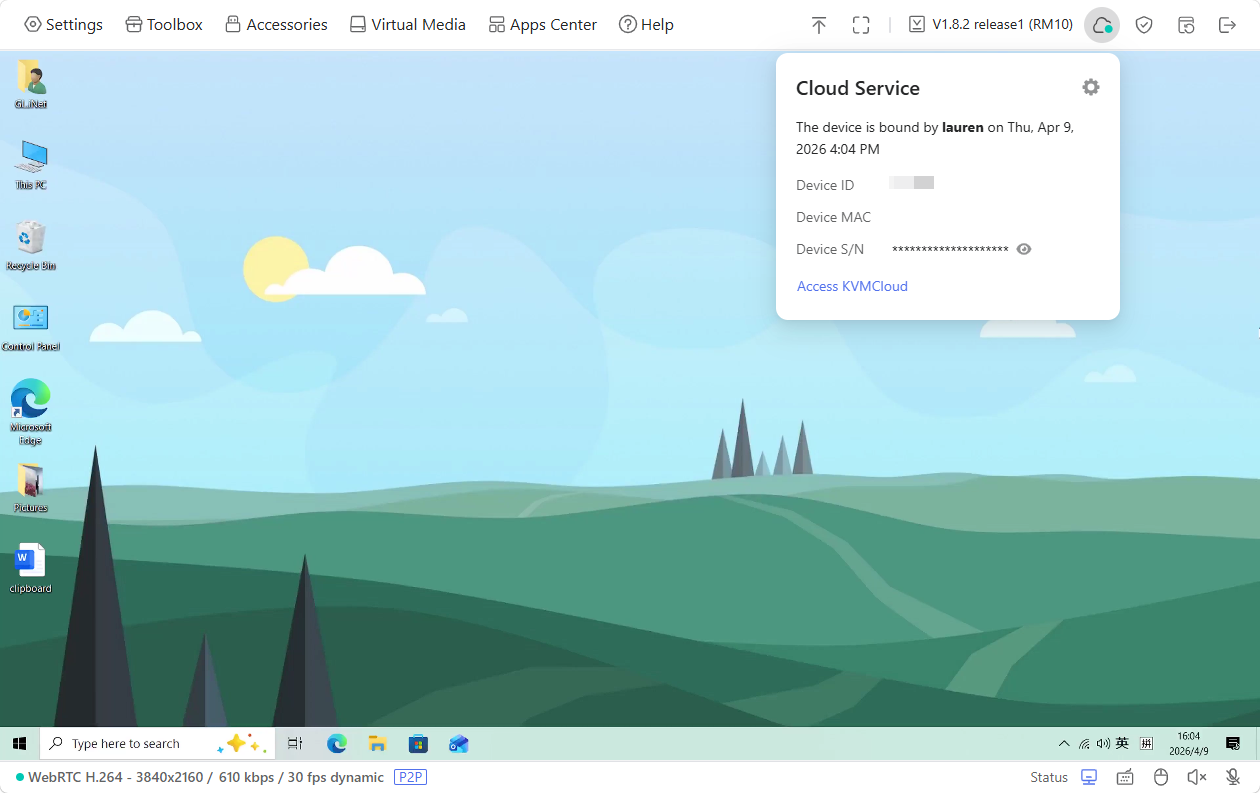
If your Comet Pro has been bound to the GL.iNet Cloud, the console will display the cloud status as follows.
Security
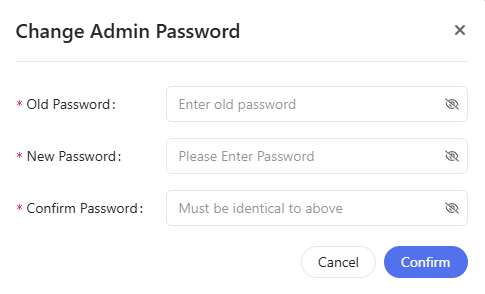
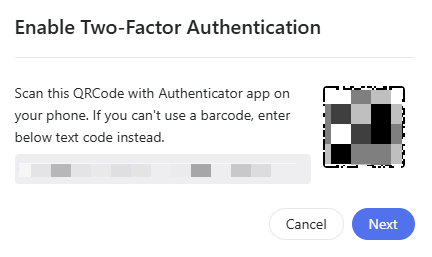
The security allows you to perform some security settings, e.g., change admin password, enable two-factor authentication, or customize TLS certificate.
-
Change Admin Password
-
2FA: Enable two-factor authentication to protect your account.
-
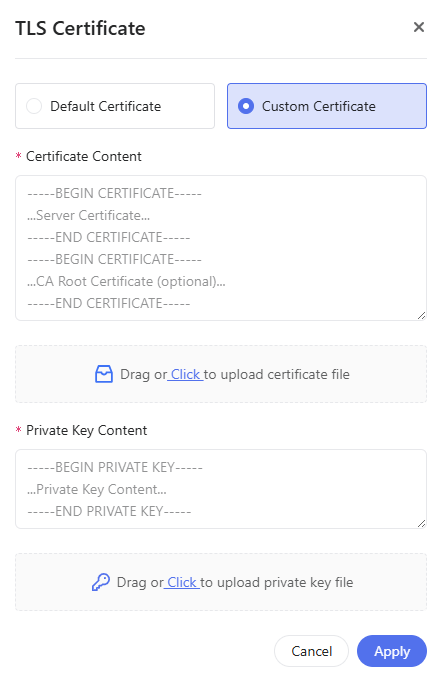
TLS Certificate
The system will use the pre-installed default certificate for browser access. If you want to customize the TLS certificate for web browser access, click TLS Certificate in the upper right corner of the console, select Custom Certificate, then upload your certificate file & private key file.