Comet 5G (GL-RM10RC) Overview
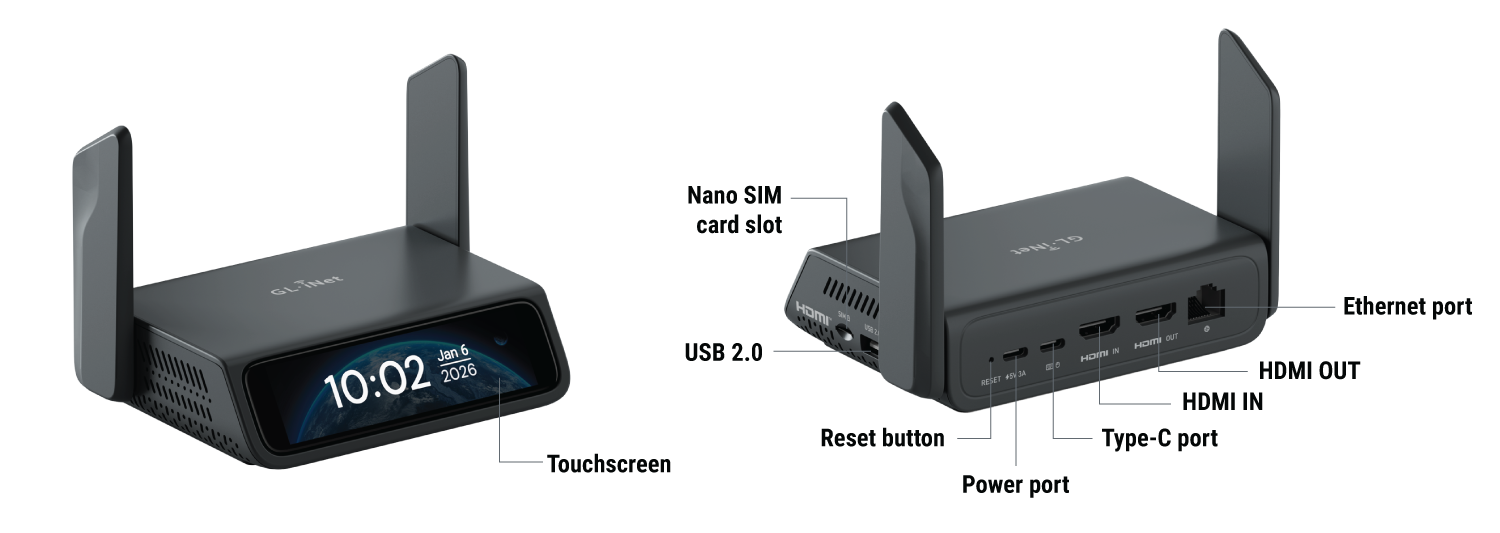
Interface
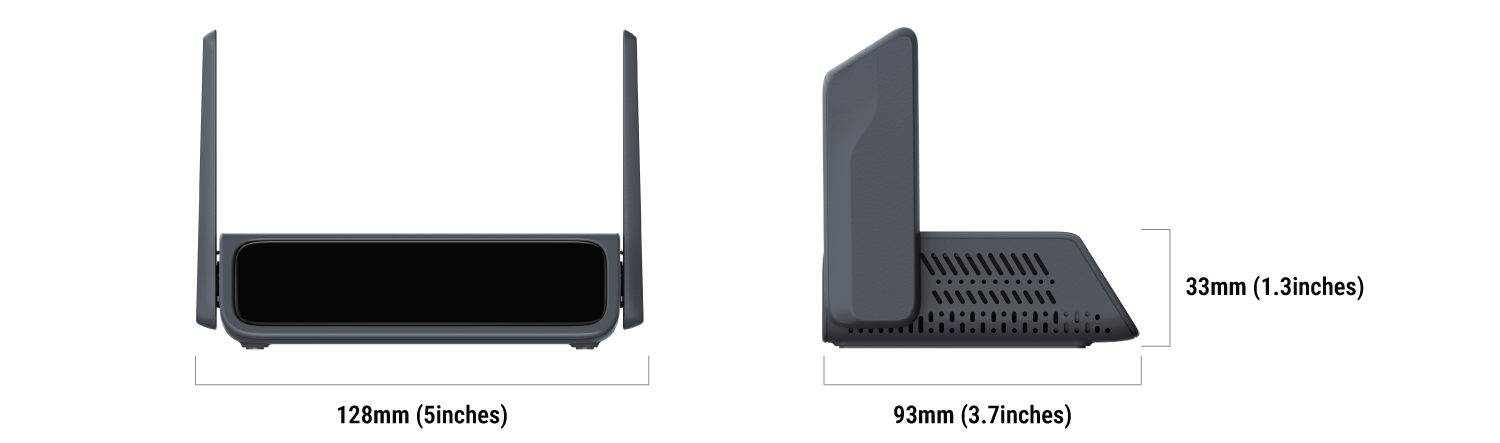
Dimension
Touchscreen
-
Power on
Power on your Comet 5G. The GL.iNet logo will appear on the screen, followed by a startup progress bar. Once the progress bar is fully loaded, the device startup is complete.

-
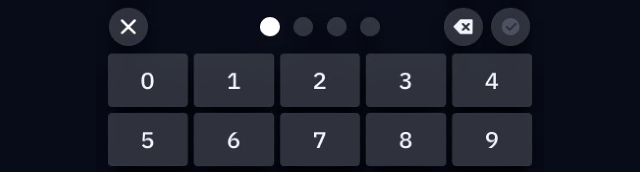
Set up screen password
Set a screen password for your Comet 5G to protect privacy and save battery.
-
Set up network
Connect Comet 5G to a Wi-Fi network (2.4GHz or 5GHz) wirelessly, or connect it to a network device (such as a router, network switch, or Ethernet wall jack) via an Ethernet cable.
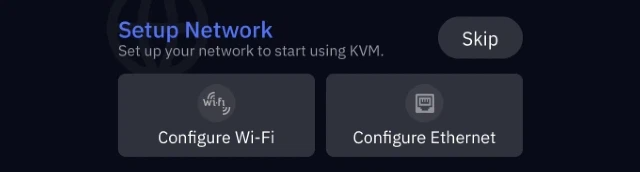
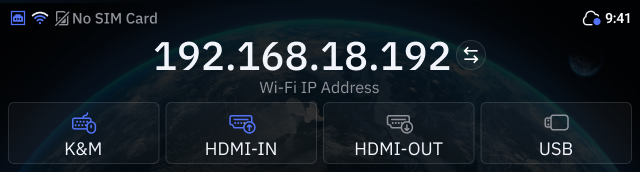
Then the initial setup is completed. The home screen displays the IP address if the device is connected to the Internet.
-
Connect devices
Refer here to connect your Comet 5G to the device you want to remotely control using an HDMI and a USB cable.
Once connected, the interface icon on the home screen will turn blue, indicating an active connection.
-
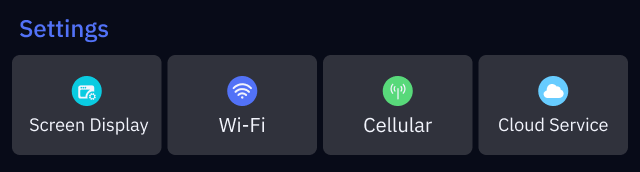
Basic Settings: On the home screen, swipe left from the right to access Basic Settings. Available options include Screen Display, Wi-Fi, Cellular, and Cloud Service.
-
System Menu: On the home screen, swipe down from the top to access System Menu. Two options are available: Reboot and Lock Screen.

-
Device Information: On the home screen, swipe up from the bottom to view device information, including Model Name, KVM Version, MAC Address, and Legal Information.
-
Lock screen: The lock screen displays the time and date.

-
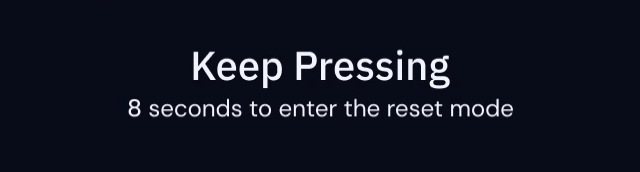
Factory Reset: With the KVM powered on, insert a pin into the reset pinhole and hold for 8 seconds to factory reset your KVM. Release the pin within 8 seconds to cancel the reset.
Highlights
-
5G RedCap
Comet 5G integrates cutting-edge 5G RedCap technology to provide flexible internet access, freeing your deployments from the constraints of fixed on-site networks.
-
Network Failover
Coupled with integrated cellular connectivity, Wi-Fi 6, and Ethernet failover support, Comet 5G ensures continuous uptime; should one connection fail, it seamlessly and automatically switches to the next available network, allowing uninterrupted remote KVM operation even in challenging conditions.
-
Dual-Band Wi-Fi 6
Comet 5G supports dual-band Wi-Fi 6 (2.4GHz and 5GHz), providing high-speed, low-latency, and stable wireless connectivity for remote operation and data access.
-
Nearby Control via AP Mode
Comet 5G features Wi-Fi Nearby Control, enabling quick local configuration and management without wired connections. Simply switch the Wi-Fi network mode to AP mode, and it will generate a unique Wi-Fi SSID. Users can connect to this SSID to securely access the management interface for device setup or maintenance.
Note: Activating the AP disconnects the device from its upstream Wi-Fi and provides local access only (with no internet connectivity).
-
Browser-Based Remote Access
Comet 5G allows users to access the KVM interface directly through a web browser, eliminating the need for client installation. This browser-based access uses secure HTTPS encryption and avoids self-signed certificate warnings, ensuring safe and effortless connectivity without additional software.
-
Sleek Design & Touchscreen
Comet 5G features a dark gray body with smooth contours, rounded corners, and a textured matte finish that offers both durability and a premium feel. The 3.69-inch TFT touchscreen provides an intuitive interface for quick access to device functions, ensuring a seamless user experience.
-
4K Display & Two-Way Audio
Comet 5G supports video output up to 4K@30FPS with HDMI out passthrough, allowing simultaneous local display and remote access without an external splitter. It also features two-way audio, enabling clear communication for video conferencing or remote technical instruction.
-
Self-Hosted Deployment
Comet 5G enables flexible self-hosted deployment on mainstream operating systems, including Linux and Ubuntu, giving users full control over remote access and data privacy. The self-hosted system requires a cloud server with at least a dual-core CPU and 2GB of memory, ensuring both privacy and reliable operation.
-
Remote Power Control
Comet 5G features a USB interface for connecting external devices such as an ATX board and a Fingerbot, enabling remote power control of the connected equipment.
Note: Optional accessories sold separately.
Frequency Bands
Comet 5G supports the following frequency bands.
-
5G NR
3GPP Release 17 RedCap, SA operation (Sub-6 GHz) n1 / n2 / n3 / n5 / n7 / n8 / n12 / n13 / n14 / n18 / n20 / n25 / n26 / n28 / n30 / n38 / n40 / n41 / n48 / n66 / n70 / n77 / n78 / n79
-
LTE FDD
B1 / B2 / B3 / B4 / B5 / B7 / B8 / B12 / B13 / B14 / B17 / B18 / B19 / B20 / B25 / B26 / B28 / B30 / B66 / B70
-
LTE TDD
B34 / B38 / B39 / B40 / B41 / B42 / B43 / B48
Package Contents
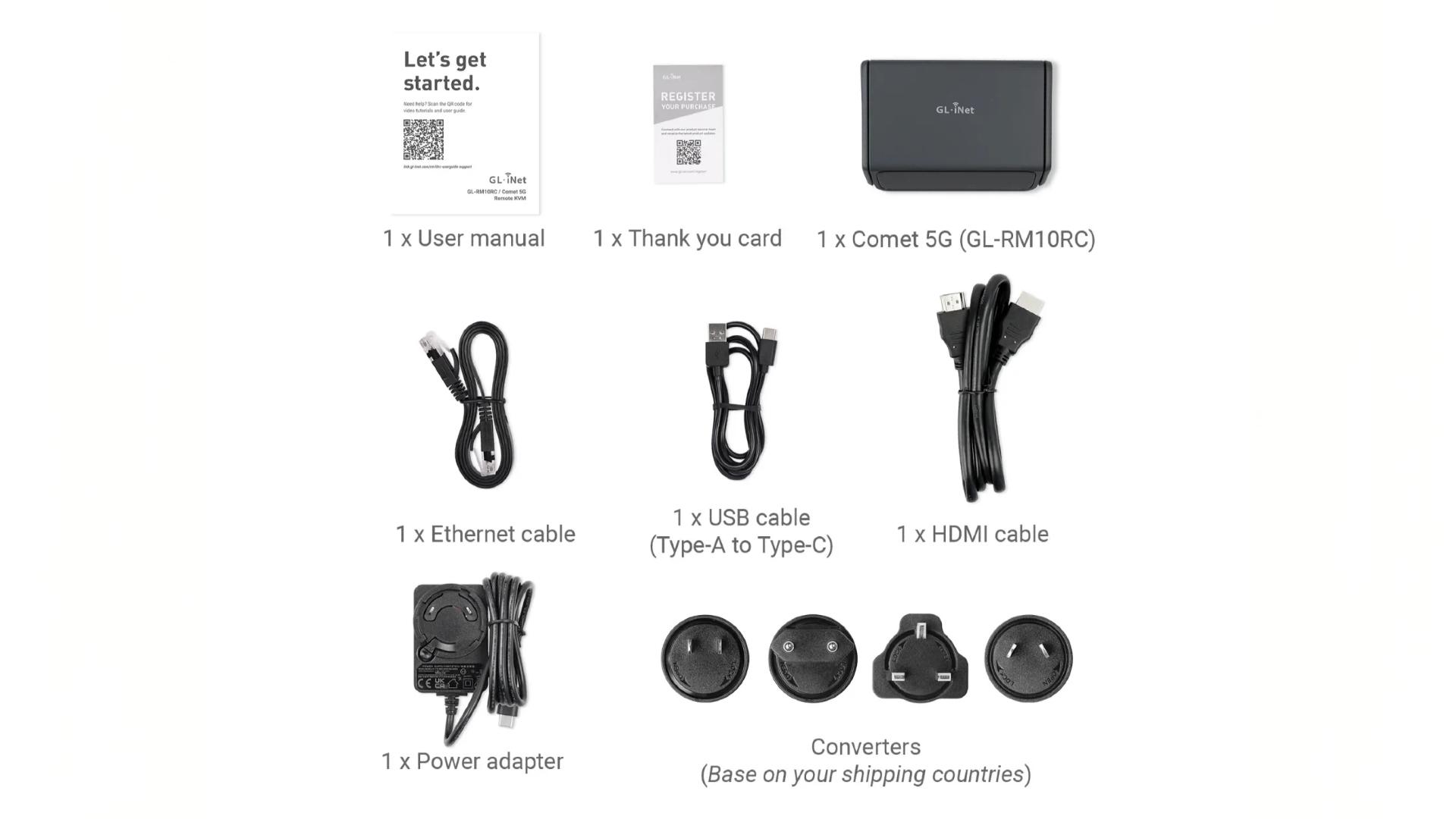
- 1 x Comet 5G (GL-RM10RC)
- 1 x User manual
- 1 x Thank you card
- 1 x Ethernet cable
- 1 x HDMI cable
- 1 x USB cable (Type-A to Type-C)
- 1 x Power adapter
- 1 x Converter (Based on your shipping country)
Check out Comet 5G's unboxing video below.