USB & Power
Note: This page is only available on GL-E5800 (Mudi 7).
On the left side of the web Admin Panel, go to SYSTEM -> USB & Power.
This page allows you to configure USB-related settings and power management for your router, such as USB protocol, power direction, idle timeouts, and standby behavior.
USB Settings
This section lets you customize the behavior of your router's USB ports.
-
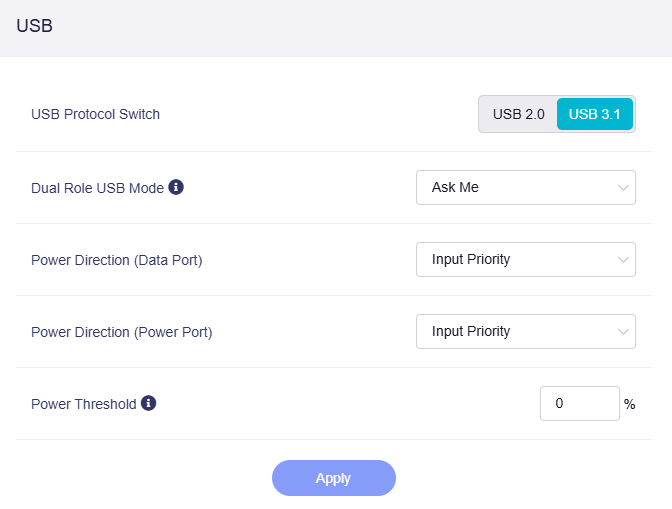
USB Protocol Switch: Switch between USB 2.0 and USB 3.1 protocols for the USB port.
-
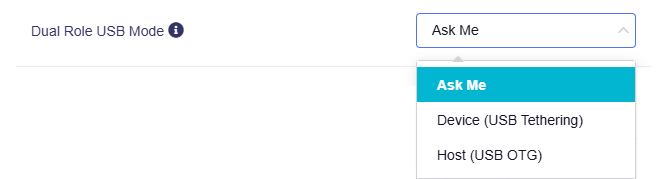
Dual Role USB Mode: Select the USB working mode from the dropdown menu. You can set it as Device or Host.
-
Power Direction: Choose the power priority for the USB port from the dropdown menu. You can set it as Input Priority or Output Priority.
-
Power Threshold: Set a specific power threshold percentage for the USB port to control the minimum power level required for USB operations, helping to preserve battery life.
Power Settings
This section enables you to optimize power consumption and device behavior.
-
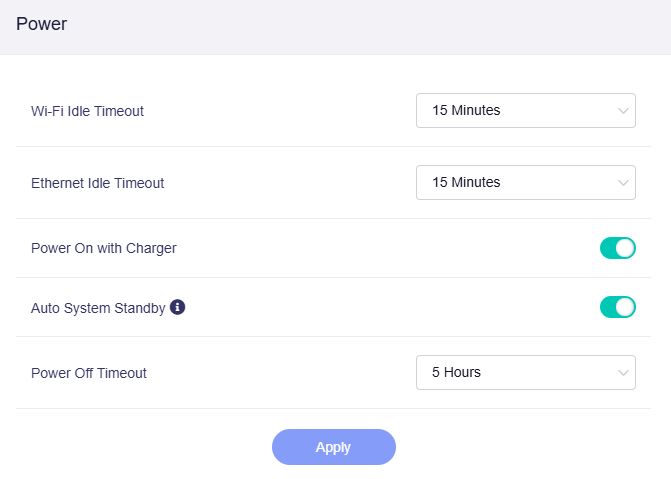
Wi-Fi Idle Timeout: Set the idle duration (range from 10 minutes to 2 hours, or never) after which Wi-Fi will enter standby.
-
Ethernet Idle Timeout: Set the idle duration (range from 10 minutes to 2 hours, or never) for Ethernet to switch to standby.
-
Power Off Timeout: Set the time delay (range from 1 hour to 12 hours, or never) until the router automatically powers off when idle.
-
Power On with Charger: Toggle this switch to enable/disable the router powering on automatically when connected to a charger.
-
Auto Standby: Toggle this switch to activate/deactivate automatic standby for power saving.
Still have questions? Visit our Community Forum or Contact us.