Connect GL.iNet routers to an EAP network
Some GL.iNet routers support connecting to EAP (Extensible Authentication Protocol) Wi-Fi networks.
EAP is an authentication framework commonly used with 802.1X authentication for WPA2‑Enterprise / WPA3‑Enterprise networks. A typical example is eduroam, a global Wi‑Fi roaming service for education and research that relies on 802.1X and EAP.
This guide will introduce two ways to connect GL.iNet routers to an EAP Wi-Fi network: via Admin Panel and via LuCI.
Supported Models
Supported Models
- GL-MT3600BE (Beryl 7)
- GL-E5800 (Mudi 7)
- GL-BE6500 (Flint 3e)
- GL-BE9300 (Flint 3)
- GL-BE3600 (Slate 7)
- GL-X2000 (Spitz Plus)
- GL-B3000 (Marble)
- GL-AX1800 (Flint)
- GL-AXT1800 (Slate AX)
- GL-A1300 (Slate Plus)
- GL-XE300 (Puli)
- GL-E750/GL-E750V2 (Mudi)
- GL-X750/GL-X750V2 (Spitz)
- GL-AR750S (Slate)
- GL-AR750 (Creta)
- GL-AR300M Series (Shadow)
- GL-B1300 (Convexa-B)
- GL-AP1300 (Cirrus)
- GL-X300B (Collie)
- ※GL-MT6000 (Flint 2)
- ※GL-MT3000 (Beryl AX)
- ※GL-SFT1200 (Opal)
Note:
-
GL-MT6000 (Flint 2) and GL-MT3000 (Beryl AX) do not support connecting to EAP networks when being installed the default firmware, but GL.iNet provides native OpenWrt 24 firmware for these models which can be installed to support connecting to EAP networks. Search the model in the Download Center and turn to OPENWRT 24 tab for more details.
-
GL-SFT1200 (Opal) supports connecting to EAP networks with firmware v4.8.
Unsupported Models
- GL-MT5000 (Brume 3)
- GL-X3000 (Spitz AX)
- GL-XE3000 (Puli AX)
- GL-MT2500/GL-MT2500A (Brume 2)
- GL-MT1300 (Beryl)
- GL-MT300N-V2 (Mango)
Connect via web Admin Panel
-
Log in to the web Admin Panel, go to INTERNET -> Repeater section, then click Connect.

It will scan the available networks. Find and select the EAP SSID to connect.

Or click Join Other Network in the upper right to manually join the EAP network.

-
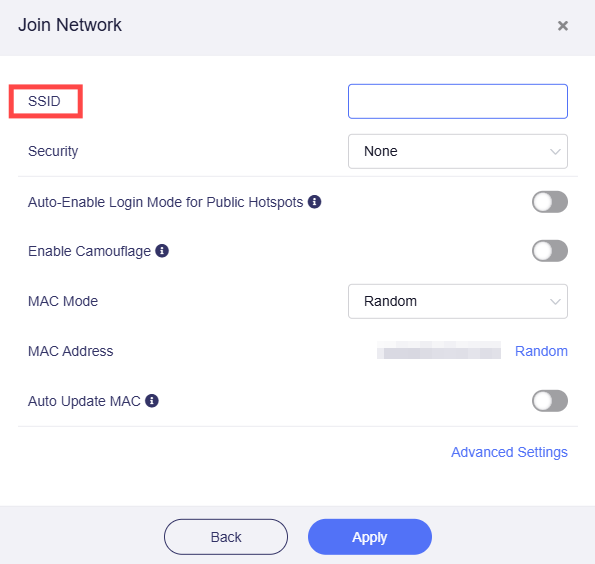
Input the SSID.
-
Select Security as WPA/WPA2/WPA3 Enterprise.

-
Input the Username and Password, then click Apply to connect.

Connect via LuCI
The GL.iNet web Admin Panel supports only a limited number of EAP types.
If your target EAP network cannot be connected via the web Admin Panel, please try connecting via the LuCI interface.
-
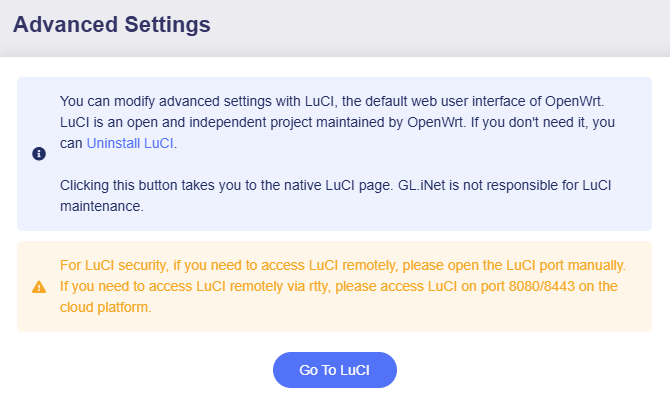
Log in to the web Admin Panel, go to SYSTEM -> Advanced Settings. Install LuCI and click Go to LuCI.
-
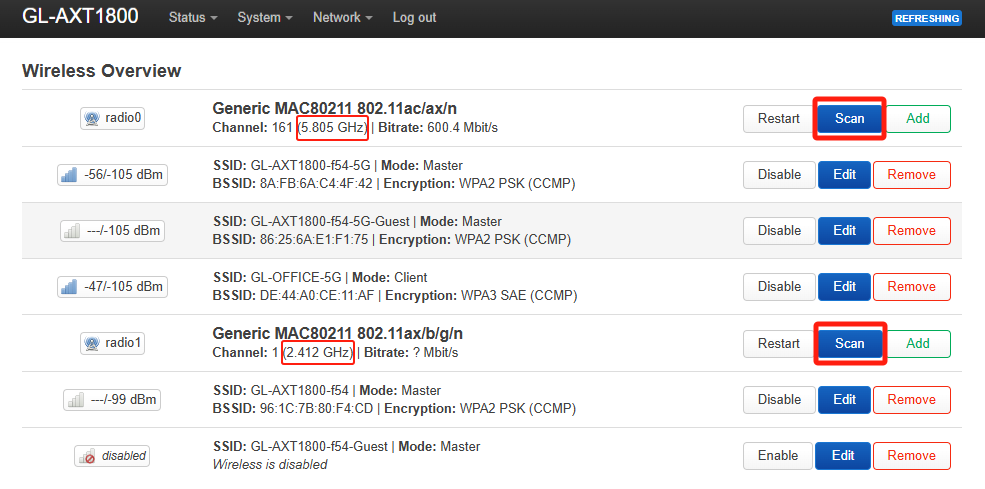
Log in to LuCI interface with the same admin password, and go to Network -> Wireless.

-
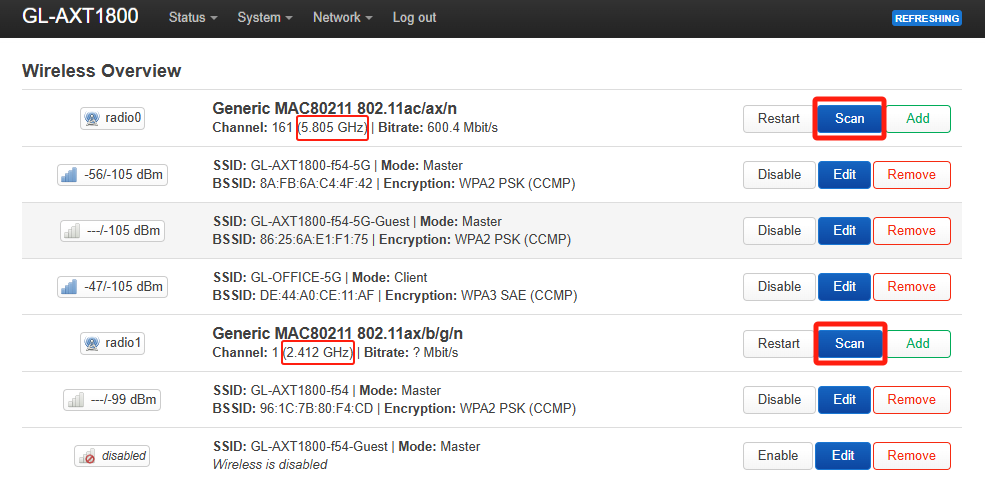
Click Scan on 2.4G section or 5G section.
-
Join the network you want.

Troubleshooting
If the target EAP network requires additional parameters, such as EAP type (e.g., PEAP, TTLS), domain suffix match, identity, anonymous identity, etc., the EAP connection via web Admin Panel may fail.
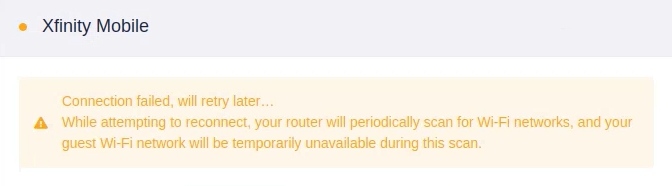
Follow the steps below to connect your GL.iNet router to EAP networks that requires advanced settings via LuCI interface.
-
Obtain configurations.
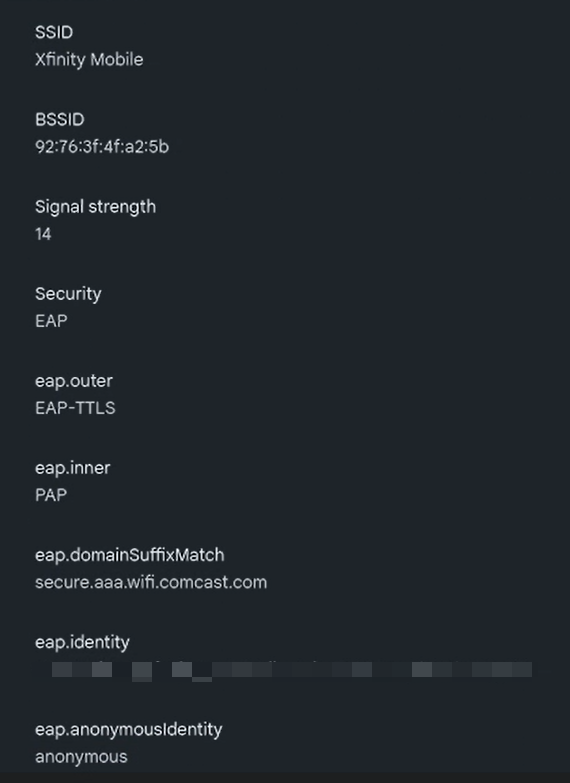
Obtain the configuration parameters for the target EAP network in advance. For example:
- EAP Type (e.g., PEAP, TTLS, TLS)
- Authentication domain suffix (e.g., @company.com)
- Identity (usually full username)
- Anonymous Identity (optional)
- Inner authentication type (e.g., MSCHAPv2, PAP)
- CA certificate (if required, prepare .crt format file)
This is an example of Xfinity Mobile Wi-Fi for your reference.
-
Log in to LuCI.
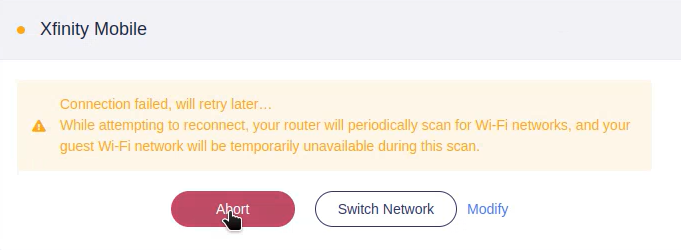
Log in to the router's web admin panel. After login, if you previously attempted to connect to the target EAP network via the WebGUI but failed, please abort the connection.
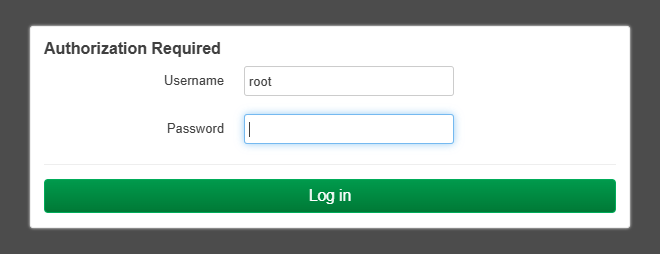
Then go to SYSTEM -> Advanced Settings -> Go to LuCI. Log in to the LuCI with the same admin password.
-
Configure Repeater in LuCI.
In the LuCI interface, go to Network -> Wireless.
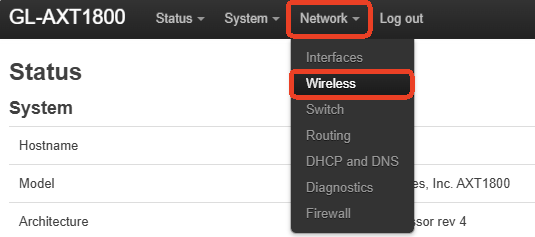
Click the Scan button in the 5G or 2.4G section to search for available Wi-Fi networks.
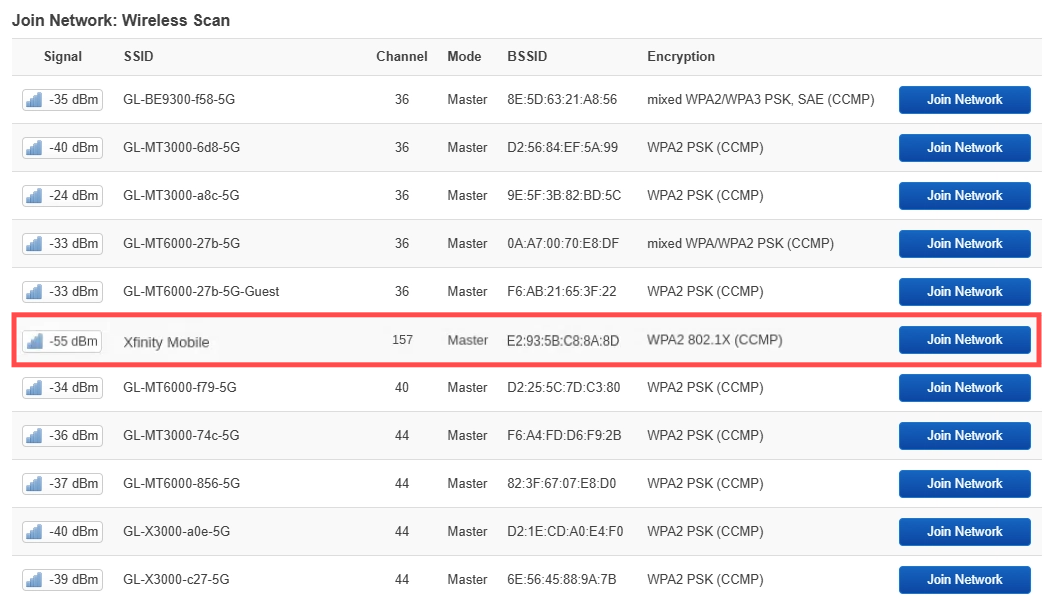
Find the target EAP network in the scan results and click Join Network.
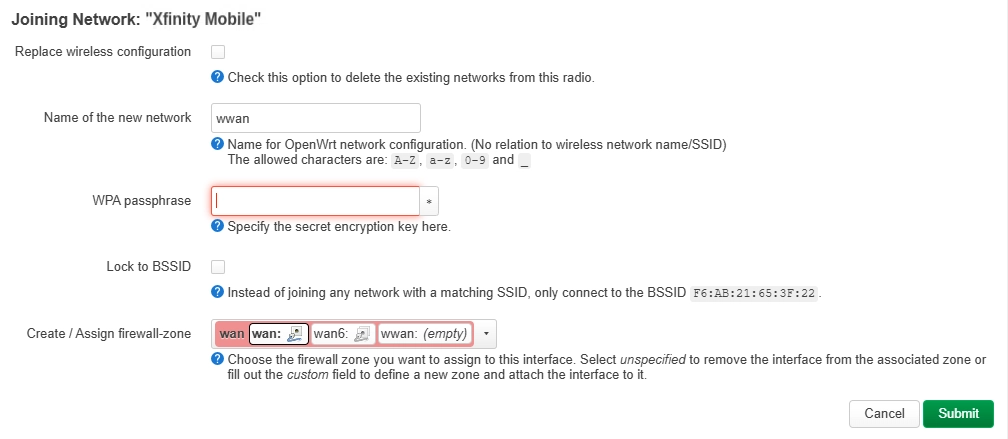
In the "Joining Network" page, enter the WPA passphrase and click Submit button.
You will be directed to the Wireless Client configuration.
-
Locate the Interface Configuration -> Wireless Security.
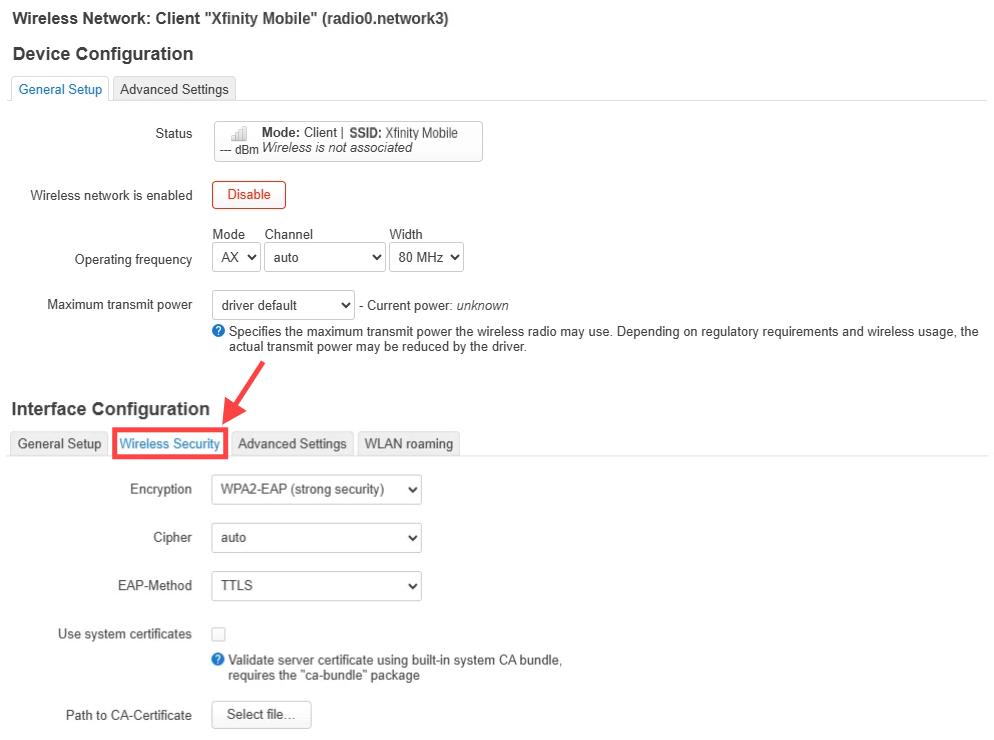
Select/enter the correct configuration parameters according to your target EAP network, as shown below. Do not click Save yet.
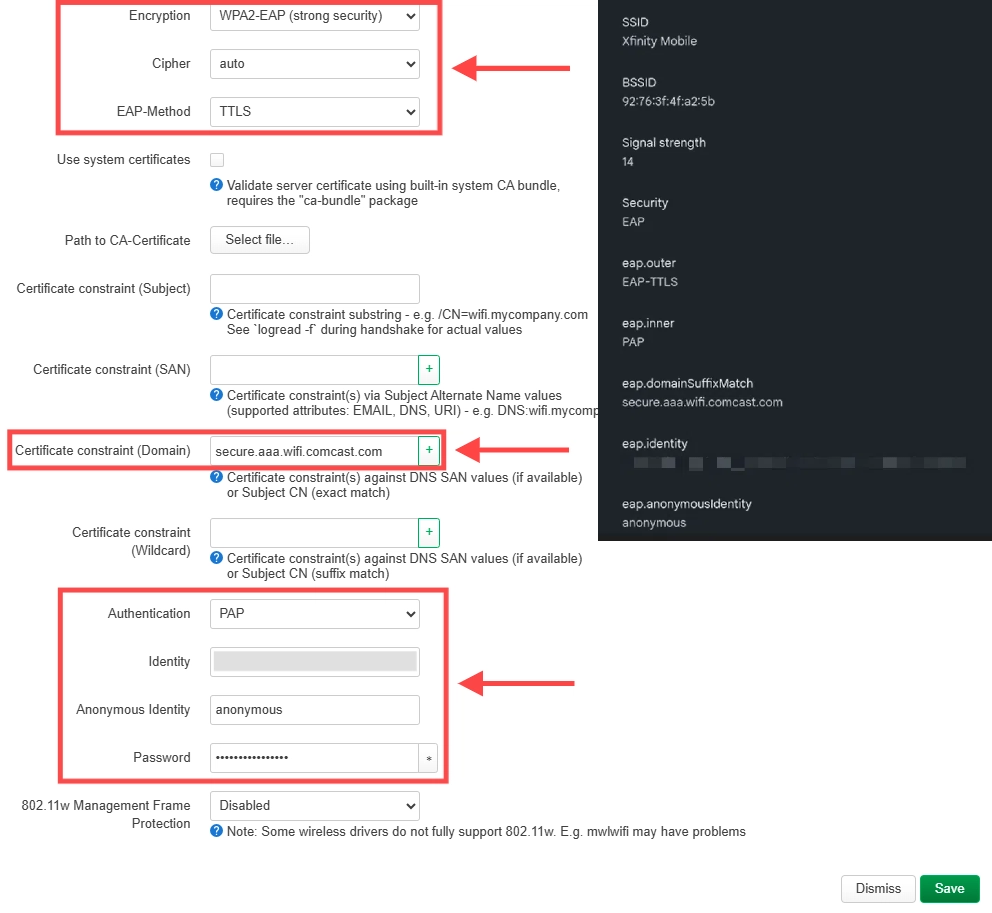
-
Switch to Advanced Settings tab, specify an interface name, such as wlan0. Then click Save in the bottom right corner.
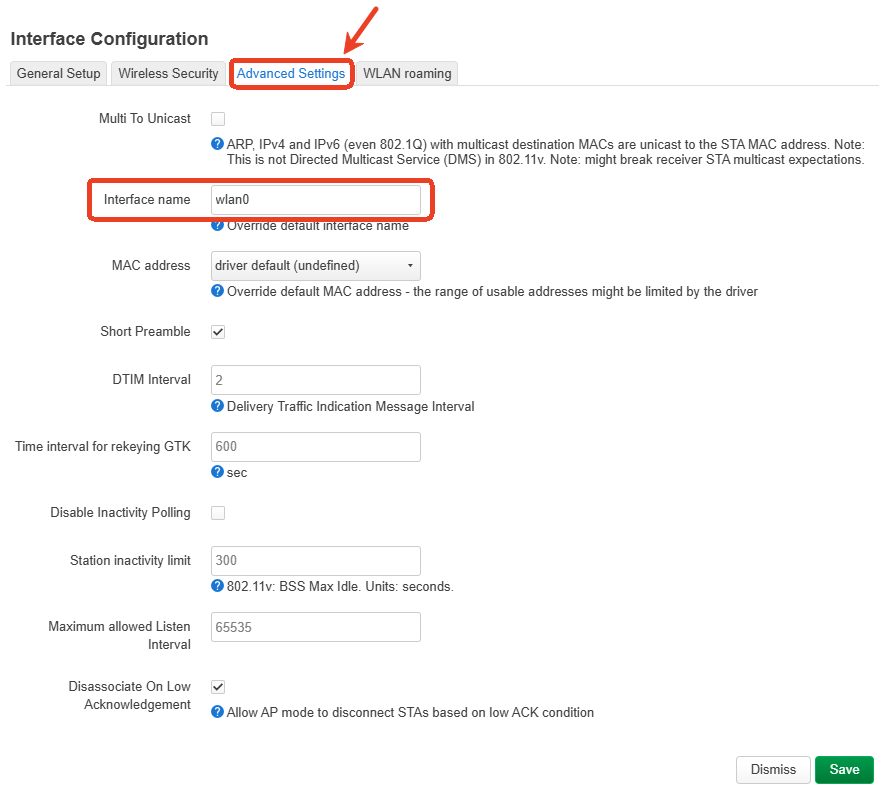
-
You will return to the Wireless page, which shows pending changes. Click the Save & Apply button in the bottom right corner.
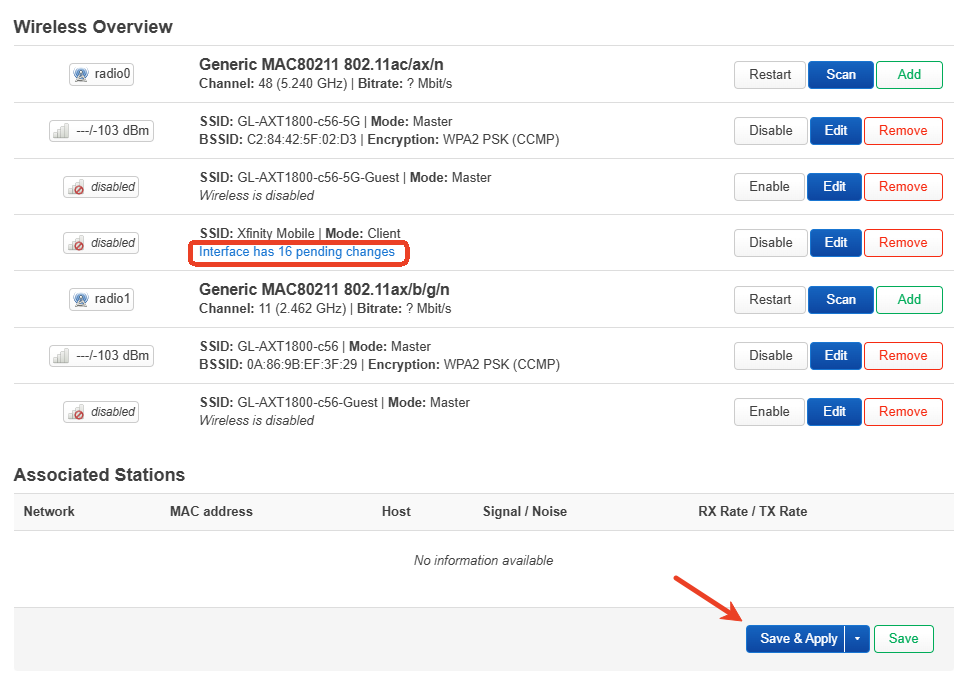
Your router will be connected to the target EAP network successfully.
-
Verify connection.
Check connection in the WebGUI
Once the router successfully connects to the target EAP network, a repeater icon will light up in the WebGUI, as shown below.
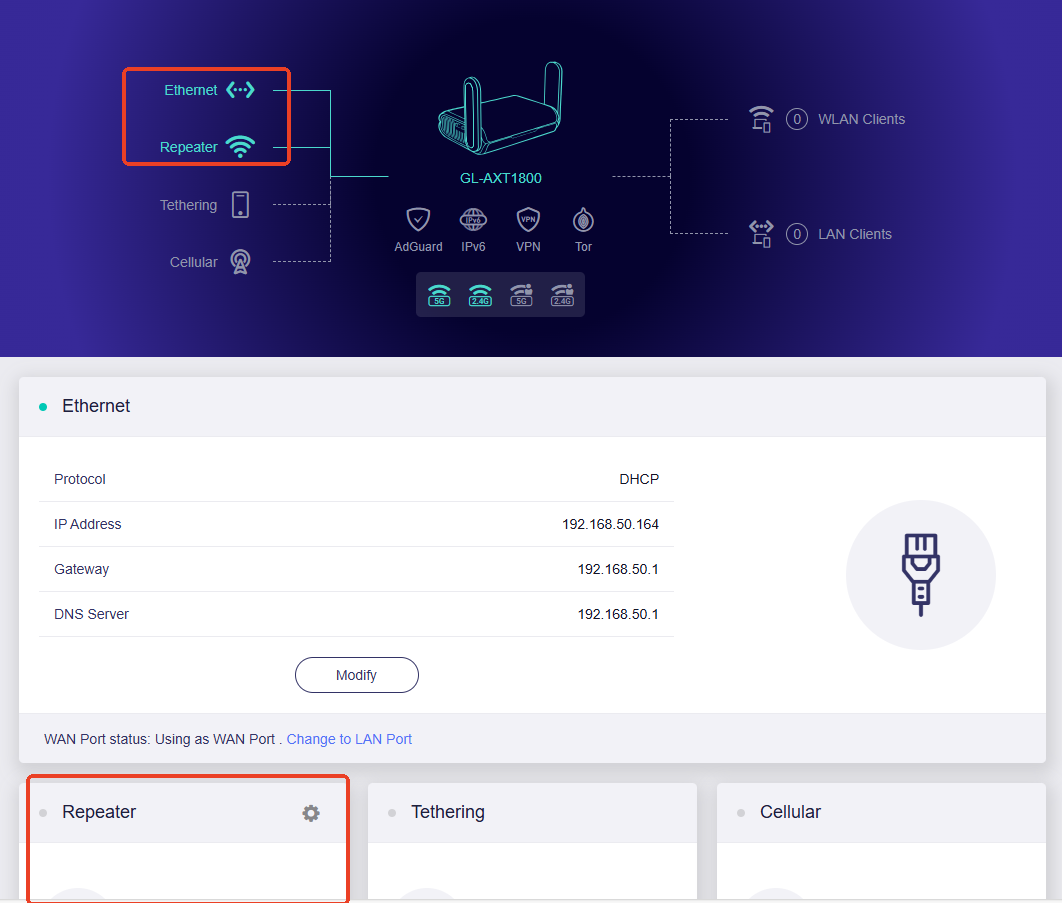
Note: Since the configuration in LuCI is not synchronized with that in the WebGUI, details of the repeater interface (e.g., connected IP, gateway, etc.) will not appear on the WebGUI.
As shown in the image, the repeater section at the bottom is blank. However, the router has already connected to the target EAP network as a repeater, because the repeater icon at the top is lit up.
Check connection via SSH
-
SSH log in to your router.
-
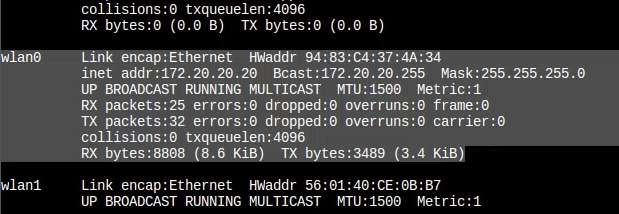
Input ifconfig and click Enter.
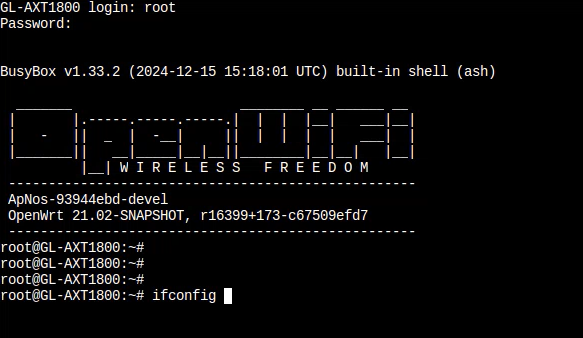
You will be able to check the wlan0 interface status.
-
Still have questions? Visit our Community Forum or Contact us.