How to access OpenVPN Server LAN devices from the client via domain names?
This tutorial explains how to access home devices (such as NAS, IP camera, etc.) on the OpenVPN server's LAN from a client using domain names.
Topology
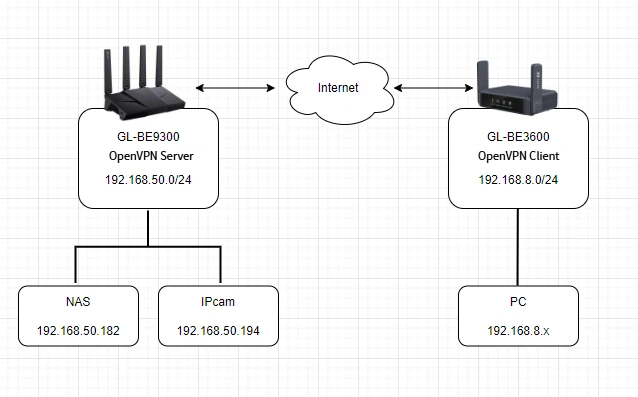
As shown below, you can access devices such as NAS and IP camera on the OpenVPN server's LAN from a PC on the client's LAN using their respective domain names.
Setup steps
1. Edit Hosts on Server (Optional)
This step applies when your VPN server cannot resolve local domain names properly. Skip this step if you are unsure.
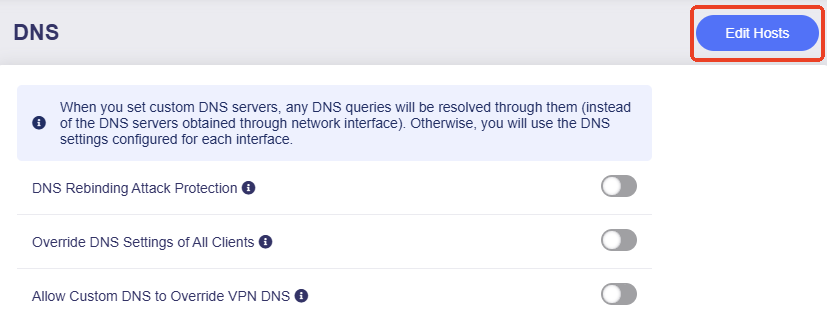
Log in to the web admin panel of your VPN server router, navigate to NETWORK -> DNS -> Edit Hosts.
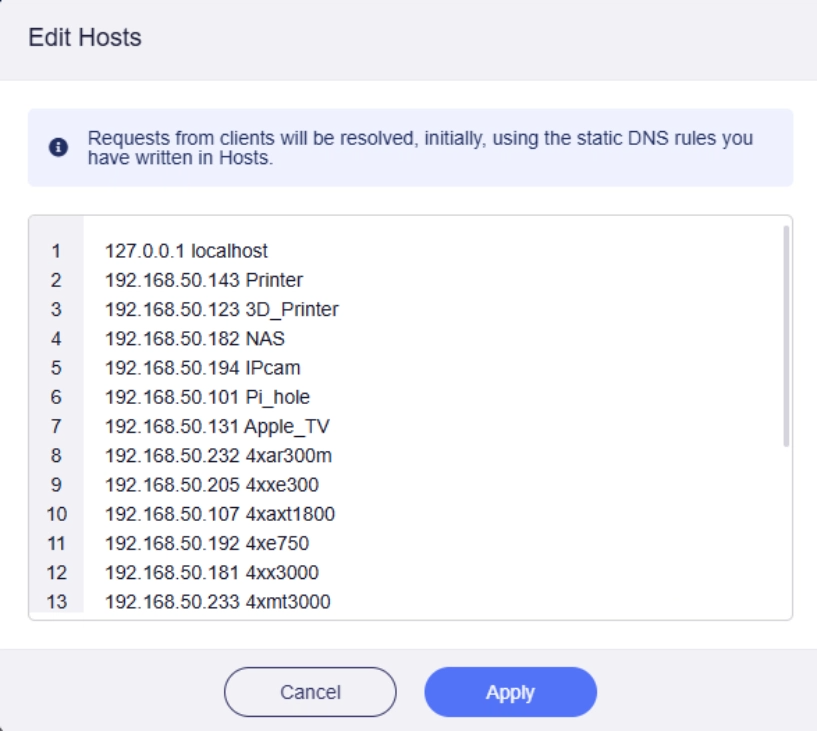
Input the IP and domain name of the home devices you want to access, then click Apply.
2. Allow Remote Access LAN on Server
On the server's web admin panel, navigate to VPN -> OpenVPN Server. Click Options at the upper right corner.
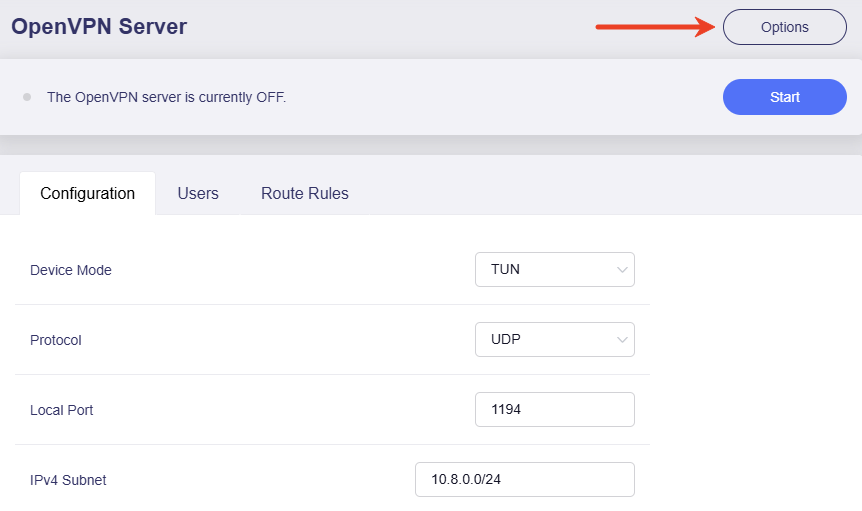
Enable Allow Remote Access the LAN Subnet, and click Apply.
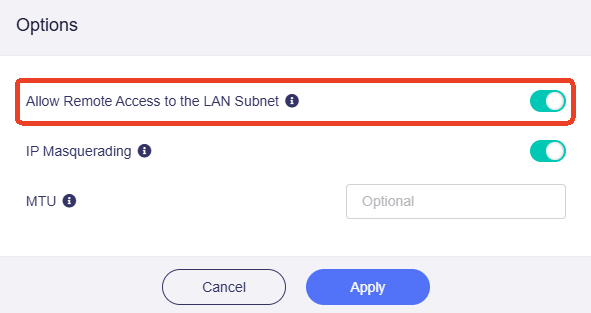
When enabled, the router and LAN devices can be accessed remotely via the VPN.
3. Export VPN Configuration
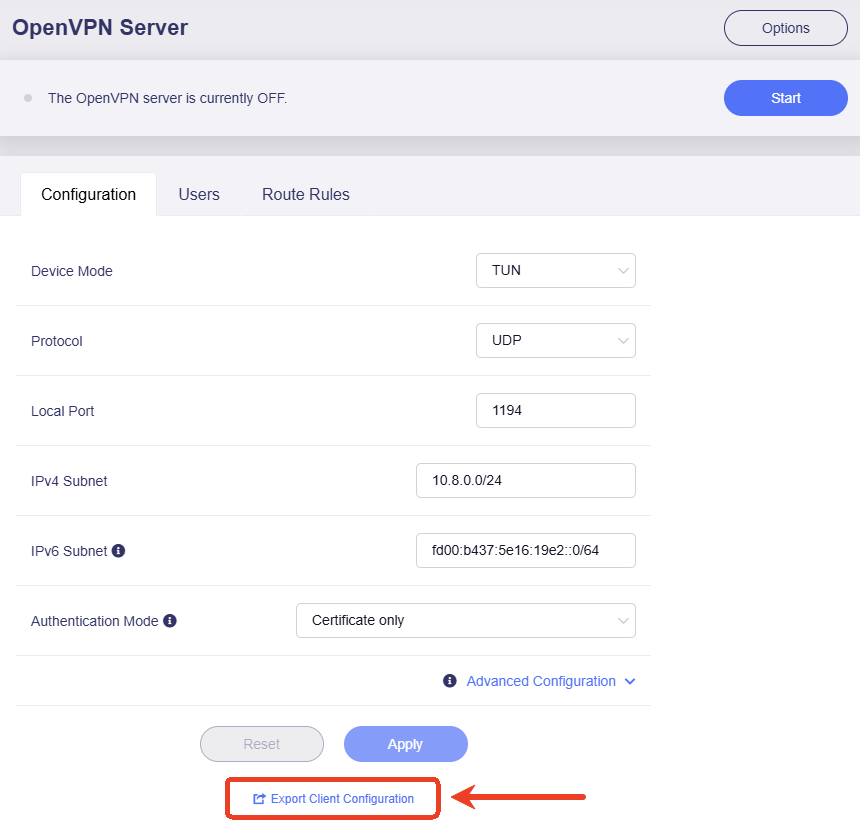
On the server's admin panel, navigate to VPN -> OpenVPN Server -> Configuration tab, click Export Client Configuration at the bottom.
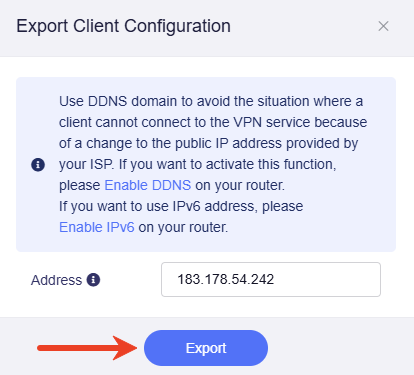
In the pop-up window, click Export.
Note: If the public IP address on your server is dynamic and changes from time to time, please go to APPLICATIONS -> Dynamic DNS to enable DDNS before exporting the client configuration.
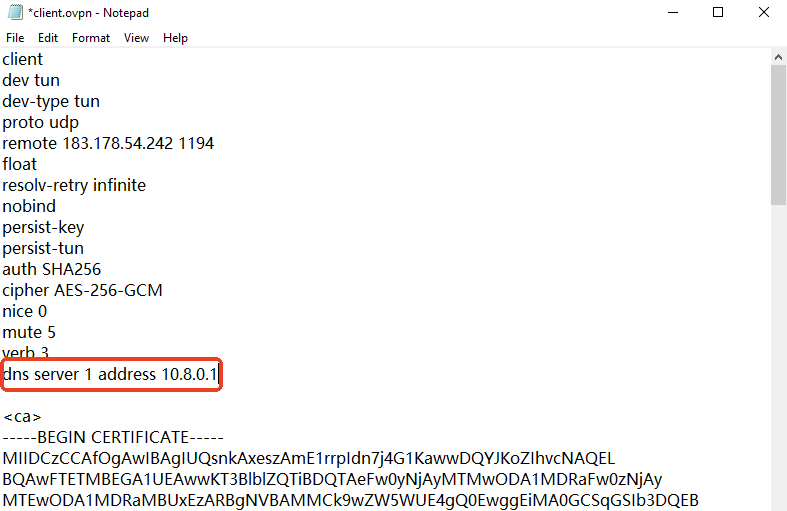
You will then get a .ovpn file, as shown below.

If your server router runs firmware v4.8 or later, no need to edit the configuration file; proceed to the next step.
If your server router runs firmware v4.7 or earlier, open this file, add the following line to set the DNS server to your OpenVPN server's tunnel IP, then save your changes.
dns server 1 address 10.8.0.1
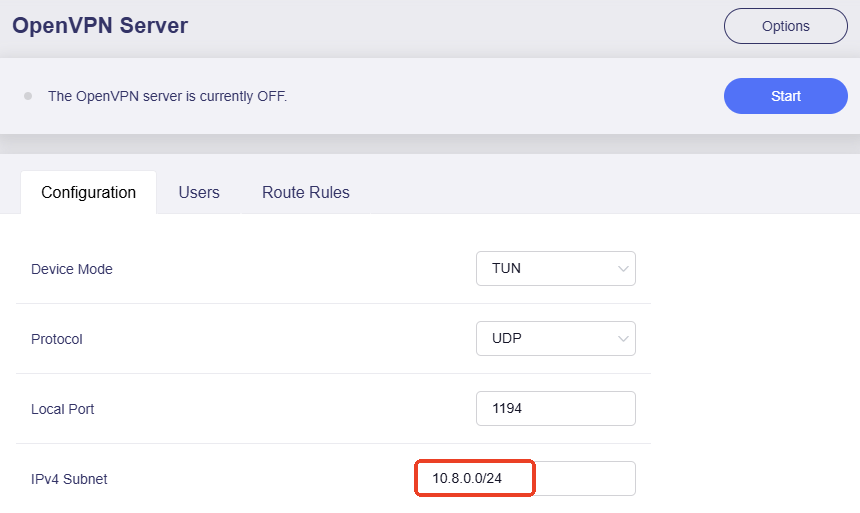
Tip: The OpenVPN server's tunnel IPv4 subnet can be found under the Configuration tab of the OpenVPN Server page, as shown below. It varies by firmware version. Please check your OpenVPN server's tunnel IP.
4. Enable VPN Server
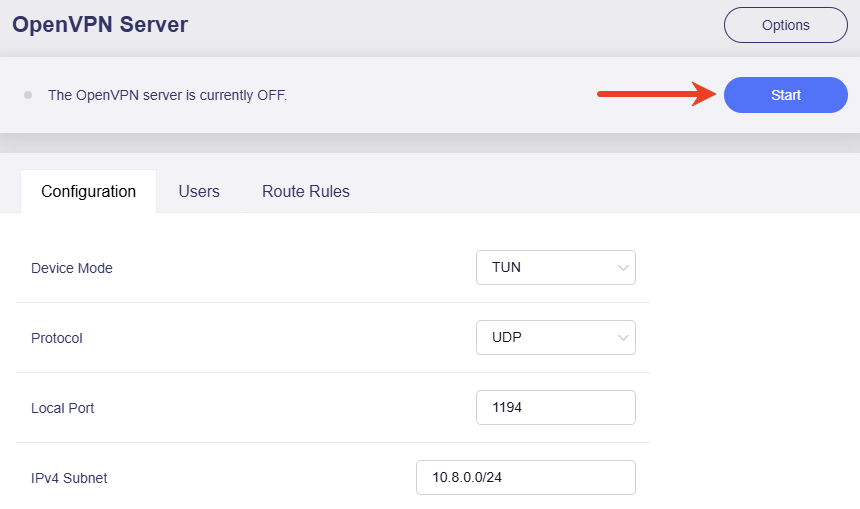
On the OpenVPN Server page, click the Start button in the upper right corner to start the server.
5. Upload VPN Configuration
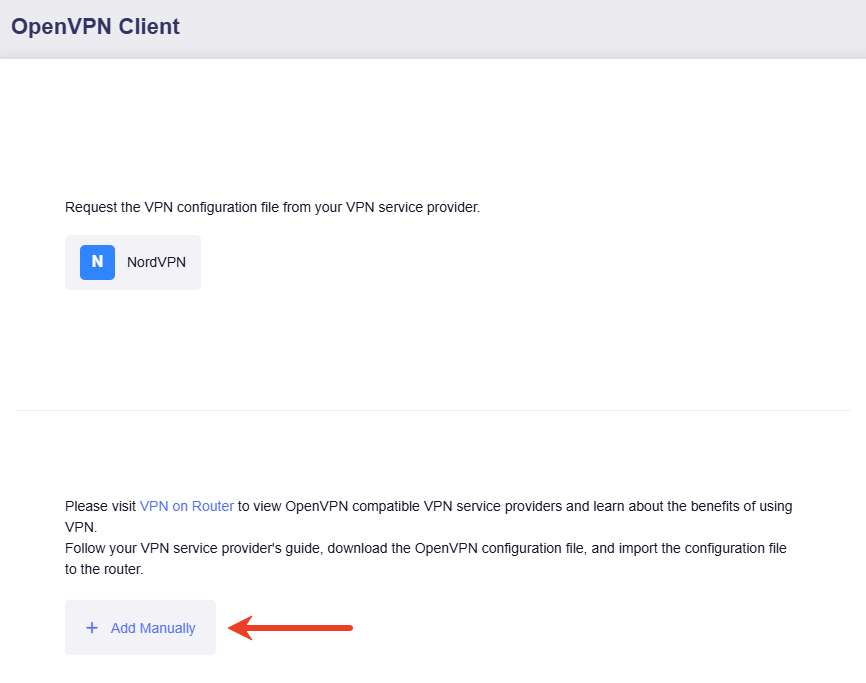
Log in to the web admin panel of your VPN client router, navigate to VPN -> OpenVPN Client, then click Add Manually.
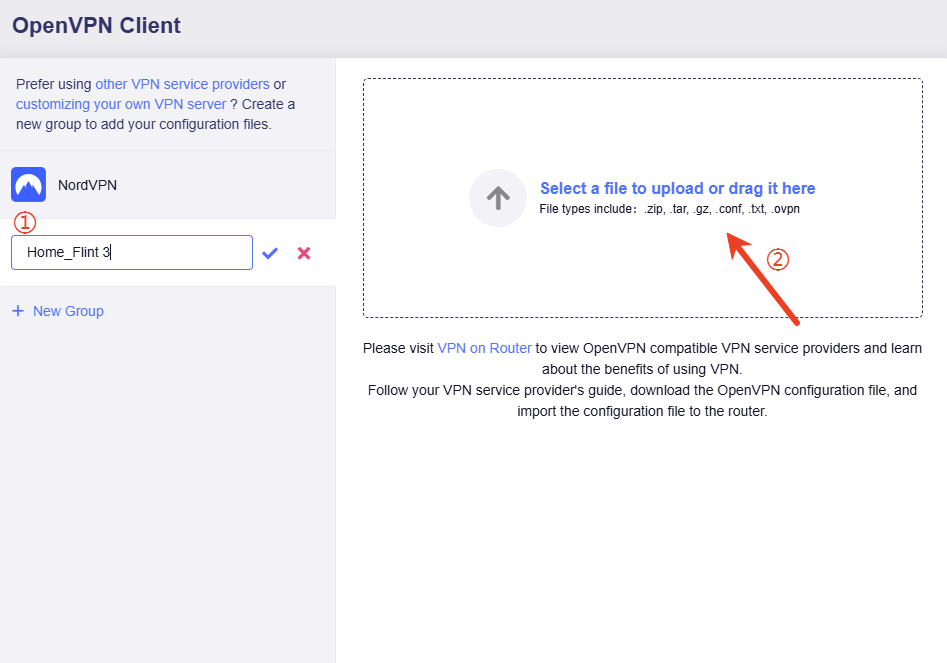
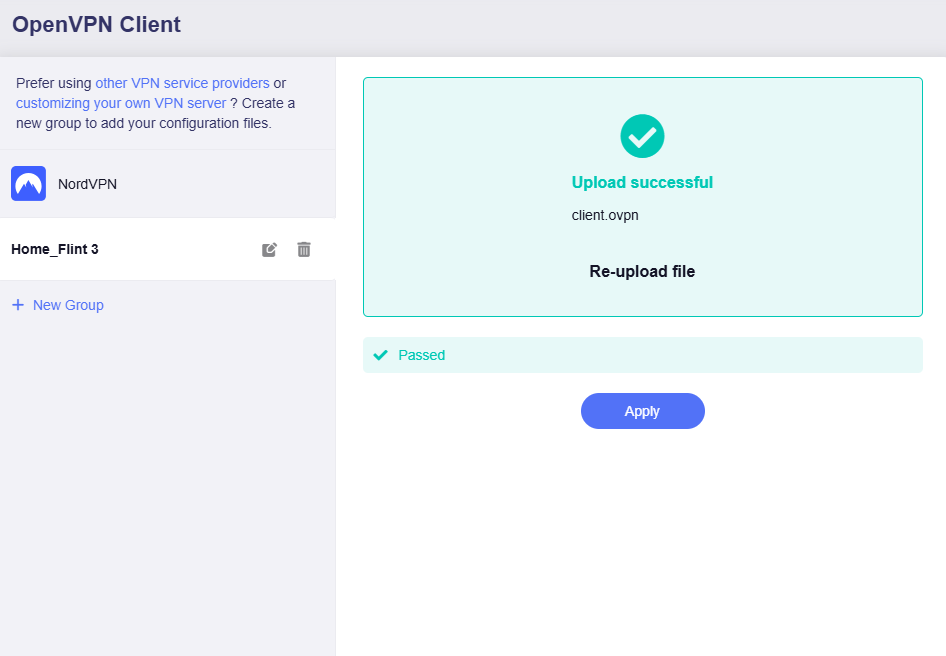
Create a name for this group and upload the configuration file.
Upload successful. Click Apply.
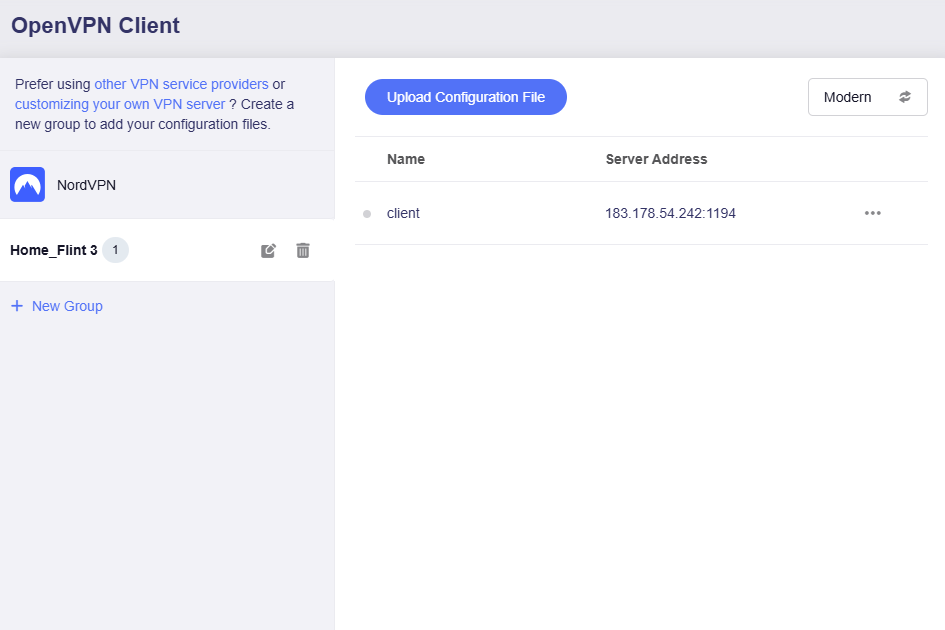
You will get a configuration file listed here.
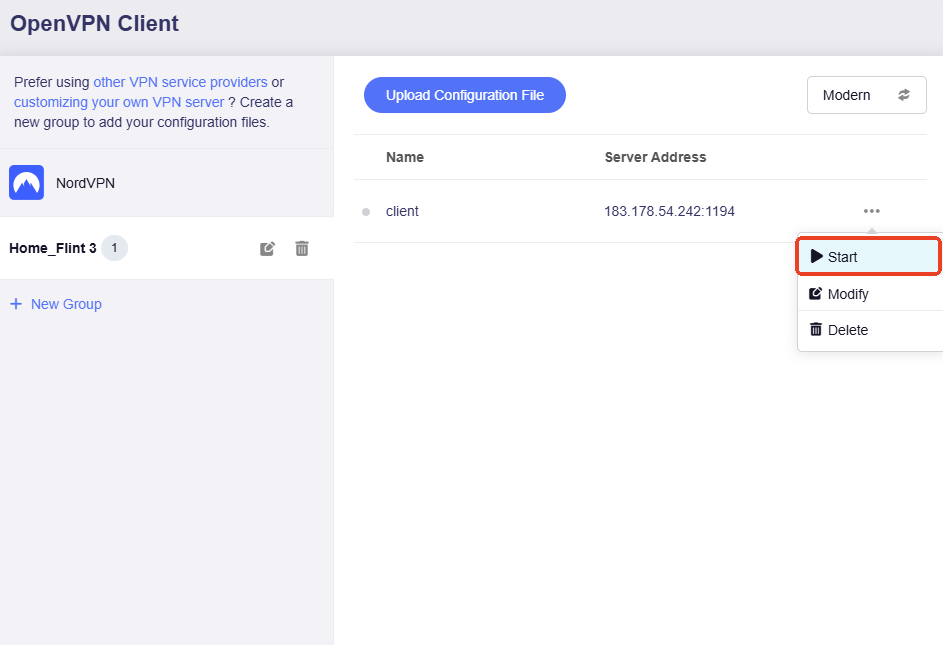
6. Start VPN Client Connection
Click the three-dot icon to initiate the VPN connection.
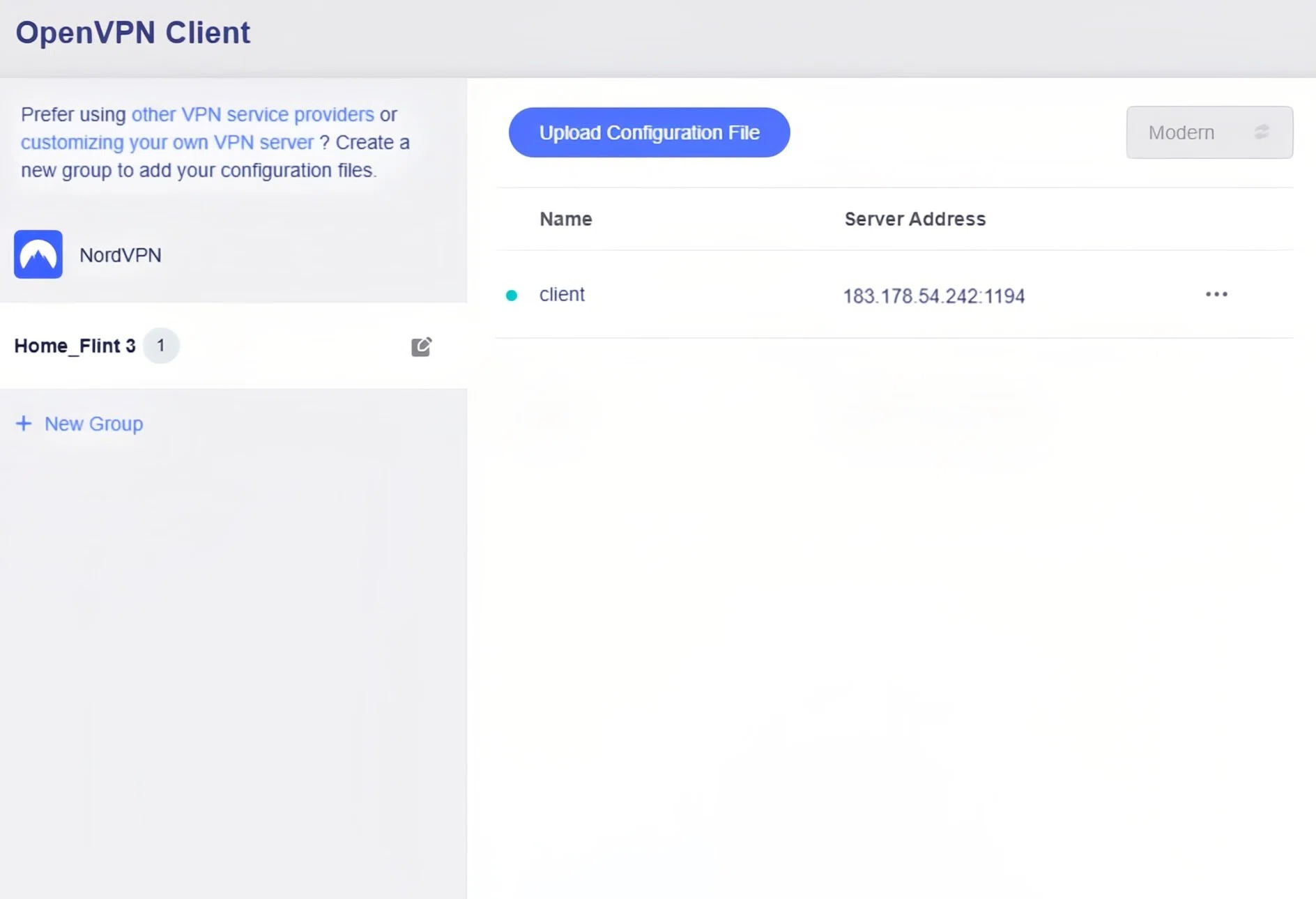
When the grey dot turns green, the OpenVPN client has connected to the server successfully.
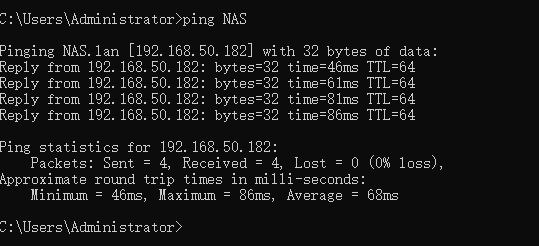
Now you can access your home devices (such as NAS) on the server's LAN from the PC on the client's LAN using their domain names.
Still have questions? Visit our Community Forum or Contact us.