How to update OpenVPN server certificates?
This tutorial explains how to update OpenVPN server certificates on your GL.iNet routers.
Note: This process requires updating the Root CA certificate, which will invalidate all existing client certificates (embedded in configuration files). You must re‑export all configuration files for your OpenVPN clients to reconnect to the server.
-
Log in to your router's web Admin Panel and go to VPN -> OpenVPN Server.
If your OpenVPN server is running, stop the service.
-
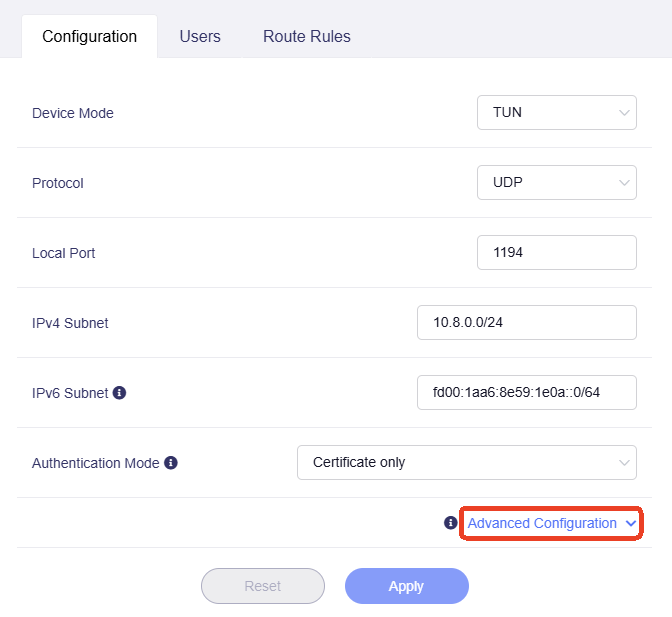
Under the Configuration tab, click Advanced Configuration to unfold the settings.
-
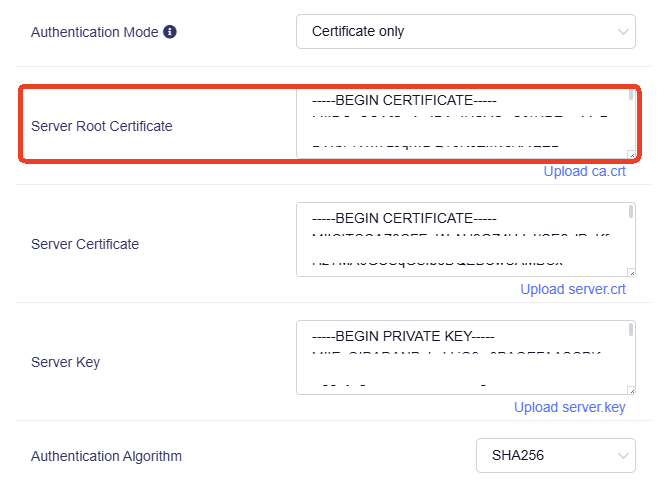
Find the Server Root Certificate and delete all contents within the text box.
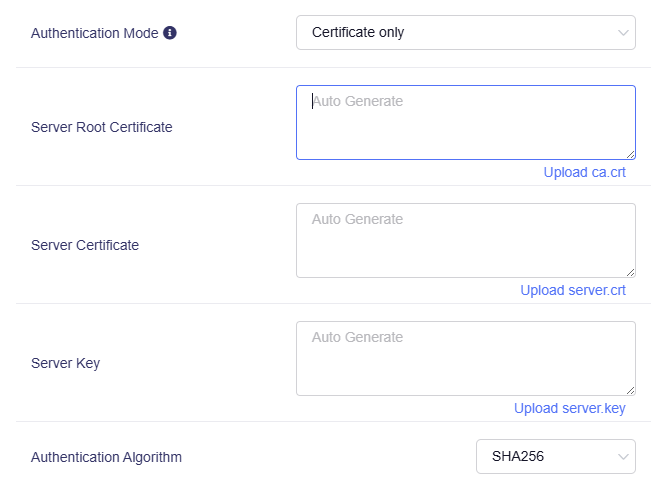
The paired Server Certificate and Server Key will also be removed automatically, as shown below.
-
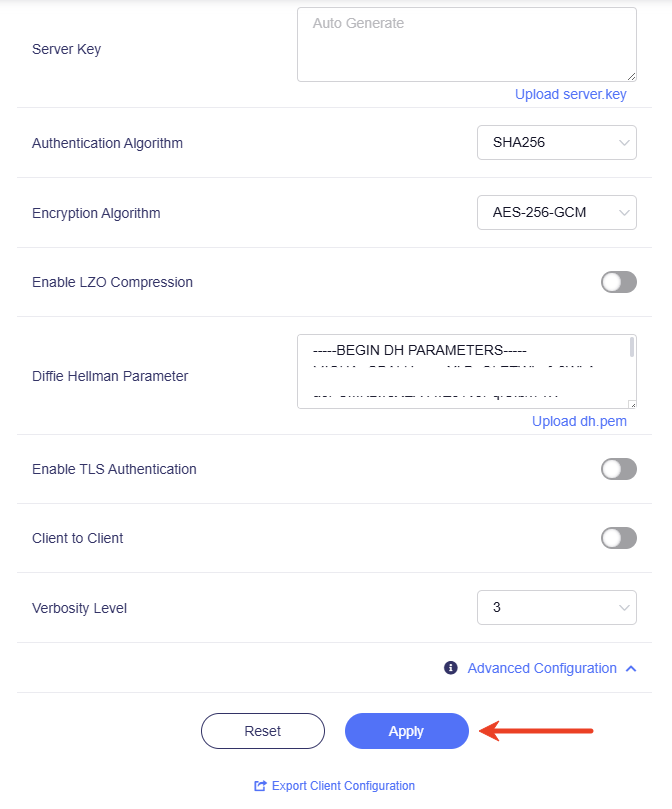
Leave all three boxes blank, and click Apply at the bottom. New certificates will be automatically generated and populated in the boxes.
-
The OpenVPN Server certificates are now updated. Click Export Client Configuration at the bottom to export new configuration files for your devices to connect.
Still have questions? Visit our Community Forum or Contact us.