Brume 3 (GL-MT5000) User Guide
Product overview
Brume 3 (GL-MT5000) is a high-performance security gateway running OpenWrt v21.02, equipped with a MediaTek Quad-core Cortex-A53 CPU, 1GB RAM, and 8GB eMMC storage for plugin expansion. It features a compact design, ideal for space-constrained deployments, and supports home VPN hosting, site-to-site SD-WAN, as well as over 30 VPN services for secure, cross-location connectivity. What's more, it comes with GL.iNet's DPI feature, as well as Parental Control and AdGuard Home, meeting the diverse needs of tech enthusiasts and business users.
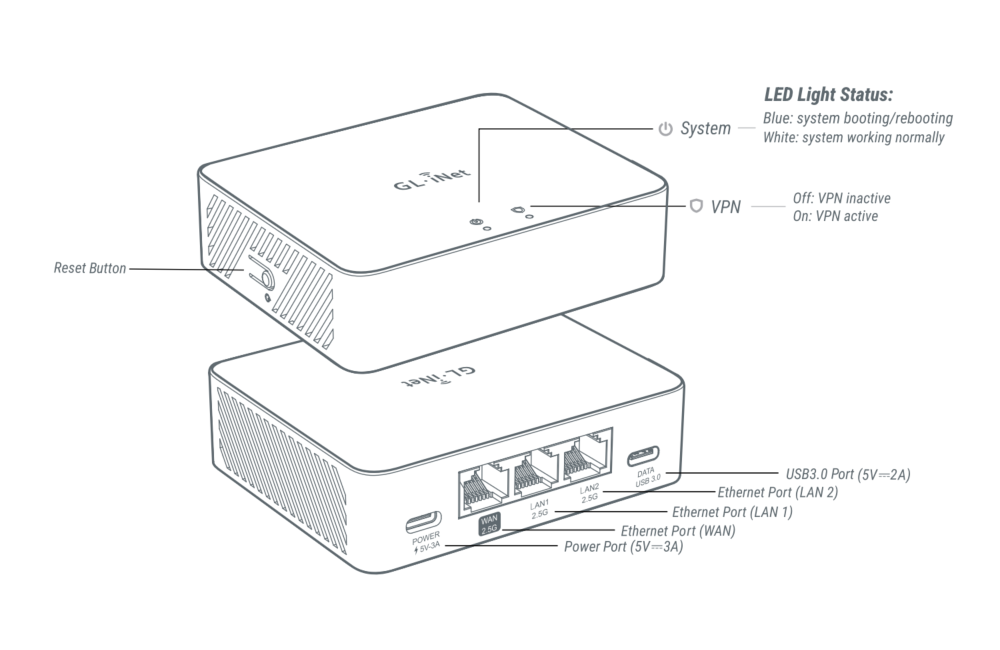
Package contents
- 1 x Brume 3 (GL-MT5000)
- 1 x Power adapter
- 1 x Ethernet cable
- 1 x User manual
- 1 x Thank you card
- 1 x Converter (Based on your shipping country)
Check out Brume 3's unboxing video below.
How to set up Brume 3
Watch this setup video or follow the steps below.
1. Power on
Put the two-piece power adapter together. Connect it to your Brume 3 and plug it into an outlet. It will start up automatically.
2. Connect device
Connect a wired device (e.g., a computer or laptop) to the Brume 3's LAN port via an Ethernet cable.
3. Log in to web Admin Panel
Note: The following instructions apply to users configuring the router via the GL.iNet Web Admin Panel.
Open a web browser, enter 192.168.8.1 in the address bar and log in. Choose your language and set your admin password, then click Apply.
4. Internet setup
Configure your Brume 3 using one of the supported internet connection methods: Ethernet, Tethering, and Cellular (optional). If you want to use the Multi-WAN feature, please set up more than one internet connection.
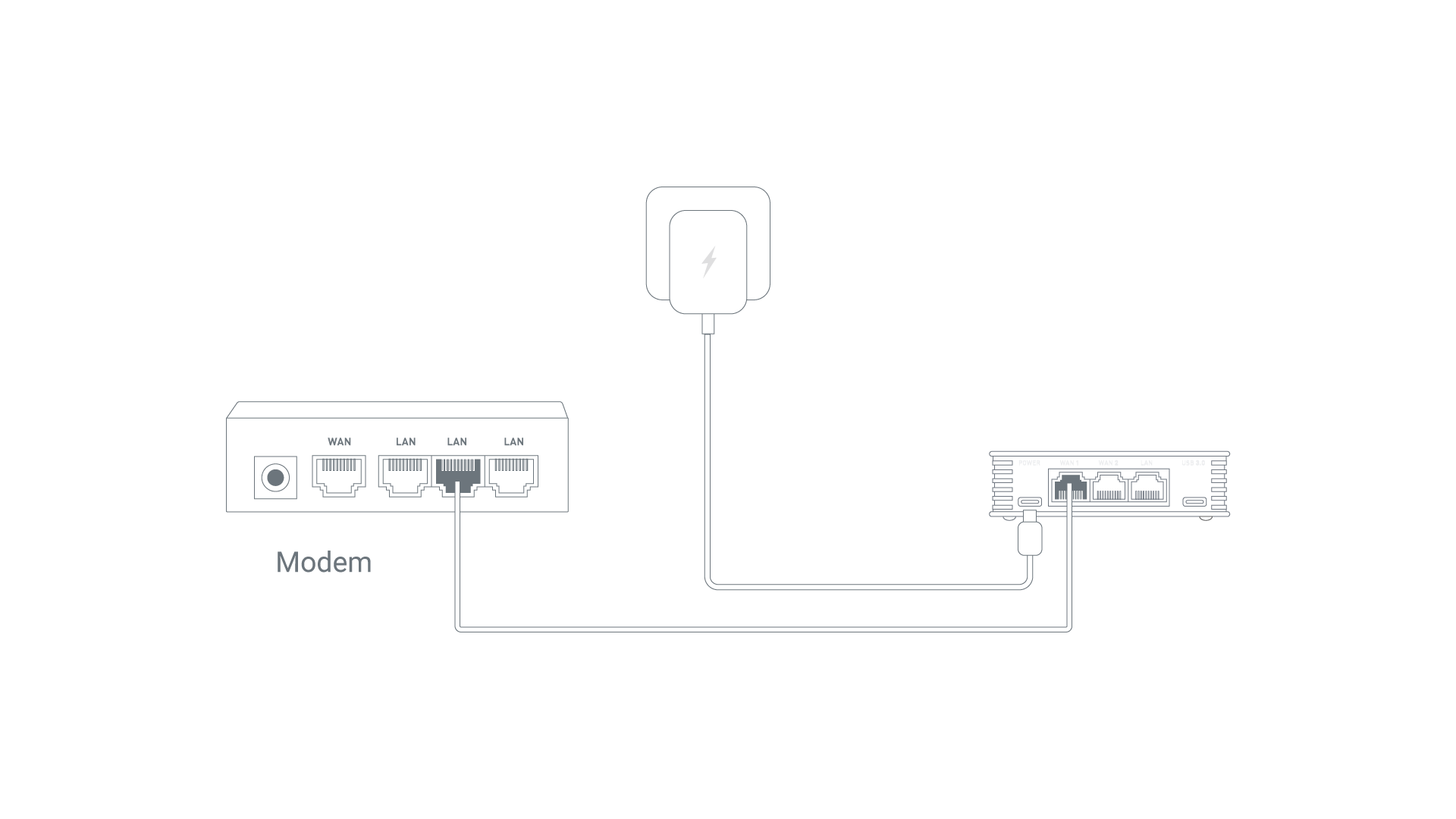
Connect the Brume 3's WAN port to an upstream device (such as a modem) via an ethernet cable.
Once Brume 3 is successfully connected to the internet, a green dot will appear next to "Ethernet" on the INTERNET page of the Web Admin Panel, and the physical LED on the Brume 3 will turn to solid white.
Please refer to Connect to the Internet via an Ethernet cable for detailed instructions.
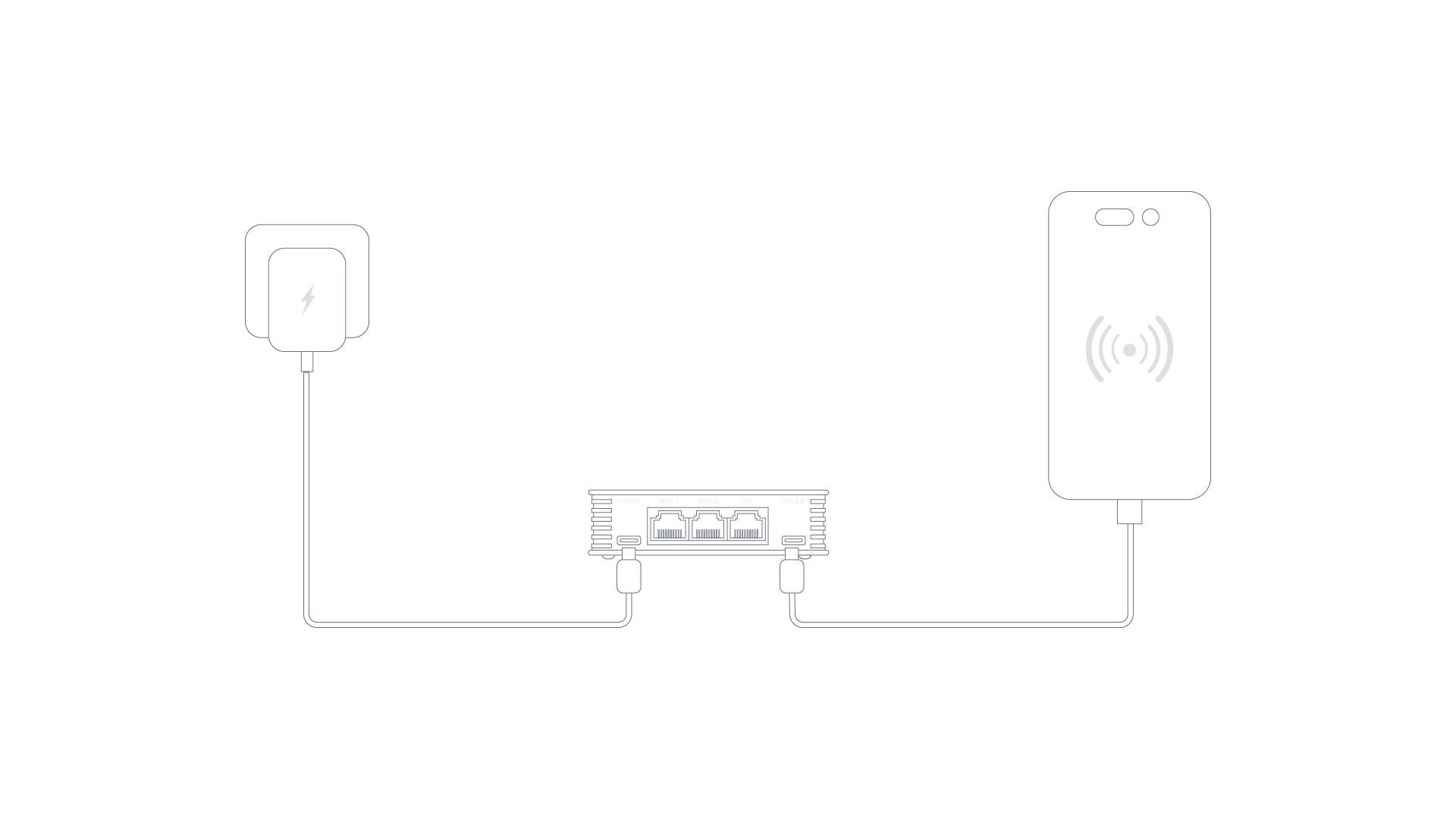
- Connect your mobile device to the USB Type-C port of Brume 3 via a USB 3.0 data cable.
- In your mobile device's settings, enable USB tethering.
- On the INTERNET page of the web Admin Panel, click Connect in the "Tethering" section.
Once Brume 3 is successfully connected to the internet, a green dot will appear next to "Tethering" on the INTERNET page of the Web Admin Panel, and the physical LED on the Brume 3 will turn to solid white.
Please refer to Connect to the Internet via USB tethering for detailed instructions.
An additional USB-C to USB-A adapter cable is required for this connection method.
Plug a cellular USB modem into the USB Type-C port of Brume 3 via an additional USB-C to USB-A adapter cable. This is useful for sharing internet from a USB modem to all connected client devices.
Once Brume 3 is successfully connected to the internet, a green dot will appear next to "Cellular" on the INTERNET page of the Web Admin Panel, and the physical LED on the Brume 3 will turn to solid white.
Please refer to Connect to the Internet via cellular for detailed instructions.
Below is an overview of the features in the Brume 3 web Admin Panel.
Clients
The Clients page displays information about connected devices. For each client, it shows the name, IP and MAC addresses, download and upload speeds, total traffic, and provides the ability to block the client or perform other actions.
To set up Clients, refer to Clients.
Cloud services
GL.iNet GoodCloud cloud management service provides an easy and simple way to remotely access and manage GL.iNet routers.
To set up GoodCloud, refer to GoodCloud.
AstroWarp is an advanced networking platform designed to provide seamless remote networking and remote device management. Built specifically for GL.iNet router integration, AstroWarp supports comprehensive device management across entire networks, enabling both upper and lower device control. With a focus on network-wide management and future support for hardware-level control, AstroWarp offers a more robust and dependable solution for managing devices and maintaining secure, stable networks.
To set up AstroWarp, refer to AstroWarp.
VPN
A VPN (virtual private network) creates a secure, encrypted traffic between your device and the VPN server. It provides an added layer of privacy and security (VPN client) and allows you to access a remote network (VPN server). Brume 3 supports OpenVPN and WireGuard.
Brume 3 (and other GL.iNet routers) support the OpenVPN protocol which offers strong security. To set up OpenVPN, follow these tutorials:
Brume 3 (and other GL.iNet routers) support the WireGuard protocol which offers great speeds and convenience. To set up WireGuard, follow these tutorials:
Network
Multi-WAN is a networking feature that allows you to set up your router with multiple internet connections (e.g., cellular, repeater, and ethernet) at the same time. If your current internet connection fails, the router will automatically switch to another internet connection. This ensures smooth and uninterrupted internet access.
To set up multi-WAN, refer to Multi-WAN.
LAN, or Local Area Network, is a network that connects computers and devices within a limited geographical area, such as a home or office. It enables high-speed data transfer and resource sharing, allowing devices to communicate with each other efficiently.
To set up LAN, refer to Lan.
The DNS page allows you to set custom DNS servers, enable DNS rebinding attack protection and override DNS settings of all clients, allow custom DNS to override VPN DNS, and configure the DNS server settings mode to automatic or manually specify DNS servers from the Ethernet connection.
To set up DNS, refer to DNS.
The Ethernet Port page allows you to configure the WAN and LAN ports, set the WAN/LAN interface to Ethernet, specify the MAC mode and MAC address for the WAN interface, and show the negotiated network port rate.
To manage Ethernet ports, refer to Ethernet Port.
IPv6, or Internet Protocol version 6, is the most recent version of the Internet Protocol designed to replace IPv4. It provides a vastly larger address space, allowing for a virtually unlimited number of unique IP addresses, which is essential for accommodating the growing number of devices connected to the internet.
To set up IPV6, refer to IPV6.
IGMP snooping is a network optimization technique used in Ethernet switches to manage and control multicast traffic.
To set up IGMP snooping, refer to IGMP Snooping.
Network mode refers to the configuration settings that determine how a device connects to a network and communicates with other devices.
To set up network mode, refer to Network Mode.
Drop-in gateway extends the functionality of your main router, including AdGuard Home, encrypted DNS, and VPN client.
To set up drop-in gateway, refer to these links:
Network acceleration can reduce CPU load and speeds up traffic packet forwarding.
To set up network acceleration, refer to Network Acceleration.
Flow Control
DPI (Deep Packet Inspection) is a core capability of intelligent network management. It can overcome the limitation of traditional routers (which only identify source or destination addresses), analyze data packet payloads in depth, and accurately identify user-accessed applications and websites through feature library comparison, enabling refined traffic classification and control.
Integrated with Netify, GL.iNet DPI feature adopts a lightweight embedded plug-in for efficient deployment. With Netify online-updated signature database, it enables reliable management, making network control more accurate and efficient.
Please refer to DPI Engine for detailed instructions.
Data Statistics offers an intelligent traffic insight dashboard that categorizes and visualizes network usage by applications, helping you monitor real-time and historical traffic for better network awareness and control.
Please refer to Data Statistics for detailed instructions.
Content Filter provides smart online safety powered by DPI-based classification, automatically blocking harmful or malicious websites to keep your network clean and secure.
Please refer to Content Filter for detailed instructions.
Parental Control is designed to help you manage and control your children's devices. It includes limiting their screen time and restricting their access to certain content.
To set up parental control, refer to Parental Control.
QoS (Quality of Service) optimizes bandwidth allocation by prioritizing critical activities (e.g., video calls, gaming) during network congestion, reducing latency and improving overall network performance. Note that this applies to local client traffic and VPN Client tunnel traffic, but not to traffic received when the router functions as a VPN Server.
Please refer to QoS for detailed instructions.
SQM (Smart Queue Management) intelligently manages your router's network traffic to minimize latency and "bufferbloat", ensuring smoother gaming and voice calls.
Please refer to SQM for detailed instructions.
Security
Port forwarding allows remote servers and devices on the internet to access devices on a private network.
To set up port forwarding, refer to Port Forwarding.
Management Control allows you to configure various security settings to protect your network and router from unauthorized access. This page includes the following options:
- Local Access Control: Manage and restrict access to the router's interface from devices connected to your local network.
- Remote Access Control: Configure and restrict access to the router's interface from remote locations over the internet, enhancing security against external threats.
- Open Ports on Router: Control which ports are open on the router, limiting potential vulnerabilities and unauthorized access.
These settings help you maintain a secure network environment, safeguarding both your router and connected devices.
Please refer to Security for detailed instructions.
NAT Mode page allows you to enable or disable Full Cone NAT and SIP ALG (Application Layer Gateway) functionality.
To set up NAT settings, refer to NAT Mode.
Applications
A plug-in is a software component that adds specific features or functionalities to an existing computer program, allowing for customization and enhancement of its capabilities.
To set up plug-ins, refer to Plug-ins.
Dynamic DNS (DDNS) automatically detects and updates the IP address associated with a domain in real-time. It is most useful for users who need a static IP address for accessing a remote network.
To set up Dynamic DNS, refer to Dynamic DNS.
Network storage refers to a centralized data storage solution that allows multiple users and devices to access and share files over a network.
To set up network storage, refer to Network Storage.
AdGuard Home is a network-wide ad and tracker blocking solution that acts as a DNS server to filter unwanted content across all devices connected to a home network.
To set up AdGuard Home, refer to AdGuard Home.
ZeroTier is a software-defined networking solution that enables users to create secure, virtual networks over the internet, connecting devices as if they were on the same local network.
To set up ZeroTier, refer to ZeroTier.
Tailscale is a VPN service that allows you to access your devices and applications anywhere.
To set up Tailscale, refer to Tailscale.
Tor, short for The Onion Router, is a privacy-focused network that enables anonymous communication over the internet. It routes internet traffic through a series of volunteer-operated servers (nodes) to obscure the user's location and usage, making it difficult to trace online activities.
System
The Overview page provides a comprehensive snapshot of your router's current status and performance metrics. On this page, you can view:
- CPU Average Load: Monitor the average load on your router's CPU, helping to assess performance and identify potential bottlenecks.
- Memory Usage: Check how much of your router's memory is in use, aiding in the management of resources.
- LED Control: Toggle the router's LED lights on or off, allowing for customization of the device's visual indicators.
- Flash Usage: View the utilization of the router's flash storage, ensuring there's sufficient space for firmware and configuration data.
- Device Info: Access detailed information about your router's system, including uptime, hostname, model, architecture, OpenWrt version, kernel version, device ID, device MAC and device S/N.
- External Storage: Check the status of any external storage devices connected to the router, such as USB drives or TF cards.
These features provide essential insights and controls, helping you to effectively manage and monitor your router's operation.
For detailed setup instructions and more information, please refer to Overview.
The Admin Password page enables you to set or change the password for the router's administrative interface to ensure only authorized users can modify settings.
For security reasons, we recommend that you turn on Prevent Weak Password.
When Prevent Weak Password is turned on, the requirements for new passwords are as follows.
- 5 characters and maximum 63 characters.
- Letters (case senstive), numbers and symbols
! @ # $ % ^ & * ( ) _ + - = , . > < | ? / \ [ ] { } : ; " ' ` ~are allowed. - At least two of uppercase letters, lowercase letters, numbers, and symbols are required.
The Upgrade page is used to update your router's firmware to the latest version, ensuring enhanced performance, security, and new features. This page offers two options for upgrading:
- Firmware Online Upgrade: Automatically check for and install the latest firmware version directly from the manufacturer's server, simplifying the update process.
- Firmware Local Upgrade: Manually upload a firmware file from your computer to update the router, providing control over the upgrade version and timing.
These options allow you to keep your router up-to-date with the latest improvements and fixes.
For detailed setup instructions and more information, please refer to Upgrade.
The Scheduled Tasks page allows you to automate various router functions based on a predefined schedule, enhancing convenience and efficiency. Key features on this page include:
- LED Display Schedule: Set a schedule to automatically turn the router's LED lights on or off, reducing light pollution during specific times.
- Schedule Reboot: Configure your router to reboot automatically at specified intervals, helping to maintain optimal performance and stability.
These scheduling options provide you with greater control over your router's operations, ensuring it meets your specific needs and preferences.
For detailed setup instructions and more information, please refer to Scheduled Tasks.
The Time Zone page allows you to set the correct time zone for your router, ensuring that all scheduled tasks, logs, and system events are accurately timestamped according to your local time. This setting is crucial for maintaining precise records and for the proper execution of time-based configurations.
For detailed setup instructions and more information, please refer to Time Zone.
The Log page provides access to various logs that record the router's activities and events, aiding in troubleshooting and performance monitoring. This page includes:
- System Log: Detailed logs of system-level events and activities.
- Kernel Log: Logs related to the kernel's operations and events.
- Crash Log: Records of system crashes and errors, useful for diagnosing critical issues.
- Cloud Log: Logs of interactions and activities related to GoodCloud services integrated with the router.
- Nginx Log: Logs from the Nginx web server, if used by the router, detailing web traffic and server operations.
Additionally, the page features an Export Log button, allowing you to export all collected logs for technical support analysis. This function is invaluable for diagnosing complex issues and obtaining professional assistance.
For detailed setup instructions and more information, please refer to Log.
The Reset Firmware page allows you to reset your router's current firmware version to its default settings, erasing all custom configurations. This process will restore the router to the default settings of the currently installed firmware version. This can be useful for troubleshooting persistent issues or starting fresh with the current firmware's default configuration.
For detailed setup instructions and more information, please refer to Reset Firmware.
The Advanced Settings page provides access to advanced configuration options through the OpenWrt LuCI interface, allowing experienced users to fine-tune their router's settings and functionalities beyond the basic interface options. This includes detailed network configurations, firewall settings, and other advanced system customizations.
For detailed setup instructions and more information, please refer to Advanced Settings.