Cómo obtener archivos de configuración de proveedores de servicios WireGuard
??? "AzireVPN" ### AzireVPN
[Official Website](https://www.azirevpn.com/aff/9x7wisg4){target="_blank"}
1. Acceda al [sitio web oficial de AzireVPN](https://www.azirevpn.com/aff/9x7wisg4){target="_blank"} e inicie sesión; después, abra el [generador de configuración de WireGuard](https://www.azirevpn.com/cfg/wireguard){target="_blank"}.
{class="glboxshadow"}
2. En la opción de IP, seleccione **IPv4**. Después haga clic en **Download Configuration**.
{class="glboxshadow"}
3. Luego siga [esta guía](../interface_guide/wireguard_client.md#set-up-azirevpn) para continuar.
4. También puede usar la [mobile app](../faq/mobile_app.md) para configurar AzireVPN.
??? "Hide.me VPN" ### Hide.me VPN
[Official Website](https://hide.me/?friend=glinet){target="_blank"}

Hide.me VPN ofrece una forma sencilla de usar su servicio WireGuard en un router GL.iNet.

1. Conéctese al router por [SSH](https://docs.gl-inet.com/router/en/3/tutorials/ssh/){target="_blank"}.

2. Copie la siguiente URL de instalación, péguela en el terminal y pulse Enter. Puede pegarla haciendo clic con el botón derecho del ratón.

    `curl -fsSL https://raw.githubusercontent.com/eventure/hide.client.routers/master/glinet_v4/hidemevpn | sh -s install`

3. Se iniciará la instalación y luego se le pedirá el nombre de usuario y la contraseña. Al escribir o pegar la contraseña, no verá ningún cambio en el terminal; pulse Enter después de introducirla.

4. Cuando termine, vaya al panel de administración web y verá que se ha creado un grupo de hide.me VPN con archivos de configuración ya incluidos. Solo tiene que conectarse como lo haría con cualquier otro archivo de configuración.

**Nota:** La clave del archivo de configuración de Hide.me VPN se regenera antes de cada conexión y deja de ser válida después de la desconexión, por lo que copiar este archivo de configuración a otros dispositivos no permitirá conectarse correctamente.

[Refer link](https://github.com/eventure/hide.client.routers){target="_blank"}
??? "Mullvad" ### Mullvad
[Official Website](https://mullvad.net/){target="_blank"}

1. Acceda al [sitio web oficial de Mullvad](https://mullvad.net/){target="_blank"} e inicie sesión; después, abra el [generador de archivos de configuración de WireGuard](https://mullvad.net/en/account/#/wireguard-config){target="_blank"}.

2. Luego siga [esta guía](../interface_guide/wireguard_client.md/#set-up-mullvad) para continuar.

3. También puede usar la [mobile app](../faq/mobile_app.md) para configurar Mullvad.
??? "PIA (Private Internet Access)" ### PIA (Private Internet Access)
[Official Website](https://privateinternetaccess.com/offer/GLiNET_71dx4t8bl){target="_blank"}

No es posible descargar configuraciones WireGuard desde su sitio web. Use la [mobile app](../faq/mobile_app.md) para configurar PIA VPN.

<iframe width="560" height="315" src="https://www.youtube.com/embed/Fc7NTdQ9QFo" title="YouTube video player" frameborder="0" allow="accelerometer; autoplay; clipboard-write; encrypted-media; gyroscope; picture-in-picture" allowfullscreen></iframe>
??? "Surfshark" ### Surfshark
[Official Website](https://get.surfshark.net/aff_c?offer_id=926&aff_id=1400){target="_blank"}
1. Si utiliza [Surfshark](https://get.surfshark.net/aff_c?offer_id=926&aff_id=1400){target="_blank"}, inicie sesión y vaya a [esta página](https://my.surfshark.com/vpn/manual-setup/router){target="_blank"}; haga clic en **Router** y seleccione **WireGuard**.
{class="glboxshadow"}
2. En la ventana siguiente, seleccione **I don't have a key pair**.
{class="glboxshadow"}
3. Seleccione **Generate a new key pair**.
{class="glboxshadow"}
4. Una vez generada la clave, seleccione **Choose a location**.
{class="glboxshadow"}
5. Por último, elija la ubicación que desee configurar y pulse el botón **download** junto a esa ubicación. Podrá descargar los archivos de configuración.
{class="glboxshadow"}
6. Luego siga [esta guía](../interface_guide/wireguard_client.md#set-up-surfshark) para continuar.
[Refer link](https://support.surfshark.com/hc/en-us/articles/6585805139474-How-to-set-up-a-manual-WireGuard-connection-on-Android-){target="_blank"}
??? "AirVPN" ### AirVPN
[Official Website](https://airvpn.org/?referred_by=402389){target="_blank"}
1. Si utiliza [AirVPN](https://airvpn.org/?referred_by=402389){target="_blank"}, inicie sesión en su sitio web, vaya a [Client Area](https://airvpn.org/client/){target="_blank"} y haga clic en [Config Generator](https://airvpn.org/generator/){target="_blank"}.
{class="glboxshadow" width="400"}
2. En la página Config Generator, seleccione WireGuard en la sección de protocolos.
{class="glboxshadow" width="600"}
3. Seleccione un servidor, desplácese hasta el final y haga clic en el botón **Generate**. Se descargará el archivo de configuración.
{class="glboxshadow" width="600"}
4. Luego siga [esta guía](../interface_guide/wireguard_client.md#set-up-wireguard-client-manually-for-other-providers) para continuar.
??? "Astrill" ### Astrill
[Official Website](https://www.astrill.com/a/dik2masnw6ig){target="_blank"}

Si utiliza [Astrill](https://www.astrill.com/a/dik2masnw6ig){target="_blank"}, inicie sesión y abra [esta página](https://www.astrill.com/member-zone/tools/wireguard-configuration){target="_blank"} para generar configuraciones WireGuard.

Luego siga [esta guía](../interface_guide/wireguard_client.md#set-up-wireguard-client-manually-for-other-providers) para continuar.
??? "IVPN" ### IVPN
[Official Website](https://www.ivpn.net/){target="_blank"}

Si utiliza [IVPN](https://www.ivpn.net/){target="_blank"}, deberá generar manualmente la configuración de WireGuard. Siga la guía correspondiente a su sistema operativo.

[Windows](https://www.ivpn.net/setup/windows-10-wireguard/){target="_blank"}, [macOS](https://www.ivpn.net/setup/macos-wireguard/){target="_blank"}, [Linux](https://www.ivpn.net/setup/linux-wireguard/){target="_blank"}

Luego siga [esta guía](../interface_guide/wireguard_client.md#set-up-wireguard-client-manually-for-other-providers) para continuar.
??? "NVPN" ### NVPN
[Official Website](https://www.nvpn.net/){target="_blank"}

Siga la guía disponible [aquí](https://support.nvpn.net/Knowledgebase/Article/View/428/0/how-to-use-our-wireguard#windows){target="_blank"} para crear la configuración.

Luego siga [esta guía](../interface_guide/wireguard_client.md#set-up-wireguard-client-manually-for-other-providers) para continuar.
??? "OVPN" ### OVPN
[Official Website](https://www.ovpn.com/en?ref=glinet){target="_blank"}
1. Inicie sesión en [www.ovpn.com](https://www.ovpn.com/en?ref=glinet){target="_blank"} y localice el menú que se muestra a continuación para obtener los archivos de configuración de WireGuard.
{class="glboxshadow"}
2. Haga clic en **Generate WireGuard keys**, elija el servidor que desee y descargue la configuración.
{class="glboxshadow"}
3. Abra la configuración con un editor de texto y copie su contenido.
La configuración puede incluir contenido IPv6. Como los routers GL.iNet no ofrecen un soporte suficientemente bueno para IPv6, elimine ese contenido. En el siguiente ejemplo, la parte resaltada corresponde al contenido IPv6.
{class="glboxshadow"}
4. Luego siga [esta guía](../interface_guide/wireguard_client.md#set-up-wireguard-client-manually-for-other-providers) para continuar.
5. También puede usar la [mobile app](../faq/mobile_app.md) para configurar OVPN.
??? "PrivateVPN" ### PrivateVPN
[Official Website](https://affiliate.privatevpn.com/scripts/click.php?a_aid=5e3a511658bc3){target="_blank"}
1. Inicie sesión y acceda al [Control panel](https://privatevpn.com/control-panel){target="_blank"}.
{class="glboxshadow"}
2. Seleccione un servidor.
{class="glboxshadow"}
3. Haga clic en **GENERATE CONFIG** y luego copie la configuración.
{class="glboxshadow"}
4. Luego siga [esta guía](../interface_guide/wireguard_client.md#set-up-wireguard-client-manually-for-other-providers) para continuar.
??? "PrivadoVPN" ### PrivadoVPN
[Official Website](https://privadovpn.com/#a_aid=GLINET){target="_blank"}
Acceda al sitio web de PrivadoVPN e inicie sesión.
En el panel, busque la sección Manual Configuration, haga clic en WireGuard, seleccione el servidor al que desee conectarse y haga clic en Download Configration.
{class="glboxshadow"}
{class="glboxshadow"}
Luego siga [esta guía](../interface_guide/wireguard_client.md#set-up-wireguard-client-manually-for-other-providers) para continuar.
??? "Proton VPN" ### Proton VPN
[Official Website](https://go.getproton.me/aff_c?offer_id=26&aff_id=1612){target="_blank"}

Si utiliza [Proton VPN](https://go.getproton.me/aff_c?offer_id=26&aff_id=1612){target="_blank"}, siga la guía disponible [aquí](https://protonvpn.com/support/wireguard-configurations/){target="_blank"} para generar el archivo de configuración WireGuard.

Luego siga [esta guía](../interface_guide/wireguard_client.md#set-up-wireguard-client-manually-for-other-providers) para continuar.
??? "PureVPN" ### PureVPN
[Official Website](https://billing.purevpn.com/aff.php?aff=35535){target="_blank"}
Consulte [esta guía](https://support.purevpn.com/router/how-to-setup-purevpn-on-glinet-router){target="_blank"} o siga los pasos indicados a continuación para obtener manualmente el archivo de configuración WireGuard.
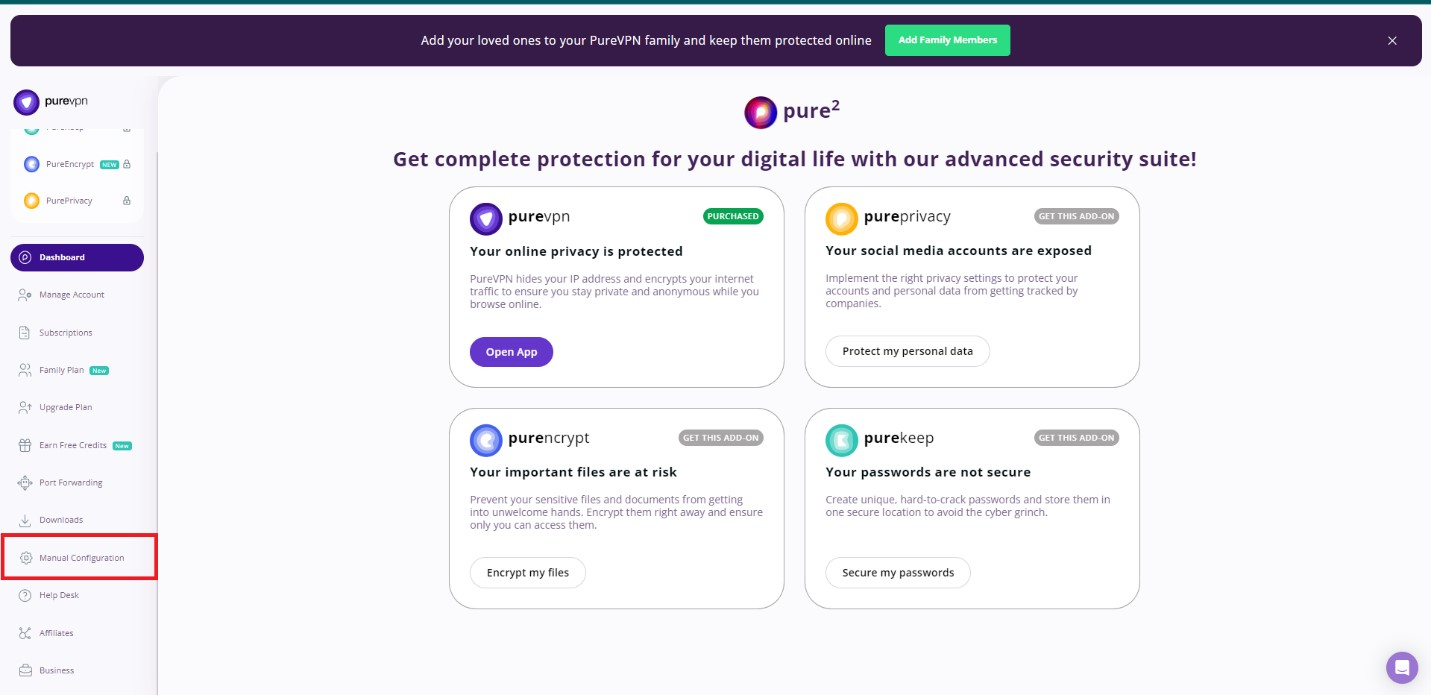
1. Inicie sesión en su [Member Area](https://my.puremember.com/){target="_blank"} y haga clic en **Manual Configuration**.
{class="glboxshadow"}
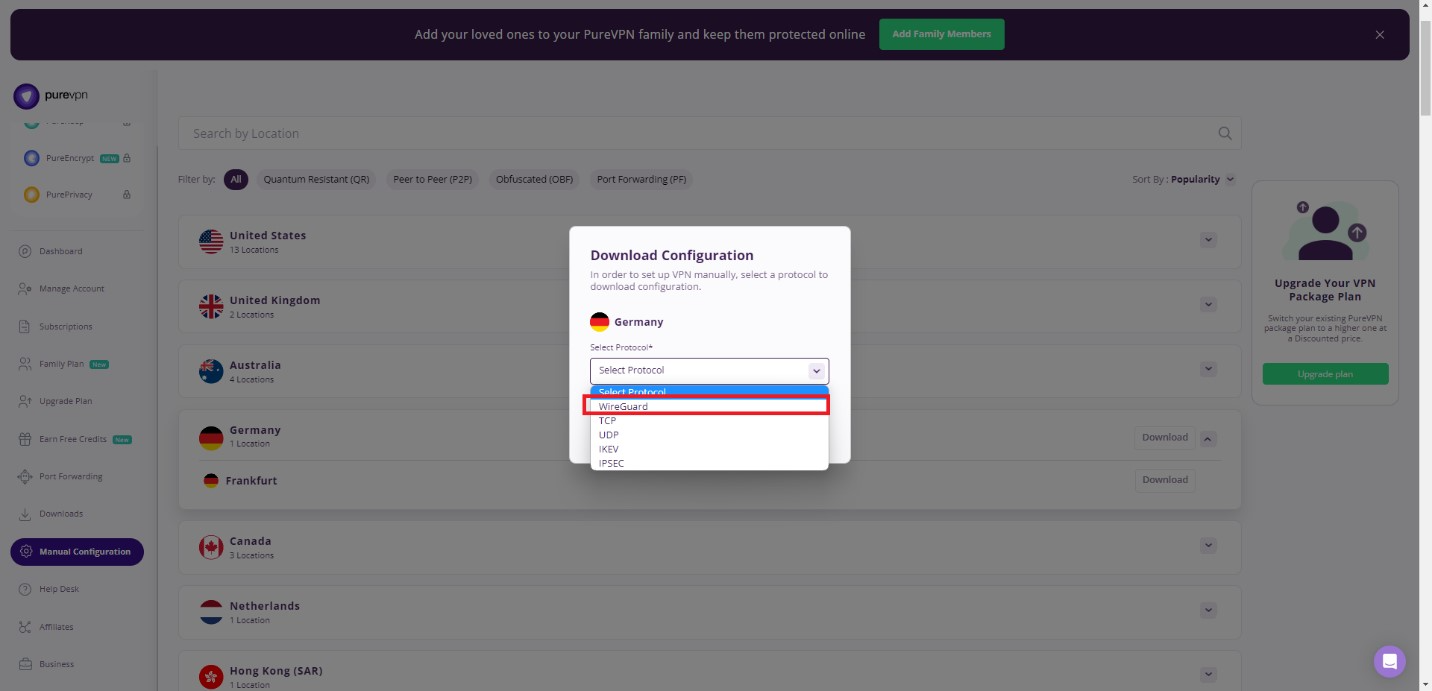
2. Vaya a su Member Area y descargue desde allí el archivo de configuración WireGuard.
{class="glboxshadow"}
**Nota**: Asegúrese de copiar el archivo y activar la conexión dentro de los 30 minutos posteriores a la descarga del perfil; de lo contrario, la configuración caducará y tendrá que volver a descargar un archivo nuevo.
Luego siga [esta guía](../interface_guide/wireguard_client.md#set-up-wireguard-client-manually-for-other-providers) para continuar.
[Refer link](https://support.purevpn.com/router/how-to-setup-purevpn-on-glinet-router){target="_blank"}
??? "SpiderVPN" ### SpiderVPN
[Official Website](https://spidervpn.org/#a_aid=5ddfa0372e7ff){target="_blank"}
1. Inicie sesión en [www.spidervpn.org](https://spidervpn.org/#a_aid=5ddfa0372e7ff) y busque la sección para obtener la configuración de su VPN. Siga los pasos para obtenerla.
{class="glboxshadow"}
2. Descargue la configuración de VPN.
{class="glboxshadow"}
3. Luego siga [esta guía](../interface_guide/wireguard_client.md#set-up-wireguard-client-manually-for-other-providers) para continuar.
??? "StarVPN" ### StarVPN
[Official Website](https://www.starvpn.com/dashboard/aff.php?aff=91){target="_blank"}
1. **Registre una cuenta en StarVPN**
Vaya a sus opciones de [pricing plan](https://www.starvpn.com/#pricing){target="_blank"} y elija un plan VPN que se ajuste a sus necesidades. Puede registrarse durante el proceso de compra o directamente [aquí](https://www.starvpn.com/dashboard/register.php){target="_blank"}.
2. **Descargue la configuración Wireguard**
Inicie sesión en el [dashboard](https://www.starvpn.com/dashboard){target="_blank"} del área de miembros de StarVPN. Haga clic en Wireguard Config para descargar el archivo de configuración. Cada slot contiene un archivo de configuración WireGuard único.
{class="glboxshadow"}
3. La configuración puede contener contenido IPv6. Como los routers GL.iNet no ofrecen un soporte suficientemente bueno para IPv6, elimine ese contenido.
{class="glboxshadow"}
4. Luego siga [esta guía](../interface_guide/wireguard_client.md#set-up-wireguard-client-manually-for-other-providers) para continuar.
[Refer link](https://www.starvpn.com/wireguard-setup-on-gl-inet-router/){target="_blank"}
??? "StrongVPN" ### StrongVPN
[Official Website](https://strongvpn.com/?tr_aid=5ac44bd241ca7){target="_blank"}
1. If you are using [StrongVPN](https://strongvpn.com/?tr_aid=5ac44bd241ca7){target="_blank"}, sign in at [https://wg.strongvpn.com](https://wg.strongvpn.com){target="_blank"}
2. Select a location from the drop down menu, click **GENERATE**, open the downloaded text file.
{class="glboxshadow"}
3. Then follow [this guide](../interface_guide/wireguard_client.md#set-up-wireguard-client-manually-for-other-providers) to continue.
4. You can also use [mobile app](../faq/mobile_app.md) to setup StrongVPN.
??? "TRUST.ZONE" ### TRUST.ZONE
[Official Website](https://trustzonevpn.info/r.php?RID=B-byr1v-MDAxNzE3NjgxMjM4){target="_blank"}

1. Access [https://trust.zone/setup](https://trust.zone/setup) and login.

2. Scroll down to the WireGuard section, choose the port you want, then download a config of specific server or a zip file of all configs.

3. Then follow [this guide](../interface_guide/wireguard_client.md#set-up-wireguard-client-manually-for-other-providers) to continue.
??? "VPN.AC" ### VPN.AC
[Official Website](https://vpn.ac/aff.php?aff=1424){target="_blank"}
1. If you are using [VPN.AC](https://vpn.ac/aff.php?aff=1424){target="_blank"}, you need to login the control panel and find WireGuard Manager from the "Services" menu.
{class="glboxshadow"}
2. Create the config and download.
{class="glboxshadow"}
3. Then follow [this guide](../interface_guide/wireguard_client.md#set-up-wireguard-client-manually-for-other-providers) to continue.
??? "VPN Unlimited(KeepSolid)" ### VPN Unlimited(KeepSolid)
[Official Website](https://keepsolid.g2afse.com/click?pid=270&offer_id=7){target="_blank"}
1. If you are using [VPN Unlimited](https://keepsolid.g2afse.com/click?pid=270&offer_id=7){target="_blank"}, sign in to your [User Office](https://my.keepsolid.com/){target="_blank"} > select the VPN Unlimited® application > click **Manage**.
{class="glboxshadow"}
2. Press the field under **Device** and click **Manually create a new device…** > set it's custom name, for example WireGuard > choose appropriate location of the **Server** > select the **WireGuard**® protocol from the dropdown menu > click **Generate**.
{class="glboxshadow"}
3. The configuration parameters will then appear below in the text format.
{class="glboxshadow"}
Combine the configuration as below.
<p>
[Interface]</br>
PrivateKey = <i>paste the PrivateKey from your User Office</i></br>
ListenPort = <i>paste the ListenPort details</i></br>
Address = <i>paste Address information</i></br>
DNS = <i>paste DNS details from the User Office</i></br>
</br>
[Peer]</br>
PublicKey = <i>paste PublicKey from the User Office</i></br>
PresharedKey = <i>paste PresharedKey details</i></br>
AllowedIPs = <i>paste AllowedIPs details</i></br>
Endpoint = <i>paste Endpoint information</i></br>
</p>
4. Then follow [this guide](../interface_guide/wireguard_client.md#set-up-wireguard-client-manually-for-other-providers) to continue.
[Refer link 1](https://www.vpnunlimited.com/help/manuals/wireguard-setup-on-glinet-router){target="_blank"}
[Refer link 2](https://www.vpnunlimited.com/help/manuals/wireguard/windows){target="_blank"}
??? "Windscribe" ### Windscribe
[Official Website](https://windscribe.com/yo/1u2h9ndl){target="_blank"}
1. Log in to your Windscribe membership account [here](https://windscribe.com/login?auth_required){target="_blank"}, then access the [WireGuard Config Generator](https://windscribe.com/getconfig/wireguard){target="_blank"}.
2. Select the server location and port you'd like to use, then click **Download Config**.
{class="glboxshadow"}
3. Follow [this guide](../interface_guide/wireguard_client.md#set-up-wireguard-client-manually-for-other-providers) to continue.
??? "12VPX" ### 12VPX
[Official Website](https://12vpx.com/?aff=1174){target="_blank"}

If you are using [12VPX](https://12vpx.com/?aff=1174){target="_blank"}, login then access [this page](https://12vpx.com/setup/wireguard){target="_blank"}, you will see the configs of all servers.

Then follow [this guide](../interface_guide/wireguard_client.md#set-up-wireguard-client-manually-for-other-providers) to continue.
Still have questions? Visit our Community Forum or Contact us.