How to unbind my KVM device from the Cloud?
There are three ways to unbind KVM devices from the Cloud: via local access, GLKVM app, or via the Cloud.
Unbind in local access
-
Ensure your computer is on the same local area network as your KVM device.
-
Launch a web browser on your computer (Chrome or Edge is recommended for better compatibility). Enter
glkvm.localor the KVM's IP address in the address bar to access the GLKVM local login page. Enter the admin password to log in. -
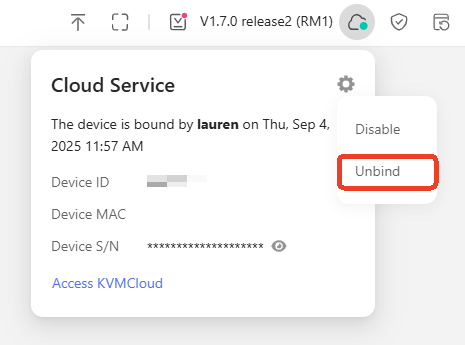
After login, navigate to the Cloud Service in the upper-right corner, click the gear icon and select Unbind.
Unbind in GLKVM app
-
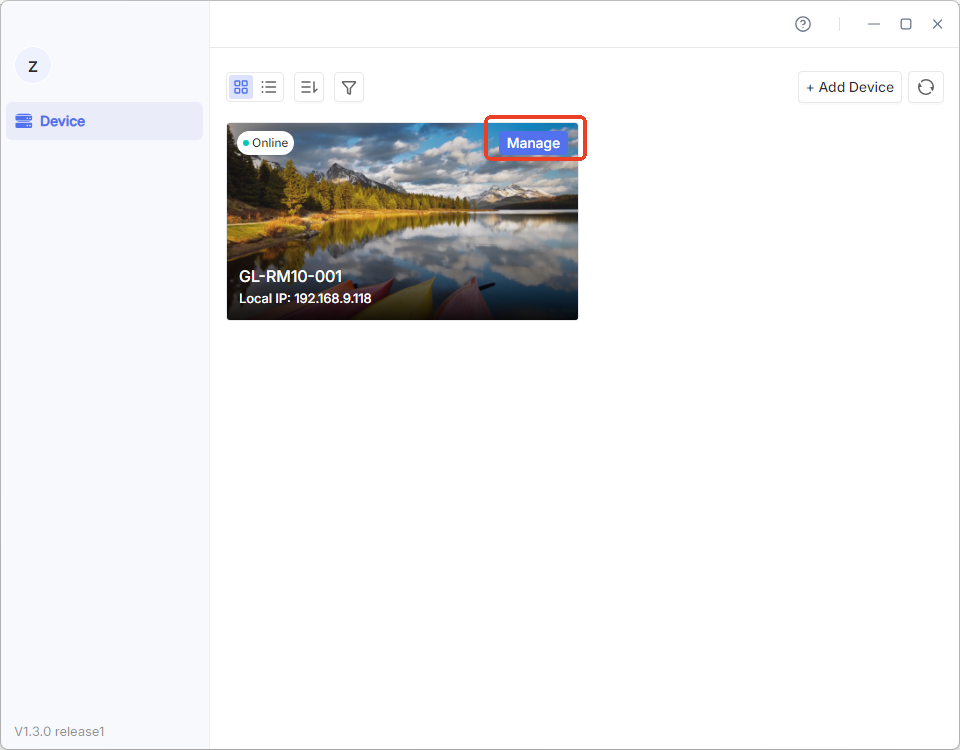
Log in to the GLKVM app, and click Manage in the upper-right corner of your device.
-
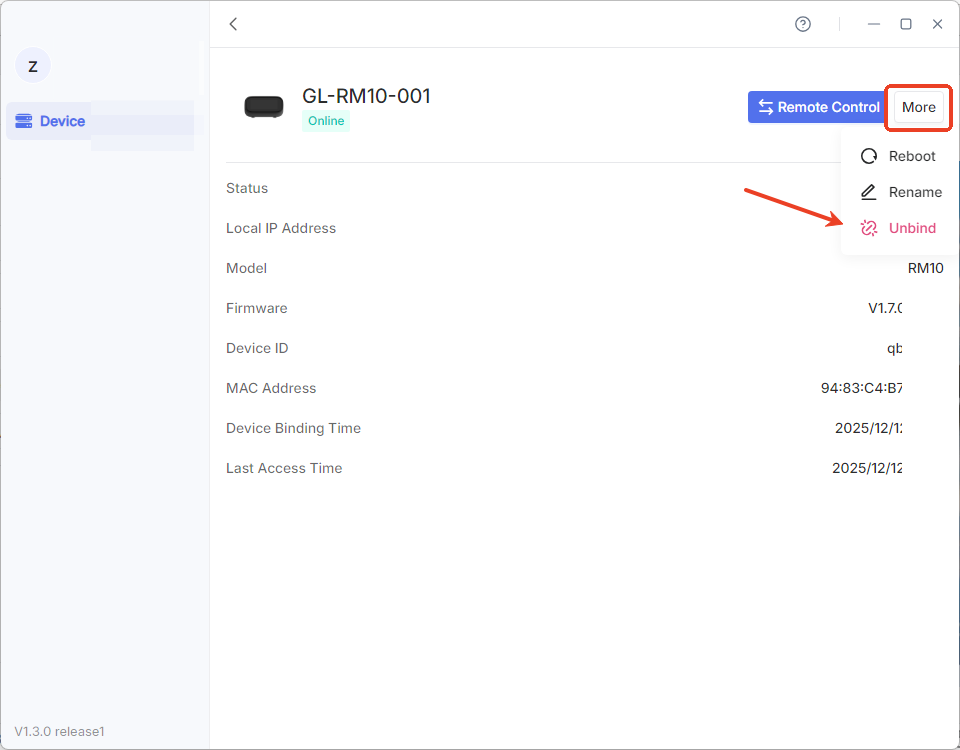
Click More and select Unbind.
Unbind in the Cloud
-
Launch a web browser on your computer (Chrome or Edge is recommended for better compatibility). Enter
glkvm.comin the address bar, and log in with your cloud account. -
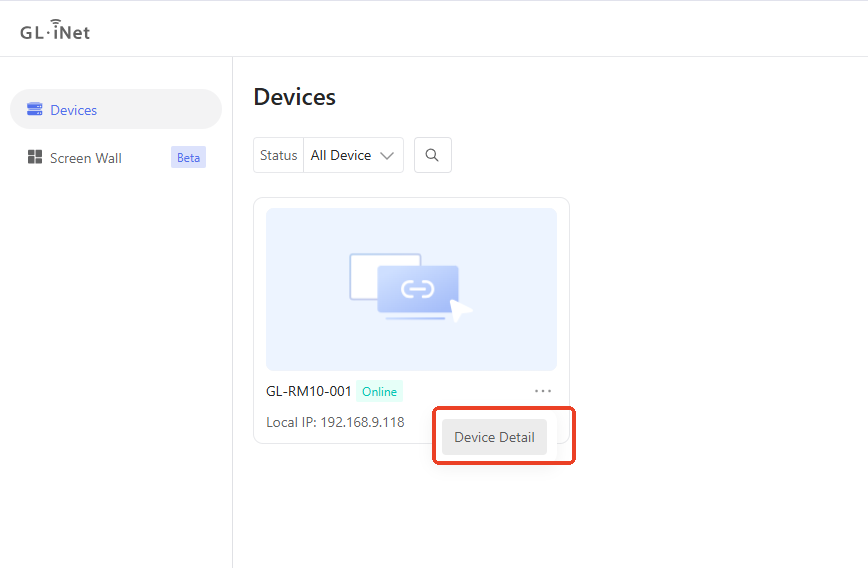
After login, click the three-dots icon in the bottom-right corner of your device, and click Device Detail.
-
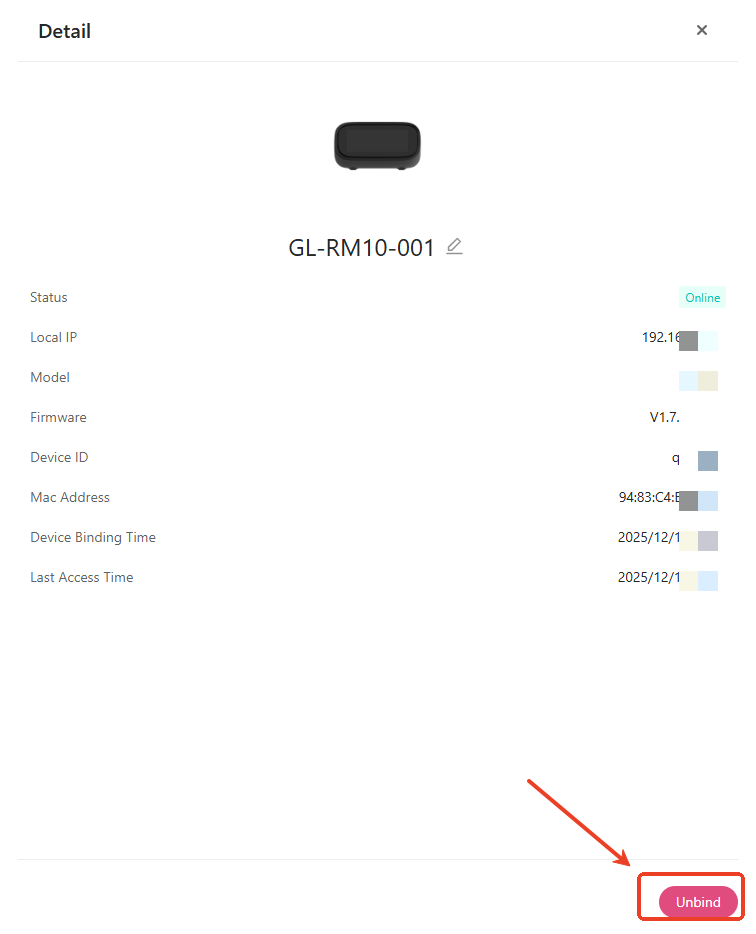
On the details page, click Unbind.
Still have questions? Visit our Community Forum or Contact us.