Cirrus (GL-AP1300) User Guide
Product overview
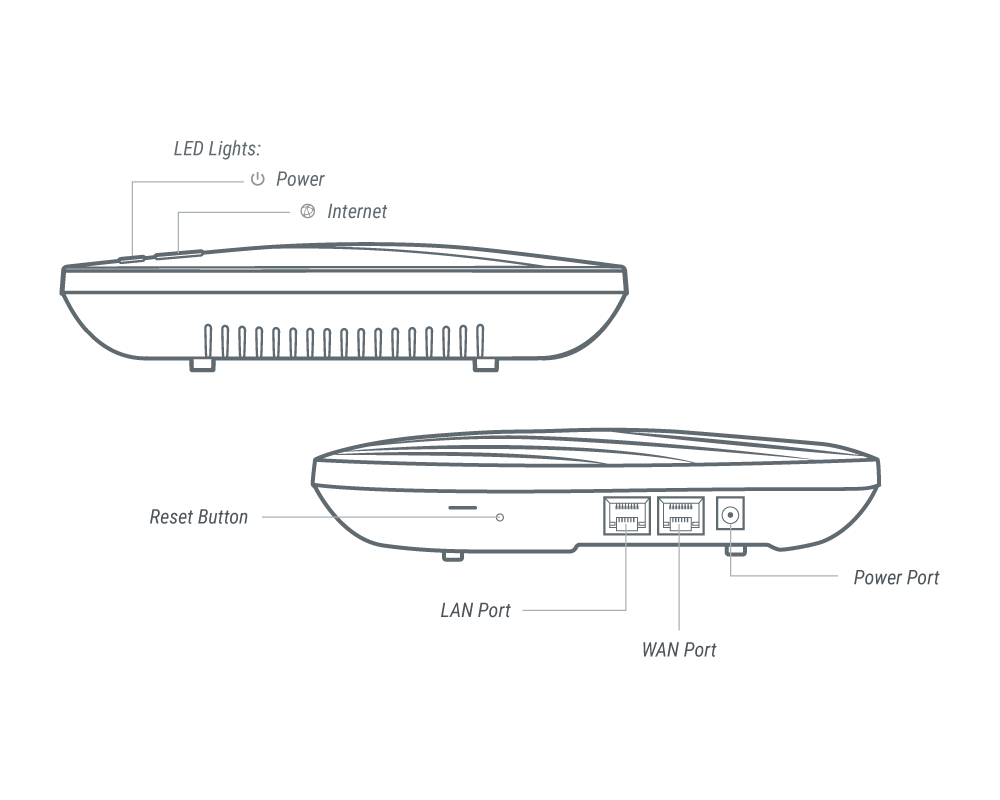
Cirrus (GL-AP1300) ceiling wireless access point is an elite business-class level gateway with MU-MIMO Wi-Fi solution. PoE power supply and Watchdog timer built-in function are implemented in order to fulfill most enterprise-level user cases. With well-developed GoodCloud management system, managing the device is very easy and convenient. You can enable a remote and secure access wherever you are and whenever you want.
Specifications
First-time setup
All GL.iNet routers have a similar setup process. Click here to learn about the first-time setup.
INTERNET
Log in to the router's web Admin Panel, and navigate to INTERNET from the left-side menu.
This page allows you to select your internet connection type, such as Ethernet, Repeater, Tethering, and Cellular, depending on your model.
For Cirrus (GL-AP1300), it supports two types of connection type: Ethernet and Repeater.
Ethernet
Connect your router to an active modem or an active network device via an Ethernet cable to access the Internet. This method usually provides the fastest and most reliable Internet connection.
Click here to learn how to connect to the internet via an ethernet cable
Repeater
Set up your router as a repeater to extend the Wi-Fi coverage of an existing Wi-Fi network. As a repeater, it receives and retransmits wireless signals within its range, thereby extending its coverage. This method is useful when a single router cannot cover the entire usage area.
Click here to learn how to connect to the internet via an existing Wi-Fi
Multi-WAN
Multi-WAN is a networking feature that allows you to set up your router with multiple internet connections (e.g., Ethernet, Repeater) at the same time. If the top-priority internet connection fails, the router will automatically switch to another internet connection. This is also called Failover, ensuring smooth and uninterrupted internet access.
Go to Multi-WAN to set the priority of each Internet connection.
Alternatively, you can switch the Multi-WAN mode from Failover to Load Balance, which enables you to use multiple network interfaces at the same time to increase the total bandwidth of the router.
WIRELESS
The wireless settings lets users manage network security of the primary Wi-Fi and the Guest Wi-Fi, it is accessible by going to WIRELESS on the side menu.
Click here to learn more about the wireless configuration
CLIENTS
Clients are devices connected to the router, you can block clients or limit its network speed. The interface is accessible by clicking CLIENTS in the side menu of the router's Admin Panel.
Click here to learn more about managing your device clients.
VPN
GL.iNet routers are pre-installed with OpenVPN and WireGuard® supporting 30+ VPN services. It automatically encrypts all network traffic within the connected network, including guest devices and client devices that are not capable of running VPN encryption. Our routers can also act as VPN servers, redirecting traffic from client devices in remote locations to the VPN server via a VPN tunnel before accessing the public internet.
VPN Dashboard
OpenVPN
Please refer to the following links for a step to step setup guide:
WireGuard
Please refer to the following links for a step to step setup guide:
Tor
APPLICATIONS
GL.iNet routers include a wide range of add-on features that simplifies device management, improves user's internet experience, automates firmware update, and more.
Plug-ins
Please visit the Plug-ins tutorial.
Dynamic DNS
Please visit the Dynamic DNS tutorial.
GoodCloud
Please visit the GoodCloud tutorial.
AdGuard Home
Please visit the AdGuard Home tutorial.
NETWORK
Firewall
GL.iNet's routers include multiple firewall features to ensure a secure connection and complete oversight by users. It lets users configure firewall rules including Port Forwarding, Open Ports, and DMZ.
Click here to learn more about GL.iNet routers' firewall
Multi-WAN
Please visit the Multi-WAN tutorial.
LAN
Please visit the LAN tutorial.
DNS
Please visit the DNS tutorial.
Network Mode
Please visit the Network Mode tutorial.
IPv6
Please visit the IPv6 tutorial.
MAC Address
The Mac Address page was previously called Mac Clone and has been changed to Mac Address since v4.2.
Please visit the MAC Address tutorial.
Drop-in Gateway
Please visit the Drop-in Gateway tutorial.
IGMP Snooping
Please visit the IGMP Snooping tutorial.
SYSTEM
Overview
Please visit the System Overview tutorial.
Upgrade
GL.iNet provides regular updates on our routers' firmware to improve performance, resolving bugs and fix vulnerabilities.
Please visit the Upgrade tutorial.
Scheduled Tasks
Please visit the Scheduled Tasks tutorial.
Admin Password
This feature has been moved to Security since v4.5.
Please visit the Admin Password tutorial.
Time Zone
Please visit the Time Zone tutorial.
Log
Please visit the Log tutorial.
Security
This feature is available since v4.5.
Please visit the Security tutorial.
Reset Firmware
Please visit the Reset Firmware tutorial.
Advanced Settings
Please visit the Advanced Settings tutorial.