Mudi V2 (GL-E750V2) User Guide
Note: Mudi V2 (GL-E750V2) and Mudi (GL-E750) run on the same firmware. If you are using Mudi (GL-E750), upgrade your firmware to use the latest features and functionality.
Product Overview
Mudi V2 (GL-E750V2) is a portable 4G LTE travel router compatible with global carriers. It runs fully open source on OpenWrt and GL.iNet's SDK 4.0, providing customization capabilities and a suite of features. Mudi V2 (GL-E750V2) supports 300Mbps (2.4GHz) and 433Mbps (5GHz) Wi-Fi speeds and a MicroSD card of up to 1TB. It has a built-in 7000mAh battery. It also supports multi-WAN (failover and load balance) to ensure a smooth connection for all your devices.
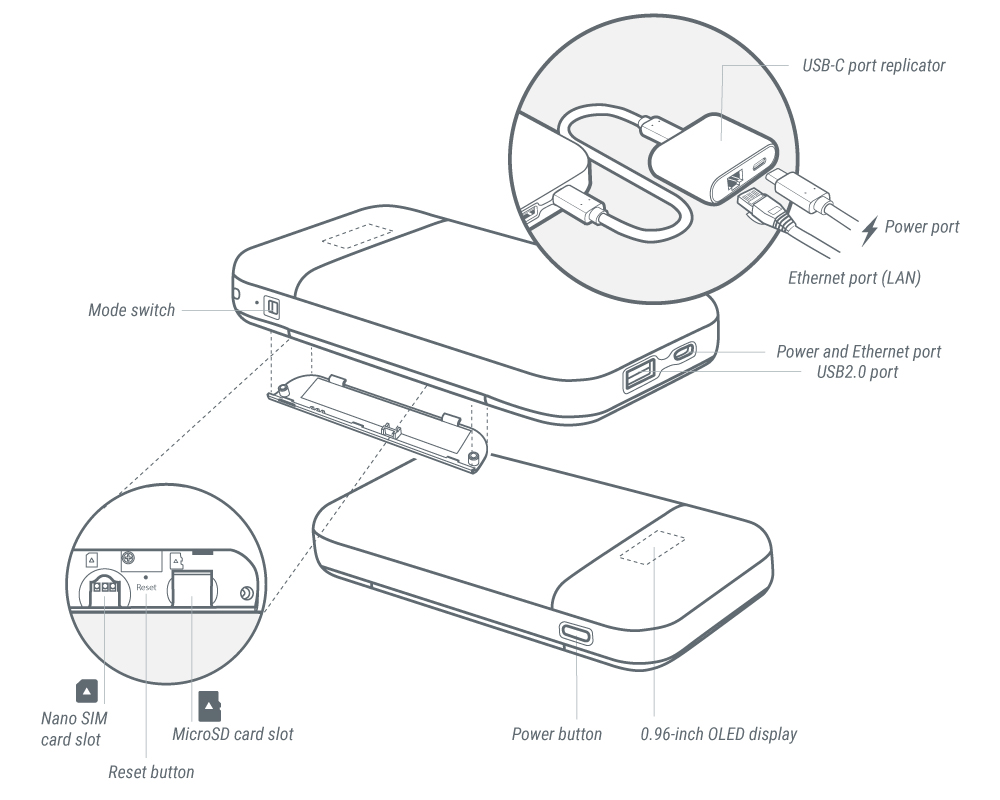
Button
-
Press the power button for 3 seconds: Turn on the device.
-
Press the power button for 3-5 seconds: Enter Standby Mode.
-
Press the power button for more than 5 seconds: Turn off the device.
(When pressing for 3 seconds, the OLED screen will show “Standby Mode On” first. KEEP PRESSING the power button until you see "Shut Down" under the "Standby Mode On". It will count down 3 seconds and turn off the device.)
Standby Mode
In Standby Mode, the Mudi V2 (GL-E750V2) will turn off Wi-Fi and 4G to save power. You can't connect to Mudi V2 (GL-E750V2) in this mode.
To turn on or off the Standby Mode, press the power button for 3 seconds. You will see “Standby Mode On” or “Standby Mode Off” on the OLED screen.
Package Contents
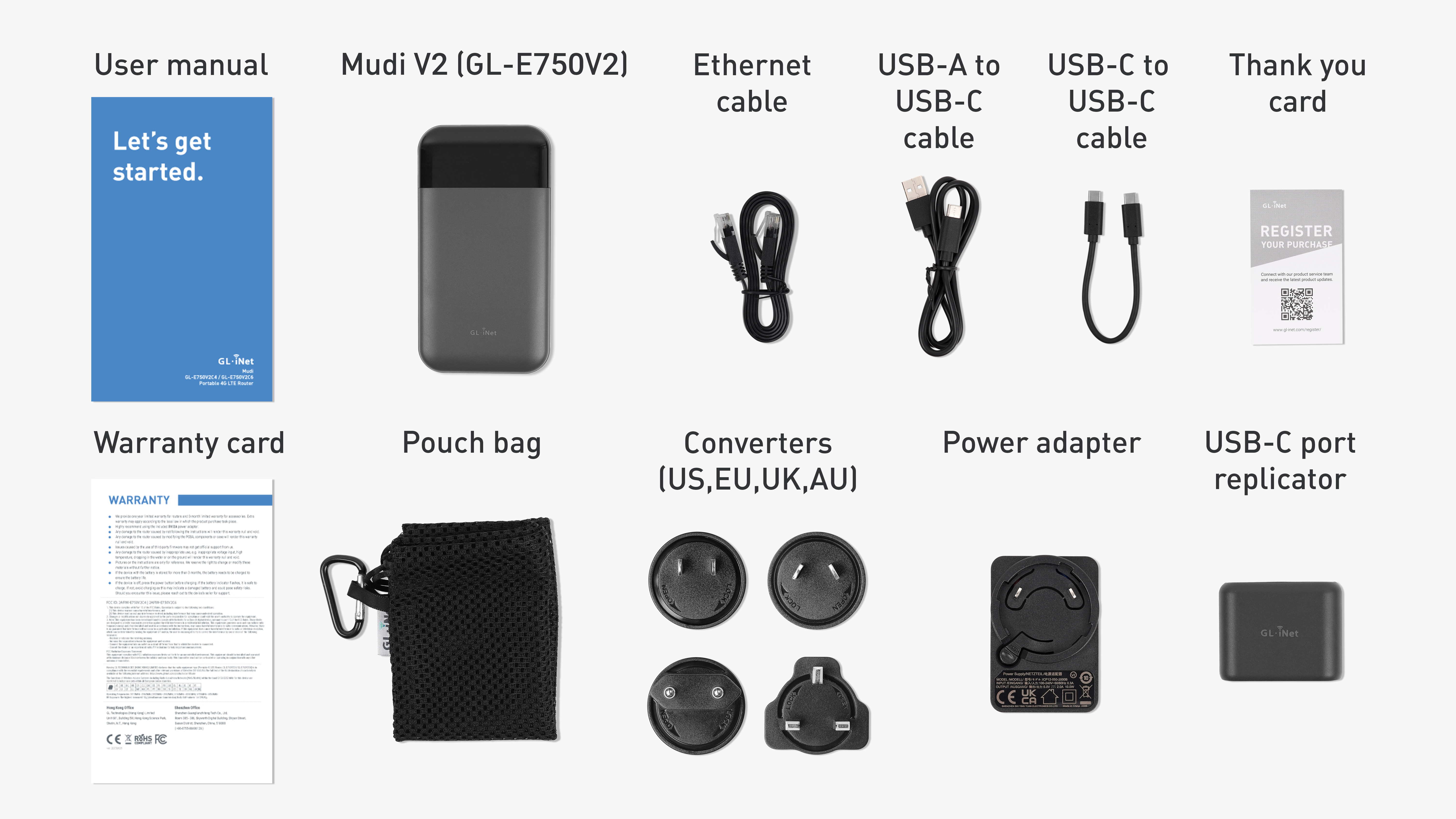
- 1 x Mudi V2 (GL-E750V2) portable 4G LTE router
- 1 x Power adapter
- 4 x Converters (US, EU, UK & AU plugs)
- 1 X User manual
- 1 x Warranty card
- 1 x Ethernet cable
- 1 x USB-C port replicator
- 1 x USB-C to USB-C cable
- 1 x USB-A to USB-C cable
- 1 x Pouch bag
- 1 x Thank-you card
First-time Setup
Watch this video or follow the steps to set up Mudi V2.
1. Insert a SIM Card
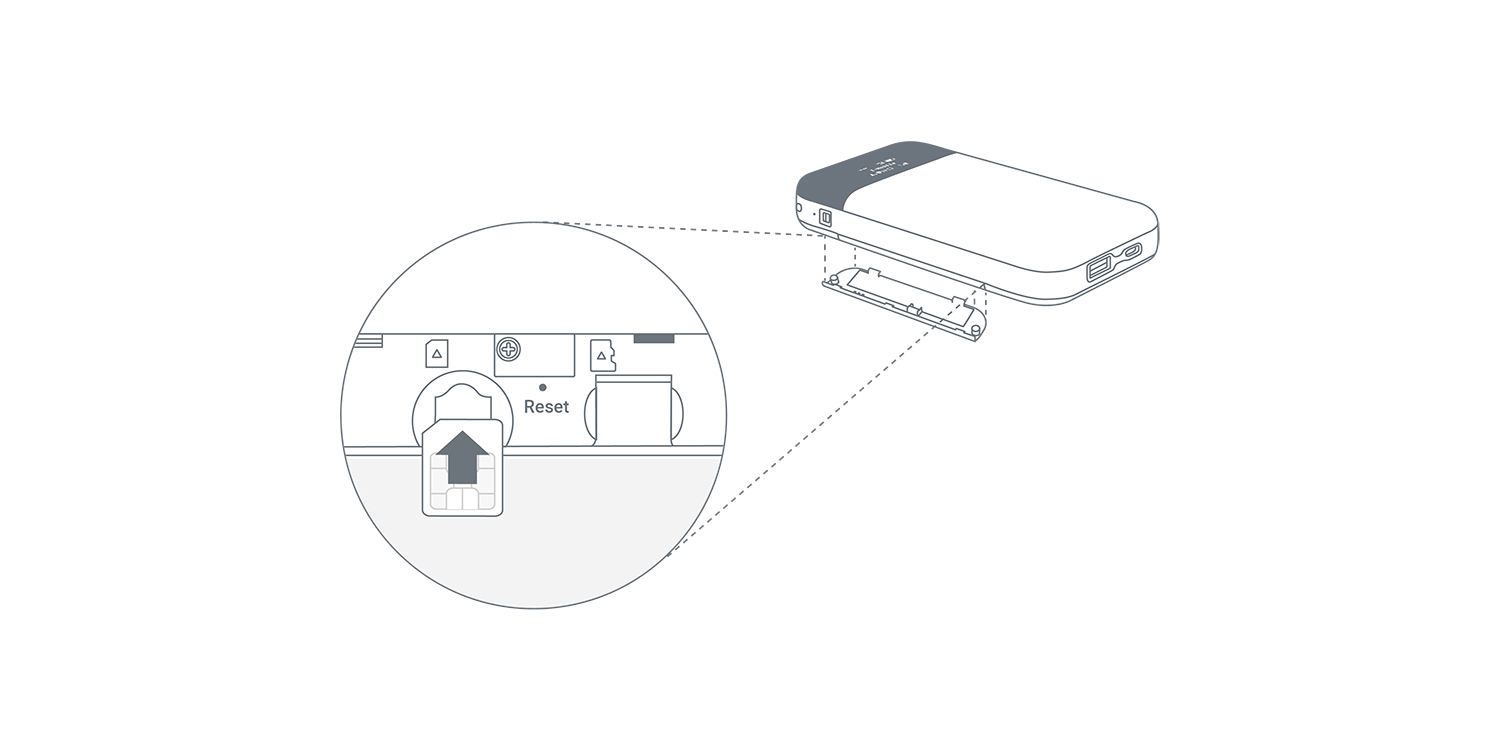
Insert a SIM Card and an optional MicroSD card into Mudi V2 (GL-E750V2).
Note: If you are using a SIM card, you must insert it into your device before powering it on.
- Turn to the backside of Mudi V2 (GL-E750V2).
- Poke your finger into the hole near the edge of the lid.
- Slide along the edge.
- When the lid slightly goes up (from around 25 degrees to 30 degrees or so), pull it up for the opening.
- Insert the card into the card slot as suggested by the symbol near the corner.
- Press the lid down to close the cover plate.
2. Power on
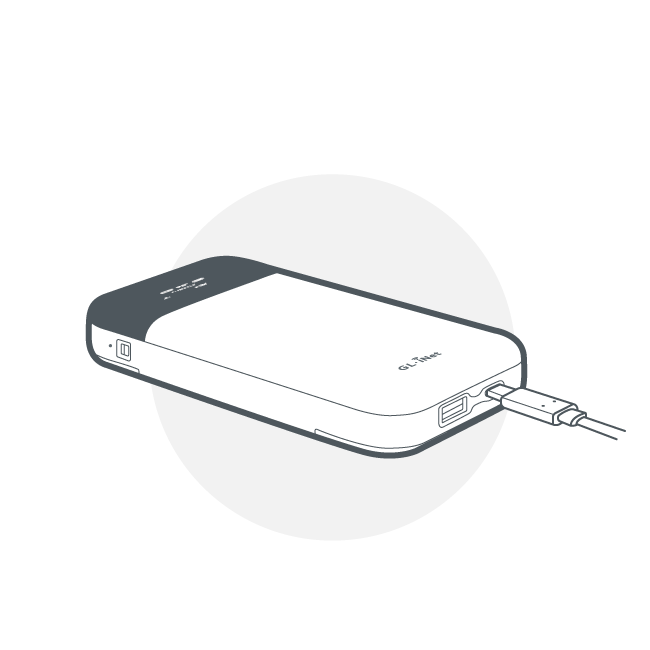
Press the power button to turn on the device.
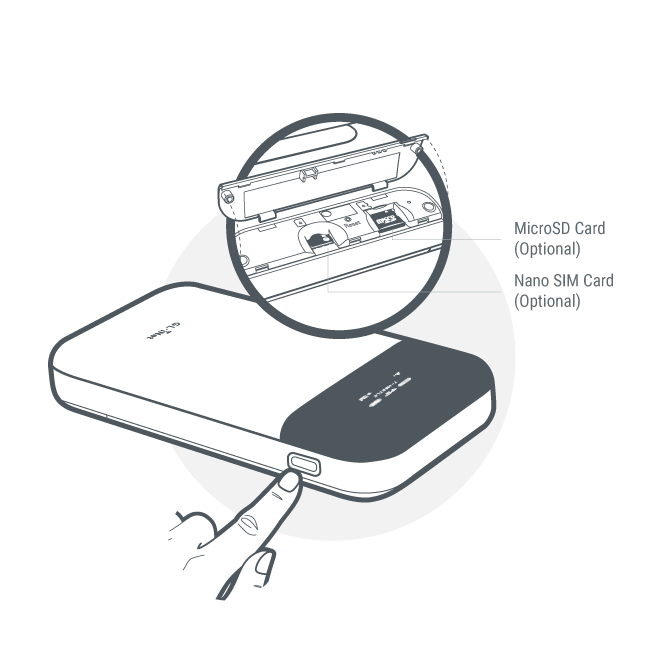
When Mudi V2 (GL-E750V2)'s power is off, you can still check the battery status by pressing the power button. The LED screen will show the battery status when you click the power button.
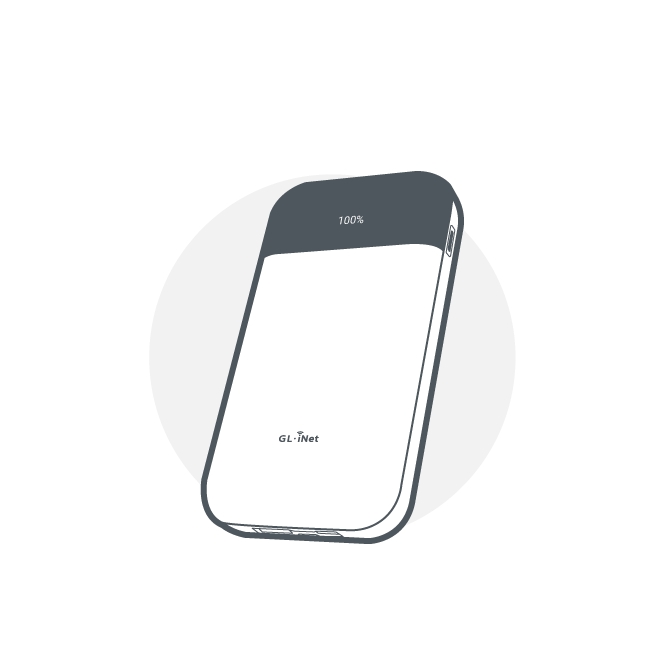
Make sure you are using a standard 5V/2A power adapter. Otherwise, it may cause malfunction.
INTERNET
Log in to the router's web Admin Panel, and navigate to INTERNET from the left-side menu.
This page allows you to select your internet connection type, such as Ethernet, Repeater, Tethering, and Cellular.
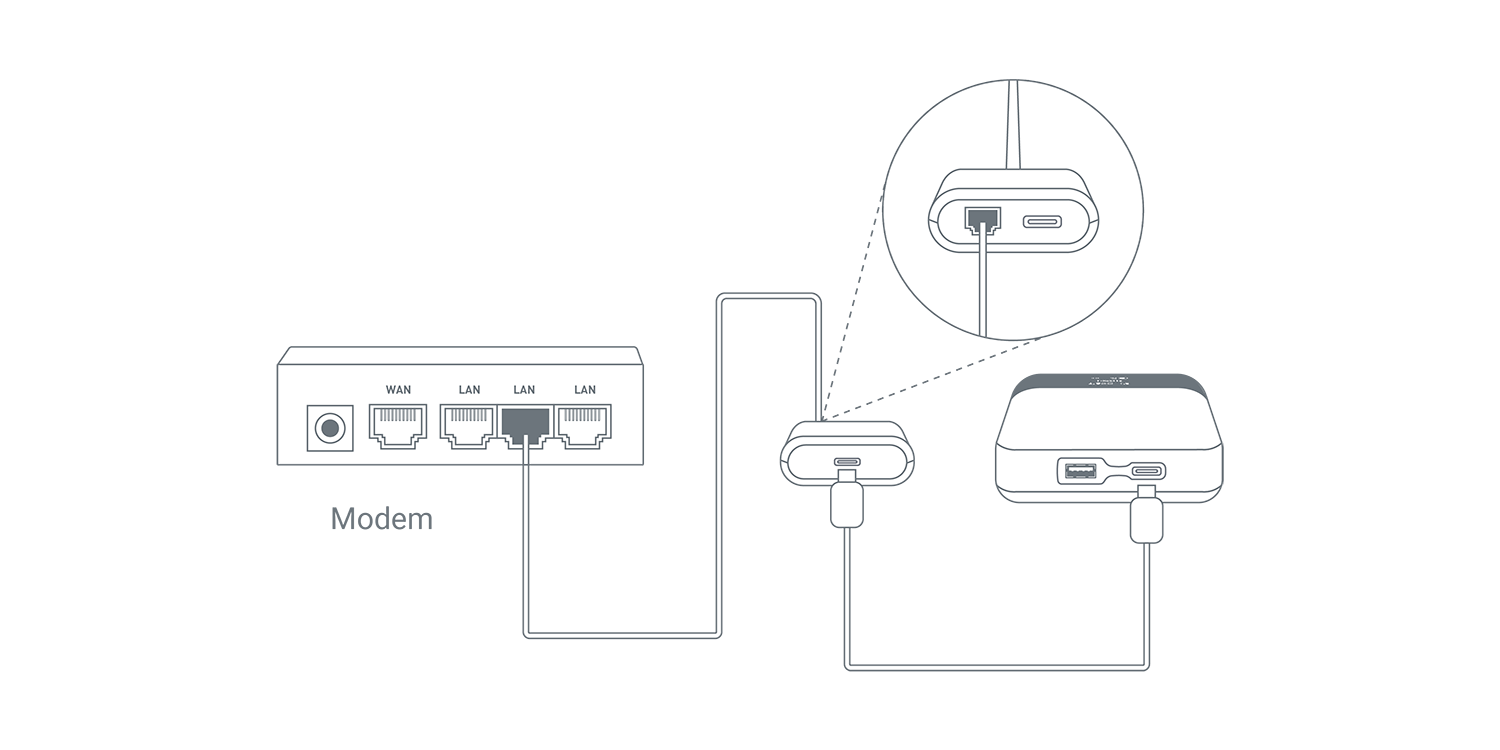
Ethernet
Connect your router to an active modem or an active network device via an Ethernet cable to access the Internet. This method usually provides the fastest and most reliable Internet connection.
Click here to learn how to connect to the internet via an ethernet cable
Repeater
Set up your router as a repeater to extend the Wi-Fi coverage of an existing Wi-Fi network. As a repeater, it receives and retransmits wireless signals within its range, thereby extending its coverage. This method is useful when a single router cannot cover the entire usage area.
Click here to learn how to connect to the internet via an existing Wi-Fi

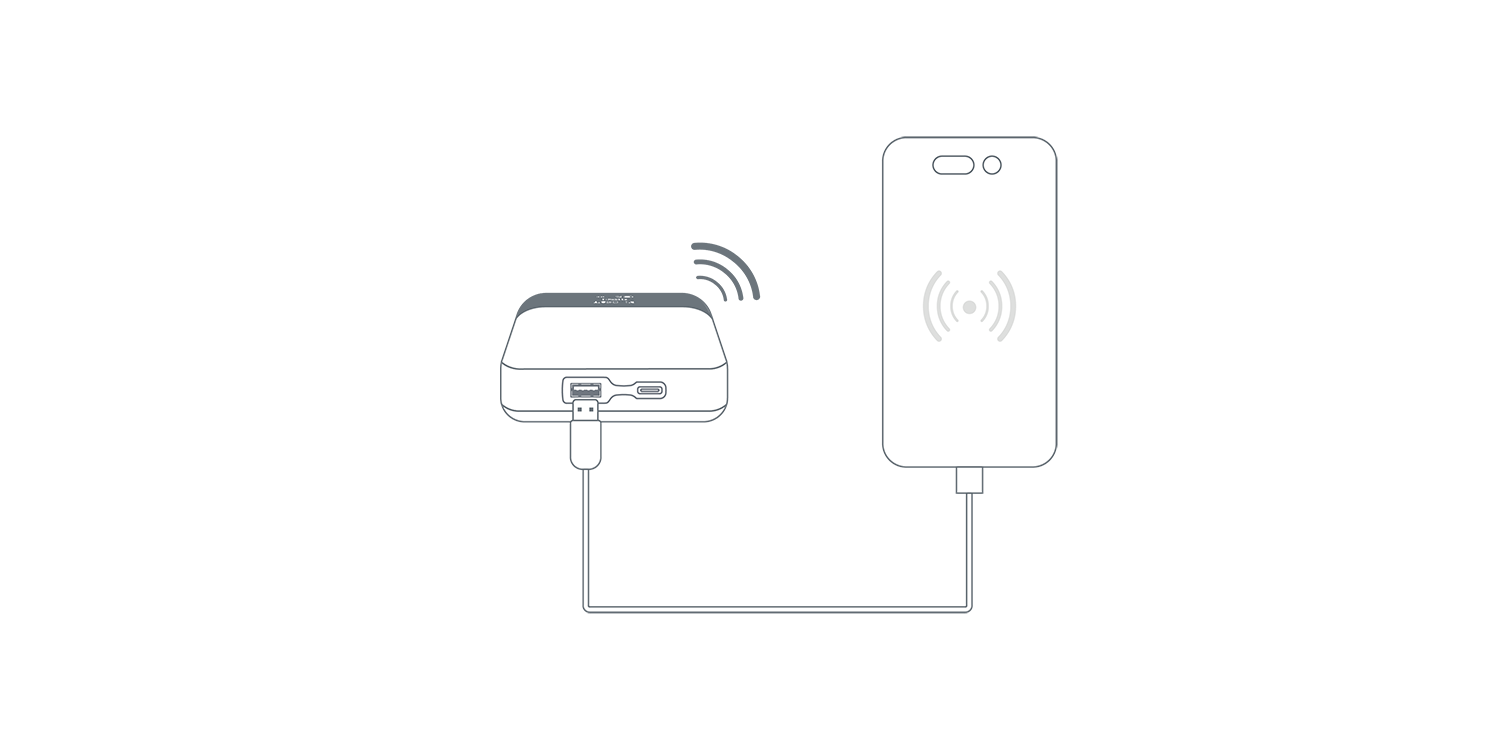
Tethering
Connect the router's USB port to a smartphone with active mobile data via a USB cable to access the Internet. This method enables multiple devices connected to the router to access the internet using the smartphone's mobile data.
Click here to learn how to connect to the internet via usb tethering
Cellular
Remove the back cover from Mudi V2, and insert a SIM card into the SIM card slot to connect it to the internet. This method is useful for sharing internet access from a single SIM card to all connected devices.
Click here to learn how to connect to the internet via cellular
To use eSIM physical card on your GL.iNet router, please click here: How to use the eSIM Physical Card with GL.iNet routers?
WIRELESS
The wireless settings lets users manage network security of the primary Wi-Fi and the Guest Wi-Fi, it is accessible by going to WIRELESS on the side menu.
Click here to learn more about the wireless configuration
CLIENTS
Clients are devices connected to the router, you can block clients or limit its network speed. The interface is accessible by clicking CLIENTS in the side menu of the router's Admin Panel.
Click here to learn more about managing your device clients.
VPN
GL.iNet routers are pre-installed with OpenVPN and WireGuard® supporting 30+ VPN services. It automatically encrypts all network traffic within the connected network, including guest devices and client devices that are not capable of running VPN encryption. Our routers can also act as VPN servers, redirecting traffic from client devices in remote locations to the VPN server via a VPN tunnel before accessing the public internet.
VPN Dashboard
OpenVPN
Please refer to the following links for a step to step setup guide:
WireGuard
Please refer to the following links for a step to step setup guide:
Tor
APPLICATIONS
GL.iNet routers include a wide range of add-on features that simplifies device management, improves user's internet experience, automates firmware update, and more.
Plug-ins
Please visit the Plug-ins tutorial.
Dynamic DNS
Please visit the Dynamic DNS tutorial.
GoodCloud
Please visit the GoodCloud tutorial.
NETWORK
Firewall
GL.iNet's routers include multiple firewall features to ensure a secure connection and complete oversight by users. It lets users configure firewall rules including Port Forwarding, Open Ports, and DMZ.
Click here to learn more about GL.iNet routers' firewall
Multi-WAN
Please visit the Multi-WAN tutorial.
LAN
Please visit the LAN tutorial.
DNS
Please visit the DNS tutorial.
Network Mode
Please visit the Network Mode tutorial.
IPv6
Please visit the IPv6 tutorial.
MAC Address
The Mac Address page was previously called Mac Clone and has been changed to Mac Address since v4.2.
Please visit the MAC Address tutorial.
IGMP Snooping
Please visit the IGMP Snooping tutorial.
SYSTEM
Overview
Please visit the System Overview tutorial.
Upgrade
GL.iNet provides regular updates on our routers' firmware to improve performance, resolving bugs and fix vulnerabilities.
Please visit the Upgrade tutorial.
OLED Screen Settings
On this page, you can adjust what information is displayed on your Mudi V2 (GL-E750V2)'s OLED screen.
Scheduled Tasks
Please visit the Scheduled Tasks tutorial.
Admin Password
This feature has been moved to Security since v4.5.
Please visit the Admin Password tutorial.
Time Zone
Please visit the Time Zone tutorial.
Toggle Button Settings
Please visit the Toggle Button Settings tutorial.
Log
Please visit the Log tutorial.
Reset Firmware
Please visit the Reset Firmware tutorial.
Advanced Settings
Please visit the Advanced Settings tutorial.