GL-S10 Flash Guide
Download the flash tool
You can download the latest flash tool from the official website here.

Connecting device
-
Prepare a USB-TTL tool. Here we take ai-thinker USB-T1(CP2102) as an example. CP2102 driver link(windows)

-
The distribution of flashing pins on the GL-S10 PCB is as follows.

-
Connect GL-S10 to a computer via USB-TTL.
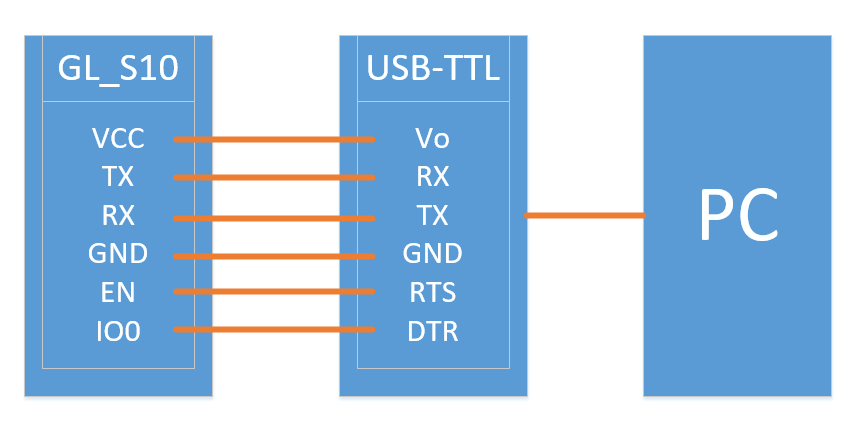
There are two kinds of connection ways for flashing GL-S10:
-
Complete connection
Use usb-ttl to connect all the pins shown above, then directly using the flash_download_tool.
-
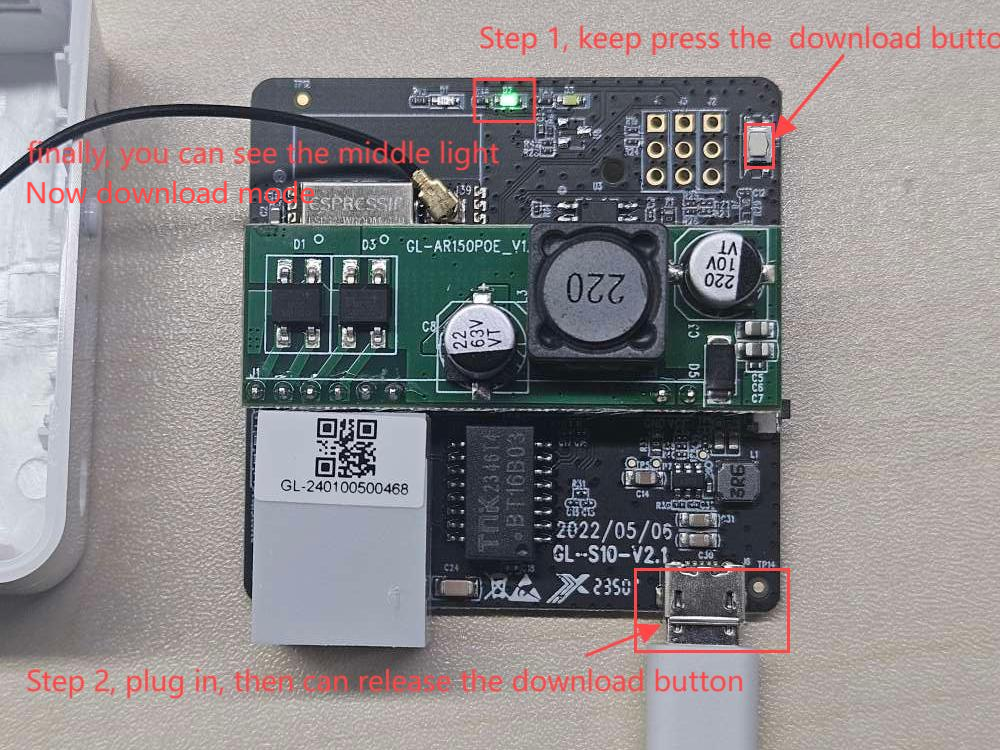
Simple connection
Use sub-ttl to connect TX, Rx, GND, and holding the download button to start the download mode, then using the flash_download_tool.
Specific steps are shown in the image below.
-
Flash firmware
-
Extract flash_download_tool and execute flash_download_tool.exe.

-
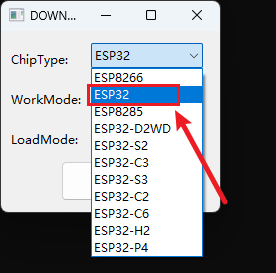
Select ESP32 and click OK.
-
Flash bin files.
-
A. Multiple bin files
There are typically four types of bin files, each with a corresponding flash start address. Click here to download the Bootloader, Partition, and OTA bin files.
For device firmware, please download it from the IoT Firmware Center.
Type Bin file Flash address Bootstrap program bootloader/bootloader.bin 0x00 Dividing partition table partition-table.bin 0xa000 Application upgrade by ota ota_data_initial.bin 0xb000 Application firmware gl-s10-v3_0_3.bin 0x40000 
-
B. Merge bin files
The address is 0x0000, as the folowing picture:

-
-
Finally, re-plug the power to make it work.