DNS
On the left side of the web Admin Panel, go to NETWORK -> DNS.
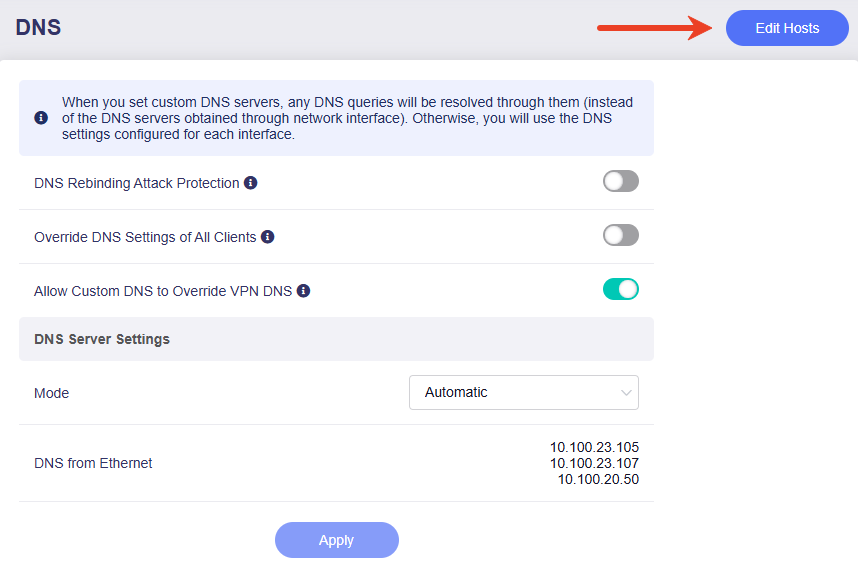
The DNS settings on your router control how domain names are translated into IP addresses. This page lets you use the DNS server(s) automatically obtained from upstream devices, or set custom ones, and configure DNS priorities.
If you set custom DNS server(s), any DNS queries will be resolved through the specified one(s), instead of the DNS servers obtained through individual network interfaces. Otherwise, you will use the DNS settings configured for each interface.

-
DNS Rebinding Attack Protection: Turning on this option may cause private DNS lookup failure. If your network has a captive portal please disable this option.
-
Override DNS Settings for All Clients: If enabled, your router will override unencrypted DNS settings for all clients.
-
Allow Custom DNS to Override VPN DNS: If enabled, once you have set custom DNS, packets transmitted through the VPN tunnel will be resolved using the custom DNS override instead of the DNS server settings from the VPN connections.
DNS Server Settings
There are four modes: Automatic, Encrypted DNS, Manual DNS, and DNS Proxy.
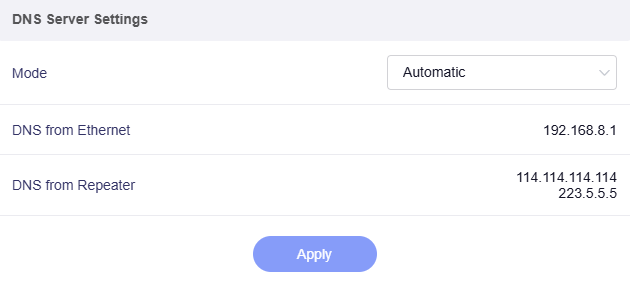
Automatic
In this mode, the router will automatically use the DNS server provided by the upstream device (e.g., ISP modem, primary router), or the DNS settings corresponding to each network interface.
Encrypted DNS
Please refer to the instructions below according to your firmware version.
For firmware v4.8 and earlier
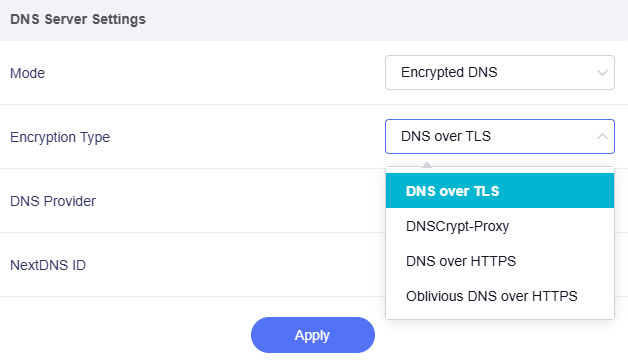
Four encryption types are available: DNS over TLS, DNSCrypt-Proxy, DNS over HTTPS, and Oblivious DNS over HTTPS.
Please select the Encryption Type first. The remaining options will change according to your selection.
-
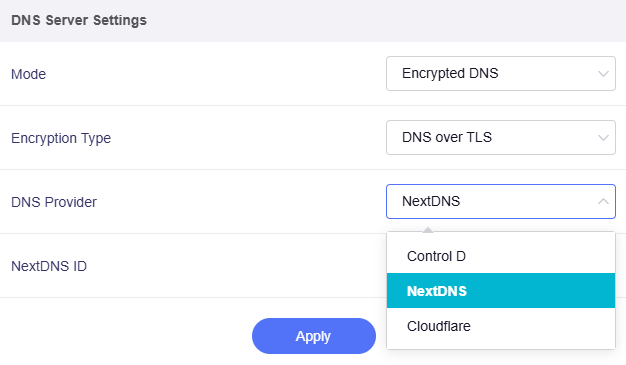
For DNS over TLS (DoT), please choose a DNS provider from Control D, NextDNS, and Cloudflare.
-
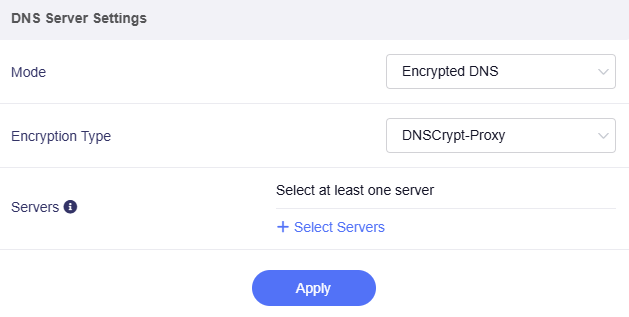
For the other three (i.e., DNSCrypt-Proxy, DNS over HTTPS, and Oblivious DNS over HTTPS), please select at least one DNS server from the repository.
For firmware v4.9 and later
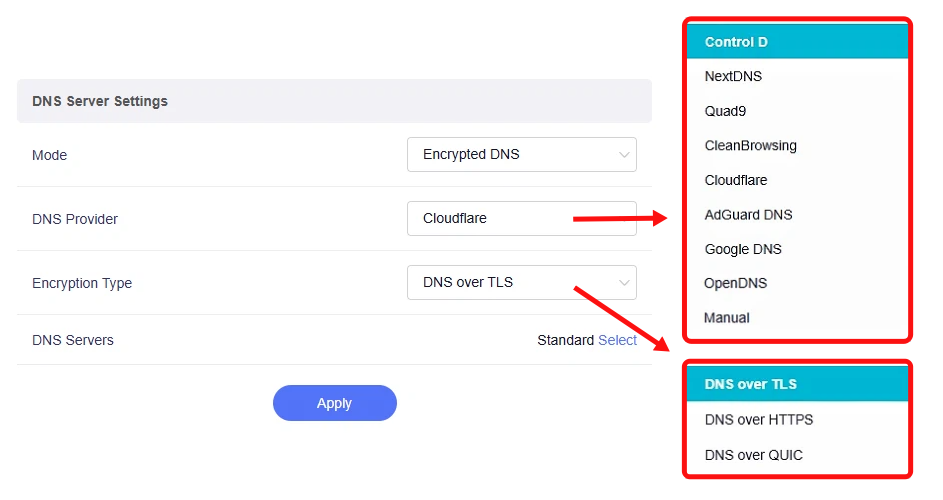
In addition to Control D, NextDNS and Cloudflare, more DNS providers are now available for Encrypted DNS mode, including Quad9, CleanBrowsing, AdGuard DNS, Google DNS, and OpenDNS. You can also specify an encrypted DNS server manually as needed.
Select the DNS Provider first. The remaining options will change according to your selection.
-
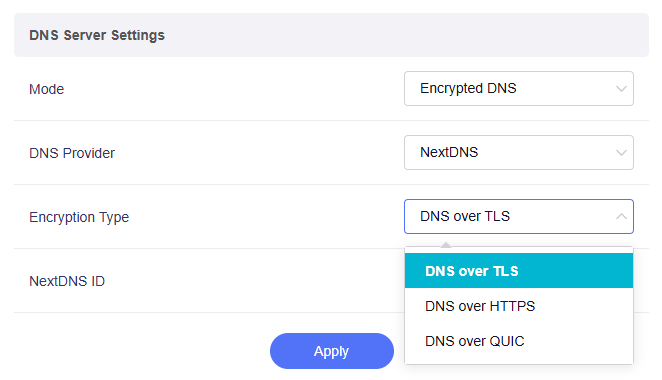
If you select a specific DNS provider (e.g., NextDNS), please choose an encryption type from DNS over TLS (DoT), DNS over HTTPS (DoH), and DNS over QUIC (DoQ). Note that the DNS over QUIC (DoQ) was introduced in firmware v4.9 and is only available when using Control D, NextDNS, or AdGuard DNS as the DNS provider.
-
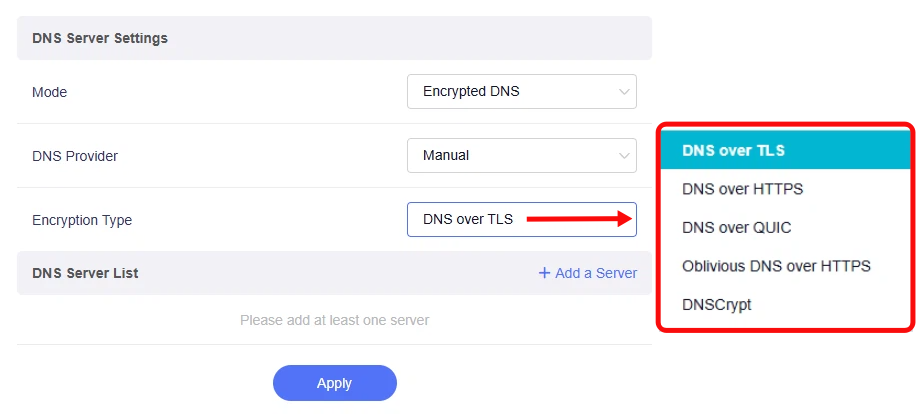
If you select Manual as the DNS provider, please choose an encryption type from DNS over TLS (DoT), DNS over HTTPS (DoH), DNS over QUIC (DoQ), Oblivious DNS over HTTPS, and DNSCrypt.
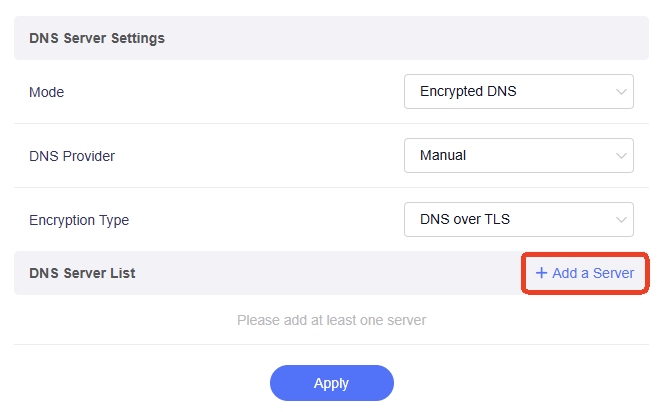
Next, click Add a Server to add at least one DNS server. You can directly enter the URL or stamp format of the encrypted DNS. For a list of public servers, please refer to https://dnscrypt.info/public-servers.
Encryption Type Comparison
-
DNS over TLS (DoT)
Encrypts DNS queries via dedicated TLS port. It isolates DNS traffic from regular web traffic and is easy to identify by network operators.
-
DNS over HTTPS (DoH)
Transmits DNS data inside standard HTTPS traffic. It blends DNS requests with normal web traffic for strong privacy and bypasses simple traffic filtering.
-
DNS over QUIC (DoQ)
Encapsulates DNS over QUIC protocol. It features low latency, fast reconnection and stable performance on unstable networks.
-
Oblivious DNS over HTTPS (ODoH)
An enhanced version of DoH. It separates user IP from DNS queries, preventing both server and network providers from tracking your browsing activity.
-
DNSCrypt
A mature encryption protocol for DNS. It authenticates and encrypts DNS traffic, focusing on anti-tampering and compatibility with legacy network environments.
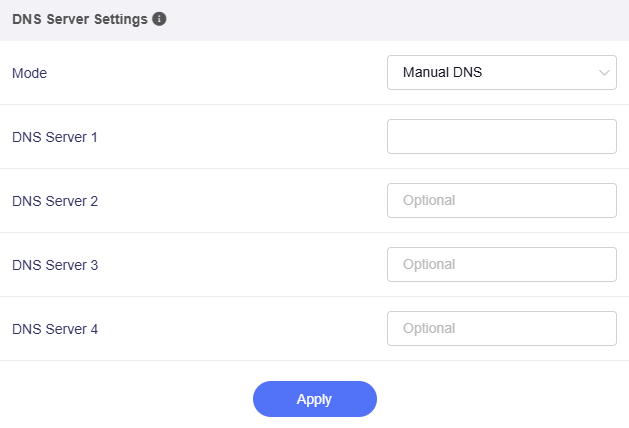
Manual DNS
In this mode, you can customize your router's DNS server. Select at least one DNS Server for your router from the drop-down list.
DNS Proxy
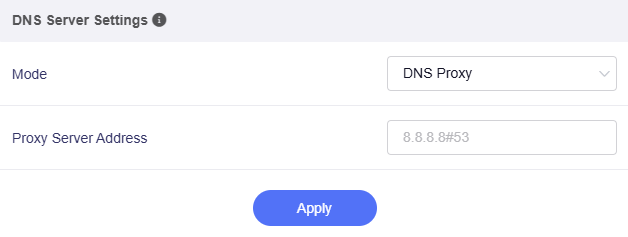
In this mode, the router will route all LAN DNS queries to the proxy server address you specify (e.g., 8.8.8.8#53). This might be useful if you are running another DNS server or Pi-hole on your network.
Edit Hosts
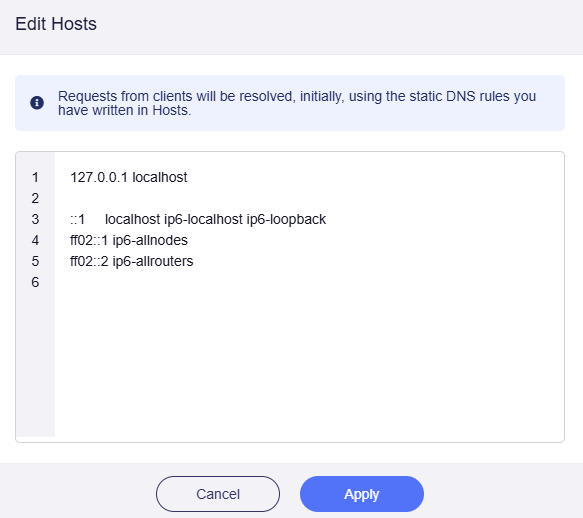
You can click the Edit Hosts button at the top right to customize static host rules.
The router prioritizes these host rules when resolving requests from connected clients.
Still have questions? Visit our Community Forum or Contact us.