Internet Connection Troubleshooting FAQ
Q1. What should I do if I cannot access the Internet?
Follow the steps below for basic troubleshooting.
-
Check the physical connection.
Ensure the Ethernet cable is securely connected between your router's WAN port and the upstream device (e.g., modem, ONT, or Ethernet jack). Check the LEDs on the upstream device and ensure there's active transmission.
-
Reboot devices.
Power off the upstream device (e.g., modem) and your router. Wait for 1-2 minutes. Then turn on the modem first, wait until it is fully online, then power on the router.
-
Check the WAN IP address.
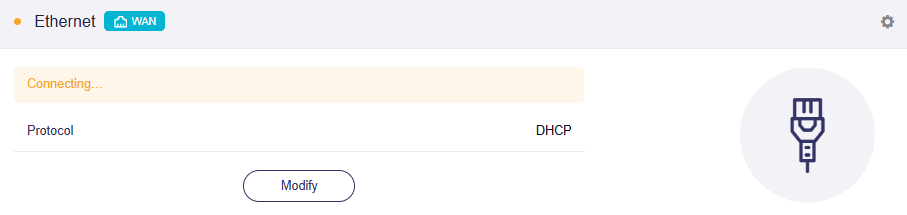
Log in to your router's web Admin Panel and go to INTERNET -> Ethernet section. If it is stuck in the connecting state, as shown below, it might be a DHCP issue, MAC binding, or a VLAN requirement.
Contact your ISP and verify if you need PPPoE username, PPPoE password and VLAN ID for Internet access.
Meanwhile, check whether your ISP previously configured MAC binding on your modem/ONT.
Q2. When should I clone a MAC address?
Some ISPs bind your broadband connection to the MAC address of the first connected device, typically your old router or computer. When you replace your router, you will need to clone the MAC address to restore internet access.
Follow the steps below to clone a MAC address to your GL.iNet router.
-
Note down the MAC address of your old router (or the computer previously bound to your broadband).
-
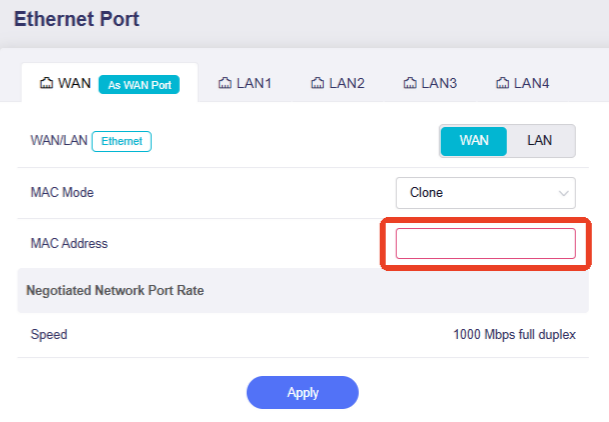
Log in to your router's web Admin Panel and go to NETWORK -> Ethernet Port (named Port Management in some firmware versions). Set MAC Mode to Clone or Manual, enter the MAC address manually, then click Apply.
-
Reboot your modem (i.e., the upstream device).
Q3. When do I need to configure a VLAN ID?
Some ISPs require VLAN tagging for Internet authentication or traffic separation, especially with fiber and IPTV connections. Contact your ISP and verify if a VLAN ID is required.
Follow the steps below to configure the VLAN ID.
-
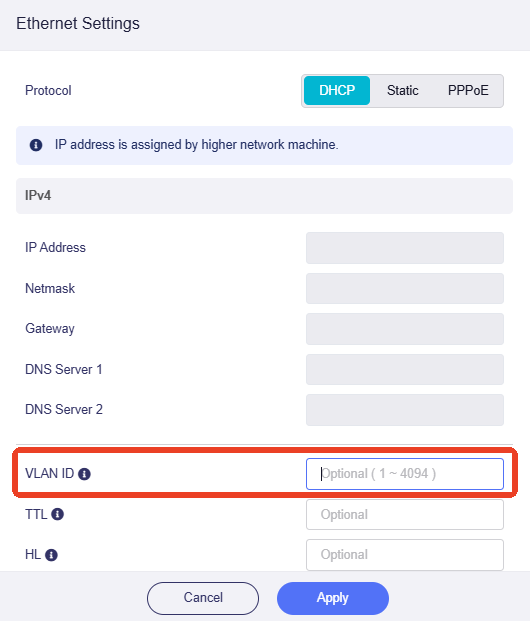
Log in to your router and go to INTERNET -> Ethernet section. Click Modify.
-
Enter the VLAN ID provided by your ISP, then click Apply.
Q4. What if it still doesn't work?
If the issue persists, try connecting a PC or laptop directly to your modem and check whether you have Internet access.
If you do not have Internet access, the issue may be with your ISP. Contact your ISP for further assistance.
If you do have Internet access, the issue may be related to your router configuration. Contact our technical support at support@gl-inet.com and provide the following information:
- Router model
- Troubleshooting steps you have tried
- Your ISP name
- Any other information you think may help us assist you
ISP information
Below is region-specific ISP information compiled by GL.iNet from customer feedback, forums, and OpenWRT resources, for reference only.
| Country/Region | ISP | Connection Type | VLAN ID | MAC Clone Required | Additional Requirements |
|---|---|---|---|---|---|
| United States | AT&T Fiber | DHCP (IP Passthrough) | N/A | No | Must enable IP Passthrough; EAP authentication bypass needed |
| United States | Spectrum | DHCP | N/A | Yes (in some areas) | Strong MAC binding (modem reboot required) |
| United States | Verizon Fios | DHCP | N/A | No | |
| United States | Comcast Xfinity | DHCP | N/A | Yes (common) | Must reboot modem when changing router (MAC release) |
| United States | Cox Communications | DHCP | N/A | Yes | Must reboot modem when changing router (MAC release) |
| United States | Frontier Fiber | DHCP | N/A | No | |
| United States | CenturyLink / Lumen | PPPoE | 201 | No | VLANs are required in certain areas. |
| Canada | Bell Canada Fibe | PPPoE | 35 | No | |
| Germany | Deutsche Telekom | PPPoE | 7 | No | VLAN 7 mandatory for internet; PPPoE credentials required |
| Germany | Vodafone (Kabel) | DHCP | N/A | Yes (sometimes) | MAC binding may apply; reboot modem after router change |
| Germany | 1&1 / O2 (Telekom line) | PPPoE | 7 | No | VLAN 7 mandatory for internet |
| Germany | DNS:NET | PPPoE | 37 | No | |
| Germany | o2(UGG) | PPPoE | 7 | No | |
| United Kingdom | BT Broadband | PPPoE | 101 | No | VLAN 101 required; PPPoE login needed |
| United Kingdom | Sky Broadband | DHCP (Option 61) | 101 | No | Requires DHCP Option 61 (client identifier) |
| United Kingdom | Virgin | DHCP | N/A | Yes | The modem is in bridged mode and requires MAC cloning. |
| France | Orange | DHCP / PPPoE | 832 | No | VLAN 832 required; may require Option 90 authentication |
| France | Free (Freebox) | DHCP | N/A | No | |
| France | Bouygues Telecom | DHCP | 100 | Yes | Clone Bbox MAC |
| Spain | Movistar | PPPoE | 6 | No | VLAN 6 (internet), VLAN 2 (IPTV), VLAN 3 (VoIP) |
| Spain | DIGI | PPPoE | 20 | No | |
| Spain | Orange | DHCP | 832/835 | No | VLANs may vary by region |
| Italy | TIM | PPPoE | 835 | No | VLAN 835 required |
| Italy | Aruba | PPPoE | 835 | No | |
| Netherlands | KPN | DHCP | 6 | No | VLAN 6 required for internet |
| Netherlands | Tweak | DHCP | 34 | Yes | Cloning Experia Box MAC |
| Netherlands | Telfort / Oxxio / Tweak | DHCP (IPoE) | 34 | No | |
| Netherlands | Odido | DHCP | 300 | No | |
| Belgium | EDPnet | PPPoE | 10 | No | |
| Bosnia and Herzegovina | BH Telecom | PPPoE | 100 | No | |
| Croatia | Terrakom | PPPoE | 905 | No | |
| Czech Republic | O2 | PPPoE | 848 | No | |
| Cyprus | Epic | PPPoE | 35 | No | |
| Cyprus | Cyta | PPPoE | 42 | No | |
| Cyprus | Cablenet | PPPoE | 42 | No | |
| Cyprus | Primetel | PPPoE | 42 | No | |
| Poland | Orange Polska | PPPoE | 35 | No | VLAN 35 required |
| Poland | T-mobile | PPPoE | 35 | No | |
| Ireland | Vodafone SIRO | PPPoE | 10 | No | |
| Ireland | Pure Telecom | PPPoE | 10 | No | |
| Austria | A1 Telekom | PPPoE | 2 | No | |
| Austria | Fonira | PPPoE | 31 | No | |
| Türkiye | Turknet | PPPoE | 35 | No | |
| Türkiye | Turk Telekom | PPPoE | 35 | No | |
| Türkiye | Turkcell Superonline | PPPoE | N/A | Yes | |
| Türkiye | Turksat Kablonet | DHCP/PPPoE | N/A | No | |
| Greece | Cosmote | PPPoE | 835 | No | |
| Greece | Nova | PPPoE | 835 | Yes | |
| Greece | DEI/PPC | DHCP | 835 | No | |
| Japan | NTT (FLET'S) | PPPoE / IPoE (MAP-E) | N/A | No | IPoE requires MAP-E/DS-Lite compatible router |
| Japan | SoftBank Hikari | PPPoE / IPoE | N/A | No | BBIX IPoE service commonly used |
| India | Airtel | PPPoE / DHCP | N/A | No | Some regions require PPPoE |
| India | JioFiber | DHCP | N/A | No | Locked ONT in many cases |
| Singapore | Singtel | PPPoE | 10 | No | VLAN 10 required; IPTV separate VLAN |
| Singapore | StarHub | DHCP | N/A | No | DHCP-based connection |
| Australia | NBN (various ISPs) | PPPoE / DHCP | 2 (common) | Yes | VLAN 2 common but ISP-dependent |