What should I do if eSIM profile installation fails?
If you attempt to add an eSIM profile on your GL.iNet router but installation fails, please refer to the following steps for troubleshooting:
-
Make sure the router is connected to the Internet.
Please ensure that your router has successfully connected to the Internet. An unstable network may affect the eSIM profile upload, causing the router to fail to obtain and install it.
If possible, try connecting the router to another network source (such as your smartphone's hotspot or a public Wi-Fi network), then upload your eSIM profile again to test.
-
Change DNS settings.
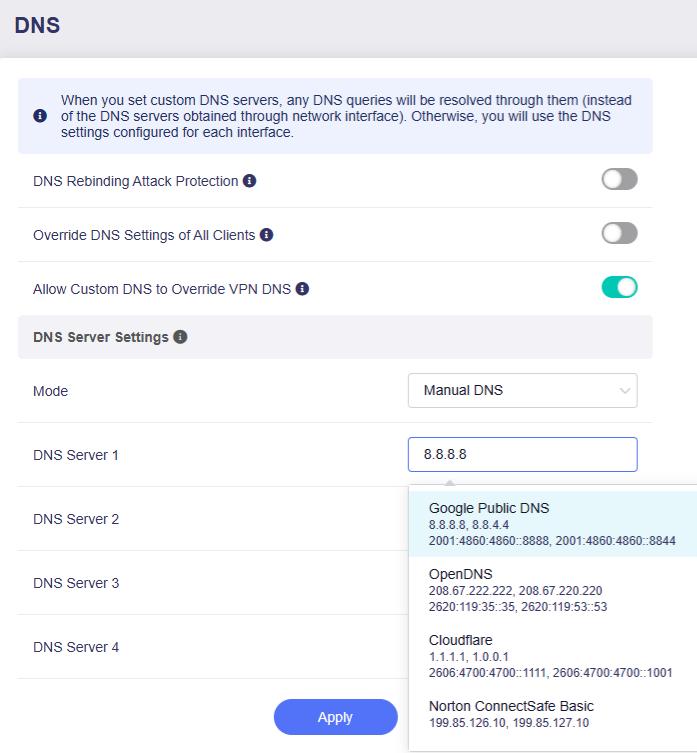
If the Internet is working properly, log in to the router's web Admin Panel and go to NETWORK -> DNS.
Switch the DNS Mode to Manual DNS, and set the router's DNS server to other public DNS servers for testing, such as Google DNS (
8.8.8.8,8.8.4.4) or Cloudflare DNS (1.1.1.1,1.0.0.1).Click Apply to save the changes, then try uploading your eSIM profile again.
-
Disable AdGuard Home.
If AdGuard Home is available and enabled on your router, disable it and try installing your eSIM profile again.
-
Check the eSIM profile availability.
Check if this eSIM profile or QR code has already been activated or installed on another device.
Most eSIM profiles can only be installed once and cannot be activated on multiple devices. If possible, contact your eSIM service provider to confirm if the current eSIM profile is available. If the eSIM QR code (or activation code) has expired, apply for a new one, then try uploading it to the router again.
-
Check the activation code.
A properly formatted QR code will display an activation code that starts with LPA:. However, some non-standard QR codes may only provide a raw activation code without the LPA prefix. In this case, manually add
LPA:at the beginning of the code before clicking the Install button.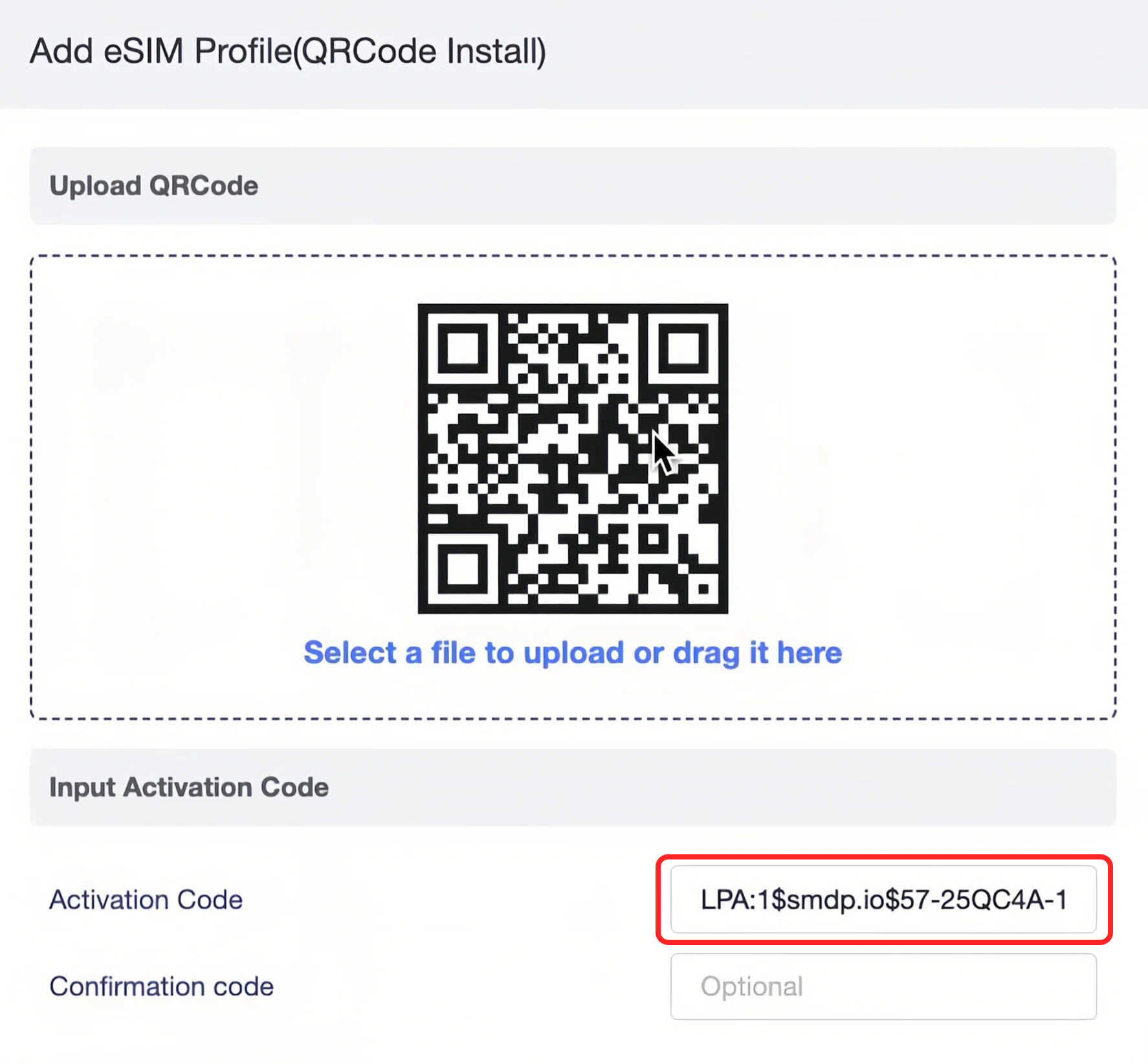
-
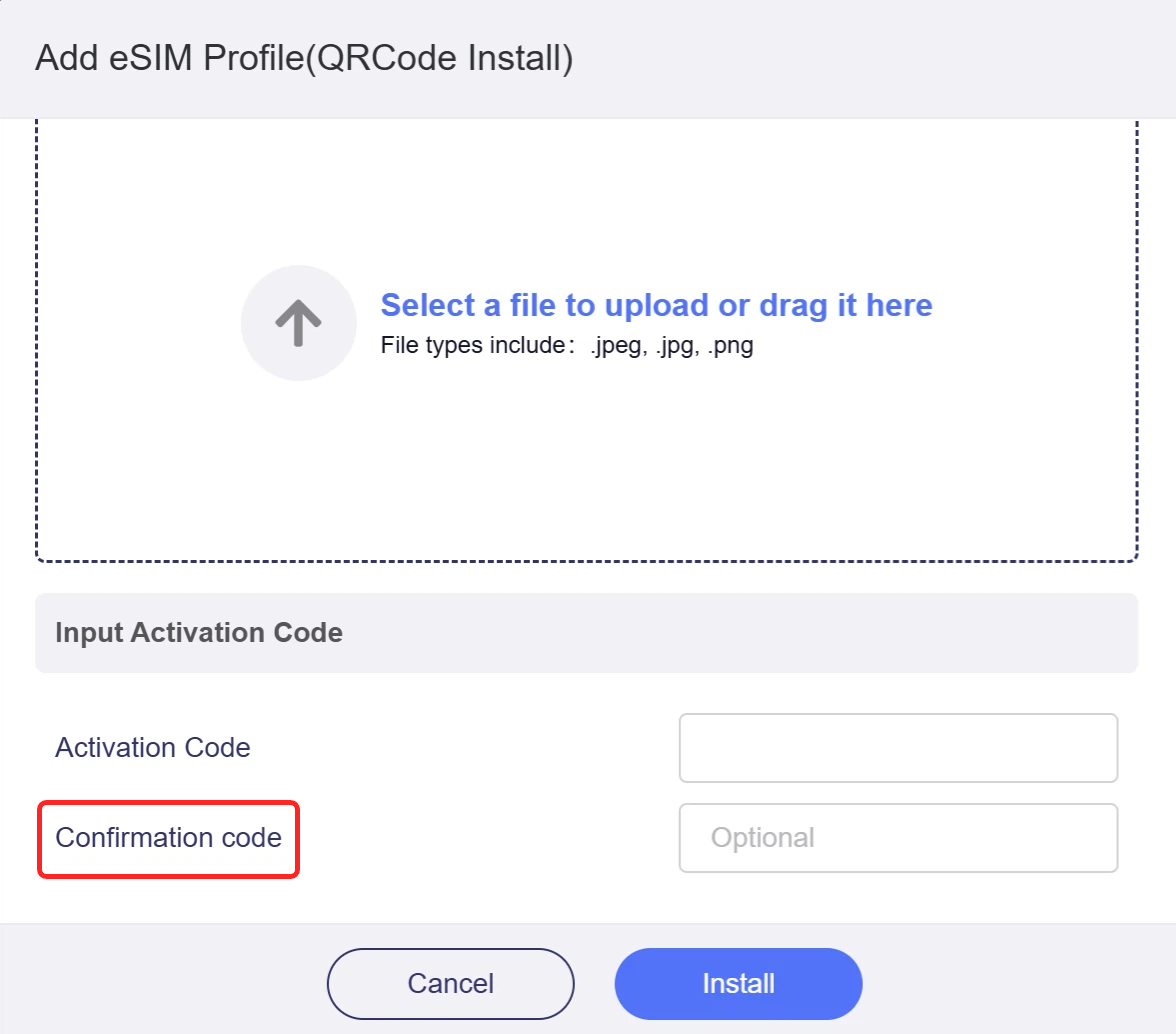
Check if a confirmation code is required.
Some eSIM profiles require entering a confirmation code during installation (such as Smarty eSIM). Please check your eSIM package or installation guide to verify whether a confirmation code is needed. If so, enter the correct code.
-
If the above steps do not resolve the issue, please export the eSIM log from the eSIM Management page.
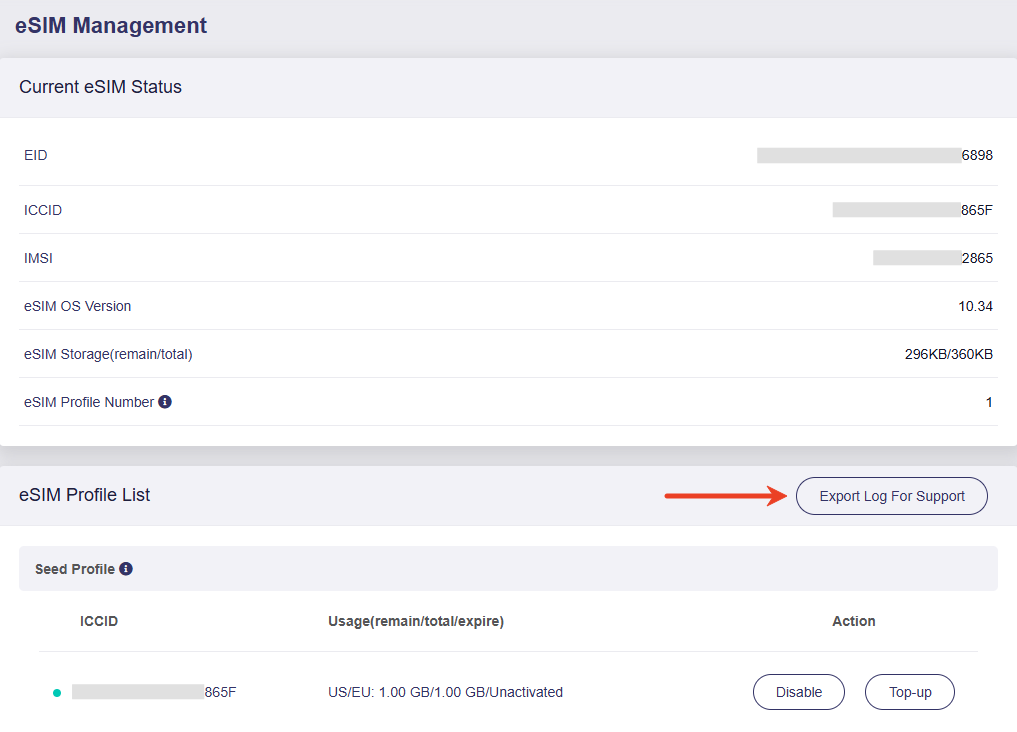
Then send the log together with the key information below to support@gl-inet.com for further assistance.
- The issue you encountered
- Troubleshooting methods you have tried (if any)
- Your eSIM provider