Slate 7 (GL-BE3600) User Guide
Product overview
Slate 7 (GL-BE3600) is GL.iNet's first dual-band Wi-Fi 7 portable travel router, built with flagship Wi-Fi 7 technologies including Multi-Link Operation and 4K QAM. It delivers theoretical dual-band speeds of 688Mbps (2.4GHz) and 2882Mbps (5GHz), enabling seamless 8K streaming and mobile gaming experiences. Its touchscreen allows one-glance network status checks and intuitive basic operations.
Equipped with 2× 2.5G Ethernet ports (1 WAN + 1 LAN) and 1× USB 3.0 port, the router fulfills demands for high-speed wired connections and flexible storage expansion. It also supports Type-C PD power supply (5V/3A, 9V/3A, 12V/2.5A) and features a compact, lightweight design for portability. Pre-installed with AdGuard Home and compatible with over 30 VPN services, it provides robust security for your network. Blending mobile convenience with professional-grade performance, the Slate 7 is the ideal choice for remote work and on-the-go network sharing.

Package contents
- 1 x Slate 7 (GL-BE3600)
- 1 x User manual
- 1 x Thank you card
- 1 x Ethernet cable
- 1 x Power cable
- 1 x US Power Adapter
- 3 x Converters (EU, UK, and AU Plugs)

Check out Slate 7's unboxing video below.
Touchscreen
| Screen Display | Description |
|---|---|
 |
Starting up |
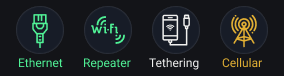 |
Network connection types and status Green: Active / Connected Yellow: Connecting / Abnormal White: Inactive connection |
 |
Wi-Fi details, including the SSID, password, QR code and the on/off button |
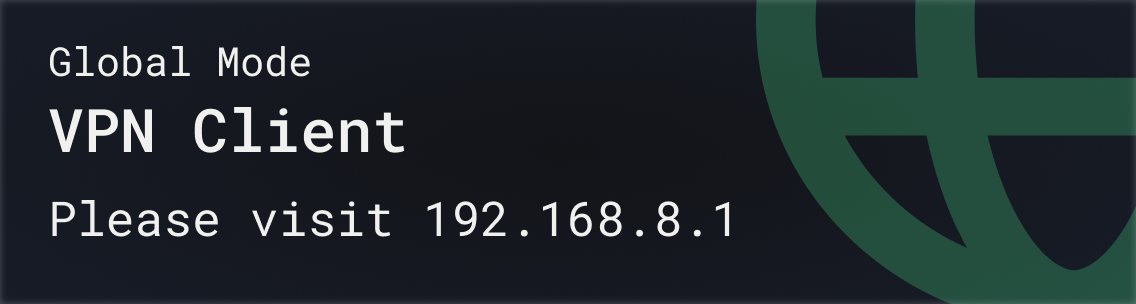 |
VPN status. It requires initial setup in the web admin panel |
 |
AdGuard Home |
 |
Tor |
 |
Traffic statistics It refers to the average speed of all traffic passing through the router, calculated every 3 seconds |
 |
System usage |
 |
Time zone |
 |
System menu Swipe from top to bottom to access system menu |
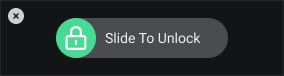 |
Tap the screen to wake it up, and slide from left to right to unlock it |
 |
After clicking "Reboot", slide from left to right to confirm |
How to set up Slate 7
Watch this setup video or follow the steps below.
(In this video we demonstrate the setup by configuring Slate 7 as Repeater. If you need to configure Slate 7 by other Internet connection methods, please refer to the steps below.)
1. Power on
Put the two-piece power adapter together. Connect it to your router and plug it into an outlet. It will start up automatically.
2. Connect device
Connect a device (e.g., computer, laptop or smartphone) to the router using Wi-Fi or Ethernet.
-
Ethernet
Connect your device to the router's LAN port using an ethernet cable.
-
Wi-Fi
On your device, locate your router's Wi-Fi network name in the available networks list, and enter the password to join the network. You can find the default network name and password printed on your router's label.
3. Log in to web Admin Panel
Open a web browser, enter 192.168.8.1 in the address bar and log in. Choose a language and set your admin password, then click Apply.
4. Internet setup
Note: The following instructions apply to users configuring the router via the GL.iNet Web Admin Panel. If you prefer using the GL.iNet app, download the app and follow the on-screen instructions.
Configure your Slate 7 using one of the supported internet connection methods: Ethernet, Repeater, Tethering, and Cellular. If you want to use the Multi-WAN feature, please set up more than one internet connection.

Connect the Slate 7's WAN port to an upstream device (e.g., a modem) via an ethernet cable.
Once successfully connected to the internet, a green dot will appear in the Ethernet section on the INTERNET page.
Please refer to Connect to the Internet via an Ethernet cable for detailed instructions.

- On the INTERNET screen of the web Admin Panel, locate the Repeater section and click Connect.
- Select a Wi-Fi network from the available networks.
- Enter the password, then click Apply.
Once successfully connected to the internet, a green dot will appear in the Repeater section on the INTERNET page.
Please refer to Connect to the Internet via an existing Wi-Fi network for detailed instructions.

- Connect your mobile device (e.g., smartphone or USB dongle) to the router's USB port using a USB cable.
- On your mobile device, go to Settings and enable USB Tethering.
- On the INTERNET screen of the web Admin Panel, click Connect in the Tethering section.
Once successfully connected to the internet, a green dot will appear in the Tethering section on the INTERNET page.
Please refer to Connect to the Internet via USB tethering for detailed instructions.

Plug a cellular USB modem into the Slate 7's USB port. This is useful for sharing internet from a USB modem to all connected devices.
Once successfully connected to the internet, a green dot will appear in the Cellular section on the INTERNET page.
Please refer to Connect to the Internet via cellular for detailed instructions.
Below is an overview of the features in the Slate 7 web Admin Panel.
Wireless
The Wireless page allows you to configure settings for both the 5 GHz and 2.4 GHz Wi-Fi networks, including enabling Wi-Fi, setting TX power, specifying the Wi-Fi name (SSID), enabling randomized BSSID, selecting Wi-Fi security mode and password, configuring SSID visibility, choosing the Wi-Fi mode, bandwidth, and channel.
In addition, Slate 7 supports MLO Wi-Fi, i.e. Multi-Link Operation, combining multiple wireless networks simultaneously to achieve higher bandwidth and more reliable connections.
To set up Wireless, refer to Wireless.
Mesh
Mesh is a feature based on the Wi-Fi EasyMesh™ standard that extends whole-home Wi‑Fi coverage and enables seamless roaming. If you have multiple GL.iNet routers, set one as the main router and the rest as mesh nodes for seamless Wi-Fi roaming around your home.
To set up Mesh, refer to Mesh.
Clients
The Clients page displays information about connected devices. For each client, it shows the name, IP and MAC addresses, download and upload speeds, total traffic, and provides the ability to block the client or perform other actions.
To set up Clients, refer to Clients.
Cloud Services
The GL.iNet Account allows you to connect and manage your devices and cloud services. You can access both GoodCloud and the glinet App seamlessly, ensuring a secure and improved experience. This provides you a more convenient way to manage your network from anywhere, at any time.
To set up GL.iNet Account, refer to GL.iNet Account.
GL.iNet GoodCloud service provides an easy and simple way to remotely access and manage GL.iNet routers.
To set up GoodCloud, refer to GoodCloud.
GoodPAS is an advanced networking feature designed for seamless remote access and device management. Built specifically for GL.iNet router integration, GoodPAS employs the AmneziaWG protocol with built-in traffic obfuscation to ensure secure and stable connections. GoodPAS lets you access your home network remotely. When your home router serves as the GoodPAS exit node, Internet traffic sent through GoodPAS uses that router's WAN public IP address.
To set up GoodPAS, refer to GoodPAS.
VPN
A VPN (virtual private network) creates a secure, encrypted traffic between your device and the VPN server. It provides an added layer of privacy and security (VPN client) and allows you to access a remote network (VPN server). Slate 7 supports OpenVPN and WireGuard.
Slate 7 (and other GL.iNet routers) support the OpenVPN protocol which offers strong security. To set up OpenVPN, follow these tutorials:
Slate 7 (and other GL.iNet routers) support the WireGuard protocol which offers great speeds and convenience. To set up WireGuard, follow these tutorials:
Network
Multi-WAN is a networking feature that allows you to set up your router with multiple internet connections (e.g., cellular, repeater, and ethernet) at the same time. If your current internet connection fails, the router will automatically switch to another internet connection. This ensures smooth and uninterrupted internet access.
To set up multi-WAN, refer to Multi-WAN.
The Subnet page provides centralized configuration and management of the Main Network, Guest Network, IoT Network, and custom VLAN networks. You can create and manage multiple subnets to isolate different types of devices or traffic.
To set up subnet, refer to Subnet.
The Ethernet Port page allows you to configure the WAN and LAN ports, set the WAN/LAN interface to Ethernet, specify the MAC mode and MAC address for the WAN interface, and show the negotiated network port rate.
To set up ethernet Port, refer to Ethernet Port.
The DNS page allows you to set custom DNS servers, enable DNS rebinding attack protection, override the DNS settings of all clients, and allow custom DNS to override VPN DNS. You can use DNS servers automatically obtained from upstream devices or manually specify custom DNS servers.
To set up DNS, refer to DNS.
IPv6, or Internet Protocol version 6, is the most recent version of the Internet Protocol designed to replace IPv4. It provides a vastly larger address space, allowing for a virtually unlimited number of unique IP addresses, which is essential for accommodating the growing number of devices connected to the internet.
To set up IPV6, refer to IPV6.
IGMP snooping is a network optimization technique used in Ethernet switches to manage and control multicast traffic.
To set up IGMP snooping, refer to IGMP Snooping.
Network Mode page allows you to configure the operational role of the router to meet different network deployment needs. You can select from various modes tailored to scenarios ranging from home Wi-Fi coverage to enterprise-level multi-link networking, with each mode enabling or disabling specific router features to optimize performance.
To set up Network Mode, refer to Network Mode.
Drop-in Gateway extends the functionality of your main router, including AdGuard Home, encrypted DNS, and VPN client.
To set up drop-in gateway, refer to these links:
Network acceleration can reduce CPU load and speeds up traffic packet forwarding.
To set up network acceleration, refer to Network Acceleration.
Flow Control
DPI (Deep Packet Inspection) is a core capability of intelligent network management. It can overcome the limitation of traditional routers (which only identify source or destination addresses), analyze data packet payloads in depth, and accurately identify user-accessed applications and websites through feature library comparison, enabling refined traffic classification and control.
Integrated with Netify, GL.iNet DPI feature adopts a lightweight embedded plug-in for efficient deployment. With Netify online-updated signature database, it enables reliable management, making network control more accurate and efficient.
Please refer to DPI Engine for details.
Data Statistics offers an intelligent traffic insight dashboard that categorizes and visualizes network usage by applications, helping you monitor real-time and historical traffic for better network awareness and control.
Please refer to Data Statistics for details.
Content Filter provides smart online safety powered by DPI-based classification, automatically blocking harmful or malicious websites to keep your network clean and secure.
Please refer to Content Filter for details.
QoS (Quality of Service) optimizes bandwidth allocation by prioritizing critical activities (e.g., video calls, gaming) during network congestion, reducing latency and improving overall network performance. Note that this applies to local client traffic and VPN Client tunnel traffic, but not to traffic received when the router functions as a VPN Server.
Please refer to QoS for details.
SQM (Smart Queue Management) intelligently manages your router's network traffic to minimize latency and "bufferbloat", ensuring smoother gaming and voice calls.
Please refer to SQM for details.
Parental Control is designed to help you manage and control your children's devices. It includes limiting their screen time and restricting their access to certain content.
To set up parental control, refer to Parental Control.
Security
Port forwarding allows remote servers and devices on the internet to access devices on a private network.
To set up port forwarding, refer to Port Forwarding.
ACL, short for Access Control List, lets you create rules to manage network traffic based on connection protocols, device addresses and ports. It controls whether to allow or block network access. If multiple ACL rules conflict, the system applies the one with higher priority.
Please refer to ACL for details.
Admin Access allows you to configure various security settings to protect your network and router from unauthorized access. This page includes the following options:
- Local Access Control: Manage and restrict access to the router's interface from devices connected to your local network.
- Remote Access Control: Configure and restrict access to the router's interface from remote locations over the internet, enhancing security against external threats.
- Open Ports on Router: Control which ports are open on the router, limiting potential vulnerabilities and unauthorized access.
Please refer to Admin Access for details.
The NAT Mode page allows you to enable or disable Full Cone NAT and SIP ALG functionality.
To set up NAT settings, refer to NAT Mode.
Applications
A plugin is a software component that adds specific features or functionalities to an existing computer program, allowing for customization and enhancement of its capabilities.
To set up plug-ins, refer to Plug-ins.
Dynamic DNS (DDNS) automatically detects and updates the IP address associated with a domain in real-time. It maps a domain name to your router's dynamic public IP address, so you can access your network remotely without a static IP address.
To set up Dynamic DNS, refer to Dynamic DNS.
Network storage refers to a centralized data storage solution that allows multiple users and devices to access and share files over a network.
To set up network storage, refer to Network Storage.
AdGuard Home is a network-wide ad and tracker blocking solution that acts as a DNS server to filter unwanted content across all devices connected to a home network.
To set up AdGuard Home, refer to AdGuard Home.
Tailscale is a VPN service that allows you to access your devices and applications anywhere.
To set up Tailscale, refer to Tailscale.
ZeroTier is a software-defined networking solution that enables users to create secure, virtual networks over the internet, connecting devices as if they were on the same local network.
To set up ZeroTier, refer to ZeroTier.
Tor, short for The Onion Router, is a privacy-focused network that enables anonymous communication over the internet. It routes internet traffic through a series of volunteer-operated servers (nodes) to obscure the user's location and usage, making it difficult to trace online activities.
Please refer to Tor for details.
System
The Overview page provides a comprehensive snapshot of your router's current status and performance metrics. On this page, you can view:
- CPU Average Load: Monitor the average load on your router's CPU, helping to assess performance and identify potential bottlenecks.
- Memory Usage: Check how much of your router's memory is in use, aiding in the management of resources.
- LED Control: Toggle the router's LED lights on or off, allowing for customization of the device's visual indicators.
- Flash Usage: View the utilization of the router's flash storage, ensuring there's sufficient space for firmware and configuration data.
- Device Info: Access detailed information about your router's system, including uptime, hostname, model, architecture, OpenWrt version, kernel version, device ID, device MAC and device S/N.
- External Storage: Check the status of any external storage devices connected to the router, such as USB drives or TF cards.
These features provide essential insights and controls, helping you to effectively manage and monitor your router's operation.
Please refer to Overview for detailed instructions.
The Admin Password page enables you to manage the password for the router's administrative interface to ensure only authorized users can modify settings.
Please refer to Admin Password for details.
The Upgrade page is used to update your router's firmware to the latest version, ensuring enhanced performance, security, and new features. This page offers two options for upgrading:
- Firmware Online Upgrade: Automatically check for the latest firmware version from the manufacturer's server. You can install the latest one if available online.
- Firmware Local Upgrade: Manually upload a firmware file from your computer to update the router, providing control over the upgrade version and timing.
These options allow you to keep your router up-to-date with the latest improvements and fixes.
Please refer to Upgrade for detailed instructions.
The Scheduled Tasks page allows you to automate various router functions based on a predefined schedule, enhancing convenience and efficiency. Key features on this page include:
- LED Display Schedule: Set a schedule to automatically turn the router's LED lights on or off, reducing light pollution during specific times.
- Schedule Reboot: Configure your router to reboot automatically at specified intervals, helping to maintain optimal performance and stability.
- Wi-Fi Status Schedule: Set a schedule to control the 5GHz / 2.4GHz / MLO Wi-Fi band, allowing for better management of network availability and power consumption.
These scheduling options provide you with greater control over your router's operations, ensuring it meets your specific needs and preferences.
Please refer to Scheduled Tasks for detailed instructions.
The Display Management page offers you a full-range of functions to manage the touchscreen display and related settings.
- Function Management: Manage which functions are shown on the touchscreen, tailoring the display to your needs.
- Lock Screen: Customize the lock-screen settings. You can set the wallpaper and wake display.
- Brightness: Adjust the touchscreen brightness. Use the slider or enter a specific level (range from 1 to 10) to fit different lighting conditions.
- Auto Lock: Set the time delay for the screen to auto-lock when there is no activity. The range is 1 to 30 minutes.
- Screen Always On: Toggle this option to decide if the touchscreen stays on continuously or turns off after inactivity.
- Enable Screen Passcode: Add an extra layer of security by enabling a passcode for the touchscreen.
Please refer to Display Management for detailed instructions.
The Time Zone page allows you to set the correct time zone for your router, ensuring that all scheduled tasks, logs, and system events are accurately timestamped according to your local time. This setting is crucial for maintaining precise records and for the proper execution of time-based configurations.
Please refer to Time Zone for detailed instructions.
The Toggle Button Settings page allows you to configure the physical toggle button on your router, enabling you to assign specific functions to the button for quick access and control. This feature provides convenient shortcuts for common tasks and settings, enhancing the user experience and simplifying router management.
Please refer to Toggle Button Settings for detailed instructions.
The Reset Firmware page allows you to reset your router's current firmware version to its default settings, erasing all custom configurations. This process will restore the router to the default settings of the currently installed firmware version. This can be useful for troubleshooting persistent issues or starting fresh with the current firmware's default configuration.
Please refer to Reset Firmware for detailed instructions.
The Log page provides access to various logs that record the router's activities and events, aiding in troubleshooting and performance monitoring. This page includes:
- System Log: Detailed logs of system-level events and activities.
- Kernel Log: Logs related to the kernel's operations and events.
- Crash Log: Records of system crashes and errors, useful for diagnosing critical issues.
- Cloud Log: Logs of interactions and activities related to GoodCloud services integrated with the router.
- Nginx Log: Logs from the Nginx web server, if used by the router, detailing web traffic and server operations.
Additionally, the page features an Export Log button, allowing you to export all collected logs for technical support analysis. This function is invaluable for diagnosing complex issues and obtaining professional assistance.
Please refer to Log for detailed instructions.
The Advanced Settings page provides access to advanced configuration options through the OpenWrt LuCI interface, allowing experienced users to fine-tune their router's settings and functionalities beyond the basic interface options. This includes detailed network configurations, firewall settings, and other advanced system customizations.
Please refer to Advanced Settings for detailed instructions.
Regulatory Statements
FCC ID: 2AFIW-BE3600
-
This device complies with Part 15 of the FCC Rules. Operation is subject to the following two conditions:
(1) This device may not cause harmful interference, and
(2) This device must accept any interference received, including interference that may cause undesired operation. -
Changes or modifications not expressly approved by the party responsible for compliance could void the user's authority to operate the equipment.
-
Note: This equipment has been tested and found to comply with the limits for a Class B digital device, pursuant to part 15 of the FCC Rules. These limits are designed to provide reasonable protection against harmful interference in a residential installation. This equipment generates uses and can radiate radio frequency energy and, if not installed and used in accordance with the instructions, may cause harmful interference to radio communications. However, there is no guarantee that interference will not occur in a particular installation. If this equipment does cause harmful interference to radio or television reception, which can be determined by turning the equipment off and on, and the user is encouraged to try to correct the interference by one or more of the following measures:
- Reorient or relocate the receiving antenna.
- Increase the separation between the equipment and receiver.
- Connect the equipment into an outlet on a circuit different from that to which the receiver is connected.
- Consult the dealer or an experienced radio/TV technician for help important announcement.
FCC Radiation Exposure Statement
This equipment complies with FCC radiation exposure limits set forth for an uncontrolled environment. This equipment should be installed and operated with minimum distance 20cm between the radiator and your body. This transmitter must not be co-located oroperating in conjunction with any other antenna or transmitter.
Canadian Compliance Statement
This device contains licence-exempt transmitter(s)/receiver(s) that comply with Innovation, Science and Economic Development Canada's licence-exempt RSS(s).
Operation is subject to the following two conditions:
(1) This device may not cause interference.
(2) This device must accept any interference, including interference that may cause undesired operation of the device.
L'émetteur/récepteur exempt de licence contenu dans le présent appareil est conforme aux CNR d'Innovation, Sciences et Développement économique Canada applicables aux appareils radio exempts de licence.
L'exploitation est autorisée aux deux conditions suivantes:
(1) L'appareil ne doit pas produire de brouillage;
(2) L'appareil doit accepter tout brouillage radioélectrique subi, même si le brouillage est susceptible d'en compromettre le fonctionnement.
This equipment complies with IC RSS-102 radiation exposure limits set forth for an uncontrolled environment. This equipment should be installed and operated with minimum distance 20cm between the radiator and your body.
Cet équipement est conforme aux limites d'exposition aux radiations IC CNR-102 établies pour un environnement non contrôlé. Cet équipement doit être installé et utilisé avec une distance minimale de 20 cm entre le radiateur et votre corps.
The user manual for LE-LAN devices shall contain instructions related to the restrictions mentioned in the above sections, namely that:
i. the device for operation in the band 5150-5250 MHz is only for indoor use to reduce the potential for harmful interference to co-channel mobile satellite systems;
i. le dispositif utilisé dans la bande 5150-5250 MHz est réservé à une utilisation en intérieur afin de réduire le risque de brouillage préjudiciable aux systèmes mobiles par satellite dans le même canal;
The functions of Wireless Access Systems including Radio Local Area Networks(WAS/RLANs) within the band 5150-5350 MHz for this device are restricted to indoor use only within all European Union countries.
Hereby, GL TECHNOLOGIES (HONG KONG) LIMITED declares that the radio equipment type [Dual-band Wi-Fi 7 Travel Router, GL-BE3600] is in compliance with the essential requirements and other relevant provisions of Directive 2014/53/EU. The full text of the EU declaration of conformity is available at https://www.gl-inet.com/products/certificate.
For EU:
Maximum output power:
CE: ≤20dBm EIRP (2.412GHz–2.472GHz); ≤23dBm EIRP (5.15GHz–5.35GHz); ≤30dBm EIRP (5.47GHz–5.725GHz); ≤13.98dBm EIRP (5.725GHz–5.85GHz)