How to install or change external antennas for cellular routers?
This tutorial introduces the installation and replacement of external antennas for some cellular routers.
Install external antennas
Mudi 7
Mudi 7 (GL-E5800) is equipped with two TS‑9 antenna ports that support cellular frequencies from 600 MHz to 6 GHz. You can connect external antennas (not included) to improve cellular signal in weak coverage areas. It is ideal for use in RVs, basements, and indoor settings to extend range and ensure a stable connection.
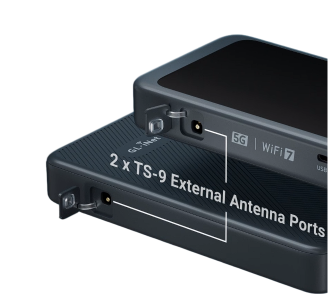
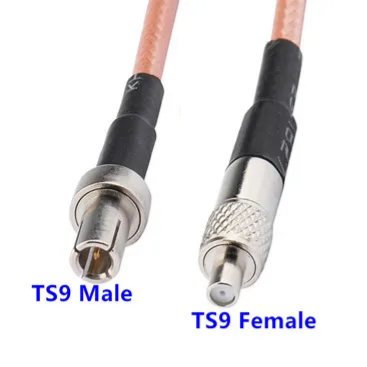
The TS‑9 ports on Mudi 7 are female connectors (internal hole). They require antennas with a TS‑9 male connector (internal pin).
Spitz AX / Puli AX
Spitz AX (GL-X3000) and Puli AX (GL-XE3000) come with the following external antennas:
- 2 x Wi-Fi antennas (RP-SMA, 2.4G~2.5GHz, 5.15~5.84GHz)
- 4 x 5G NR antennas (SMA, 600MHz~6GHz)
Follow these steps to install the external antennas.
-
Attach the antennas (in no particular order).
- Attach the two identical Wi-Fi 6 antennas to the Wi-Fi 1 and Wi-Fi 2 ports.
- Attach the four identical 5G NR antennas to the MAIN, DIV, MIMO 1, and MIMO2.

-
Position the antennas upwards for optimal performance.
Spitz Plus
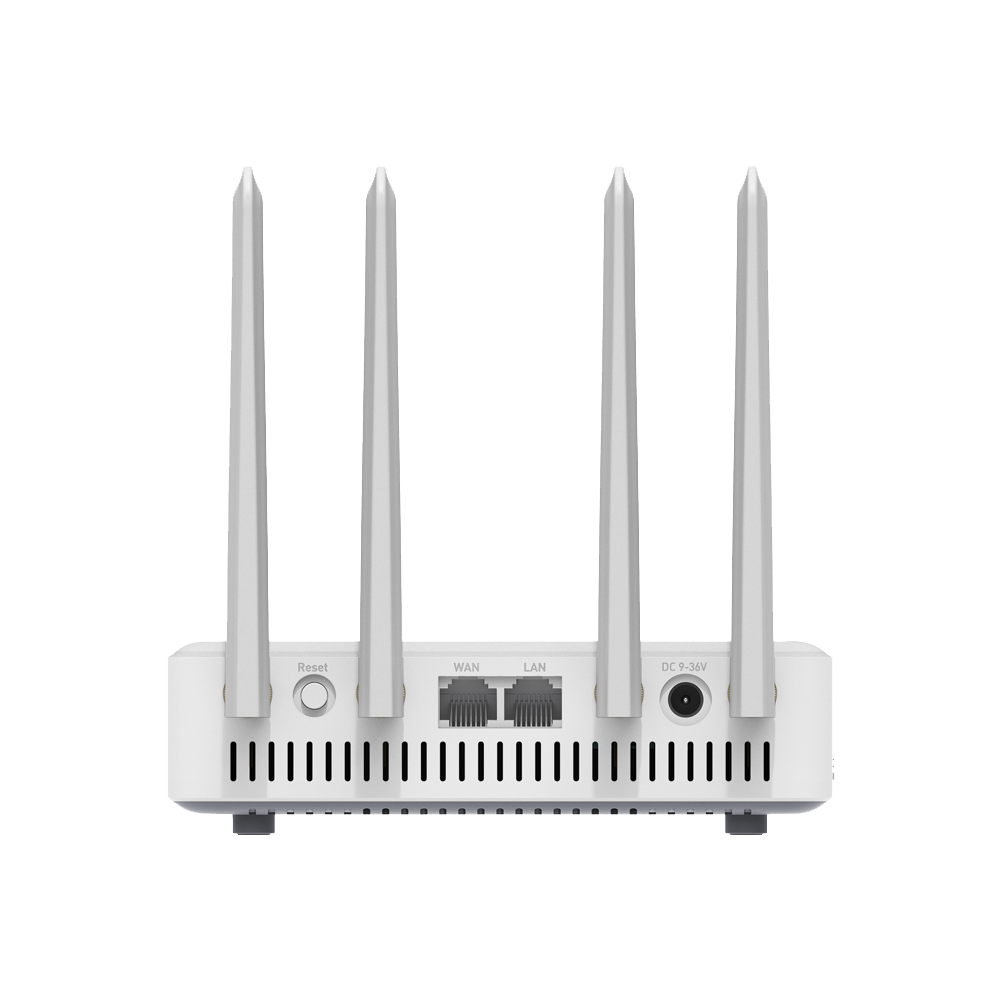
Spitz Plus (GL-X2000) comes with the following external antennas:
- 2 x Wi-Fi antennas (RP-SMA, 2.4G~2.5GHz, 5.15~5.84GHz)
- 2 x 4G antennas (SMA, 600MHz~3.8GHz)
Follow these steps to install the external antennas.
-
Attach the antennas (in no particular order).
- Attach the two identical Wi-Fi antennas to the Wi-Fi 6 ports.
- Attach the two identical 4G antenna to the 4G port.
-
Position the antennas upwards for optimal performance.
Spitz
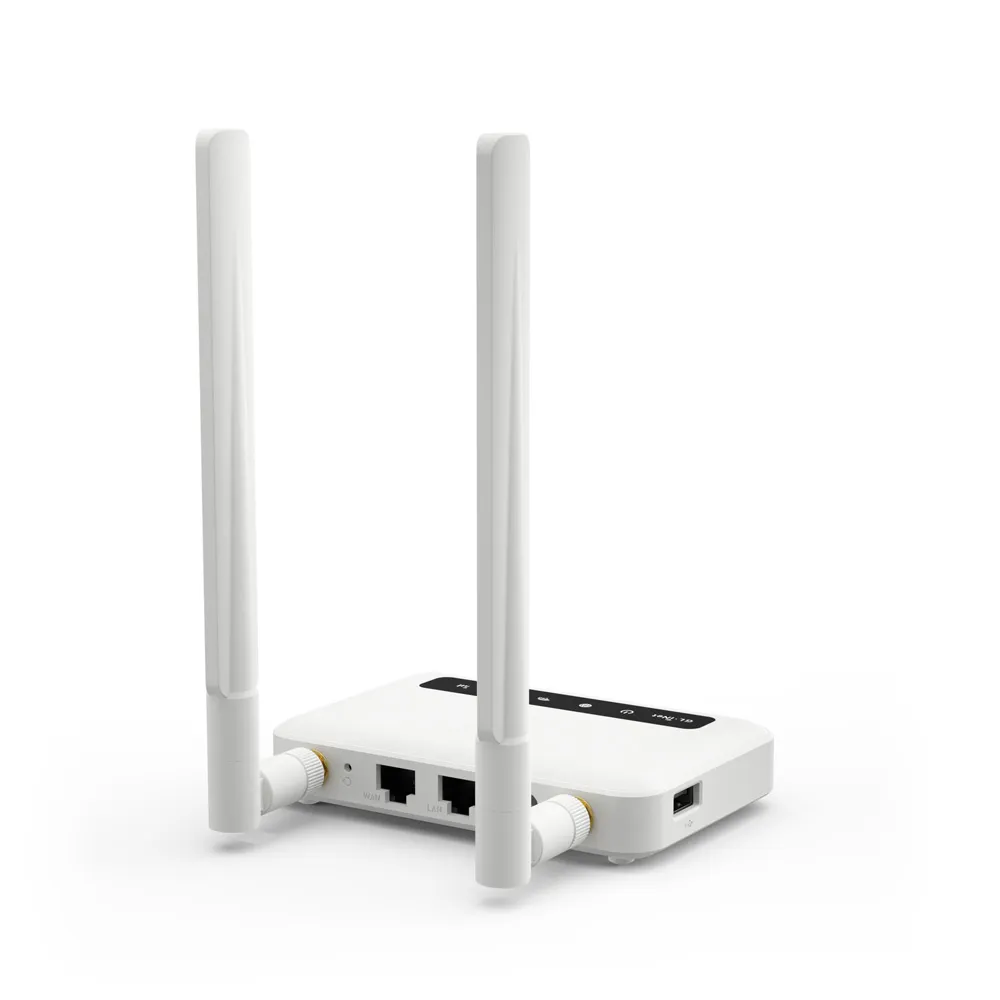
Spitz (GL-X750/GL-X750V2) comes with 2 x external 4G antennas (SMA, 700M~2700MHz).
Follow these steps to install the external antennas.
-
Attach the two identical 4G antennas to the antenna ports.
-
Position the antennas upwards for optimal performance.
Collie
There are three versions for Collie: GL-X300B-RS485, GL-X300B-BLE, and GL-X300B-GPS.
GL-X300B-RS485
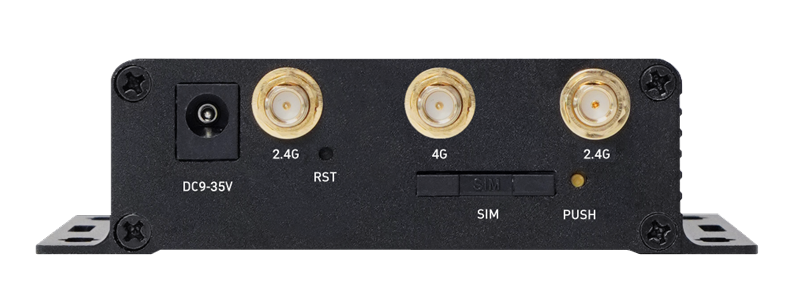
Collie (GL-X300B-RS485) comes with the following antennas:
- 1 x External 4G antenna
- 2 x External Wi-Fi antennas (2.4GHz)
Follow these steps to install the antennas.
-
Attach the antennas (in no particular order).
- Attach the two identical Wi-Fi antennas to the 2.4G ports.
- Attach the single 4G antenna to the 4G port.
-
Position the antennas upwards for optimal performance.
GL-X300B-BLE
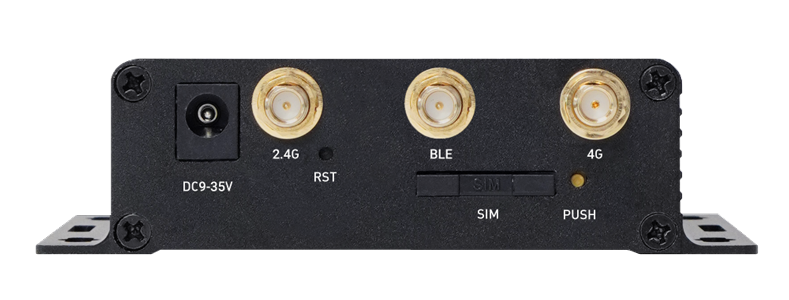
Collie (GL-X300B-BLE) comes with the following antennas:
- 1 x External 4G antenna
- 1 x External Wi-Fi antenna (2.4GHz)
- 1 x External BLE antenna
Follow these steps to install the antennas.
-
Attach the antennas (in no particular order).
- Attach the single Wi-Fi antennas to the 2.4G port.
- Attach the single 4G antenna to the 4G port.
- Attach the single BLE antenna to the BLE port.
-
Position the antennas upwards for optimal performance.
GL-X300B-GPS
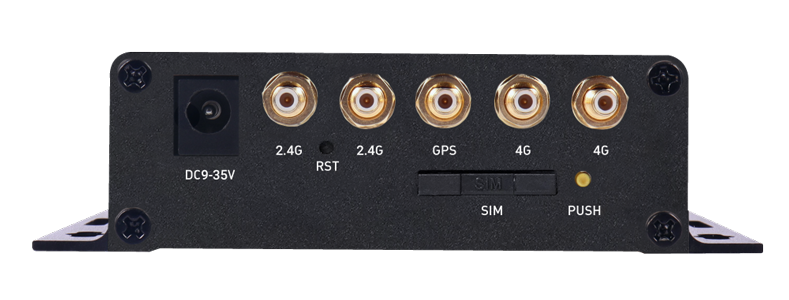
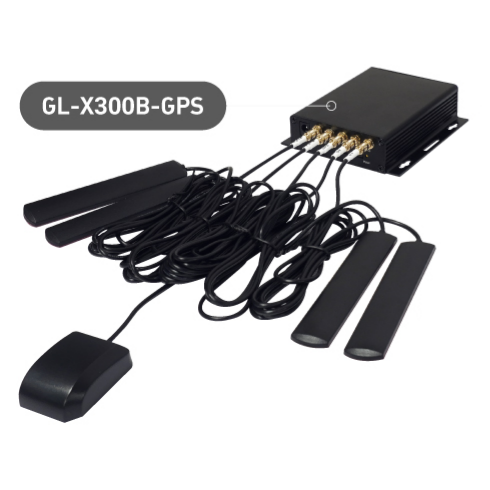
Collie (GL-X300B-GPS) comes with the following antennas:
- 2 x External 4G antennas
- 2 x External Wi-Fi antennas (2.4GHz)
- 1 x External GPS antenna
Follow these steps to install the antennas.
-
Attach the antennas (in no particular order).
- Attach the two identical Wi-Fi antennas to the 2.4G ports.
- Attach the two identical 4G antenna to the 4G ports.
- Attach the single GPS antenna to the GPS port.
-
Position the antennas correctly and prevent tangling to ensure optimal performance.
Change external antennas
The following instructions apply to all cellular routers with external antenna ports, except Mudi 7 (GL-E5800). Click here to view external antenna installation for Mudi 7.
You can buy additional Wi-Fi or 4G/5G NR antennas to replace those included in the package, allowing you to customize your network setup.
However, we recommend using the original antennas, as they have undergone extensive pre-shipment testing to ensure optimal performance and compatibility.
If you prefer to use third-party antennas, please refer to the sections below to make sure you select antennas with the correct connector type.
Tips: If you bought the incorrect antennas, you may consider buying an adapter which converts between connectors (e.g., SMA-RP male to SMA female).
Wi-Fi antennas
The base of the Wi-Fi antenna uses an RP-SMA female connector (external thread and internal pin). It requires a Wi-Fi antenna which uses an RP-SMA male connector (internal thread and internal hole).

5G NR antennas
The base of the 5G NR antenna uses an SMA female connector (external thread and internal hole). It requires a 5G NR antenna with an SMA male connector (internal thread and internal pin).

Still have questions? Visit our Community Forum or Contact us.