Firewall
This guide applies to firmware v4.5 and earlier.
Since v4.6, the Firewall page has been split: the Port Forwarding and DMZ features have been moved to the Port Forwarding, while the Open Ports feature has been moved to the Security.
On the left side of the web Admin Panel, go to NETWORK -> Firewall.
The Firewall page allows you to set firewall rules like Port Forwarding, Open Ports on Router and DMZ.
Port Forwards
Port Forwarding lets remote computers connect to a local computer or server behind the router's firewall in the LAN (such as web servers, FTP servers).
To set up port forwarding, click the Port Forwards tab, then click Add.

In the pop-up window, add a port forward rule and click Apply.
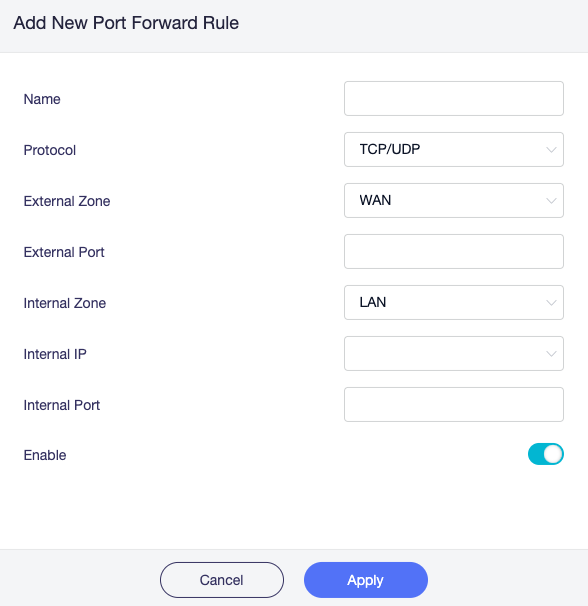
Name: Enter a name for the rule.
Protocol: Select the protocol — TCP, UDP, or both.
External Zone: Select the interface from which incoming traffic arrives. The options for external zone are LAN, WAN, guest, ovpnclient, ovpnserver, wgclient, and wgserver. VPN-related options appear only after a VPN connection is configured.
External Port: Enter the external port number.
Internal Zone: Select the interface to which traffic is forwarded. The options for internal zone are LAN, WAN, guest, ovpnclient, ovpnserver, wgclient, and wgserver. VPN-related options appear only after a VPN connection is configured.
Internal IP: Enter the LAN IP address of the device you want to access remotely.
Internal Port: Enter the internal port number on the device. Leave it blank if it is the same as the external port.
Enable: Toggle to enable or disable the rule.
Open Ports on Router
The router's services, such as web and FTP, requires their respective ports to be opened on the router in order to be publicly reachable.
To open a port, switch to the Open Ports on Router tab, then click Add.

In the pop-up window, open a new port and click Apply.
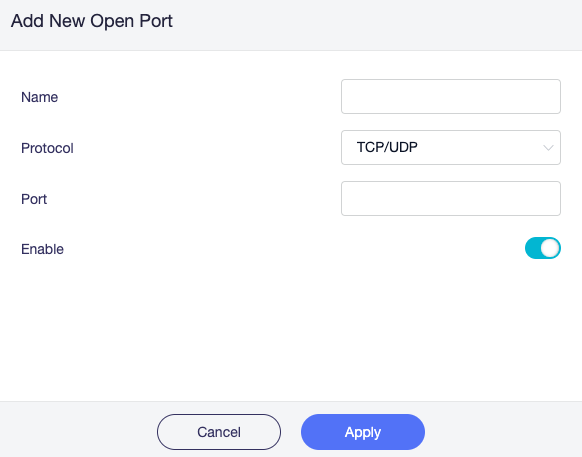
Name: The name of the rule which can be specified by the user.
Protocol: The protocol used, you can choose TCP, UDP, or both TCP and UDP.
Port: The port number that you want to open.
Enable: Enable or disable the rule.
DMZ
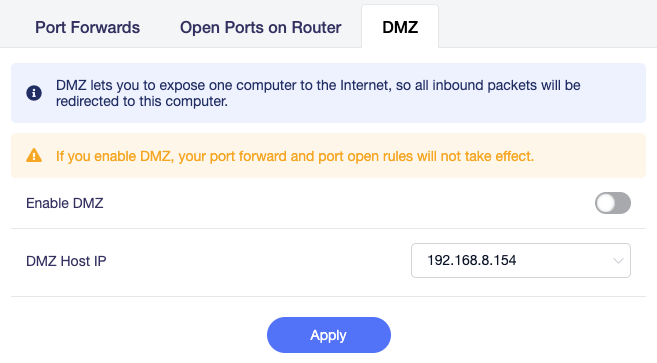
DMZ lets you to expose one computer to the Internet, so all inbound packets will be redirected to this computer.
Toggle on Enable DMZ. Select the internal IP address of your host device which is going to receive all the inbound packets.
Still have questions? Visit our Community Forum or Contact us.