What should I do if mouse cursors fail to align
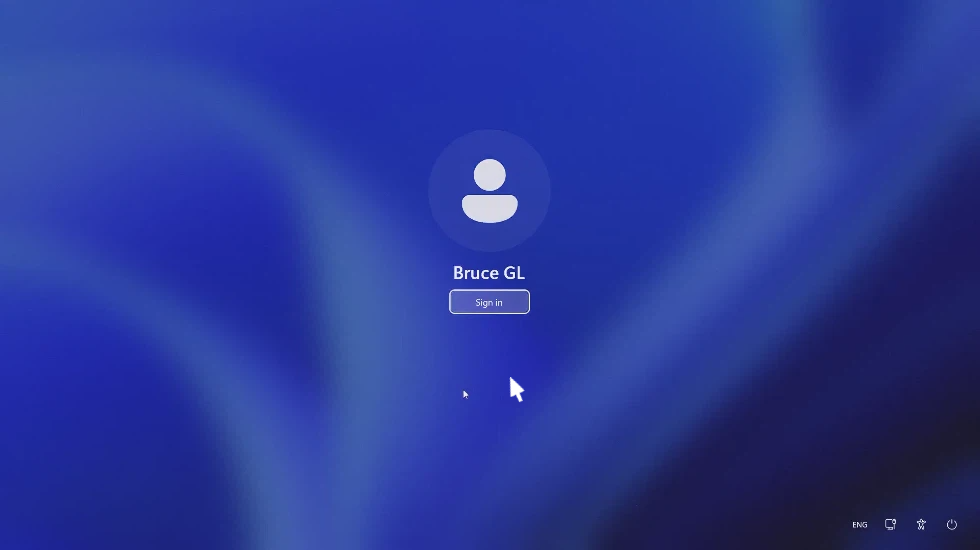
If the mouse cursor on the controlling device fails to align with the one on the controlled device, follow the troubleshooting steps below.
-
Confirm whether the issue occurs when the mouse is moving or idle.
Case 1. If cursors align correctly when the mouse is idle but go out of sync during movement, check the network on both ends and ensure stable connectivity.
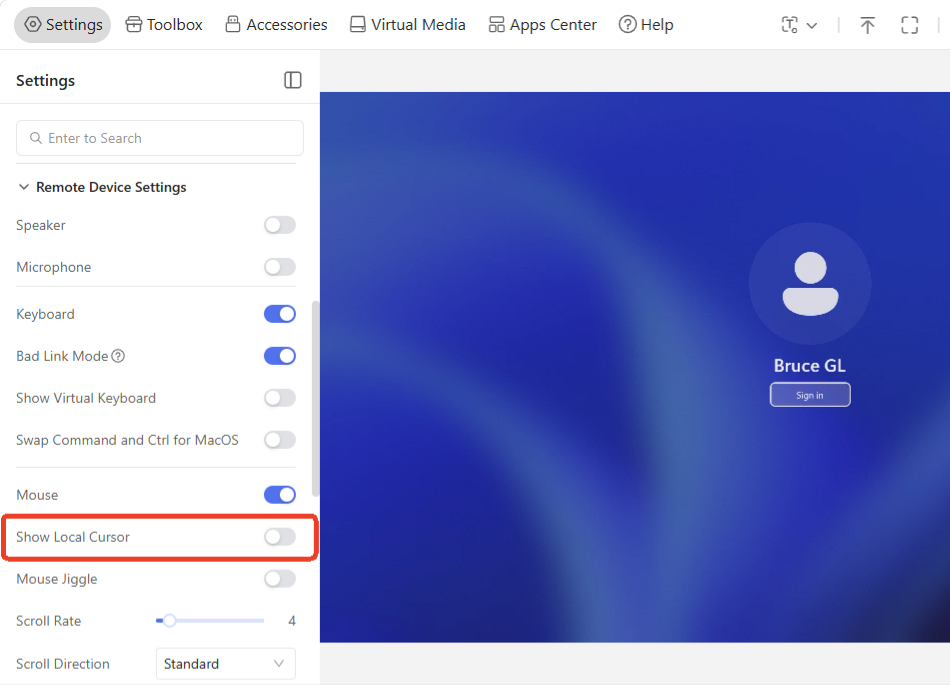
In addition, you can hide the local cursor so that only the remote cursor shows on the control screen, preventing cursor misalignment issues.
On the KVM console, navigate to Settings -> Remote Device Settings -> Show Local Cursor and disable it.
Case 2. If cursors fail to align even when the mouse is idle, re-select your device type on the KVM console (for Comet Q / GL-RMQ1 only).
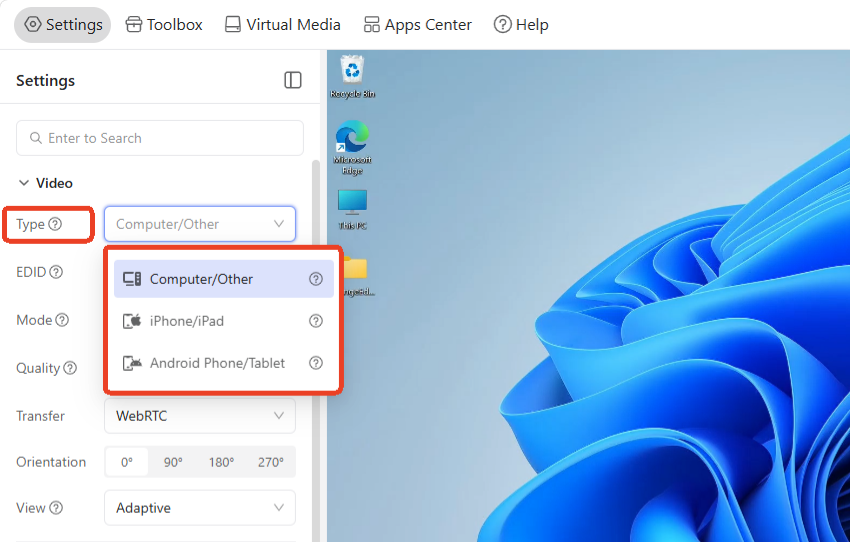
If the problem persists, proceed to the next step.
-
If the controlled device is a laptop, this is likely caused by incorrect display resolution.
Confirm the laptop's screen aspect ratio, then you can either adjust the resolution on the controlled laptop or modify the EDID setting for your KVM device.
Adjust resolution on the controlled laptop
For macOS:
-
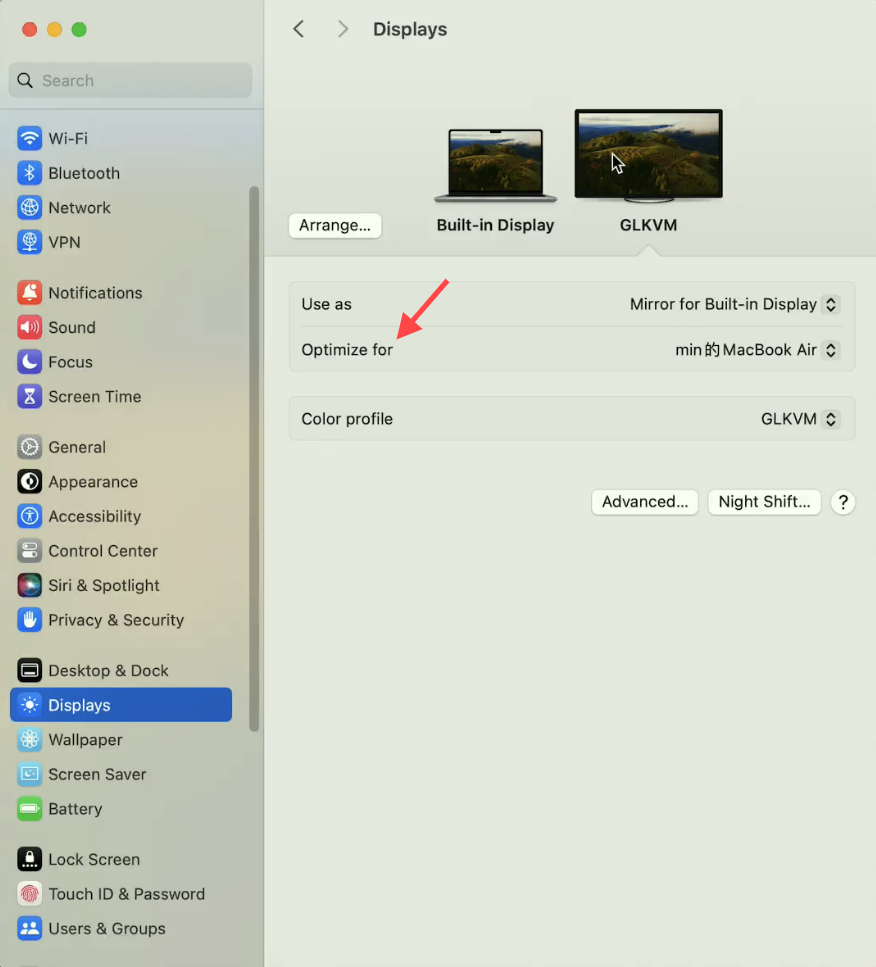
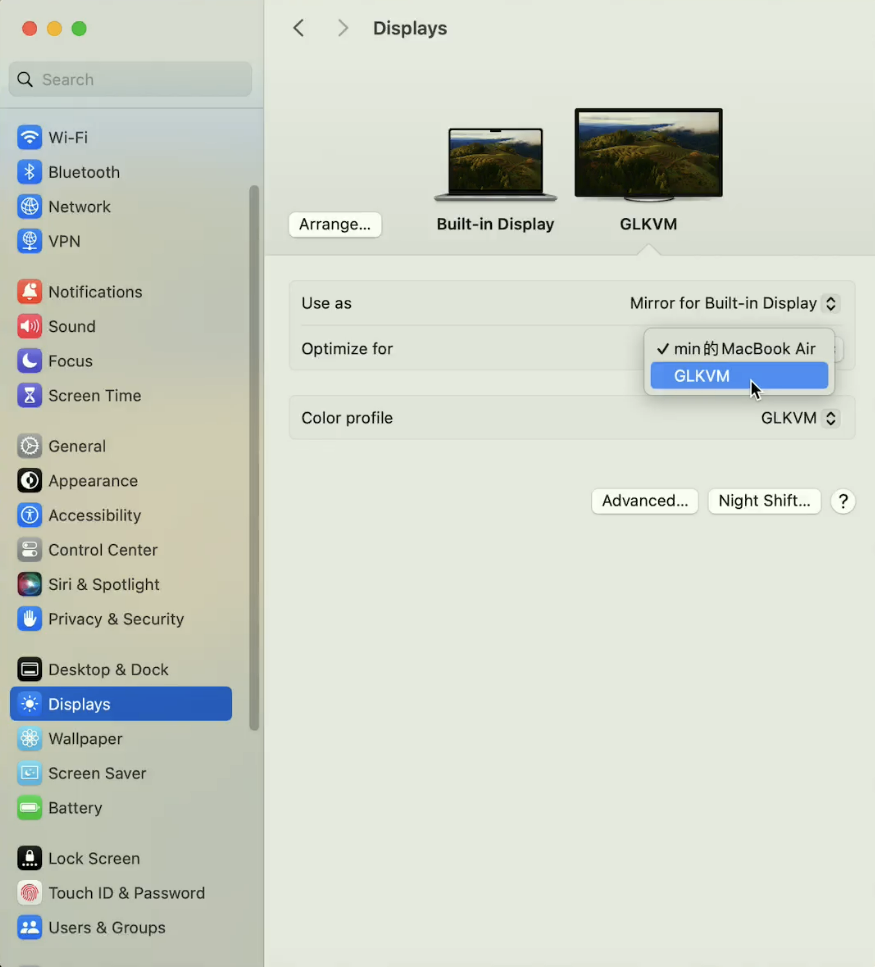
Go to Settings -> Displays -> Optimize for.
-
Change it to GLKVM.
-
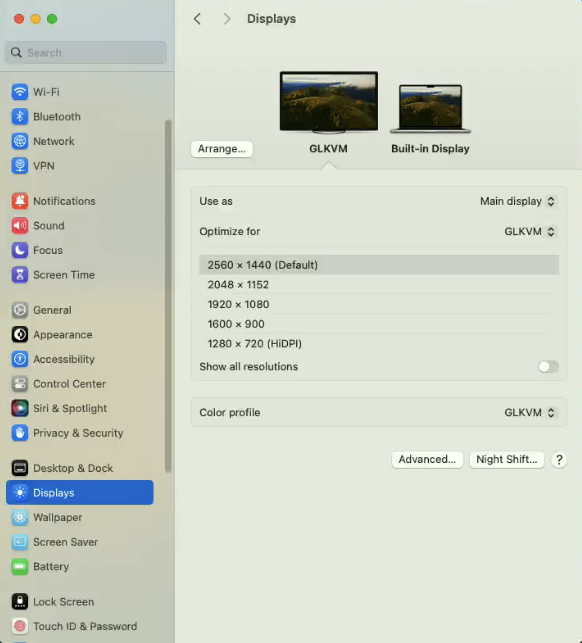
Choose the corresponding resolution, then check if the mouse cursor can be overlapped.
For Windows:
-
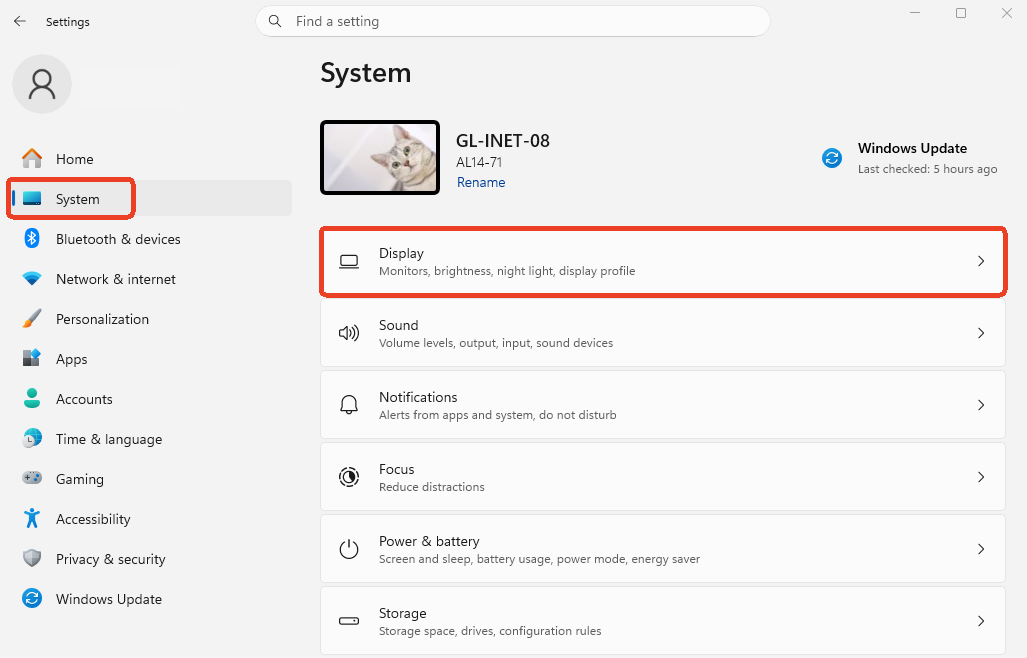
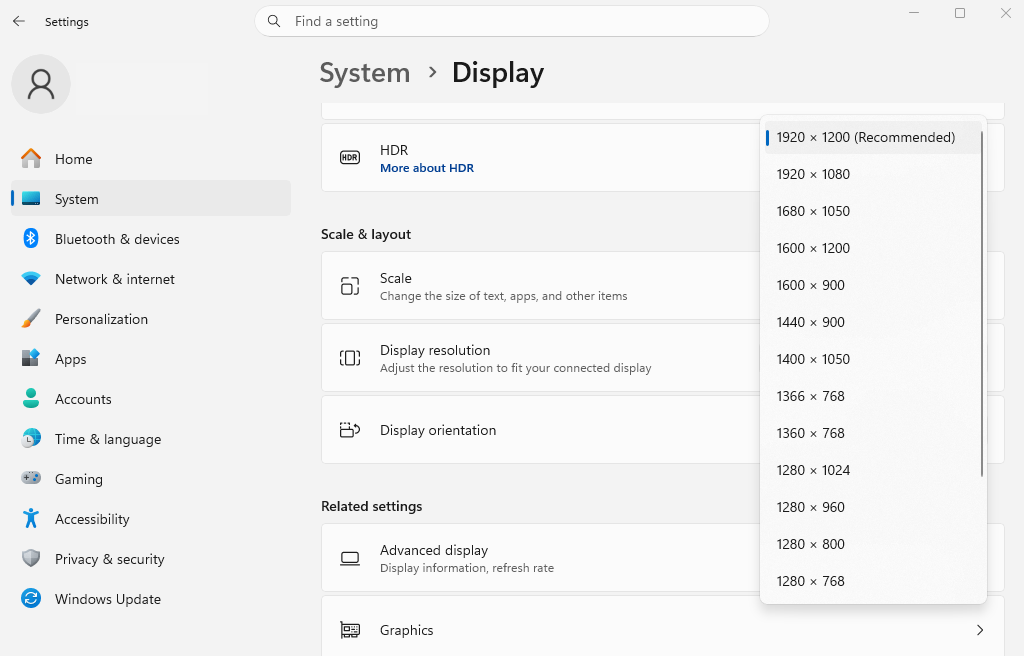
Go to Settings -> System -> Displays.
-
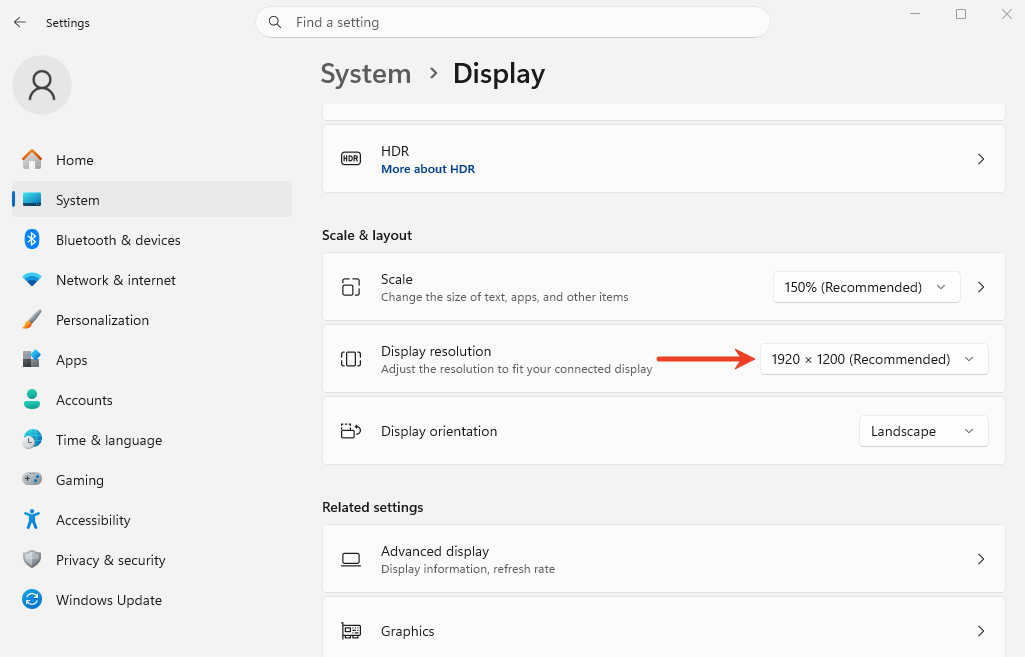
Scroll down to find Display resolution and click the box on the right.
-
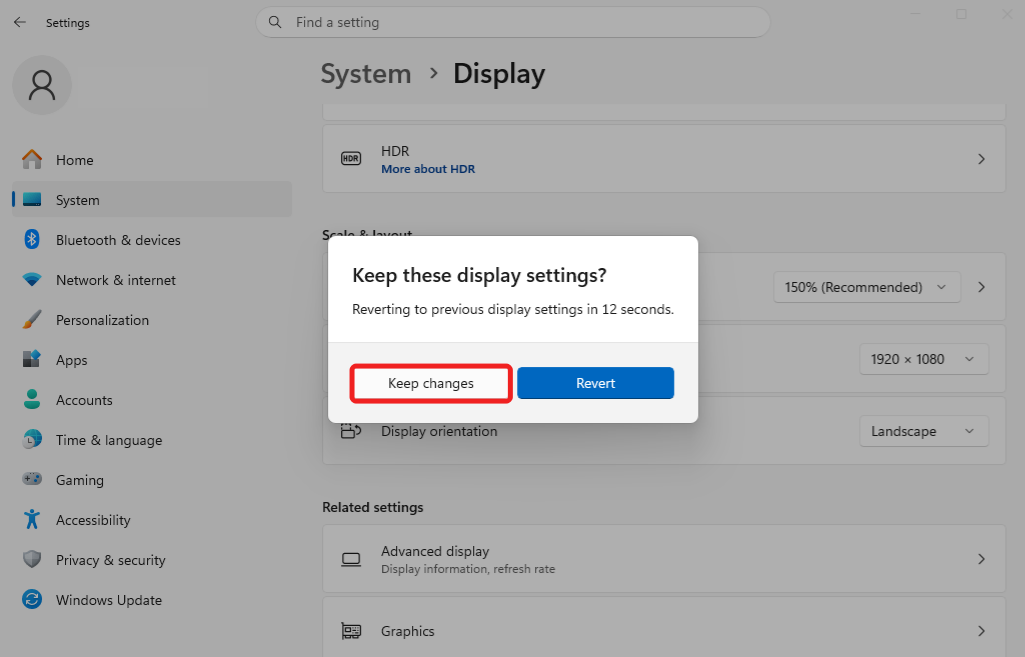
Select the appropriate display resolution, then click Keep changes in the pop-up window to apply it.
Modify EDID setting for your KVM device
EDID, short for Extended Display Identification Data, automatically matches the optimal display parameters. The default EDID is suitable for most scenarios and generally does not need to be modified. See here for details.
If the EDID has been changed but the screen does not update, try restarting the controlled device.
-
-
If the controlled device is not a laptop (e.g. desktop PC connected to an external monitor), confirm its primary display aspect ratio, then switch the EDID for your KVM accordingly. See here for details.
Still have questions? Visit our Community Forum or Contact us.