Frequently Asked Questions about Comet Q
General
-
Q: What should I do if the KVM control screen shows "Unable to Display" when Comet Q connects to the controlled device?
A: This is because your controlled device does not support USB-C DisplayPort Alt Mode, which prevents video stream output.
See here to verify if your device supports DisplayPort Alt Mode.
-
Q: Why is the controlling device unable to display the password input keyboard when the controlled device's screen is locked?
A: Due to iOS/Android security restrictions, the system blocks the password entry page during screen mirroring or remote control. You may directly enter the unlock password from the controlling end to unlock your device.
-
Q: Why can't the sound be transmitted to the controlling device when the controlled device is making a voice call?
A: This problem commonly occurs on iPhones and some Android devices. When voice interaction software (e.g., WhatsApp, Microsoft Teams) is running on the controlled device for voice calls, due to iOS/Android system restrictions, audio can only be output through local speakers on the controlled device and cannot be transmitted to the controlling end through KVM.
Tip: Media audio (videos, music, games, etc.) can be normally transmitted to the controlling end via KVM when voice interaction apps are inactive.
iOS
-
Q: Why can't I adjust the system volume on iOS devices after connecting to Comet Q?
A: Restricted by the iOS system, once an iPhone/iPad connects to a screen mirroring device such as GL.iNet KVM, which has been set as the audio output, the native system volume control becomes unavailable.
-
Q: Why does the iOS device show no local video frame when streaming videos via video apps?
A: When an iOS device connects to a screen mirroring device such as GL.iNet KVM, some video apps (e.g., YouTube, Netflix) default to outputting video via AirPlay, thus the iOS device does not show local video frame. This behavior cannot be disabled at the system level.
If you want the controlled device to play videos locally when being mirrored, please play the videos through a web browser instead.
-
Q: What should I do if the on-screen keyboard disappears from iOS device after connected to Comet Q?
A: This is likely that iOS recognizes Comet Q as an external physical keyboard and automatically hides the native on-screen keyboard. In that case, please use the keyboard on the controlling device, or the virtual keyboard embedded in the KVM console.
If you still need to use the iOS on-screen keyboard, navigate to Settings > Accessibility > Touch > AssistiveTouch, then enable Show Onscreen Keyboard.
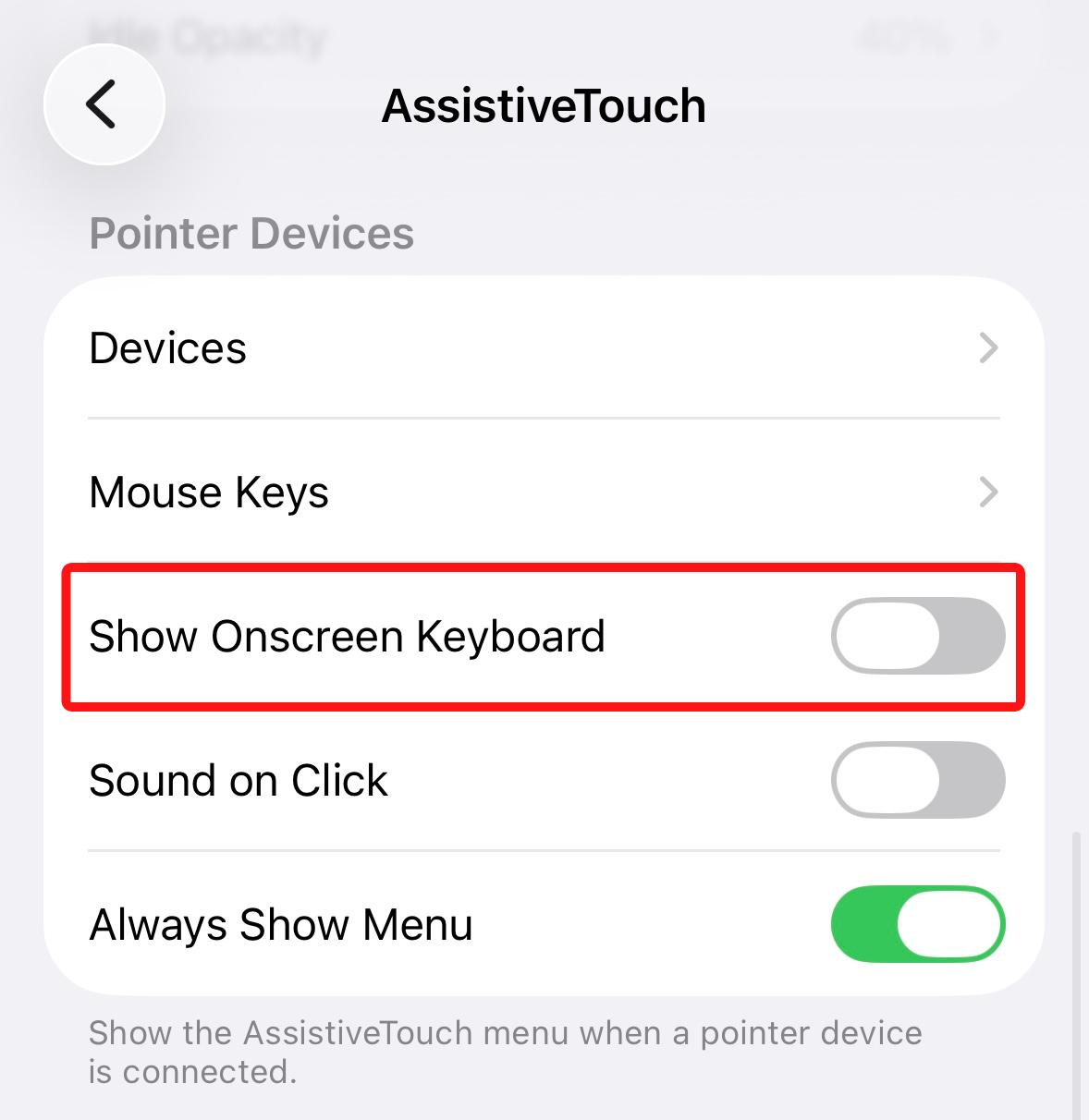
-
Q: When mirroring an iPhone/iPad in portrait/landscape orientation, the mouse on the controlling end still drifts out of alignment even after adjusting screen orientation in the KVM console. What should I do?
A: Precise cursor tracking on iPhone or iPad requires perfect alignment between the device's gyroscope orientation and the displayed screen orientation. During remote control, the system may fail to correctly detect the current gyroscope state, causing mouse offset.
To fix this, turn on the Portrait Orientation Lock/Rotation Lock on your iPhone/iPad to guarantee accurate cursor tracking.
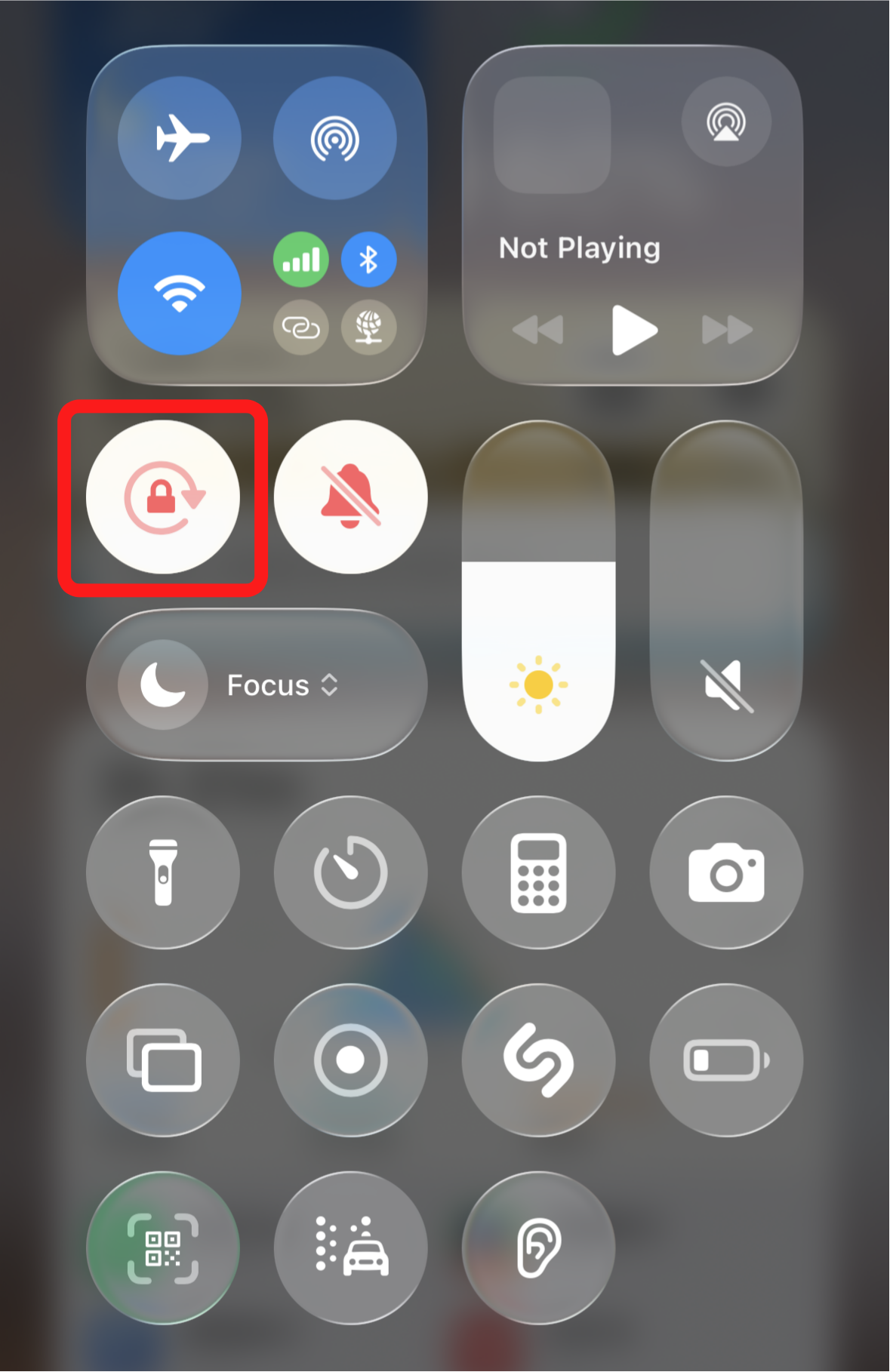
(Portrait Orientation Lock on iPhone) -
Q: Why does the keyboard not work properly on iOS devices, with some keys not working or the mouse pointer drifting?
A: This issue is usually caused by the Mouse Keys feature being enabled on the iOS device. Mouse Keys allows users to move the mouse pointer using a keyboard or numeric keypad.
To resolve the issue, navigate to Settings > Accessibility > Touch > AssistiveTouch > Mouse Keys and turn off Mouse Keys.
Android
-
Q: Why can't I control the device in absolute mouse mode?
A: Restricted by the Android operating system, Android devices can only be controlled in relative mouse mode.
When controlling via the glkvm mobile APP, fully cover the mouse pointer with your finger to execute operations.
-
Q: What should I do if the screen displayed on the controlling end is not synchronized with the screen displayed on the controlled Android phone?
A: Some Android phones identify Comet Q as an extended display rather than a mirrored screen. To fix this, please modify the display setting on your phone to Screen Mirroring mode.
Take Samsung S Series as an example:
Navigate to Settings > Device Connections > Samsung DeX > Connected Display, then select Screen Mirroring mode.
Still have questions? Visit our Community Forum or Contact us.