Connection failed when remote access via GLKVM app
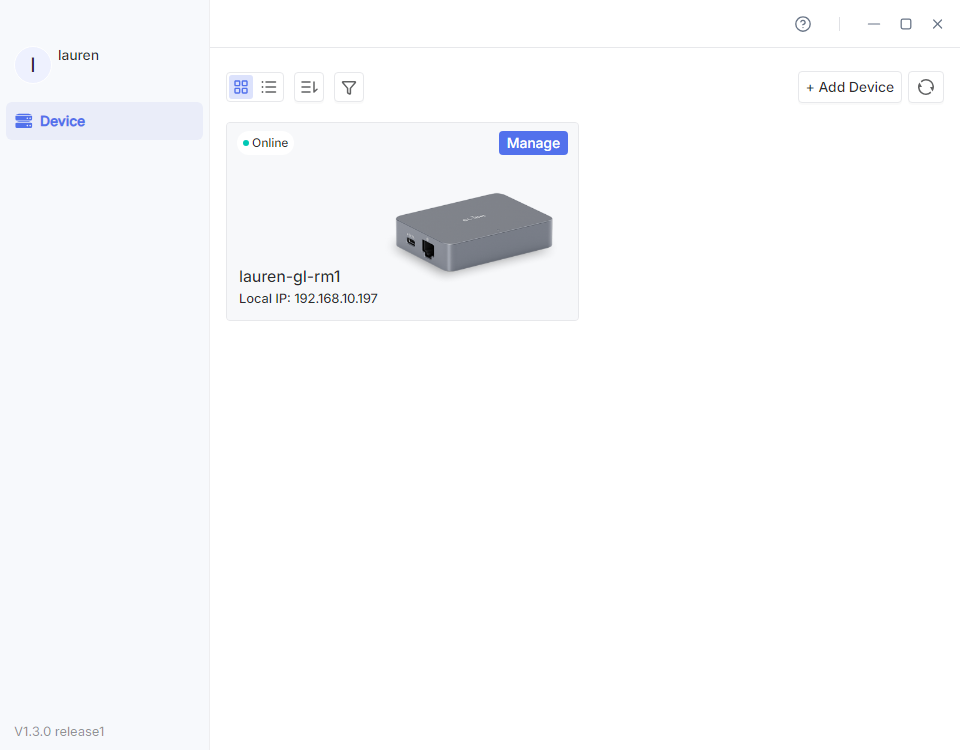
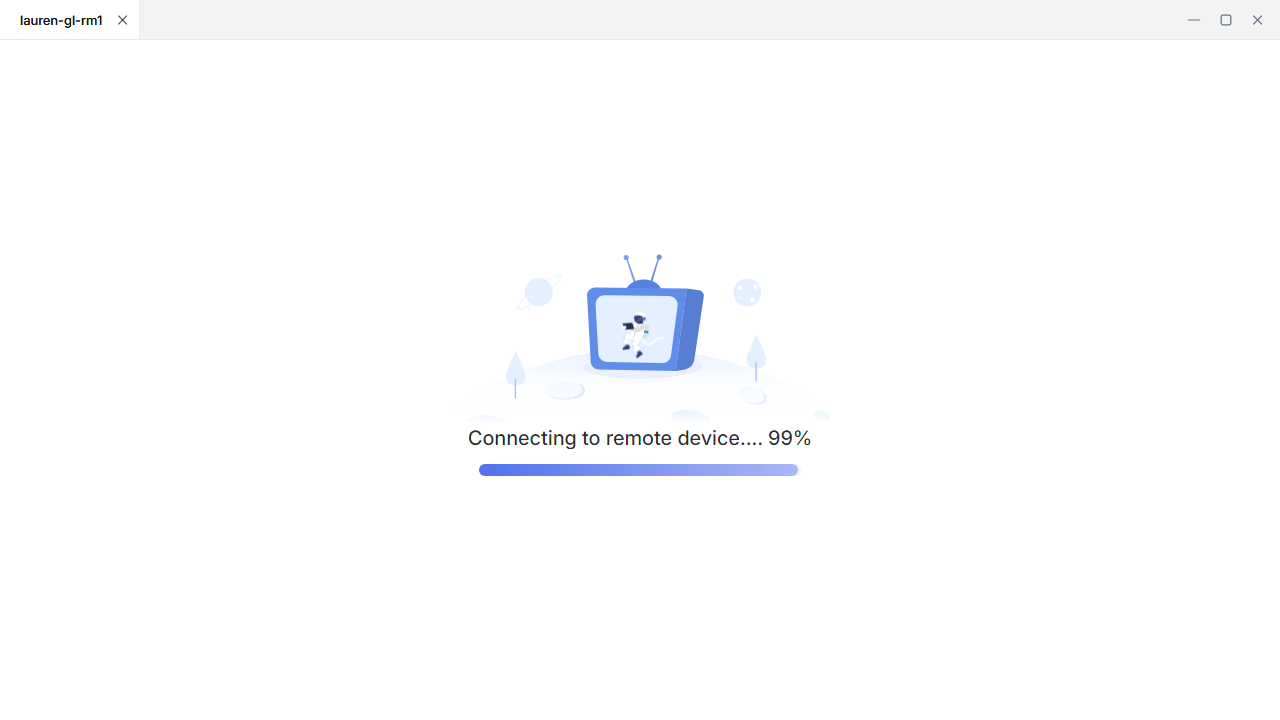
When accessing remotely through the GLKVM app, sometimes you may encounter a problem where the KVM device displays Online in the GLKVM app, but when clicked, it stucks on "Connecting".
Troubleshooting Guide:
-
Ensure stable network connectivity.
Make sure the KVM is connected to a stable Internet. A solid-white LED indicates normal network connectivity.
-
Check Network Firewall Rules.
Disable the local firewall temporarily, or add GL.iNet-related domains (e.g., glkvm.com) to the firewall allowlist. Retry the connection after applying changes.
Below are the steps to modify firewall rules on Sky Network for your reference.
Sky Network (e.g., Sky Max Hub)
The security mechanism of Sky Network may identify the domain name
glkvm.comas a suspicious site and block access. You can lift the restrictions through the Sky App.-
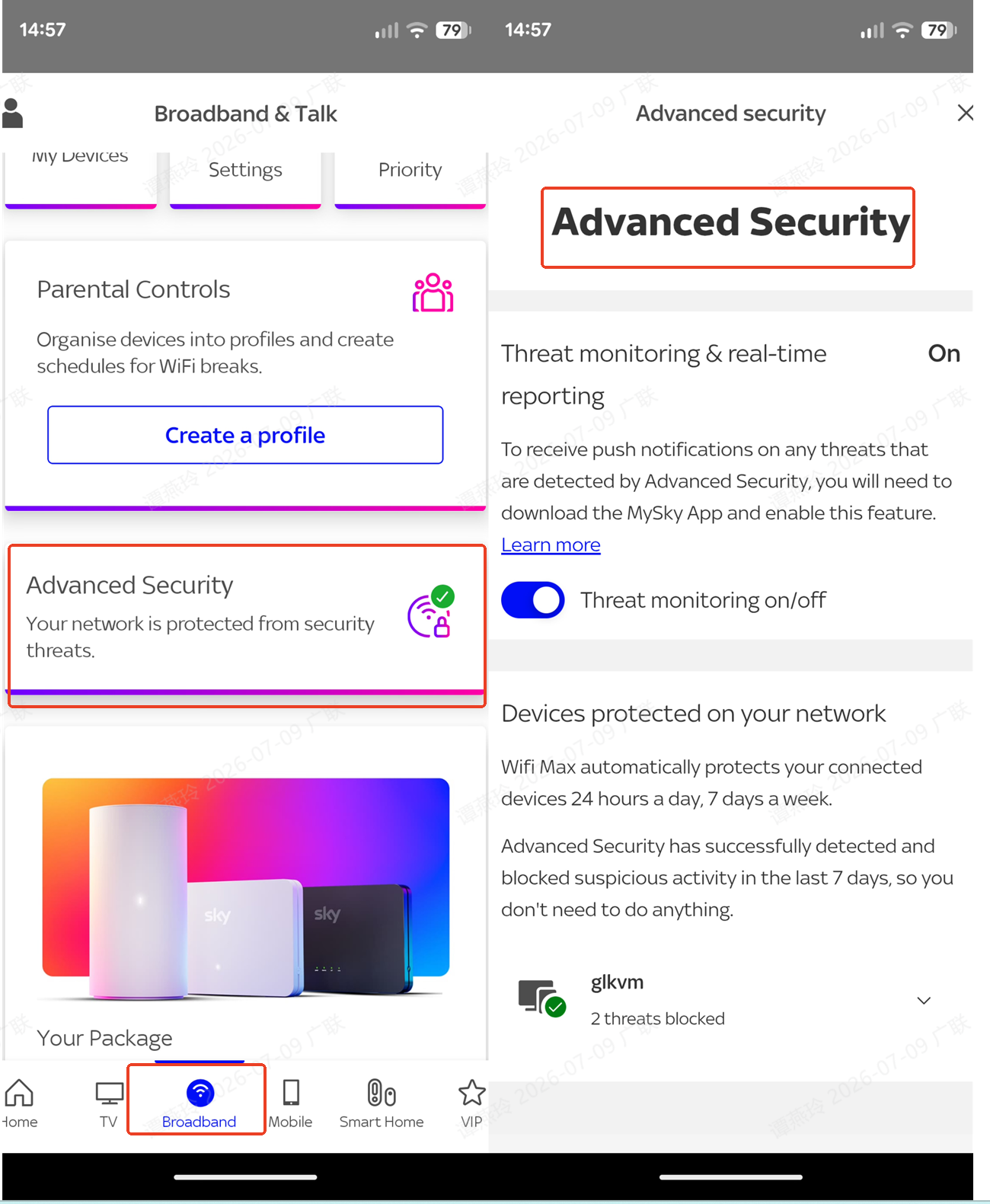
Open the MySky App, navigate to Broadband -> Advanced Security and check if any GL.iNet-related domains are restricted.
-
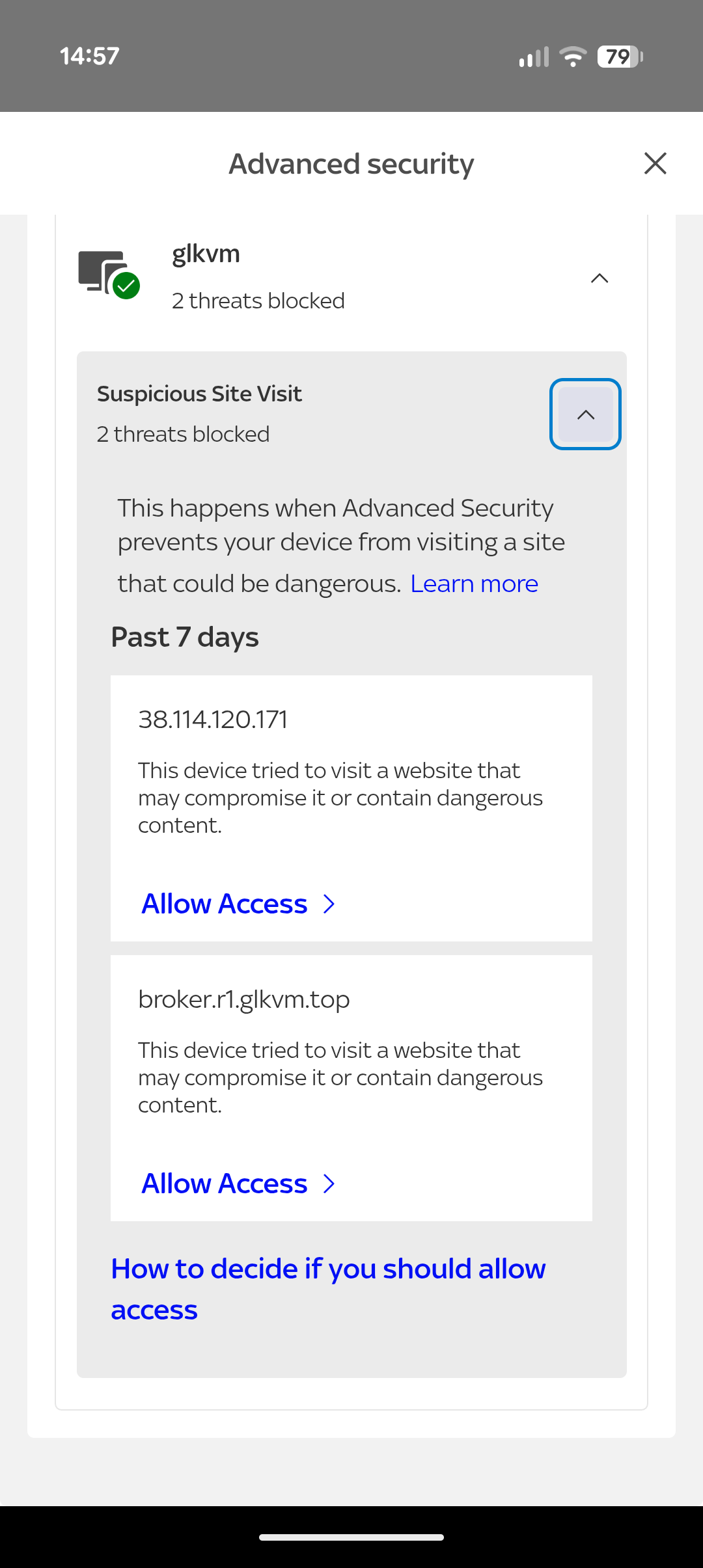
If you find that the domain is blocked, click the downward arrow to see details, and then select Allow Access to unblock the restriction.
-
-
Disable VPN/Proxy on the Controlling Device.
Ensure the device running the GLKVM app does not have VPN or proxy services enabled, as these may interfere with connectivity.
-
Restart the KVM if Possible.
Perform a hardware restart on the KVM device if possible to clear transient network or software issues.
If you are not near the KVM device, you can remotely reboot it via the GLKVM App:
-
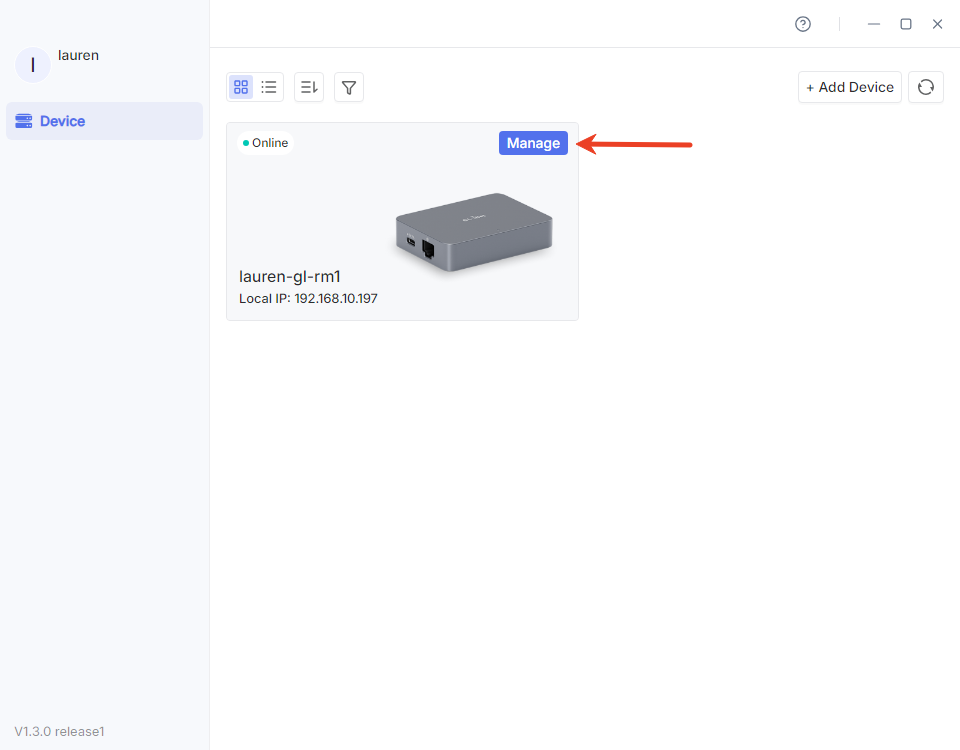
In the device list, click Manage in the upper right corner of your device.
-
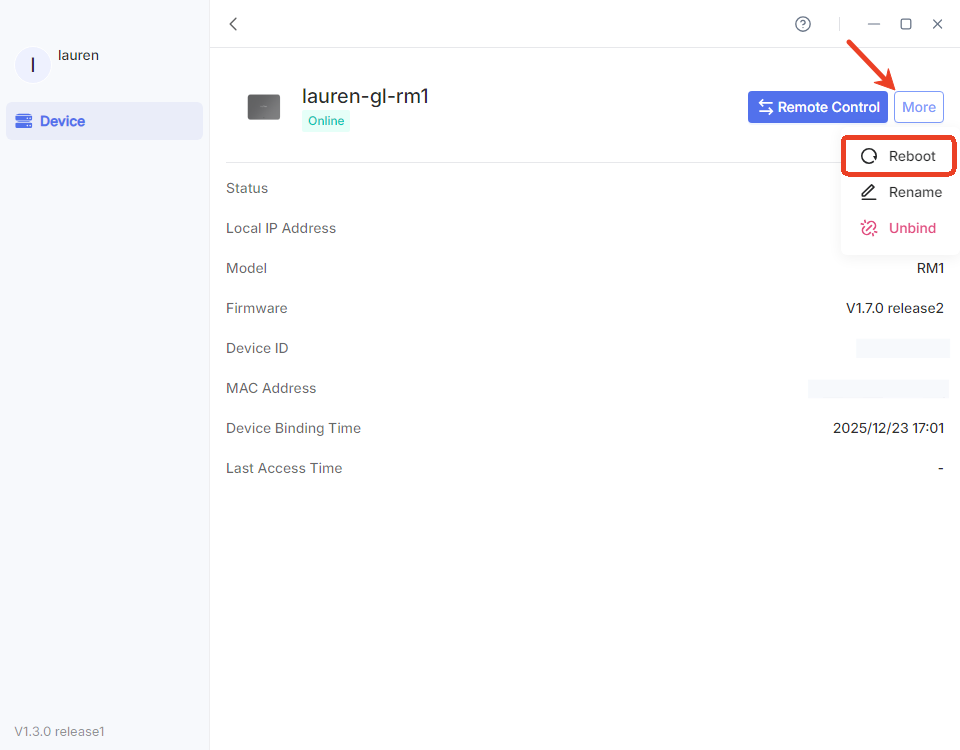
Click More and select Reboot.
-
Additional Technical Notes:
-
Ensure DNS resolution for the domains is functional.
-
Confirm that outbound traffic to standard KVM/remote-access ports is not blocked.
-
For enterprise networks, consult IT administrators regarding potential traffic filtering policies.
Still have questions? Visit our Community Forum or Contact us.