How to capture text from the remote screen
The Text Recognition feature allows you to select an area on the remote screen to easily extract text. It is driven by Optical Character Recognition (OCR) technology and was introduced in firmware v1.9.0.
With this feature, you can easily capture text from the remote screen (i.e., the controlled device) and copy it to the controlling device.
Follow the steps below to capture text from the remote screen.
Firmware v1.10 and above
-
Log in your KVM console, and navigate to Toolbox -> OCR. Click the downward arrow to select your preferred recognition language, such as Chinese, English, or bilingual (Zh/En).

-
Click Capture and the remote screen will dim. If you want to exit text capture, click Cancel.

-
Draw a box around the text you want to extract, as shown below.

-
The system will identify the text within the selected area automatically. You can then copy the recognized text as needed.

Firmware v1.9 and earlier
-
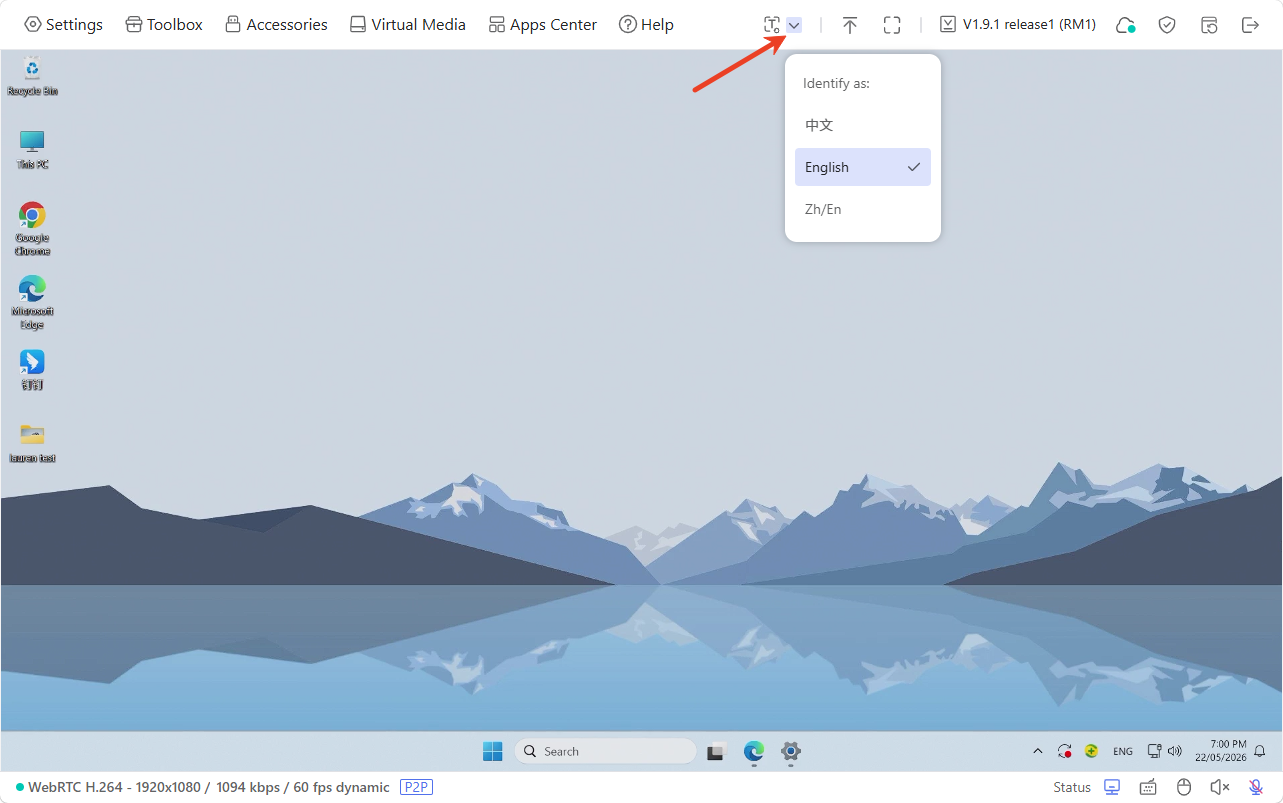
Log in to your KVM console. Click the downward arrow to select your preferred recognition language, such as Chinese, English, or bilingual (Zh/En).
-
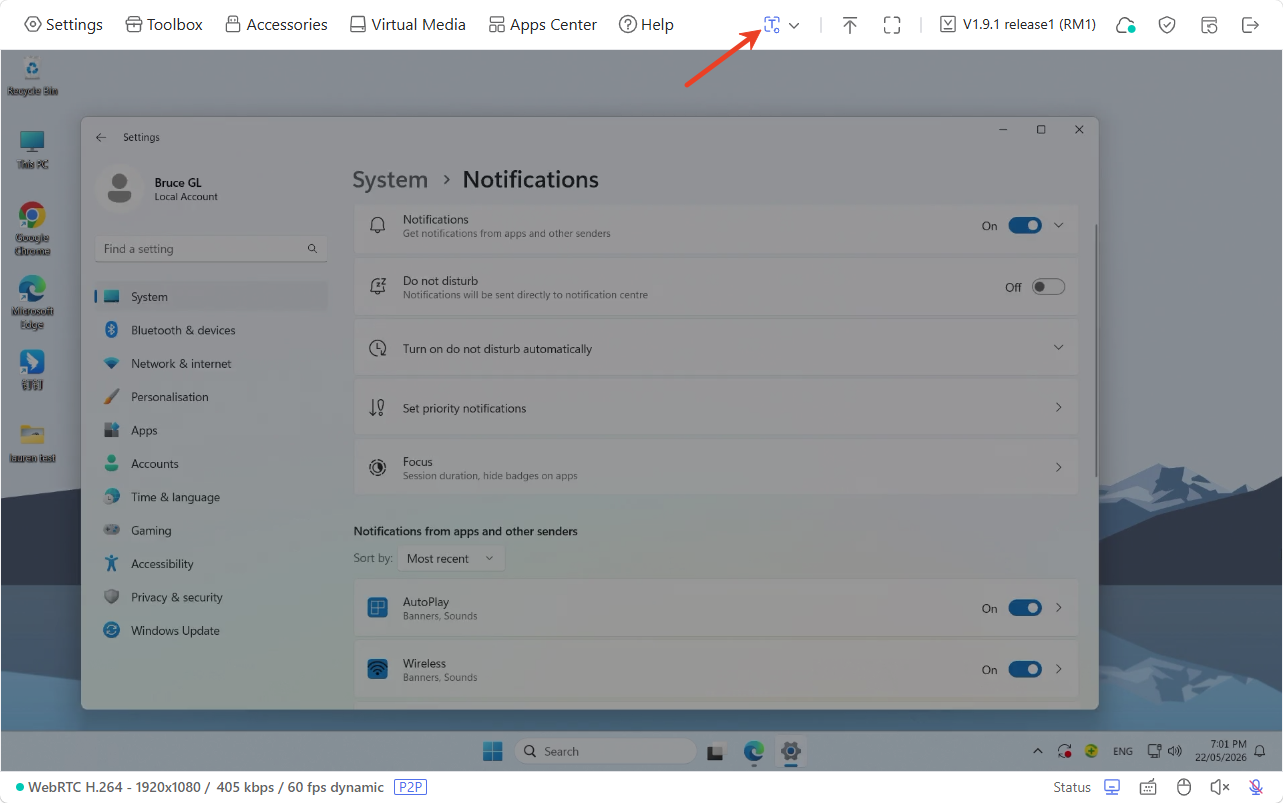
Click the "T" icon at the top center of the toolbar, and the remote screen will dim.
-
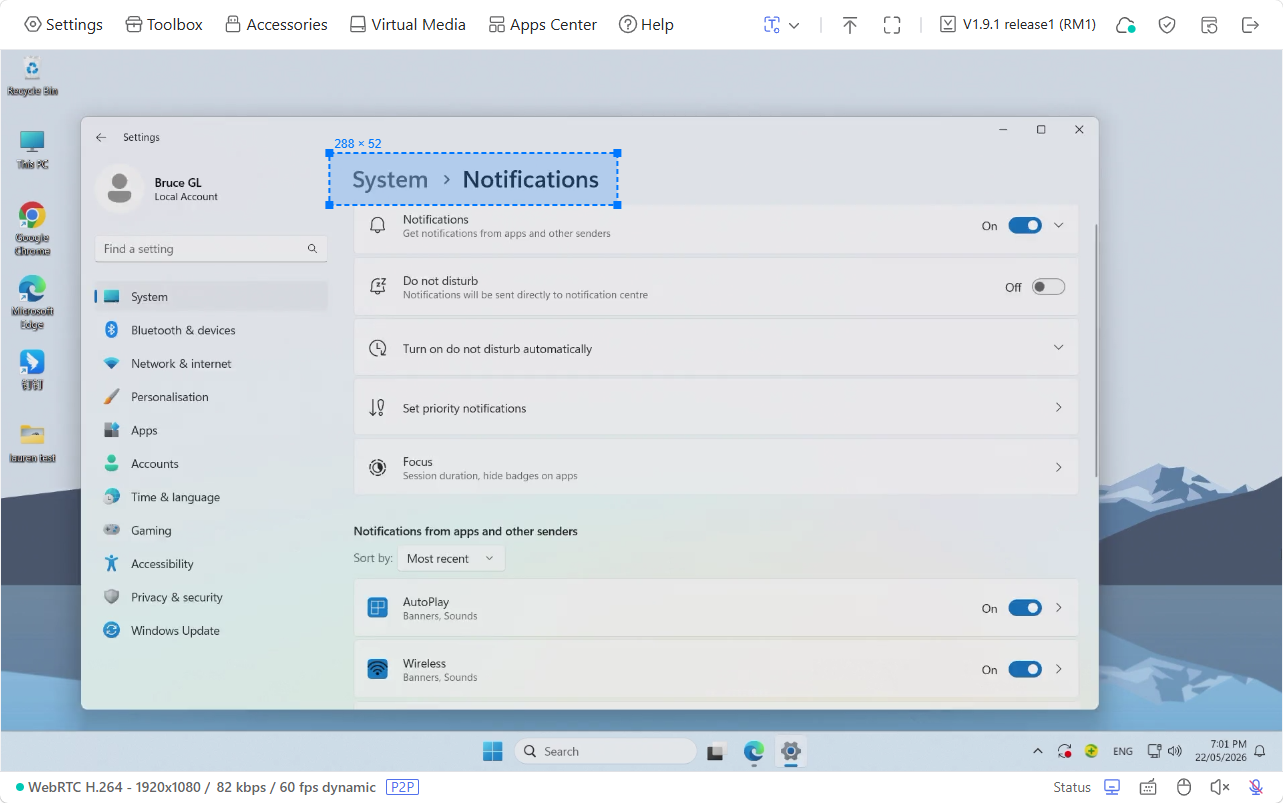
Draw a box around the text you want to extract, as shown below.
-
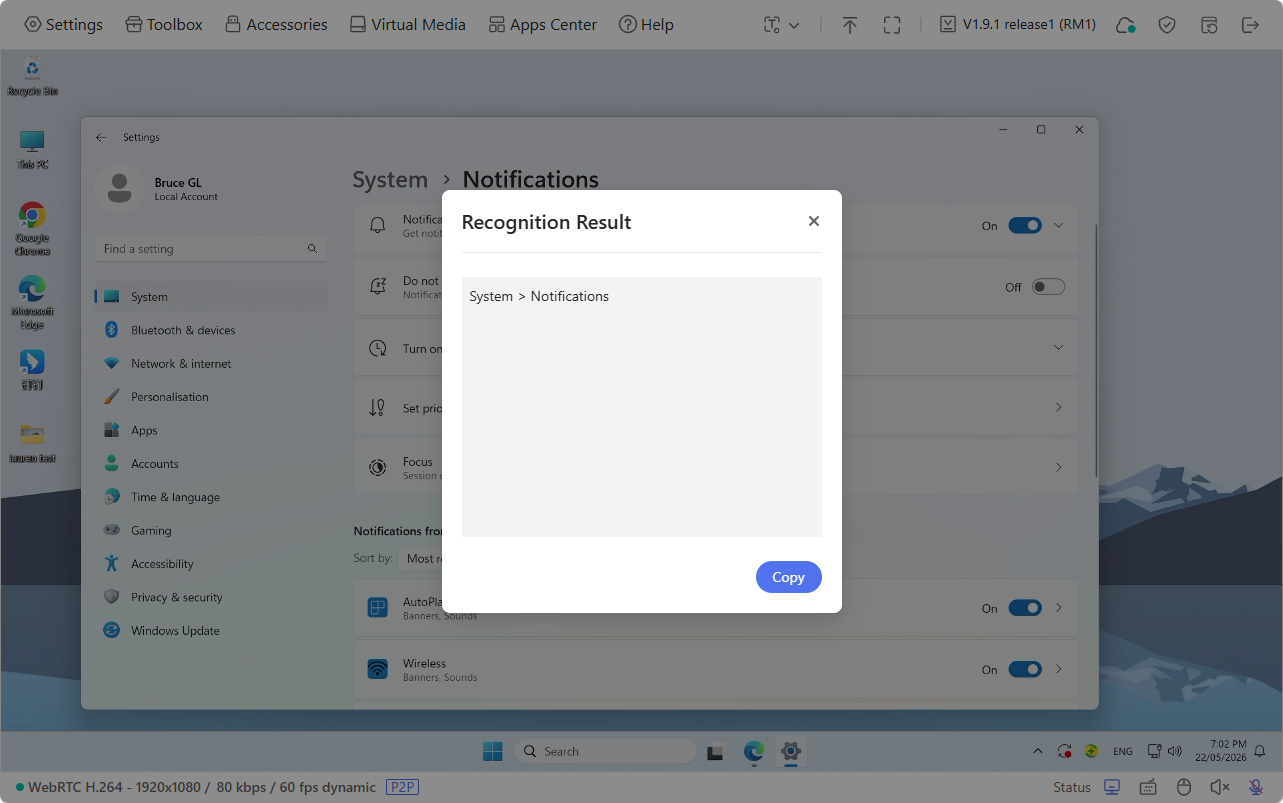
The system will identify the text within the selected area automatically. You can then copy the recognized text as needed.
Still have questions? Visit our Community Forum or Contact us.