How to access the KVM locally via browser
Before you begin, please ensure the controlling device and the KVM are on the same LAN.
There are two ways to access the KVM locally via a web browser: using a domain name or an IP address.
Local access via Domain
-
Open a browser on the controlling device. Chrome or Edge is recommended for better compatibility.
-
Enter
glkvm.localin the address bar. You will be directed to the GLKVM login page. Enter your admin password.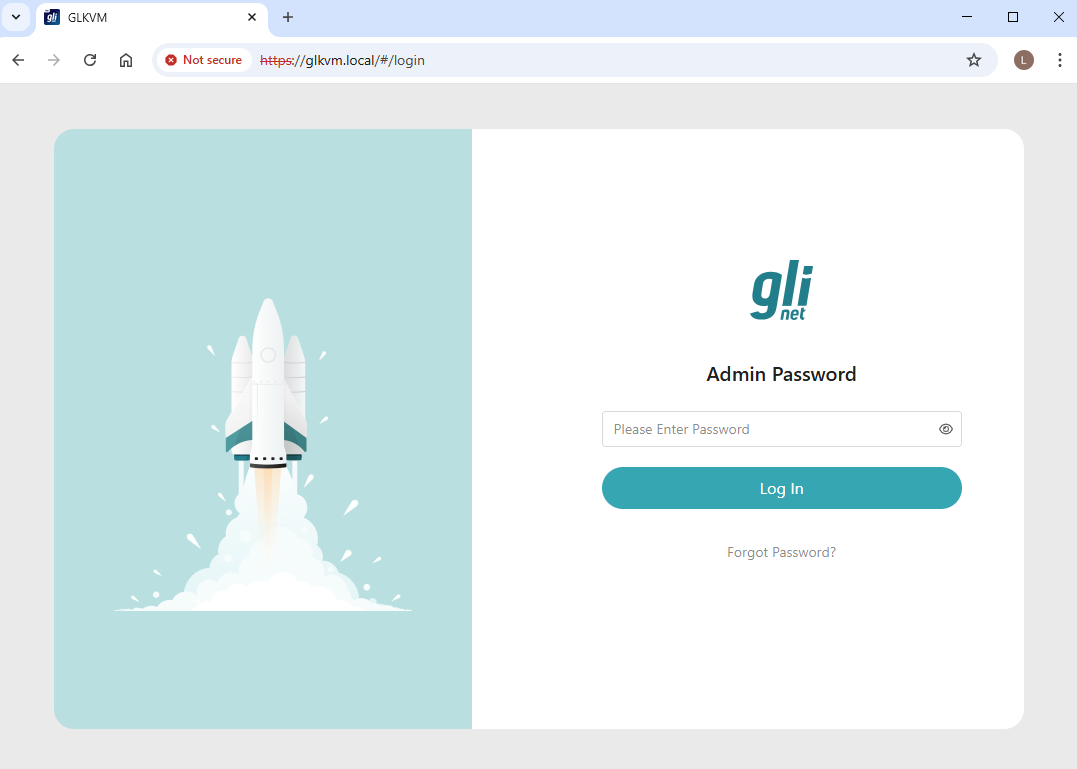
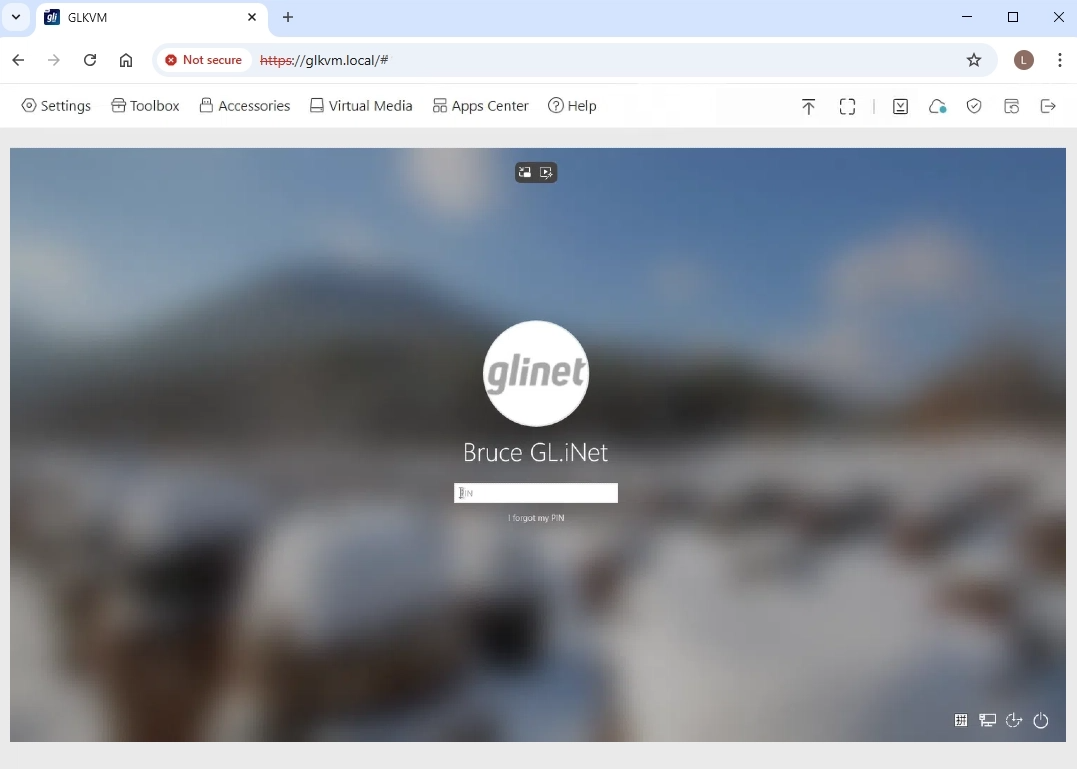
You can now access your KVM console locally, and thus access the controlled device.
Local access via IP address
Find the IP address of your KVM in the upstream network (e.g., your router), and enter this IP address in the browser. You will then be able to access your KVM locally, thus access the controlled device.
Take GL-AXT1800 (the router) and GL-RM1 Comet (the KVM) as an example: Comet is connected to the LAN port of GL-AXT1800 router via an Ethernet cable. The controlled device is connected to Comet correctly via HD cable and USB cable.
Follow the steps below to access the KVM console.
-
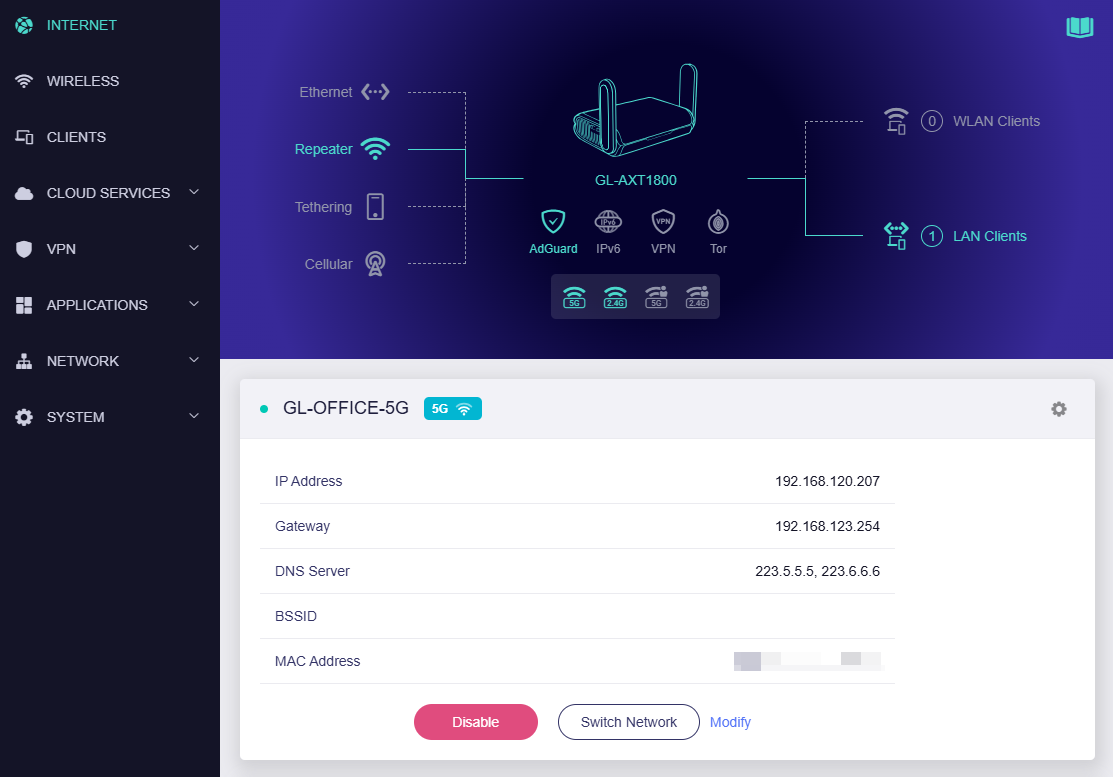
Log in to the GL-AXT1800 web admin panel. This router needs to be configured for Internet access.
-
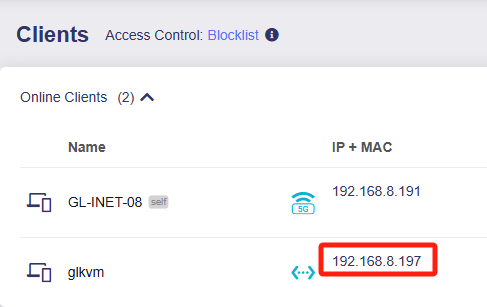
On the router's admin panel, go to Client and find the Comet's IP address in the Client list. As shown below, the Comet's IP is 192.168.8.197.
-
Open a new tab in the browser, enter Comet's IP 192.168.8.197 in the address bar.
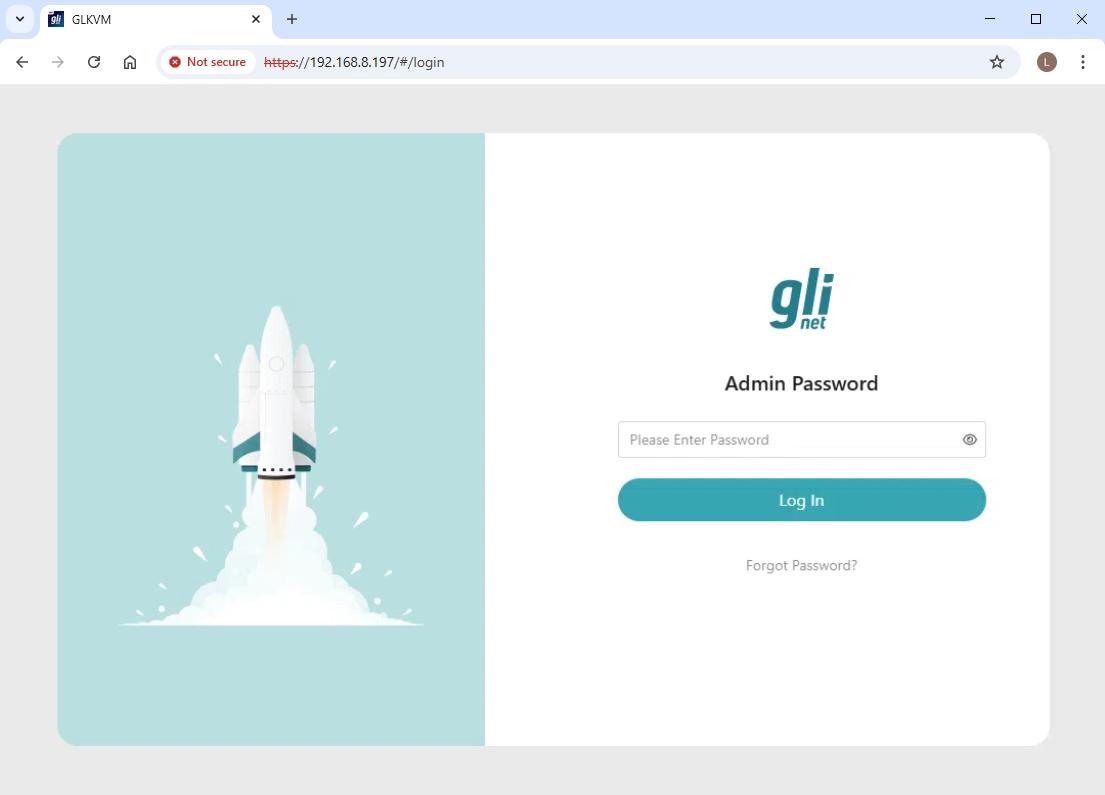
You will be directed to the GLKVM login page. Enter your admin password.
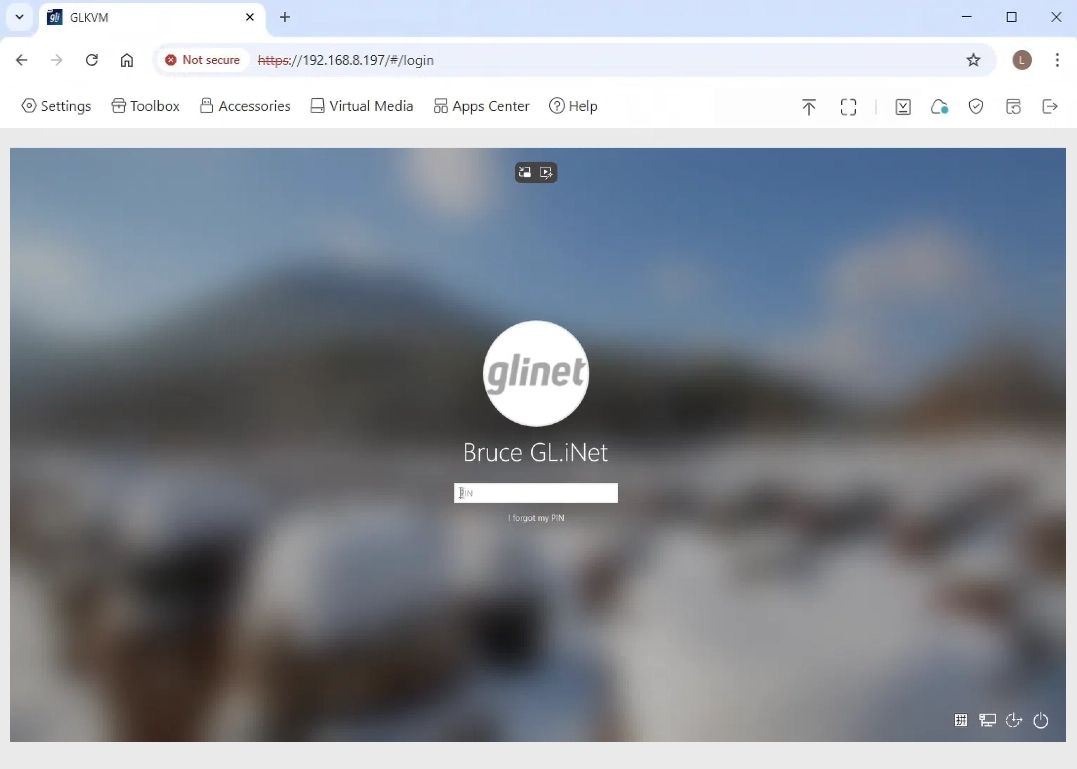
You can now access your KVM console locally, and thus access the controlled device.
Still have questions? Visit our Community Forum or Contact us.