How to access KVM remotely via Tailscale
GL.iNet KVM integrates Tailscale, allowing you to bind it to the Tailscale virtual network for remote access — no need to install the GLKVM app or use the cloud service. This is particularly useful when your controlling device does not run Windows, macOS, Android, or iOS (and thus cannot install the GLKVM app), or when you do not want to use the GLKVM app or cloud service.
Follow these steps to remotely access your GL.iNet KVM via Tailscale.
Bind KVM to Tailscale
Before you begin, connect your KVM and the controlling device to the same local network.
-
Open a browser on the controlling device. Chrome or Edge is recommended for better compatibility.
-
Log in to your KVM console locally using its domain or IP address. Here we use the default domain as an example.
Enter
glkvm.localin the address bar. You will be directed to the GLKVM login page. Enter your admin password.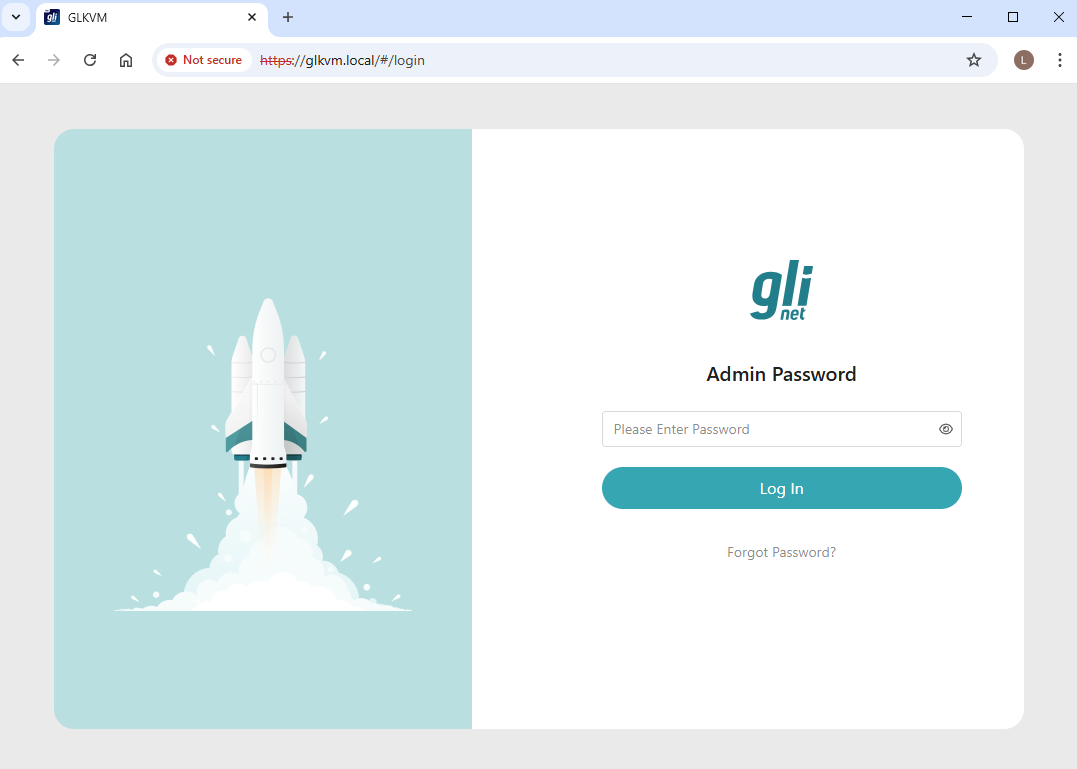
-
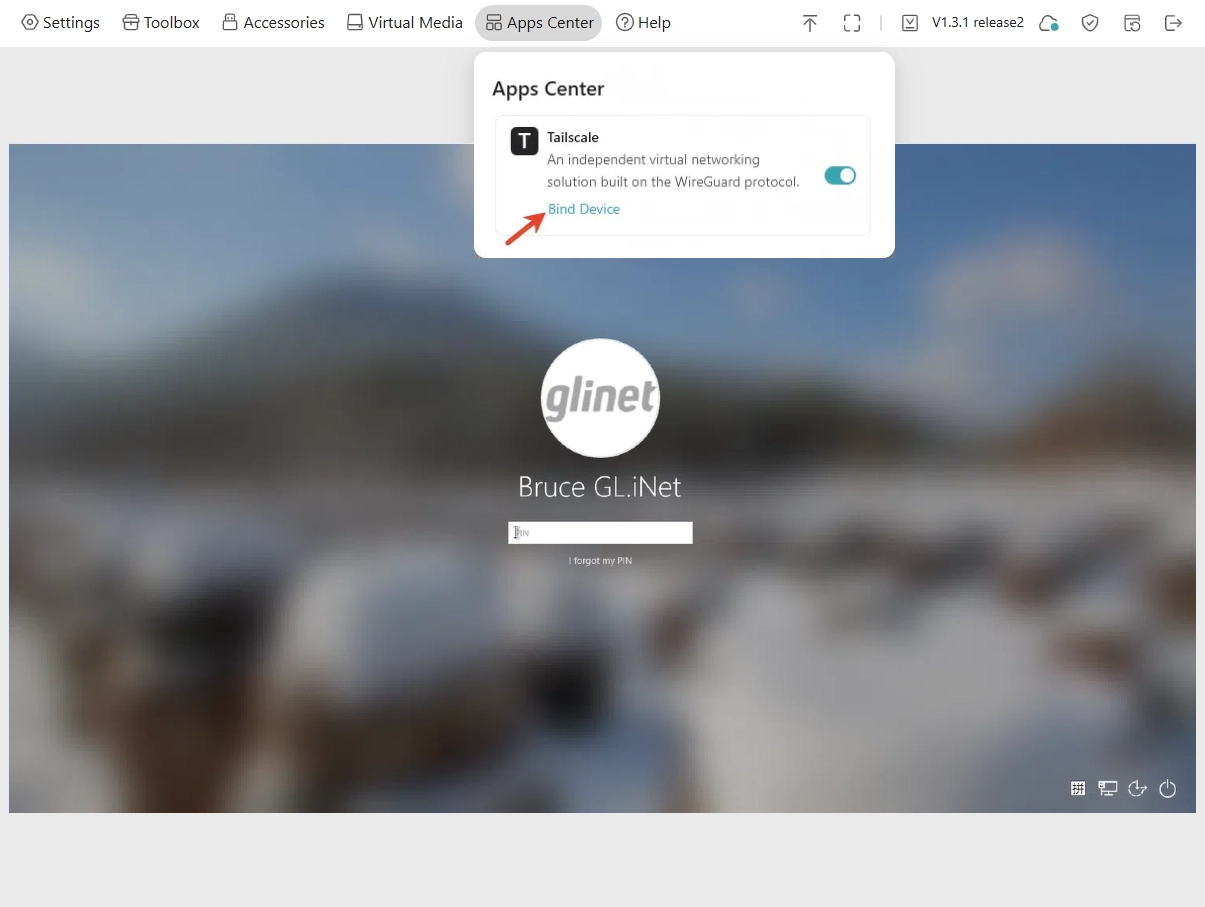
After logging in, go to Apps Center -> Tailscale. Enable Tailscale and click Bind Device.
-
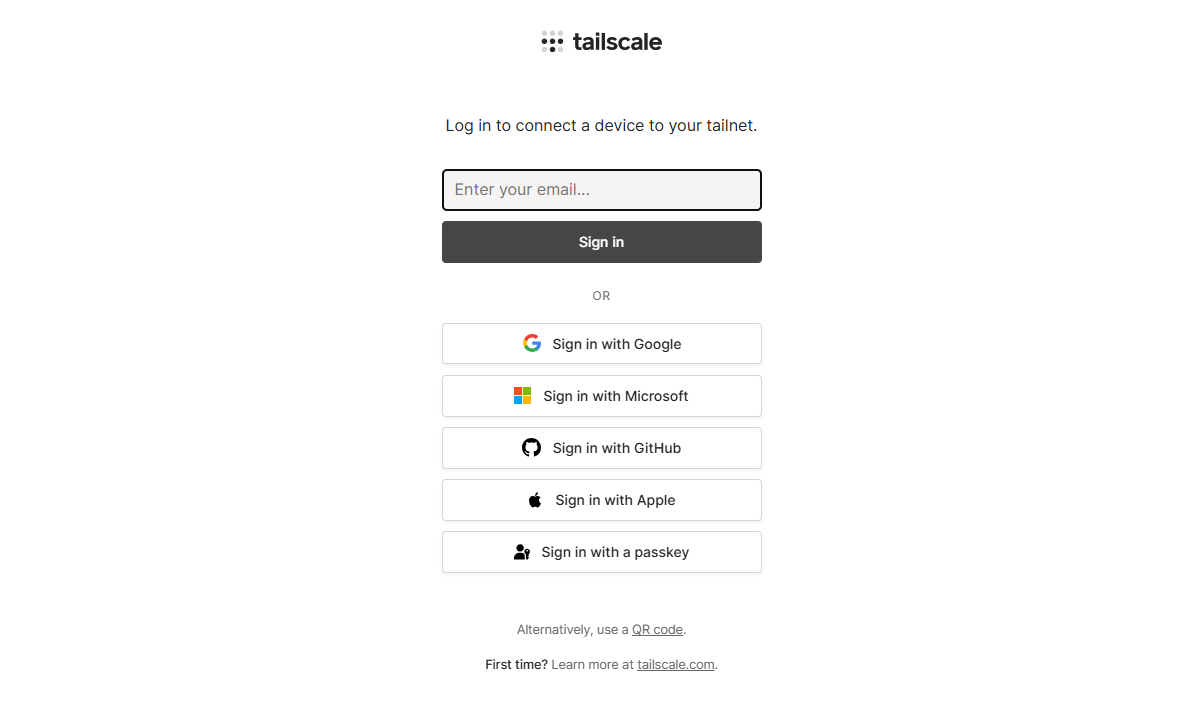
You will be directed to the Tailscale login page. Enter your email to log in.
-
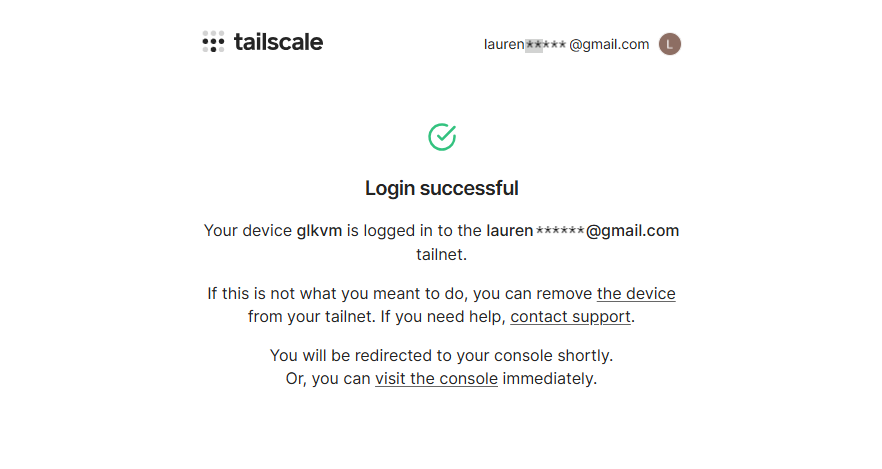
After logging in, the page prompts that you are about to connect the device glkvm to your Tailnet. Click Connect.
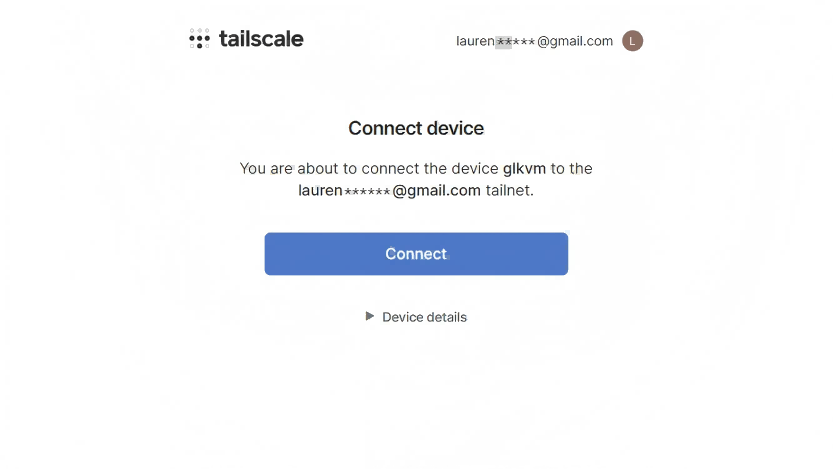
Your KVM device will then be bound to your tailnet successfully.
-
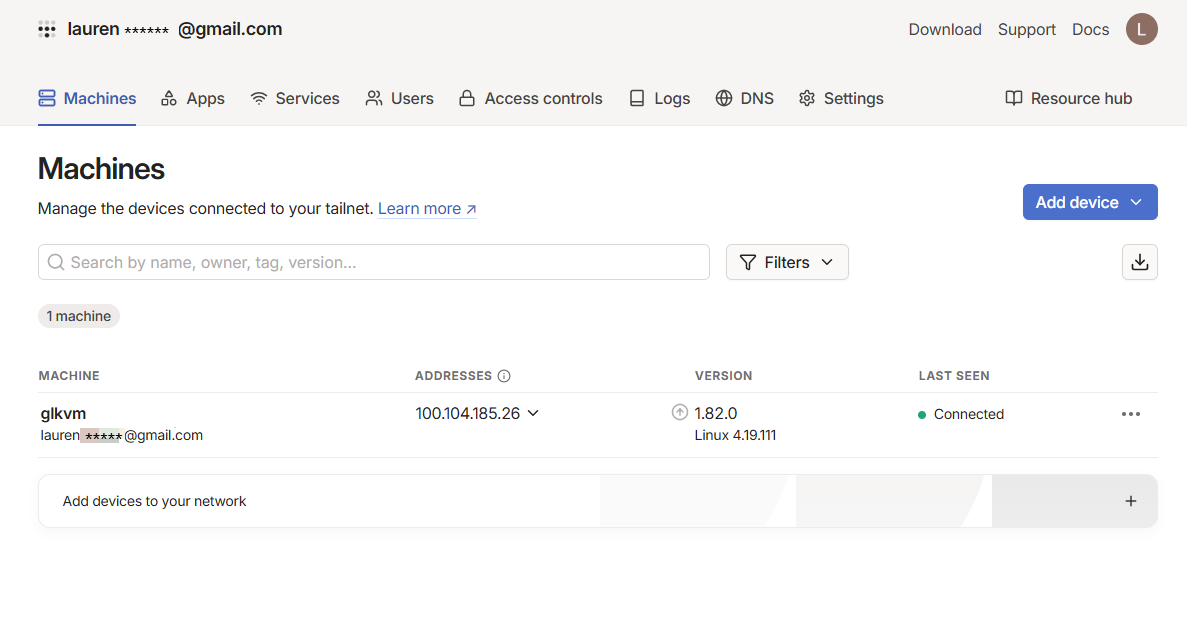
You will be redirected to your Tailscale console, where a device labeled glkvm is displayed under Machines.
Bind the controlling device
The example below demonstrates how to bind a Windows laptop (as the controlling device) to the Tailscale network.
-
Install Tailscale on your laptop from here.
-
Run Tailscale on the laptop and log in with the same email.
-
After logging in, the page prompts that you are about to connect the laptop (e.g. the controlling device) to your Tailnet. Click Connect.
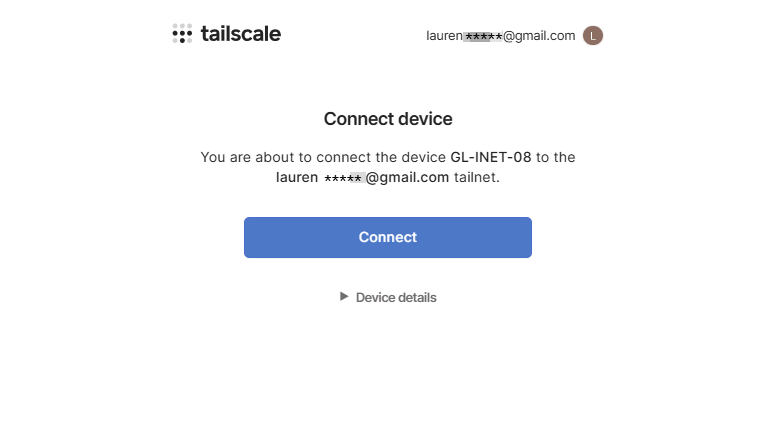
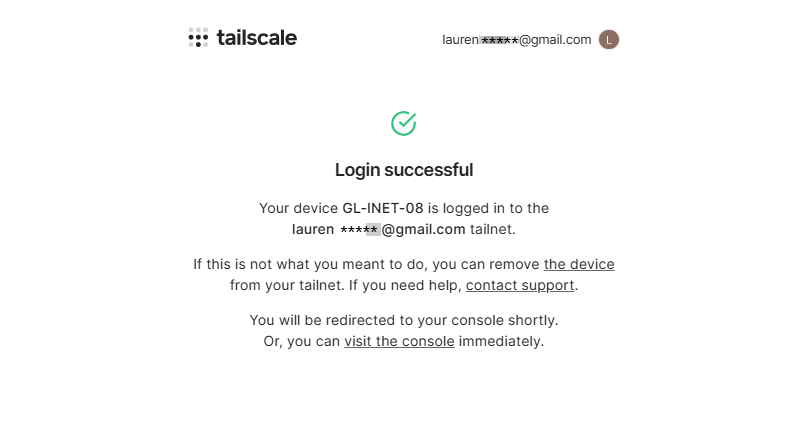
Your laptop will then be bound to your tailnet successfully.
-
You will be redirected to your Tailscale console, where the controlling device is also displayed under Machines.
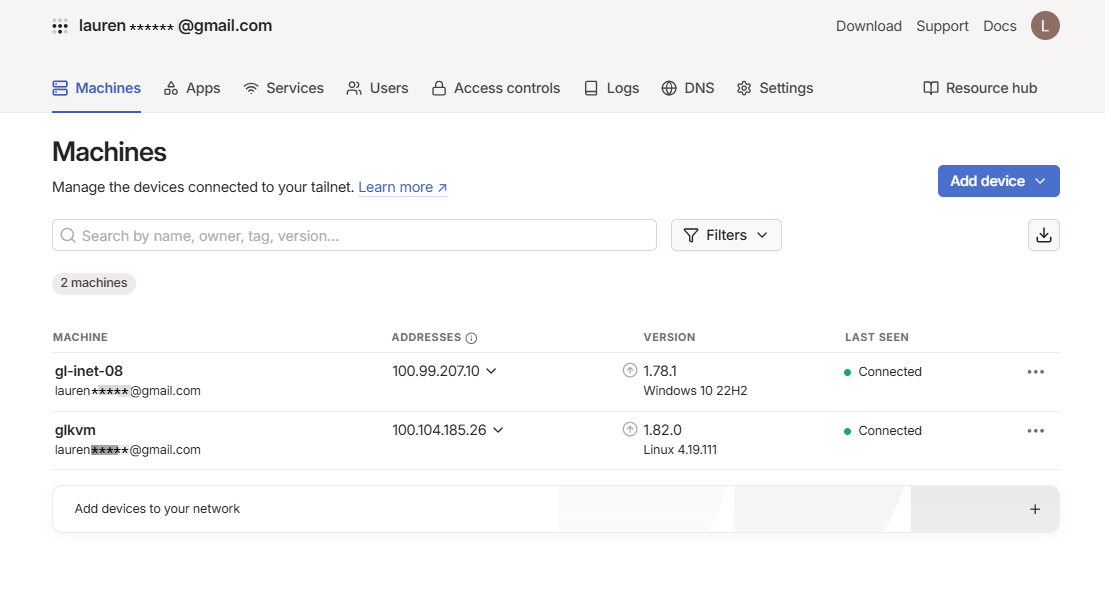
Remote access via Tailscale
In the Tailscale console, click the glkvm's Address (100.104.185.26 in this example).
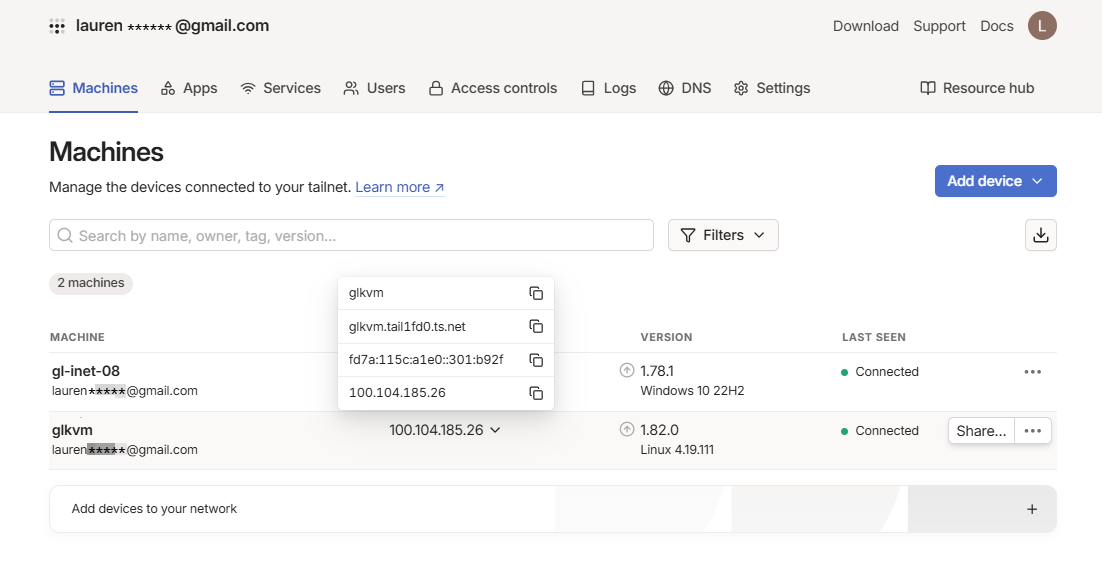
You will see four values:
- glkvm (device name)
- glkvm.tail1fd0.ts.net (Tailscale-assigned domain)
- fd7a:115c:a1e0:301:b92f (virtual IPv6)
- 100.104.185.26 (virtual IPv4).
They are allocated by Tailscale for device identification and virtual network communication. You can remotely access your KVM device using the Tailscale-assigned domain, vitual IPv4 and virtual IPv6.
Take the virtual IPv4 as an example.
-
Copy the virtual IPv4 address of your KVM device.
-
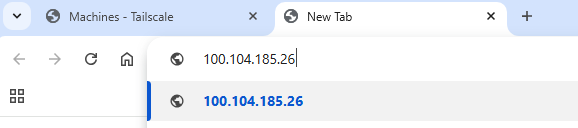
Open a new tab and paste the IP address into the address bar.
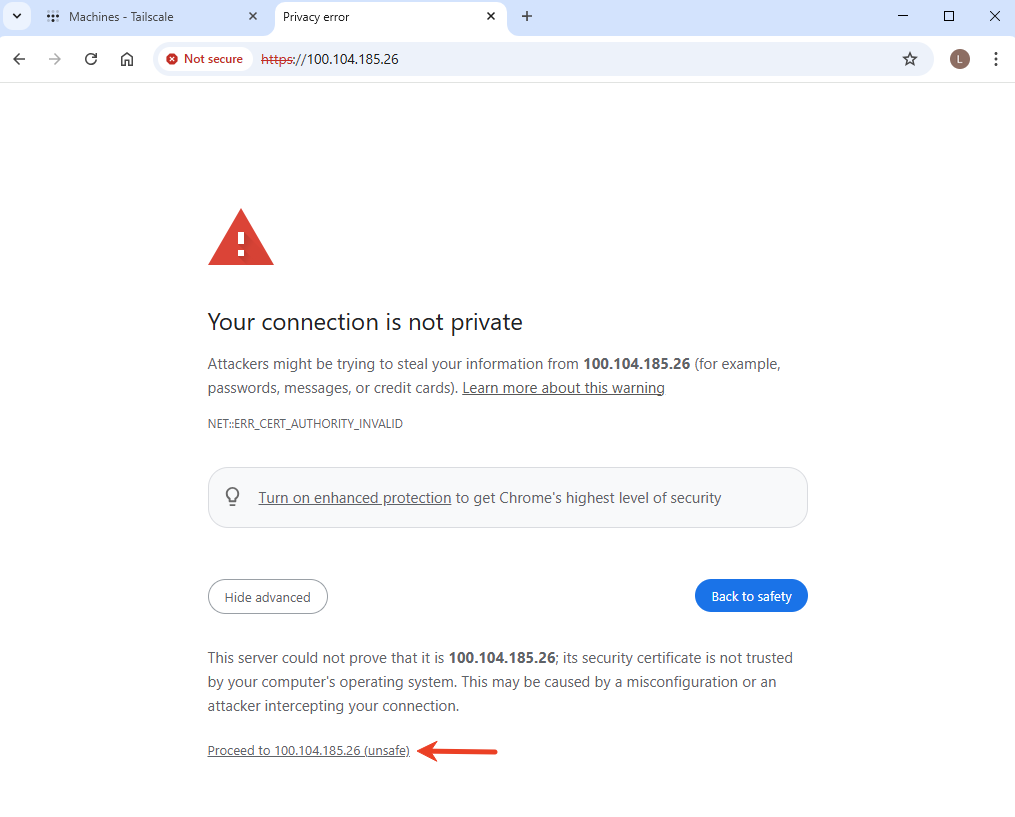
A privacy error may appear. Why do I get this privacy error?
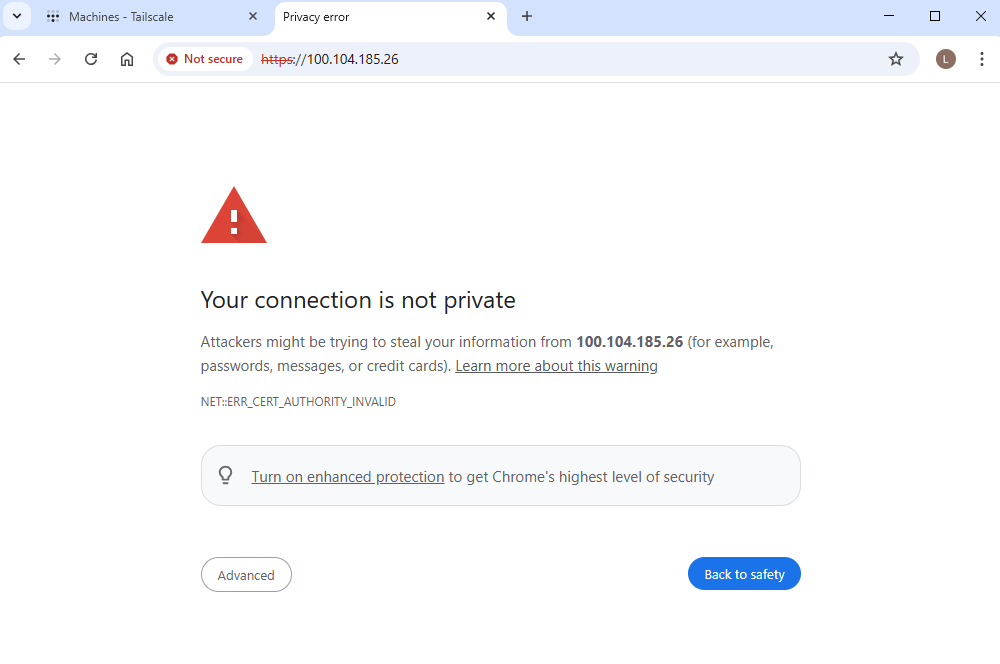
Click Advanced, then Proceed to 100.104.185.26. You will be redirected to the GLKVM login page.
-
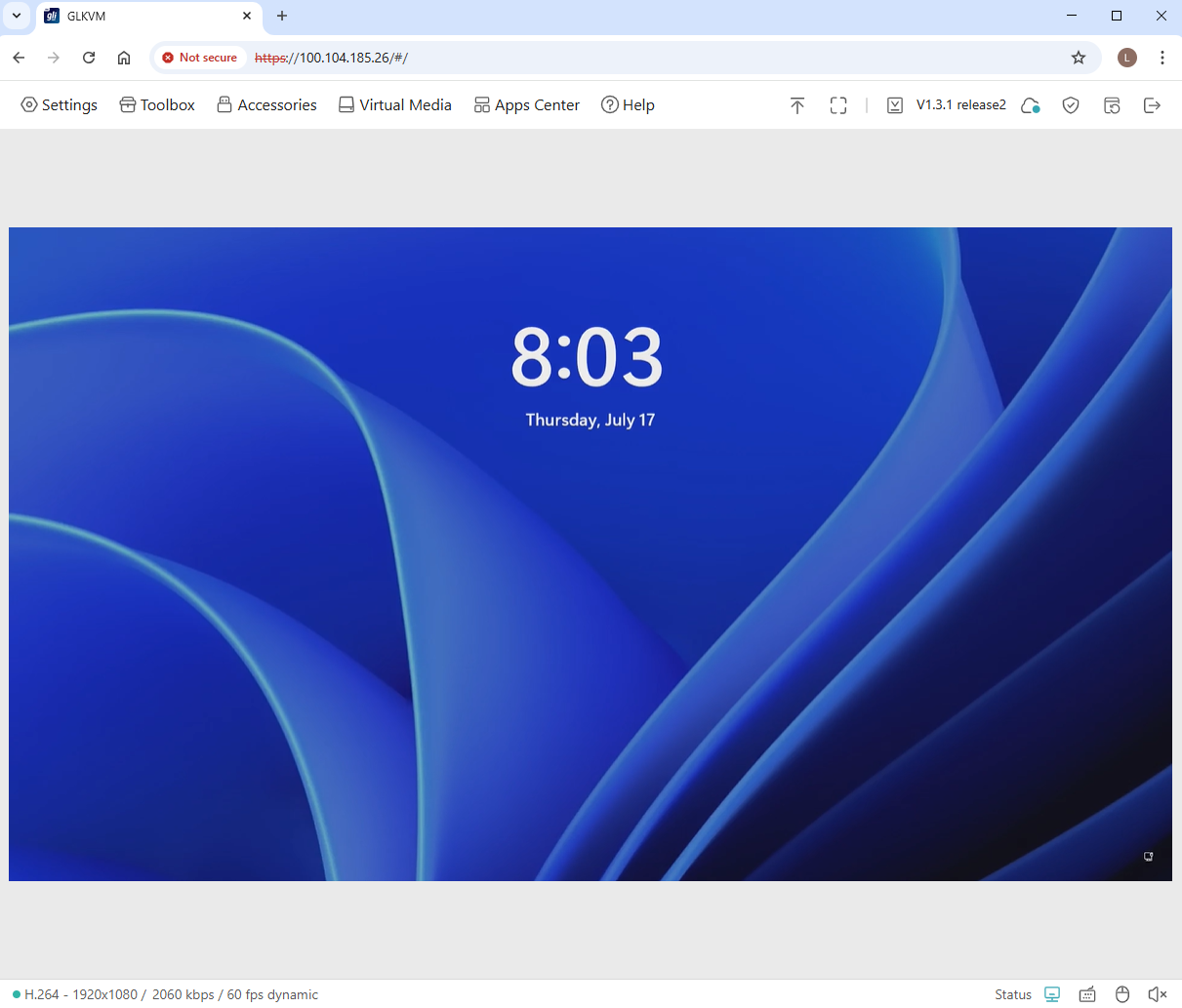
Enter your admin password to log in. You can now access your GL.iNet KVM and the controlled device via the Tailscale virtual IP.
Still have questions? Visit our Community Forum or Contact us.