How to use the cloud-based screen wall feature
The cloud-based screen wall is a premium feature that lets you view screens of multiple devices on a single page and easily keep track of their statuses.
Note: Please upgrade your KVM firmware to version 1.7 before using this feature.
Follow the steps below to use the cloud-based screen wall.
-
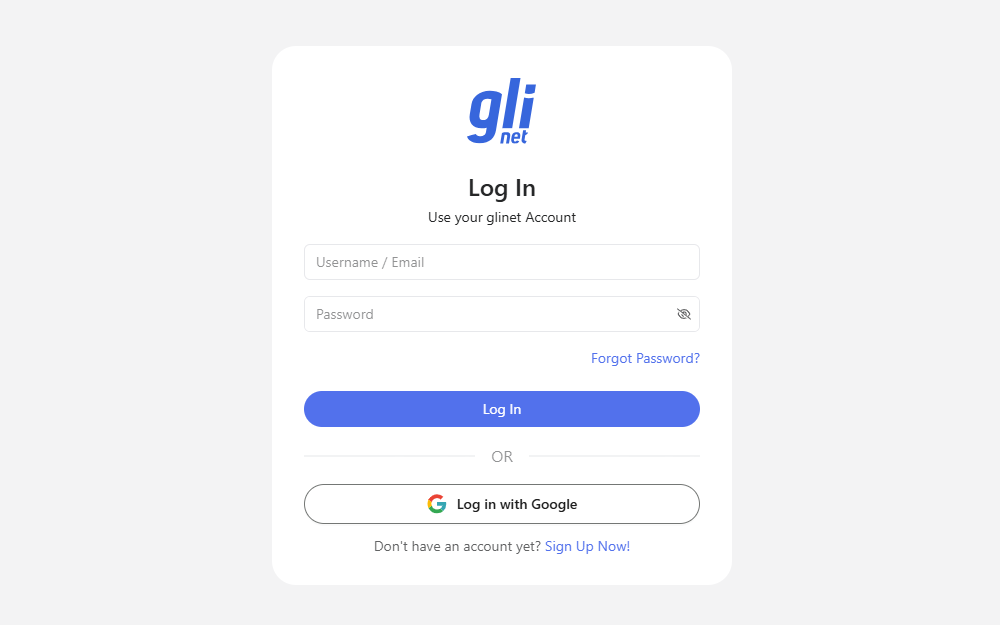
Bind your KVM device to the Cloud. See Bind your KVM to the Cloud for details.
-
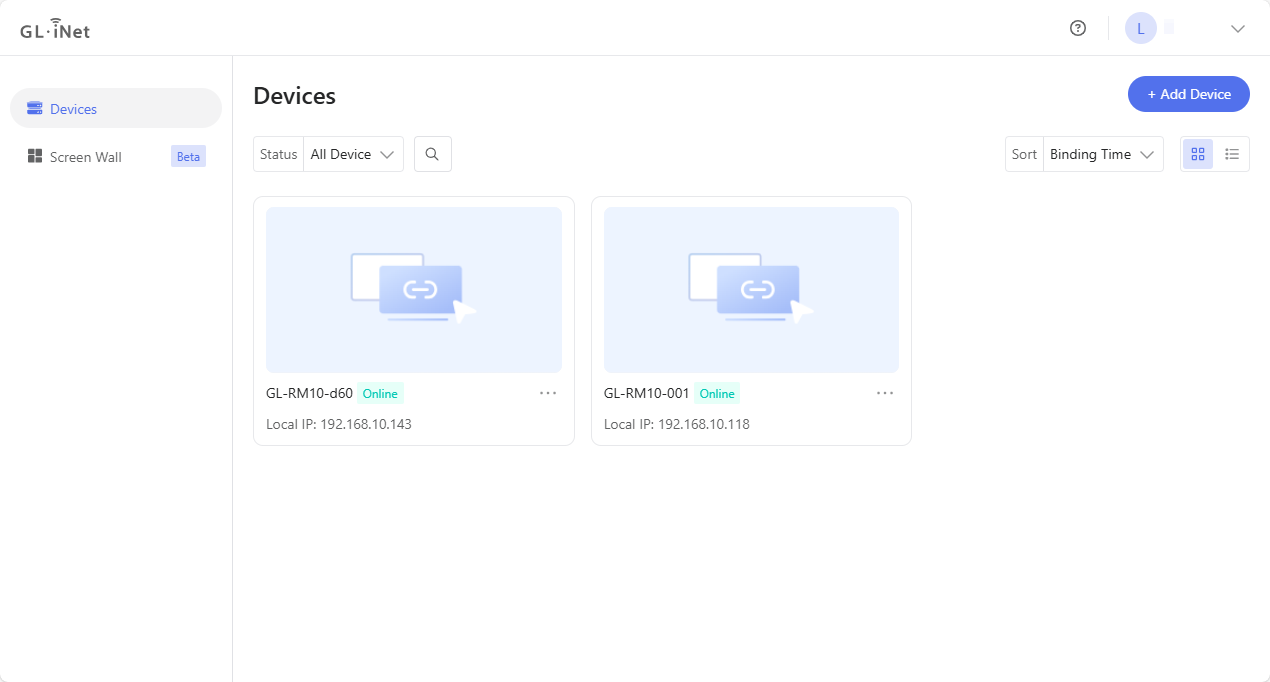
After binding, log in to https://glkvm.com/. Your bound devices will appear in the device list. Ensure the devices are online.
-
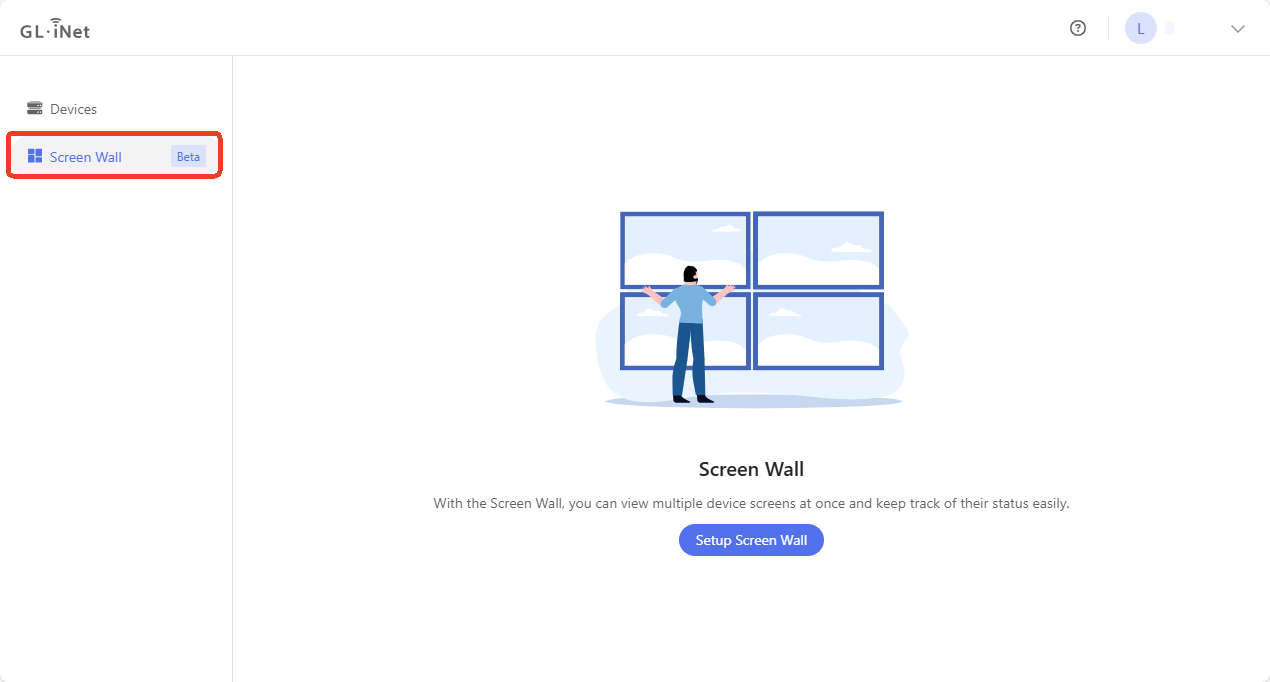
Click Screen Wall in the left side menu, and click Setup Screen Wall.
-
Select the KVM devices you want to view on the screen wall, and click Save Screen Wall in the upper right corner.
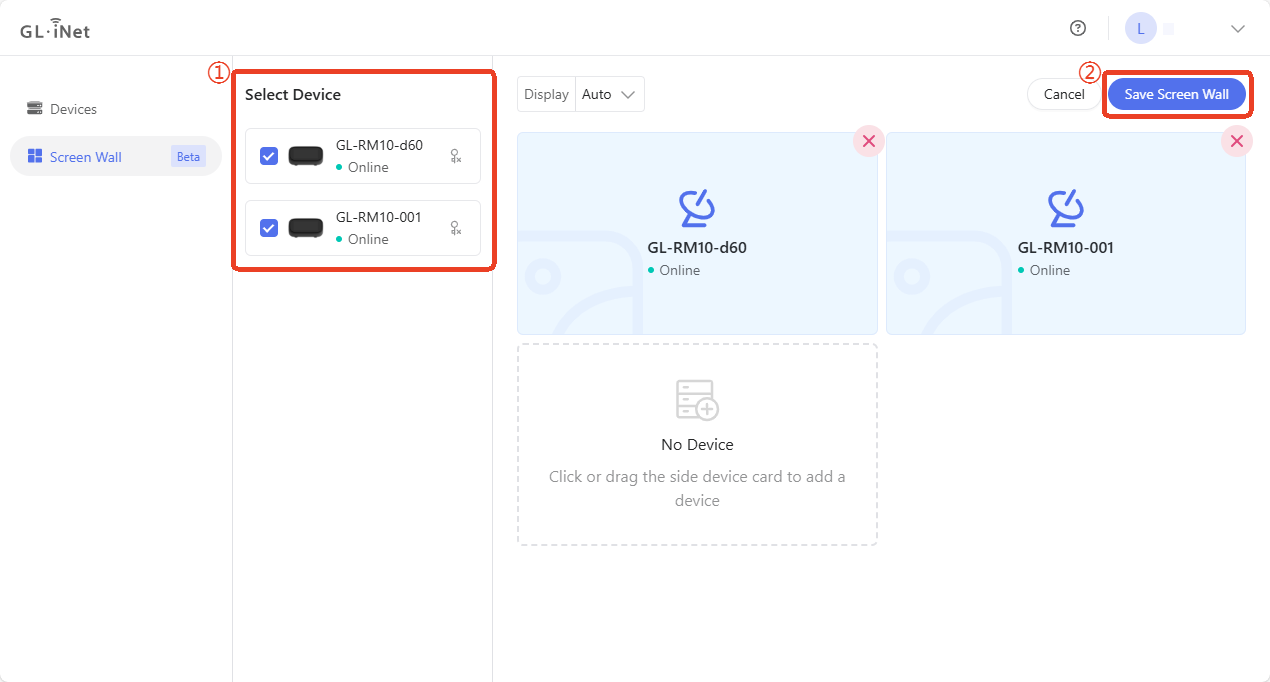
Note: If your device is running firmware lower than version 1.7, it will be grayed-out and unselectable. Please upgrade the firmware first before using this feature.
-
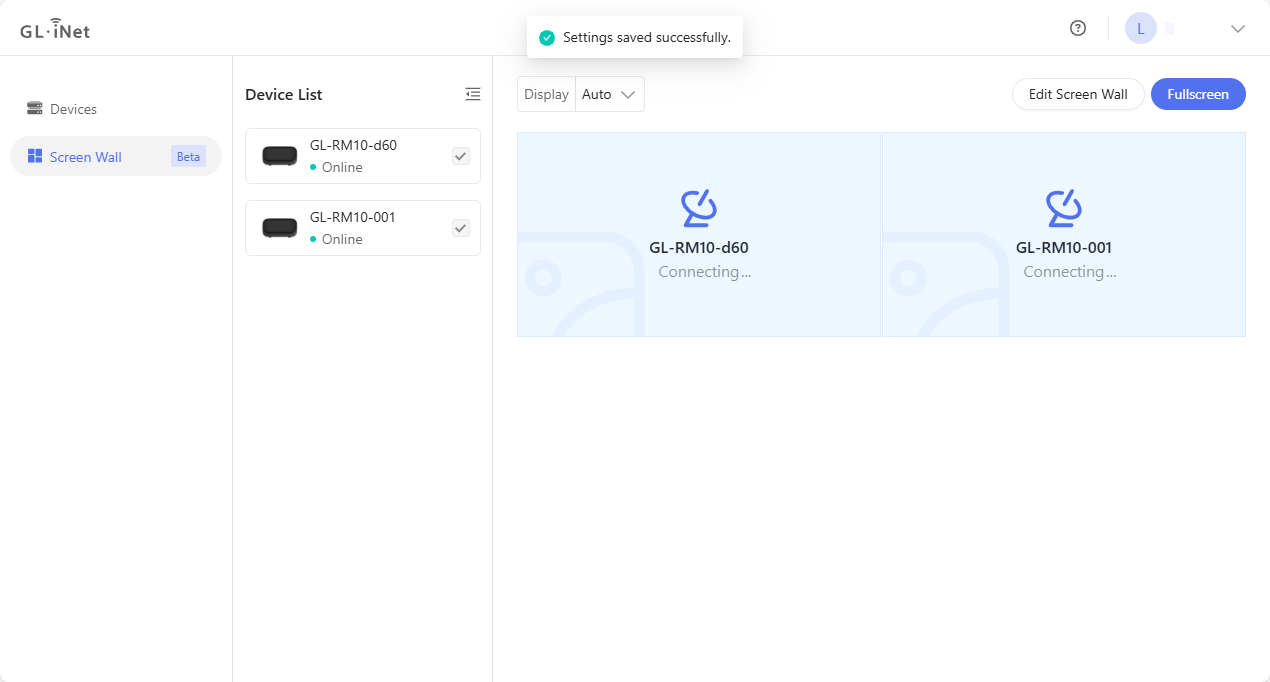
After saving the settings, it will start connecting to the selected device over the Cloud.
-
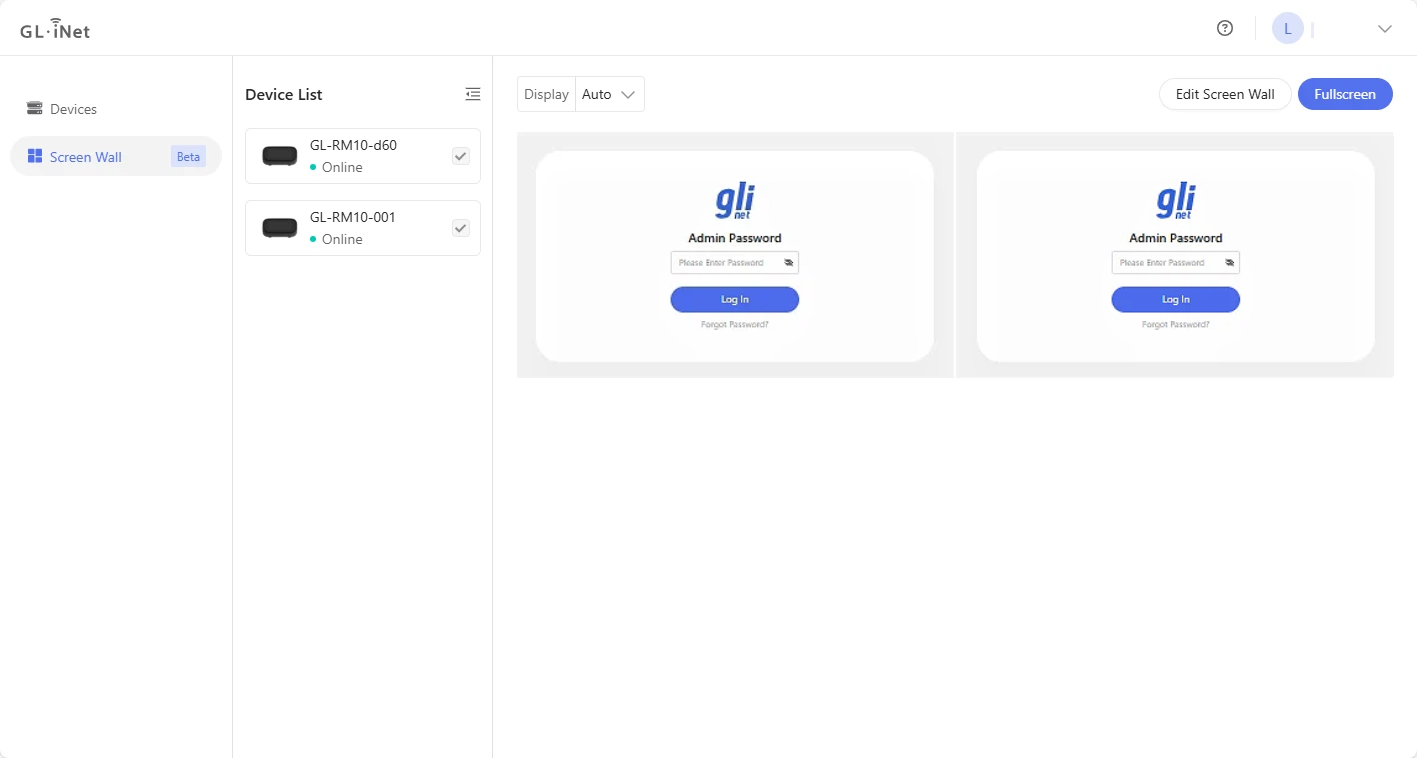
Once connected, enter the admin password for each of your KVM devices.
-
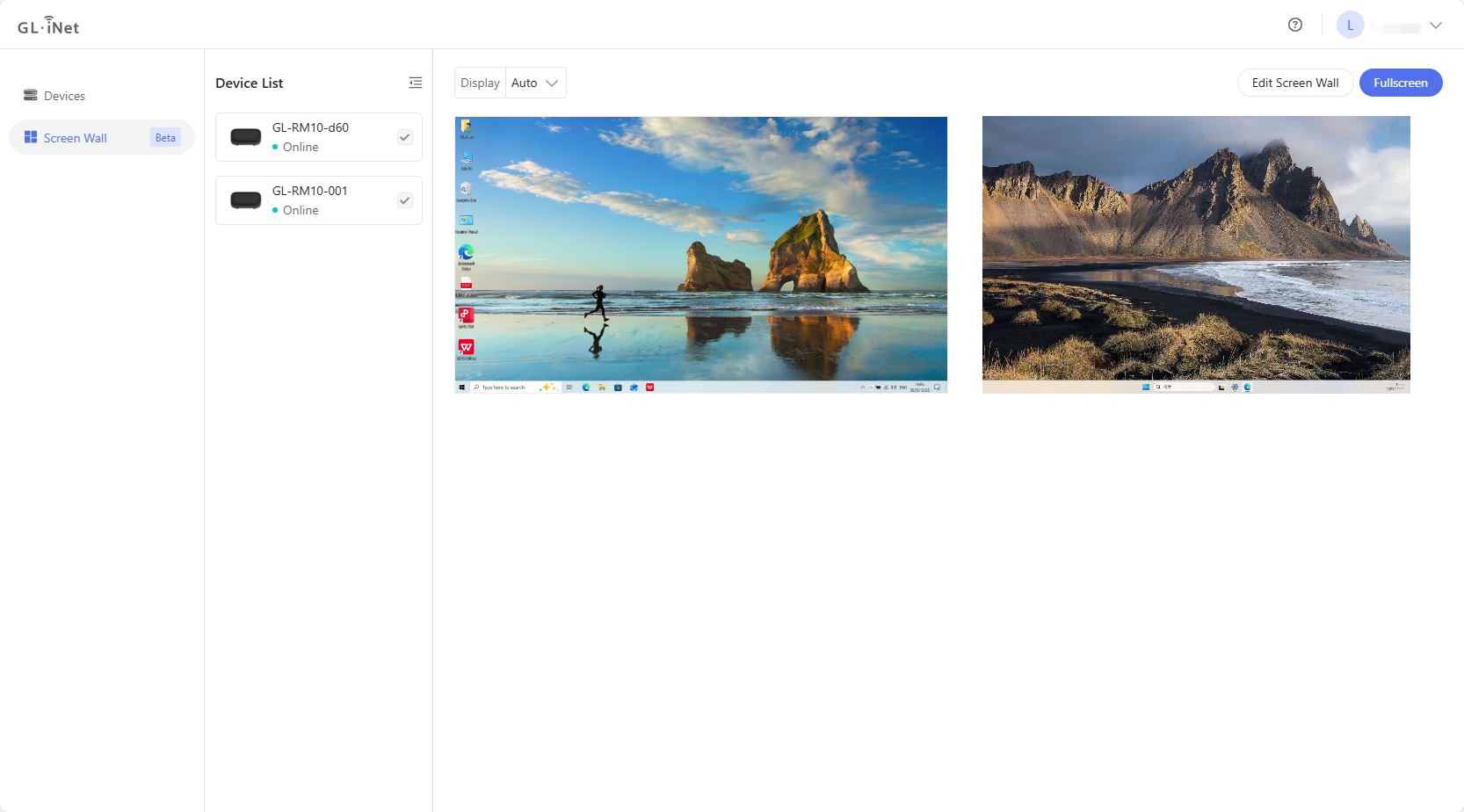
You will then be able to view the screens of multiple devices on a single page.
Still have questions? Visit our Community Forum or Contact us.