How to access KVM remotely via ZeroTier
Note: Please upgrade your KVM firmware to v1.8.0 before using this feature.
GL.iNet KVM integrates ZeroTier, allowing you to bind it to the ZeroTier network for remote access — no need to install the GLKVM app or use the cloud service.
Follow these steps to remotely access your GL.iNet KVM via ZeroTier.
Enable ZeroTier
Before you begin, connect your KVM and the controlling device to the same local network.
-
Open a browser on the controlling device. Chrome or Edge is recommended for better compatibility.
-
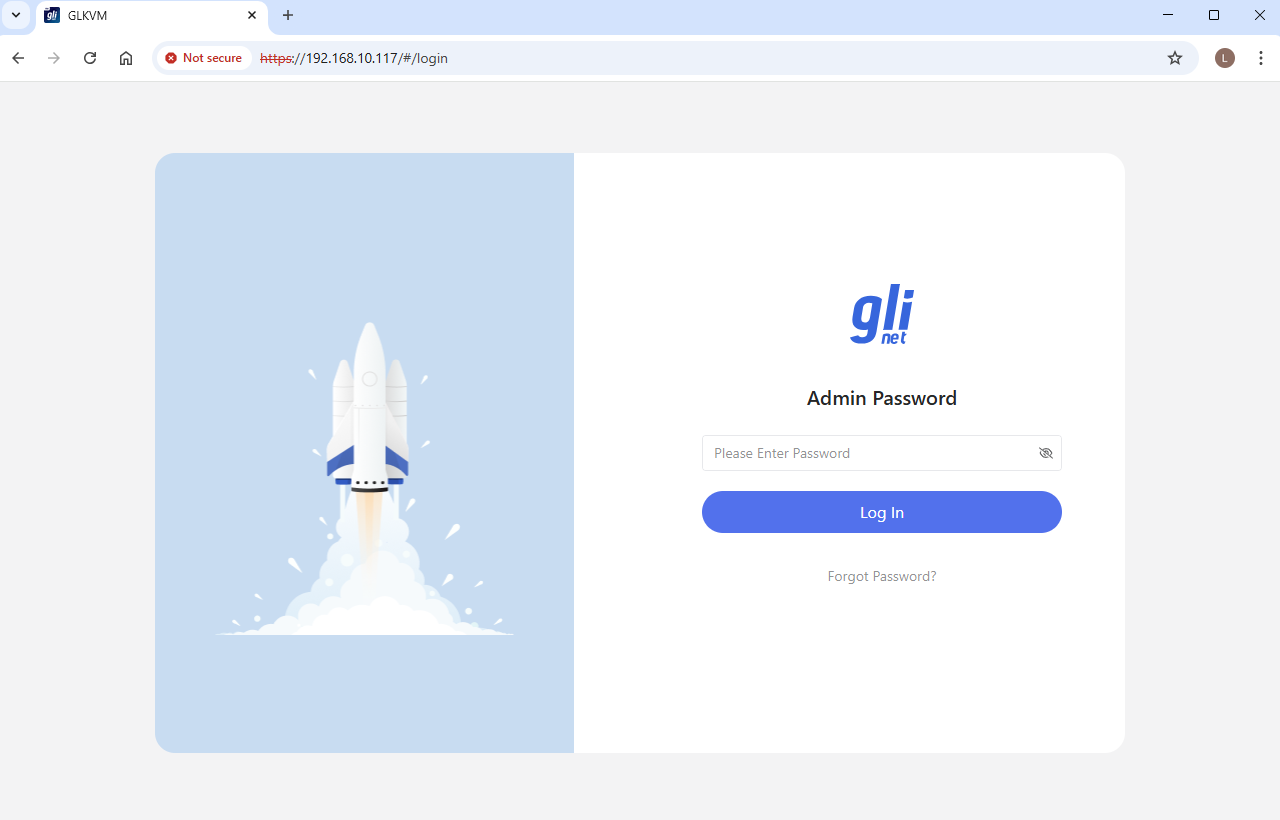
Log in to your KVM console locally using its domain or IP address. Here we use the local IP address as an example.
Enter the KVM's LAN IP address (found on the touchscreen or in your router) in the address bar. You will be directed to the GLKVM login page. Enter your admin password.
-
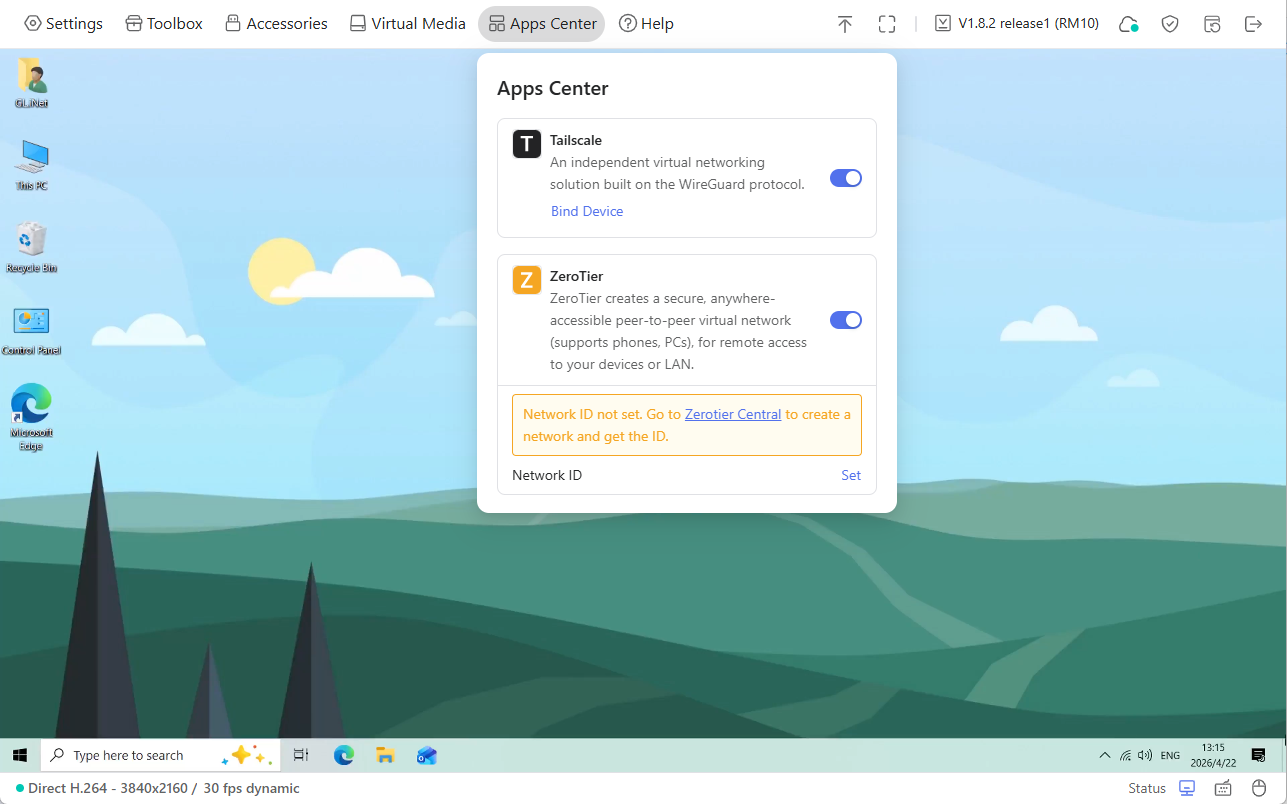
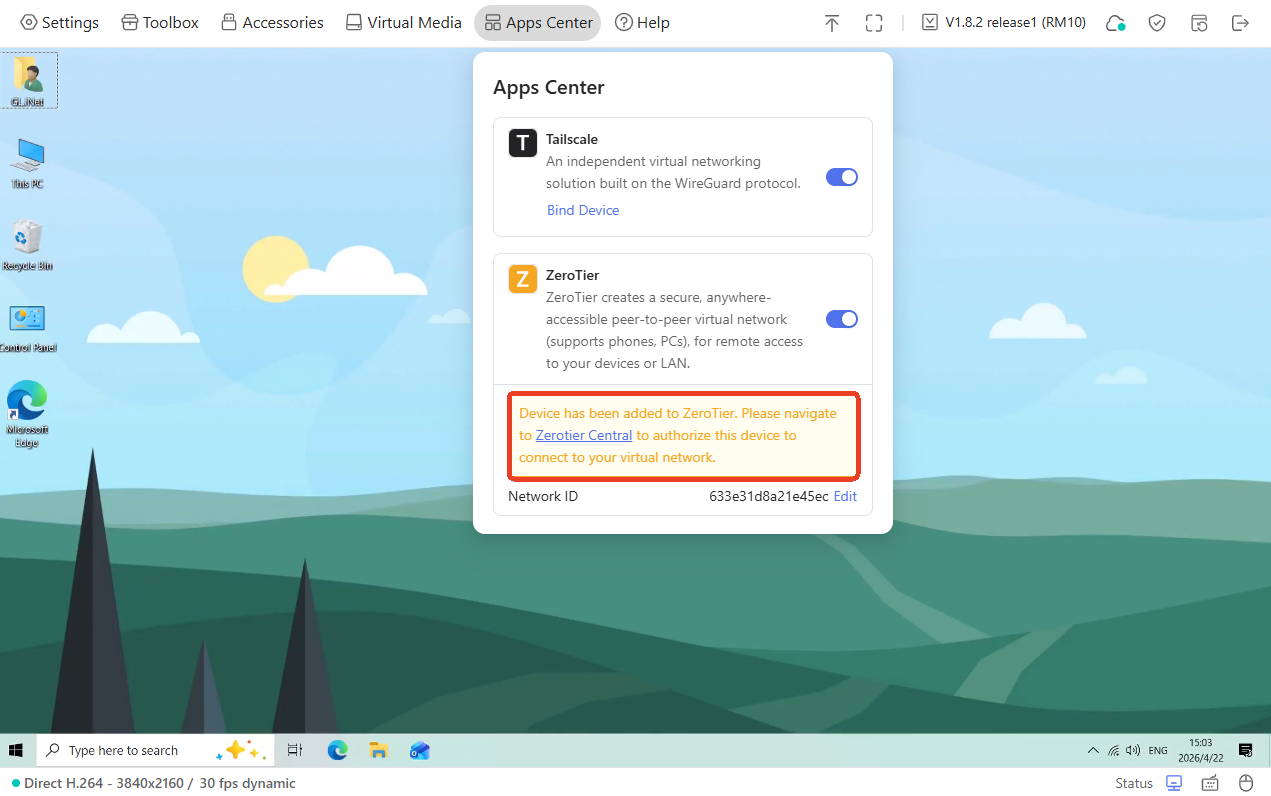
After logging in, go to Apps Center -> ZeroTier. Enable ZeroTier, and you will see a yellow prompt as shown below.
Click the hyperlink or here to sign in to ZeroTier Central and create your ZeroTier network.
Bind KVM to ZeroTier
-
When signing in to ZeroTier for the first time, you may be required to select ZeroTier Central.
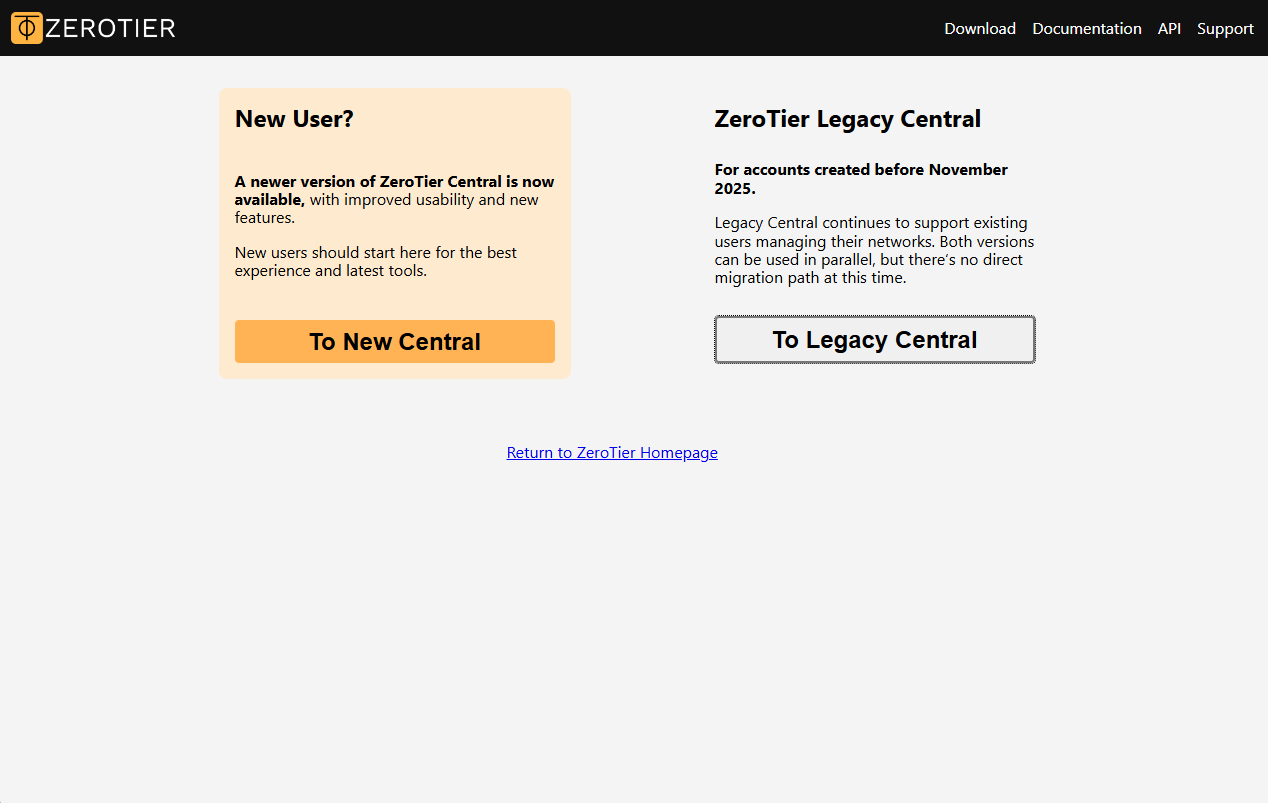
Select the appropriate version to proceed. We take New Central as an example here.
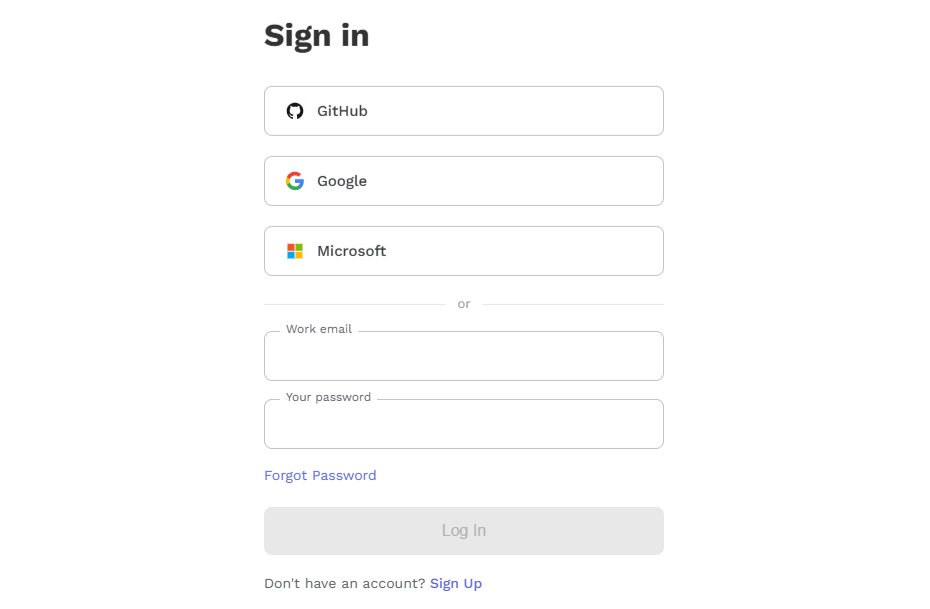
Sign in with your email and password. If you don't have an account, sign up first.
-
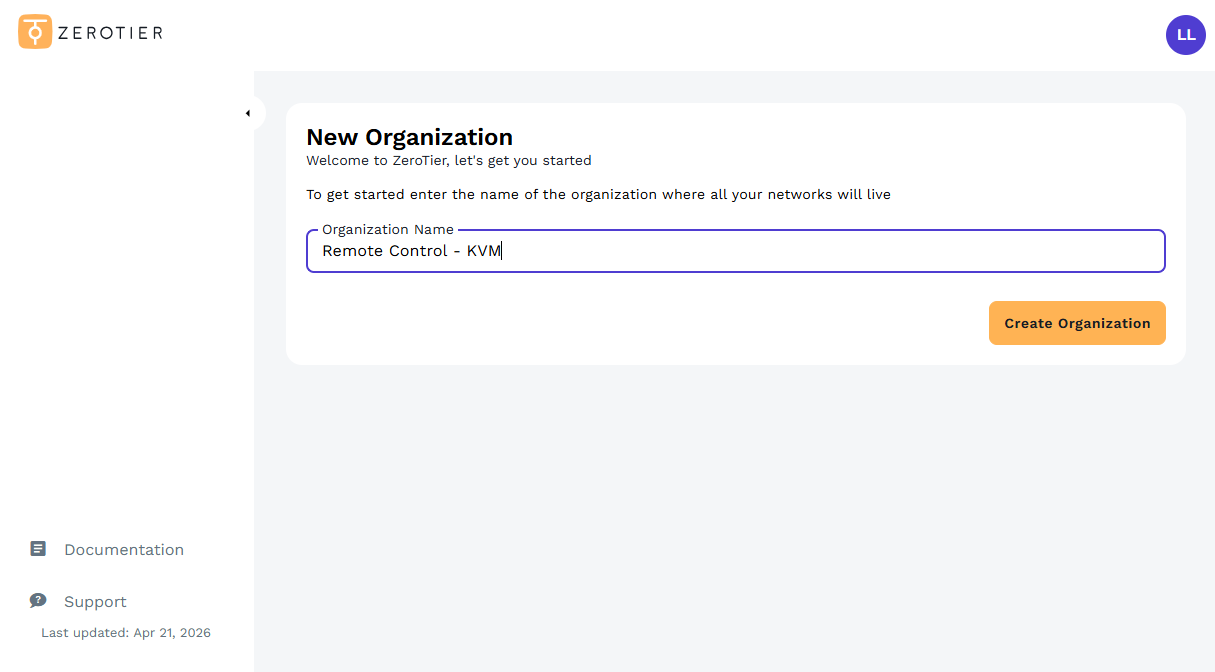
After signing in, create an organization.
-
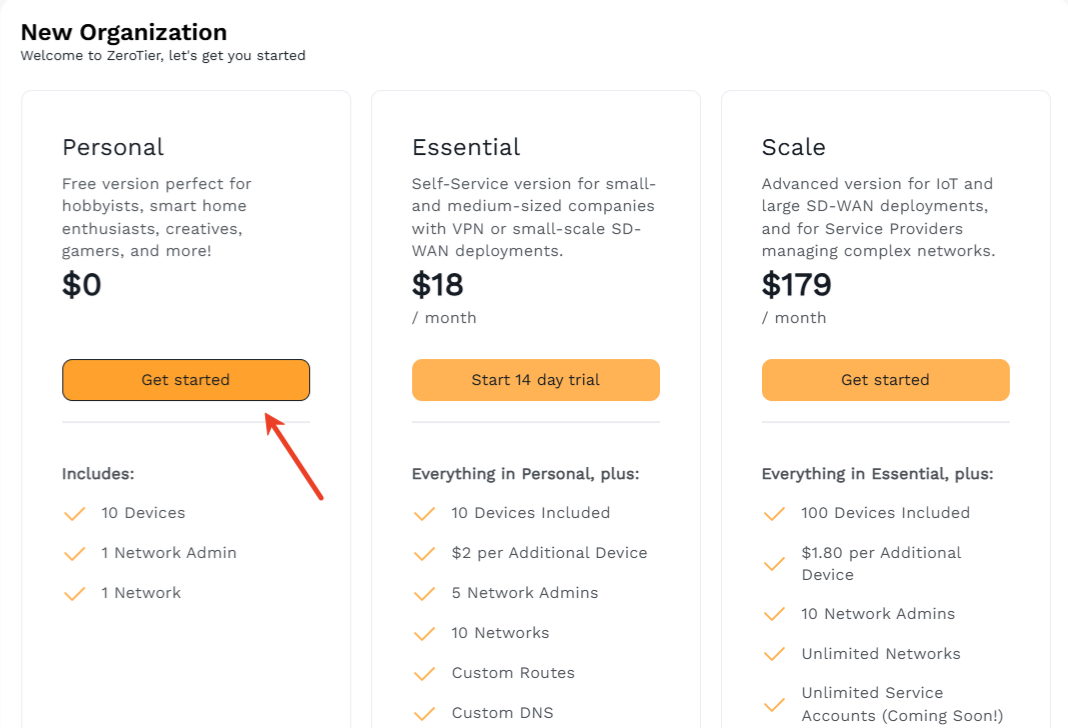
Select a plan. Here we choose Personal plan as an example, which includes 10 devices, 1 network admin, and 1 network. If you need to create more networks, add more devices, or add custom routes and DNS, choose Essential or Scale plan.
-
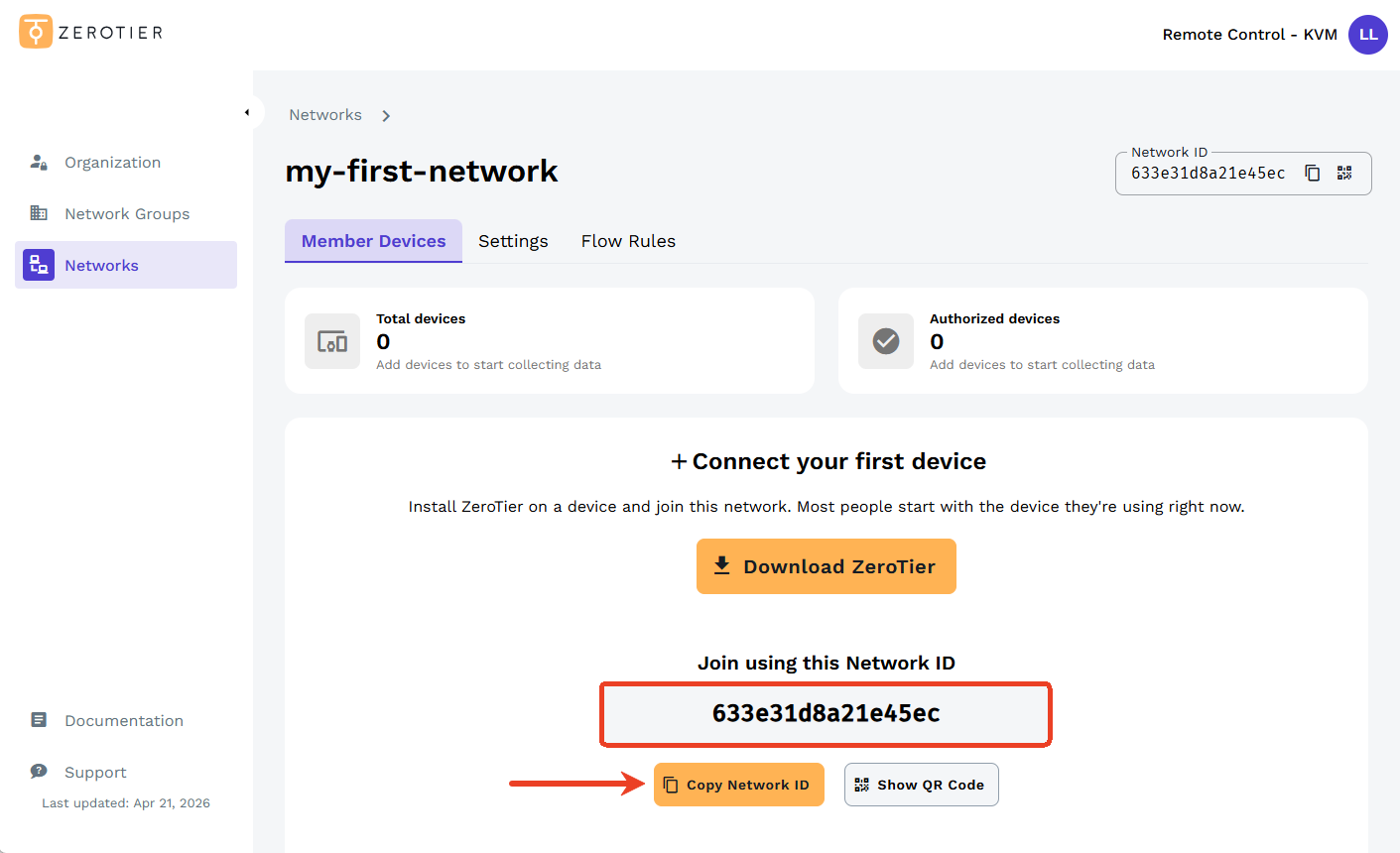
Now your ZeroTier network has been created. Copy the Network ID, which is a 16-character alphanumeric string. You will need it later when adding devices to your ZeroTier network. Keep this tab open.
-
Go back to your KVM console, go to Apps Center -> ZeroTier. Locate the Network ID and click Set.
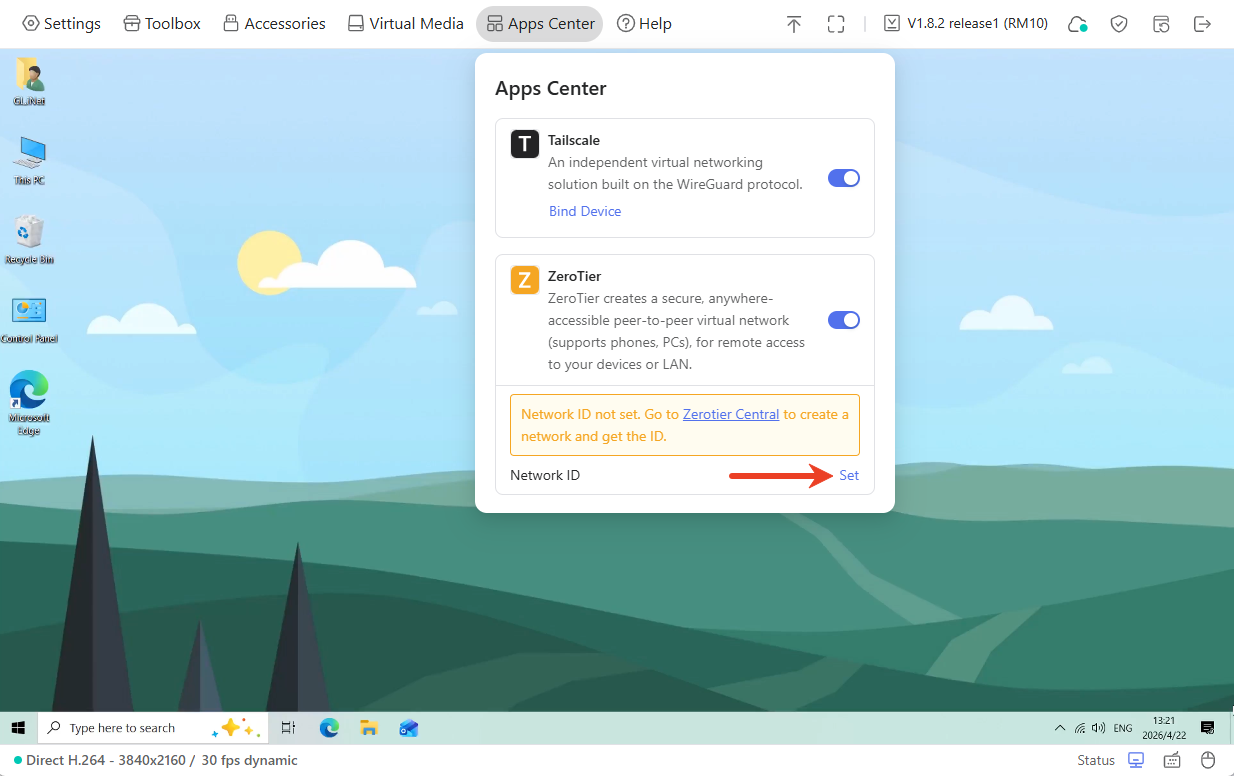
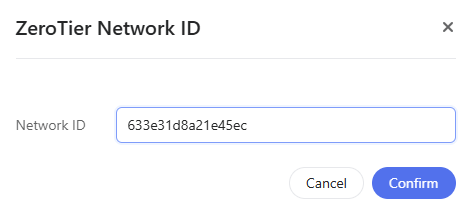
In the pop-up window, paste the Network ID and click Confirm.
You will see a yellow prompt on the console, indicating that this device needs to be authorized.
-
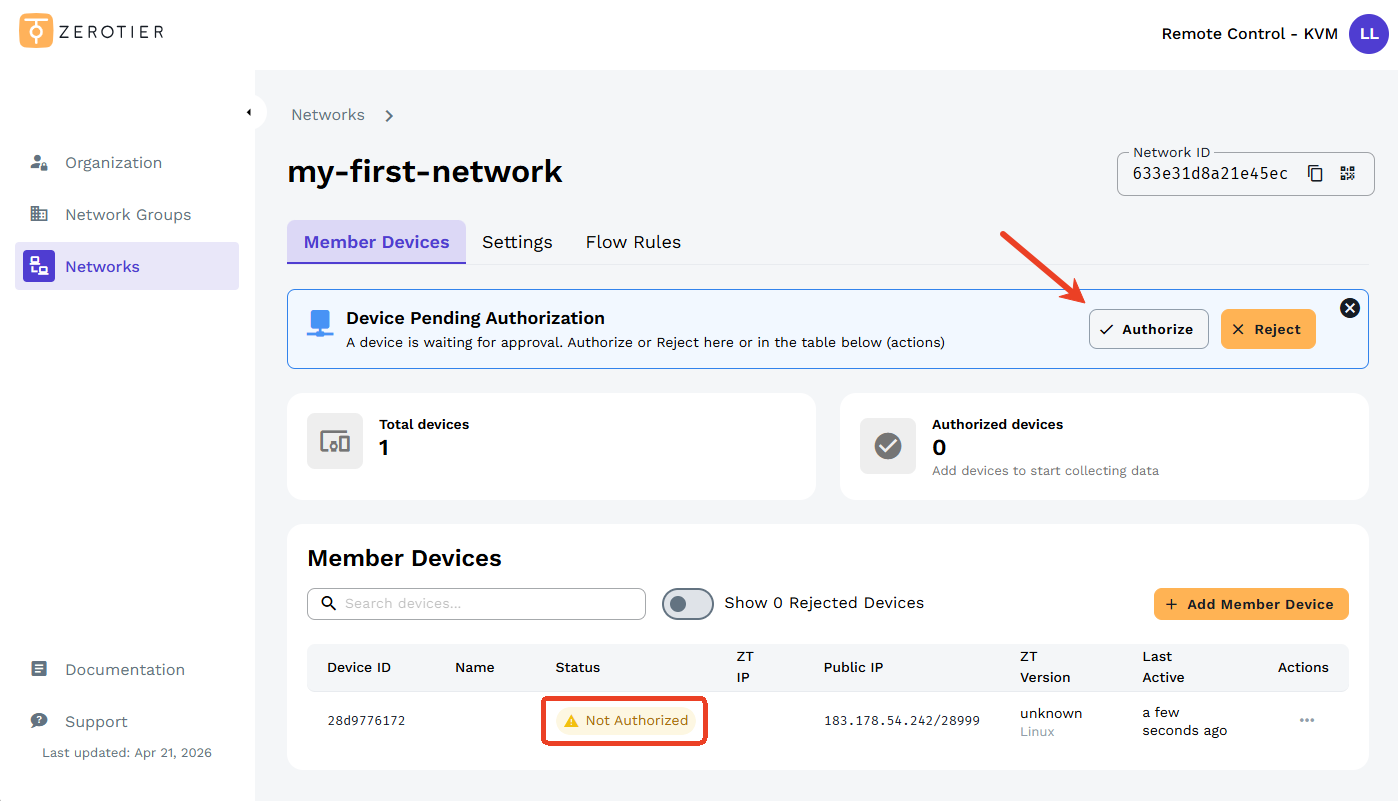
Go back to ZeroTier Central. You will see a device (your KVM) waiting for approval. Click Authorize.
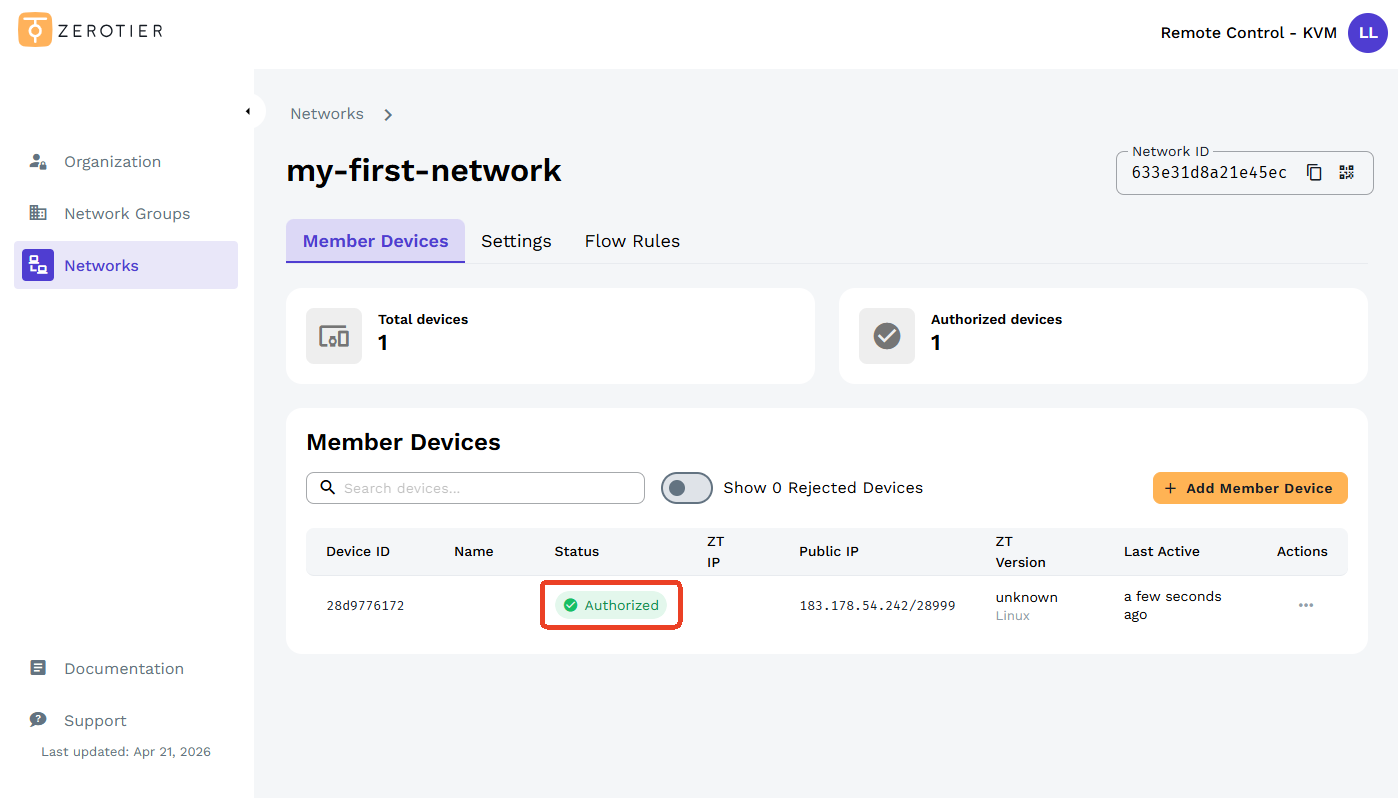
Once authorized, the status will change to Authorized in green, as shown below.
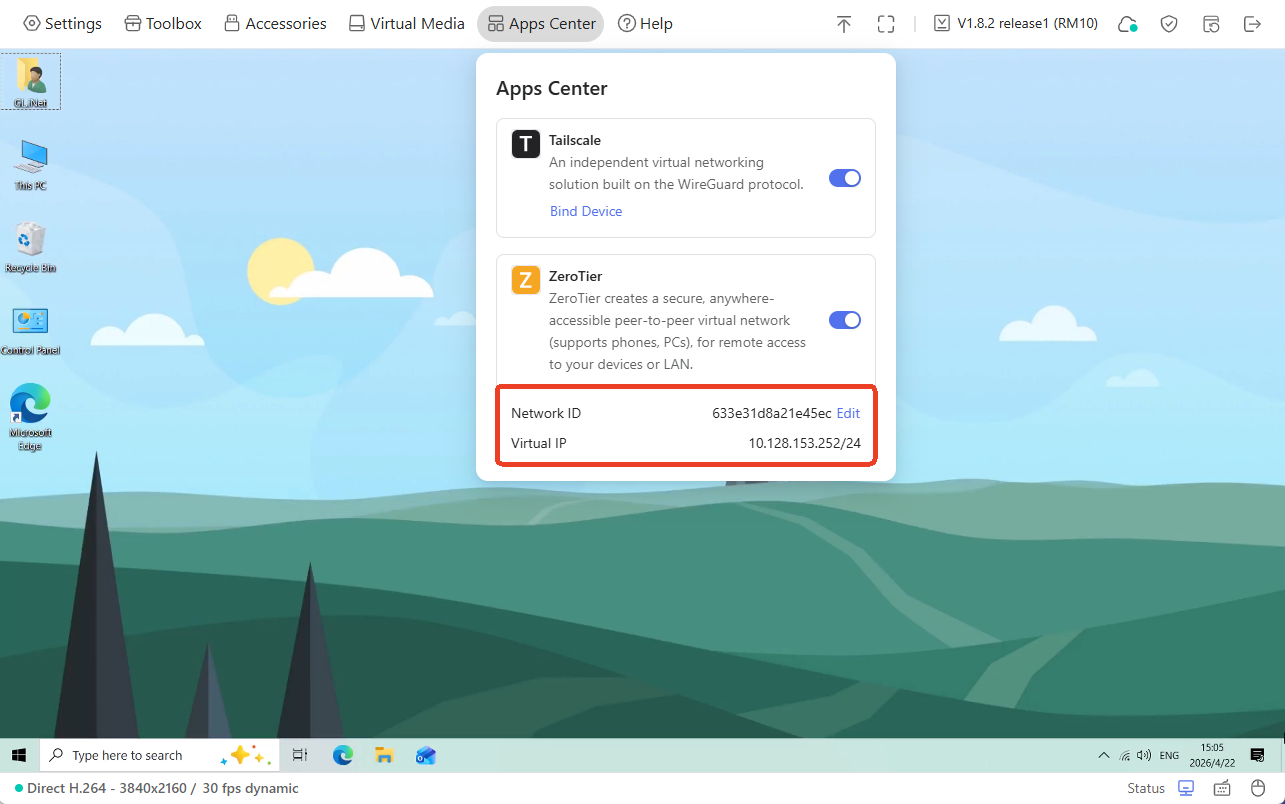
On the KVM console, you can also view the Network ID and Virtual IP, as shown below.
Bind the controlling device
The example below demonstrates how to bind a Windows laptop (as the controlling device) to the ZeroTier network.
-
Install ZeroTier on your laptop from here.
-
Run ZeroTier on the laptop and add it to the same ZeroTier network.
Note that ZeroTier does not display a separate window/UI on the desktop; it only resides as an icon in the system tray (bottom-right corner). All operations are performed via the right-click menu.
Right click the ZeroTier icon, and click Join New Network. In the pop-up window, enter the same Network ID to add this PC to the same ZeroTier network.
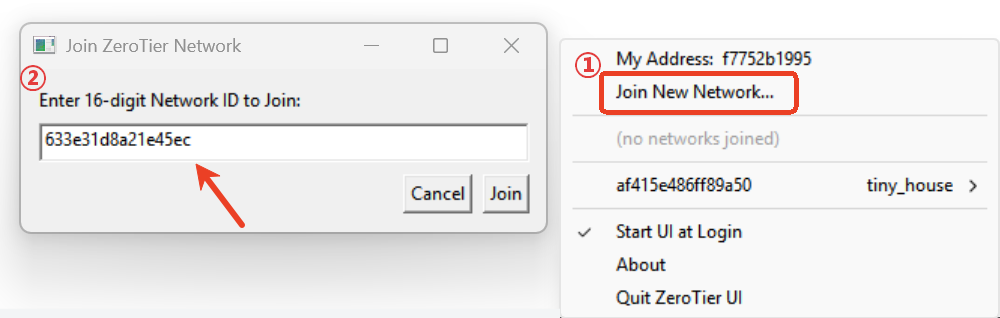
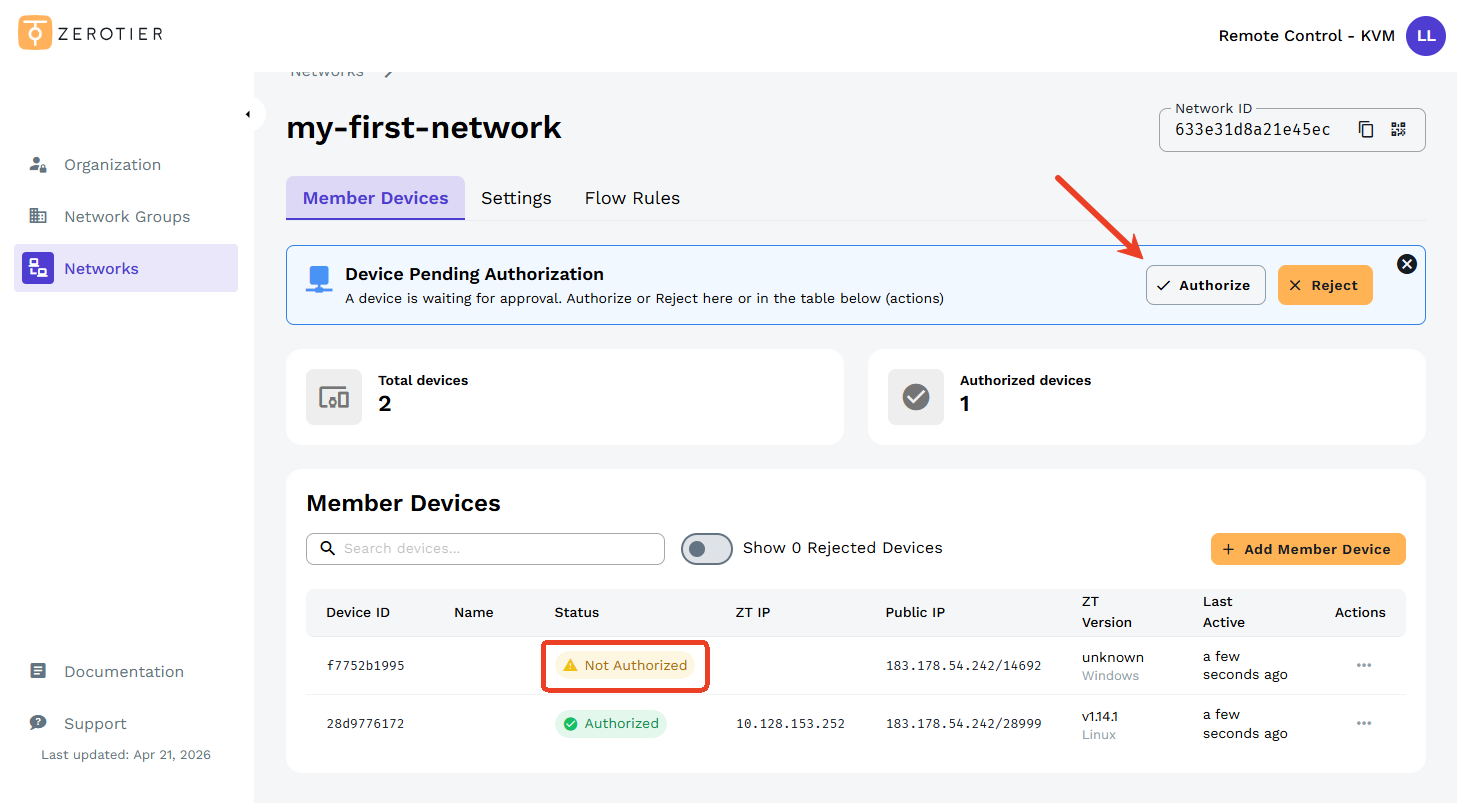
Then go to ZeroTier Central, fine the Pending device and authorize it.
-
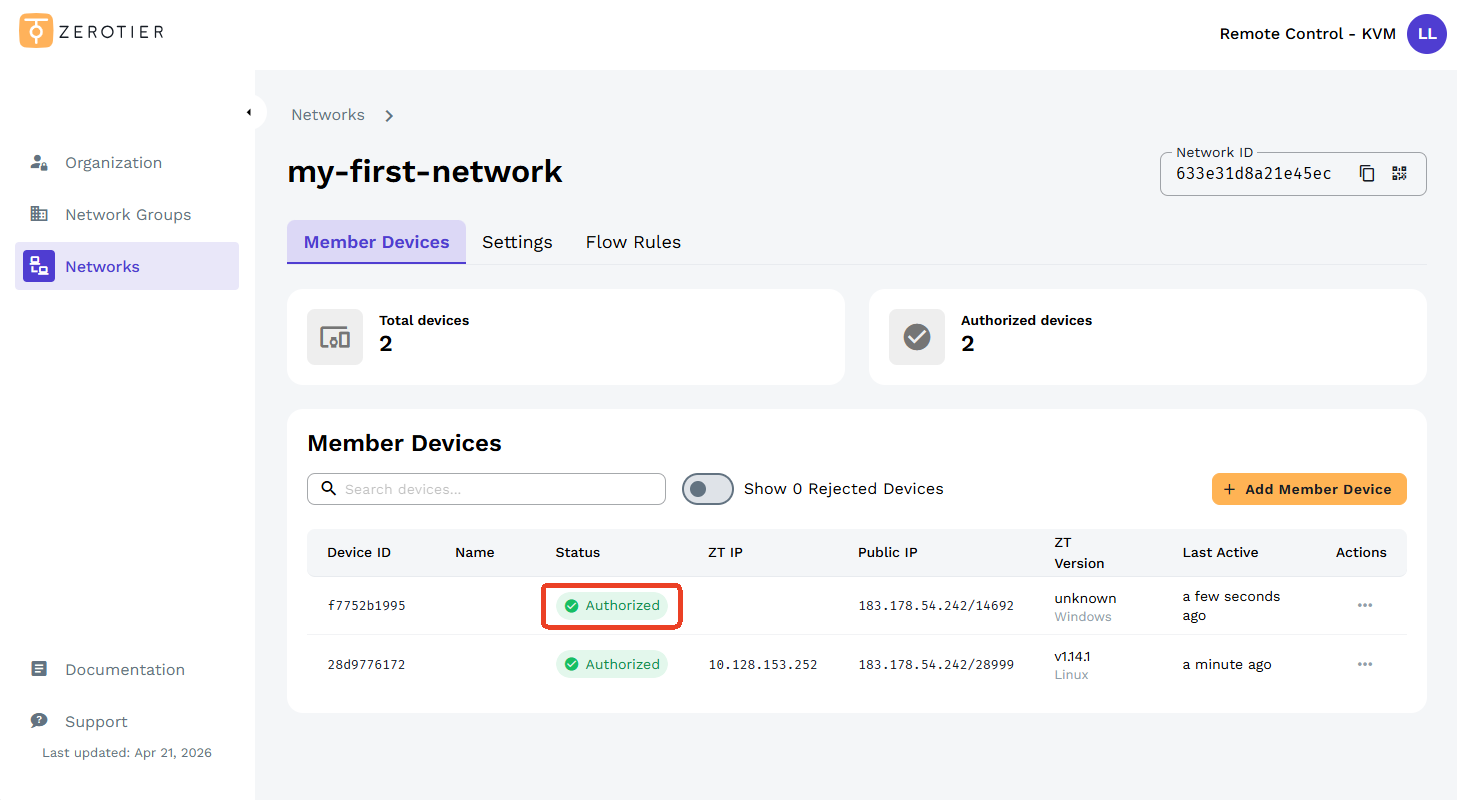
Once authorized, the status will change to Authorized in green, as shown below.
-
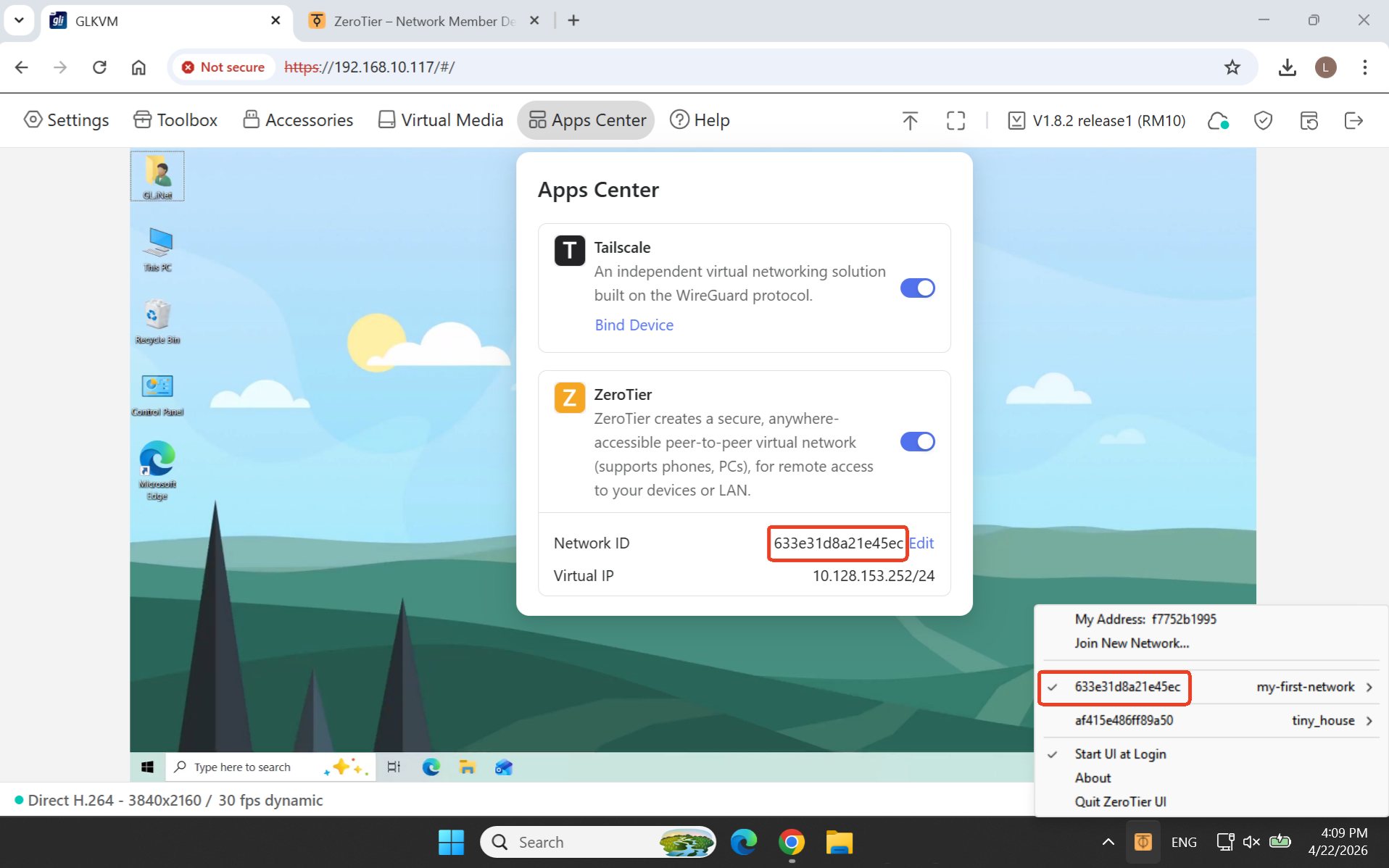
Now your KVM and the laptop are both added into the same ZeroTier network. You can tell by their Network ID, as shown below.
Remote access via ZeroTier
The example below demonstrates how to remotely access the KVM console via the ZeroTier IP address.
-
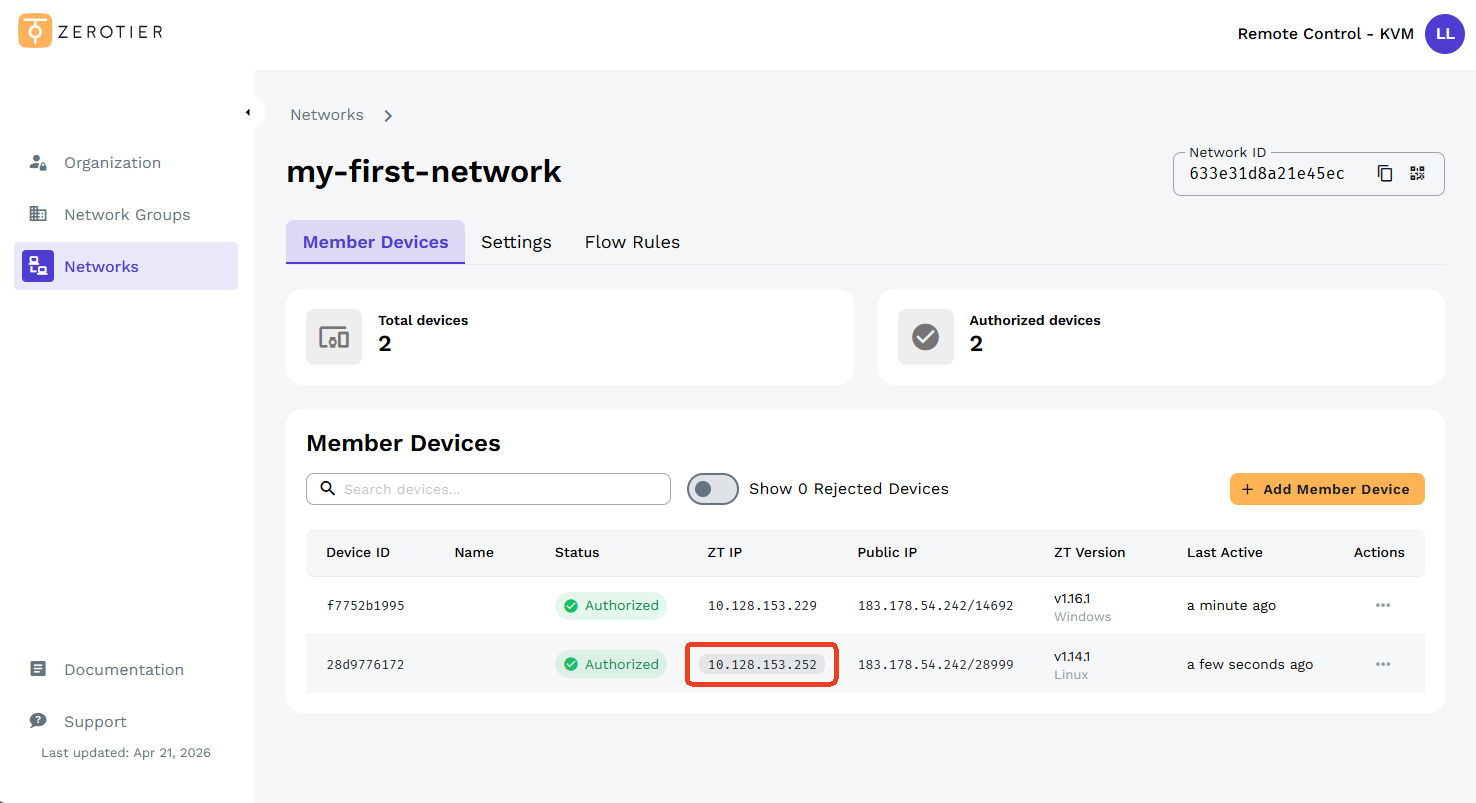
On your laptop, sign in to ZeroTier Central with your account, find your KVM device, and click its ZT IP to copy it.
-
Open a new browser tab, paste the copied ZeroTier IP into the address bar and hit Enter. You will be redirected to the GLKVM login page.
Enter your admin password to log in. You can now access your GL.iNet KVM and the controlled device via the ZeroTier IP.
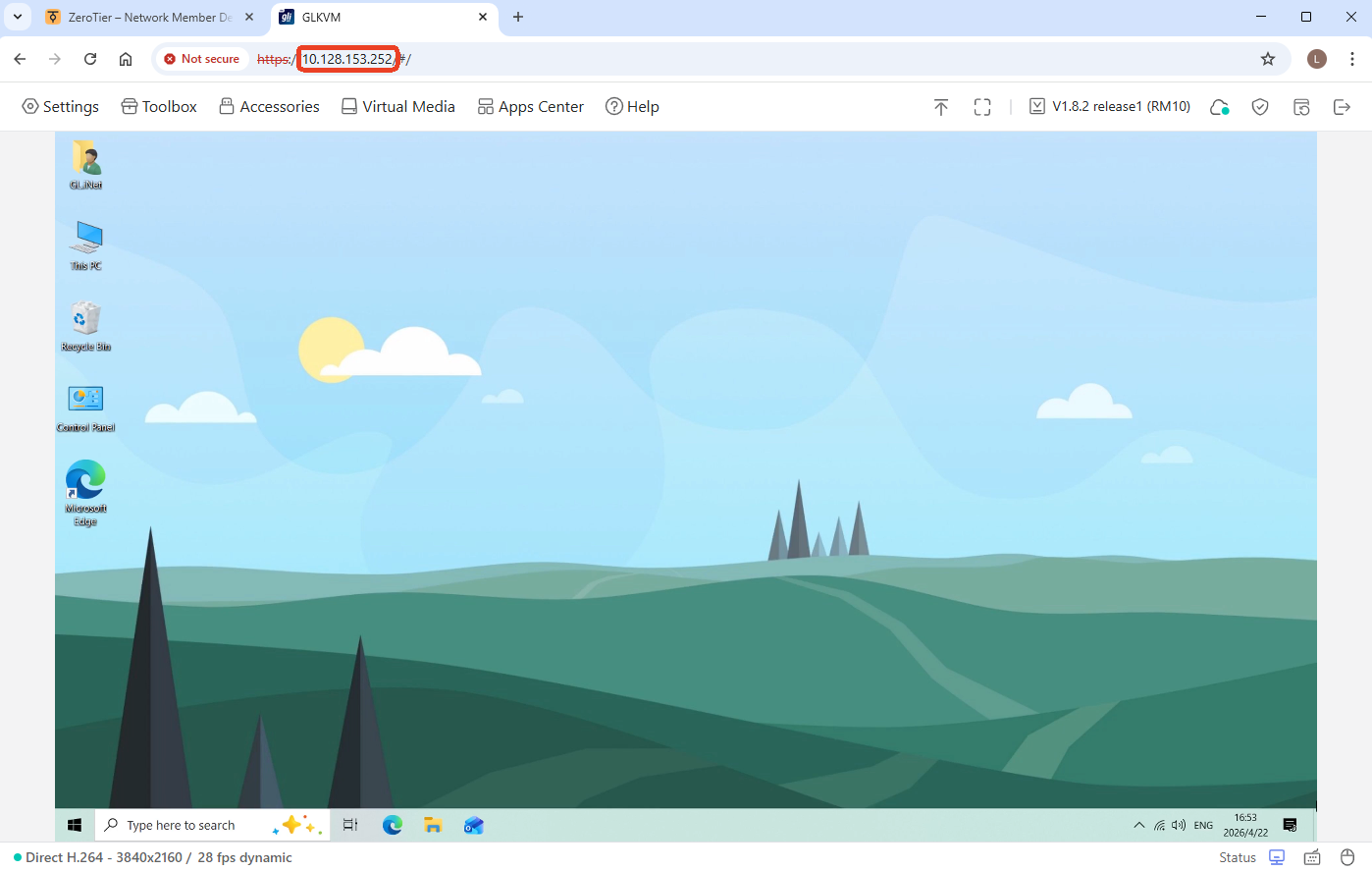
Tip: A privacy error may appear when accessing this ZeroTier IP for the first time. Simply click Advanced -> Proceed to continue. See Privacy error from your browser for details.
Still have questions? Visit our Community Forum or Contact us.