How to share files between controlling and controlled devices
GL.iNet KVM emulates a read-write USB drive, allowing you to share and manage files between the controlling device and the controlled device.
In the following steps, we will take Comet (GL-RM1) as an example.
Send files to controlled device
To share files from the controlling device to the controlled one, follow the steps below.
-
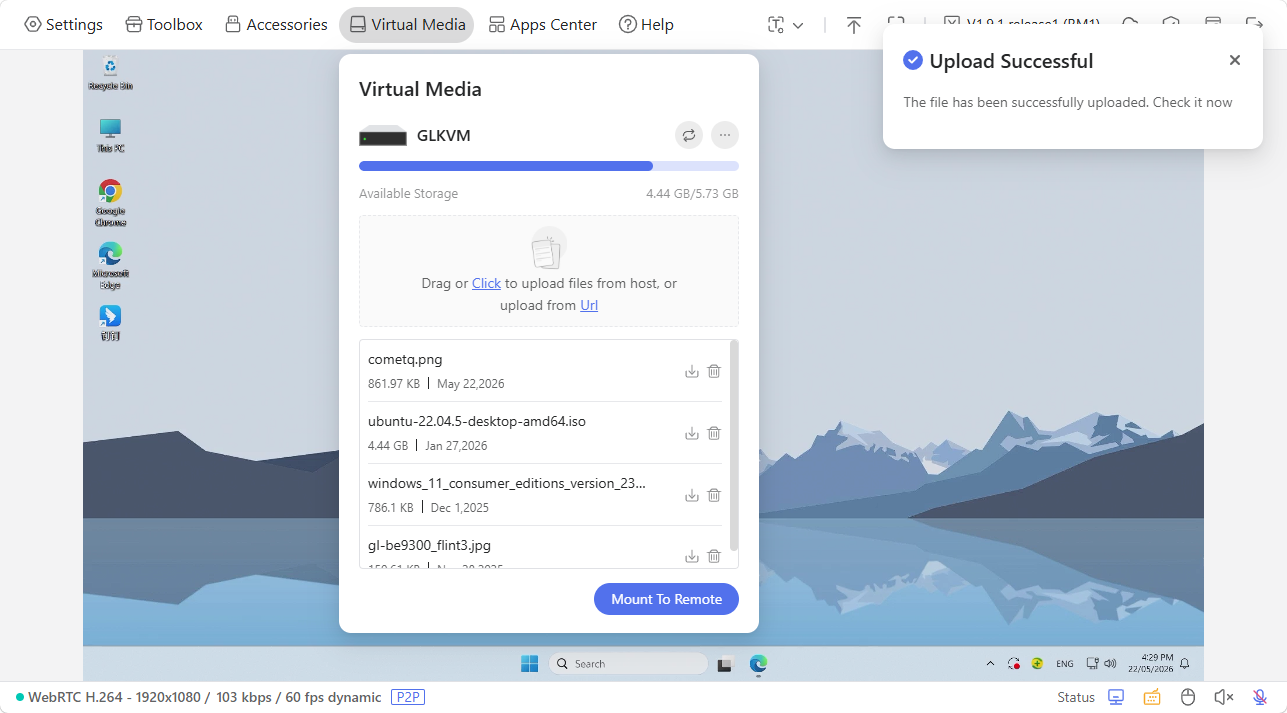
On the console, navigate to Virtual Media. Drag or click the box to upload files from your controlling device or upload from URL.
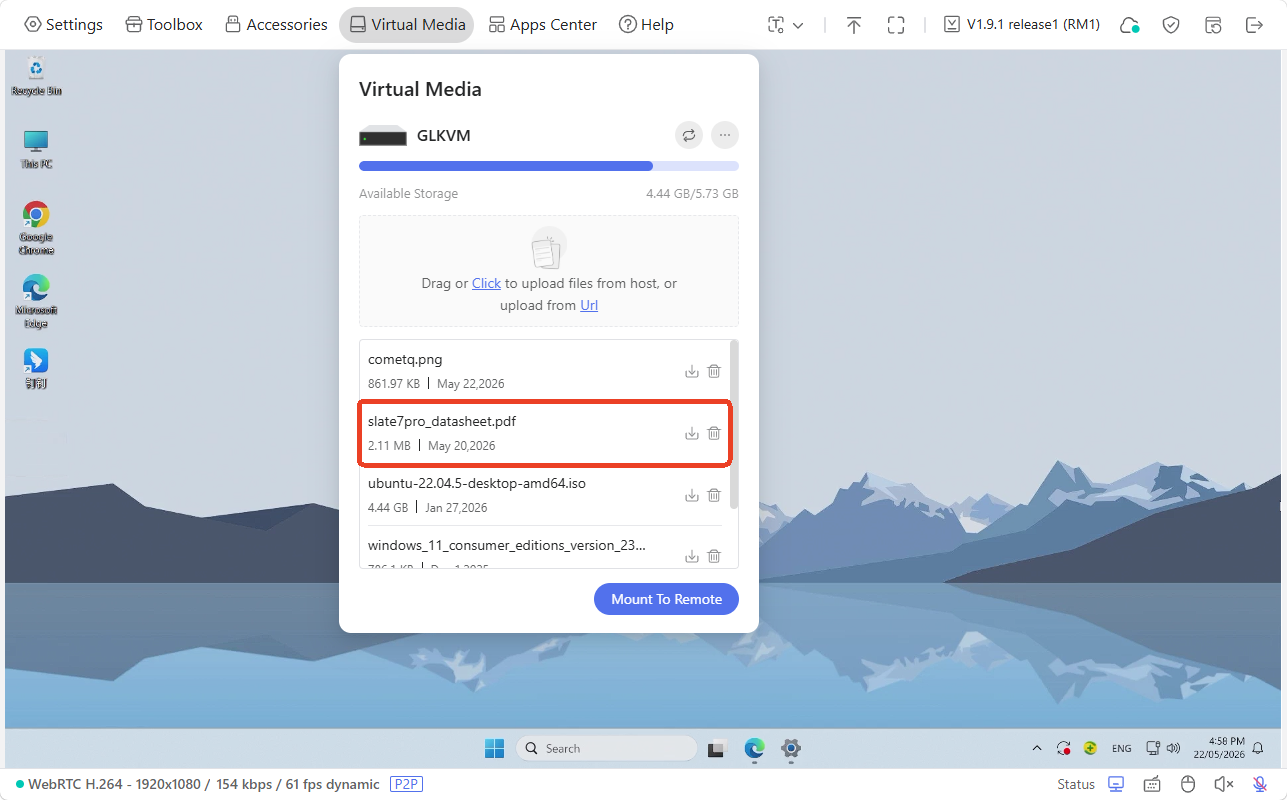
Once uploaded, the files will be displayed as follows.
-
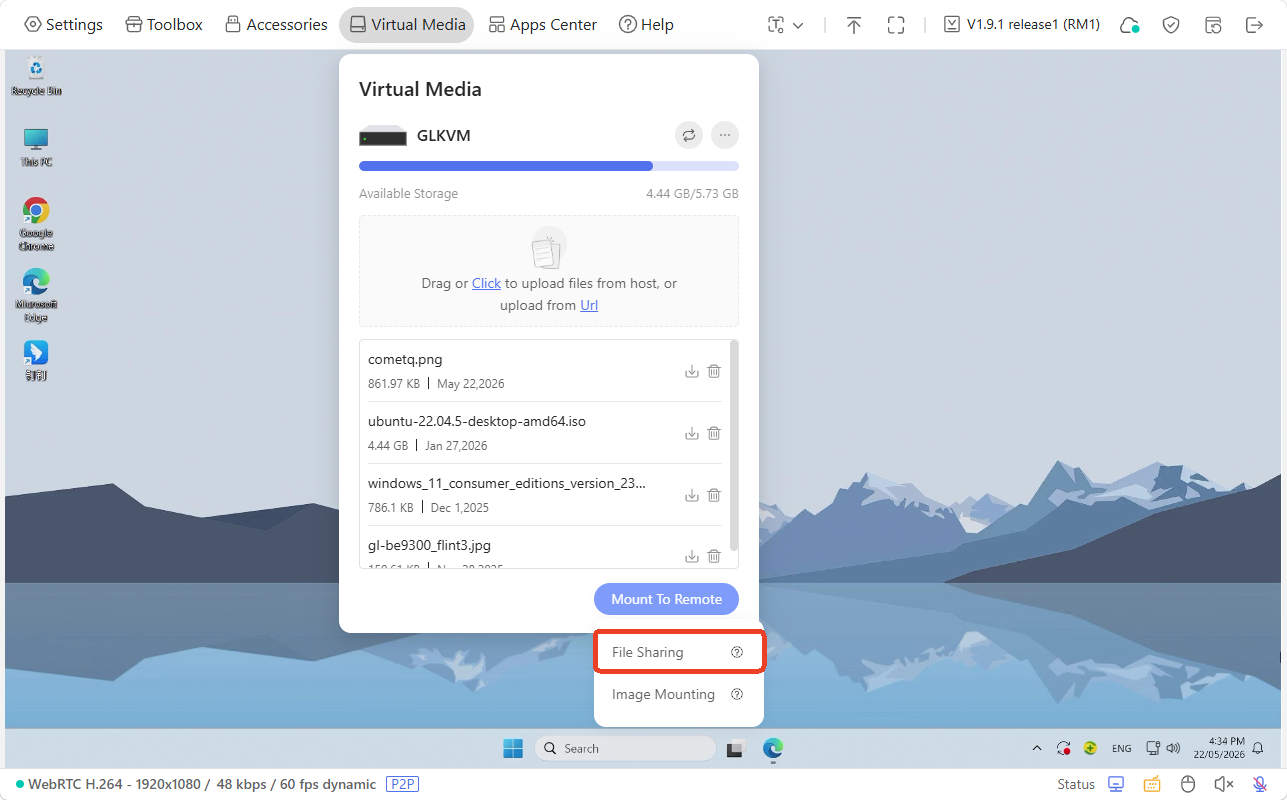
Click Mount To Remote -> File Sharing.
-
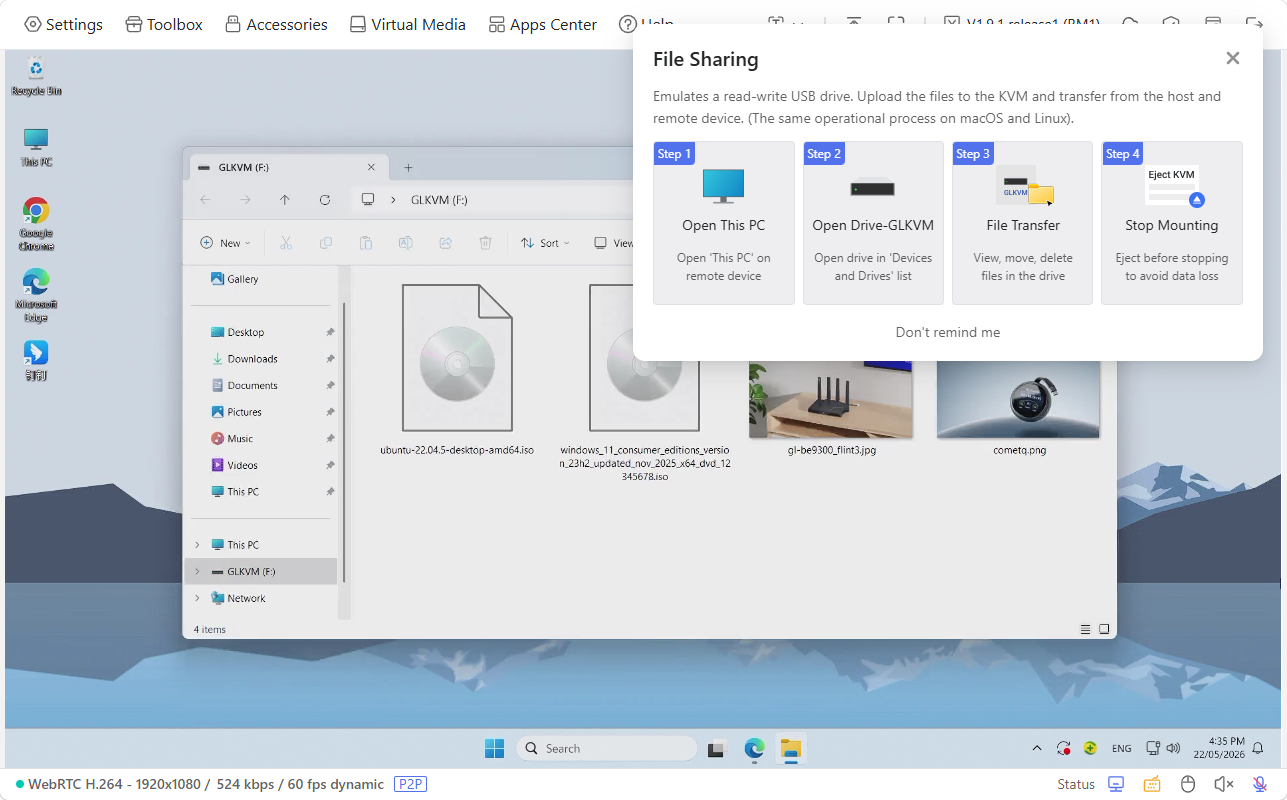
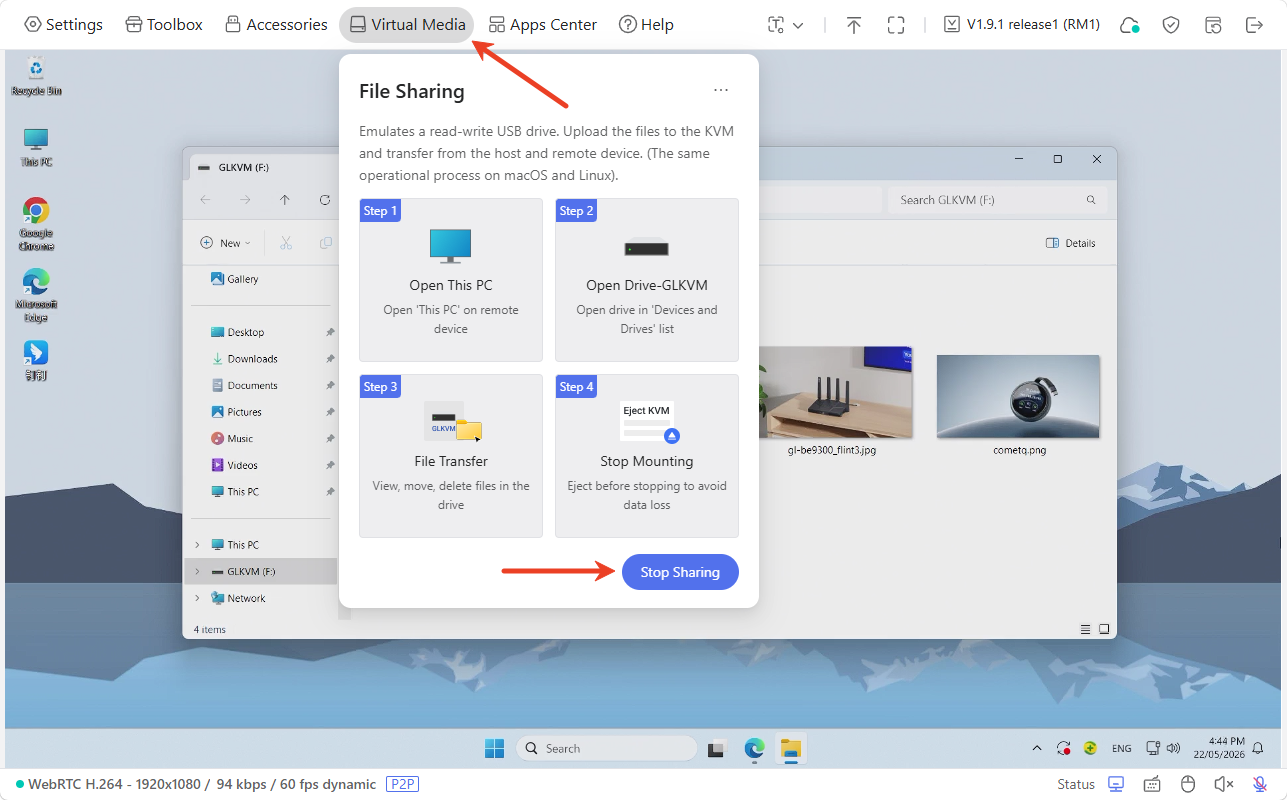
A window will pop up on the console indicating the file sharing steps, as shown below.
-
Wait a second, and a drive named "GLKVM" will pop up on the screen automatically. The Comet is now emulating a read-write USB drive on the controlled device, and you will then see the files you previously uploaded have been shared to the controlled device.
Now you can view, move or delete the files in this drive on the controlled device.
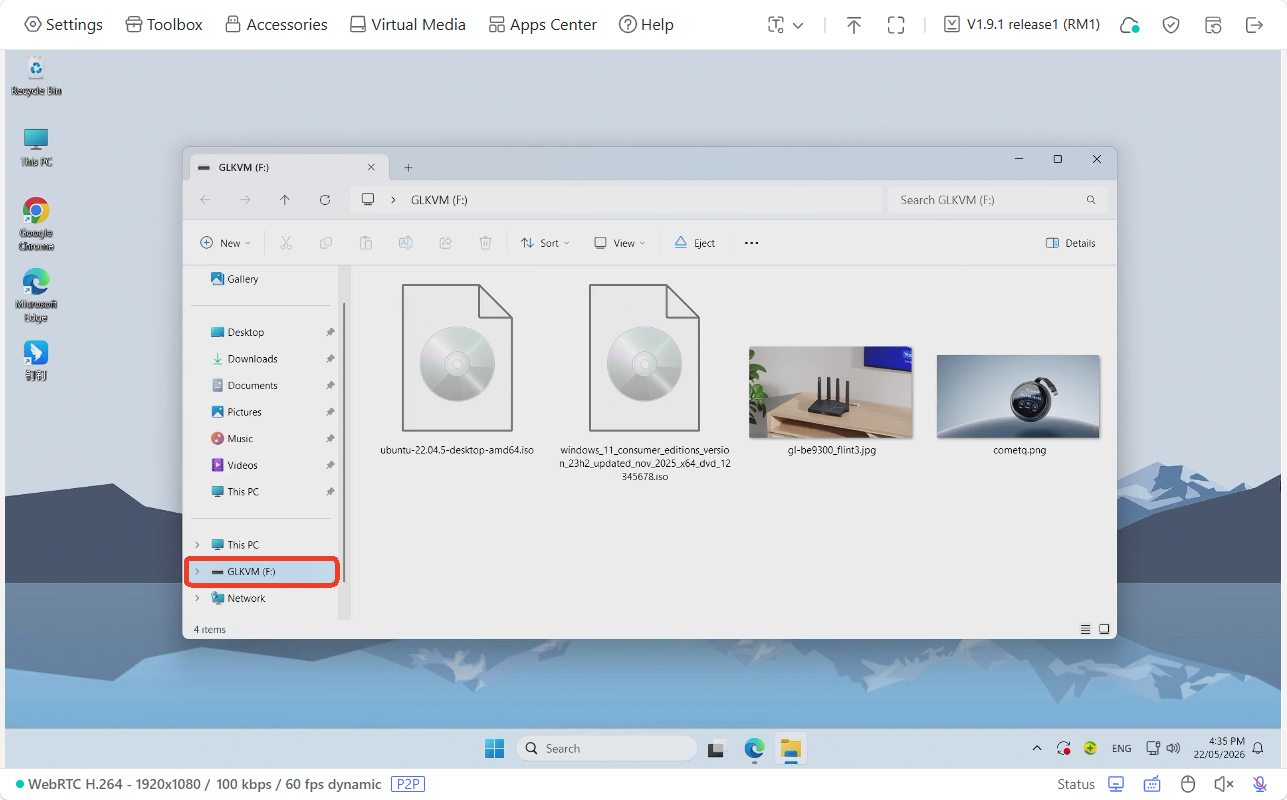
Tip: If the drive does not pop up automatically, go to This PC of your controlled device.
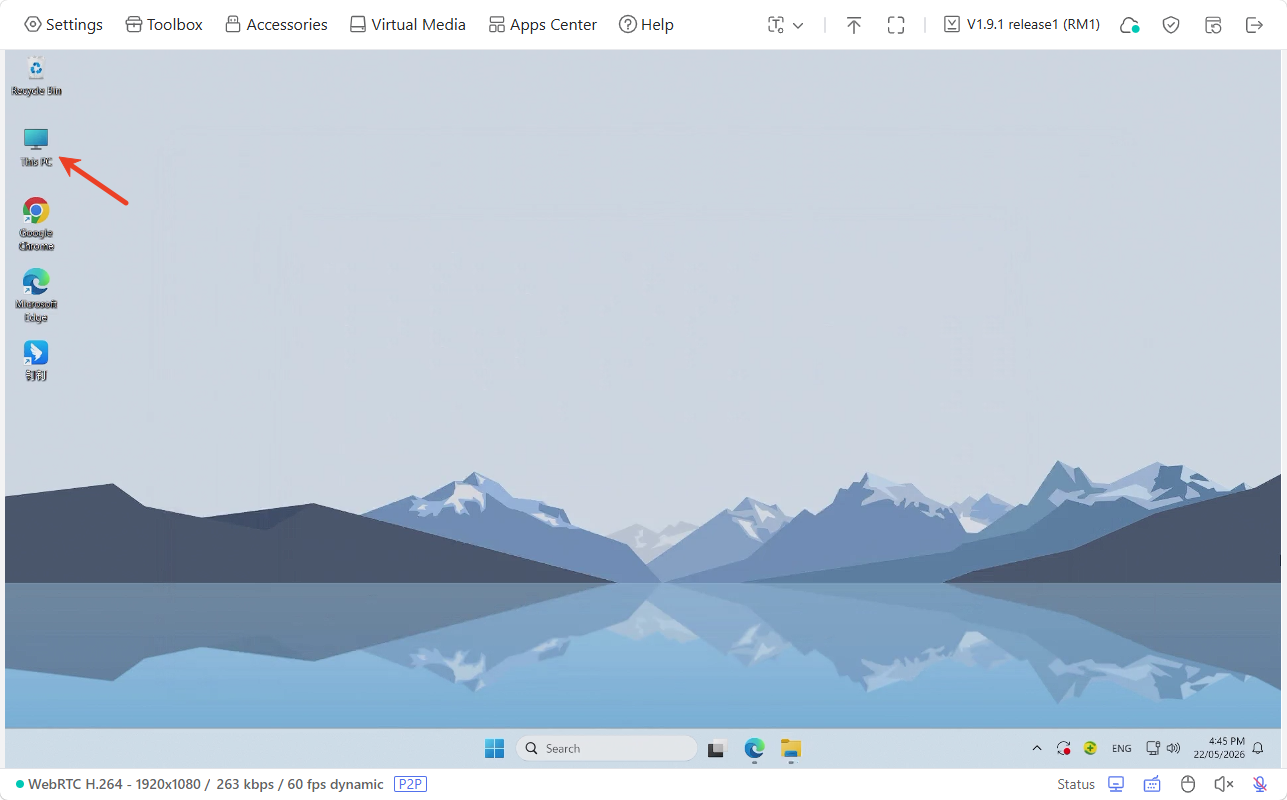
Find a drive named "GLKVM". Now you can view, move or delete the files in this drive.
-
If you want to stop sharing, click Virtual Media in the toolbar and click Stop Sharing.
Get files from controlled device
To receive files from the controlled device, follow the steps below.
-
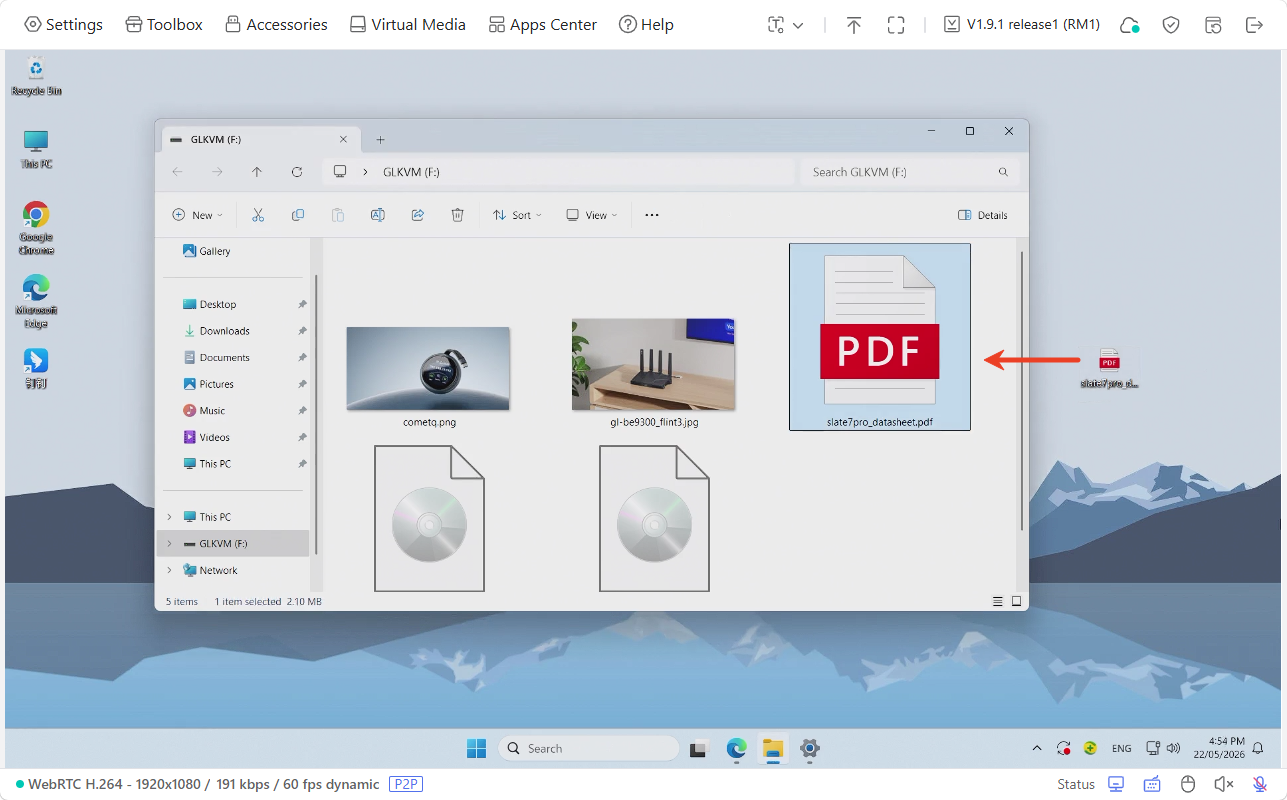
On the controlled device, move or copy the files you want to share into the drive GLKVM.
As shown below, a file has been moved from the controlled device's Desktop into the disk GLKVM.
-
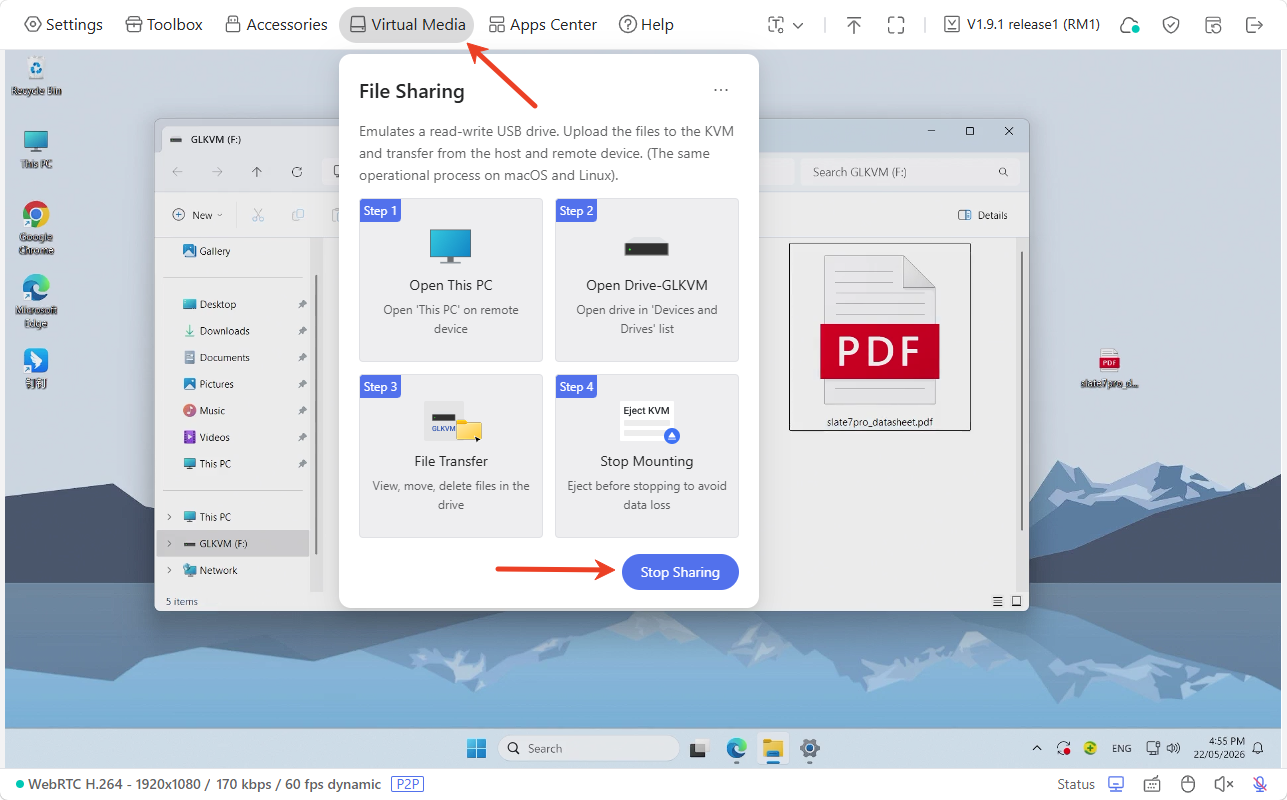
Turn to the Comet's console, click Virtual Media in the toolbar and click Stop Sharing.
-
This file will then be displayed under the Virtual Media as follows. Now you can download this file from Comet to your controlling device.
Still have questions? Visit our Community Forum or Contact us.