What should I do if I see "Press Failed" when using Fingerbot
If the KVM console displays "Press Failed" when you use Fingerbot, there may be a pairing issue between Fingerbot and your KVM device.
Follow the steps below to remove the existing pairing and pair Fingerbot again.
-
Log in to your KVM and go to Toolbox -> Terminal -> Access Terminal to open the Terminal.
-
Run the following commands in sequence:
bluetoothctlscan on
Wait a moment, then run
scan offto stop scanning. -
Run
devicesto view all detected Bluetooth devices. Find your Fingerbot (listed as FGB) and record its MAC address.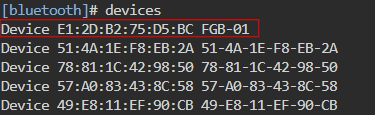
-
Enter
exitto leave the bluetoothctl session. Then run the command below to remove the old pairing record. Replace this MAC address with your Fingerbot's actual MAC address.bluetoothctl remove E1:2D:B2:75:D5:BC -
Re-pair the Fingerbot with the following command. Replace this MAC address with your Fingerbot's actual MAC address.
fingerbot pair E1:2D:B2:75:D5:BC
You will see Done in the terminal if the operation succeeds. Then try using Fingerbot again.
-
If the problem persists, please contact us at support@gl-inet.com and provide the information below for further troubleshooting.
-
The output of the following commands:
fingerbot actionls -l / -
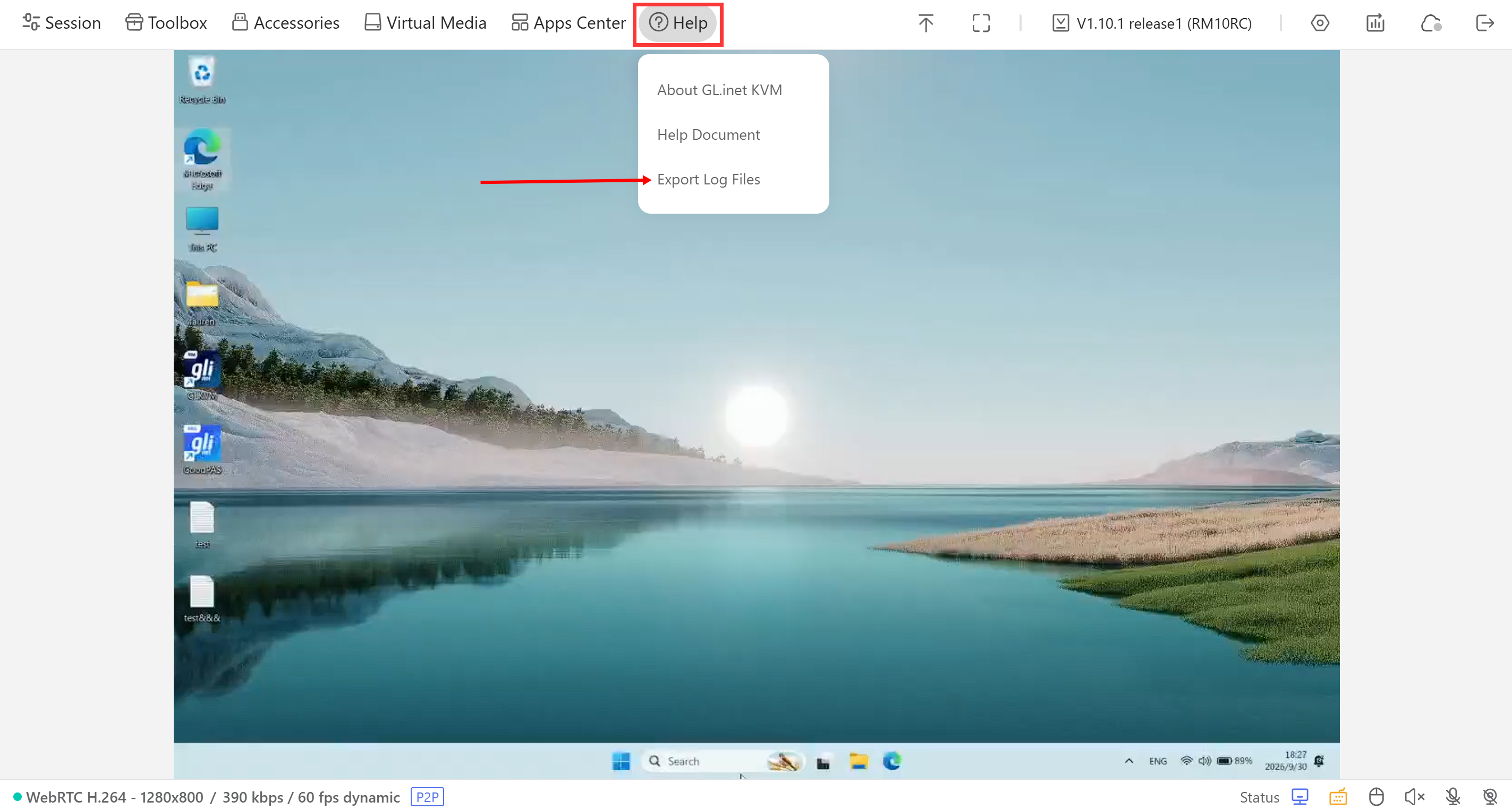
The latest KVM logs, exported from Help > Export Log Files.
-
Still have questions? Visit our Community Forum or Contact us.