How can I use camera passthrough for remote meetings
Note: The Camera feature was introduced in firmware v1.10.0 and is supported only in WebRTC (FEC) mode. It is currently available through web browsers and the desktop client, but is not yet supported in the mobile app.
When working from home, you can use KVM to access your office computer, where you can join a video meeting in Zoom, Microsoft Teams, or a similar app. But the camera may only show your office, not you.
GL.iNet KVM's Camera feature lets you transmit video from your home computer's camera to your office computer as a virtual USB camera. Select this camera in the meeting app so that other participants can see you while you share files or applications from your office computer.
Quick setup
Follow the steps below to use the Camera feature, with a Zoom video meeting as an example.
-
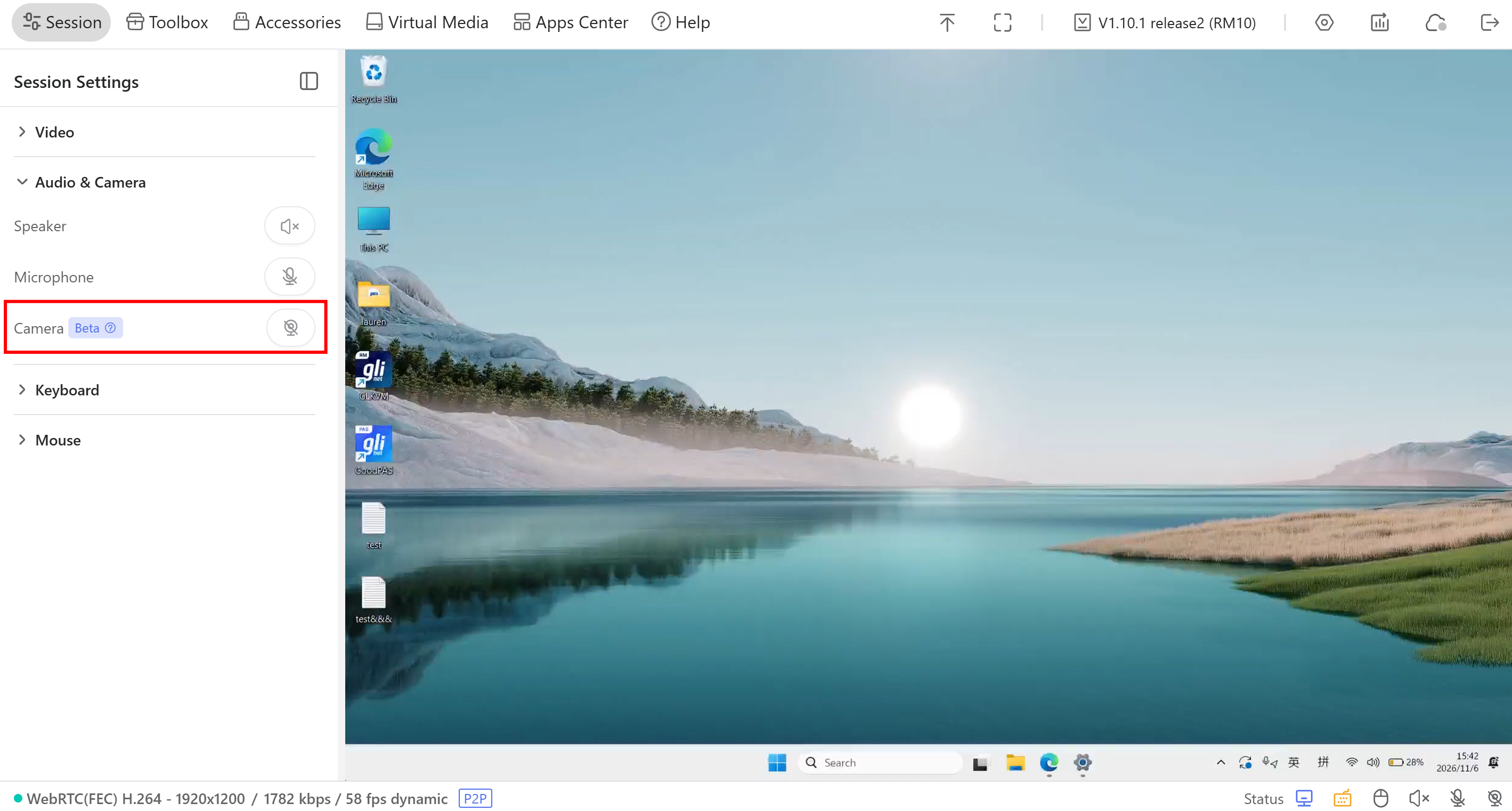
Before joining the meeting, log in to your KVM on the controlling computer and go to Session -> Audio & Camera. Enable Camera, then click the camera icon to start.
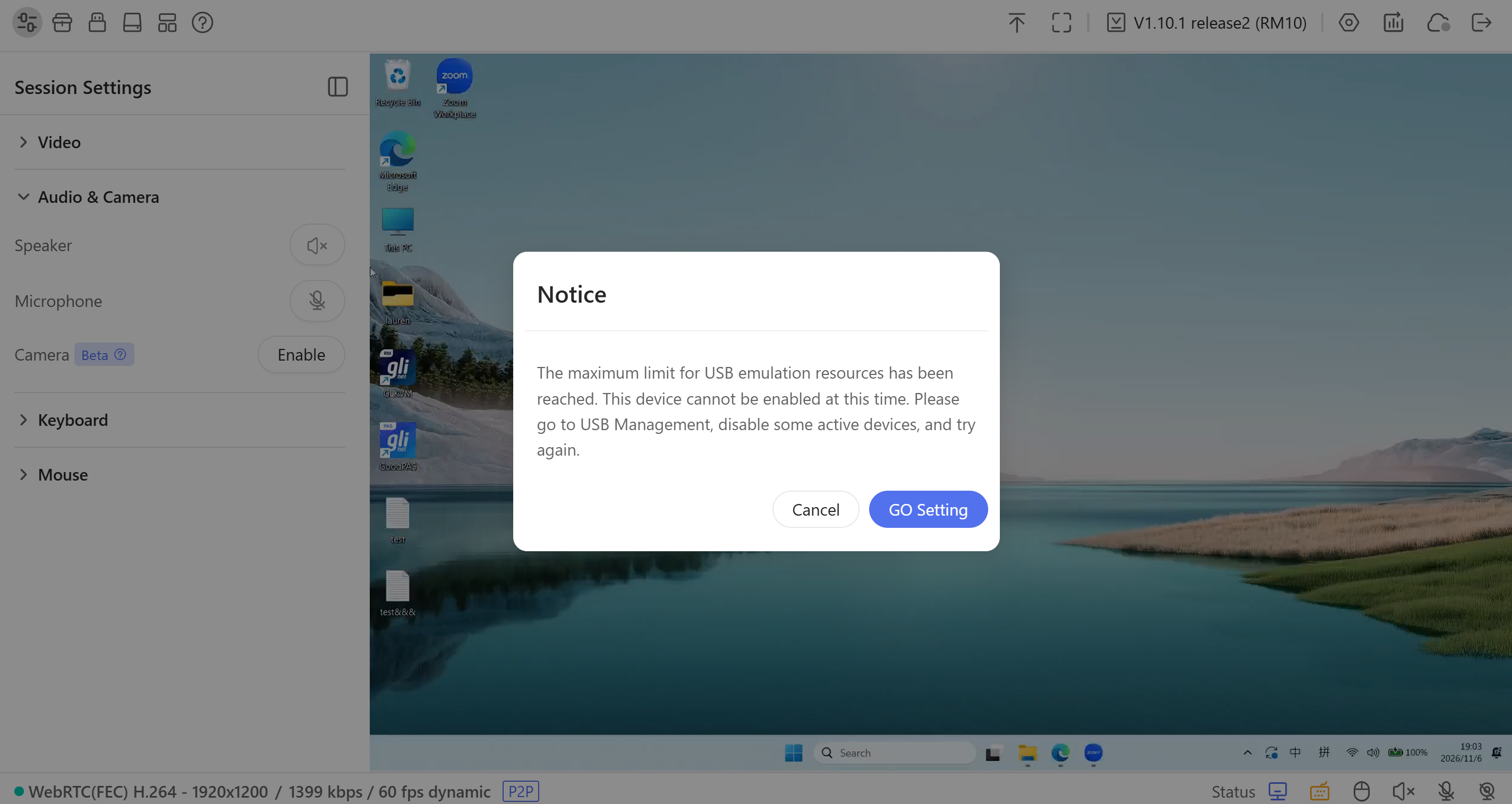
If you see a USB resource limit message when enabling Camera, go to Settings -> USB Devices and disable unused USB emulated devices to free up resources. Then enable Camera and try again.
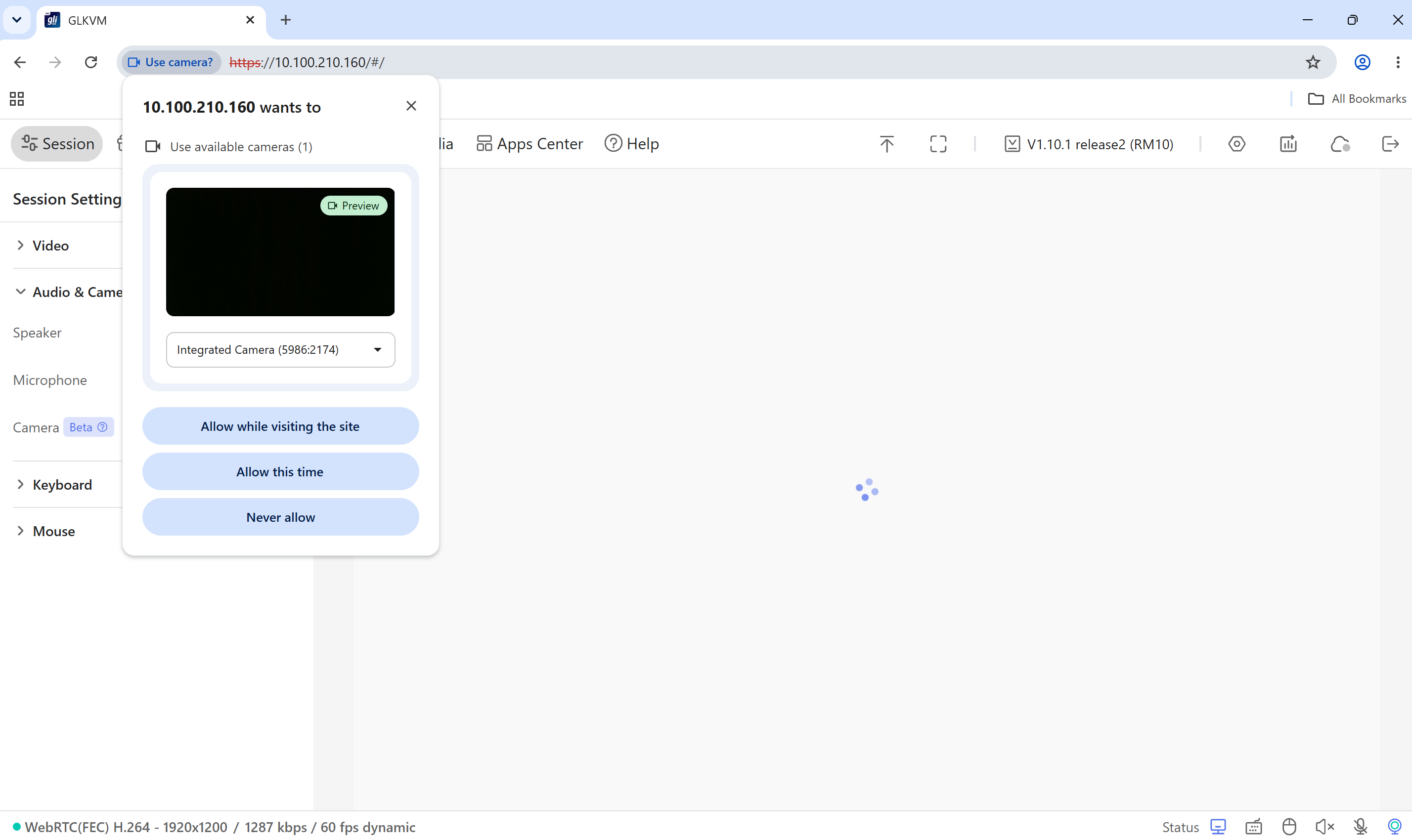
Your browser may prompt you for camera access. Select the camera you want to use, check the video preview, and allow access.
-
Open Zoom and join a meeting on the controlled computer. Click the arrow next to the video button and select the UVC camera.
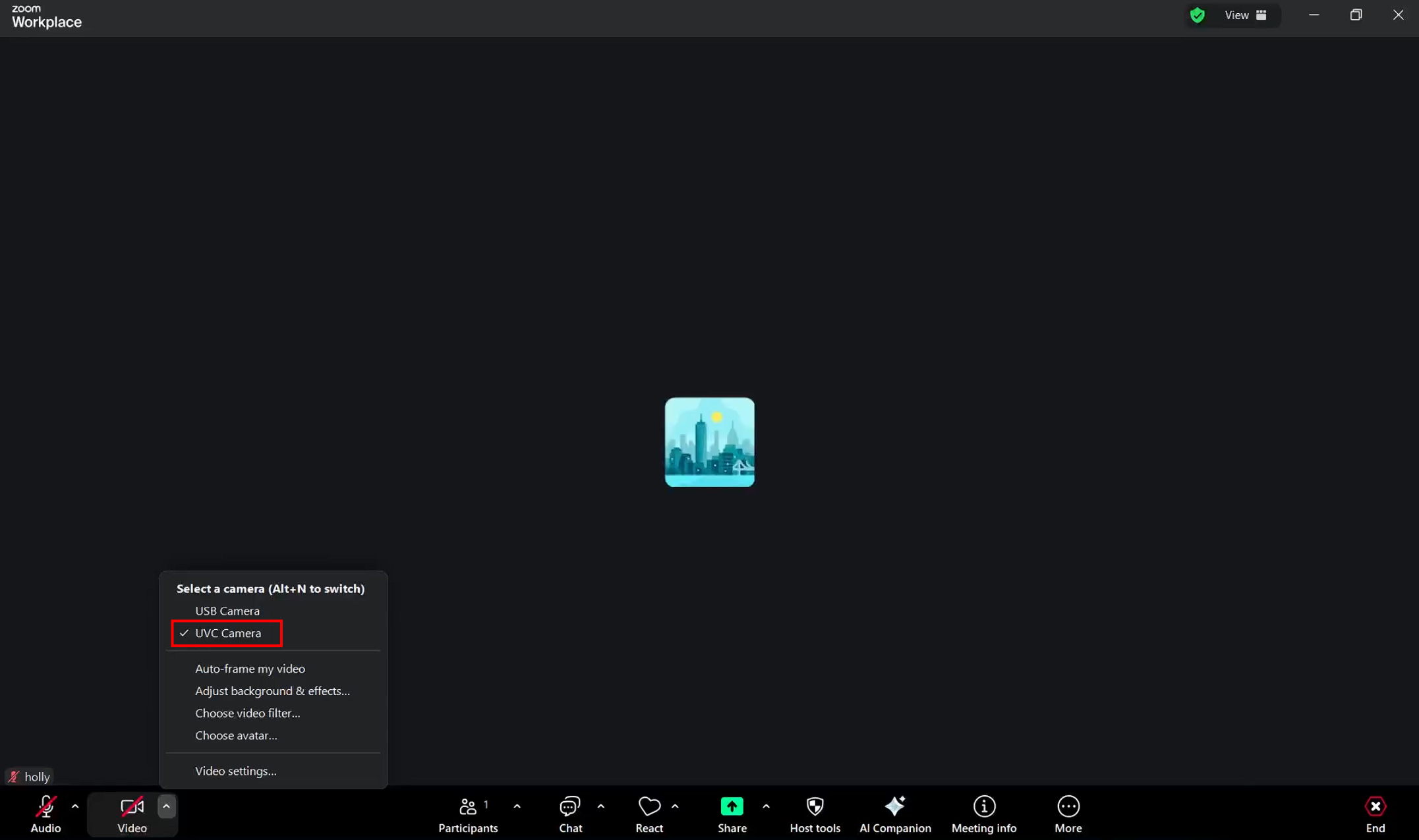
Then turn on video so other participants can see the feed from the controlling device's camera.
Note: Ensure a stable network connection for smooth, clear video during the meeting.
Troubleshooting
What should I do if the camera feed does not reach the controlled computer?
Check whether the controlled computer recognizes KVM's virtual camera.
On the controlled computer, go to Settings -> Bluetooth & devices -> Cameras and look for UVC Camera under Connected cameras.
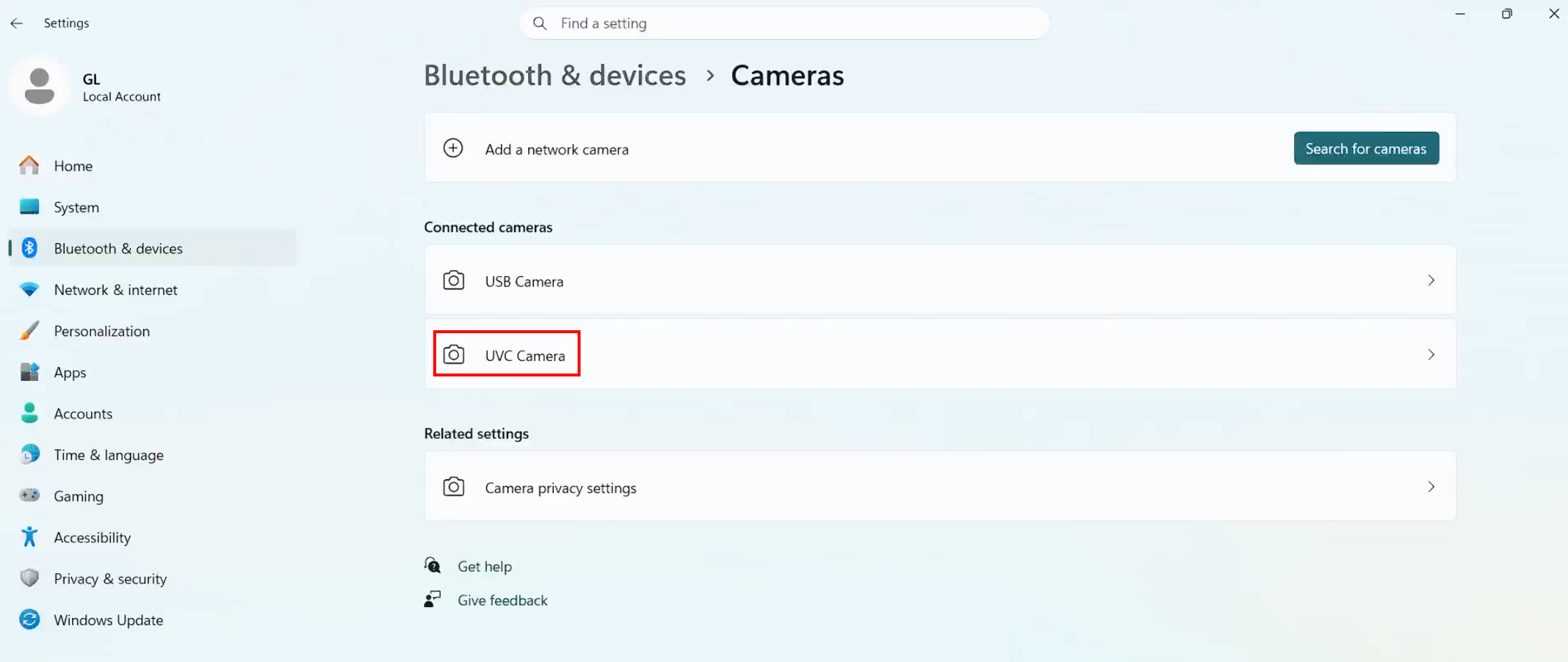
If it does not appear, the USB data connection between the KVM and the controlled computer may be disconnected or loose.
What should I do if a 'Camera Access Denied' message appears when I enable Camera in the KVM console?
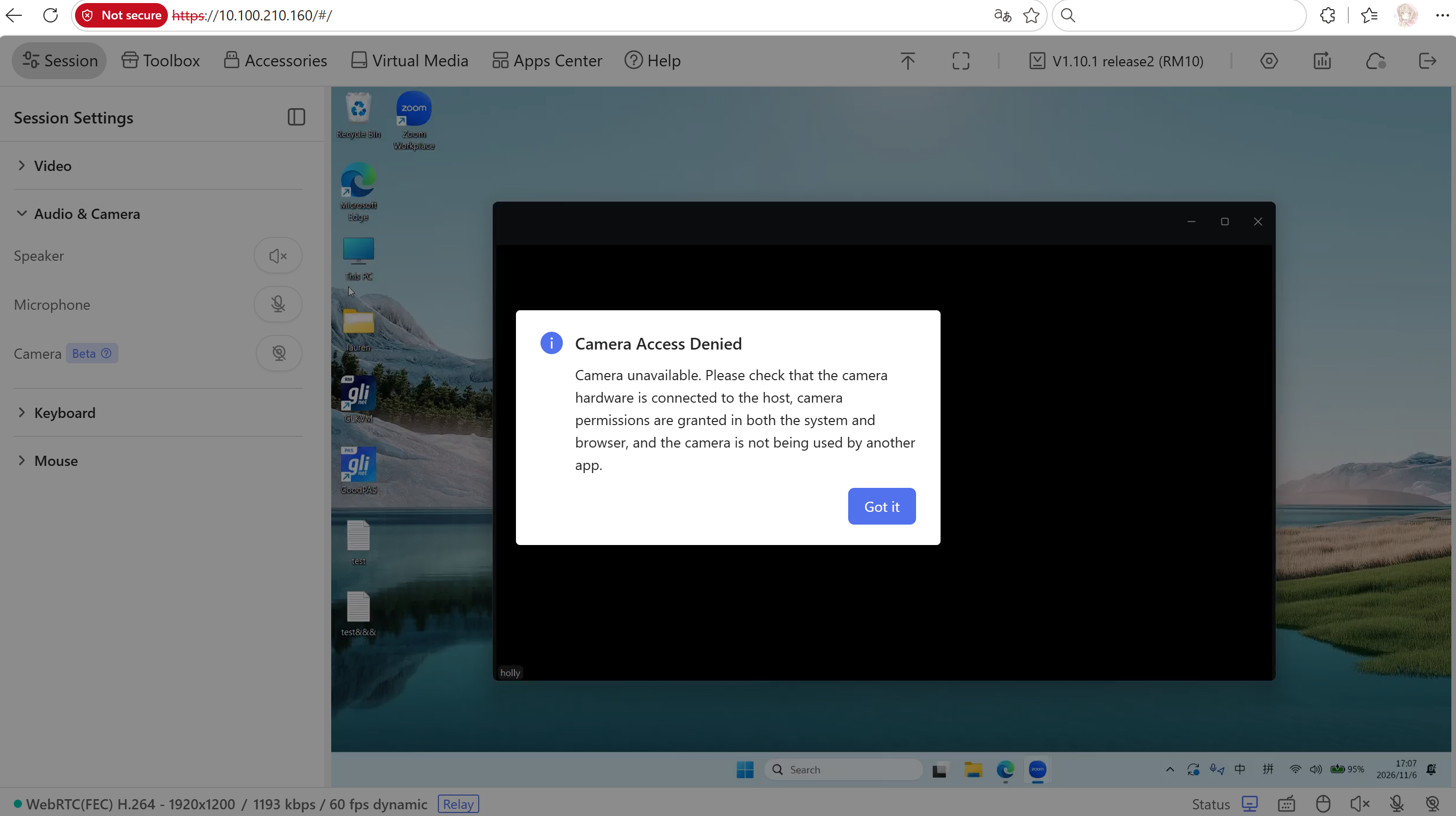
Check the following on the controlling computer:
-
Camera availability: Ensure that the camera is connected and working. Test it using the system's camera app, then close the app before retrying.
-
System permissions: On Windows 11, go to Settings -> Privacy & security -> Camera and turn on the following options: Camera access, Let apps access your camera, and Let desktop apps access your camera.
-
Browser permissions: Allow the KVM website to access your camera. If access was previously blocked, update the website's camera permissions and refresh the page.
-
Camera usage: Close other apps or browser tabs that may be using the camera, such as Zoom or Microsoft Teams.
After completing these checks, enable Camera in the KVM console again.
Still have questions? Visit our Community Forum or Contact us.