How can I use two-way audio for remote meetings
When working from home, you can use KVM to access your office computer and join audio meetings using Zoom, Microsoft Teams, or a similar app. GL.iNet KVM's two-way audio feature lets you speak through your local computer's microphone and hear other participants through its speakers or headphones.
Quick setup
Follow the steps below to use your local device's microphone and speaker for remote meetings, with a Zoom meeting as an example.
-
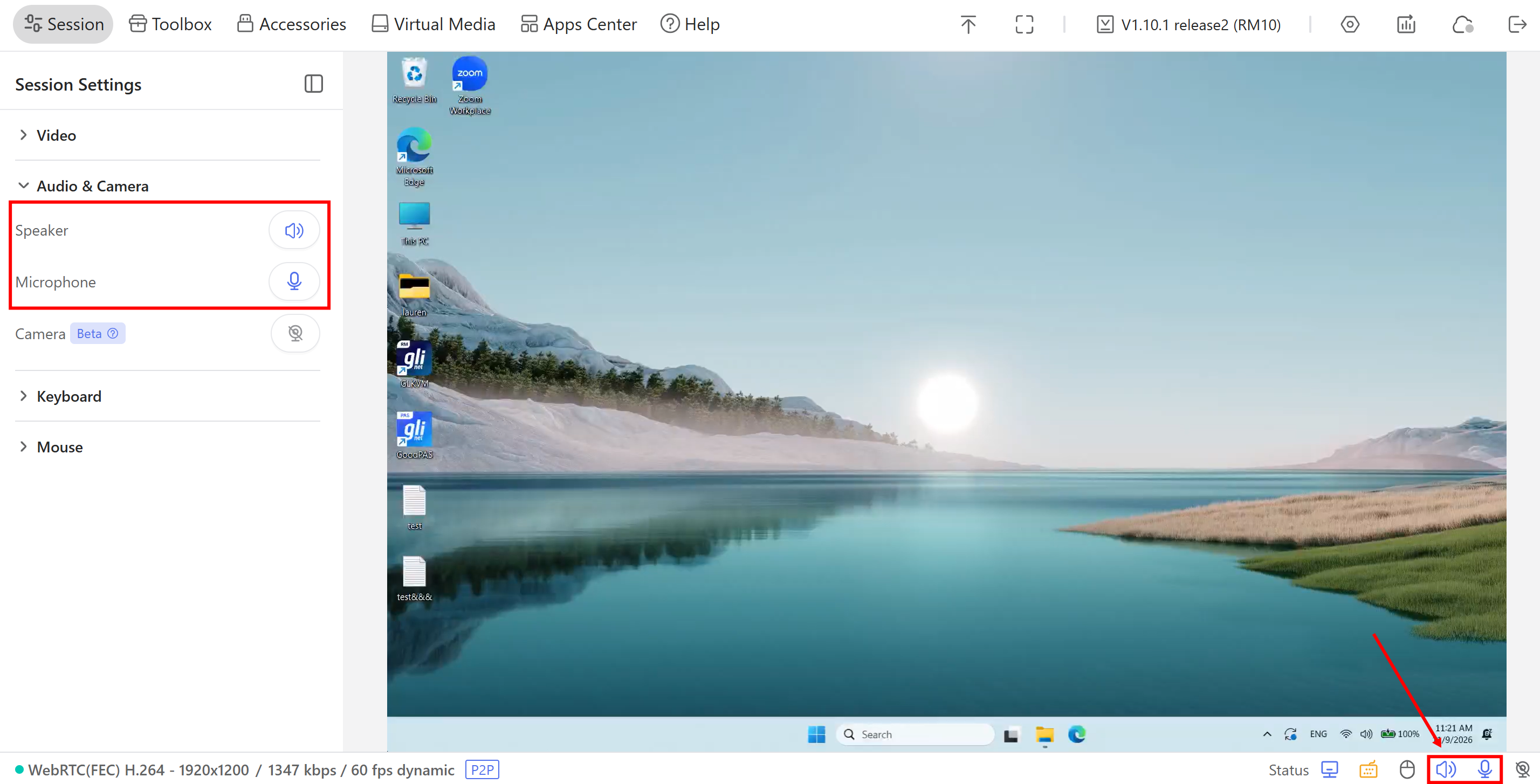
Before joining a meeting, log in to your KVM on the controlling computer and go to Session -> Audio & Camera. Enable Speaker and Microphone. Confirm that both icons in the bottom-right corner are active.
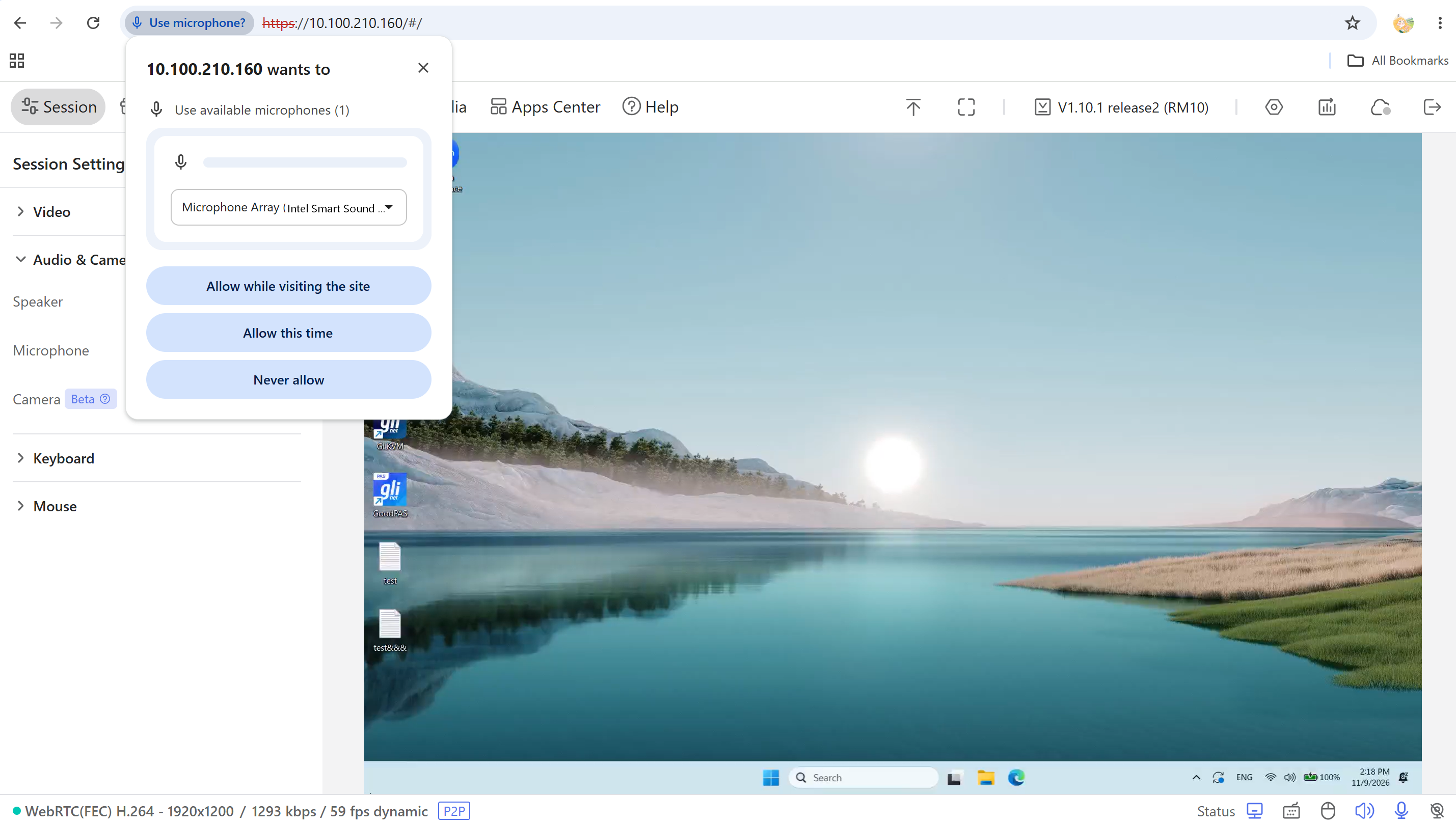
For example, when you enable Microphone, your browser may prompt you for microphone access. Select the microphone you want to use and allow access.
-
Open Zoom and join the meeting on the controlled computer. Click the arrow next to the Audio button and select the following devices, as shown in this example:
-
Microphone: Microphone (6-Comet Microphone)
-
Speaker: EPSON PJ (HD Audio Driver for Display Audio)
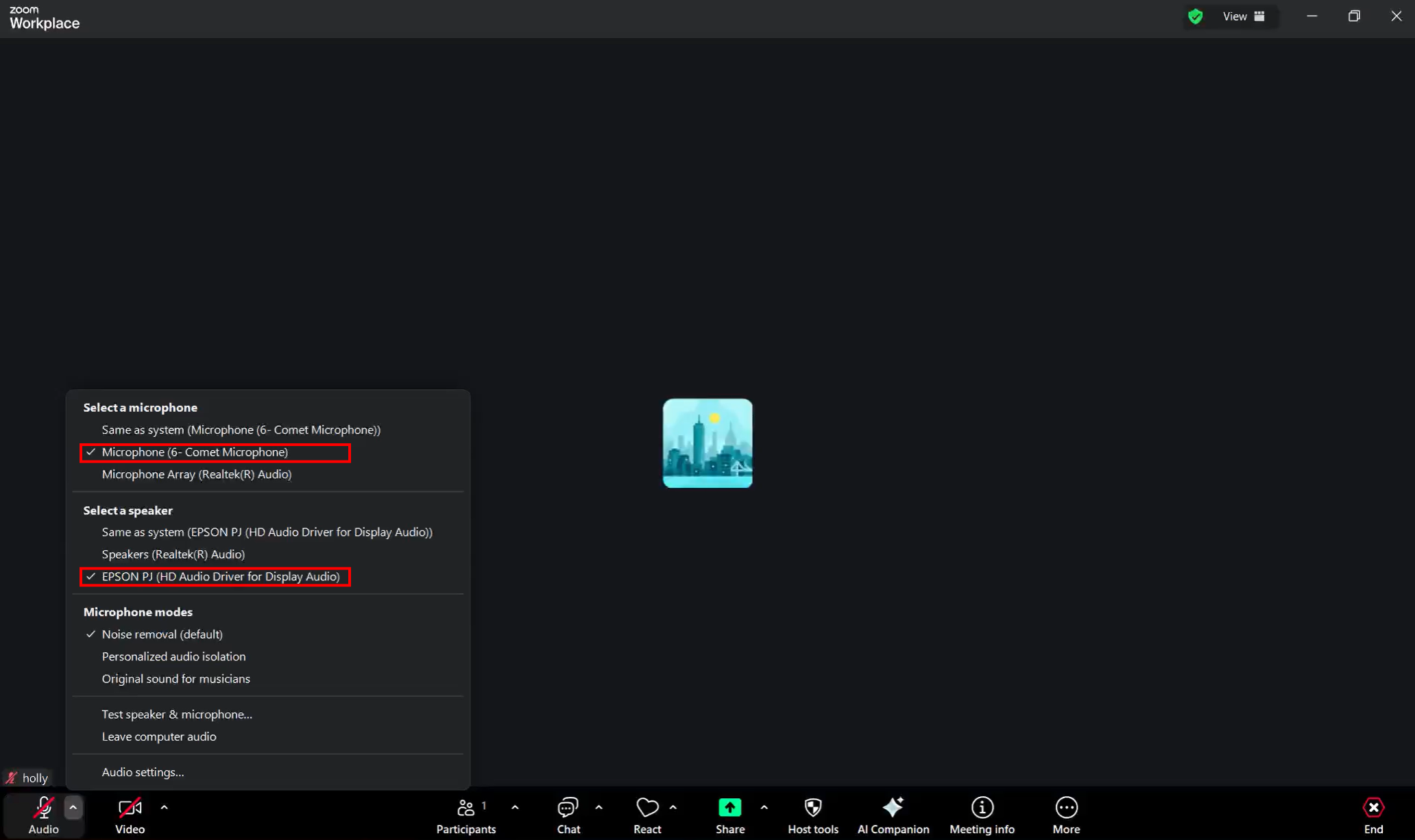
Then, unmute your microphone to speak to other participants. You can hear them through the controlling computer's speakers or headphones.
If you also want to share video from your local camera with meeting participants, refer to the camera passthrough guide.
-
Troubleshooting
What should I do if other participants cannot hear me?
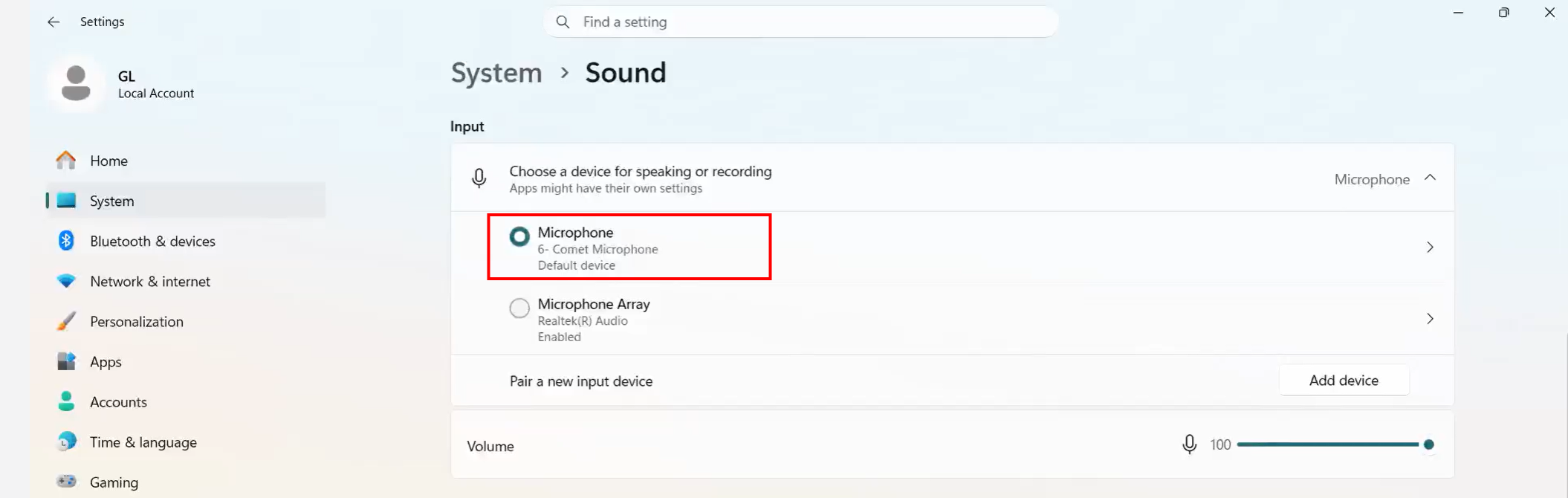
On the controlled computer, go to Settings -> System -> Sound and look for the KVM virtual microphone under Input, shown as Comet Microphone in this example. Confirm that this microphone is also selected in your meeting app.
-
If the KVM virtual microphone does not appear, check the USB data connection between the KVM and the controlled computer, which carries microphone audio to the controlled computer.
-
If the KVM virtual microphone appears and is selected but there is no audio input, ensure that your microphone is unmuted on the controlling computer and in the meeting app on the controlled computer. Check the controlling computer's system and browser microphone permissions, and close other apps or browser tabs that may be using the microphone.
What should I do if I cannot hear other participants?
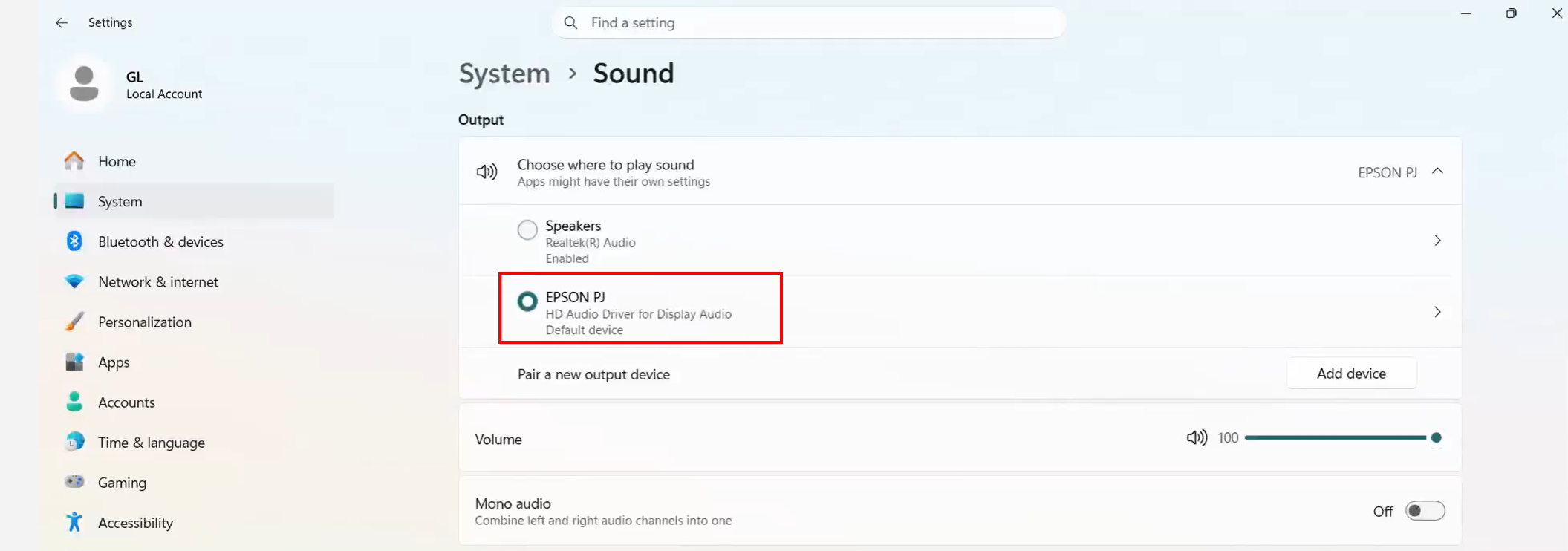
On the controlled computer, go to Settings -> System -> Sound and look for the HDMI audio output connected to the KVM under Output, shown as EPSON PJ in this example. Confirm that the same device is selected as the speaker in your meeting app.
-
If the HDMI audio output does not appear, check the HDMI connection between the controlled computer and the KVM, which carries audio from the controlled computer. If you use an HDMI adapter, ensure that it supports audio.
-
If the HDMI audio output is visible and selected but you still cannot hear other participants, check that the controlling computer, browser tab, and speakers or headphones are not muted.
For more information, refer to No audio from the controlled device.
What should I do if audio stops after refreshing or reconnecting?
Check Speaker and Microphone in the KVM console again. Browser security policies may disable speaker playback or mute the microphone after refreshing the page or reconnecting.
For more information, refer to Speaker and microphone settings cannot be retained.
What should I do if a 'Microphone Access Denied' message appears?
Check the following on the controlling computer:
-
System permissions: On Windows 11, go to Settings -> Privacy & security -> Microphone. Turn on Microphone access, Let apps access your microphone, and Let desktop apps access your microphone.
-
Browser permissions: Allow the KVM website to access your microphone. If access was previously blocked, update the site's microphone permissions and refresh the page.
-
Microphone usage: Close other apps or browser tabs that may be using the microphone.
After completing these checks, enable Microphone in the KVM console again.
Still have questions? Visit our Community Forum or Contact us.