Wireless (Firmware v4.9)
Note: This guide applies to firmware v4.9 and later. For earlier versions, please see here.
Log in to the web Admin Panel and go to WIRELESS.
The Wireless page lets you configure various Wi-Fi networks, including MLO Wi-Fi (available on selected models), Main Network, Guest Network and IoT Network. The supported Wi-Fi bands vary by model.
Multi-Link Operation (MLO)
Supported Models
- GL-BE14000 (Flint 4)
- GL-BE10000 (Slate 7 Pro)
- GL-MT3600BE (Beryl 7)
- GL-BE6500 (Flint 3e)
- GL-BE9300 (Flint 3)
- GL-BE3600 (Slate 7)
Unsupported Models
- GL-E5800 (Mudi 7)
- GL-MT5000 (Brume 3)
- GL-X2000 (Spitz Plus)
- GL-B3000 (Marble)
- GL-MT6000 (Flint2)
- GL-AX1800 (Flint)
- GL-X3000 (Spitz AX)
- GL-XE3000 (Puli AX)
- GL-MT3000 (Beryl AX)
- GL-AXT1800 (Slate AX)
- GL-A1300 (Slate Plus)
- GL-MT2500/GL-MT2500A (Brume 2)
- GL-SFT1200 (Opal)
- GL-MT1300 (Beryl)
- GL-E750/E750V2 (Mudi)
- GL-AR750S (Slate)
- GL-XE300 (Puli)
- GL-X750 (Spitz)
- GL-MT300N-V2 (Mango)
- GL-AR300M Series (Shadow)
- GL-AP1300 (Cirrus)
- GL-S1300 (Convexa-S)
- GL-B1300 (Convexa-B)
- GL-X300B (Collie)
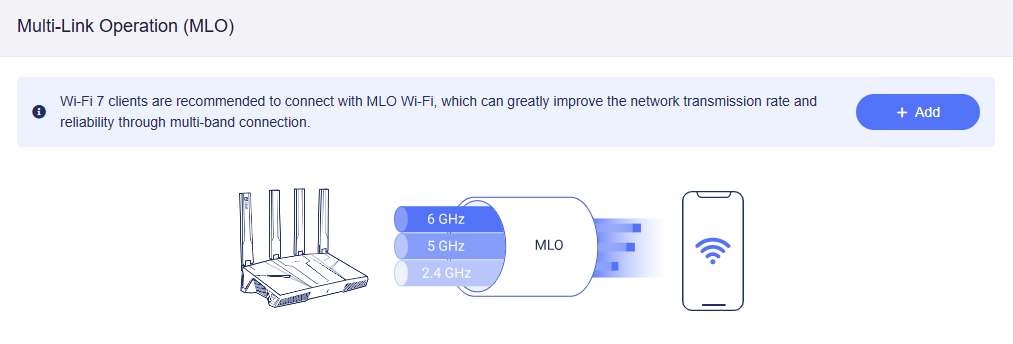
MLO (Multi-Link Operation) is one of the core features of Wi-Fi 7 (802.11be), designed to improve network performance, significantly reduce latency, and enhance connection stability by utilizing multiple frequency bands simultaneously such as 2.4 GHz, 5 GHz, and 6 GHz.
Wi-Fi 7 clients are recommended to connect to MLO Wi-Fi, which greatly improves network throughput and reliability via multi-band connections.
Click Add to set up an MLO Wi-Fi network, then click Apply. Note that the available Wi-Fi bands vary by model.
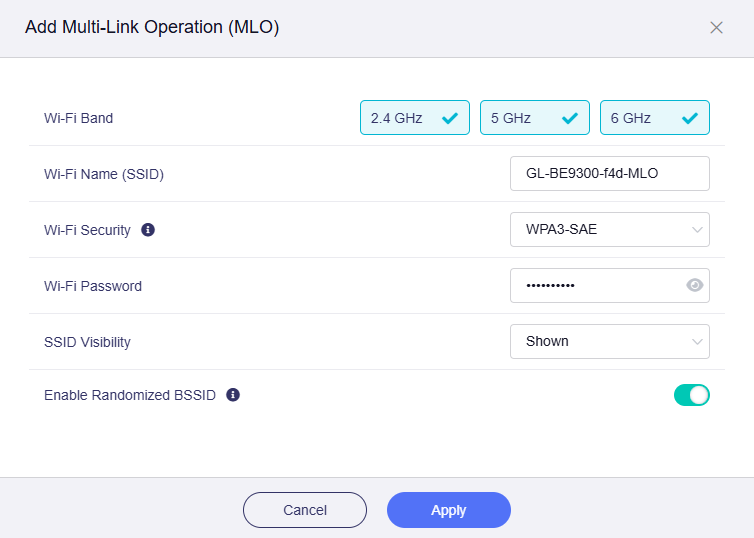
- Wi-Fi Band: Select at least two radio bands.
- Wi-Fi Security: If the 6 GHz band is selected, WPA3-SAE is the only available option and recommended. It works best with most MLO-supported devices.
- Enable Randomized BSSID: When the 6 GHz band is selected, the 6 GHz BSSID of the MLO Wi-Fi will be synchronized with the Main Wi-Fi.
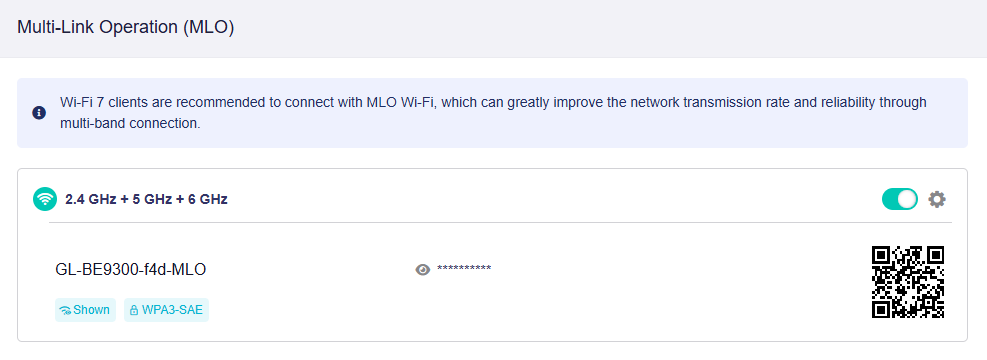
Once enabled, the page displays as follows.
Main Network
The Main Network is your primary Wi-Fi network, supporting simultaneous broadcasts across different radio bands, all enabled by default. You can configure separate settings for each band, such as the Wi-Fi SSID, security mode, password, randomized BSSID, TX power, bandwidth, and channel.
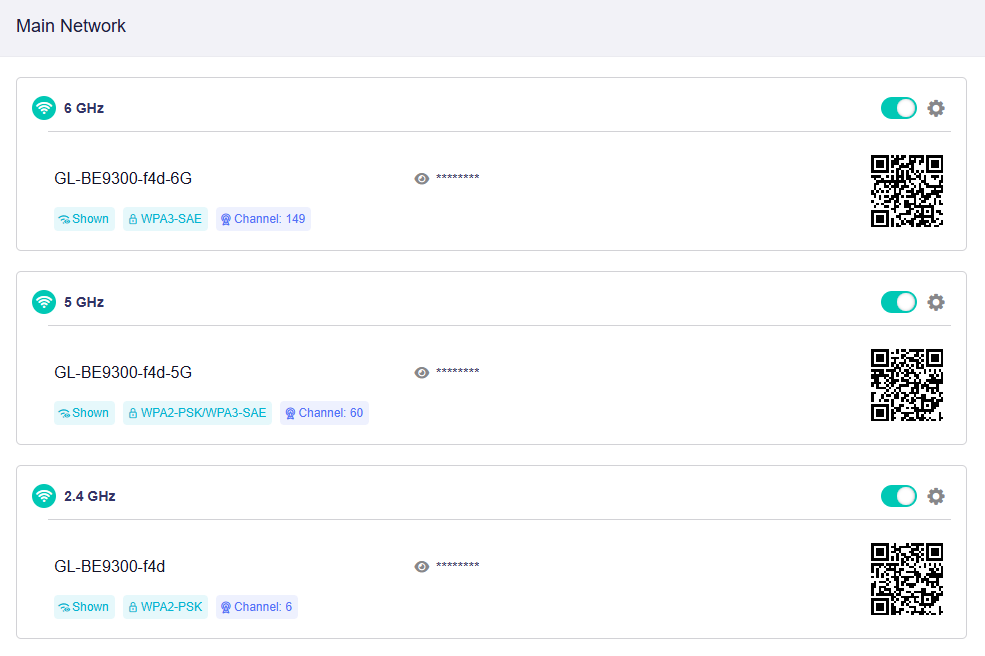
Click the gear icon on the right to view or modify Wi-Fi settings for each band. Note that the available Wi-Fi bands vary by model.
-
6 GHz
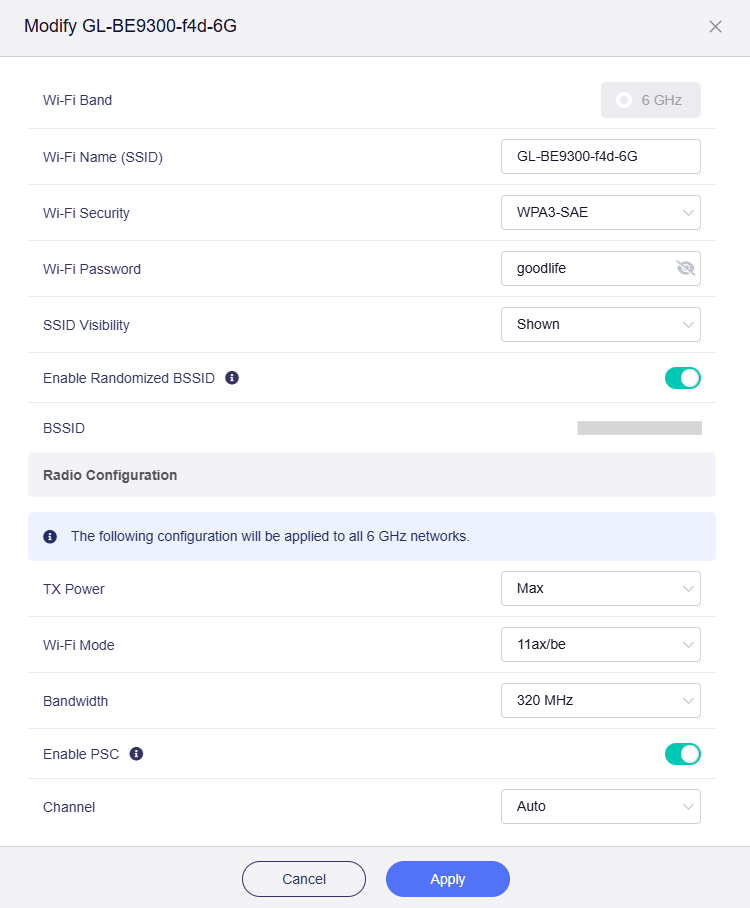
-
5 GHz
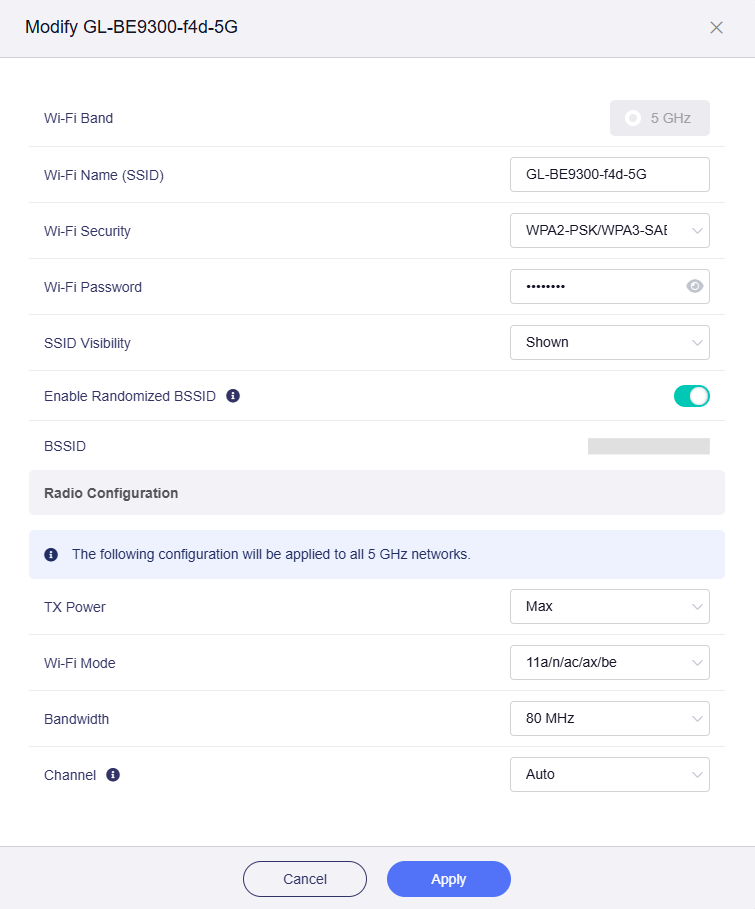
-
2.4 GHz
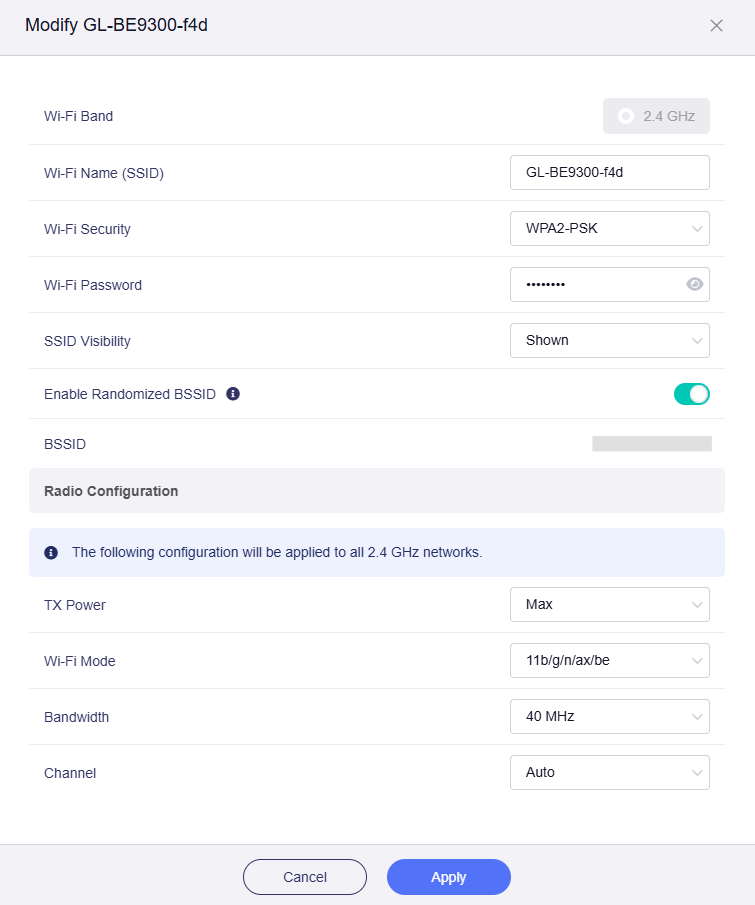
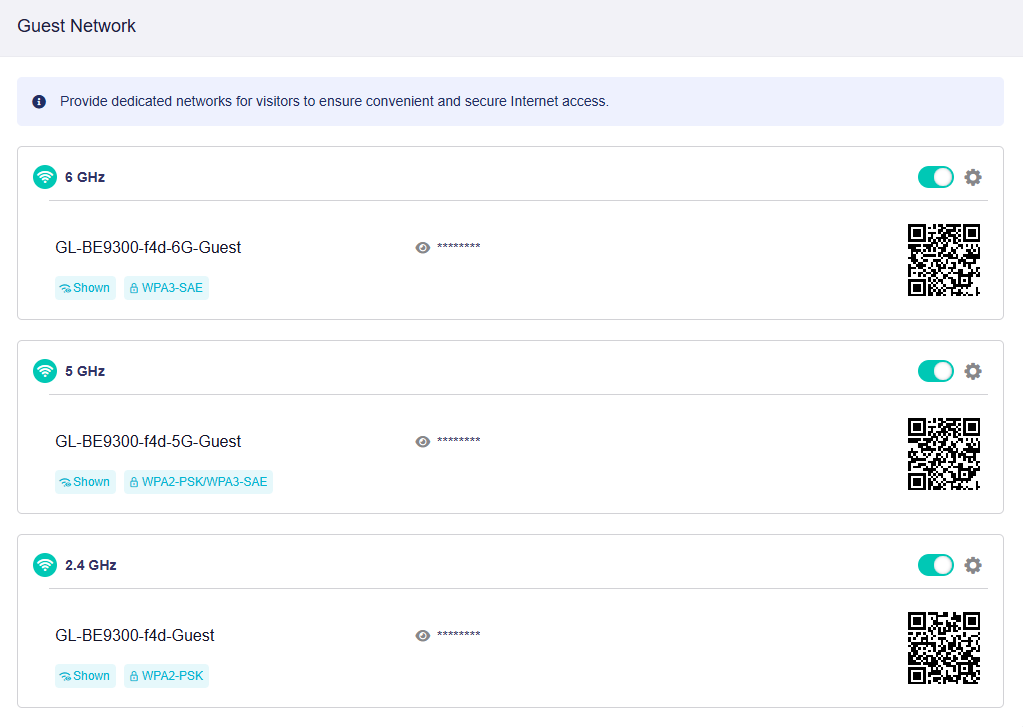
Guest Network
The Guest Network is a dedicated Wi-Fi network for visitors, with all bands disabled by default. You can enable and configure basic network settings for each band, such as the Wi-Fi SSID, security mode, password, and enable randomized BSSID.
Click Add to set up a Guest Wi-Fi network, then click Apply. Note that the available Wi-Fi bands vary by model.

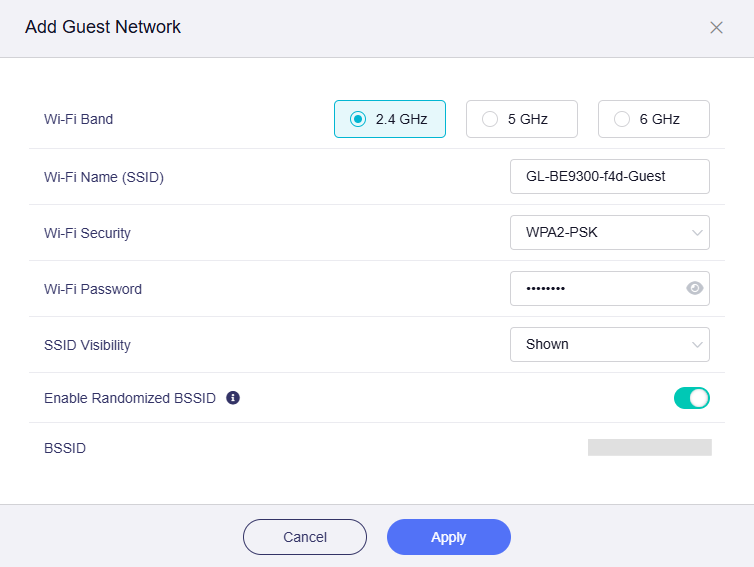
Once enabled, the page displays as follows.
IoT Network
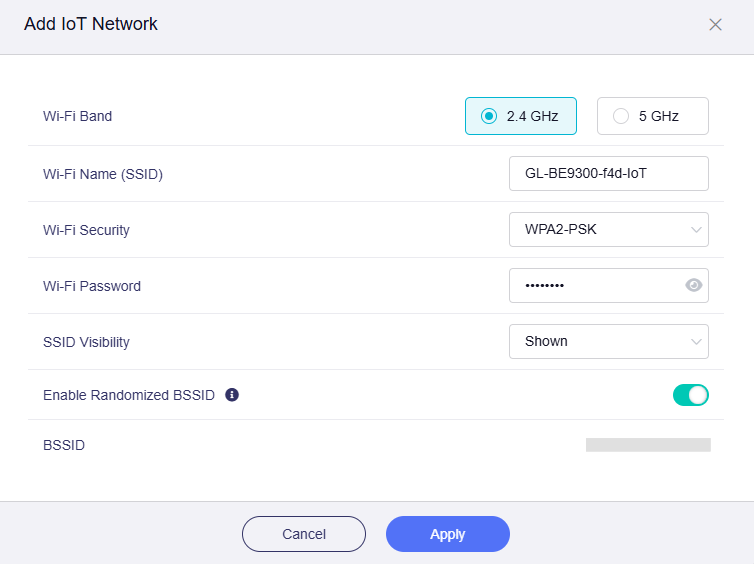
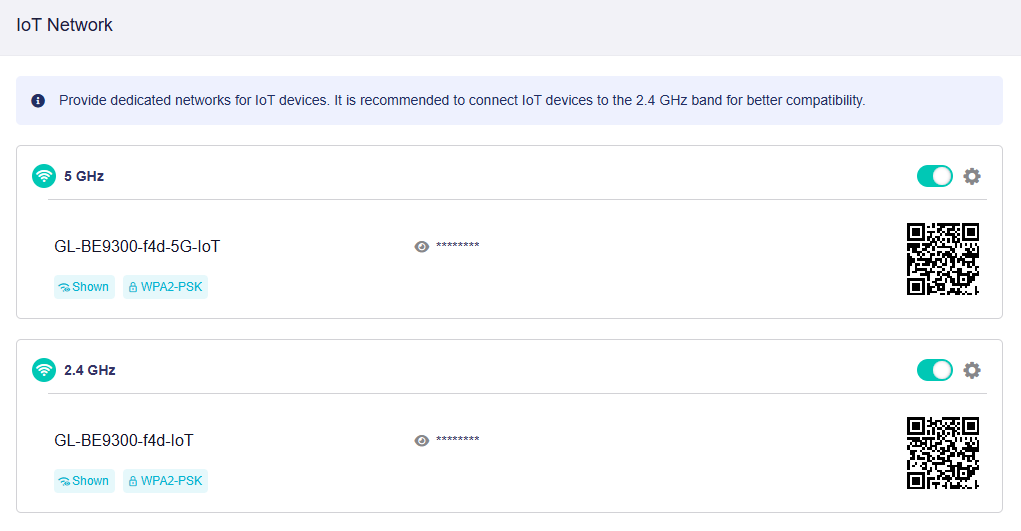
The IoT Network is a dedicated Wi-Fi network for smart devices, with all bands disabled by default. You can enable and configure basic network settings for each band, such as the Wi-Fi SSID, security mode, password, and enable randomized BSSID.
Click Add to set up an IoT Wi-Fi network, then click Apply. Note that this network does not include the 6 GHz band, and the available Wi-Fi bands vary by model.

Once enabled, the page displays as follows.
Still have questions? Visit our Community Forum.