AstroWarp
Note: This guide applies to the new version of AstroWarp. This feature was renamed to GoodPAS in firmware v4.11 (v4.10 for GL-MG1300).
The new AstroWarp is integrated into the GL.iNet router SDK. It adopts the AmneziaWG protocol with built-in traffic obfuscation, delivering stable and secure connections for reliable remote access anytime, anywhere.
This feature enables seamless remote access to your home network. You can directly set up and pair devices via a dynamic access code in the web Admin Panel, quickly establishing a secure connection between your travel router and home network in just seconds, with no registration or login required.
The legacy AstroWarp, while visible in the web Admin Panel, relied on a standalone AstroWarp platform to establish remote network connections. Click here for documentation on the legacy AstroWarp.
Note:
-
It is not recommended to use AstroWarp with any of the following features at the same time, as this may cause routing conflicts: OpenVPN Client, WireGuard Client, GoodCloud Site to Site, ZeroTier, Tailscale, Tor.
-
When AstroWarp is enabled, the Network Mode cannot be used.
-
When enabled, AstroWarp has the highest routing priority and cannot be cascaded with VPN Client.
For example, if Router A and Router B establish an AstroWarp network with Router B as the exit node, traffic forwarded through AstroWarp will exit to the Internet via Router B's WAN public IP, even when VPN Client is enabled on Router B. This traffic will not be forwarded through Router B's VPN Client tunnel.
Supported Models
Supported Models
These models are compatible with the new AstroWarp. To view the supported model list for the legacy AstroWarp, click here.
- GL-MT6000 (Fortify)
- GL-BE14000 (Flint 4)
- GL-MG1300 (Mango 2)
- GL-BE9300 (Flint 3)
- GL-BE3600 (Slate 7)
- GL-MT6000 (Flint 2)
- GL-MT5000 (Brume 3)
- GL-MT3600BE (Beryl 7)
- ※GL-X3000 (Spitz AX)
- ※GL-XE3000 (Puli AX)
- ※GL-X2000 (Spitz Plus)
- ※GL-AX1800 (Flint)
- ※GL-AXT1800 (Slate AX)
- ※GL-MT3000 (Beryl AX)
- ※GL-MT2500/GL-MT2500A (Brume 2)
Note: Models marked with ※ support the integrated AstroWarp in Beta firmware.
Unsupported Models
These devices are incompatible with the new AstroWarp, while certain models still work with the legacy AstroWarp. Refer to here for details.
- GL-BE10000 (Slate 7 Pro)
- GL-E5800 (Mudi 7)
- GL-BE6500 (Flint 3e)
- GL-B3000 (Marble)
- GL-A1300 (Slate Plus)
- GL-SFT1200 (Opal)
- GL-MT1300 (Beryl)
- GL-E750/E750V2 (Mudi)
- GL-X750/GL-X750V2 (Spitz)
- GL-AR750S (Slate)
- GL-XE300 (Puli)
- GL-MT300N-V2 (Mango)
- GL-AR300M Series (Shadow)
- GL-B1300 (Convexa-B)
- GL-AP1300 (Cirrus)
- GL-X300B (Collie)
Quick Setup
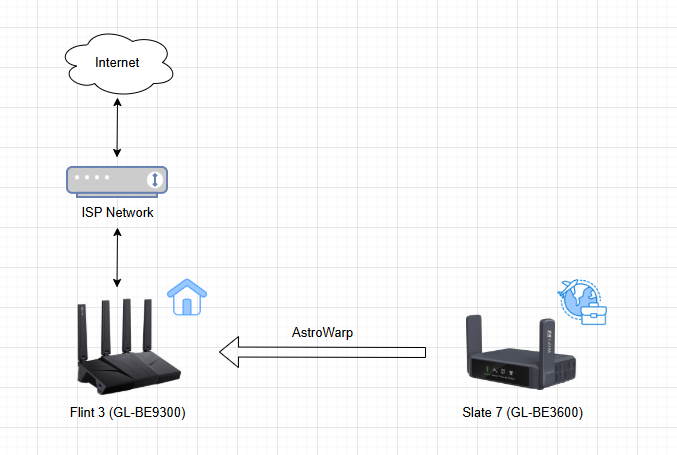
In the following example, we'll use Flint 3 (GL-BE9300) and Slate 7 (GL-BE3600) to set up an AstroWarp network.
Flint 3 will act as the home router, while Slate 7 will act as the travel router that routes network traffic back to Flint 3 for Internet access.
-
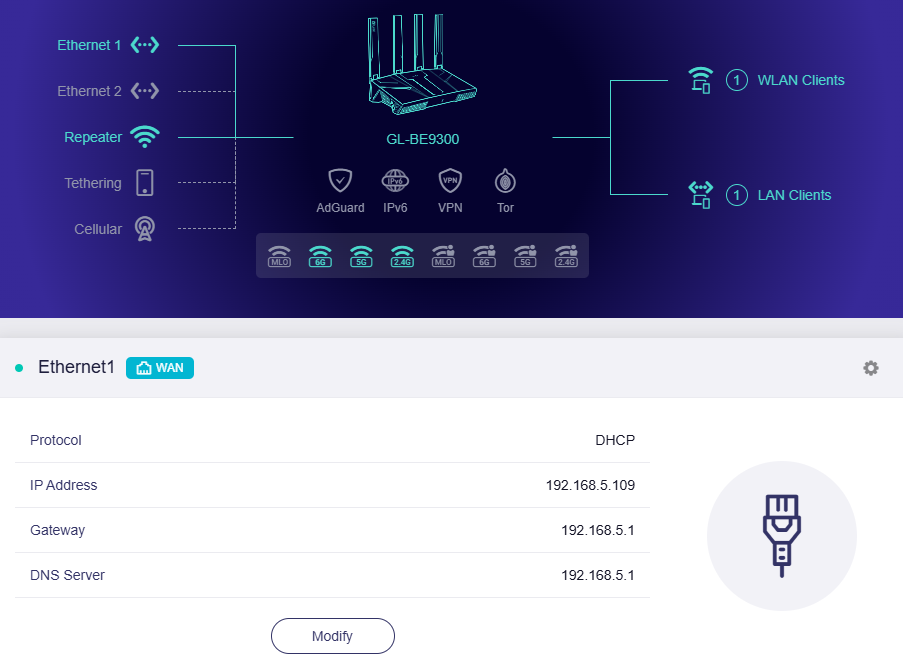
Configure Flint 3 for Internet.
Log in to the Flint 3's web admin panel and navigate to the INTERNET page. Connect it to the Internet using one of the supported internet connection methods: Ethernet, Repeater, Tethering, and Cellular.
As shown below, the Flint 3 home router is connected to the ISP modem (Hong Kong Broadband Network Ltd) via an Ethernet cable.
-
Generate Access Code.
On the Flint 3's web admin panel, navigate to CLOUD SERVICES -> AstroWarp. Click Use At Home.
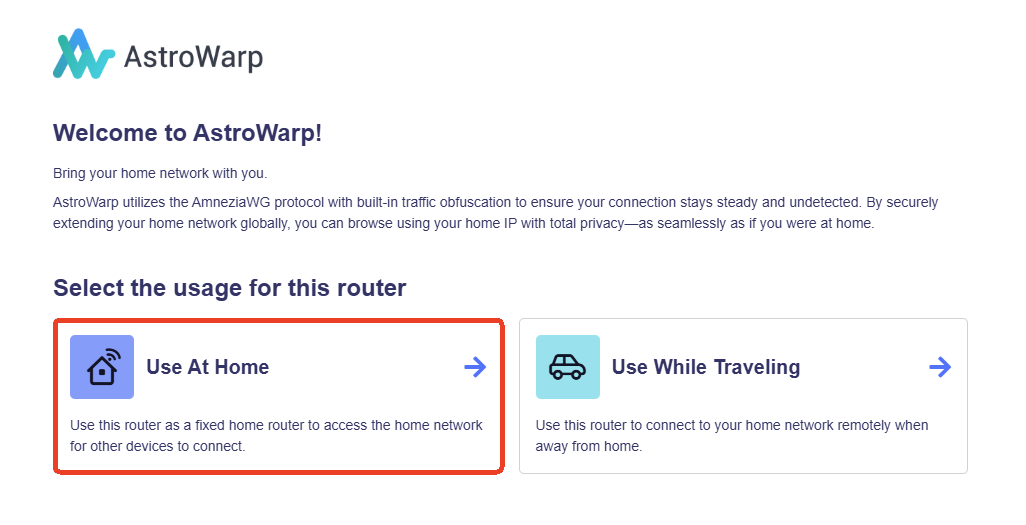
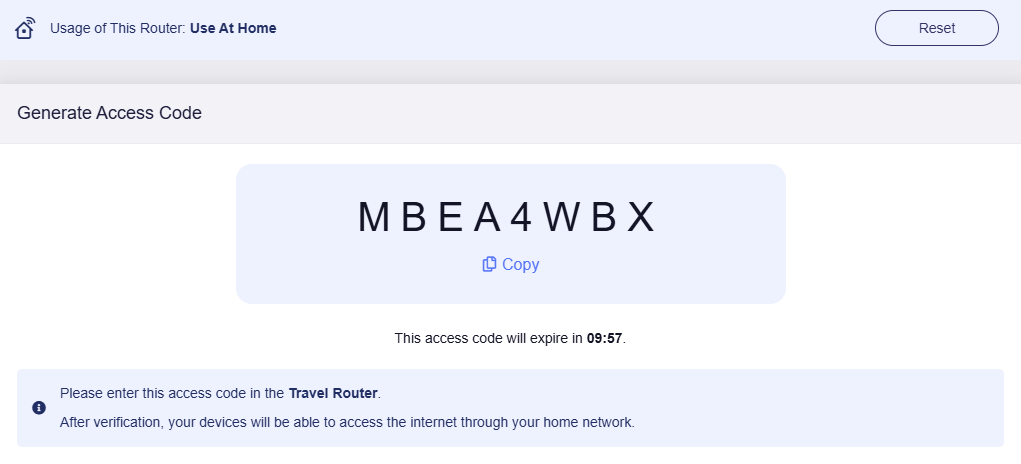
It will generate an Access Code. Copy this code for later use.
-
Configure Slate 7 for Internet.
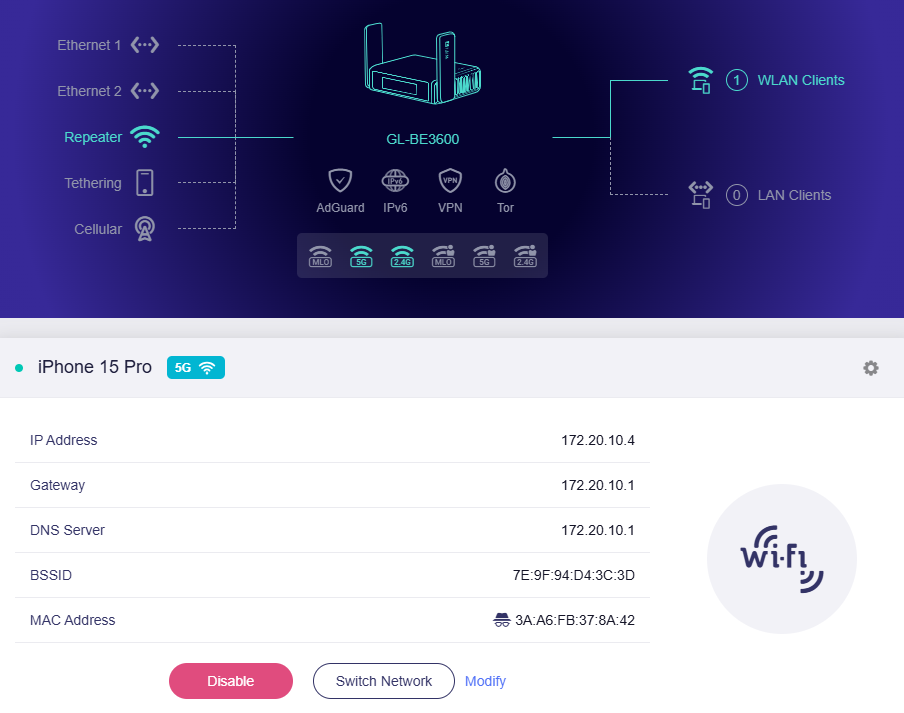
Log in to the Slate 7's web admin panel, and navigate to the INTERNET page. Connect it to the Internet using one of the supported internet connection methods: Ethernet, Repeater, Tethering, and Cellular.
As shown below, the Slate 7 travel router is connected to the personal hotspot of an iPhone 15 Pro (located in Shenzhen, using the China Unicom Guangdong Province network).
-
Enter Access Code.
On the Slate 7's web admin panel, navigate to CLOUD SERVICES -> AstroWarp. Click Use While Travelling.
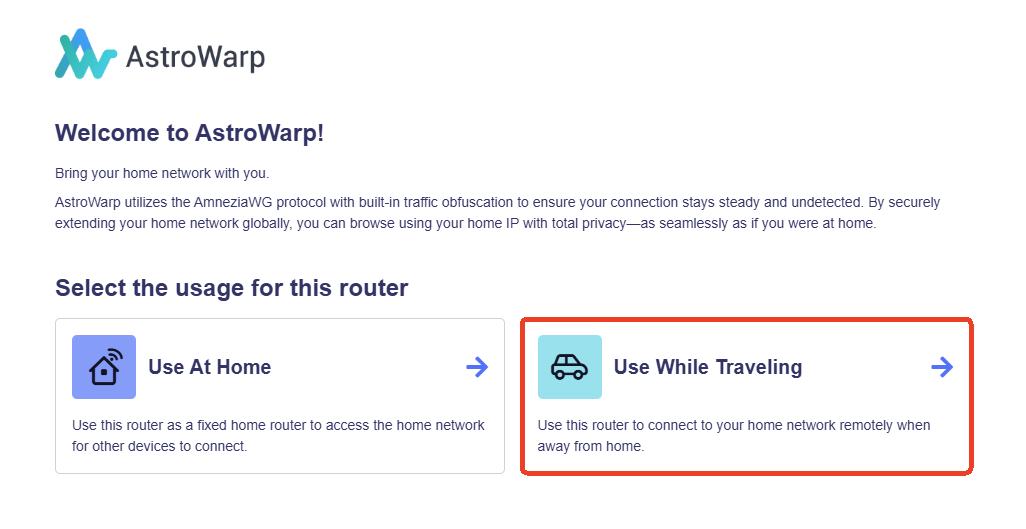
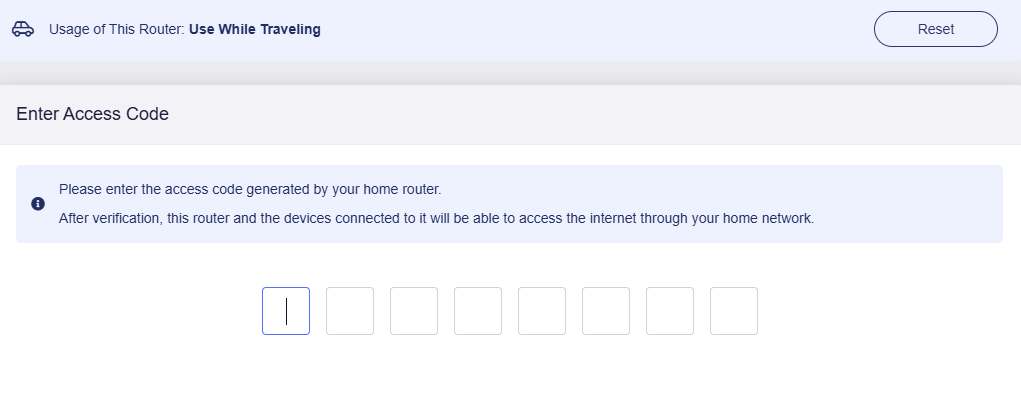
Enter the Access Code obtained in Step 2.
Wait for the verification to complete.
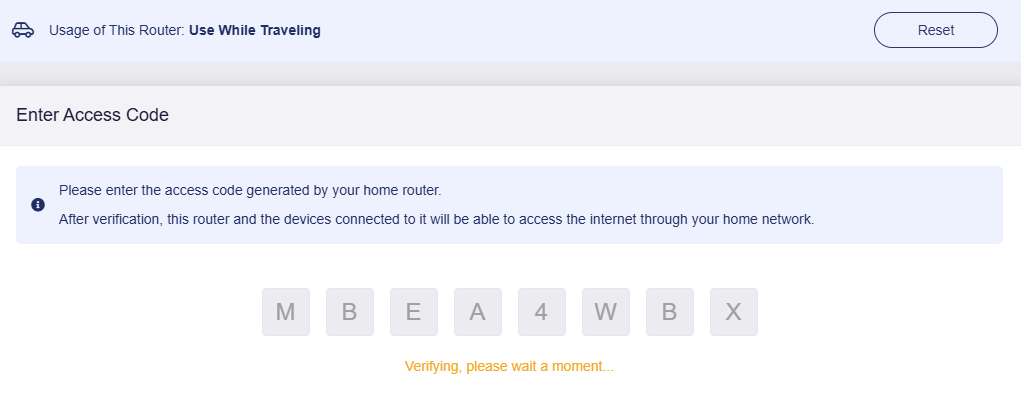
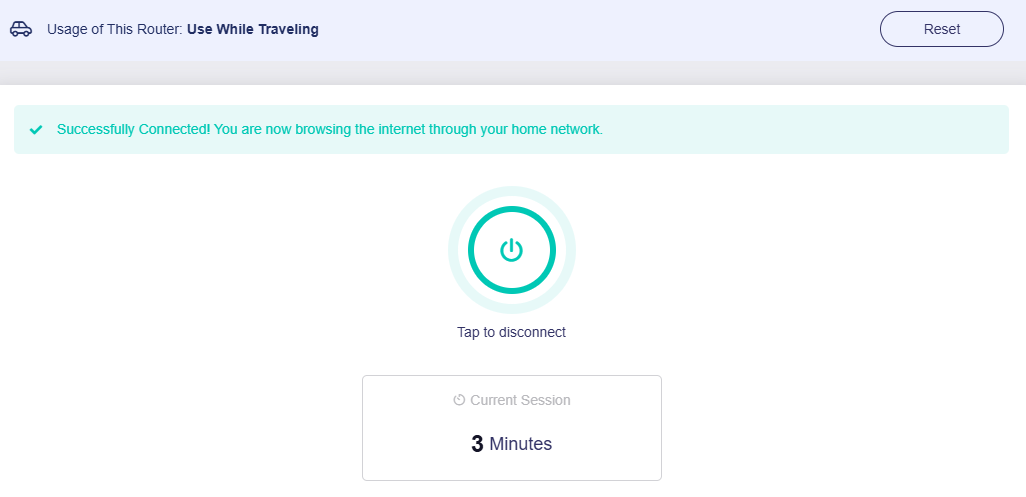
It will then connect to the Flint 3 home router successfully. Now you can browse the Internet through your home network securely.
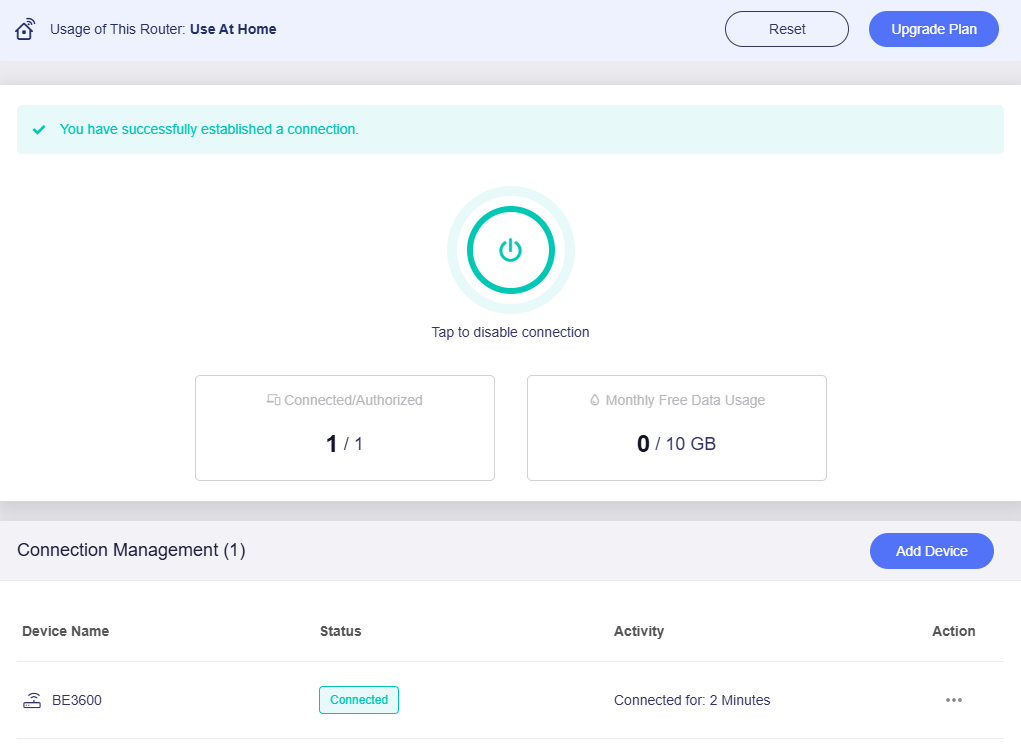
On the Flint 3's web admin panel, it also displays the connection status, as shown below.
Test Connectivity
-
Connect a laptop or smartphone to the Wi-Fi of the Slate 7 travel router.
-
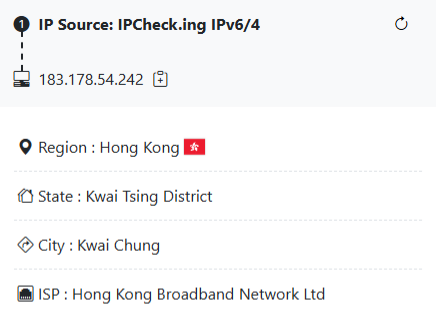
Open a browser and visit ipcheck.ing or any other IP address lookup website.
It will show the public IP address of Flint 3, indicating that Slate 7 is accessing the Internet through your Flint 3 home router.
-
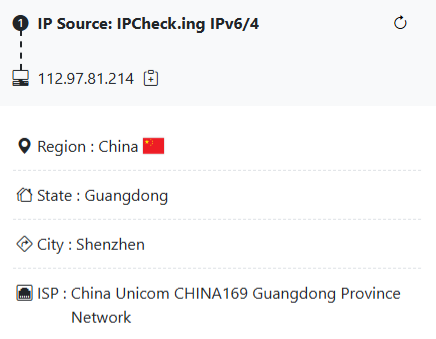
Disconnect the AstroWarp connection on Slate 7, then refresh the webpage to resubmit the IP query request.
It will show the public IP address of Slate 7, indicating that Slate 7 is accessing the Internet through its local network.
FAQ
-
Q: What is the format of the dynamic access code, and how long is it valid?
A: It is an 8-character code combining numbers and uppercase letters, valid for 10 minutes.
-
Q: What happens to the travel router if I terminate the connection on the home router?
A: The travel router will disconnect and be pending with no network access. Once the home router resumes connection, the travel router can reconnect automatically without entering the access code again.
-
Q: In what scenarios will the travel router enter pending state?
A: The travel router will enter pending state when the home router meets any of the following conditions:
- Terminates the AstroWarp connection
- Loses internet access
-
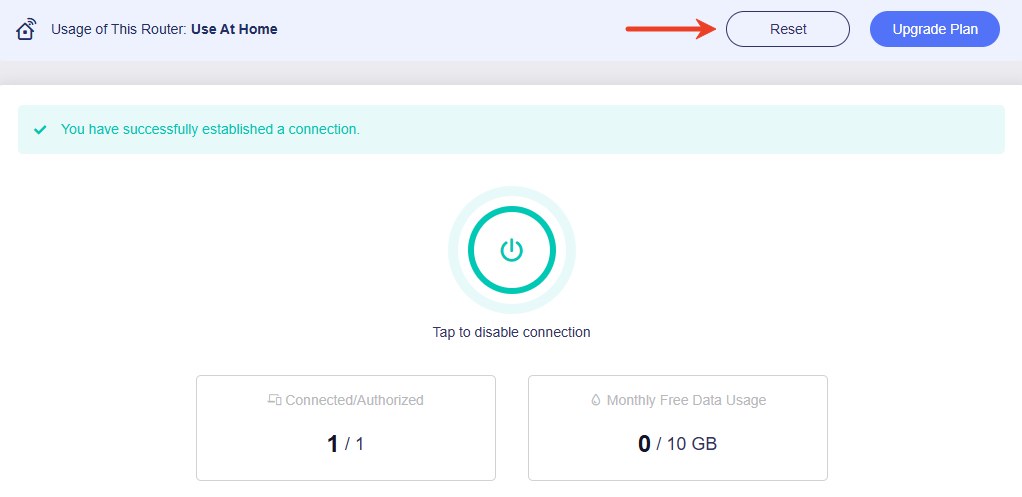
Q: What does the Reset button in the top right corner do?
A: It will clear all authorized devices and revert to the router role selection page for re-selection.
-
Q: What happens to the travel router if I reset the AstroWarp on the home router?
A: Once the home router is reset, the remotely connected devices will be disconnected from the AstroWarp network and revert to their local network for internet access.
-
Q: If I have enabled the new AstroWarp in the router's web Admin Panel, how do I disable it and switch back to the legacy AstroWarp?
A: In the router's web Admin Panel, go to CLOUD SERVICES -> AstroWarp and click Reset in the top right corner.
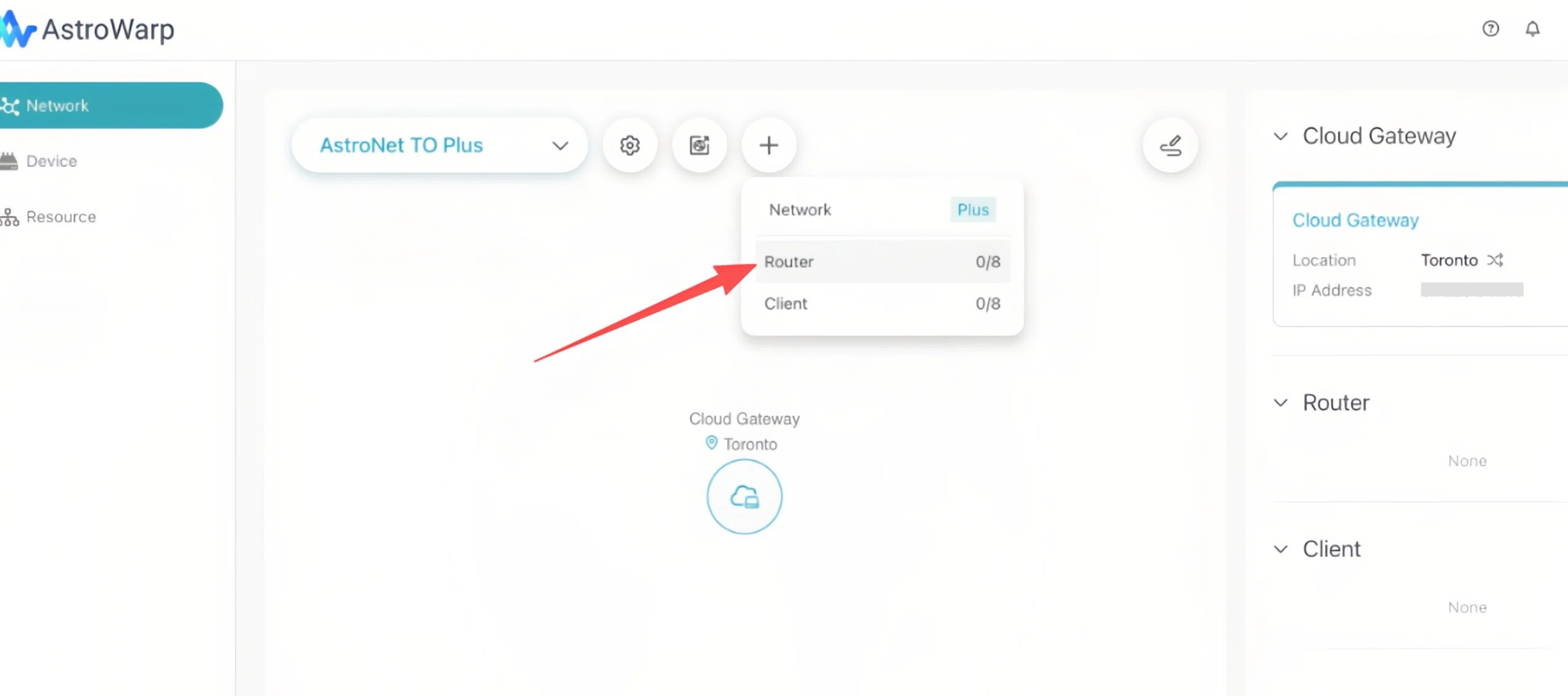
Then log in to astrowarp.net using your cloud account. After login, click the "+" button to add the router to your AstroWarp network.
Still have questions? Visit our Community Forum or Contact us.