SQM (Smart Queue Management)
Note: This feature was introduced in firmware v4.9.
Some models, such as Mango 2 (GL-MG1300), do not support SQM due to insufficient memory, even when running firmware v4.9 or later.
On the left side of the web Admin Panel, go to FLOW CONTROL -> SQM.
SQM (Smart Queue Management) intelligently manages your router's network traffic to minimize latency and "bufferbloat", ensuring smoother gaming and voice calls.
Note:
- This feature only affects traffic passing through the router when it operates as a gateway, including local client traffic and VPN client traffic. It does not apply to inbound traffic when the router acts as a VPN server.
- Since SQM is resource-intensive, it works best for low-bandwidth or congested networks. Enabling it on high-speed connections may reduce peak throughput.
- SQM will not take effect when the router is in Drop-in Gateway mode.
- SQM and QoS cannot be enabled simultaneously.
- SQM cannot work with Network Acceleration. Enabling SQM will automatically disable Network Acceleration to ensure stable performance.
Supported Models
Supported Models
- GL-MT6000 (Fortify)
- GL-BE14000 (Flint 4)
- GL-BE10000 (Slate 7 Pro)
- GL-E5800 (Mudi 7)
- GL-MT5000 (Brume 3)
- GL-MT3600BE (Beryl 7)
- GL-BE6500 (Flint 3e)
- GL-BE9300 (Flint 3)
- GL-BE3600 (Slate 7)
- GL-MT6000 (Flint 2)
- GL-MT3000 (Beryl AX)
Unsupported Models
- GL-MG1300 (Mango 2)
- GL-X2000 (Spitz Plus)
- GL-X3000 (Spitz AX)
- GL-XE3000 (Puli AX)
- GL-B3000 (Marble)
- GL-AX1800 (Flint)
- GL-AXT1800 (Slate AX)
- GL-SFT1200 (Opal)
- GL-MT1300 (Beryl)
- GL-E750/E750V2 (Mudi)
- GL-AR750S (Slate)
- GL-XE300 (Puli)
- GL-X750 (Spitz)
- GL-MT300N-V2 (Mango)
- GL-AR300M Series (Shadow)
- GL-B1300 (Convexa-B)
- GL-X300B (Collie)
- GL-A1300 (Slate Plus)
- GL-MT2500/GL-MT2500A (Brume 2)
- GL-AP1300 (Cirrus)
- GL-S1300 (Convexa-S)
For firmware v4.11 and above
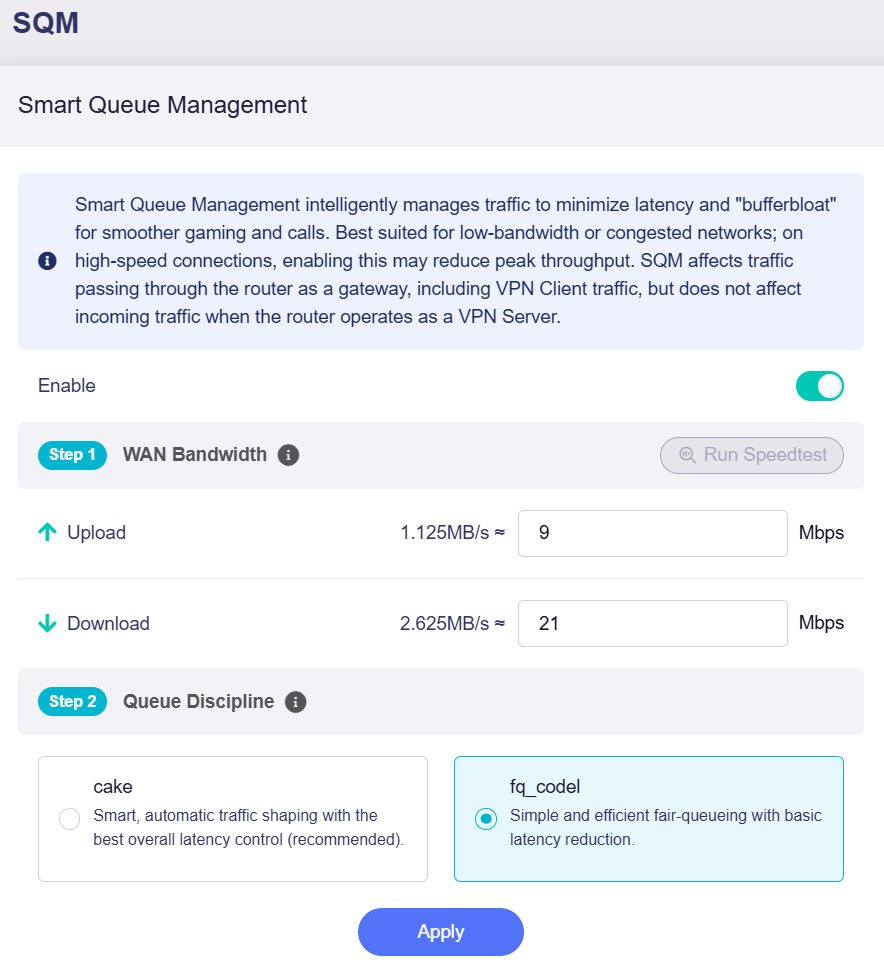
Toggle the switch to enable SQM, then complete the configuration following the steps below.
-
WAN Bandwidth
Enter your WAN upload and download speeds (input range: 1 - 10000) manually, or click Run Speedtest to measure them and automatically populate the fields. An active internet connection is required to run the speed test.
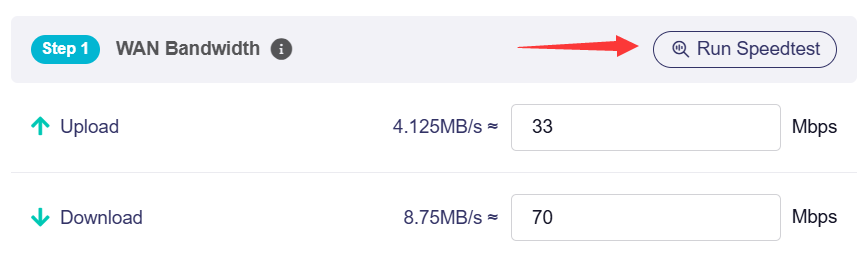
Note: Values entered in the input field are in Mbps (megabits per second). The equivalent MB/s (megabytes per second) is displayed for your reference.
-
Queue Discipline
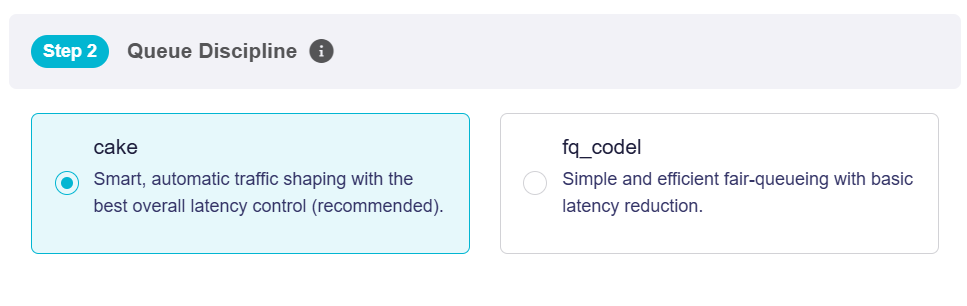
Select a queueing rule to manage traffic and reduce latency under load.
-
cake: Smart, automatic traffic shaping with superior overall latency control (recommended).
When cake is selected as the queue discipline, Cake Autorate is available as an optional feature.
Cake Autorate is a latency-driven shaper that reduces or raises CAKE bandwidth in real time based on probe RTT. No active speed tests are performed; only lightweight pings are used. Recommended whenever the WAN bandwidth fluctuates; not needed on stable links.
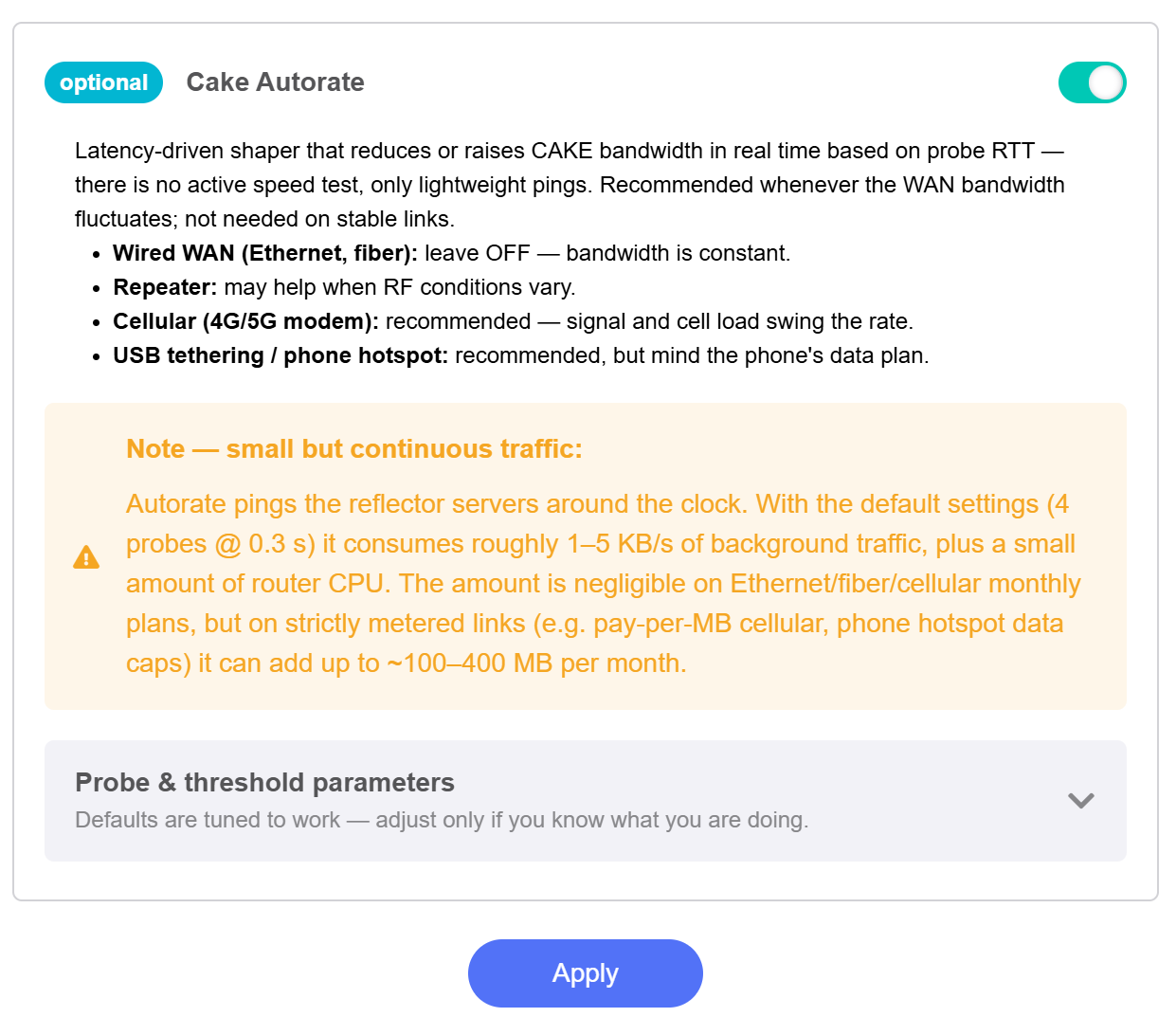
Note: Cake Autorate generates continuous background probe traffic. Consider this additional data usage when using a metered connection.
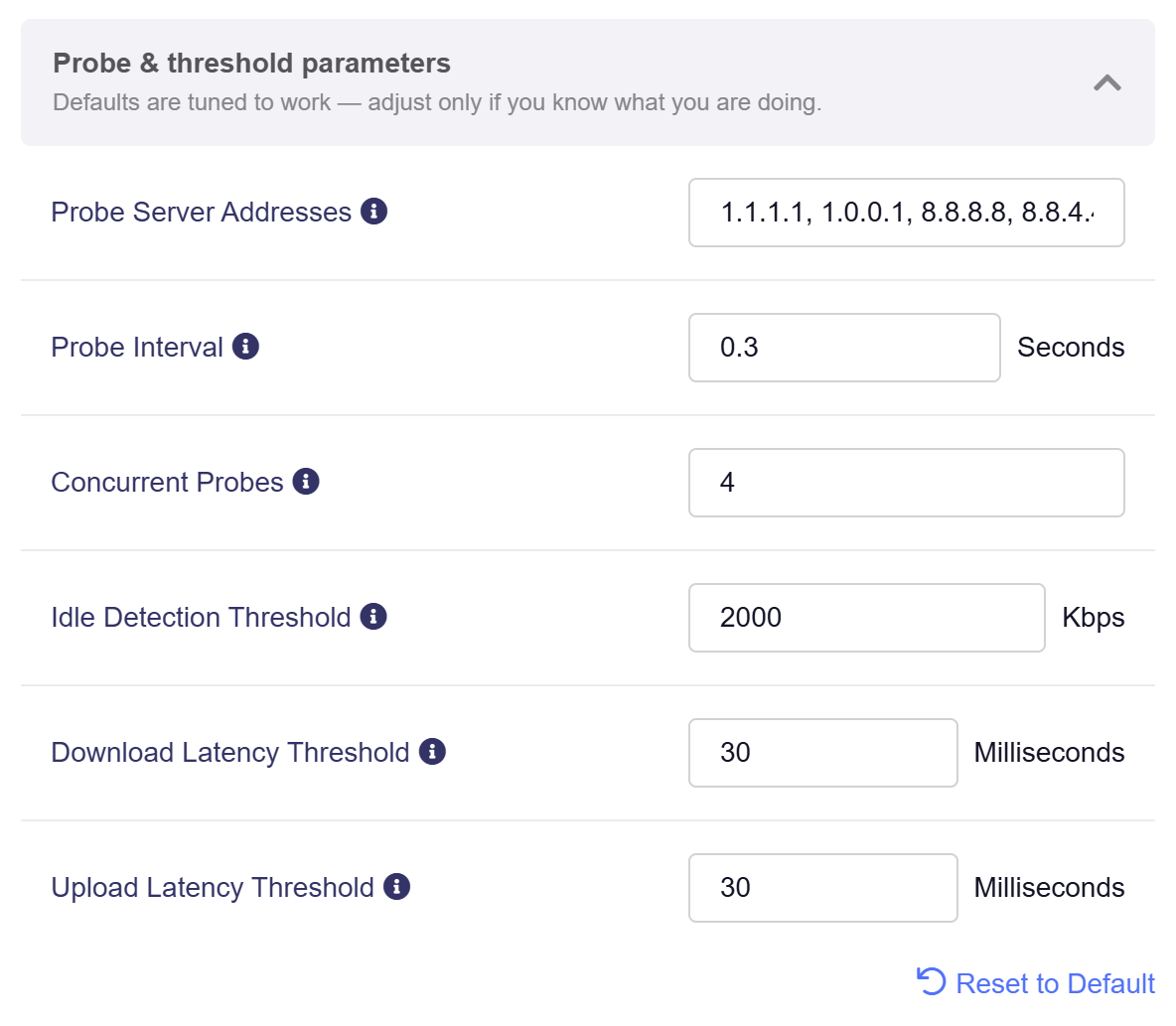
The default settings are suitable for most connections. Only change the following parameters if you understand how they affect Cake Autorate. If needed, click Reset to Default to restore the default probe and threshold settings.
-
Probe Server Addresses: A list of IP addresses separated by commas, used for network quality probing.
-
Probe Interval: Shorter intervals enable faster response but consume more CPU resources.
-
Concurrent Probes: The number of concurrent probes must not exceed the number of probe servers; higher values increase CPU load.
-
Idle Detection Threshold: When the transfer rate falls below this value, the connection will be considered idle. This value must not exceed 25% of the configured speed limit.
-
Download Latency Threshold: When download latency exceeds this threshold, bandwidth reduction is triggered.
-
Upload Latency Threshold: When upload latency exceeds this threshold, bandwidth reduction is triggered.
-
-
fq_codel: Simple, efficient fair queueing with basic latency reduction.
-
For firmware v4.9 to v4.10
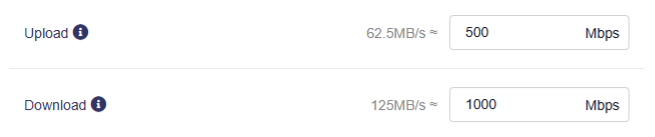
Toggle the switch to enable SQM, and set your maximum upload and download speeds (input range: 1 - 10000) for traffic scheduling. Match them to your actual internet bandwidth for the best results.
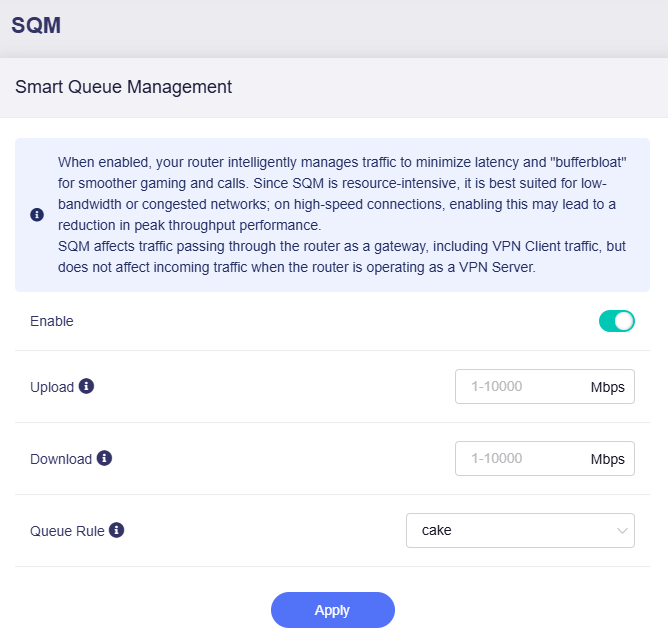
Note: Values entered in the input field are in Mbps (megabits per second). The equivalent MB/s (megabytes per second) is displayed for your reference.
For Queue Rule, two options are available:
-
cake: Smart, automatic traffic shaping with superior overall latency control (recommended).
-
fq_codel: Simple, efficient fair queueing with basic latency reduction.
Tip
A difference between QoS and SQM settings is that the QoS allows you to set the application priorities, with the router allocating bandwidth accordingly; while the SQM allows you to select a queue rule.
Still have questions? Visit our Community Forum or Contact us.