Display Management
Note: This page is only available on models equipped with touchscreen.
On the left side of the web Admin Panel, go to SYSTEM -> Display Management.
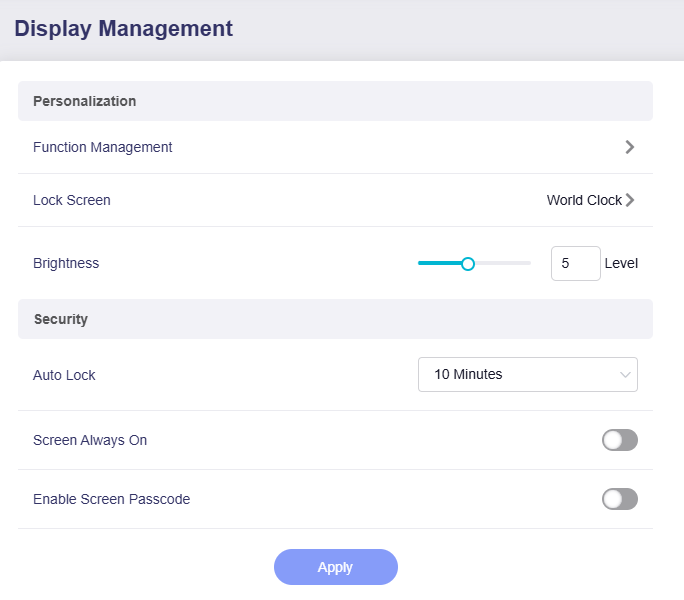
This page lets you manage the touchscreen display and its related settings.
GL-BE14000
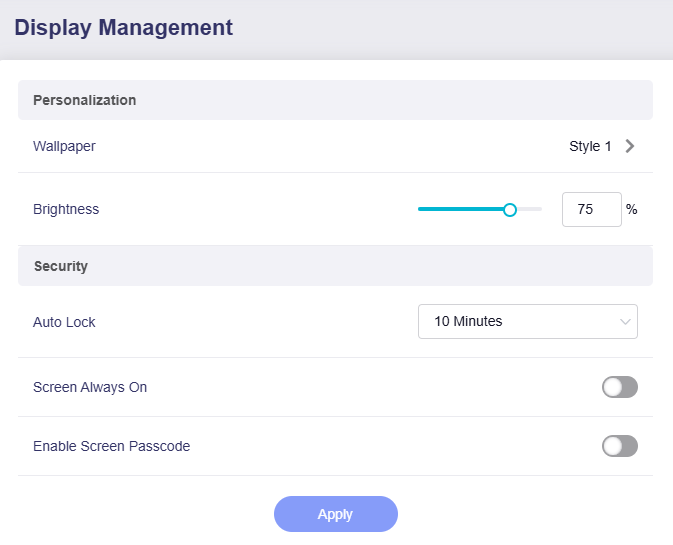
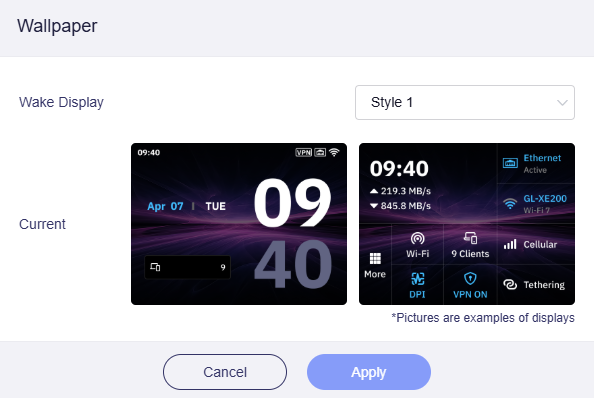
- Wallpaper: Customize the wallpaper and wake display style.
- Brightness: Adjust the touchscreen brightness. Use the slider or enter a percentage to fit different lighting conditions.
- Auto Lock: Set the time delay for the screen to auto-lock when there is no activity. The range is 1 to 30 minutes.
- Screen Always On: Toggle this option to decide if the touchscreen stays on continuously or turns off after inactivity.
- Enable Screen Passcode: Enable a passcode (4-digit number only) for the touchscreen if needed.
GL-BE10000
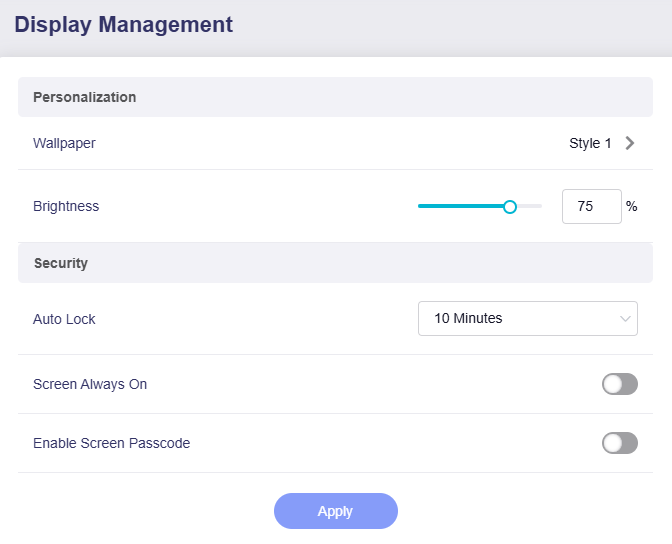
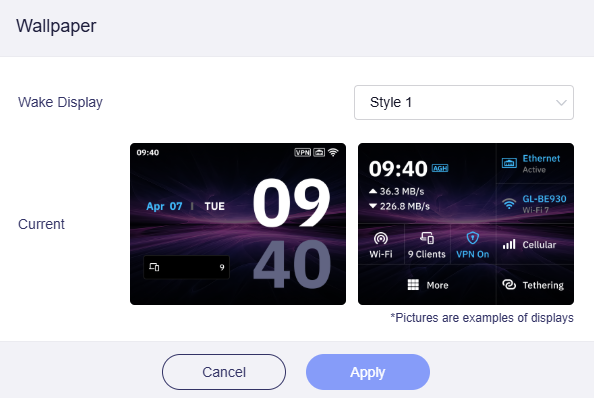
- Wallpaper: Customize the wallpaper and wake display style.
- Brightness: Adjust the touchscreen brightness. Use the slider or enter a percentage to fit different lighting conditions.
- Auto Lock: Set the time delay for the screen to auto-lock when there is no activity. The range is 1 to 30 minutes.
- Screen Always On: Toggle this option to decide if the touchscreen stays on continuously or turns off after inactivity.
- Enable Screen Passcode: Enable a passcode (4-digit number only) for the touchscreen if needed.
GL-BE3600
-
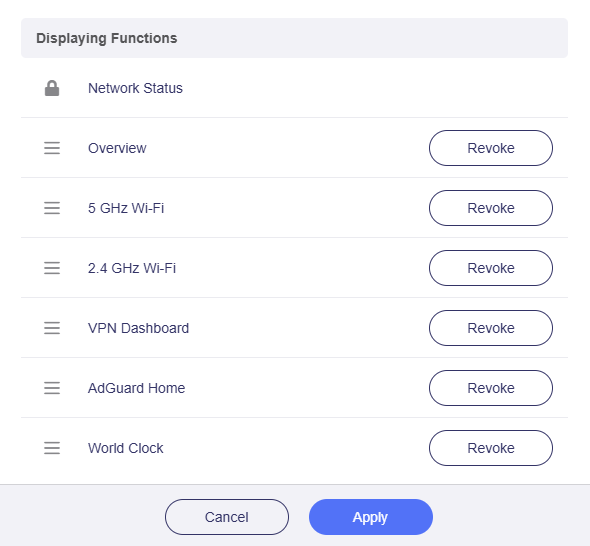
Function Management: Manage which functions are shown on the touchscreen. Click and drag the three‑line icon on the left to reorder them if needed.
-
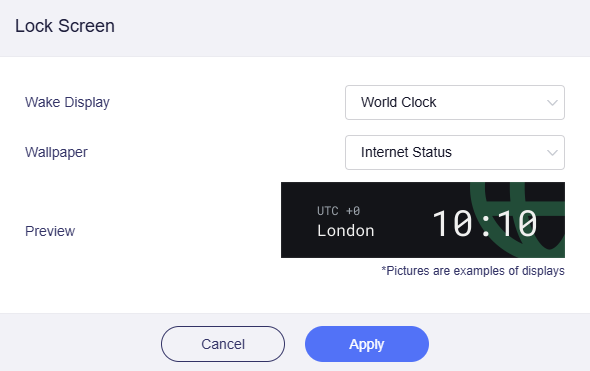
Lock Screen: Customize the lock-screen settings, including the wake display and wallpaper.
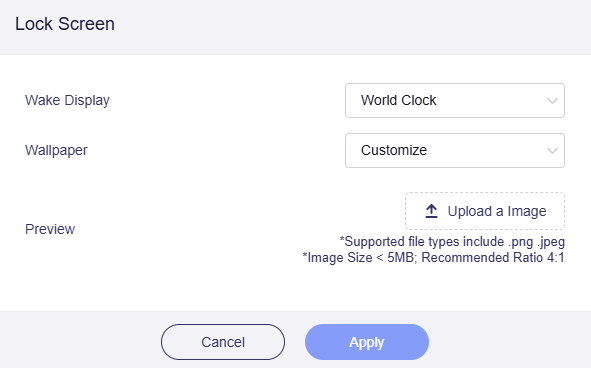
Switch the wallpaper to Customize, and you can upload an image with a size not exceeding 5MB.
-
Brightness: Adjust the touchscreen brightness. Use the slider or enter a specific level (range from 1 to 10) to fit different lighting conditions.
- Auto Lock: Set the time delay for the screen to auto-lock when there is no activity. The range is 1 to 30 minutes.
- Screen Always On: Toggle this option to decide if the touchscreen stays on continuously or turns off after inactivity.
- Enable Screen Passcode: Enable a passcode (4-digit number only) for the touchscreen if needed.
GL-E5800
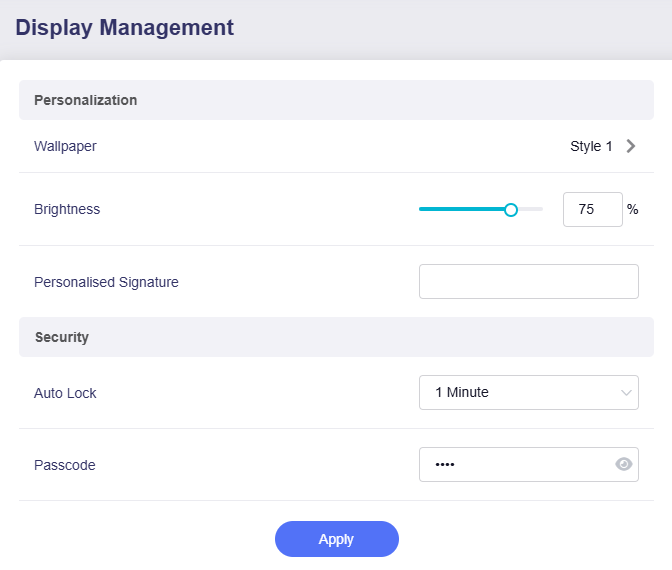
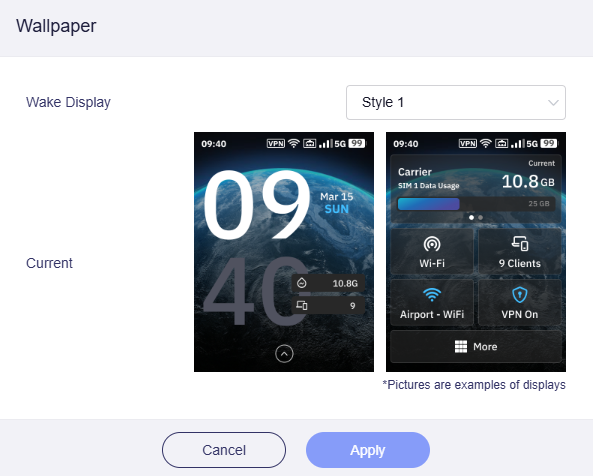
- Wallpaper: Customize the wallpaper and wake display style.
- Brightness: Adjust the touchscreen brightness. Use the slider or enter a percentage to fit different lighting conditions.
- Personalised Signature: Add a custom text to the touchscreen to show your unique style or for quick identification.
- Auto Lock: Set the time delay for the screen to auto-lock when there is no activity. The range is 15 seconds to 5 minutes.
- Passcode: Set a passcode for the touchscreen. This passcode is required to protect your privacy and data security.
Still have questions? Visit our Community Forum or Contact us.