eSIM Management
Note:
-
This guide applies to models that support the GL.iNet physical eSIM card.
-
GL-E5800 (Mudi 7) comes with a built-in eSIM and does not support the GL.iNet physical eSIM card. An eSIM physical card will be recognized as a regular SIM without eSIM functionality on Mudi 7.
Supported Models
Supported Models
- GL-X2000 (Spitz Plus)
- GL-X3000 (Spitz AX)
- GL-XE3000 (Puli AX)
- GL-E750V2 (Mudi V2)
- ※ GL-E750 (Mudi)
- ※ GL-XE300 (Puli)
- ※ GL-X750 (Spitz)
- ※ GL-X300B (Collie)
Note:
-
For models marked with ※, support for physical eSIM cards depends on the module in use.
-
If using EC25-AF, EC25-E, or EG25-G module, please install the eSIM-supported firmware before using them with eSIM physical card. Contact us for more instructions.
-
If using EP06-E module, please refer to this link to upgrade the module's firmware first, then install the eSIM-supported firmware.
-
If using EP06-A module, they do not support eSIM physical card because the Qualcomm software lacks the required AT command support.
-
-
GL-E750V2 vSIM does not support eSIM physical card.
-
GL-E5800 (Mudi 7) comes with a built-in eSIM. Therefore, the eSIM physical card will be recognized as a regular SIM card without eSIM functionality on Mudi 7.
eSIM Management
On the left side of the web Admin Panel, go to APPLICATIONS -> eSIM Management.
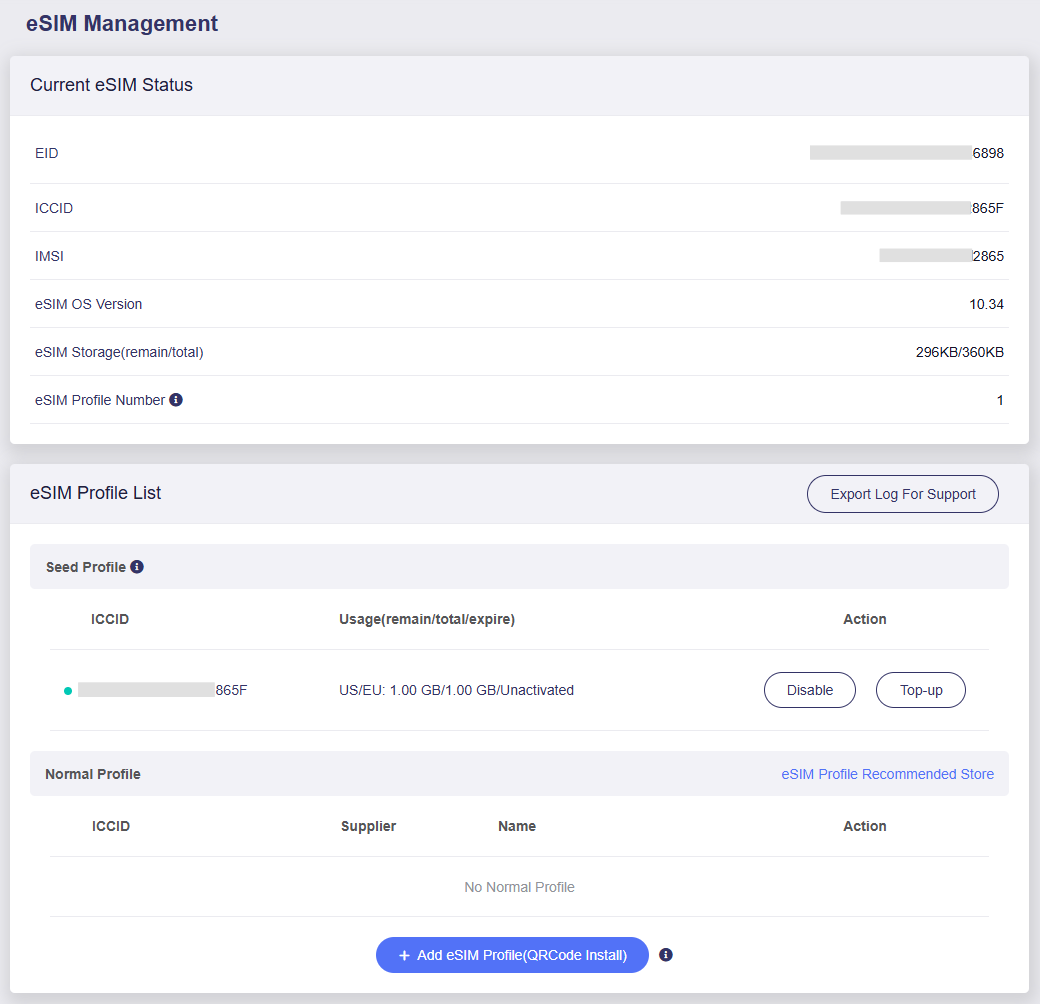
This page allows you to check eSIM physical card status and manage eSIM profiles. It consists of two parts: Current eSIM Status and eSIM Profile List.
Current eSIM Status
This section displays basic information and details about the currently active eSIM profile.
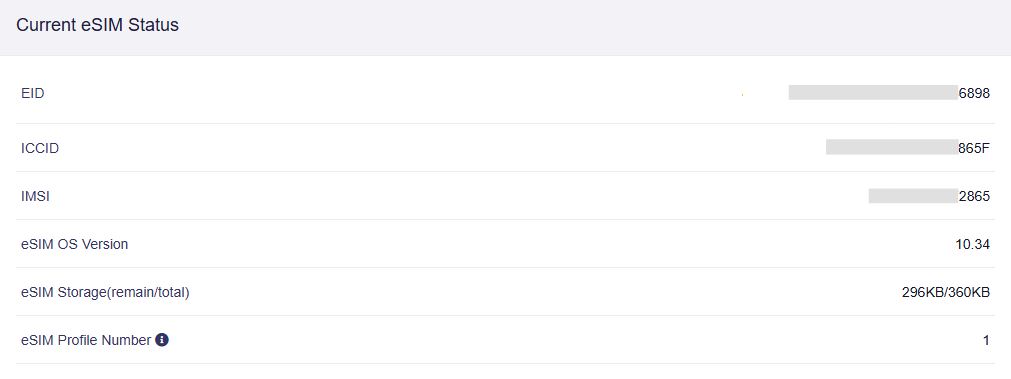
- EID: The globally unique identifier of the eUICC (eSIM chip), used for identification and profile management.
- ICCID: The Integrated Circuit Card Identifier of the currently active eSIM profile.
- IMSI: The International Mobile Subscriber Identity of the currently active eSIM profile.
- eSIM OS Version: The operating system version of the eUICC, which defines its compatibility and supported capabilities.
- eSIM Storage (remain/total): Available and total storage capacity on the eUICC for storing eSIM profiles.
- eSIM Profile Number: Number of eSIM profiles currently stored on the eUICC. Note that eSIM profiles offered by different carriers vary in size, so the number of profiles that can be stored on the eUICC will also differ.
eSIM Profile List
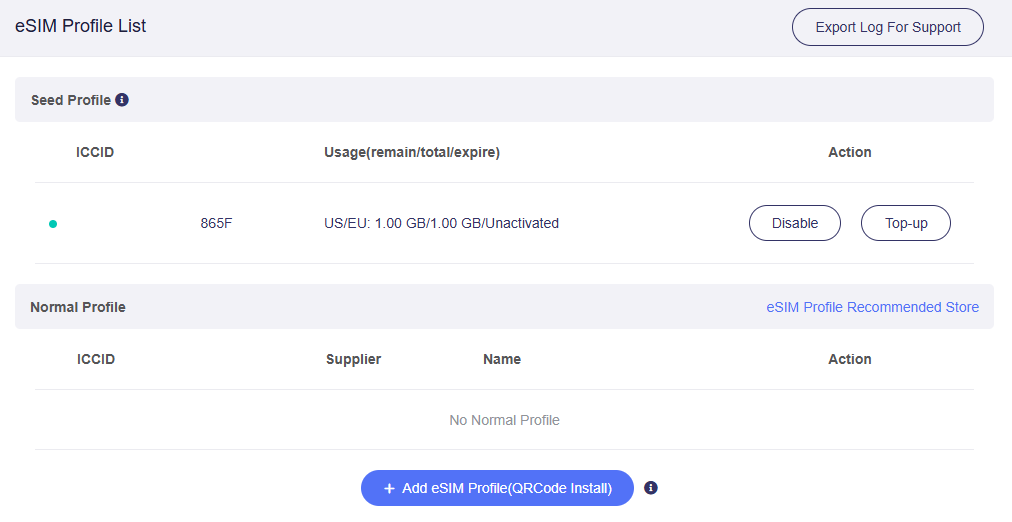
This section displays information about the eSIM seed profile and normal profiles.
-
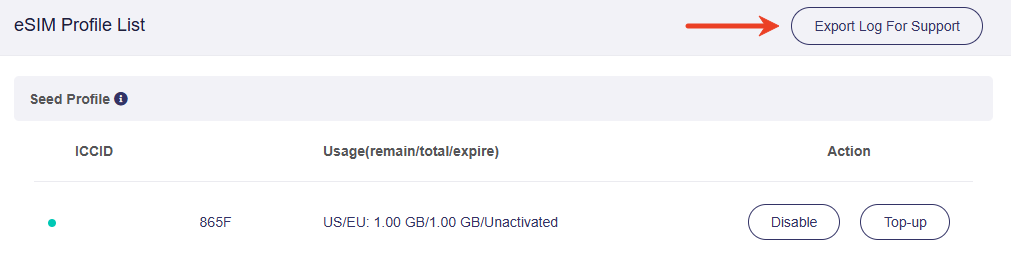
Seed Profile: The seed profile comes preloaded with 1GB of free data for the U.S. and Europe, plus 100MB of global data, valid for 1 year from the date of activation. This data allows you to download other profiles anywhere in the world. You can also monitor usage of the seed profile, including remaining data, total data allowance, and expiration date.
-
Normal Profile: If you purchase an eSIM profile and upload it via a QR code or activation code, the profile will be displayed here.
Top-up Seed Profile
GL.iNet provides a preloaded seed profile with 100MB of global data and 1GB of data valid in Europe and the U.S. for initial setup and eSIM profile activation. This plan is designed for downloading new eSIM profiles when you arrive at a destination with no internet access.
If you have used up the preloaded free data, or if the free data has expired and you wish to continue using the service, you can top up your seed profile.
In the Seed Profile section, click the Top-up button on the right.
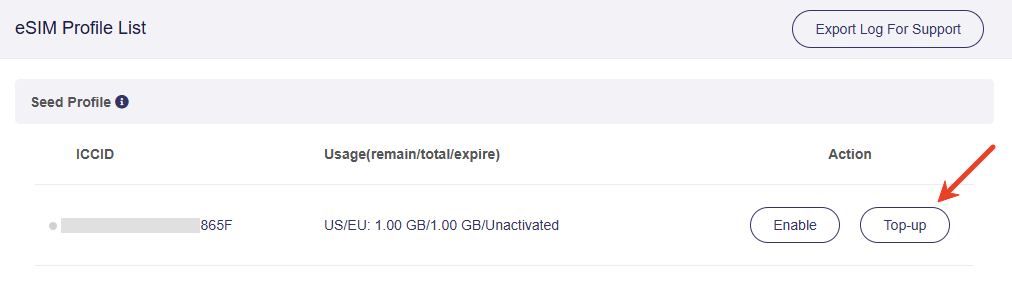
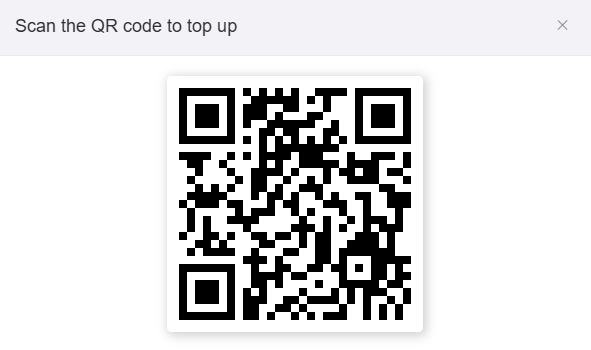
In the pop-up window, scan the QR code and follow the instructions to complete your top-up.
Purchase eSIM Profile
You can purchase eSIM profiles from our recommended stores, tested stores, or other third-party eSIM providers.
Option 1: Purchase from our recommended stores
There are two recommended stores: EIOTCLUB eSIM Store and Tuge eSIM Store.
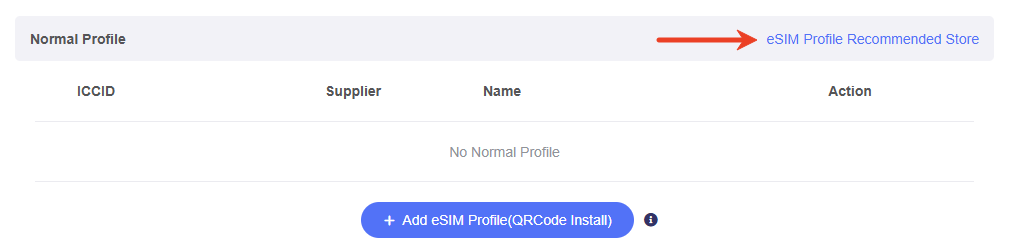
In the Normal Profile section, click eSIM Profile Recommended Store on the right.
Scan the QR code or click the links to purchase eSIM profiles.
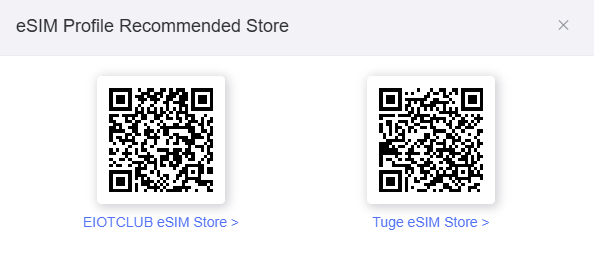
Note: All eSIM profile packages purchased from these two stores are fully compatible with GL.iNet routers. If you have any questions, contact our support team at support@gl-inet.com.
Option 2: Purchase from tested stores
Refer to this link to view a list of stores tested by GL.iNet.
Note: We cannot guarantee full compatibility with GL.iNet routers for all profiles or packages from these stores. Since GL.iNet does not have partnerships with them, we cannot provide after-sales support or assist with refunds.
Option 3: Purchase from other third-party eSIM providers
You can also choose to buy eSIM profiles from other third-party providers of your choice.
However, we cannot guarantee full compatibility with GL.iNet routers for eSIM profiles purchased from other third-party providers. Please purchase at your own discretion. GL.iNet is not responsible for any incompatibility issues.
For after-sales support or refunds, please contact the corresponding eSIM provider.
Upload eSIM Profile
After purchasing an eSIM profile, you will typically receive a QR code (or an activation code). Save this QR code locally, then follow the steps below to upload your eSIM profile.
-
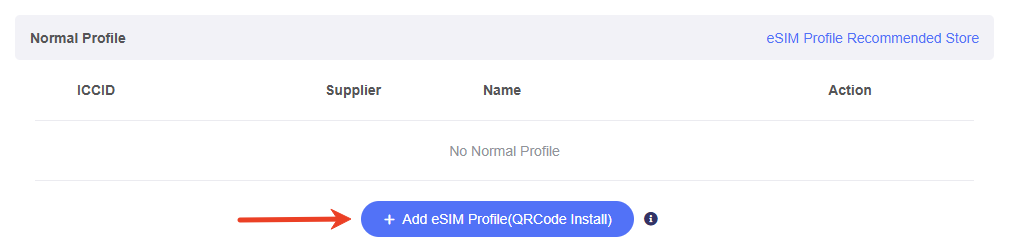
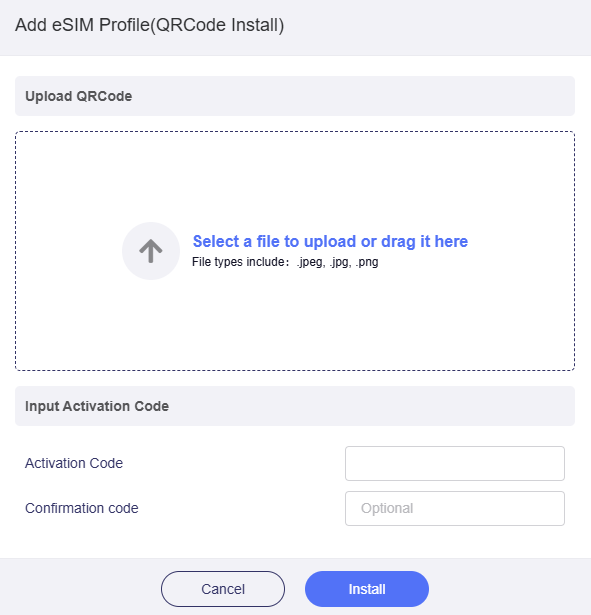
In the Normal Profile section, click Add eSIM Profile at the bottom.
-
Upload your eSIM QR code or enter the activation code, then click Install. It will then download and install the eSIM profile onto your router.
Note:
-
Most eSIM profiles can only be downloaded and installed once.
-
A properly formatted QR code will display an activation code that starts with LPA:. However, some non-standard QR codes may only provide a raw activation code without the LPA prefix. In this case, manually add
LPA:at the beginning of the code before clicking the Install button.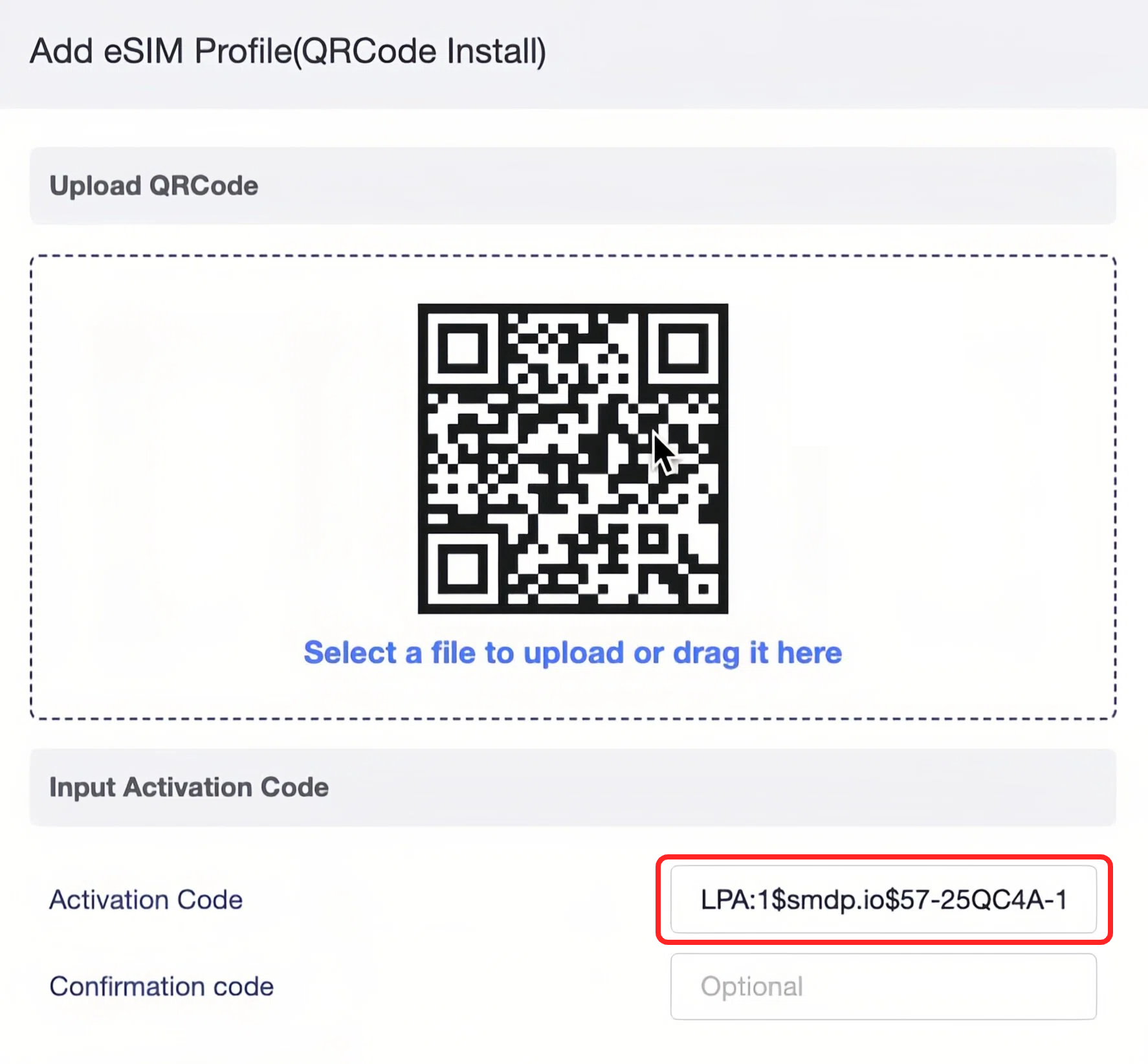
-
If you haven't purchased any eSIM profile, you may purchase one from the eSIM Profile Recommended Store. Click here for details.
-
-
Enable your eSIM Profile.
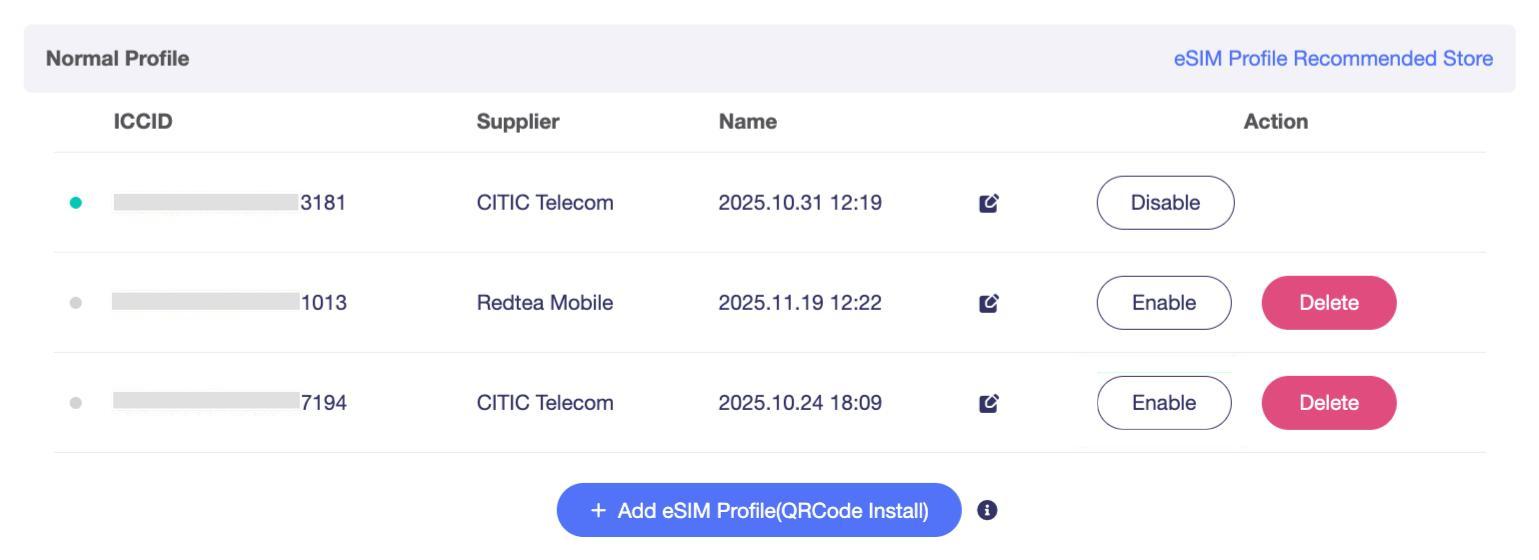
After successful upload, your new eSIM profile will appear in the Normal Profile list. Click Enable to activate it.
-
Connect to the Internet.
After enabling your eSIM profile, go to INTERNET -> Cellular. Click Connect to establish an internet connection via your eSIM profile.
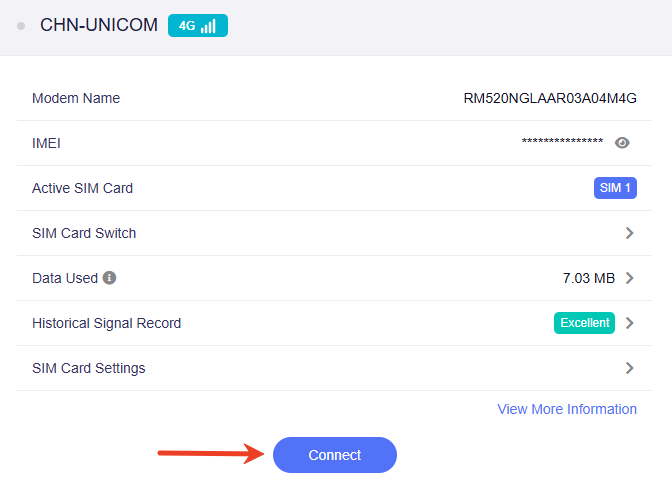
Note: Some eSIM profiles may require additional configuration, such as APN, PIN, or TTL settings. If needed, click Manual Setup or SIM Card Settings to adjust these parameters. In some cases, you may need to reboot the device to establish an internet connection.
-
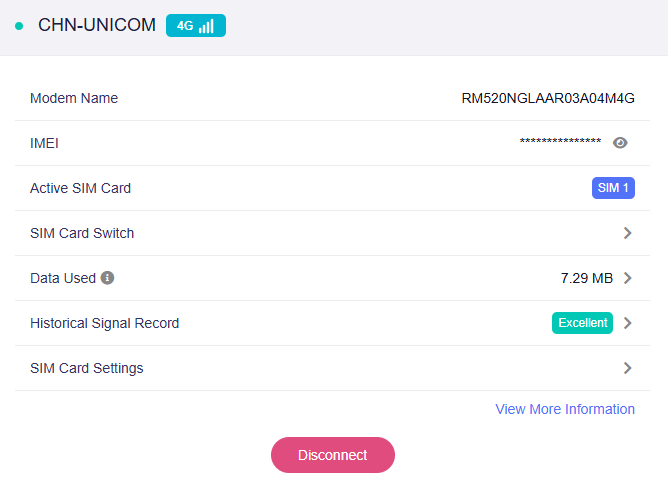
Once the router connects successfully via the eSIM profile, the page will display as follows:
Export Log for Support
Click Export Log for Support to view all eSIM-related logs. If you encounter any issues and require technical support, export the eSIM logs and share them with our support team via email at support@gl-inet.com.
Related Articles:
- How to use the eSIM Physical Card with GL.iNet routers?
- How to use the eSIM Physical Card with Android devices?
Still have questions? Visit our Community Forum or Contact us.