VPN Client Profile
Note: This page was introduced in firmware v4.9.
On the left side of the web Admin Panel, go to VPN -> VPN Client Profile.
Since firmware v4.9, the OpenVPN Client and WireGuard Client have been merged into a single VPN Client Profile page for more streamlined management. While the layout has been slightly adjusted, core functionality remains unchanged. You may still refer to the separate guides if needed.
This page allows you to log in to some integrated VPN services and download their profiles easily for VPN connection, or manually upload your configuration files exported from other VPN provider's website. You may switch VPN protocols in the upper-right corner if needed.
WireGuard
WireGuard® is a lightweight, high-performance modern VPN built with cutting-edge cryptography. It delivers superior speed, simplicity and practicality compared to IPsec, and significantly outperforms OpenVPN.
GL.iNet routers offer built-in WireGuard support for the following VPN providers. If you have an active subscription, simply enter your service credentials on the VPN Client Profile page to finish setup quickly.
- AzireVPN
- Hide.me
- IPVanish
- Mullvad
- NordVPN
- PIA (Private Internet Access)
- PureVPN
- Surfshark
- Windscribe
- X-VPN
Note: X-VPN was introduced in firmware v4.11.
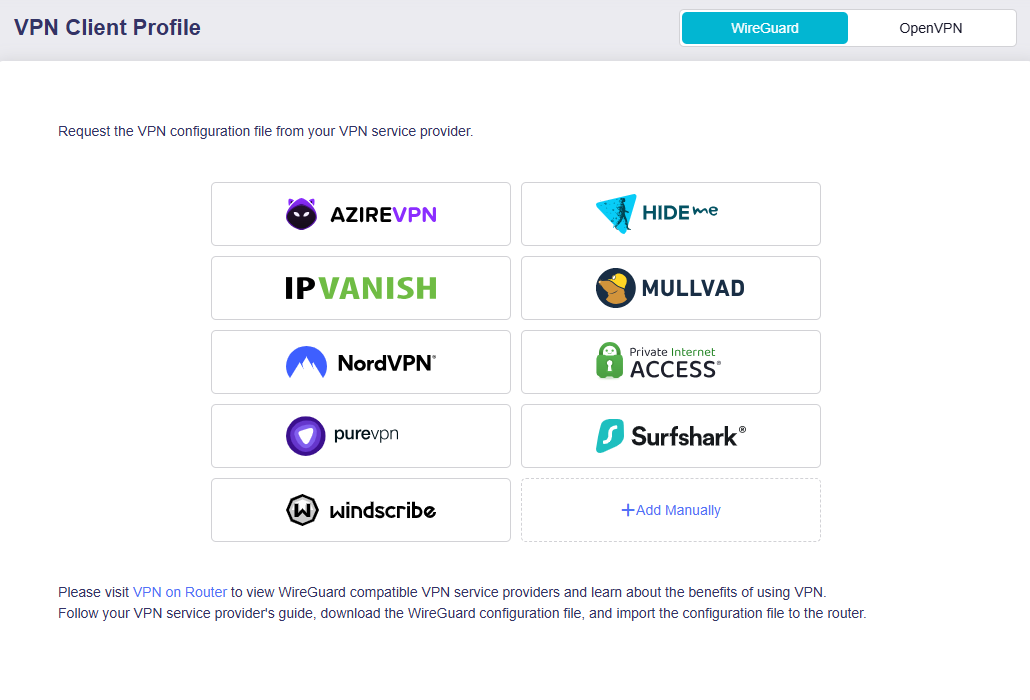
If you subscribe to other WireGuard service provider, download a configuration file from their website, then click Add Manually to upload the file to your router for VPN connection.
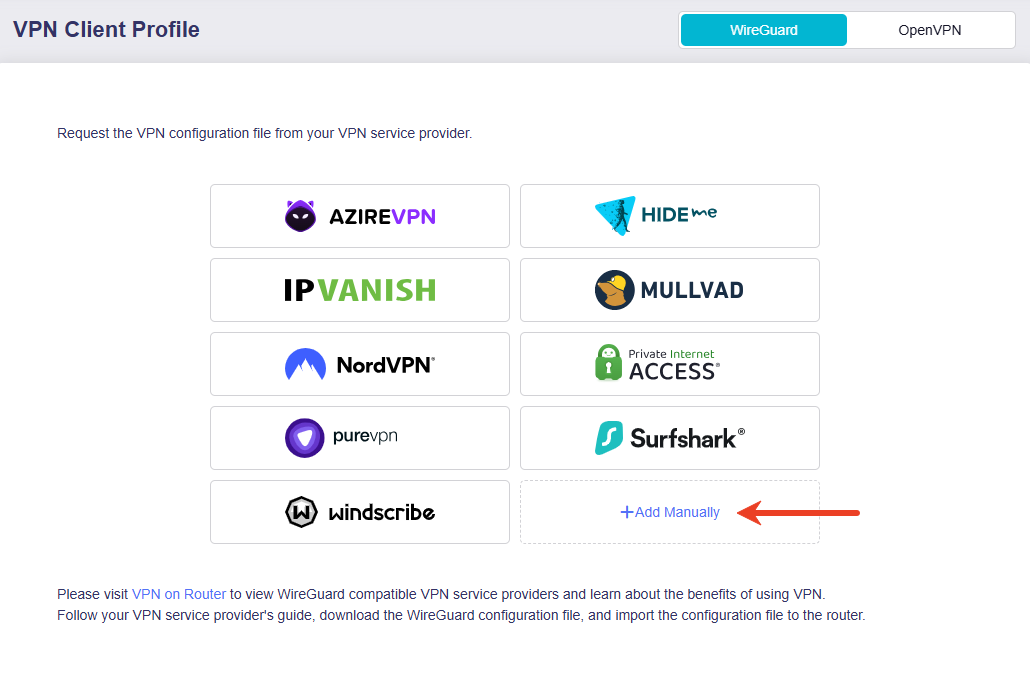
If you don't know how to download the configuration files, refer to here or contact their support.
Take AzireVPN as an example.
-
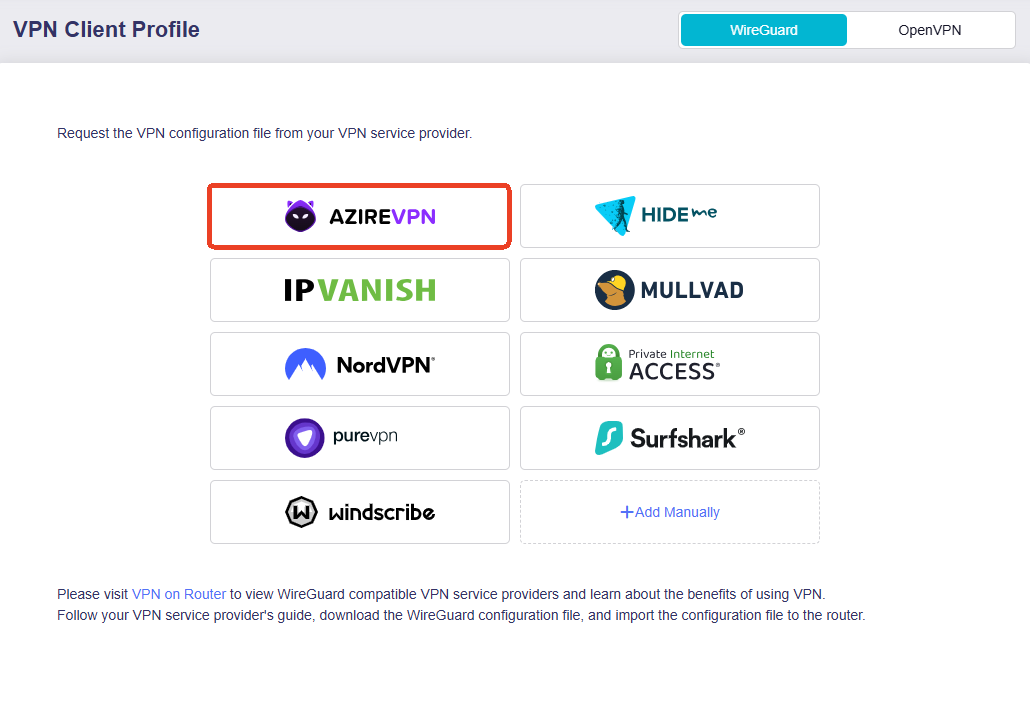
On the VPN Client Profile page, click AzireVPN.
-
Enter your Username and Password, then click Save and Continue.
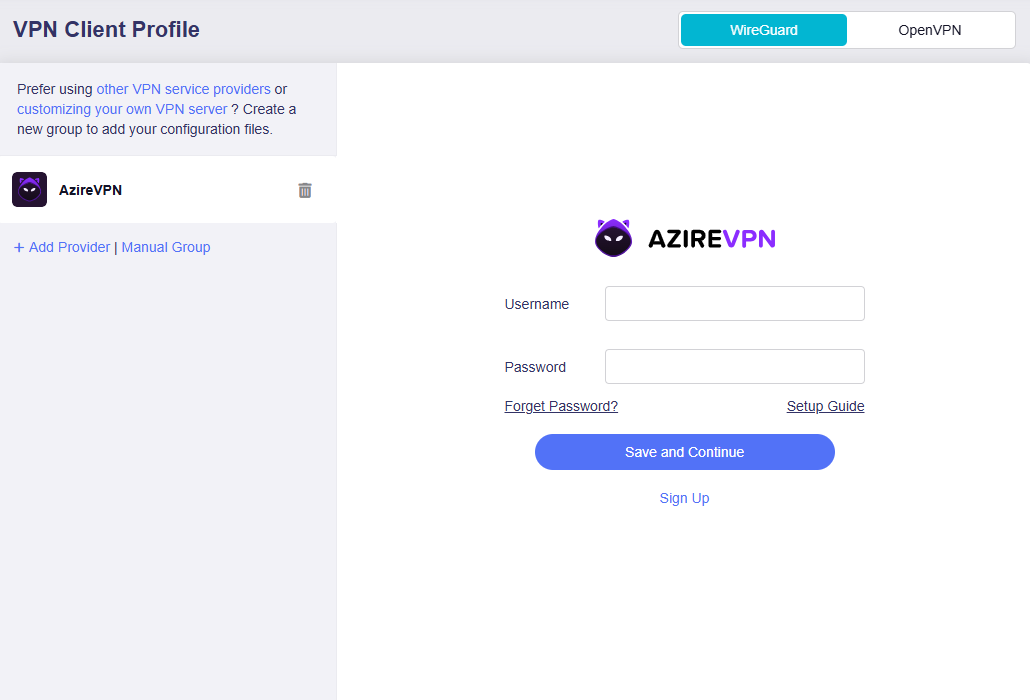
The system will generate configuration files for all available servers.
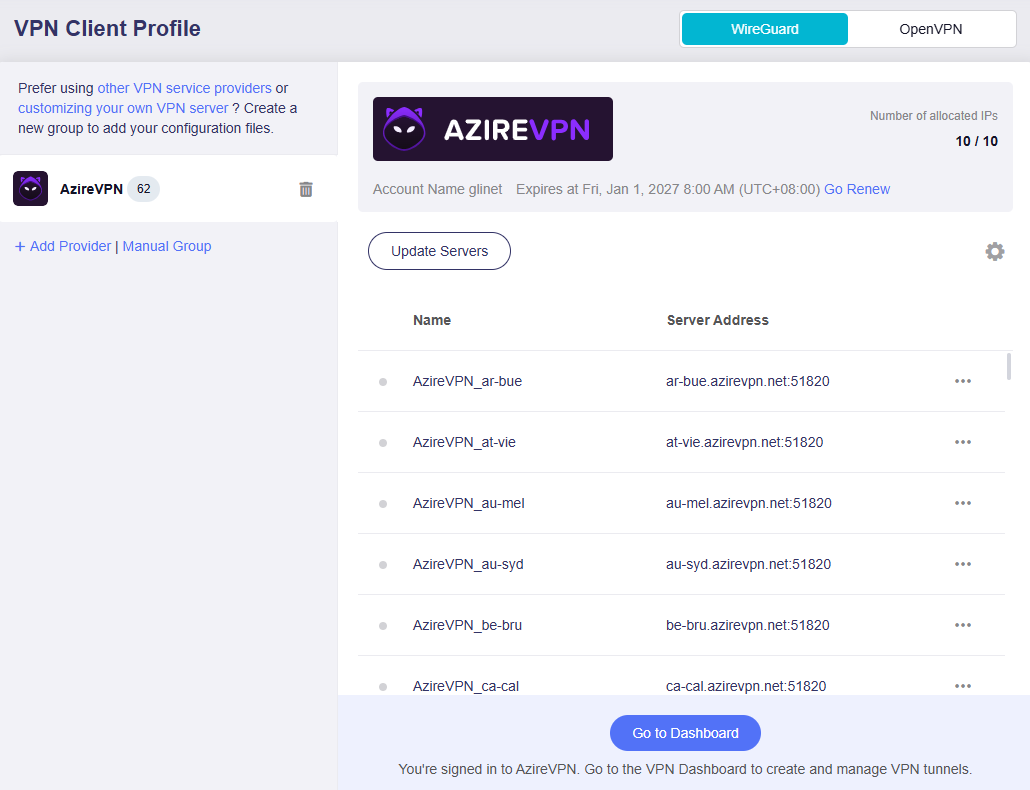
-
Refer to the corresponding guidance below based on your actual needs.
Case 1. If you want all connected clients to use VPN for internet access, follow these steps.
-
Select your preferred server, and click the three-dot icon on the right to start a connection.
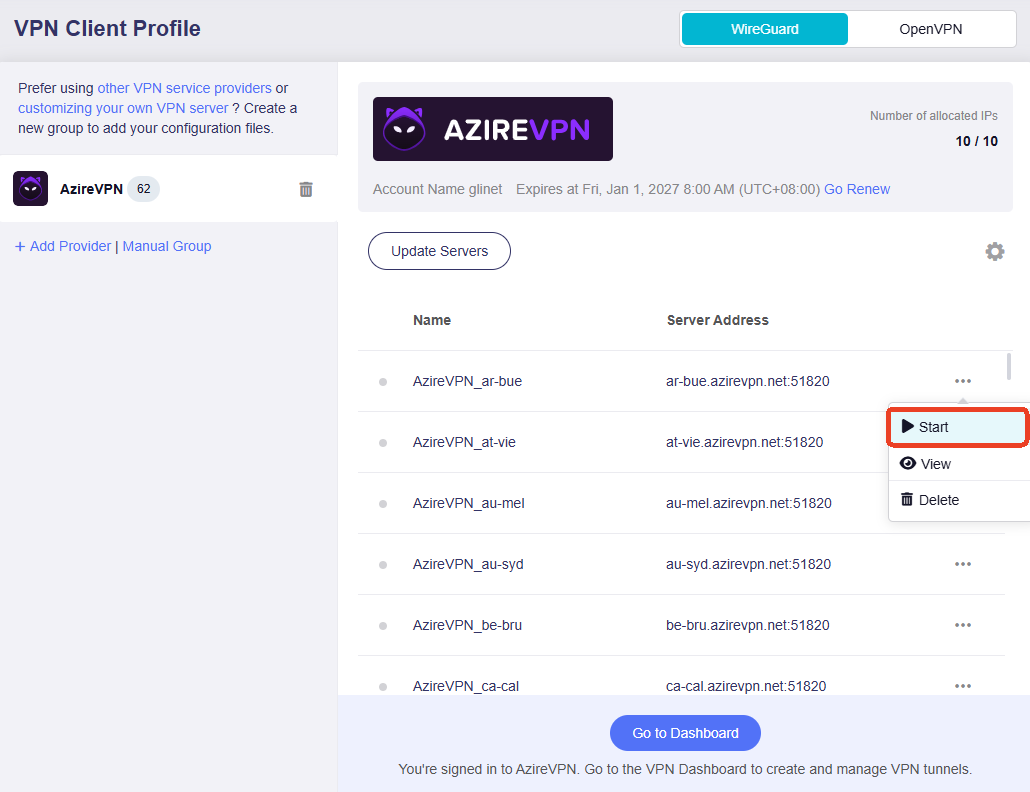
-
Once connected, a green dot will appear next to the configuration file.
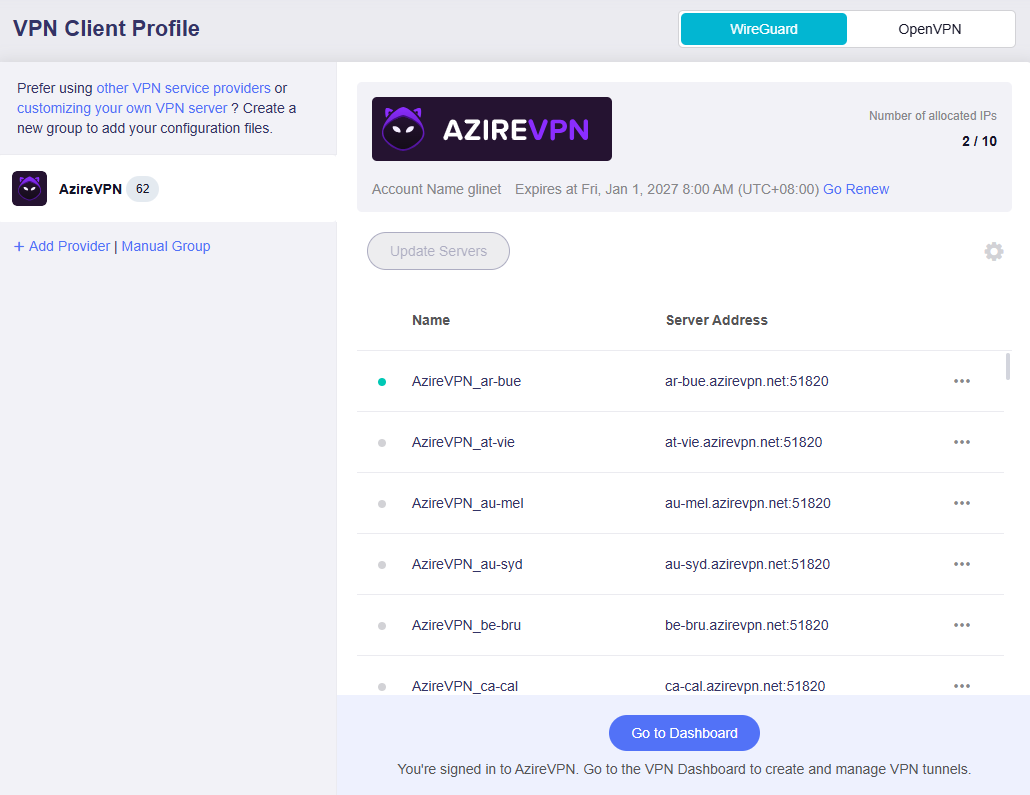
Now the VPN connection has been activated, and all clients connected to this router should use VPN for secured internet access.
-
(Optional) If you want the system to automatically cut off all internet access for your local network when the VPN connection fails unexpectedly, preventing your real IP address and online data from being exposed and ensuring continuous privacy and security, go to VPN Dashboard to enable Kill Switch.
Case 2. If you prefer to customize VPN policy instead, follow these steps.
-
Click Go to Dashboard at the bottom.
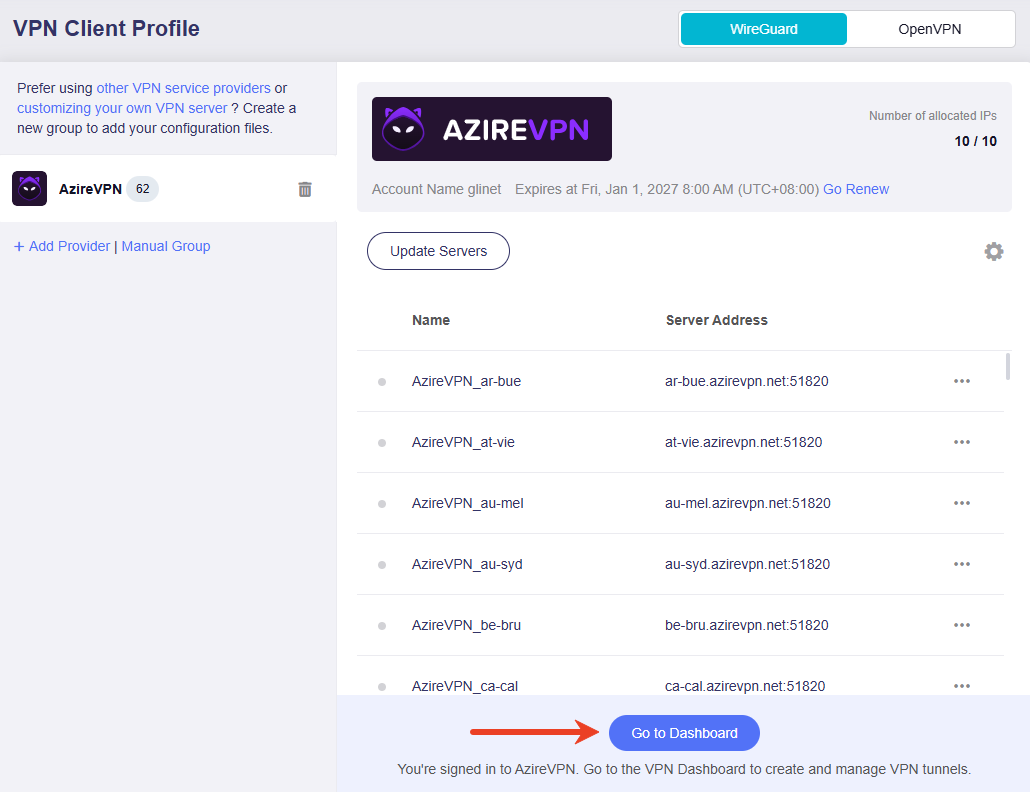
-
You will then be redirected to the VPN Dashboard to configure VPN policy. Click here for details.
-
OpenVPN
OpenVPN is an open‑source VPN protocol that uses virtual private network techniques to establish secure site‑to‑site or point‑to‑point connections.
GL.iNet routers offer built-in OpenVPN support for NordVPN. If you have an active subscription, simply enter your service credentials on the VPN Client Profile page to finish setup quickly.
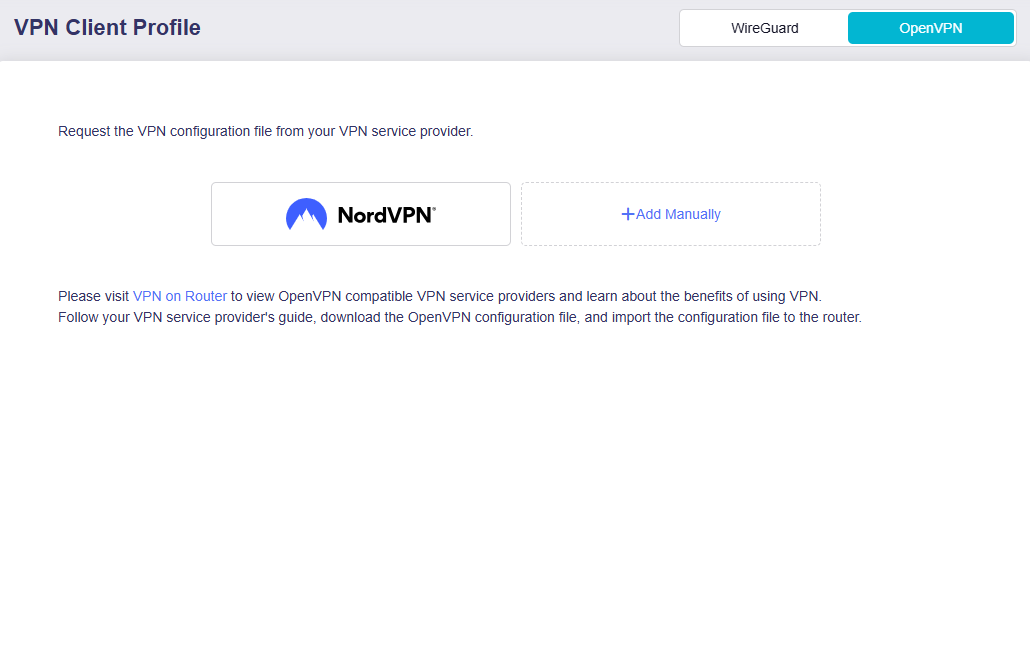
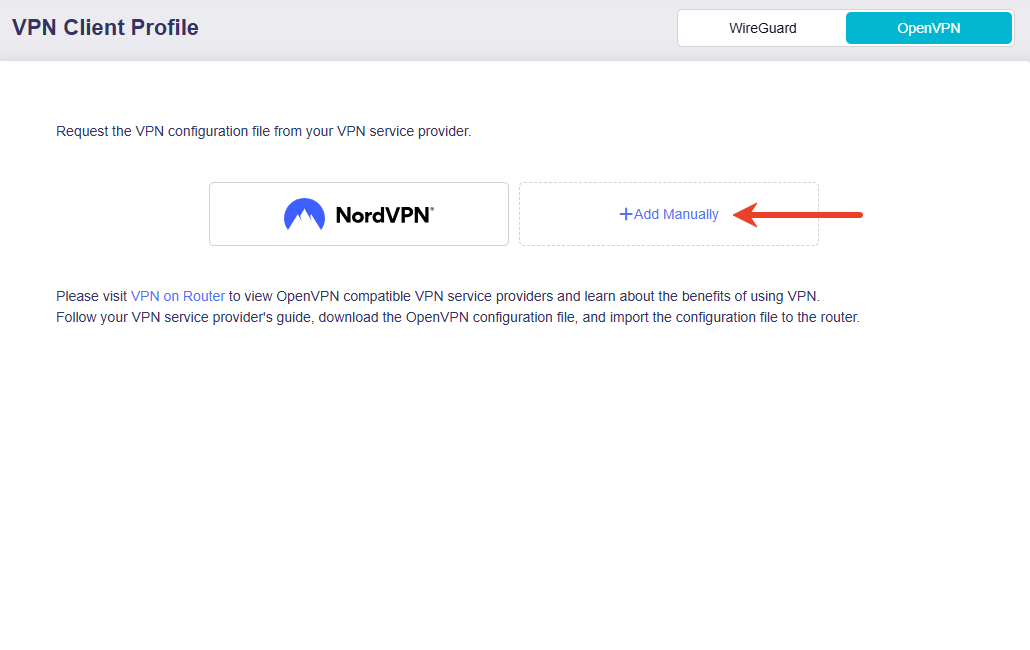
If you subscribe to other OpenVPN service provider, download a configuration file from their website, then click Add Manually to upload the file to your router for VPN connection.
If you don't know how to download the configuration files, refer to here or contact their support.
Related Articles
- VPN Dashboard (Firmware v4.9)
- Set Up WireGuard Client on GL.iNet Routers
- Set Up OpenVPN Client on GL.iNet Routers
Still have questions? Visit our Community Forum or Contact us.