ACL
Note: The ACL feature was introduced in firmware v4.9.
ACL, short for Access Control List, lets you create rules to manage network traffic based on connection protocols, device addresses and ports. It controls whether to allow or block network access. If multiple ACL rules conflict, the system applies the one with higher priority.
ACL works differently from Port Forwarding: ACL mainly allows or blocks network access for security purposes, while Port Forwarding redirects external traffic to specific devices on your local network to enable remote access to local services.
On the left side of the web Admin Panel, go to SECURITY -> ACL.
Click the Add Rule button on the right.

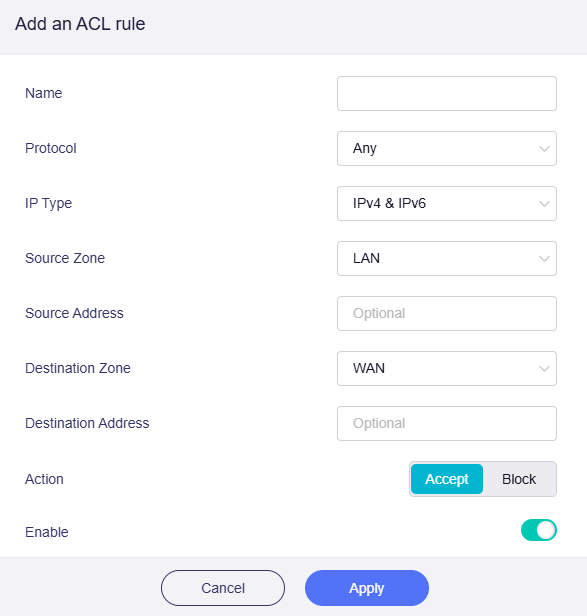
Create your ACL rule in the pop-up window, then click Apply.
-
Name: Enter a custom name for the rule.
-
Protocol: Specify which type of network traffic the rule applies to. Select a connection protocol from
Any,TCP,UDP,TCP+UDP, andICMP. -
IP Type: Define the IP address format for network traffic. Select the IP type from
IPv4 & IPv6,IPv4, andIPv6. -
Source Zone: Select the network zone where traffic originates. Available options:
LAN,Guest,IoT, andWAN. -
Source Address: (Optional) Restrict the rule to specific source devices or IP addresses. You may select a source address from the drop-down list.
-
Destination Zone: This is where the network traffic is heading to. Select the target network zone. Available options:
LAN,Guest,IoT, andWAN. -
Destination Address: (Optional) Restrict the rule to specific destination devices or IP addresses. You may select a destination address from the drop-down list.
-
Action: Choose to
AcceptorBlocknetwork traffic matching this rule. -
Enable: Toggle to enable or disable this rule.
Still have questions? Visit our Community Forum or Contact us.