Cannot connect to an obfuscated WireGuard server
VPN obfuscation is a technique that disguises VPN traffic to look like regular internet traffic. Currently, some GL.iNet routers support the AmneziaWG protocol, allowing you to set up a WireGuard server with traffic obfuscation enabled.
If you fail to establish a connection to an obfuscated WireGuard server, follow the steps below to troubleshoot.
-
Ensure the WireGuard configuration imported to each client is dedicated.
Each client requires an exclusive peer configuration file. Sharing one configuration across multiple clients will result in connection failures.
If necessary, navigate to VPN -> WireGuard Server -> Profiles to view your exported profiles.
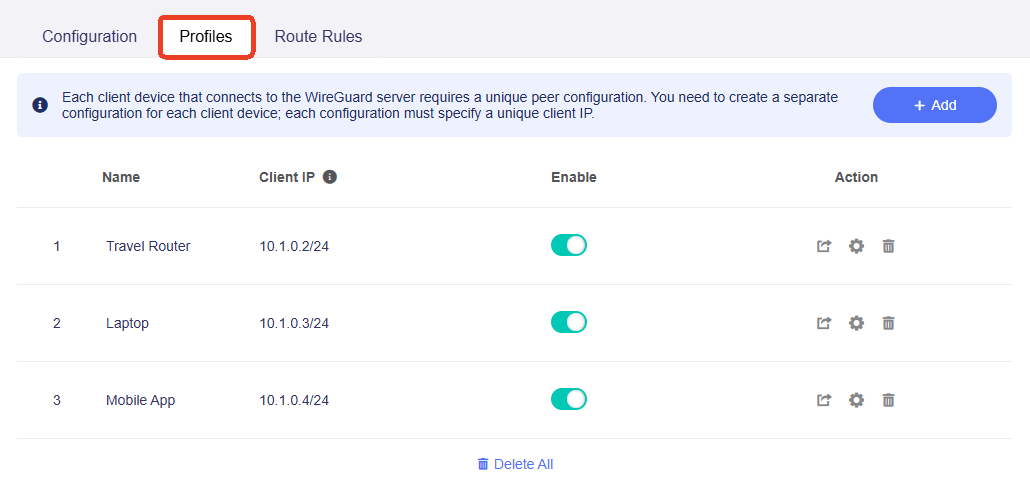
-
Ensure that the obfuscated parameters can be verified by the client.
The AmneziaWG protocol is backward compatible. If your WireGuard server only supports AmneziaWG v1.0, the configuration file will still pass verification when imported into a client supporting v2.0.
However, if your configuration file includes obfuscation parameters of AmneziaWG v2.0, make sure your WireGuard client supports AmneziaWG v2.0. Otherwise, the parameter verification could fail.
How to identify the AmneziaWG version?
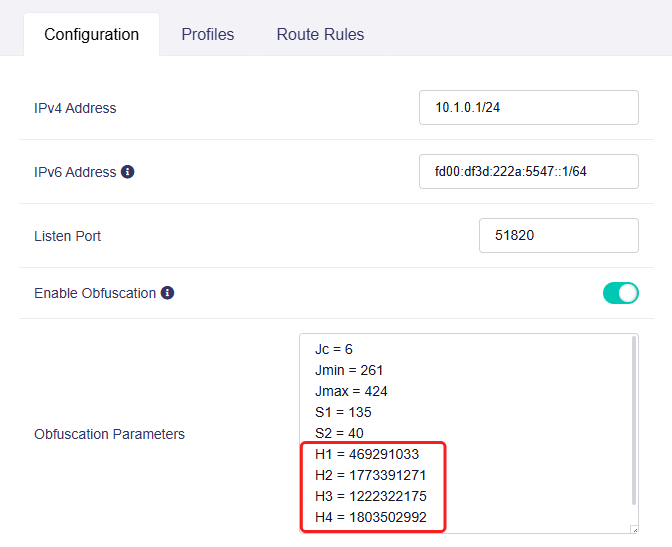
V1.0: No S3-S4 parameters; H1-H4 are fixed single integers.
V2.0: It is V2.0 if any of the conditions below is met:
- Includes S3-S4 parameters
- H1-H4 are set as numeric ranges
- Includes customized I1-I5 parameters.
Note: I1-I5 are not auto-generated. Users can manually add them as extra lines in the configuration file to make AmneziaWG traffic look like other common protocols, such as QUIC or WebRTC.
If your WireGuard client is a GL.iNet router, check its AmneziaWG version by the following two methods.
Check via Router Web Admin Panel
-
Log in to your router's web Admin Panel.
-
Navigate to VPN -> WireGuard Server -> Configuration and verify the obfuscation parameters. If the configuration includes S3-S4 and H1–H4 as variable ranges (instead of fixed values), your router is running AmneziaWG 2.0, as shown below.
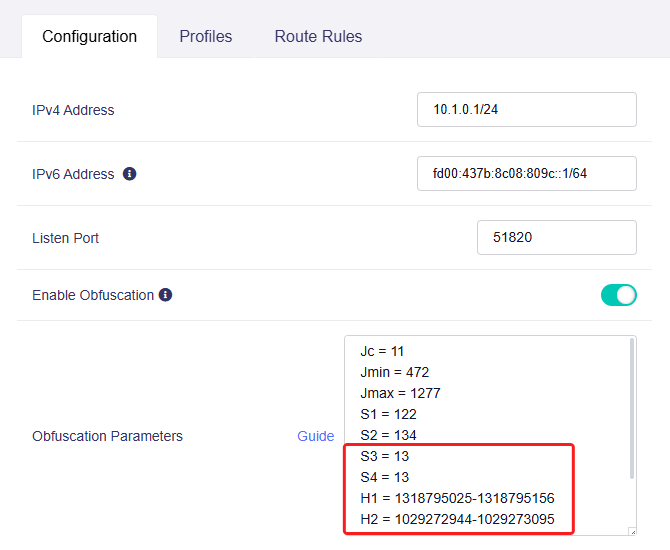
Otherwise, it uses AmneziaWG 1.0, as shown below.
Check via SSH Command
-
Log in to your via SSH.
-
Run
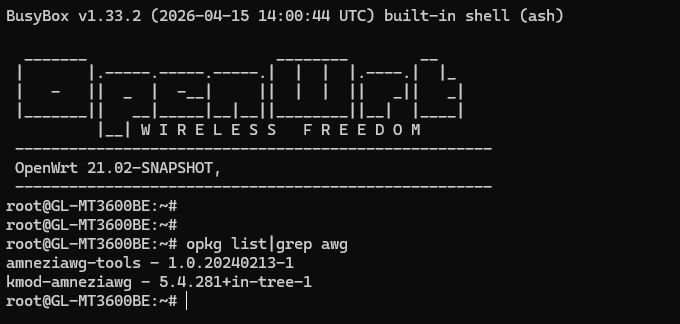
opkg list|grep awgand check the suffix of the kmod-amneziawg package in the output. If marked with 2.0, the router supports AmneziaWG 2.0, as shown below.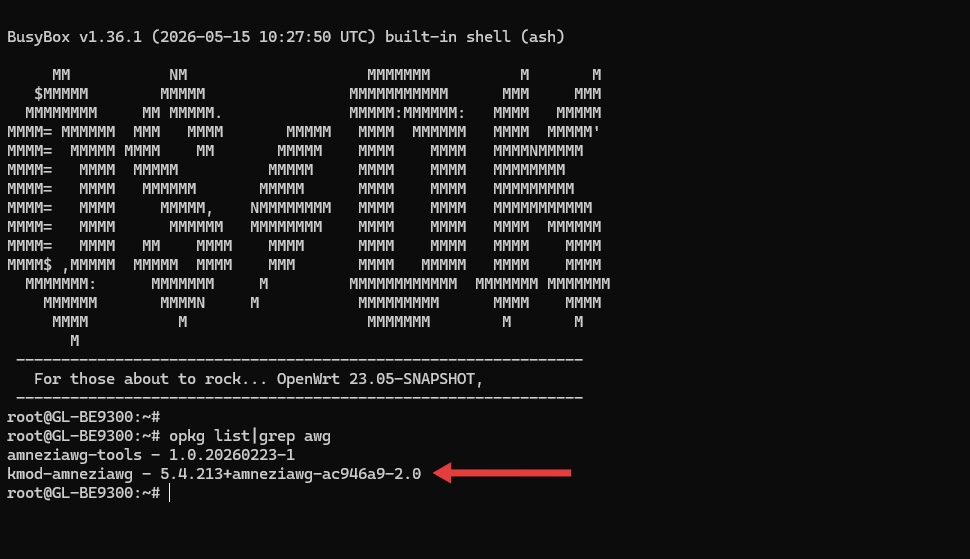
Otherwise, it runs AmneziaWG 1.0, as shown below.
-
Adjust obfuscation parameters.
If you have manually configured obfuscation parameters (such as Jc, Jmin, Jmax) on your WireGuard server, incorrect parameter settings may lead to handshake failures.
Try modifying these obfuscation parameters and reconnecting to rule out parameter mismatch issues. You can also restore the default obfuscation settings for testing.
-
Test connection with the official AmneziaWG App.
Perform a comparative test: Install the official Amnezia WG App, import the original server-exported configuration file into the app, and attempt to connect.
-
If the connection succeeds in the official app, the configuration file is valid. The problem may lie with your original client device. Verify its network connectivity or reach out to support for further assistance.
-
If the connection still fails, the problem originates from the router server configuration. Check the server settings and obfuscation parameters.
-
Still have questions? Visit our Community Forum or Contact us.