Parental Control (Firmware v4.9)
This guide applies to firmware v4.9 and later. For earlier versions, please click here.
On the left side of the web Admin Panel, go to FLOW CONTROL -> Parental Control.
Parental control protects children online by blocking inappropriate websites and limiting screen time. It filters harmful content and encourages responsible internet usage.
GL.iNet Parental Control provides flexible scheduling to restrict internet access on your children's commonly used devices. You can block inappropriate apps and websites in one click. Additionally, you may enter domains manually as needed to achieve full online protection.
The page layout and workflow for Parental Control have been improved in firmware v4.9, simplifying setup and offering a more intuitive view of rules.
Follow the steps below the set up your Parental Control.
-
Log in to the router's web Admin Panel and go to FLOW CONTROL -> Parental Control. Ensure the router time is accurate.
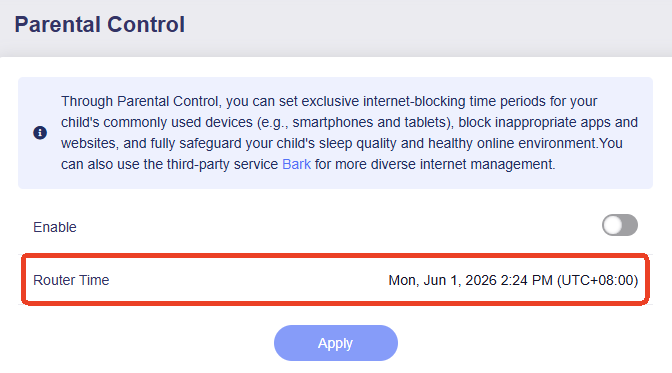
If not, go to SYSTEM -> Time Zone to synchronize it first.
-
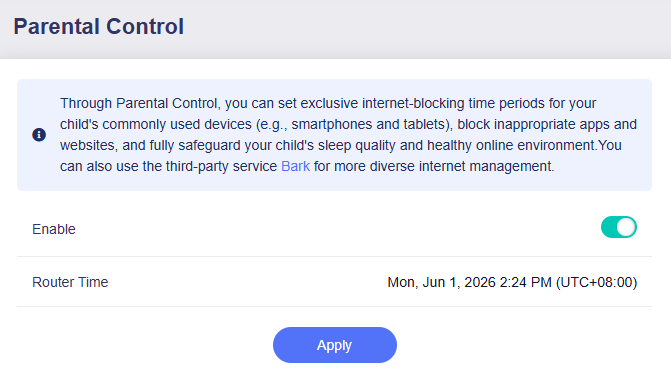
Enable Parental Control and click Apply.
-
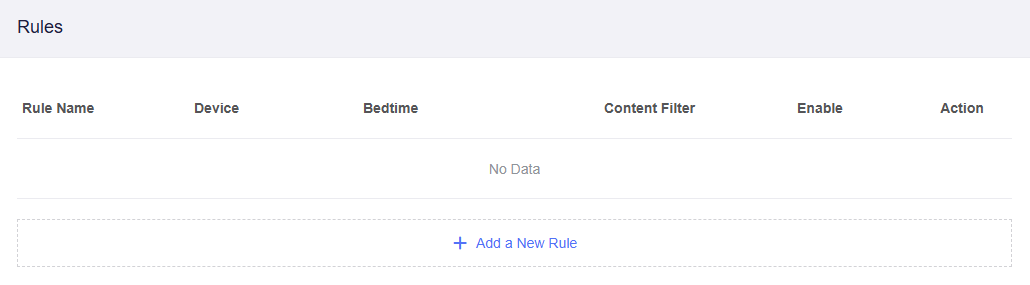
You will see a rule list as follows. Click Add a New Rule.
-
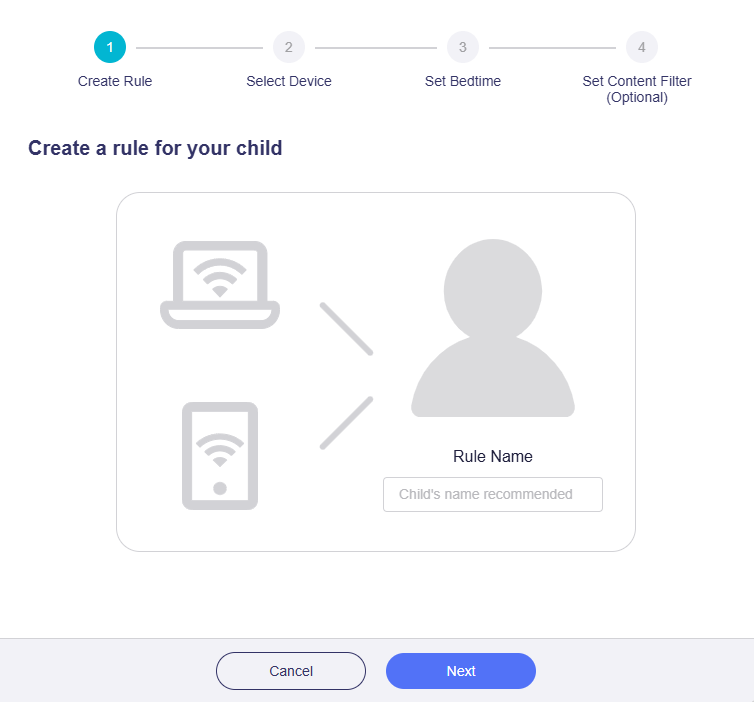
In the pop-up window, create a rule and set a custom name, then click Next.
-
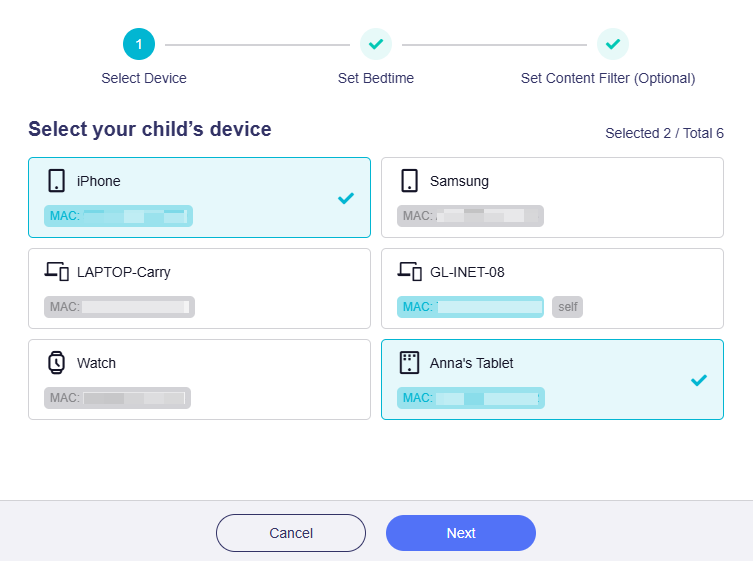
Select your child's device, then click Next.
A device will only appear on this page if it is connected to the router via Wi-Fi or Ethernet. Cyan indicates online status, while grey indicates offline status.
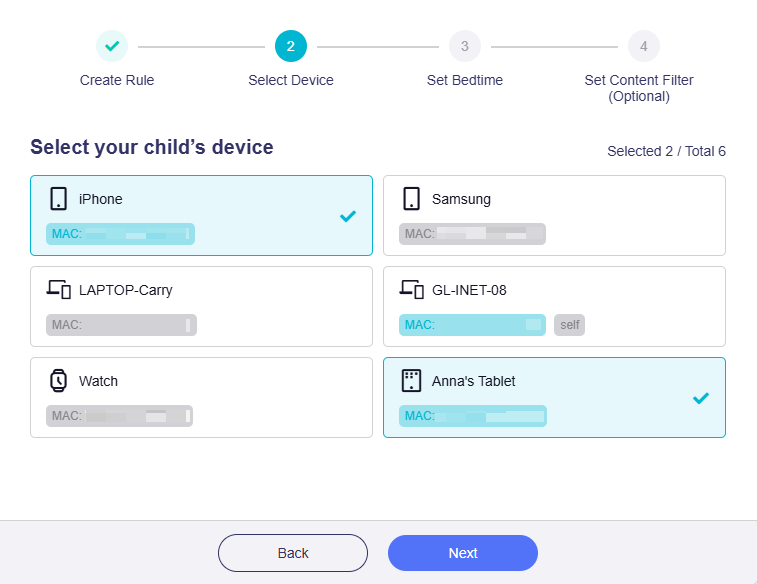
Tip: If you want to distinguish the connected devices, go to CLIENTS page and customize device names.
-
Set bedtime for your child's device, then click Next.
The internet on the selected device(s) will be unavailable during this period. By default, the bedtime is the same for every day.
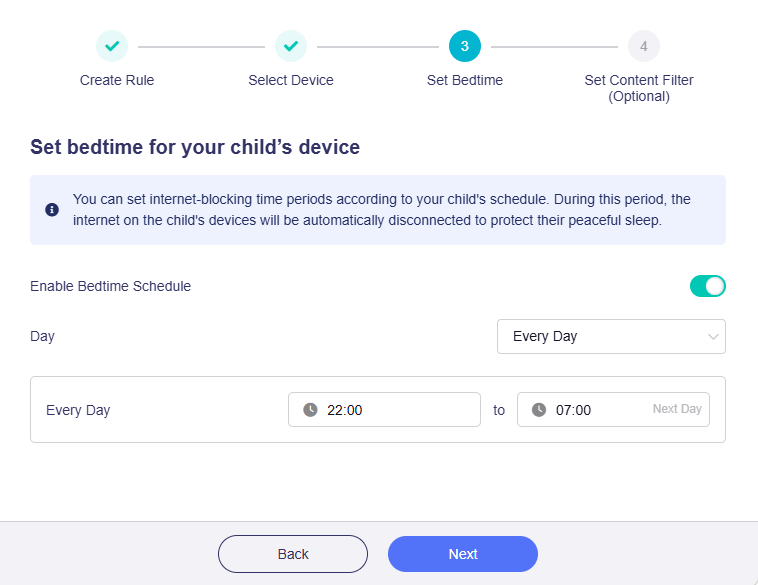
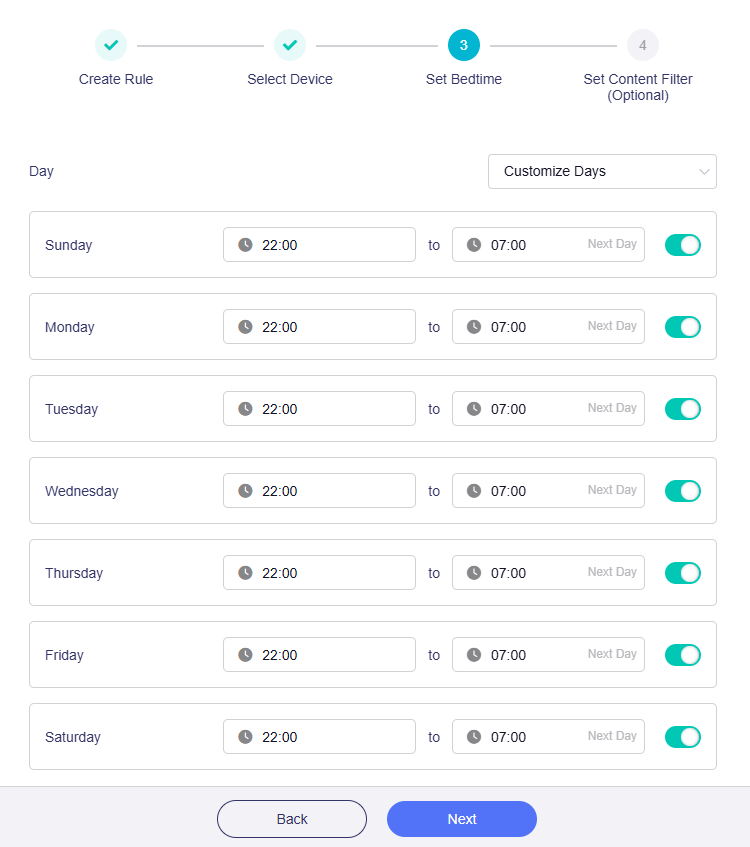
If you want to set different bedtimes for each day of the week, select Customize Days and set different bedtimes, then click Next.
-
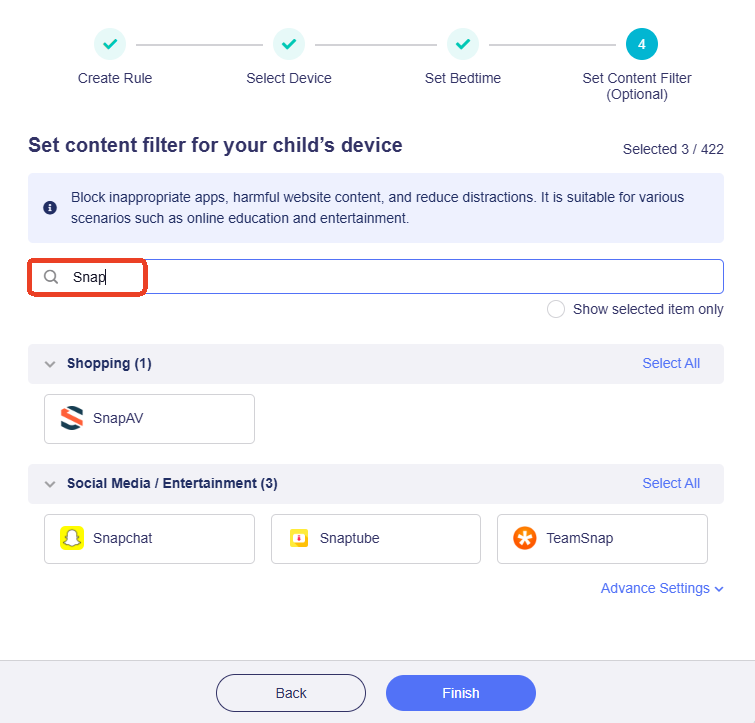
Select content filter.
Three categories have been seleted by default: Gambling, Malicious Content, and Sexual Content.
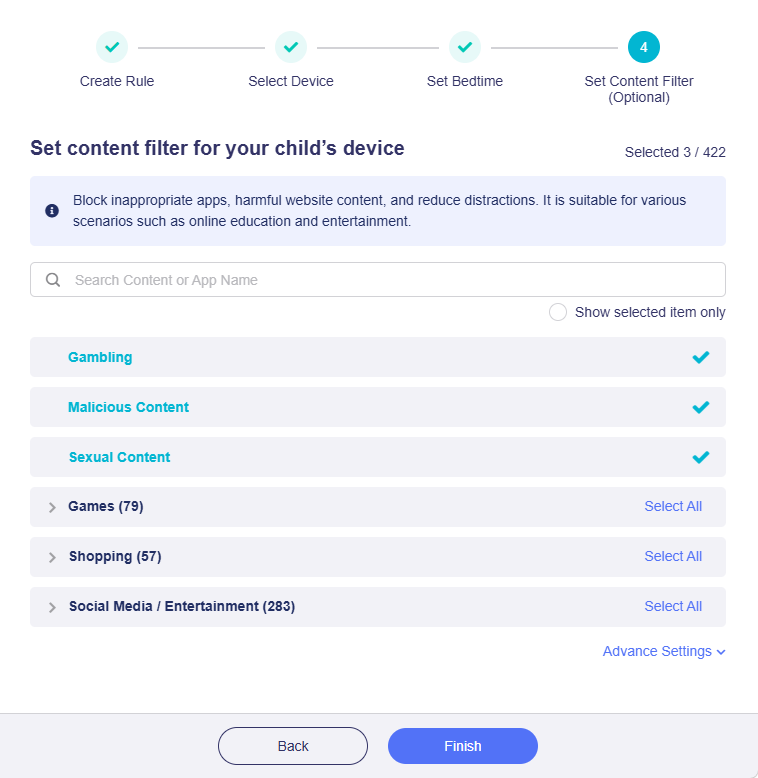
You may select other categories if needed, such as Games, Shopping, Social Media, Entertainment, etc.
If a certain app you want to block is hard to find out, search it on the top to quickly locate it.
-
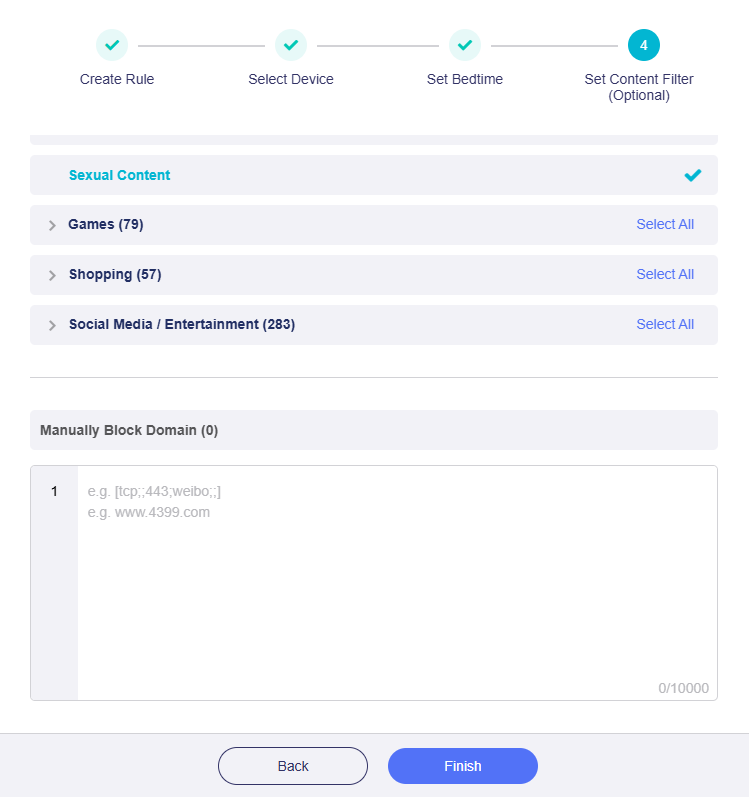
If you need to block certain domains, click Advanced Settings at the bottom right.
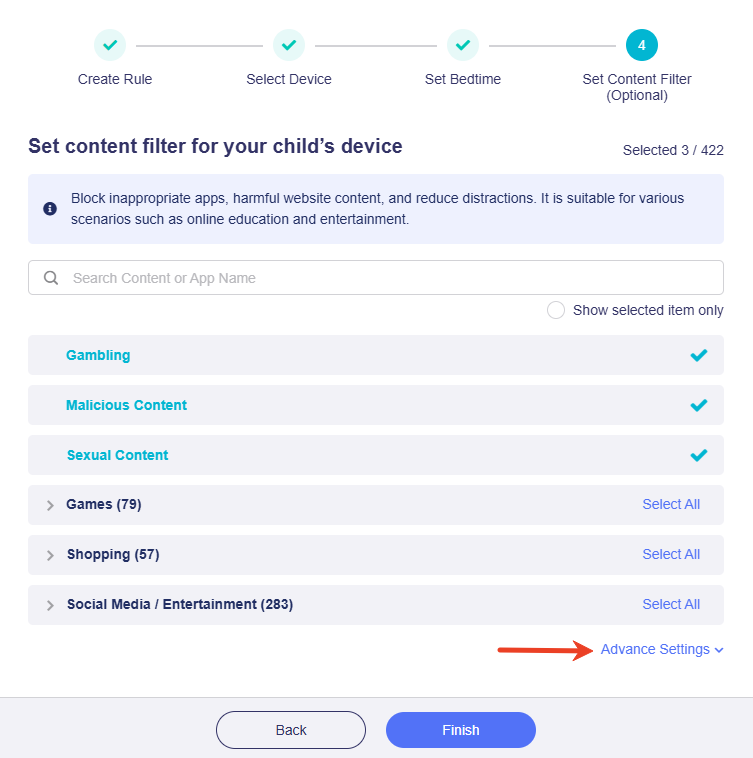
Enter domains manually, then click Finish.
-
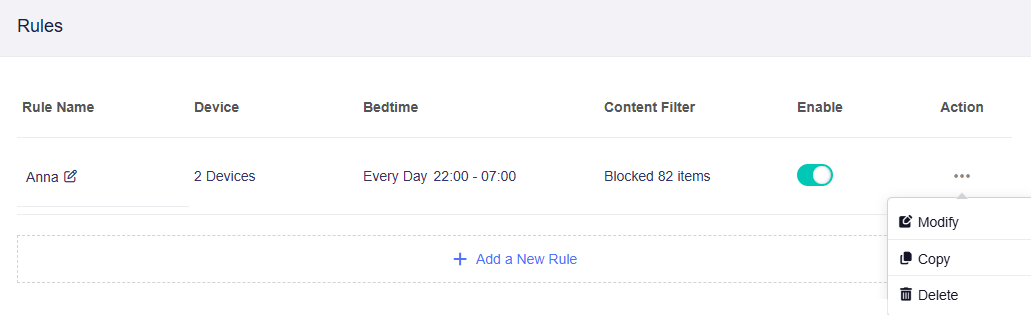
The rule is now added. The list shows the rule name, connected device count, bedtime schedule, filtered content and rule status (enabled/disabled).
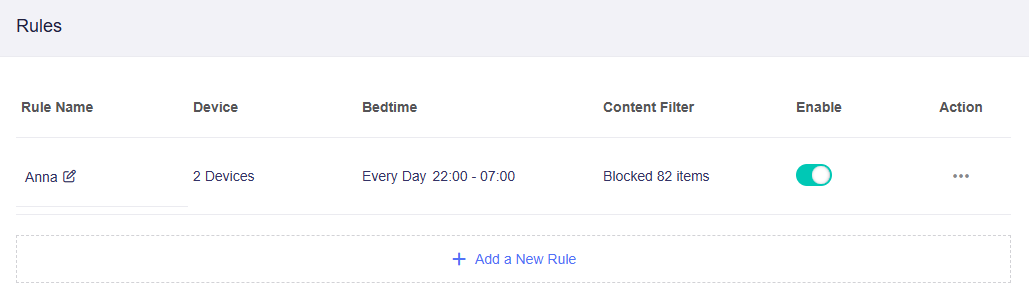
You can perform basic operations on the existing rules: Modify, Copy and Delete.
-
Modify: Change selected devices, bedtime and content filter rules.
-
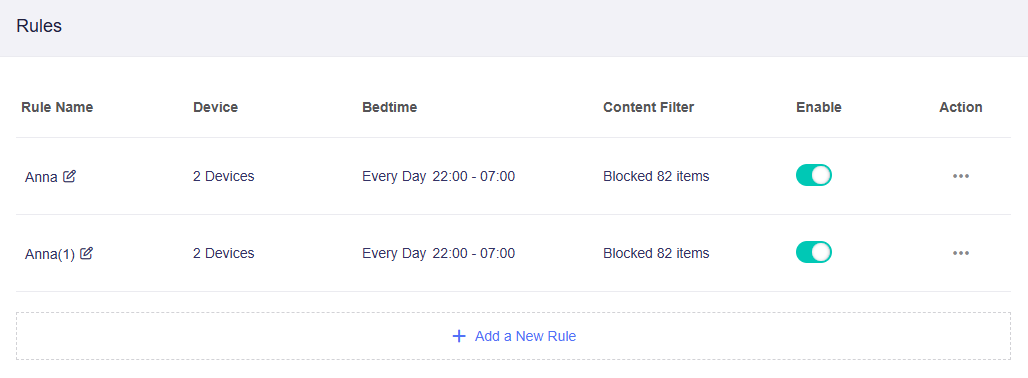
Copy: Create a copy of an existing rule to avoid reconfiguring manually.
-
Still have questions? Visit our Community Forum or Contact us.