Tailscale
Tailscale is a VPN service that makes the devices and applications you own accessible anywhere in the world, securely and effortlessly. For more information about Tailscale, please visit Tailscale official website.
The Tailscale feature on GL.iNet routers, available since firmware v4.2, allows the router to join a Tailscale virtual network. Once connected, you can access the router remotely, including its WAN and LAN resources.
Note:
-
Since Tailscale is based on WireGuard, it is not recommended to use Tailscale simultaneously with any of the following features or services, as this may cause routing conflicts: OpenVPN Client, WireGuard Client, GoodCloud Site to Site, ZeroTier, AstroWarp.
-
This feature is currently in beta, and may have some bugs.
-
Some models, although running firmware v4.2 or higher, do not support Tailscale due to insufficient memory.
Supported Models
Supported Models
- GL-E5800 (Mudi 7)
- GL-MT5000 (Brume 3)
- GL-MT3600BE (Beryl 7)
- GL-BE6500 (Flint 3e)
- GL-BE9300 (Flint 3)
- GL-BE3600 (Slate 7)
- GL-X2000 (Spitz Plus)
- GL-B3000 (Marble)
- GL-MT6000 (Flint2)
- GL-X3000 (Spitz AX)
- GL-XE3000 (Puli AX)
- GL-AX1800 (Flint)
- GL-MT2500/GL-MT2500A (Brume 2)
- GL-MT3000 (Beryl AX)
- GL-AXT1800 (Slate AX)
- GL-A1300 (Slate Plus)
Unsupported Models
- GL-SFT1200 (Opal)
- GL-MT1300 (Beryl)
- GL-E750/E750V2 (Mudi)
- GL-X750/GL-X750V2 (Spitz)
- GL-AR750S (Slate)
- GL-XE300 (Puli)
- GL-MT300N-V2 (Mango)
- GL-AR300M Series (Shadow)
- GL-B1300 (Convexa-B)
- GL-AP1300 (Cirrus)
- GL-S1300 (Convexa-S)
- GL-X300B (Collie)
Set up Tailscale network
The following is an example of the GL-MT2500.
-
Bind your devices.
Please register a Tailscale account first, then bind one or two devices (e.g., smartphone, laptop) to your Tailscale account for testing purposes.
After binding, you will be able to see your devices and their status in the Tailscale Admin console.

-
Enable Tailscale on GL.iNet router.
Log in to your router's web Admin Panel, and navigate to APPLICATIONS -> Tailscale.

Toggle to enable Tailscale, then click Apply.

-
After a short while, the interface will show a Device Bind Link. Click the Device Bind Link.

It will show a Tailscale link in the pop-up window. Click the link to redirect to the Tailscale website and log in.

Once logged in, you will be asked to confirm the device you want to connect to. Click Connect.

When the connection is successful, you will be automatically redirected to the Tailscale Admin console. You can see that the IP address of the GL-MT2500 is
100.88.54.21. Now you can use this IP to access the router.
-
Test connectivity.
On devices connected to the same Tailscale network, you can test the connectivity in the following three ways.
-
Use the ping command

-
SSH into the router

-
Access web Admin Panel

-
Allow Remote Access WAN
If this option is enabled, resources on the device's WAN side can be accessed through the Tailscale virtual network.
For example, as shown in the topology below, if this function is enabled, you can access the GL-AXT1800 via its IP address (192.168.29.1) from leo-phone. This is because the GL-AXT1800 is the upper-layer device of the GL-MT2500, and the latter is connected to the same Tailscale network as leo-phone.

The operation steps are as follows.
-
Log in to your router's web Admin Panel, and navigate to APPLICATIONS -> Tailscale.
Enable Allow Remote Access WAN, and click Apply.

-
Go to Tailscale Admin console, and it will display an alert that GL-MT2500 has subnets.
Click the three-dot icon on the right of GL-MT2500 and select Edit route settings.

-
Enable the subnet routes.

-
Now you can access the GL-AXT1800 via its IP address (
192.168.29.1) on other devices. In fact, you can access all devices within the192.168.29.0/24subnet.
Allow Remote Access LAN
If this option is enabled, resources on the device's LAN side can be accessed through the Tailscale virtual network.
For example, as shown in the topology below, if this function is enabled, you can SSH log in to Ubuntu via its IP address (192.168.8.110) from leo-phone. This is because Ubuntu is the lower-layer device of the GL-MT2500, and the latter is connected to the same Tailscale network as leo-phone.

The operation steps are as follows.
-
Log in to your router's web Admin Panel, and navigate to APPLICATIONS -> Tailscale.
Enable Allow Remote Access LAN, and click Apply.

-
Go to Tailscale Admin console, and it will display an alert that GL-MT2500 has subnets.
Click the three-dot icon on the right of GL-MT2500 and select Edit route settings.

-
Enable the subnet routes.

-
Now you can ping or SSH log in to the Ubuntu by its IP address (
192.168.8.110) on other devices. In fact, you can access all devices within the192.168.8.0/24subnet.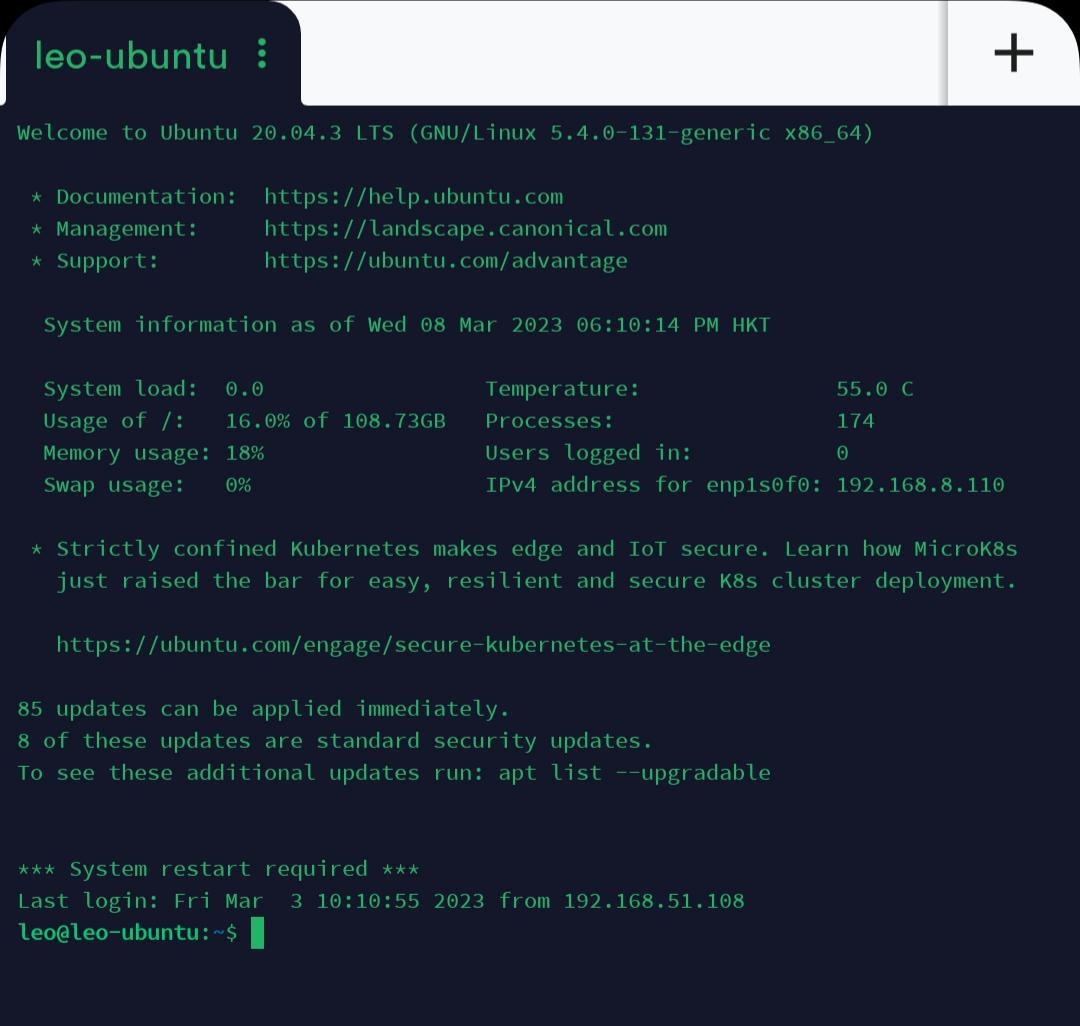
Custom Exit Nodes
By default, Tailscale acts as an overlay network: it only routes traffic between devices running Tailscale, and does not process your public Internet traffic — such as when browsing websites like Google.
However, there might be times when you want Tailscale to route your public Internet traffic. For example, when you are away from home or traveling abroad, if you need to access online services (such as banking) that are only available in your home country, you can set your home desktop with a public IP as an Exit node, and configure other devices on the same Tailnet — such as the GL-AXT1800 and GL-MT3000 shown in the image below — to send their traffic through it. This enables all your public Internet traffic to be forwarded via the Exit Node.

When all traffic is routed through an Exit Node, you are effectively using the default routes (0.0.0.0/0, ::/0), which works similarly to a regular VPN connection.
In summary, an Exit node routes outbound Internet traffic from your Tailnet devices, effectively acting as VPN servers. When connected to an Exit node, all your non-Tailscale Internet traffic appears to originate from its location, helping you access geo-restricted content and enhance your online privacy. The device handling this traffic forwarding is referred to as an "exit node".
Note: If the router's DNS server uses a private IP address accessible only within the local network, you may lose Internet connectivity when running an exit node. To resolve this, log in to the router, go to NETWORK -> DNS, and manually set a public DNS server such as 8.8.8.8.
In the following example, a GL.iNet router GL-MT2500 and a Leo-Desktop are on the same Tailnet. Below are the steps to set Leo-Desktop as an Exit Node.
-
Enable subnet routes of GL-MT2500 in the Tailscale Admin console.
Go to Tailscale Admin console, click the three-dot icon on the right of GL-MT2500 and select Edit route settings.
In the pop-up window, enable the subnet routes.
-
On the device you want to use as an exit node, such as Leo-Desktop in this example, select Run exit node. Here's an example on Windows OS.

Then click Yes.

-
In the Tailscale Admin console, set up the Leo-Desktop as an Exit node.


-
Log in to the GL-MT2500's web Admin Panel, go to APPLICATIONS -> Tailscale and enable Custom Exit Nodes. Click the refresh button, and select the IP address of the Leo-Desktop from the drop-down menu, then click Apply.

Devices connected to the router will then route their traffic through the Exit Node to access the Internet, and all your Internet traffic will appear to originate from the Exit Node's location.
-
Troubleshooting: After enabling Custom Exit Node, if devices connected to the GL.iNet router cannot access the internet, check whether the router's subnet routes are enabled in the Tailscale Admin console.
A corresponding prompt may appear in the router's web Admin Panel as shown below.
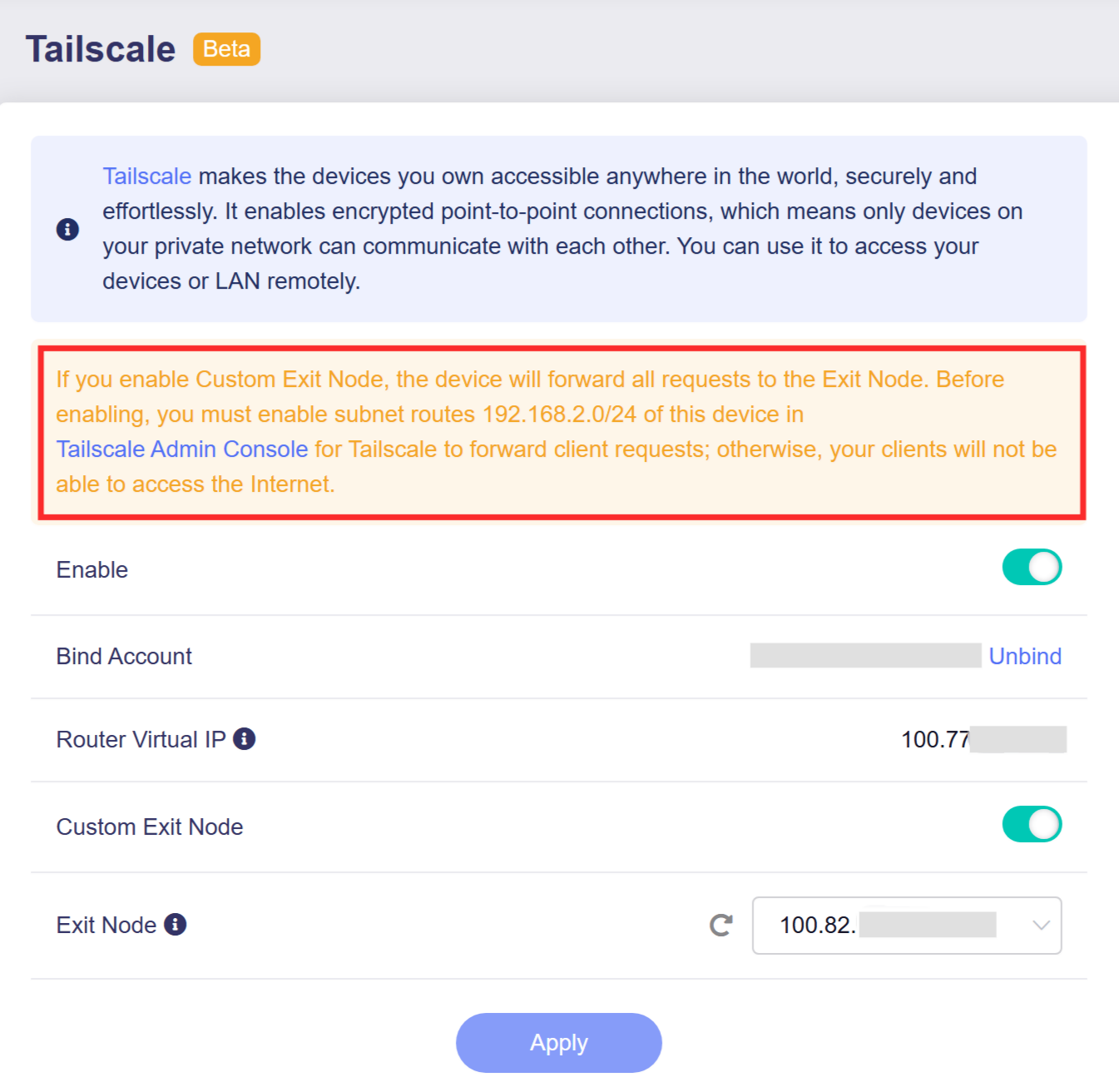
To resolve this, enable the router's subnet routes in the Tailscale Admin console as outlined in Step 1 above.
References: Exit Nodes (route all traffic)
Still have questions? Visit our Community Forum or Contact us.