Wireless (Firmware v4.8 and earlier)
The content on this page is based on firmware version v4.8.x and earlier. If your device is running a different firmware version, use the selector below to switch to the corresponding guide.
On the left side of the web Admin Panel, go to WIRELESS.
The Wireless page supports configuring separate Wi-Fi networks, including 2.4 GHz, 5 GHz, 6 GHz, and MLO Wi-Fi (availability varies by model). Each band can be set up as a Main Wi‑Fi or Guest Wi‑Fi network for flexible wireless management.
Note: Some models do not support 5 GHz Wi-Fi, such as GL-MT300N-V2 (Mango), GL-X300B (Collie), and GL-XE300 (Puli); some have no Wi‑Fi function, such as GL-MT5000 (Brume 3) and GL-MT2500/GL-MT2500A (Brume 2).
MLO Wi-Fi
| Supported Models | |
|---|---|
| Flint 4 (GL-BE14000) | √ |
| Slate 7 Pro (GL-BE10000) | √ |
| Beryl 7 (GL-MT3600BE) | √ |
| Flint 3e (GL-BE6500) | √ |
| Flint 3 (GL-BE9300) | √ |
| Slate 7 (GL-BE3600) | √ |
MLO (Multi-Link Operation) is one of the core features of Wi-Fi 7 (802.11be), designed to improve network performance, significantly reduce latency, and enhance connection stability by utilizing multiple frequency bands simultaneously such as 2.4 GHz, 5 GHz, and 6 GHz.
Click on the tabs below to learn about MLO Main Wi-Fi and MLO Guest Wi-Fi settings.
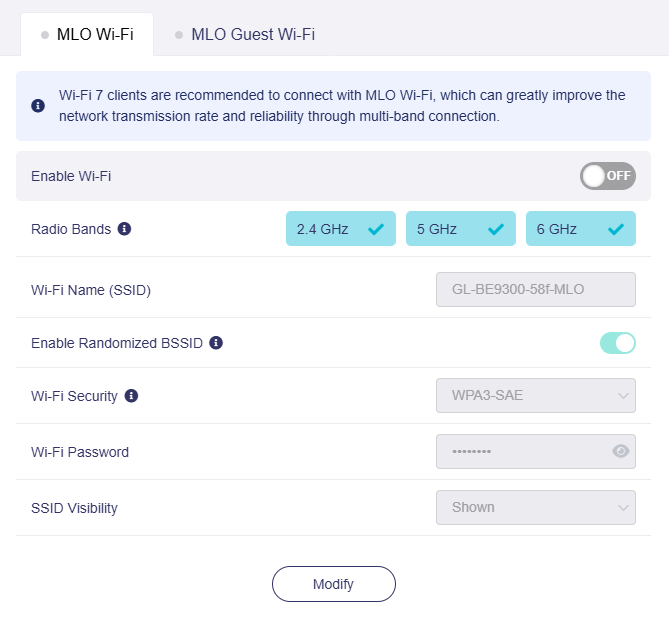
The MLO Main Wi-Fi allows you to configure multiple settings, including enabling/disabling Wi-Fi, selecting radio bands (at least two), enabling/disabling randomized BSSID, setting the Wi-Fi name (SSID), Wi-Fi security, Wi-Fi password, and SSID visibility.
-
If the MLO Wi-Fi radio bands include 6 GHz, the MLO Wi-Fi BSSID will synchronize when the 6GHz Wi-Fi BSSID changes.
-
The default Wi-Fi security for MLO Wi-Fi is WPA3-SAE, which is suitable for most devices that support MLO.
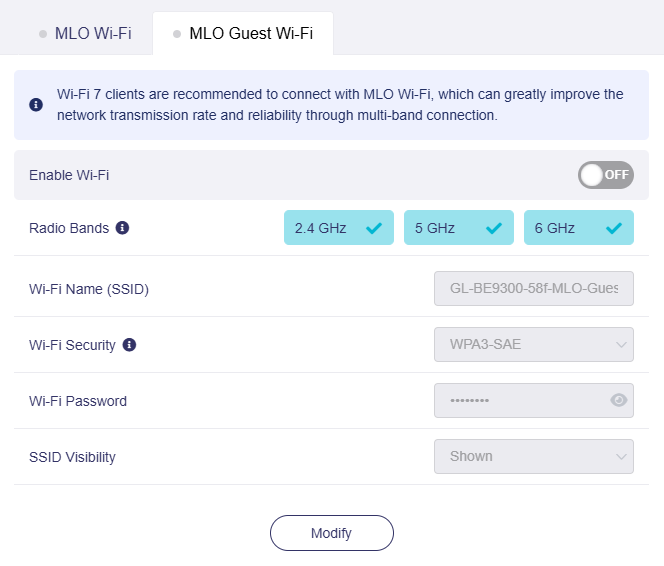
The MLO Guest Wi-Fi allows you to configure simplified settings, including enabling/disabling Wi-Fi, selecting radio bands (at least two), setting the Wi-Fi name (SSID), Wi-Fi security, password, and SSID visibility.
6 GHz Wi-Fi
| Supported Models | |
|---|---|
| Flint 4 (GL-BE14000) | √ |
| Slate 7 Pro (GL-BE10000) | √ |
| Mudi 7 (GL-E5800) | √ |
| Flint 3 (GL-BE9300) | √ |
The 6 GHz Wi-Fi provides faster, more stable wireless connectivity with reduced congestion compared to 2.4 GHz and 5 GHz bands.
Click on the tabs below to learn about 6 GHz Main Wi-Fi and 6 GHz Guest Wi-Fi settings.
The 6 GHz Main Wi-Fi allows you to configure multiple settings, including enabling/disabling Wi-Fi, setting TX power, enabling/disabling randomized BSSID, setting the Wi-Fi name (SSID), Wi-Fi security, Wi-Fi password, SSID visibility, Wi-Fi mode, bandwidth, and channel.
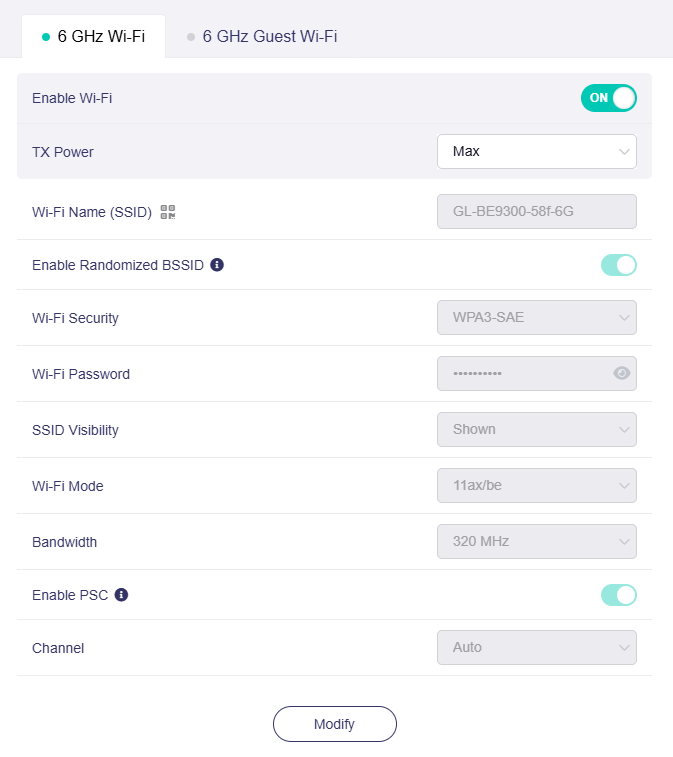
- Enable PSC: When PSC (Preferred Scanning Channel) is enabled, only channels with higher connectivity will be reserved to ensure 6 GHz device connections.
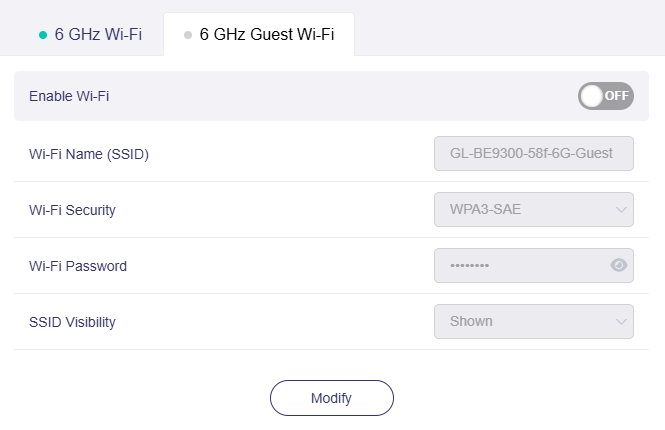
The 6 GHz Guest Wi-Fi allows you to configure simplified settings, including enabling/disabling Wi-Fi, setting the Wi-Fi name (SSID), Wi-Fi security, password, and SSID visibility.
5 GHz Wi-Fi
Click on the tabs below to learn about 5 GHz Main Wi-Fi and 5 GHz Guest Wi-Fi settings.
The 5 GHz Main Wi-Fi allows you to configure multiple settings, including enabling/disabling Wi-Fi, setting TX power, enabling/disabling randomized BSSID, setting the Wi-Fi name (SSID), Wi-Fi security, Wi-Fi password, SSID visibility, Wi-Fi mode, bandwidth, and channel.

The 5 GHz Guest Wi-Fi allows you to configure simplified settings, including enabling/disabling Wi-Fi, setting the Wi-Fi name (SSID), Wi-Fi security, password, and SSID visibility.

2.4 GHz Wi-Fi
Click on the tabs below to learn about 2.4 GHz Main Wi-Fi and 2.4 GHz Guest Wi-Fi settings.
The 2.4 GHz Main Wi-Fi allows you to configure multiple settings, including enabling/disabling Wi-Fi, setting TX power, enabling/disabling randomized BSSID, setting the Wi-Fi name (SSID), Wi-Fi security, Wi-Fi password, SSID visibility, Wi-Fi mode, bandwidth, and channel.

The 2.4 GHz Guest Wi-Fi allows you to configure simplified settings, including enabling/disabling Wi-Fi, setting the Wi-Fi name (SSID), Wi-Fi security, password, and SSID visibility.

General Wi-Fi Settings
-
Hover your cursor over the QR code icon next to the Wi-Fi SSID to display its Wi‑Fi QR code. You can scan it with your phone or tablet to connect to the corresponding Wi‑Fi network quickly.

-
Randomized BSSID: Enabled by default, it prevents the router from being tracked via a fixed BSSID. Click Randomized BSSID for details.
-
The Bandwidth and Channel cannot be modified when the router acts as a repeater, as they follow that of the repeated network.
-
When Channel is set to Auto, the router's Wi-Fi will not automatically switch to the DFS channel.
-
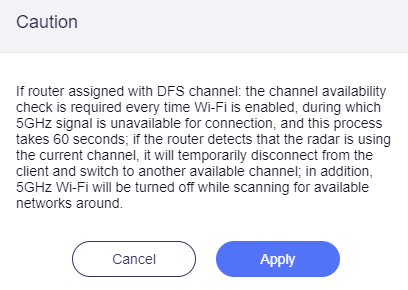
When switching the Channel to a DFS one from non-DFS channel, a caution will appear as follows.
-
When the Bandwidth is set to 160 MHz (Only available on some models), the Wi-Fi will always use the DFS channel, even if you choose a non-DFS channel or Auto for Channel settings.
Randomized BSSID
Randomized BSSID is a privacy feature available since firmware v4.6 and enabled by default. It prevents your router from being located and tracked through a fixed Wi-Fi BSSID (the MAC address of the router's wireless interface).
Why a fixed BSSID is a privacy risk
Mobile operating systems (e.g., Android and iOS) rely on crowd-sourced Wi-Fi positioning to provide location services:
-
Client devices (phones, laptops) periodically upload the BSSIDs they can see, along with their own GPS-derived location, to the OS/device vendor's server.
-
Vendors aggregate this data into a global BSSID-to-location database.
-
Any device with Wi-Fi enabled — even without GPS — can query that database to estimate its location from the BSSIDs around it.

As a result, a router with a fixed BSSID acts like a stationary location beacon: it can be geo-located remotely, and its movements (for example, when you travel with it) can be traced over time. Attackers may also query such databases to locate routers or fingerprint them via the BSSID's vendor information (OUI).
How Randomized BSSID protects you
When this feature is enabled, the router generates a random BSSID and renews it at each boot. Since the BSSID keeps changing, it can no longer be tied to a fixed location in vendor databases, breaking the BSSID-location association used for tracking.
| Status | Behavior |
|---|---|
| Enabled (default) | A new random BSSID is generated and renewed at each boot |
| Disabled | The router uses its real factory MAC address as the BSSID |
Notes:
- The BSSID changes only when the router reboots; it stays the same during a running session.
- For Guest Wi-Fi, the BSSID remains consistent with the Main Wi-Fi BSSID on the same frequency band.
- If the MLO Wi-Fi radio bands include 6 GHz, the MLO Wi-Fi BSSID synchronizes with the 6 GHz Wi-Fi BSSID.
- Randomized BSSID blocks tracking via the router's BSSID, but it does not stop client devices from reporting their own location, and it is not a complete privacy solution: SSID, channel, and signal characteristics can still be observed.
Still have questions? Visit our Community Forum.