Ethernet Port (Firmware v4.10)
Note: The content on this page is currently available on Flint 4 (GL-BE14000), and will be rolled out to other models with firmware v4.10.
If your device is running a different firmware version, use the selector below to switch to the corresponding guide.
On the left side of the web Admin Panel, go to NETWORK -> Ethernet Port.
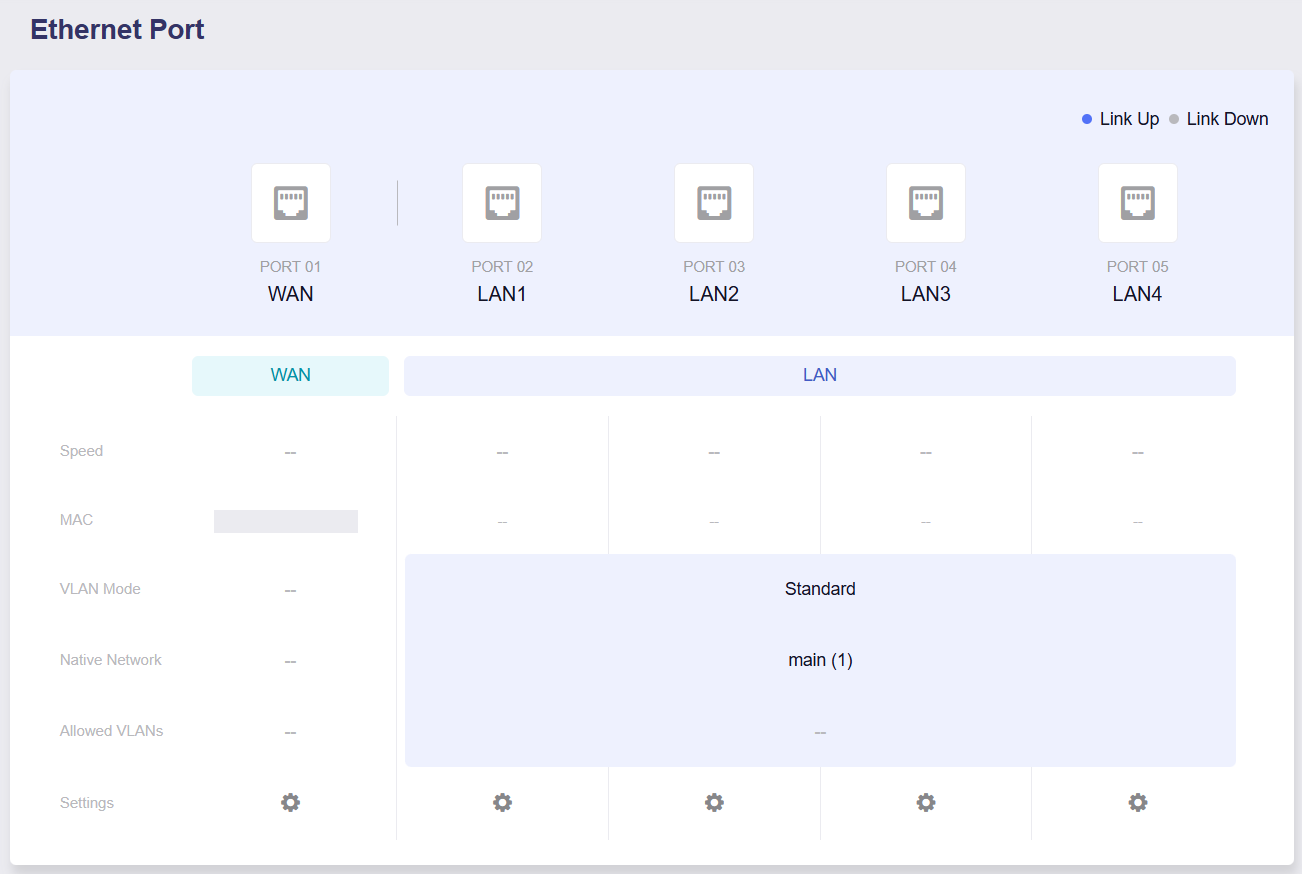
This page displays all router interfaces. You can view the connection status of each interface, manage Ethernet port roles (WAN or LAN), and view port details such as MAC address, negotiated speed, and current link status. Additionally, you can assign physical interfaces to any subnets you have created.
-
Link Up: When the port icon is highlighted in blue, the physical link is active.
-
Link Down: When the port icon is gray, the physical link is inactive.
-
Speed: Negotiated transmission rate of the Ethernet port.
-
MAC: MAC address of the port.
-
VLAN Mode: The working mode of LAN ports can be set to either Standard or Multiple VLANs mode.
-
Native Network: Default untagged subnet assigned to the LAN port.
-
Allowed VLANs: Specifies tagged VLANs permitted to pass through this port under Multiple VLANs mode.
-
Settings: Click to access the configuration page for each individual port.
WAN
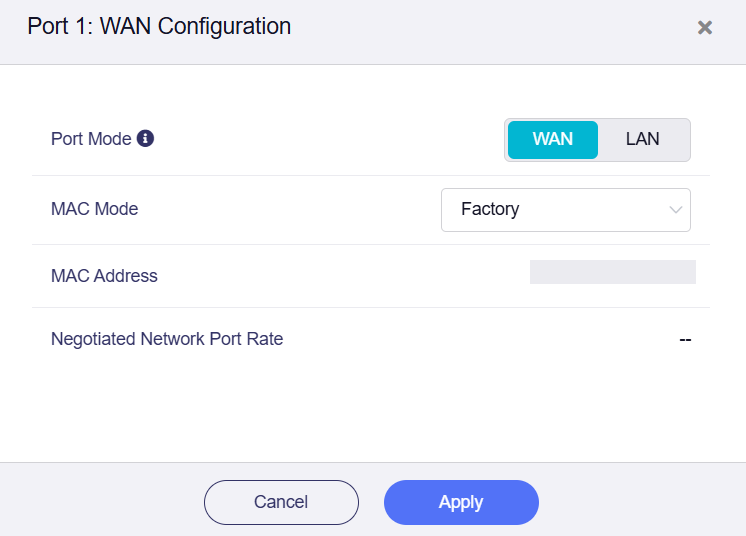
This section displays the Port Mode (WAN or LAN), MAC address, and negotiated rate.
-
Port Mode: The current operating mode of the physical WAN port. You can set it to LAN as needed.
-
MAC Mode: Defaults to Factory Mode. You can switch it to Clone Mode or Random Mode.
-
MAC Address: The MAC address of the WAN interface.
-
Negotiated Network Port Rate: The negotiated link speed of the WAN interface, displayed only when a valid link is detected.
LAN
This section displays the LAN port configuration. You can set the Ethernet Mode to either Standard or Multiple VLANs as needed.
Standard Mode
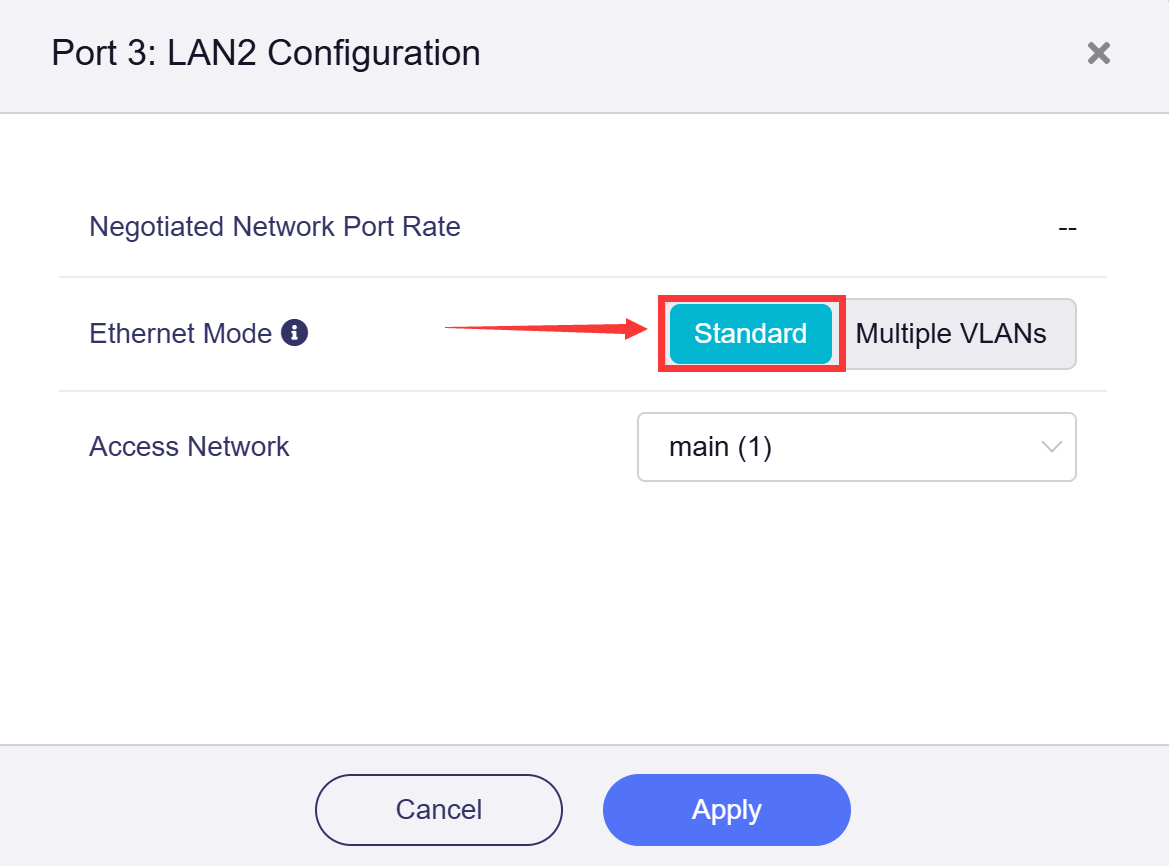
Standard Mode allows only one VLAN (Untagged), used for connecting end devices.
-
Negotiated Network Port Rate: The negotiated link speed of the LAN interface, displayed only when a valid link is detected.
-
Ethernet Mode: Defaults to Standard Mode.
-
Access Network: The Access Network allows you to achieve network isolation by assigning LAN ports to different subnets.
Once configured, you can return to the Ethernet Port page to verify the settings.
Multiple VLANs Mode
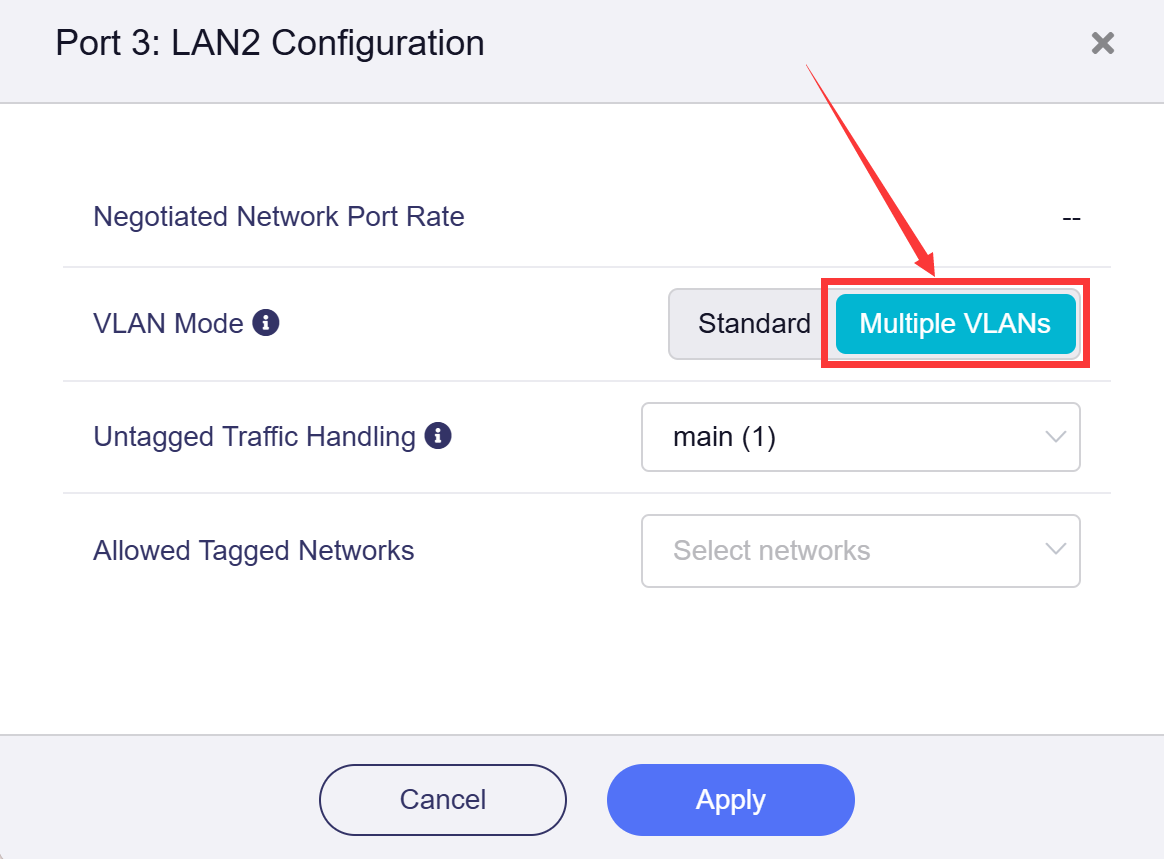
Multiple VLANs mode allows multiple VLANs (Tagged) on one port, typically for connecting APs or other switches.
-
Negotiated Network Port Rate: The negotiated link speed of the LAN interface, displayed only when a valid link is detected.
-
VLAN Mode: : To switch to Multiple VLANs mode, click the Multiple VLANs tab.
-
Untagged Traffic Handling: Configure untagged packet handling for the port. You can select to either drop such packets directly or forward them to another subnet as the native PVID network.
-
Allowed Tagged Networks: Specifies the VLANs allowed to pass through this port in tagged mode. You can select VLAN networks from the list, and only matching traffic will be forwarded.
Once configured, you can return to the Ethernet Port page to verify the settings.
Some models support switching LAN 1 to a WAN port for dual-Ethernet WAN scenario. Click Dual-Ethernet WAN for details.
Dual-Ethernet WAN
The Dual-Ethernet WAN feature lets you switch a default LAN Ethernet port to a secondary WAN port for dual Ethernet internet access, providing reliable backup connectivity and supporting bandwidth aggregation (where compatible) for bandwidth-heavy workloads. It also lets you connect to two independent networks (e.g., work and personal) simultaneously, enhancing flexibility without extra hardware.
Supported Models
- GL-BE14000 (Flint 4)
- GL-BE10000 (Slate 7 Pro)
- GL-MG1300 (Mango 2)
- ※GL-E5800 (Mudi 7)
- GL-MT3600BE (Beryl 7)
- GL-MT5000 (Brume 3)
- GL-BE6500 (Flint 3e)
- GL-BE9300 (Flint 3)
- GL-BE3600 (Slate 7)
- GL-X2000 (Spitz Plus)
- GL-MT6000 (Flint2)
- GL-X3000 (Spitz AX)
- GL-XE3000 (Puli AX)
Note: GL-E5800 (Mudi 7) is equipped with one Ethernet port (default LAN, can be switched to WAN) and an OTG-enabled USB-C port. To add a second Ethernet port for Dual-Ethernet WAN, please connect a separately sold USB‑C‑to‑Ethernet adapter to the USB‑C port.
Unsupported Models
- GL-B3000 (Marble)
- GL-AX1800 (Flint)
- GL-MT2500/GL-MT2500A (Brume 2)
- GL-MT3000 (Beryl AX)
- GL-AXT1800 (Slate AX)
- GL-SFT1200 (Opal)
- GL-A1300 (Slate Plus)
- GL-MT1300 (Beryl)
- GL-E750/E750V2 (Mudi)
- GL-AR750S (Slate)
- GL-XE300 (Puli)
- GL-X750 (Spitz)
- GL-MT300N-V2 (Mango)
- GL-AR300M Series (Shadow)
- GL-B1300 (Convexa-B)
- GL-X300B (Collie)
Follow the steps below to switch a LAN port to a WAN port, using the Flint 3 (GL-BE9300) as an example.
-
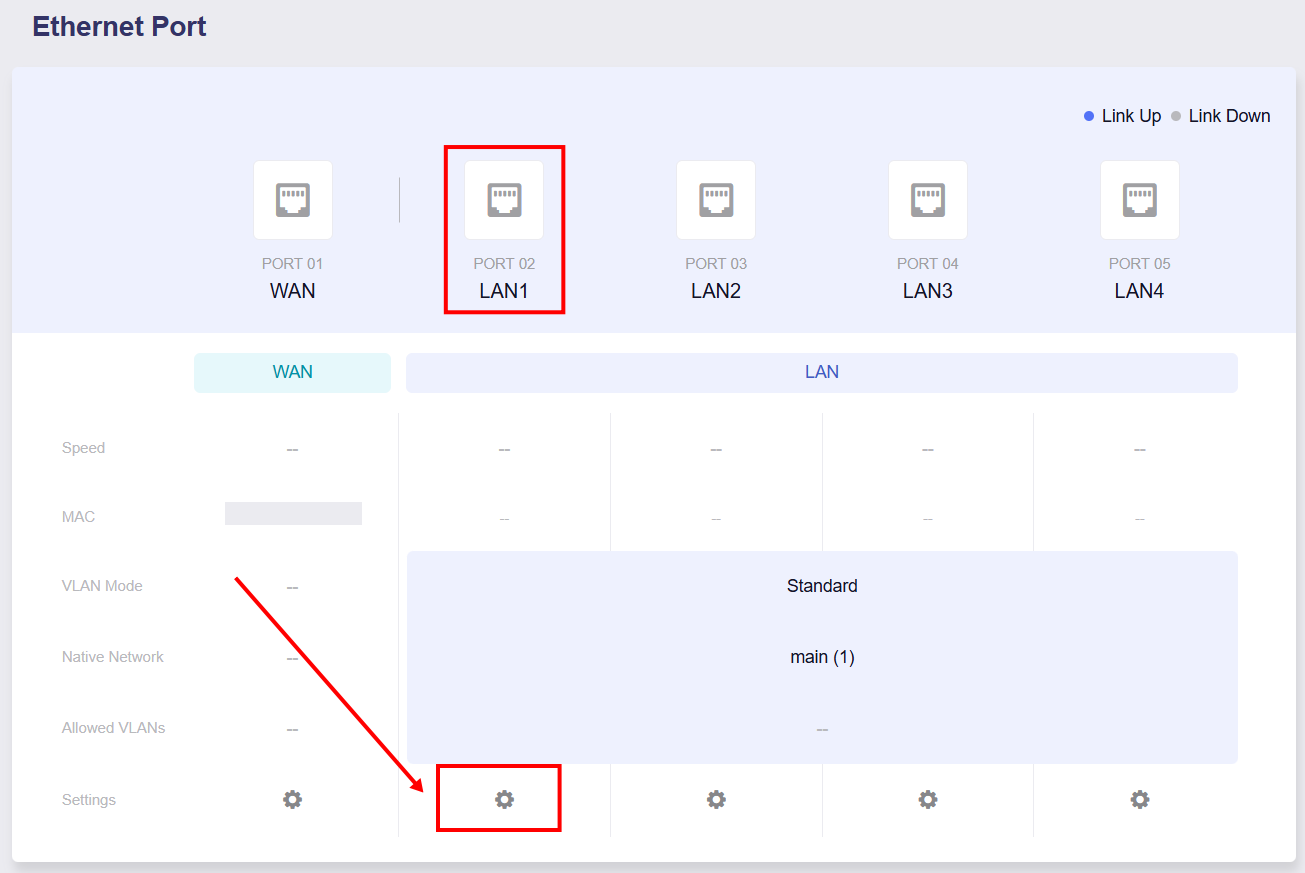
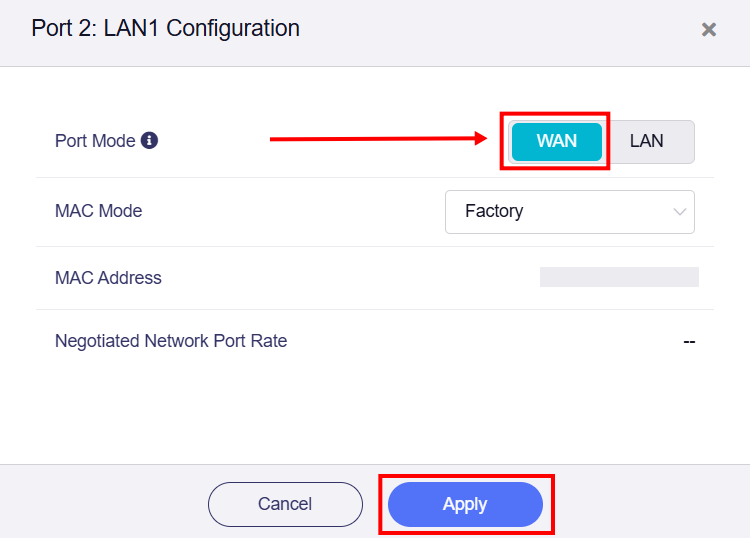
On the Ethernet Port page, click the LAN1 setting to enter the Configuration page. Then, switch the port role to WAN and click Apply.
-
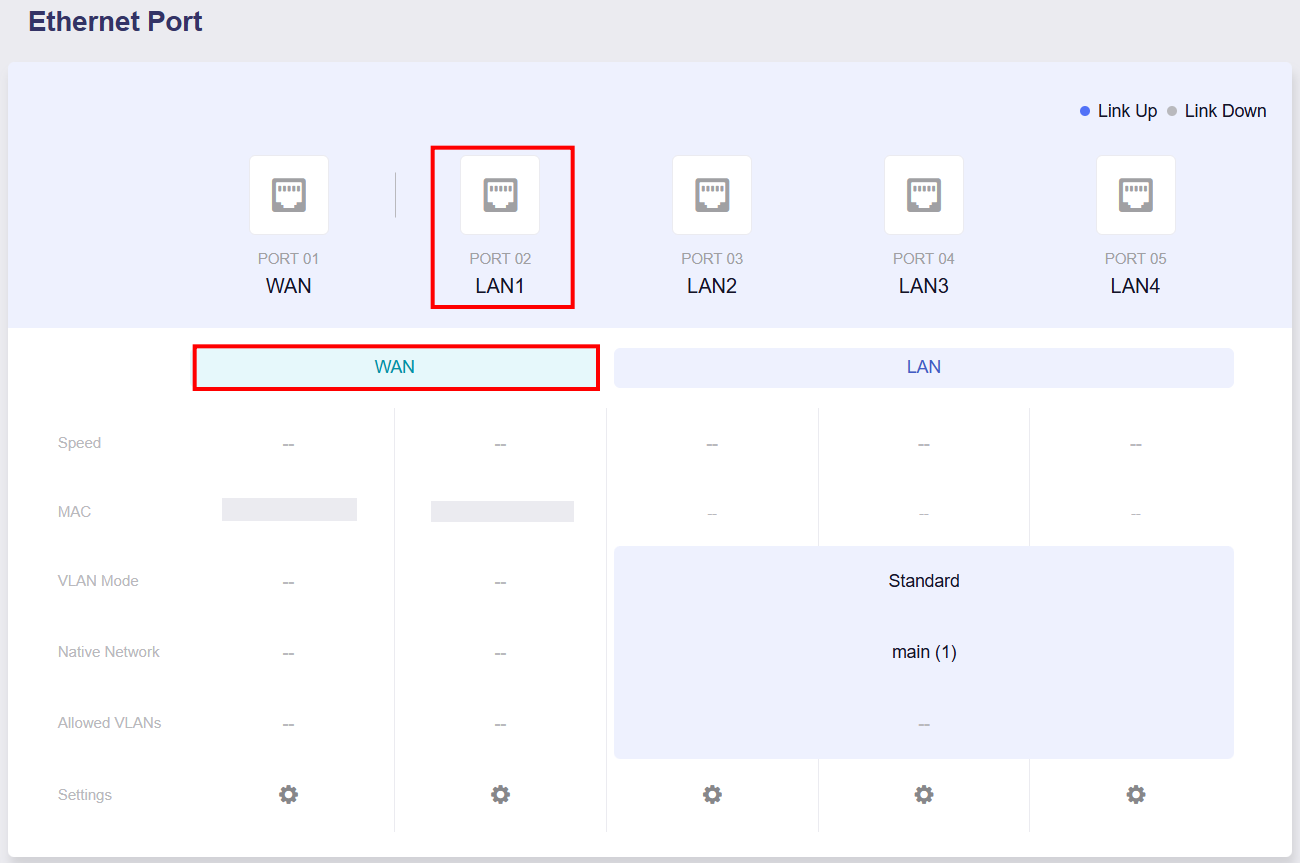
You can return to the Ethernet Port page to verify that the port role has switched to WAN.
-
The selected port will now operate as a WAN port. You may proceed to configure Multi-WAN here.
Still have questions? Visit our Community Forum or Contact us.