Subnet
Note: This page is currently available on Flint 4 (GL-BE14000), and will be rolled out to other models with firmware v4.10.
On the left side of the web Admin Panel, go to NETWORK -> Subnet.
This page provides centralized configuration and management of the Main Network, Guest Network, IoT Network, and custom VLAN Networks. You can create and manage multiple subnets to isolate different types of devices or traffic.
Main Network
Main Network is the network that your device is connected to via the main Wi-Fi or via an Ethernet cable.
In the Main Network, you can directly view all interface statuses, VLAN ID, router IP address, and DHCP Range.
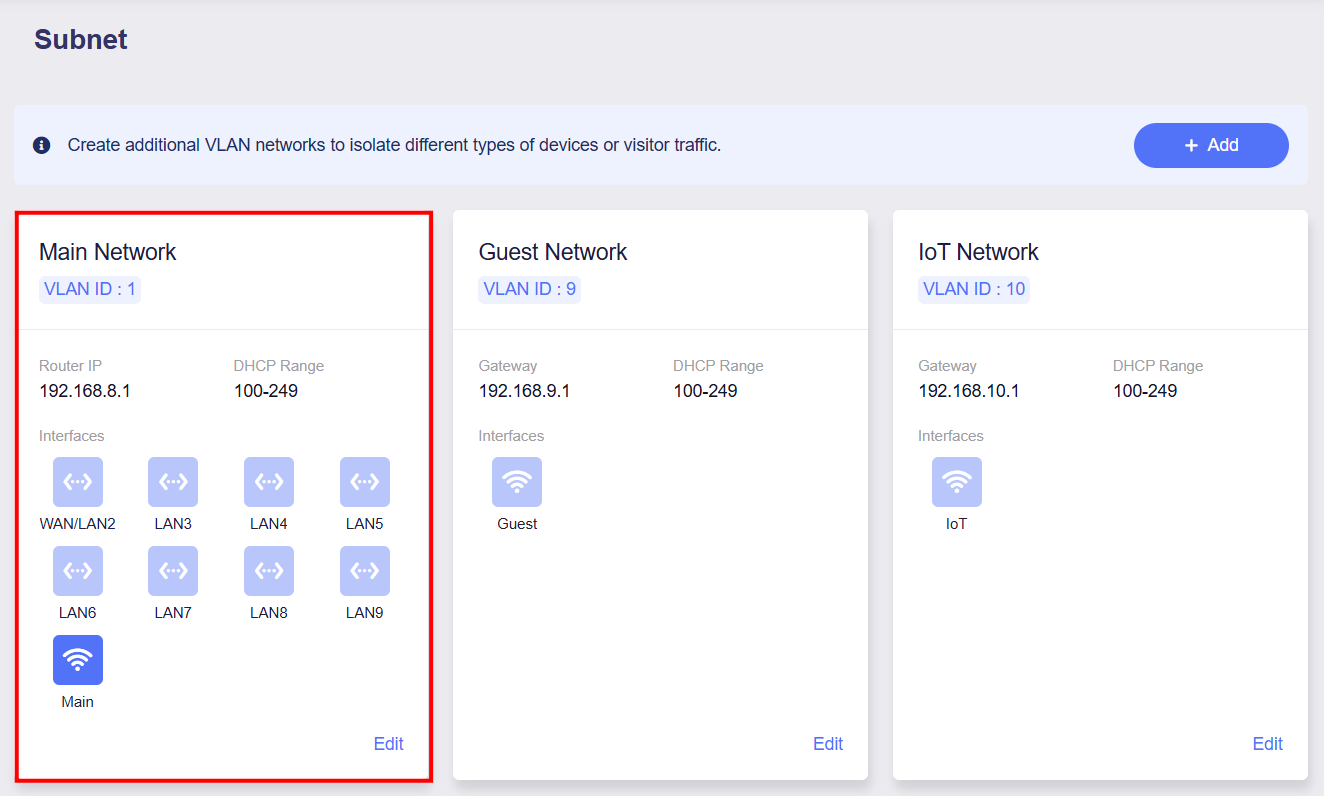
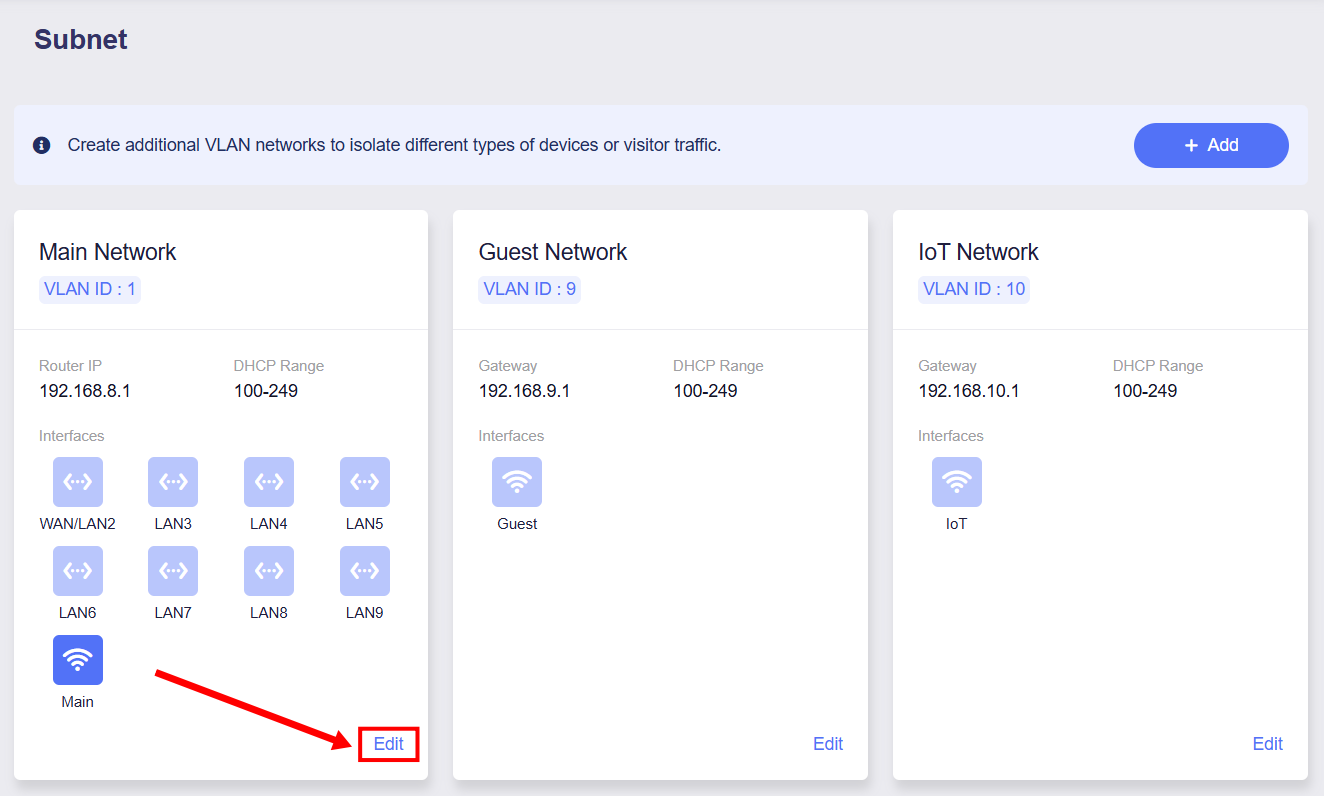
Click Edit in the lower-right corner to configure the Main Network.
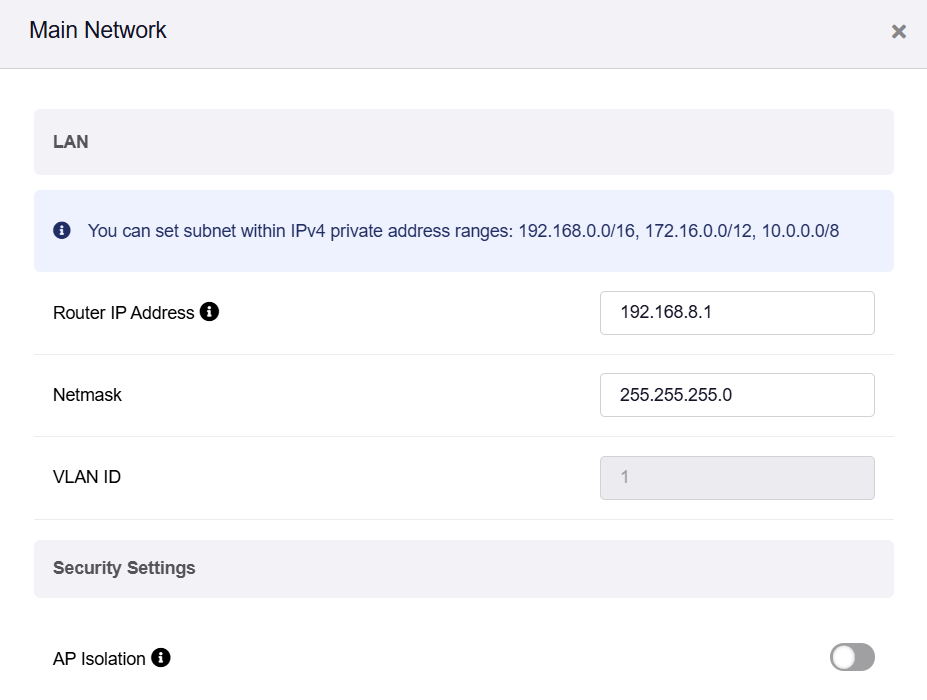
The configuration page includes Basic settings, DHCP server settings and Address Reservation.
Basic Settings
You can set the subnet within the IPv4 private address ranges: 192.168.0.0/16, 172.16.0.0/12, 10.0.0.0/8.
-
Router IP Address
This is the address that you would enter into your browser's address bar to access the router's admin page.
It is 192.168.8.1 by default. You can change it if it conflicts with your network.
-
Netmask
Defaults to 255.255.255.0. You can also select 255.255.0.0 if you need a larger subnet with more IP addresses.
-
VLAN ID
The Main Network's default VLAN ID is 1, which cannot be modified.
-
AP Isolation
You can isolate client devices into a separate network segment. These devices will not be able to communicate with other devices on the same network.
DHCP Server
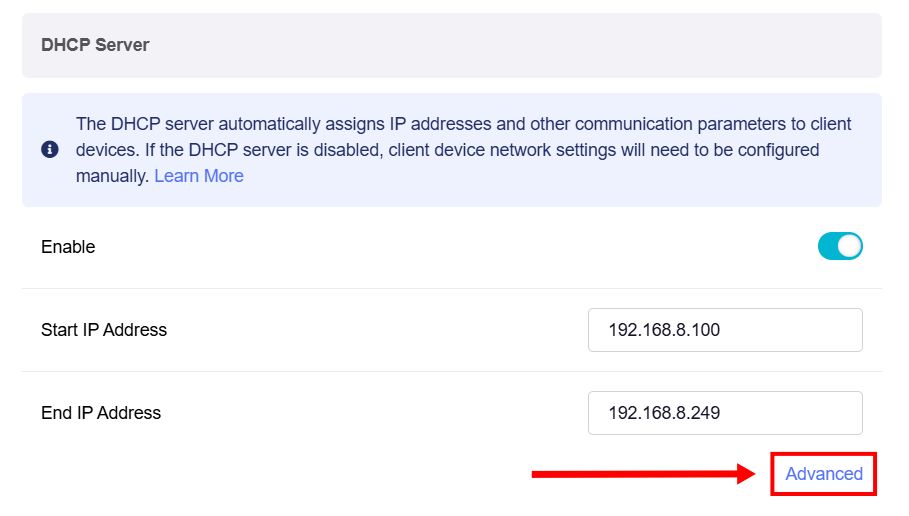
The DHCP Server is enabled by default. The DHCP server automatically assigns IP addresses and other communication parameters to each client device.
If the DHCP server is disabled, you will need to configure network settings for client devices manually. Click here to learn how to manually configure a static IP.
You can change the starting and ending IP addresses to suit your needs — for example, if your network expands or shrinks, if IP address conflicts occur, or if the subnet mask range is modified.
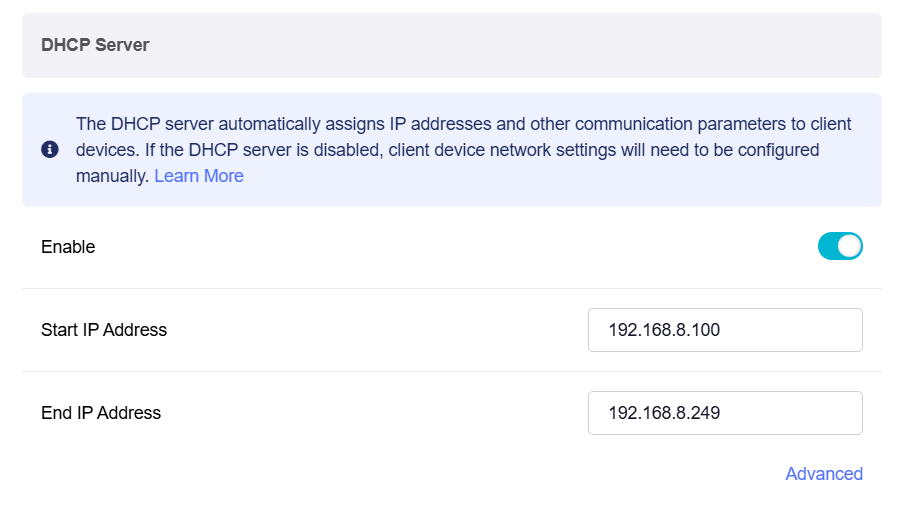
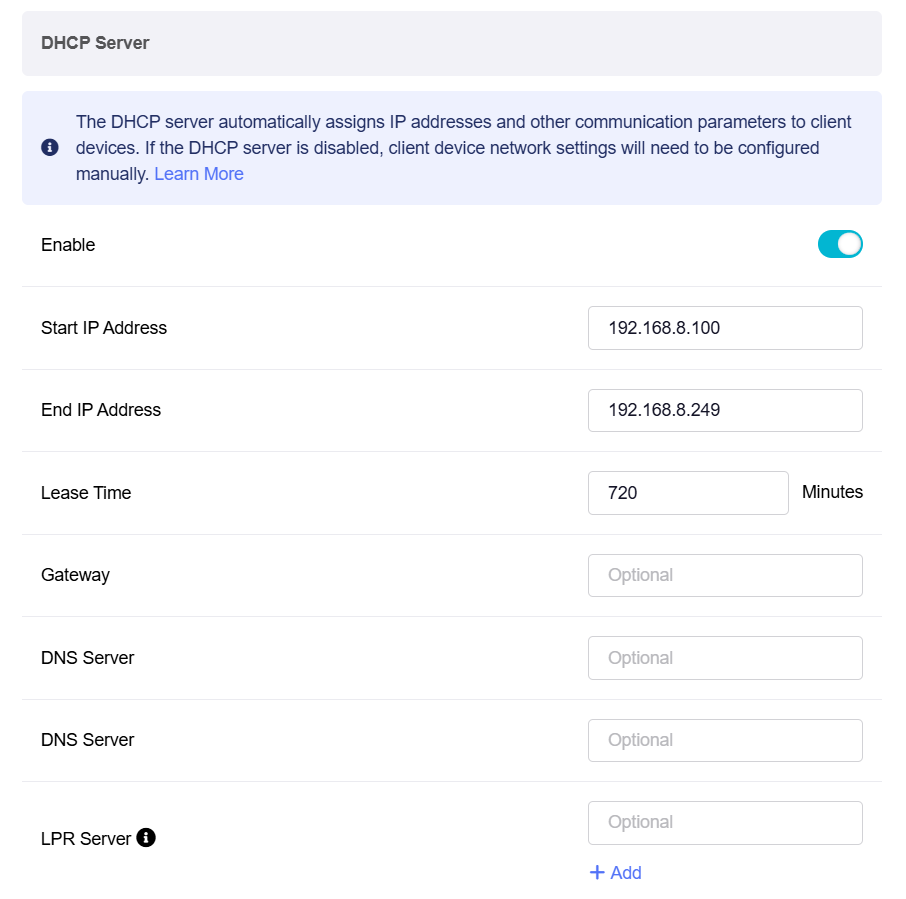
Click Advanced for further configuration if needed.
-
Lease Time: The period for which a DHCP-assigned IP address is valid for a device.
-
Gateway: The device that routes traffic between the local network and external networks such as the Internet.
-
DNS Server 1: The primary server that translates domain names into IP addresses.
-
DNS Server 2: The secondary server used for domain name resolution if the primary DNS server is unavailable.
-
LPR Server (Line Printer Remote Server): A service that manages print jobs and allows network devices to send print requests to remote printers. Multiple LPR printer ports can be configured.
Address Reservation
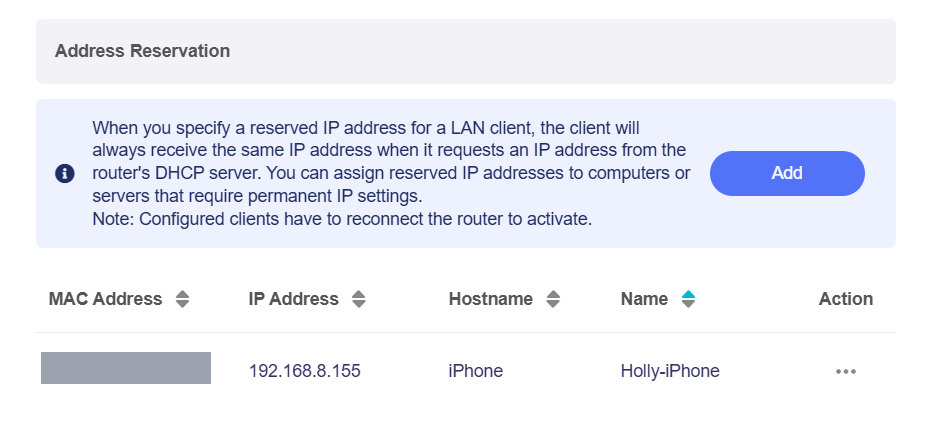
When you specify a reserved IP address for a client within the LAN, the client always receives the same IP address each time it accesses the router's DHCP server. You can assign reserved IP addresses to computers or servers that require permanent IP settings.
Note: Configured clients have to reconnect the router to activate.
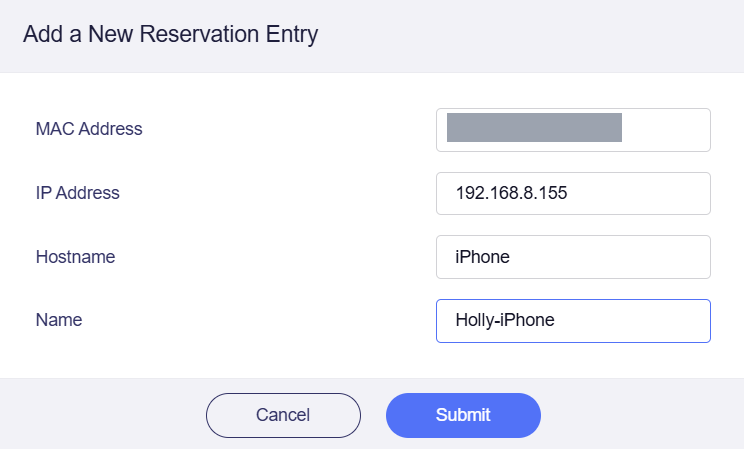
Click Add to reserve an IP.
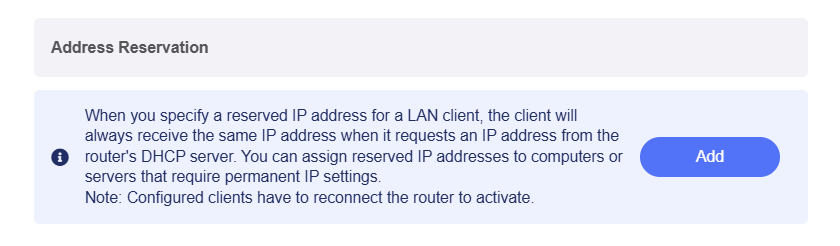
You will see a pop-up window.
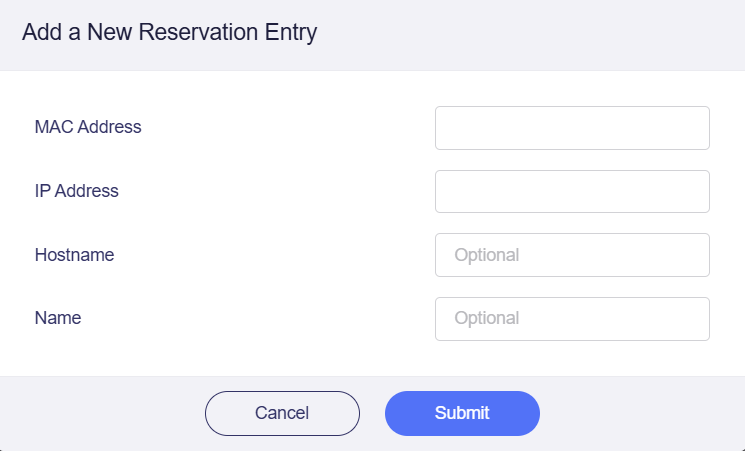
Select MAC from the dropdown list. The corresponding available IP will be auto-filled. You can optionally enter a hostname and a custom name for easy identification. Then click Submit.
After adding a new IP address reservation, you will get the page as shown below, which means you have set it up successfully.
Guest Network
The Guest Network provides a dedicated Wi-Fi network for visitors. Isolated from the primary network, it enhances security while providing convenient internet access.
Note: Some models (e.g., GL-MT5000, GL-MT2500/GL-MT2500A) do not have Wi-Fi functionality, thus the Guest Network settings are not available on their web Admin Panel.
In the Guest Network, you can directly view the interface status, VLAN ID, Gateway, and DHCP Range.
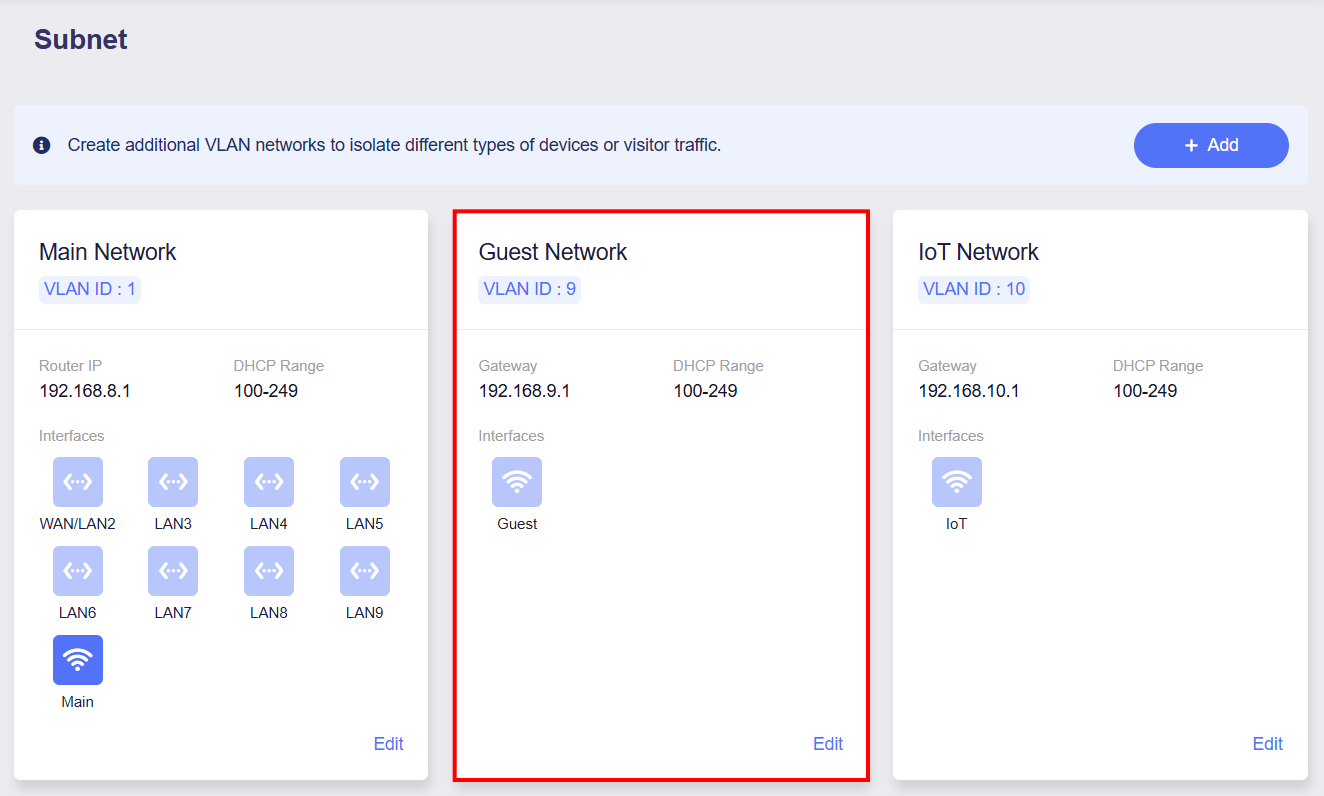
Click Edit in the lower-right corner, and the Guest Network configuration panel will open on the right side of the page.
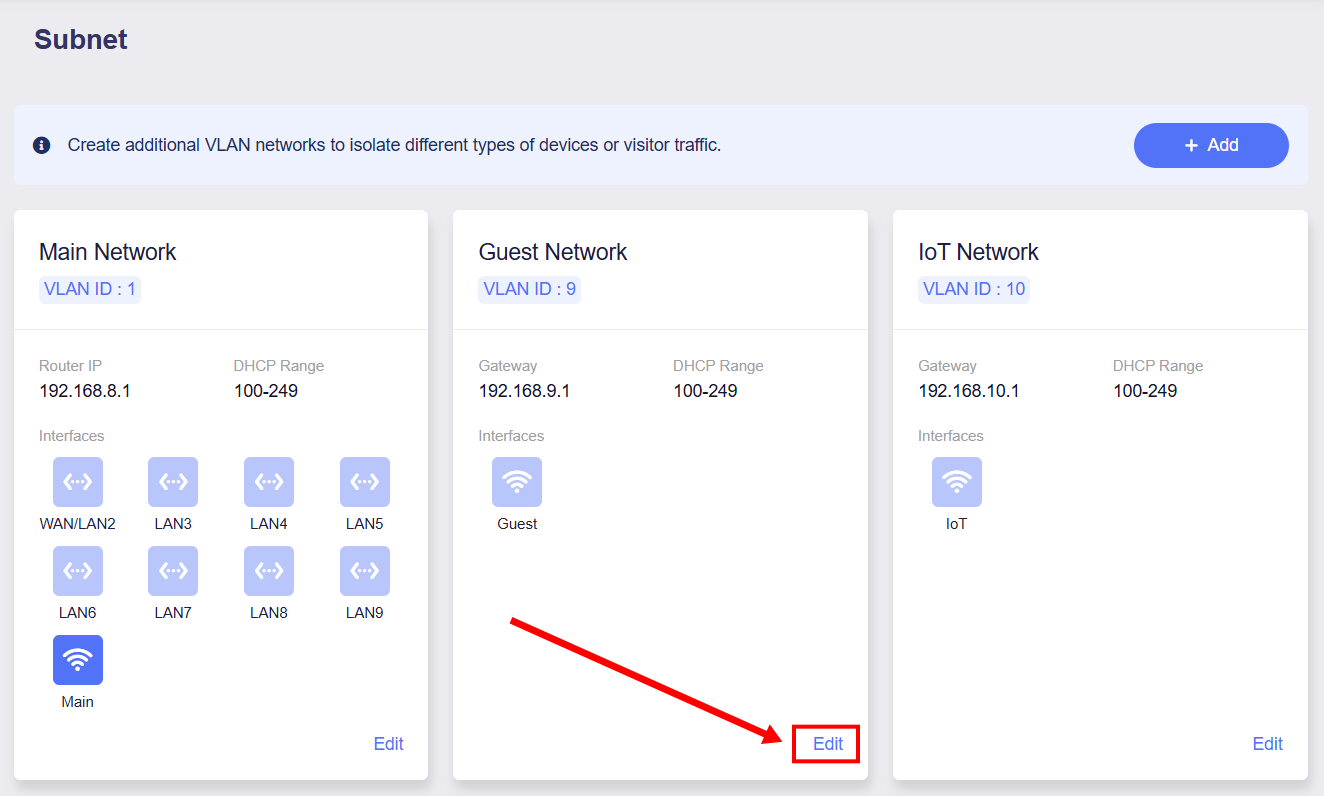
The configuration page includes Basic settings and DHCP server settings.
Basic Settings
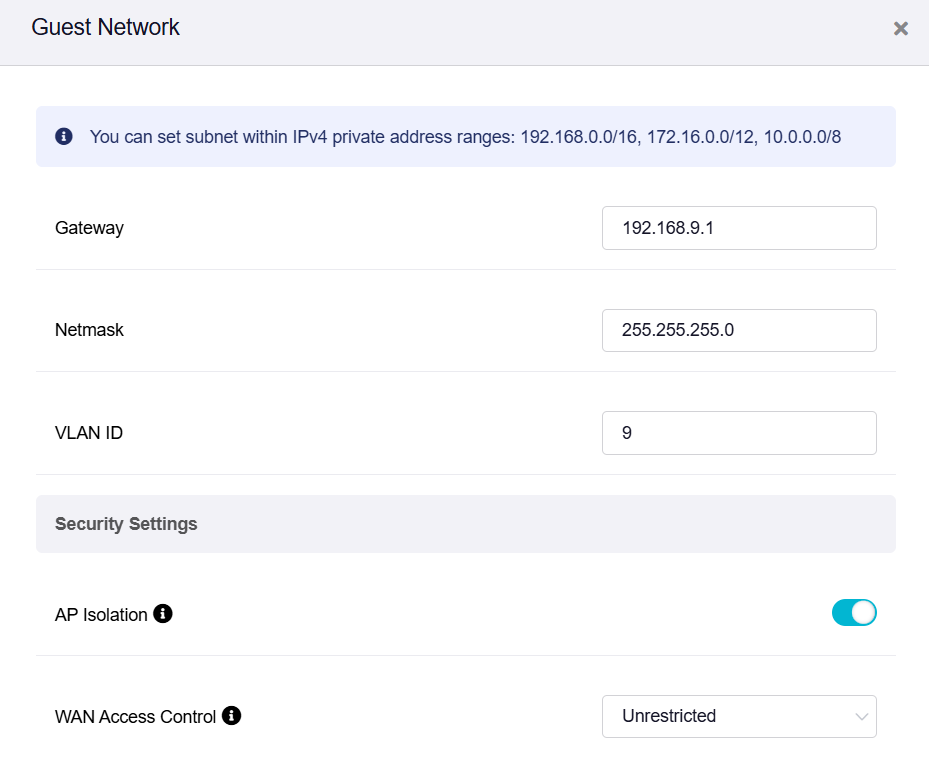
You can set the subnet within the IPv4 private address ranges: 192.168.0.0/16, 172.16.0.0/12, 10.0.0.0/8.
-
Gateway
The default gateway of the Guest Network is 192.168.9.1. If it conflicts with your local network, change it to a different one.
-
Netmask
Defaults to 255.255.255.0. You can also select 255.255.0.0 if you need a larger subnet with more IP addresses.
-
VLAN ID
The Guest Network's default VLAN ID is 9, which can be modified as required.
-
AP Isolation
This feature has been available since firmware v4.5.
You can isolate client devices into a separate network segment. These devices will not be able to communicate with other devices on the same network.
-
WAN Access Control
WAN Access Control manages local subnet access to WAN-side networks, including the internet and other WAN subnets.
Three WAN access control modes are available:
-
Unrestricted: Allows this subnet to access the internet and other WAN-side subnets without restrictions.
-
Block WAN Subnet: Blocks access to other WAN-side subnets. Internet access remains available.
-
Block Internet Access: Blocks all outbound access, including the internet and WAN-side subnets.
-
DHCP Server
The DHCP Server is enabled by default. The DHCP server automatically assigns IP addresses and other communication parameters to each client device.
If the DHCP server is disabled, you will need to configure network settings for client devices manually. Click here to learn how to manually configure a static IP.
You can change the starting and ending IP addresses to suit your needs — for example, if your network expands or shrinks, if IP address conflicts occur, or if the subnet mask range is modified.
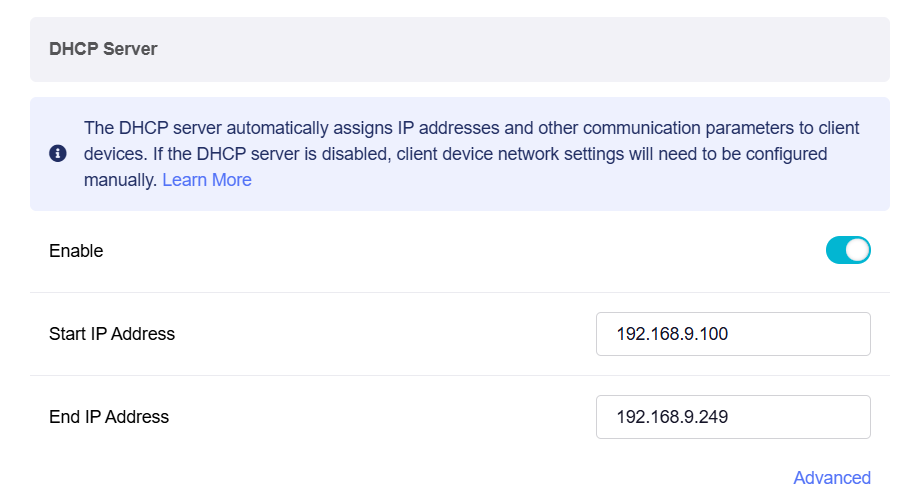
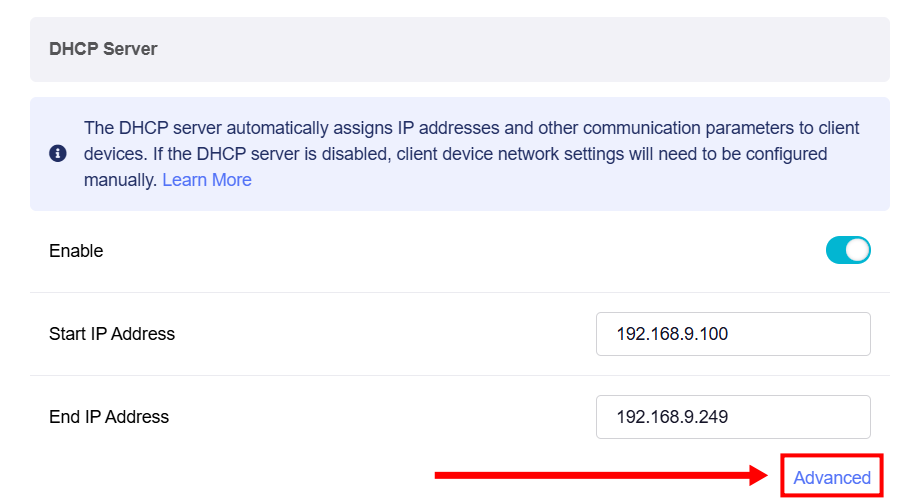
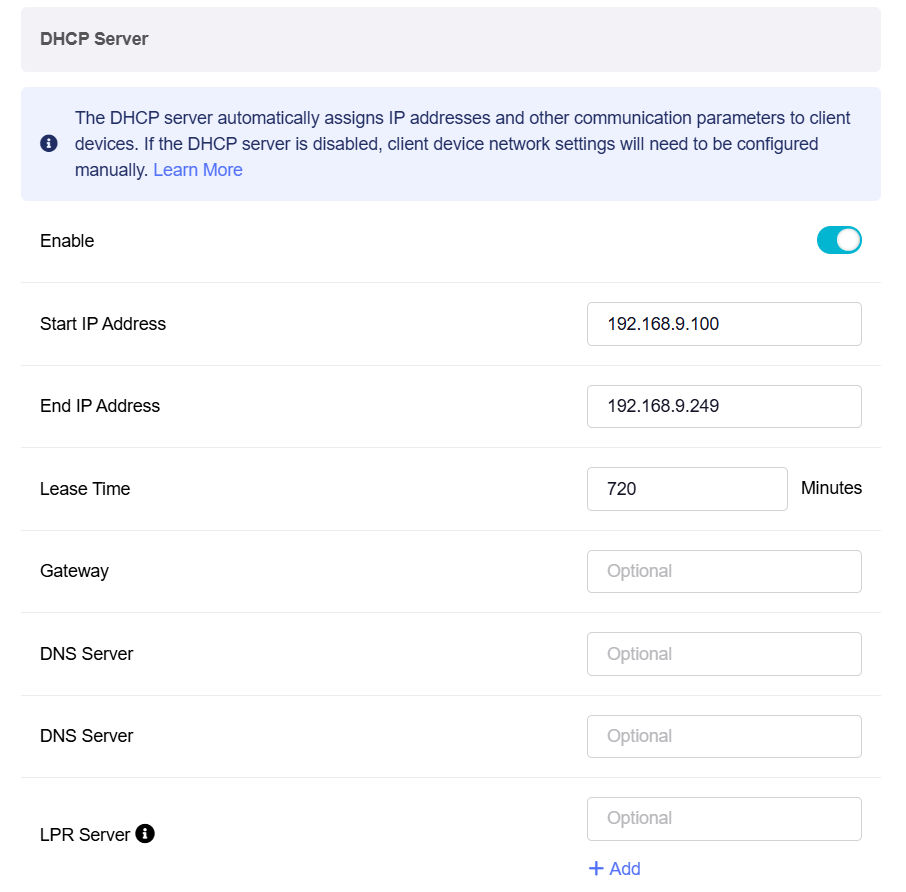
Click Advanced for further configuration if needed.
-
Lease Time: The period for which a DHCP-assigned IP address is valid for a device.
-
Gateway: The device that routes traffic between the local network and external networks such as the Internet.
-
DNS Server 1: The primary server that translates domain names into IP addresses.
-
DNS Server 2: The secondary server used for domain name resolution if the primary DNS server is unavailable.
-
LPR Server (Line Printer Remote Server): A service that manages print jobs and allows network devices to send print requests to remote printers. Multiple LPR printer ports can be configured.
IoT Network
The IoT Network creates a dedicated Wi-Fi network for IoT devices. Isolated from the primary network, it delivers better compatibility and improved security.
Note: Some models (e.g., GL-MT5000, GL-MT2500/GL-MT2500A) do not have Wi-Fi functionality, thus the IoT Network settings are not available on their web Admin Panel.
In the IoT Network, you can directly view the interface status, VLAN ID, Gateway, and DHCP Range.
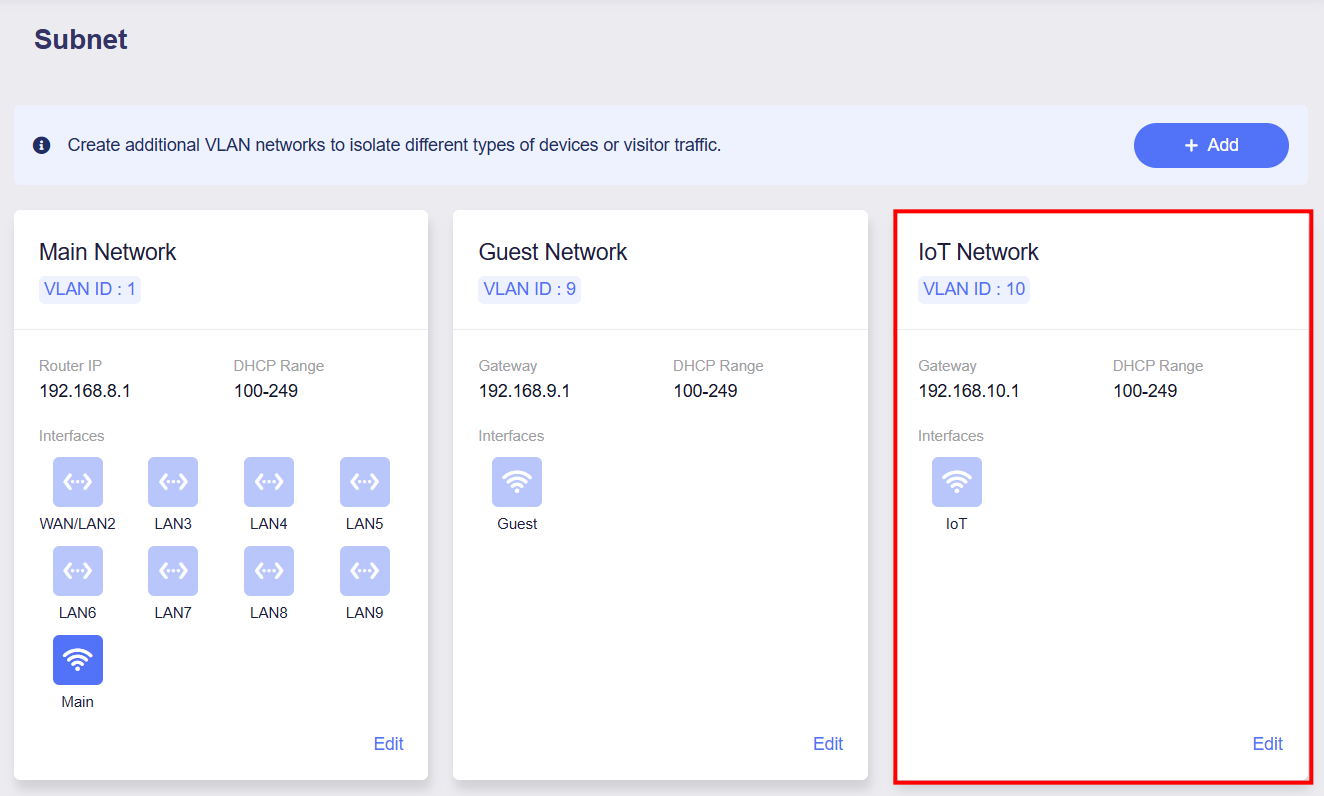
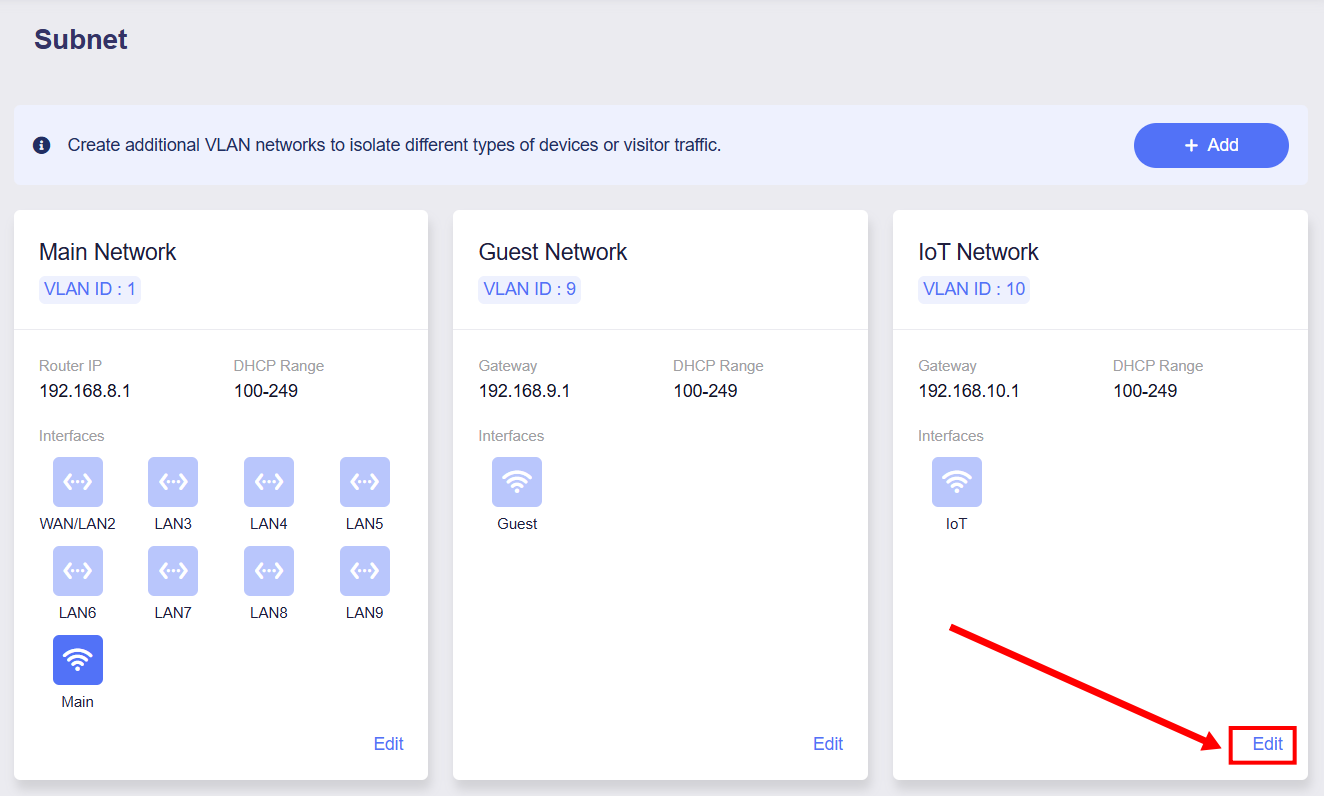
Click Edit in the lower-right corner, and the IoT Network configuration panel will open on the right side of the page. You can configure Basic Settings and DHCP Server Settings in this panel.
Basic Settings
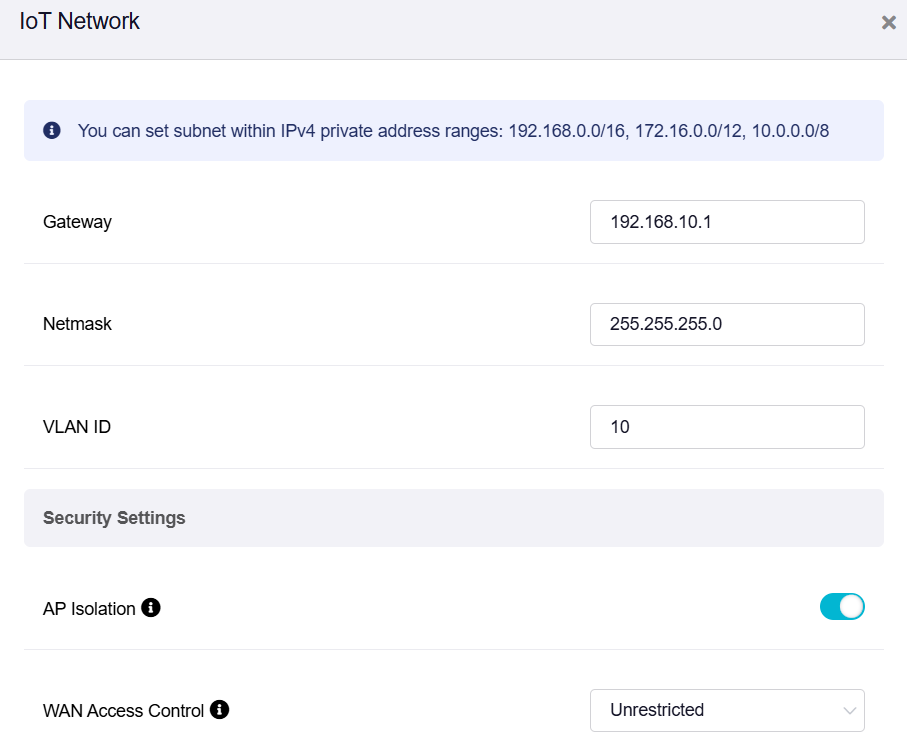
You can set the subnet within the IPv4 private address ranges: 192.168.0.0/16, 172.16.0.0/12, 10.0.0.0/8.
-
Gateway
The default gateway of the IoT Network is 192.168.10.1. If it conflicts with your local network, change it to a different one.
-
Netmask
Defaults to 255.255.255.0. You can also select 255.255.0.0 if you need a larger subnet with more IP addresses.
-
VLAN ID
The IoT Network's default VLAN ID is 10, which can be modified as required.
-
AP Isolation
This feature has been available since firmware v4.5.
You can isolate client devices into a separate network segment. These devices will not be able to communicate with other devices on the same network.
-
WAN Access Control
WAN Access Control manages local subnet access to WAN-side networks, including the internet and other WAN subnets.
Three WAN access control modes are available:
-
Unrestricted: Allows this subnet to access the internet and other WAN-side subnets without restrictions.
-
Block WAN Subnet: Blocks access to other WAN-side subnets. Internet access remains available.
-
Block Internet Access: Blocks all outbound access, including the internet and WAN-side subnets.
-
DHCP Server
The DHCP Server is enabled by default. The DHCP server automatically assigns IP addresses and other communication parameters to each client device.
If the DHCP server is disabled, you will need to configure network settings for client devices manually. Click here to learn how to manually configure a static IP.
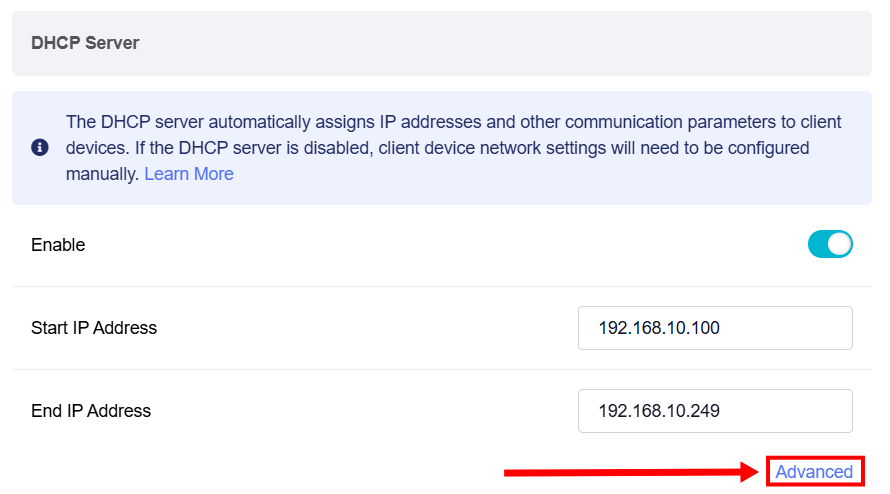
You can change the starting and ending IP addresses to suit your needs — for example, if your network expands or shrinks, if IP address conflicts occur, or if the subnet mask range is modified.
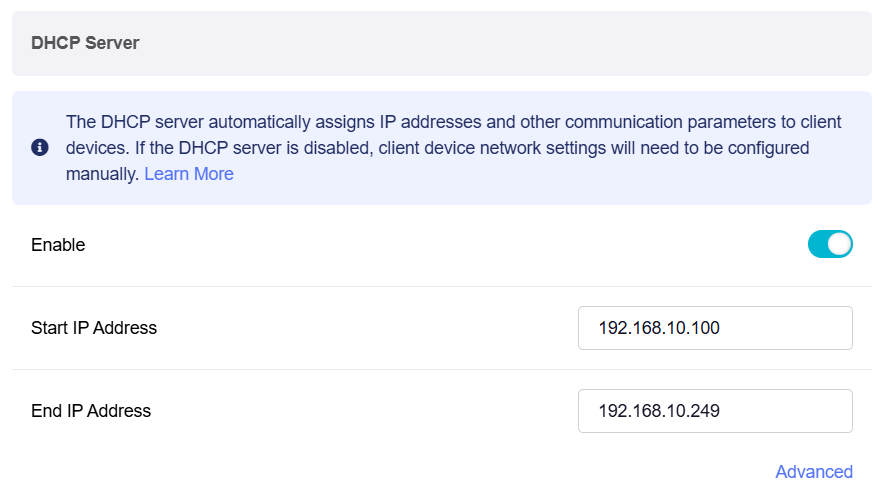
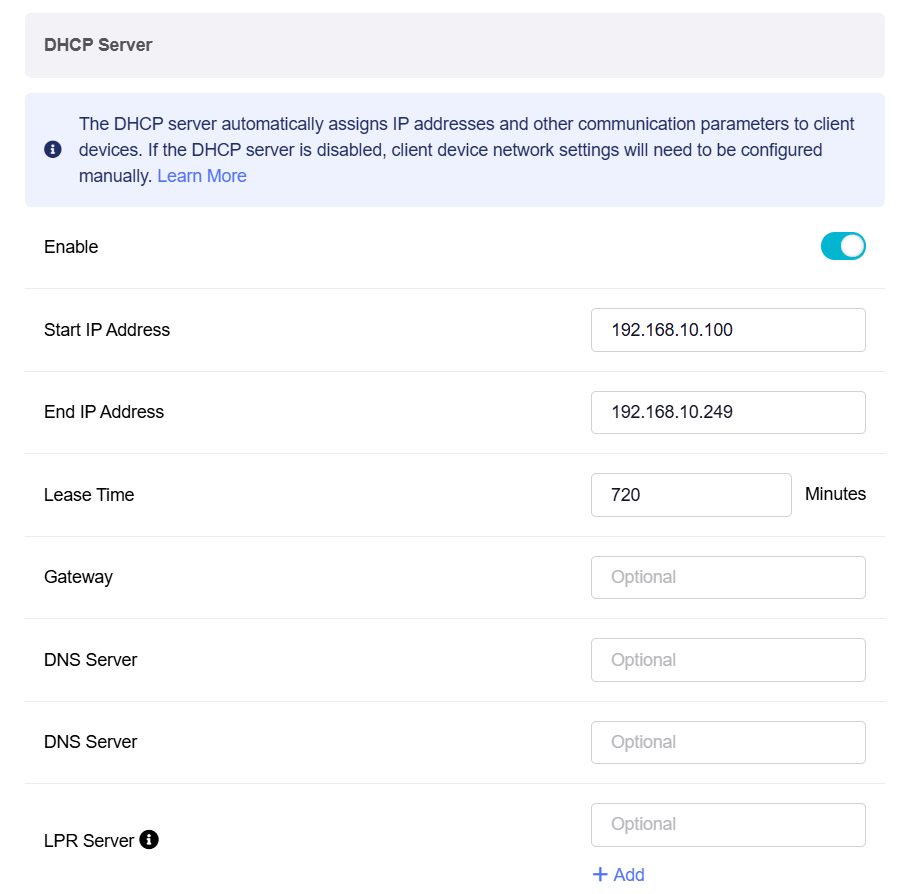
Click Advanced for further configuration if needed.
-
Lease Time: The period for which a DHCP-assigned IP address is valid for a device.
-
Gateway: The device that routes traffic between the local network and external networks such as the Internet.
-
DNS Server 1: The primary server that translates domain names into IP addresses.
-
DNS Server 2: The secondary server used for domain name resolution if the primary DNS server is unavailable.
-
LPR Server (Line Printer Remote Server): A service that manages print jobs and allows network devices to send print requests to remote printers. Multiple LPR printer ports can be configured.
VLAN Networks
At the top of the main page, you can create additional VLAN networks as needed to isolate different types of devices or visitor traffic.
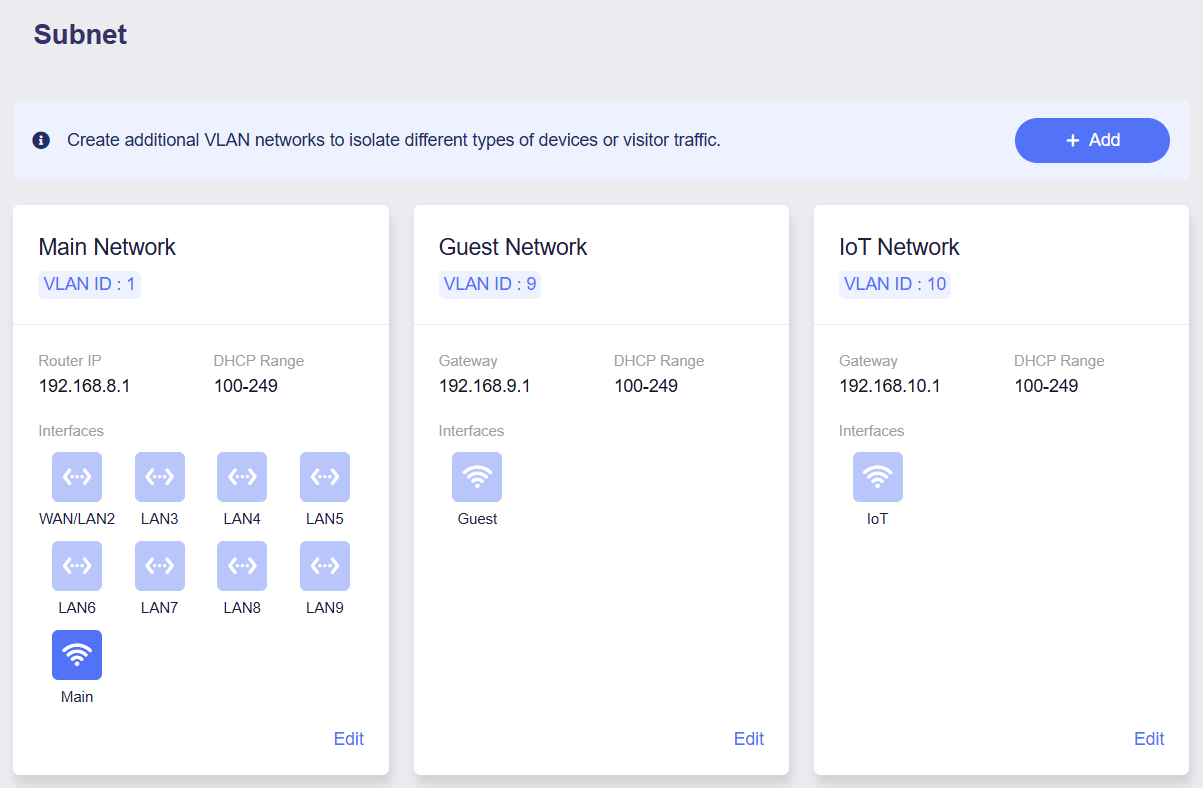
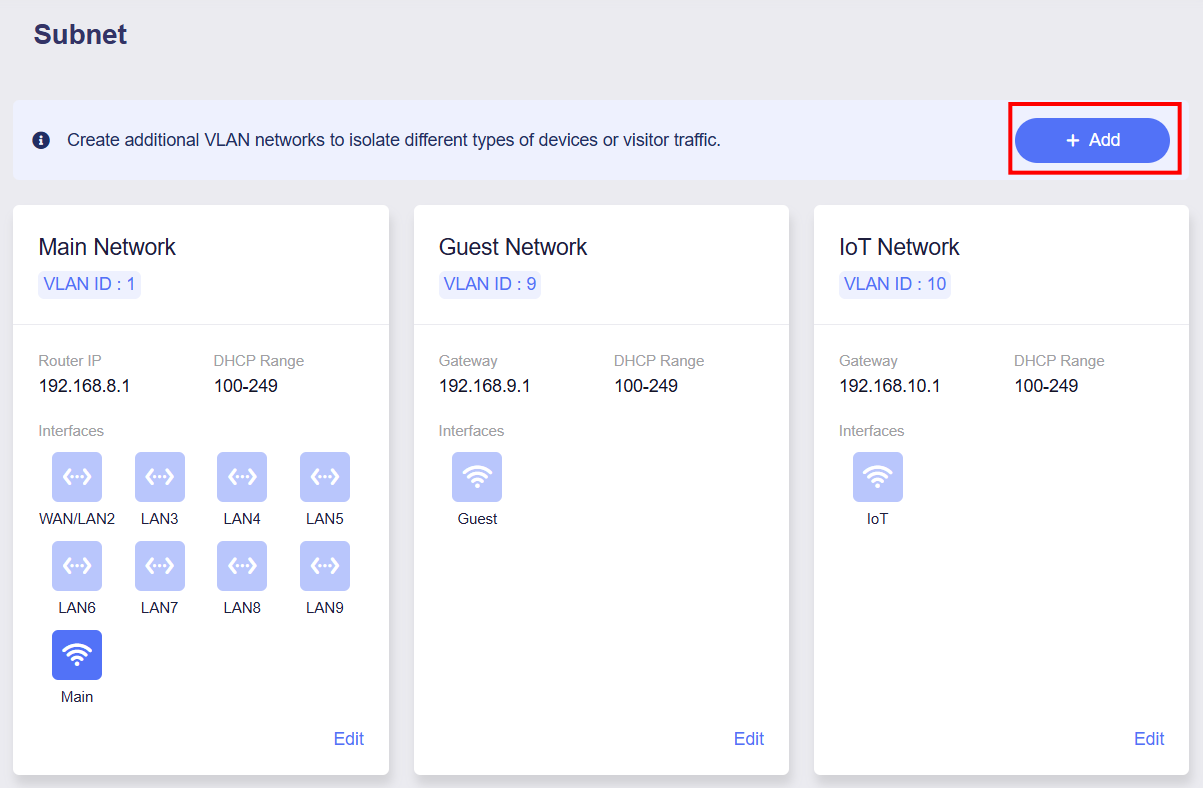
Click the + Add button on the right side of the page to configure a new network.
Basic Settings
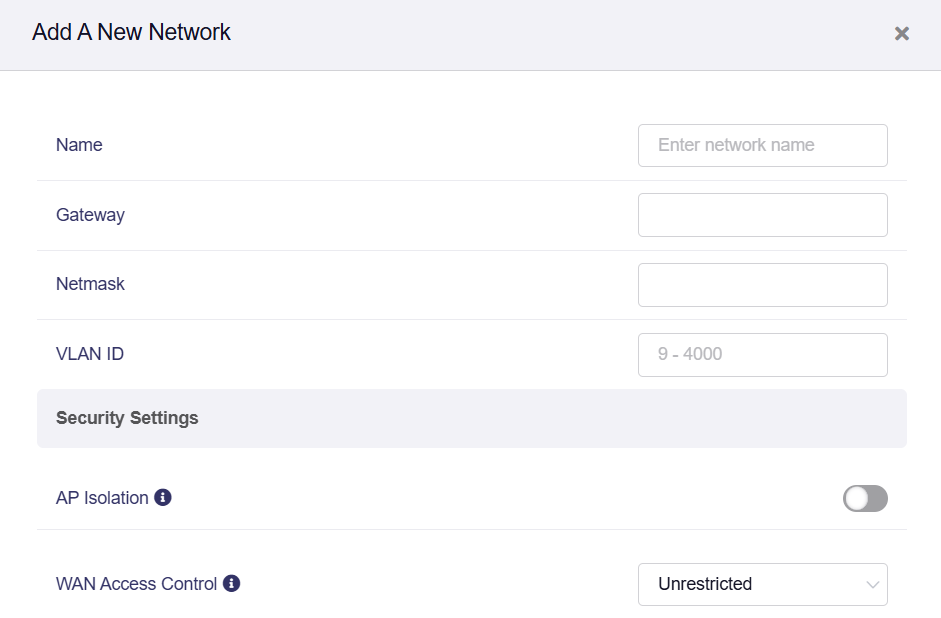
You can configure the basic VLAN Networks information on this page.
-
Name
Customize a name for your newly created subnet for identification.
-
Gateway
Manually configure the gateway for the new subnet. Replace this gateway if it conflicts with your existing LAN segment.
-
Netmask
Defaults to 255.255.255.0. You can also select 255.255.0.0 if you need a larger subnet with more IP addresses.
-
VLAN ID
When creating a subnet, you must assign a VLAN ID between 9 and 4000. Avoid using an already occupied VLAN ID to prevent network conflicts.
-
AP Isolation
This feature has been available since firmware v4.5.
You can isolate client devices into a separate network segment. These devices will not be able to communicate with other devices on the same network.
-
WAN Access Control
WAN Access Control manages local subnet access to WAN-side networks, including the internet and other WAN subnets.
Three WAN access control modes are available:
-
Unrestricted: Allows this subnet to access the internet and other WAN-side subnets without restrictions.
-
Block WAN Subnet: Blocks access to other WAN-side subnets. Internet access remains available.
-
Block Internet Access: Blocks all outbound access, including the internet and WAN-side subnets.
-
DHCP Server
The DHCP Server is enabled by default. The DHCP server automatically assigns IP addresses and other communication parameters to each client device.
If the DHCP server is disabled, you will need to configure network settings for client devices manually. Click here to learn how to manually configure a static IP.
You can change the starting and ending IP addresses to suit your needs — for example, if your network expands or shrinks, if IP address conflicts occur, or if the subnet mask range is modified.
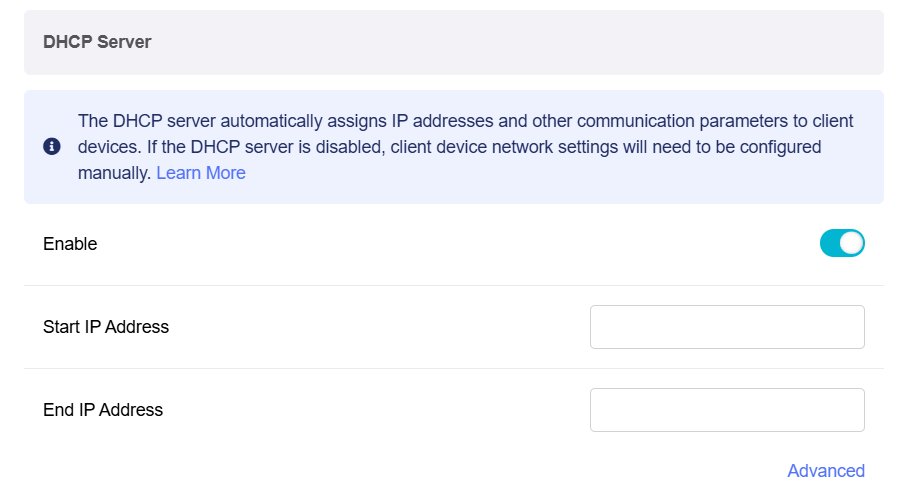
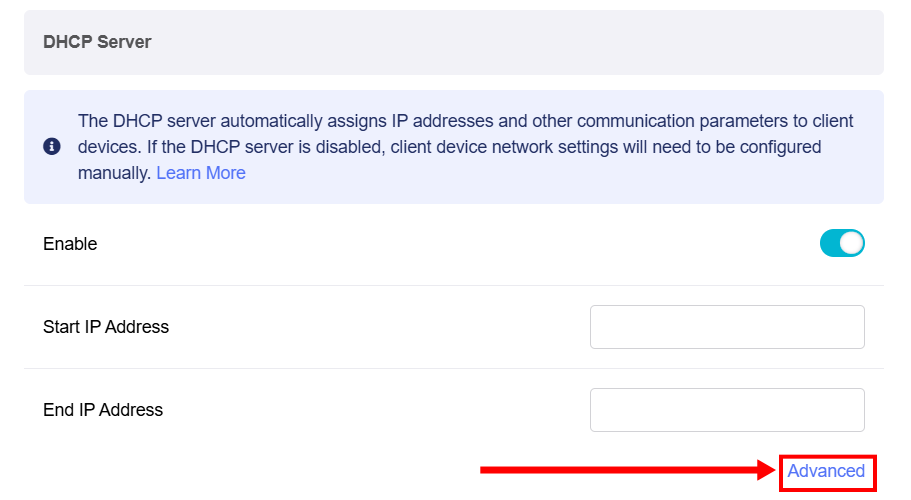
Click Advanced for further configuration if needed.
-
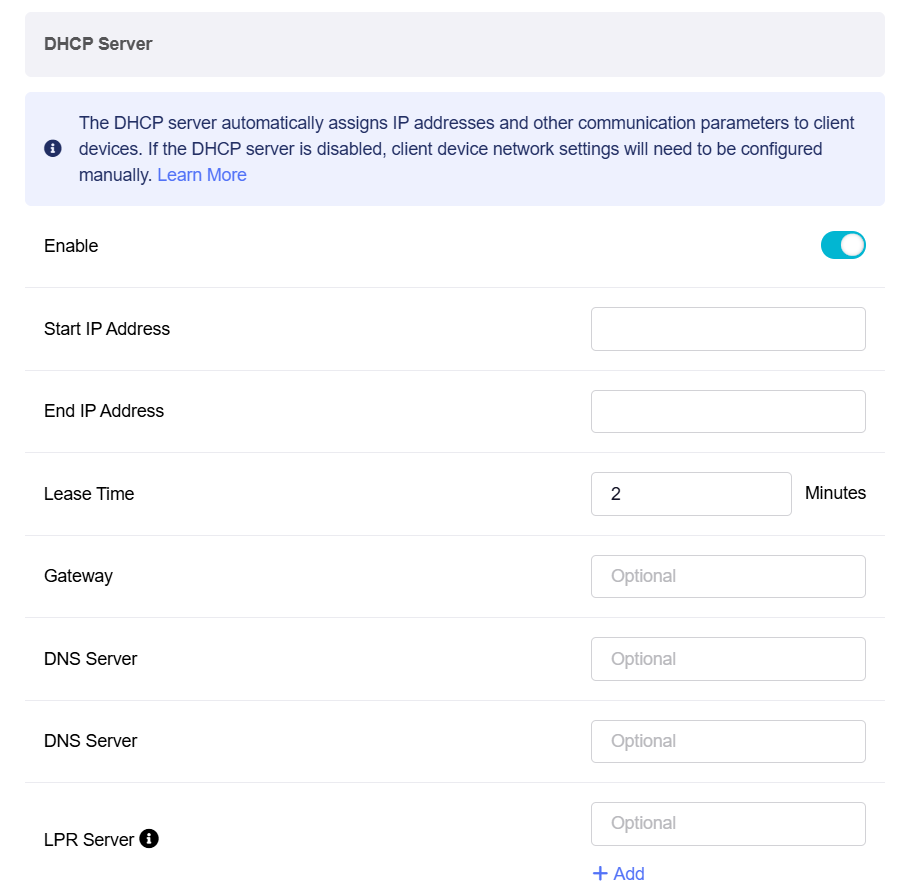
Lease Time: The period for which a DHCP-assigned IP address is valid for a device.
-
Gateway: The device that routes traffic between the local network and external networks such as the Internet.
-
DNS Server 1: The primary server that translates domain names into IP addresses.
-
DNS Server 2: The secondary server used for domain name resolution if the primary DNS server is unavailable.
-
LPR Server (Line Printer Remote Server): A service that manages print jobs and allows network devices to send print requests to remote printers. Multiple LPR printer ports can be configured.
Once configured, you can see the new VLAN network appear on the current page, showing the subnet information.
Still have questions? Visit our Community Forum or Contact us.