How to Obtain Technical Support via AnyDesk
Through remote assistance, our technicians can directly check your network settings and help you quickly configure your network or troubleshoot network issues.
Before you accept remote assistance, please take a few minutes to prepare as follows:
1. Close Unnecessary Applications
Please close any applications that are not needed in advance. This will help reduce distractions and protect your privacy.
2. Ensure Stable Network Connectivity
We recommend using both Wi-Fi and wired connections on your computer to avoid any disconnections or delays during the remote assistance session.
3. Download and Install AnyDesk
Visit the official AnyDesk website to download the version suitable for your operating system.
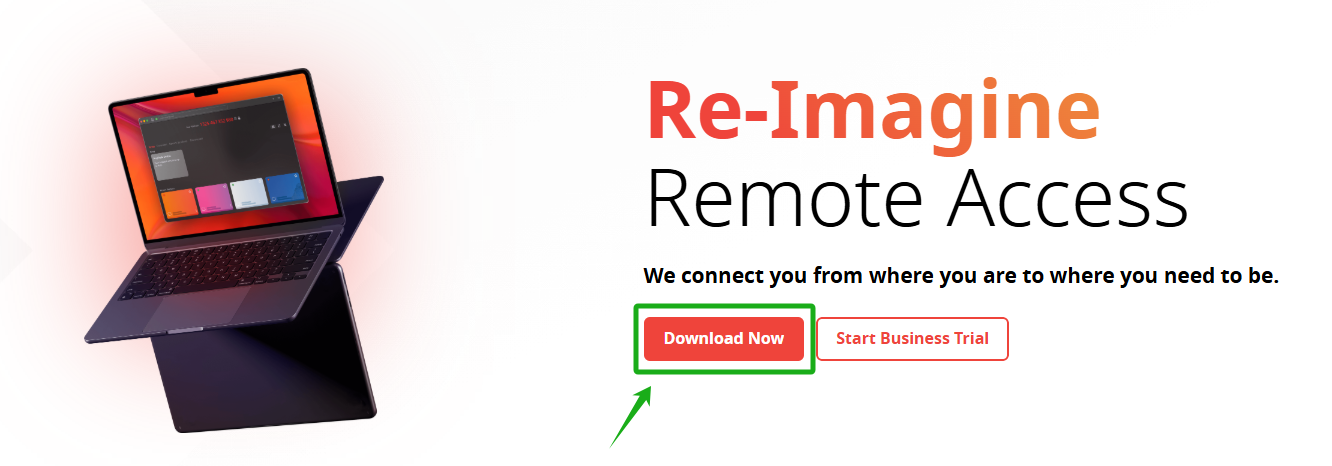
Launch AnyDesk after installation.
4. Obtain AnyDesk Address
Once AnyDesk is running, you will see a numeric address (usually in the format of “123 456 789”). This is the address you need to share with the support technician.

5. Share AnyDesk Address
Send your AnyDesk address to the support personnel so they can connect to your device.
6. Accept Connection Request
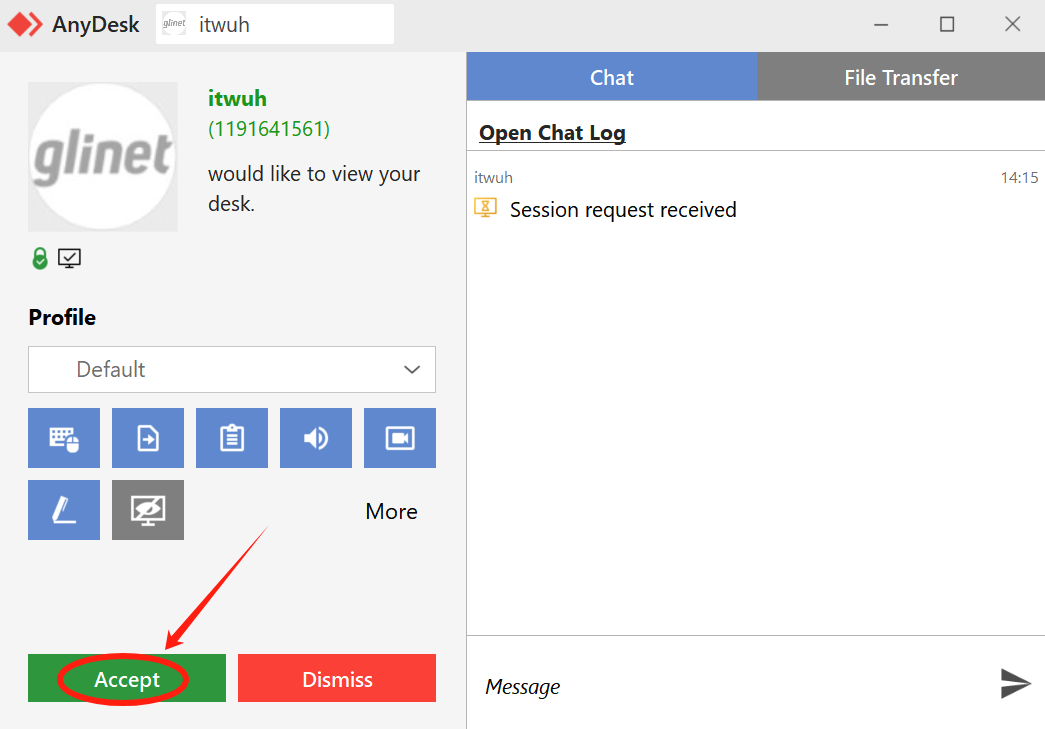
When the technician attempts to connect, you will receive a prompt for the connection request.
Please ensure you trust the technician, then click “Accept” to allow them access to your device.
7. Communicate During Session
Throughout the support session, feel free to communicate via speaker, chat window in AnyDesk session, or any other method to ensure your issues are addressed effectively.
8. End the Session
Once the support session is concluded, terminate the connection by clicking the red "End Session" button in the AnyDesk interface. This will close the current remote support session. If you enabled Unattended Access, disable it separately in AnyDesk's security settings. To ensure complete privacy protection, please also:
- Close the AnyDesk application entirely (not just minimize it).
- Restart your computer if you have concerns about residual processes.
- Check AnyDesk security settings to confirm no remote access permissions remain active.