GoodPAS
Note: This feature was introduced in firmware v4.11 (v4.10 for GL-MG1300), where AstroWarp was renamed to GoodPAS. If your device is running an older firmware version, please refer to AstroWarp.
On the left side of web Admin Panel, go to the CLOUD SERVICES -> GoodPAS.
GoodPAS is an advanced remote access solution integrated into the GL.iNet router SDK. It adopts the AmneziaWG protocol with built-in traffic obfuscation, delivering stable and secure connections for reliable remote access anytime, anywhere.
This feature enables seamless remote access to your home network. You can directly set up and pair devices via a dynamic access code in the web Admin Panel, quickly establishing a secure connection between your travel router and home network in just seconds, with no registration or login required.
Note:
-
It is not recommended to use GoodPAS with any of the following features at the same time, as this may cause routing conflicts: OpenVPN Client, WireGuard Client, GoodCloud Site to Site, ZeroTier, Tailscale, Tor.
-
When GoodPAS is enabled, the Network Mode cannot be used.
-
When enabled, GoodPAS has the highest routing priority and cannot be cascaded with VPN Client.
For example, if Router A and Router B establish a GoodPAS network with Router B as the exit node, traffic forwarded through GoodPAS will exit to the Internet via Router B's WAN public IP, even when VPN Client is enabled on Router B. This traffic will not be forwarded through Router B's VPN Client tunnel.
Quick Setup
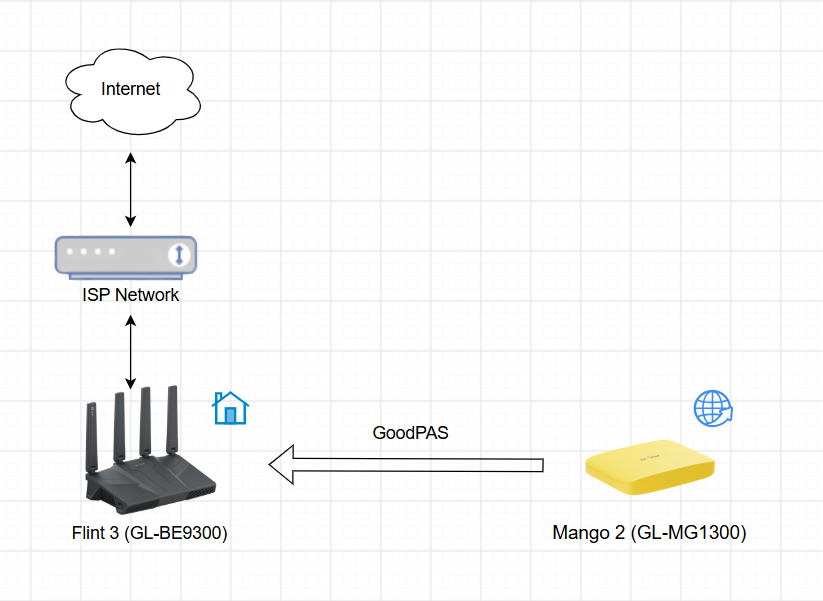
In the following example, we'll use Flint 3(GL-BE9300) and Mango 2(GL-MG1300) to set up a GoodPAS network.
Flint 3 will act as the home router, while Mango 2 will act as the travel router that routes network traffic back to Flint 3 for Internet access.
-
Configure Flint 3 for Internet.
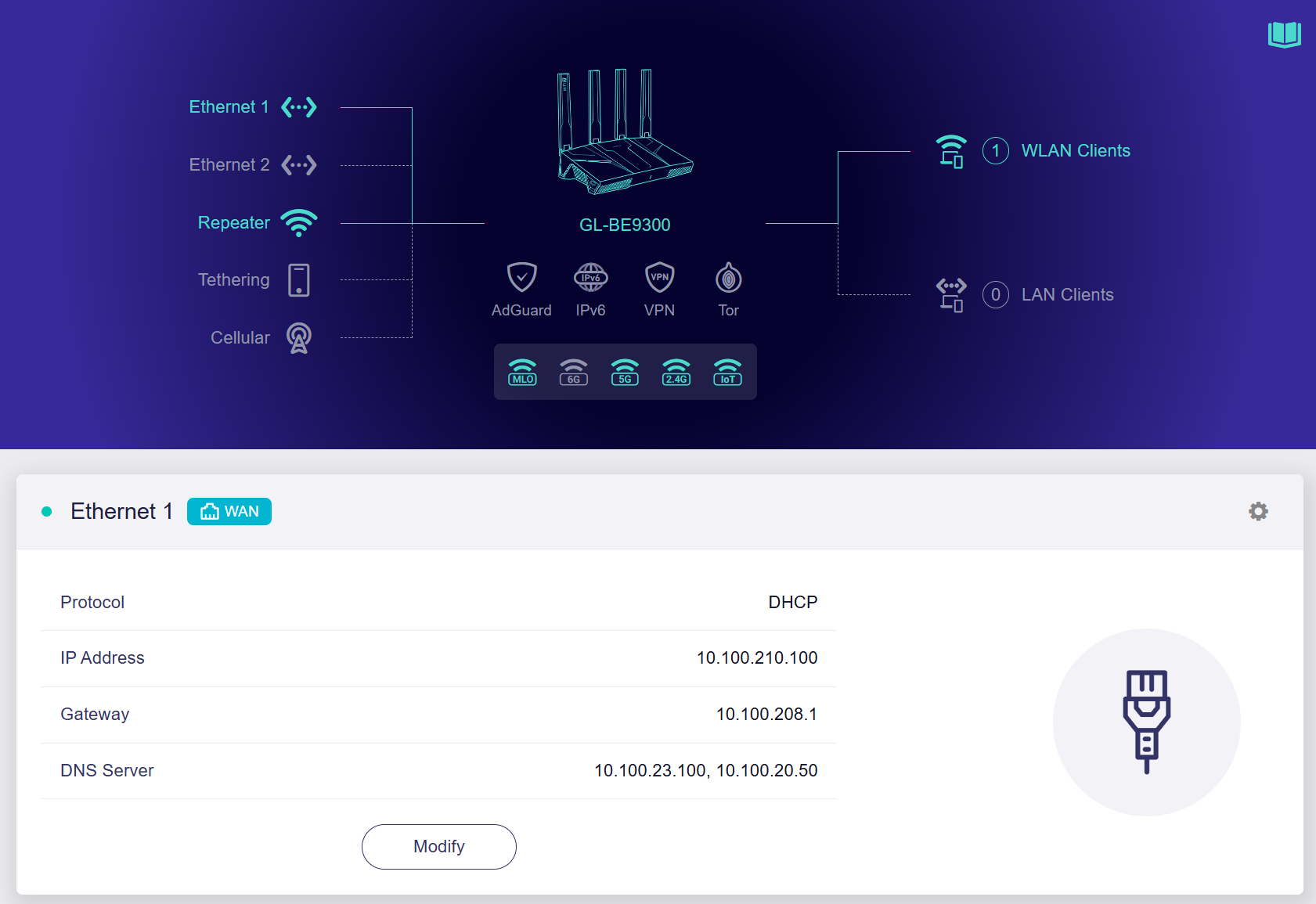
Log in to the Flint 3's web Admin Panel and navigate to the INTERNET page. Connect it to the Internet using one of the supported internet connection methods: Ethernet, Repeater, Tethering, and Cellular.
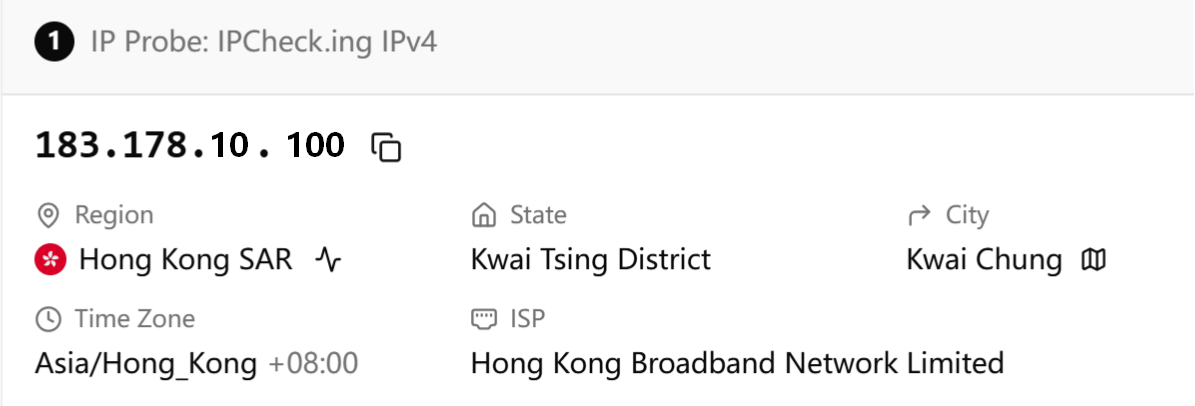
As shown below, the Flint 3 home router is connected to the ISP modem (Hong Kong Broadband Network Ltd) via an Ethernet cable.
-
Generate Access Code.
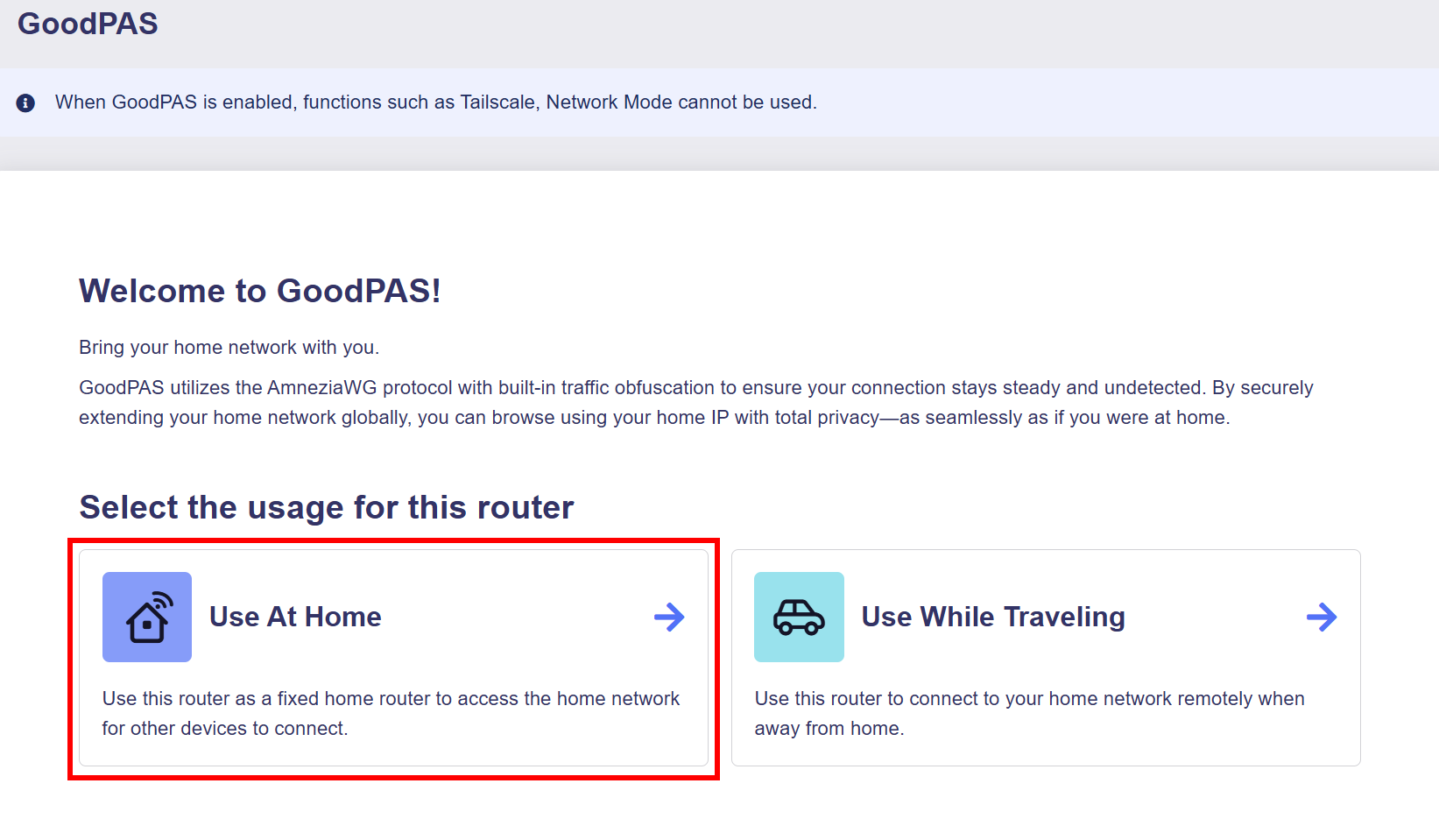
On the Flint 3's web admin panel, navigate to CLOUD SERVICES -> GoodPAS. Click Use At Home.
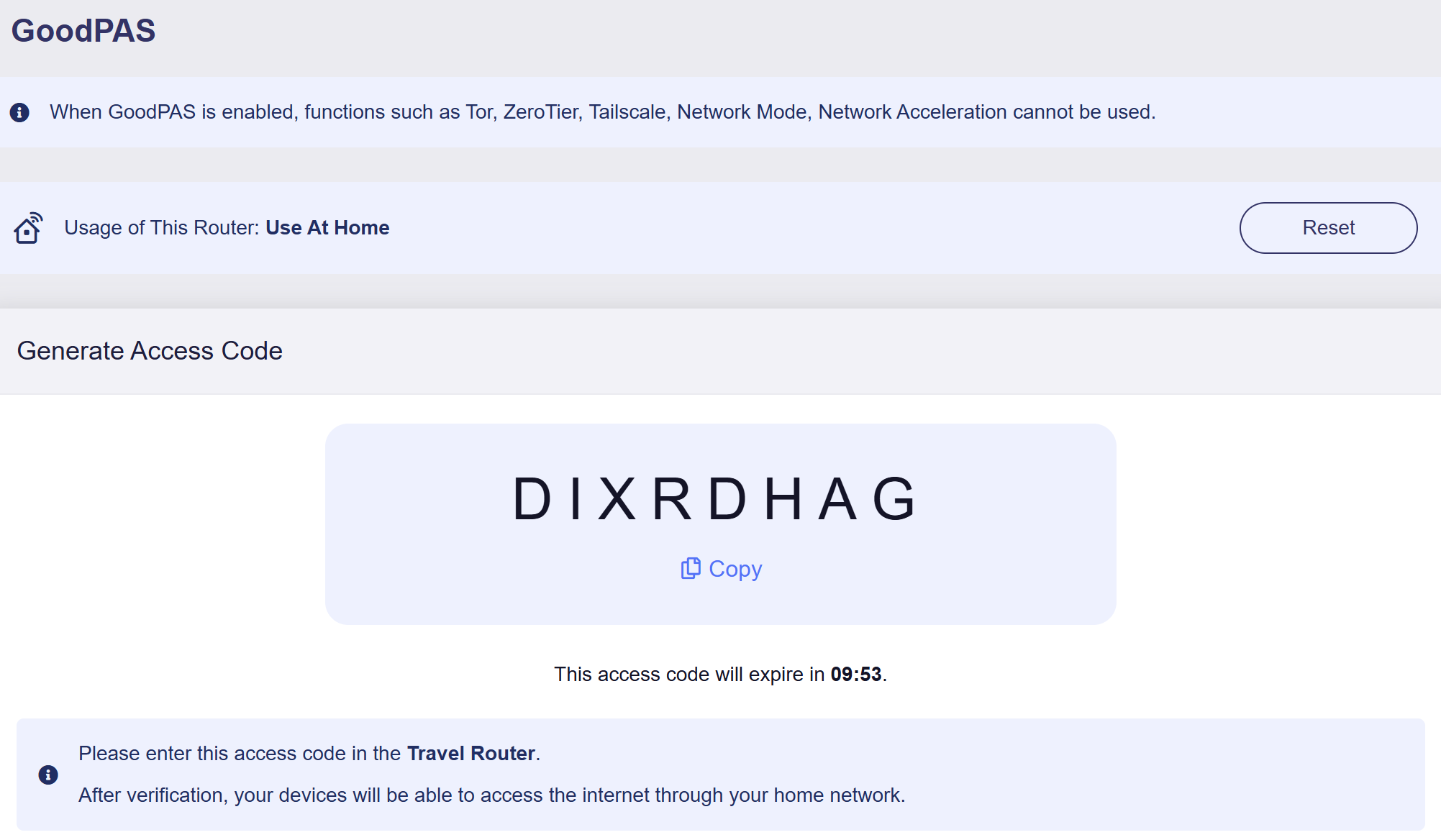
It will generate an Access Code. Copy this code for later use.
-
Configure Mango 2 for Internet.
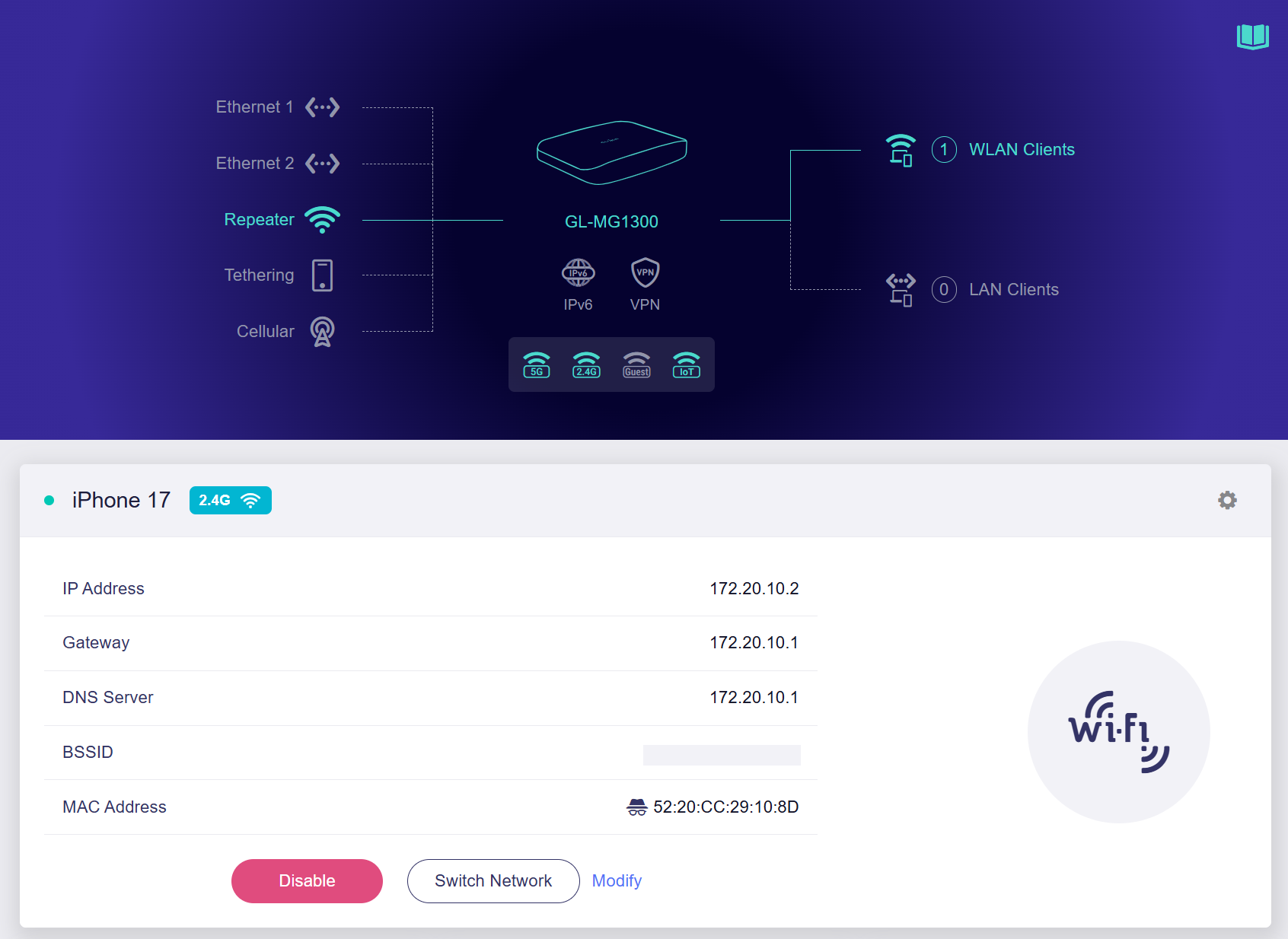
Log in to the Mango 2's web Admin Panel, and navigate to the INTERNET page. Connect it to the Internet using one of the supported internet connection methods: Ethernet, Repeater, Tethering, and Cellular.
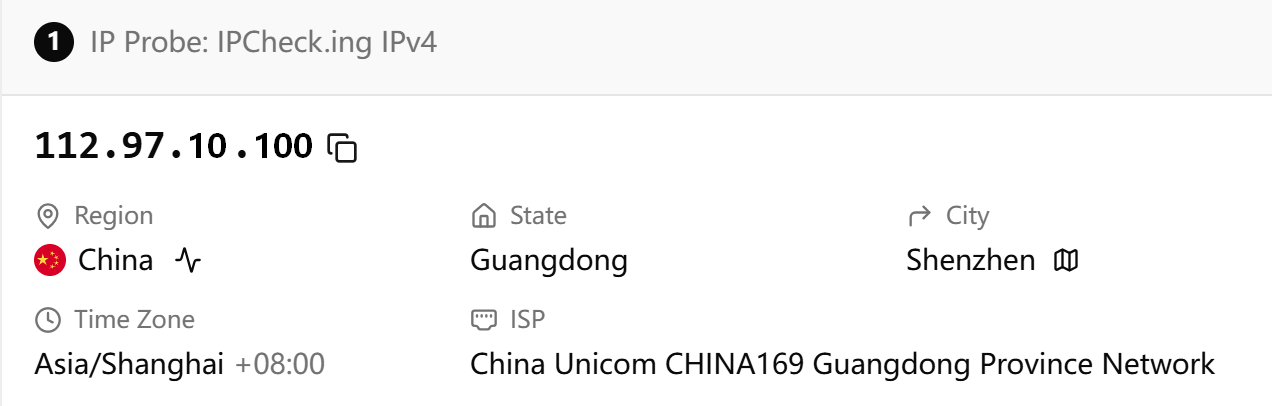
As shown below, the Mango 2 travel router is connected to the personal hotspot of an iPhone 17 (located in Shenzhen, using the China Unicom Guangdong Province network).
-
Enter Access Code.
On the Mango 2's web Admin Panel, navigate to CLOUD SERVICES -> GoodPAS. Click Use While Travelling.
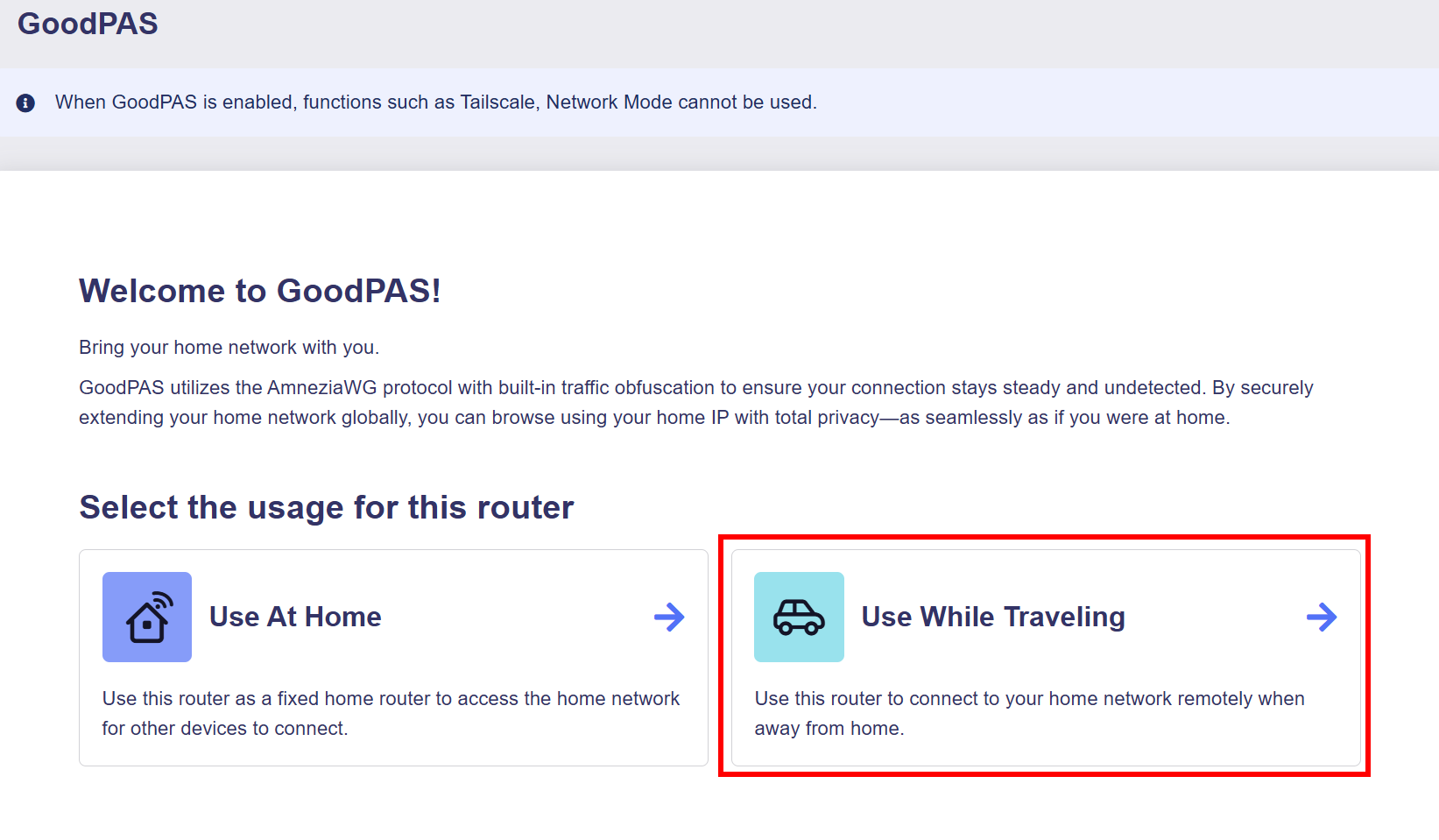
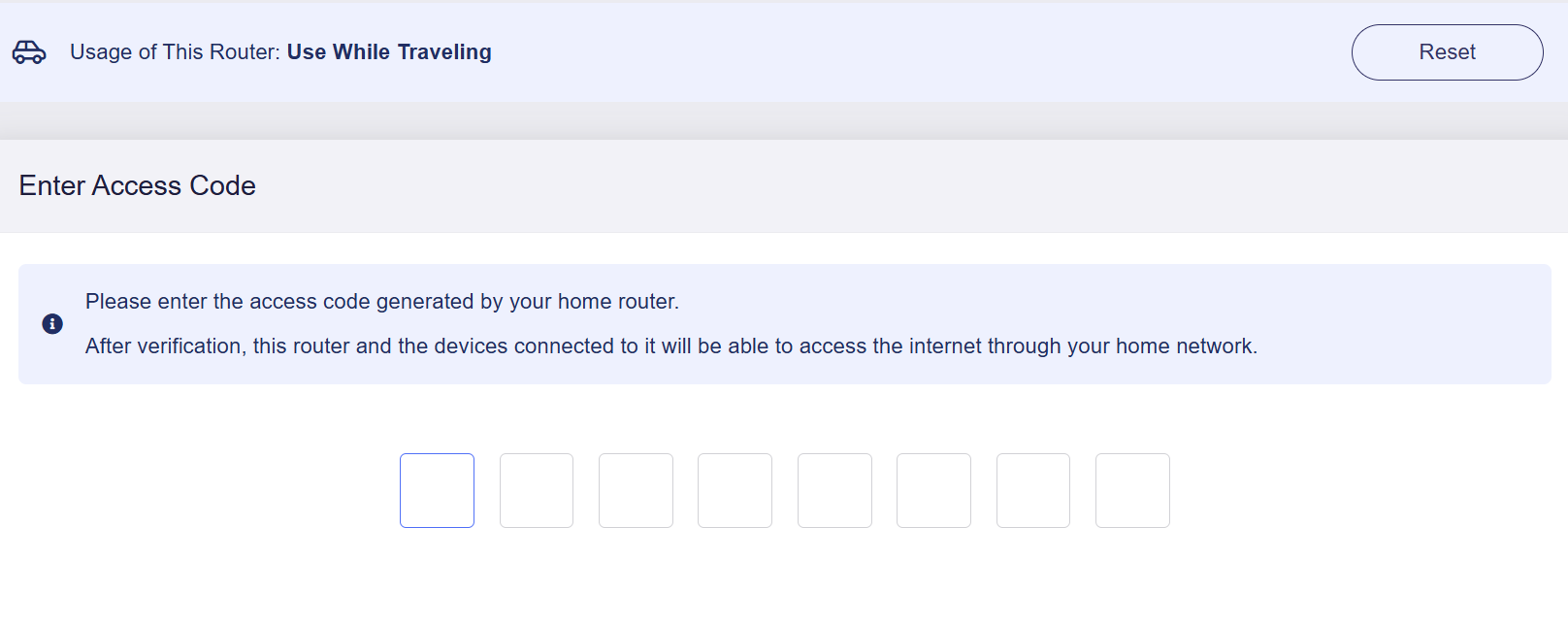
Enter the Access Code obtained in Step 2.
Wait for the verification to complete.
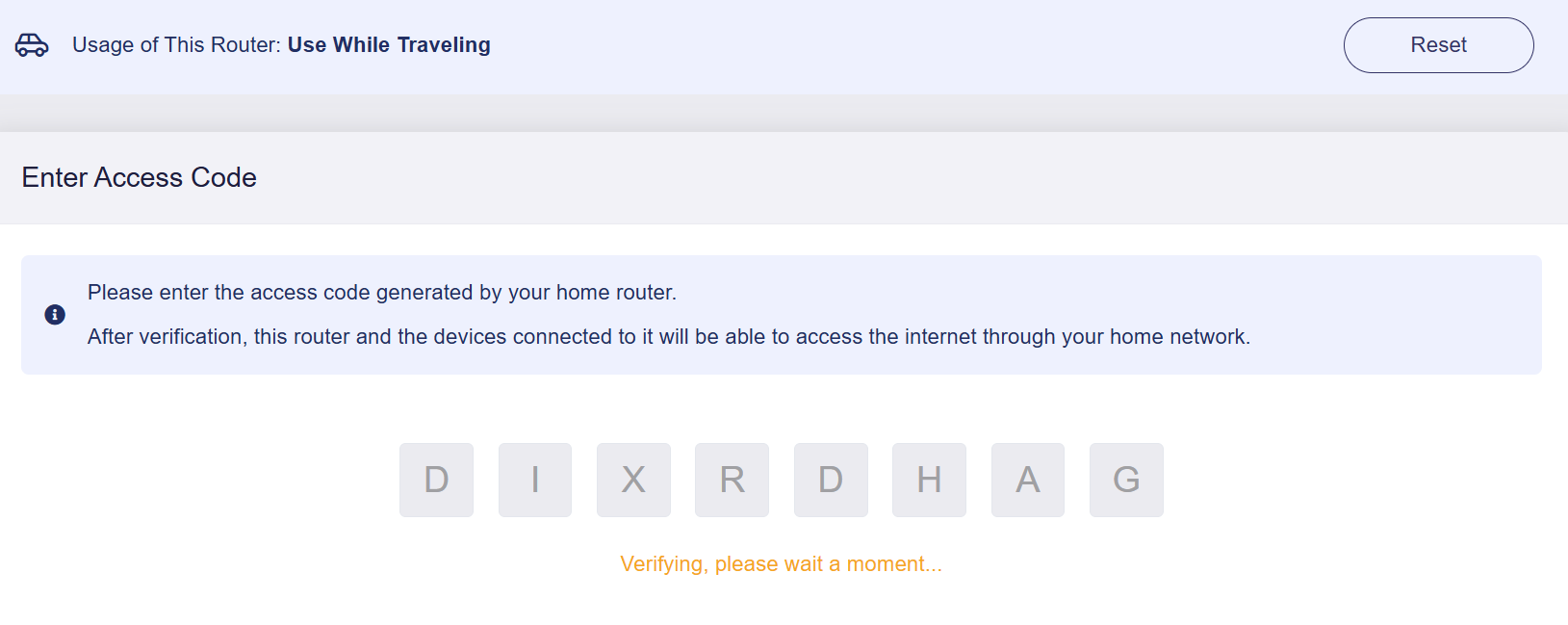
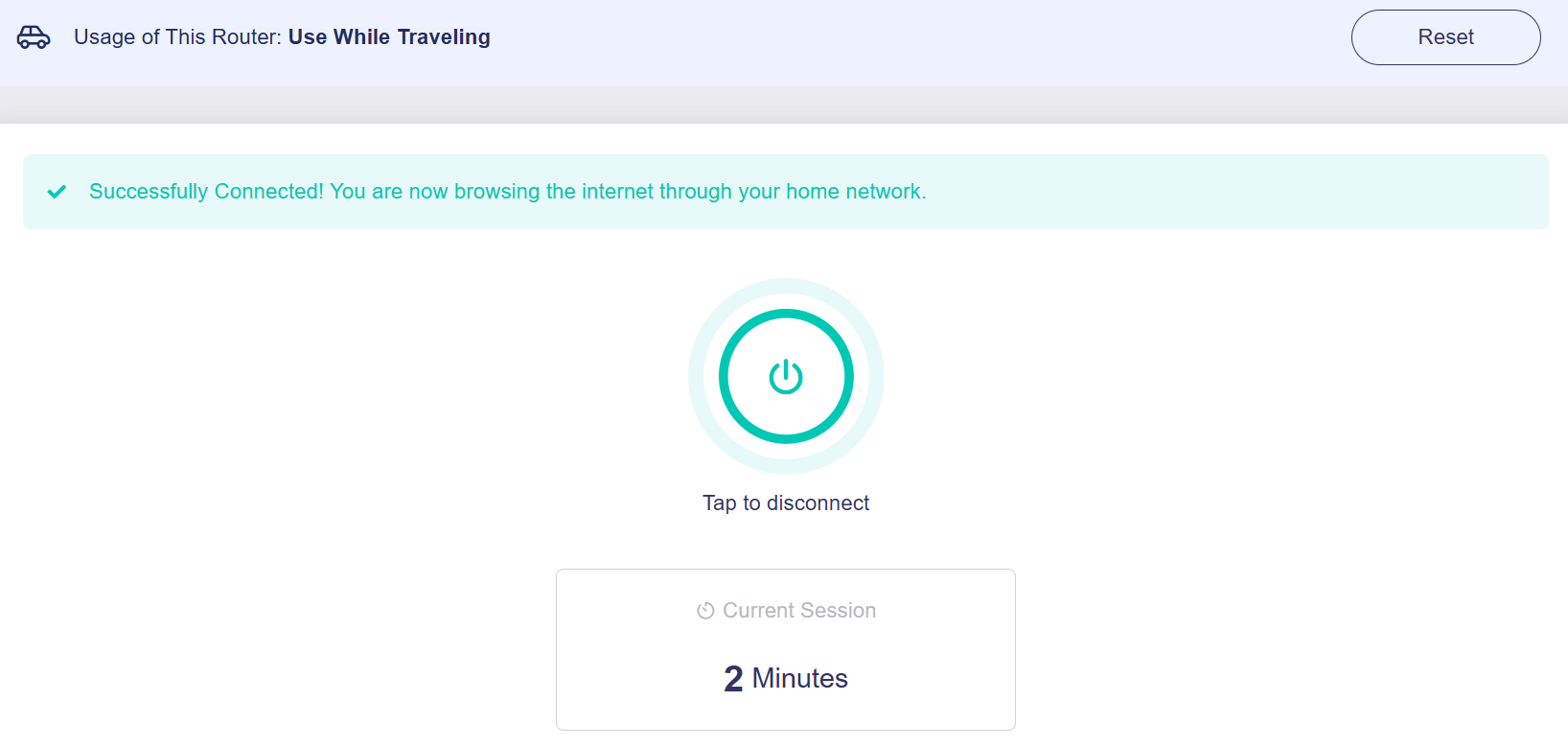
It will then connect to the Flint 3 home router successfully. Now you can browse the Internet through your home network securely.
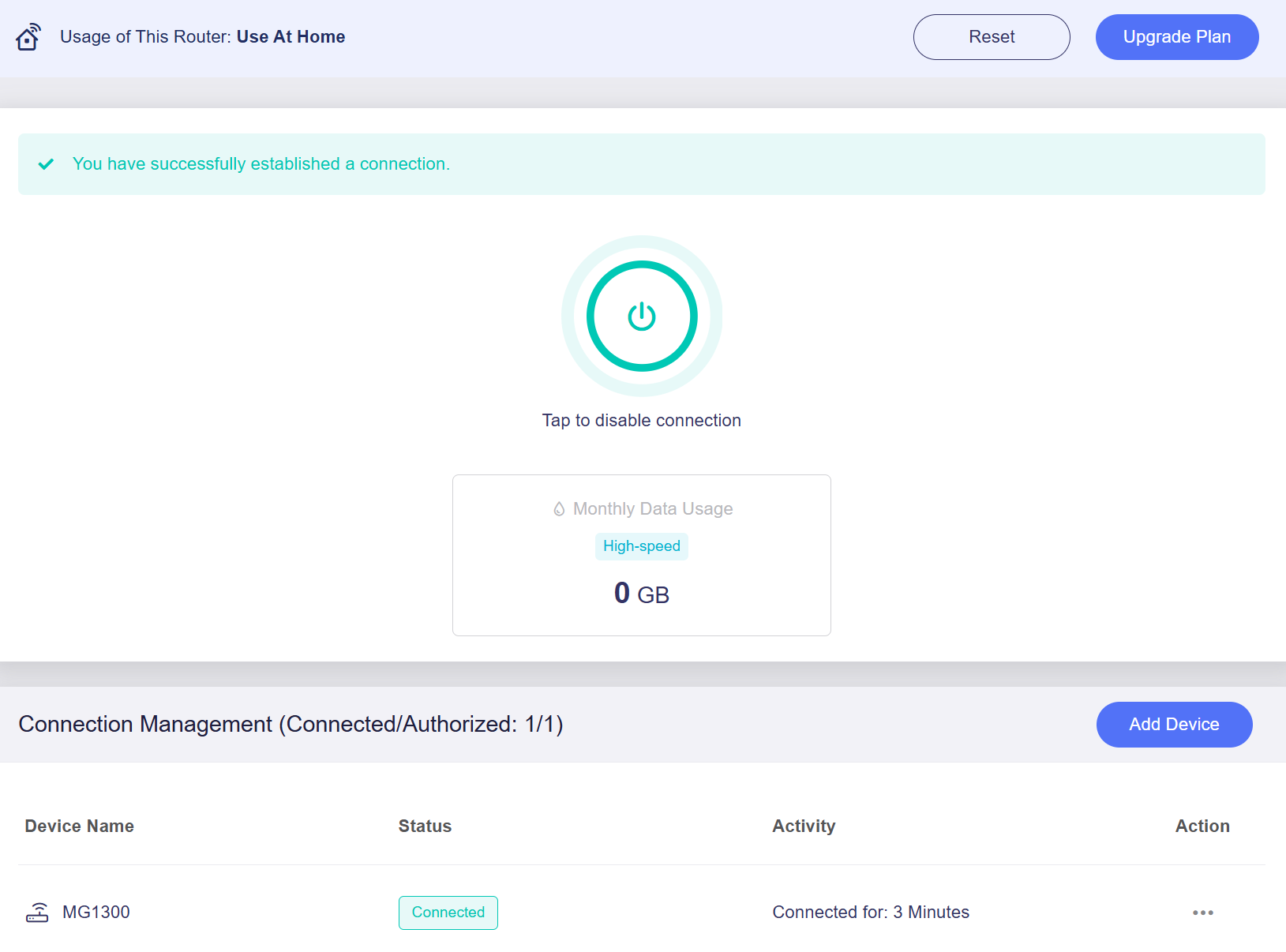
On the Flint 3's web Admin Panel, it also displays the connection status, as shown below.
Test Connectivity
-
Connect a laptop or smartphone to the Wi-Fi of the Mango 2 travel router.
-
Open a browser and visit ipcheck.ing or any other IP address lookup website.
It will show the public IP address of Flint 3, indicating that Mango 2 is accessing the Internet through your Flint 3 home router.
-
Disconnect the GoodPAS connection on Mango 2, then refresh the webpage to resubmit the IP query request.
It will show the public IP address of Mango 2, indicating that Mango 2 is accessing the Internet through its local network.
FAQ
-
Q: What is the format of the dynamic access code, and how long is it valid?
A: It is an 8-character code combining numbers and uppercase letters, valid for 10 minutes.
-
Q: What happens to the travel router if I terminate the connection on the home router?
A: The travel router will disconnect and be pending with no network access. Once the home router resumes connection, the travel router can reconnect automatically without entering the access code again.
-
Q: In what scenarios will the travel router enter pending state?
A: The travel router will enter pending state when the home router meets any of the following conditions:
- Terminates the GoodPAS connection
- Loses internet access
-
Q: What does the Reset button in the top right corner do?
A: It will clear all authorized devices and revert to the router role selection page for re-selection.
-
Q: What happens to the travel router if I reset the GoodPAS on the home router?
A: Once the home router is reset, the remotely connected devices will be disconnected from the GoodPAS network and revert to their local network for internet access.
Still have questions? Visit our Community Forum or Contact us.