GL.iNet Account
Note: This guide applies to firmware v4.10 and above.
On the left side of the web Admin Panel, go to CLOUD SERVICES -> GL.iNet Account.
A GL.iNet Account allows you to connect and manage your devices and cloud services. With a single GL.iNet Account, you can seamlessly access GoodCloud and the GL.iNet App for more convenient network management.
In addition, you can use GoodPAS to quickly establish a secure connection between your travel router and home network, enabling seamless remote access when you are away from home.
Enable GL.iNet Account
To bind your GL.iNet Account, please follow the steps below.
-
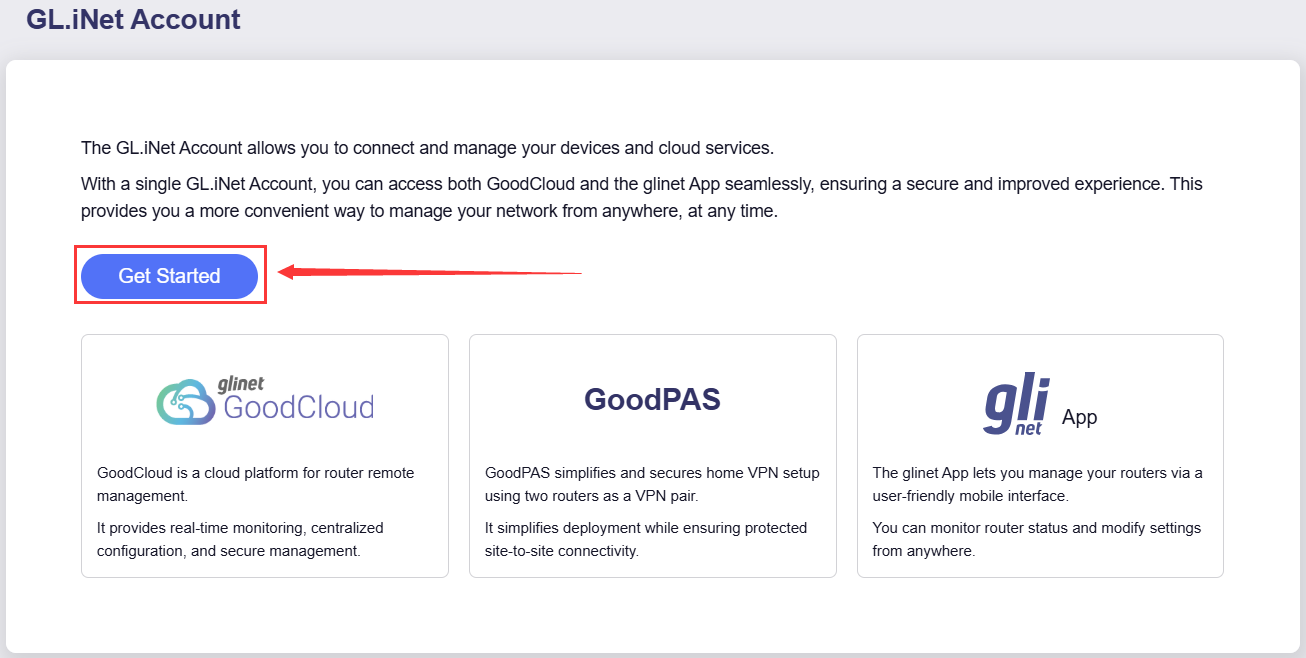
Click Get Started.
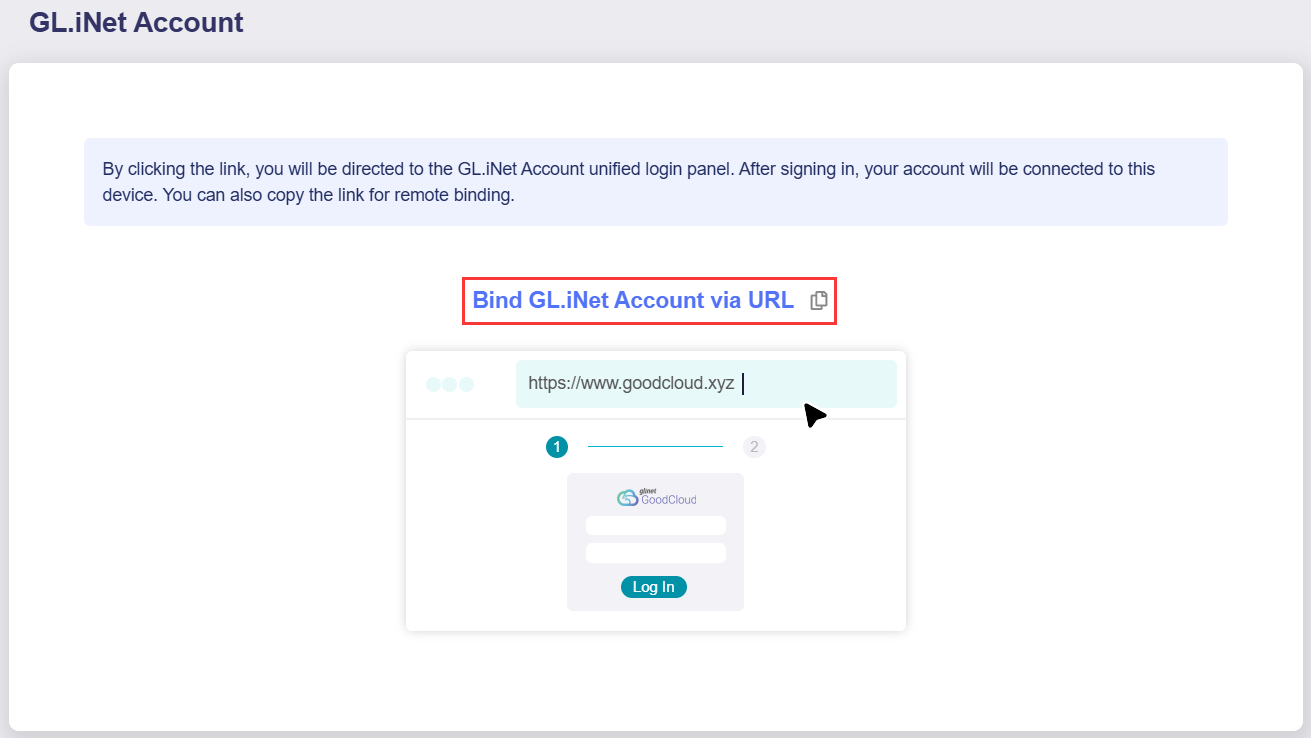
A URL will then be displayed on the page. Click the link and you will be directed to the GL.iNet Account login page. You can also copy it for remote binding.
-
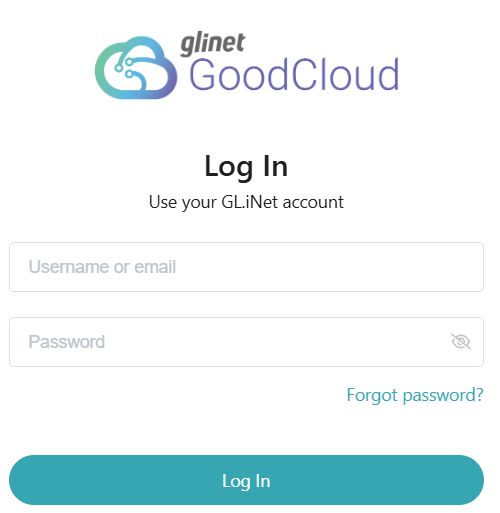
Log in with your GL.iNet account. If you don't have an account, sign up for one and log in.
-
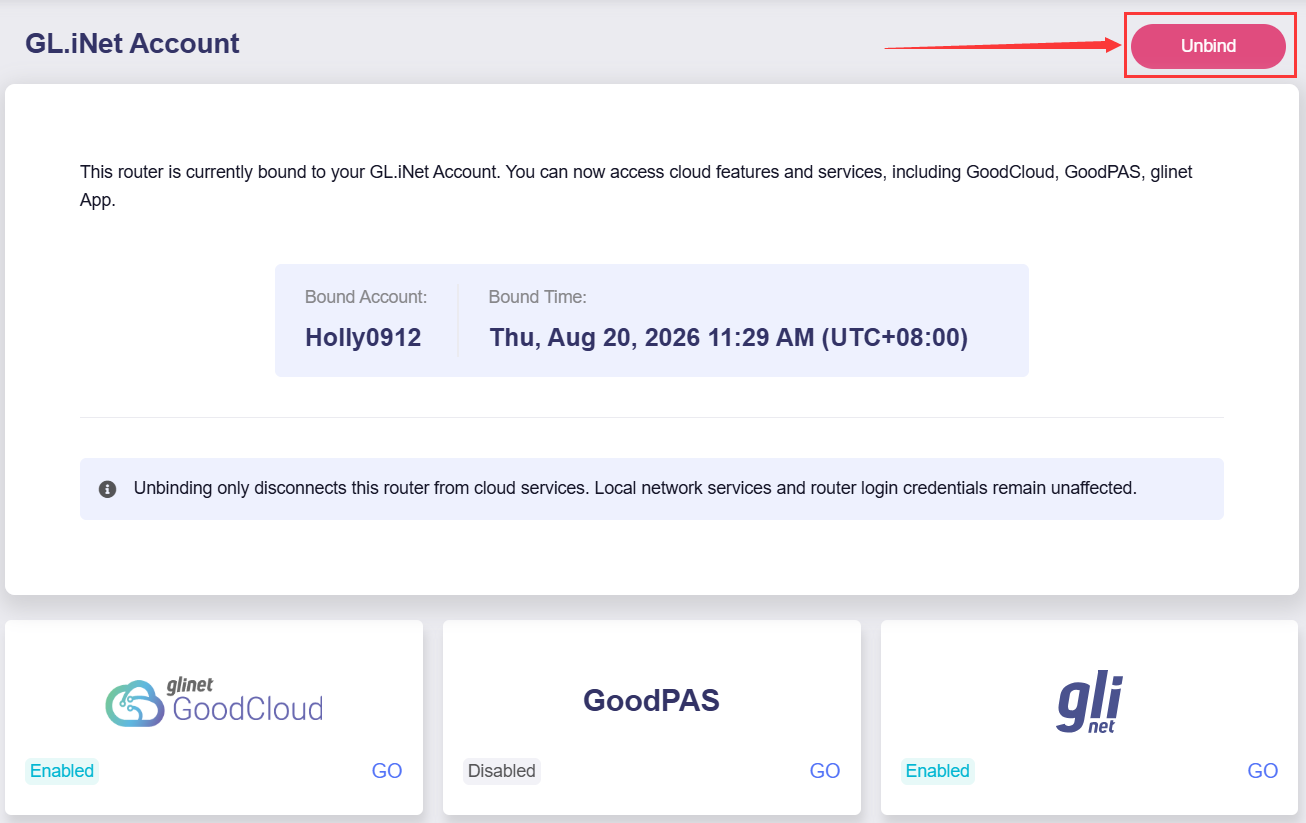
After logging in, your device will be bound to your account, and the page displays the Bound Account and Bound Time.
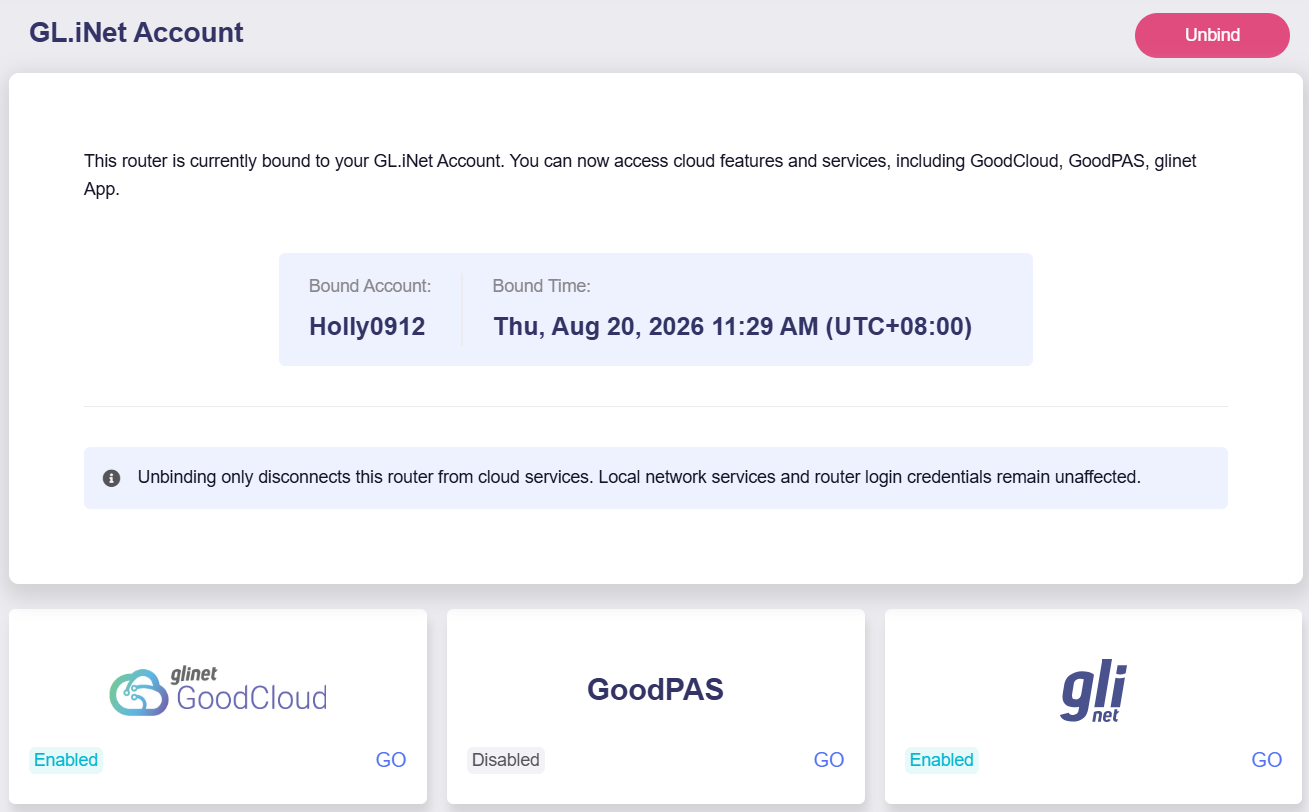
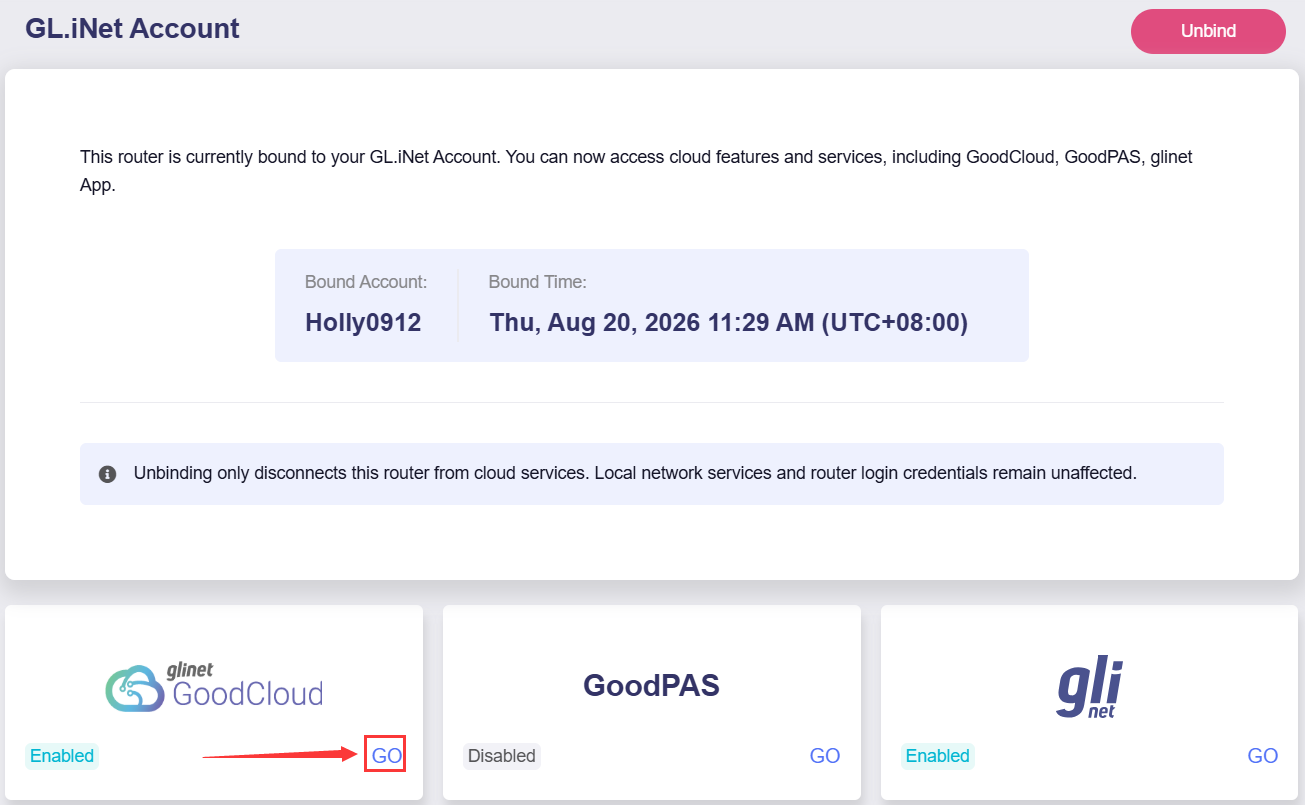
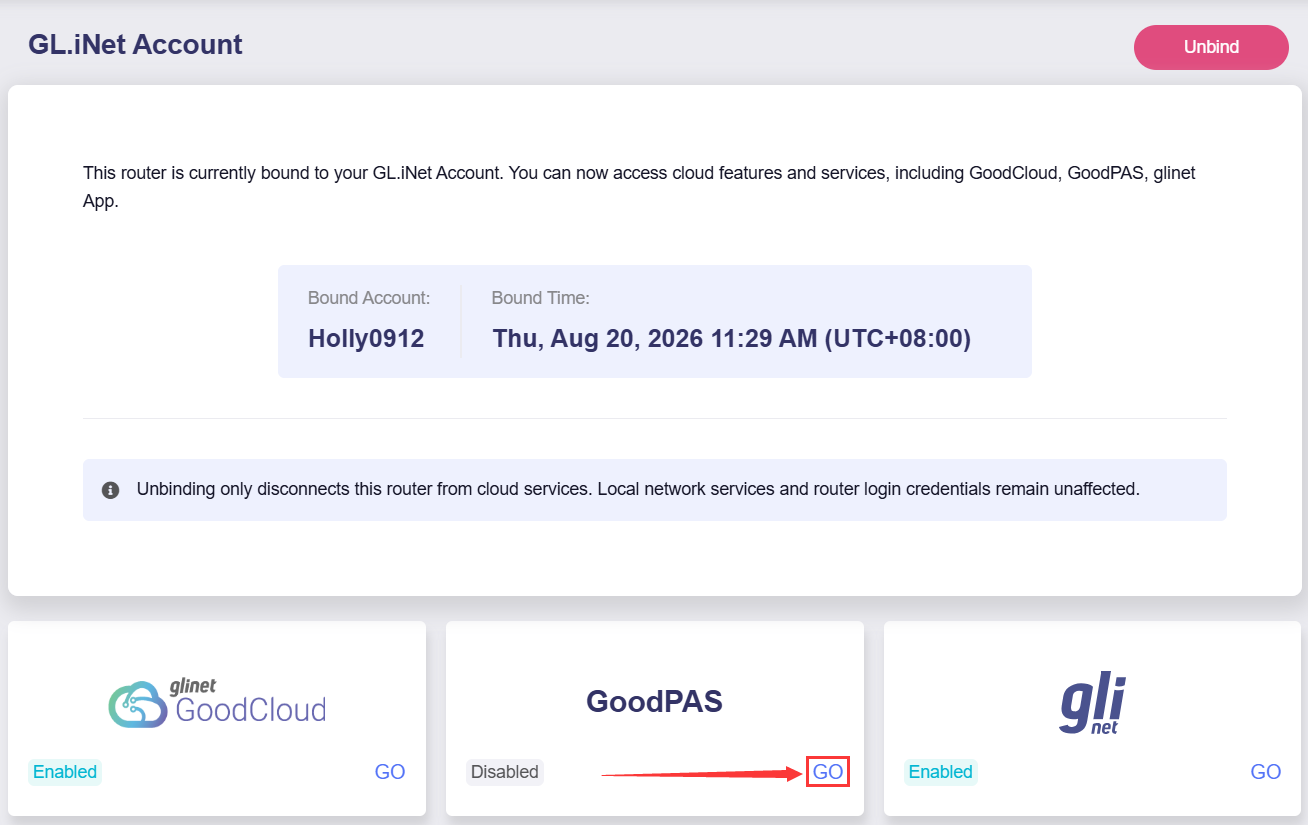
On this page, you can simply check the enabled status of each service. The GoodCloud and GL.iNet App services are enabled by default, while the GoodPAS is disabled. To enable GoodPAS, please navigate to the GoodPAS page and configure it.
Services
You can choose the appropriate services to manage your device according to your needs.
GoodCloud
Click Go in the lower-right corner of the GoodCloud section to open the GoodCloud platform, where you can manage your device remotely. For details, please refer to GoodCloud.
GoodPAS
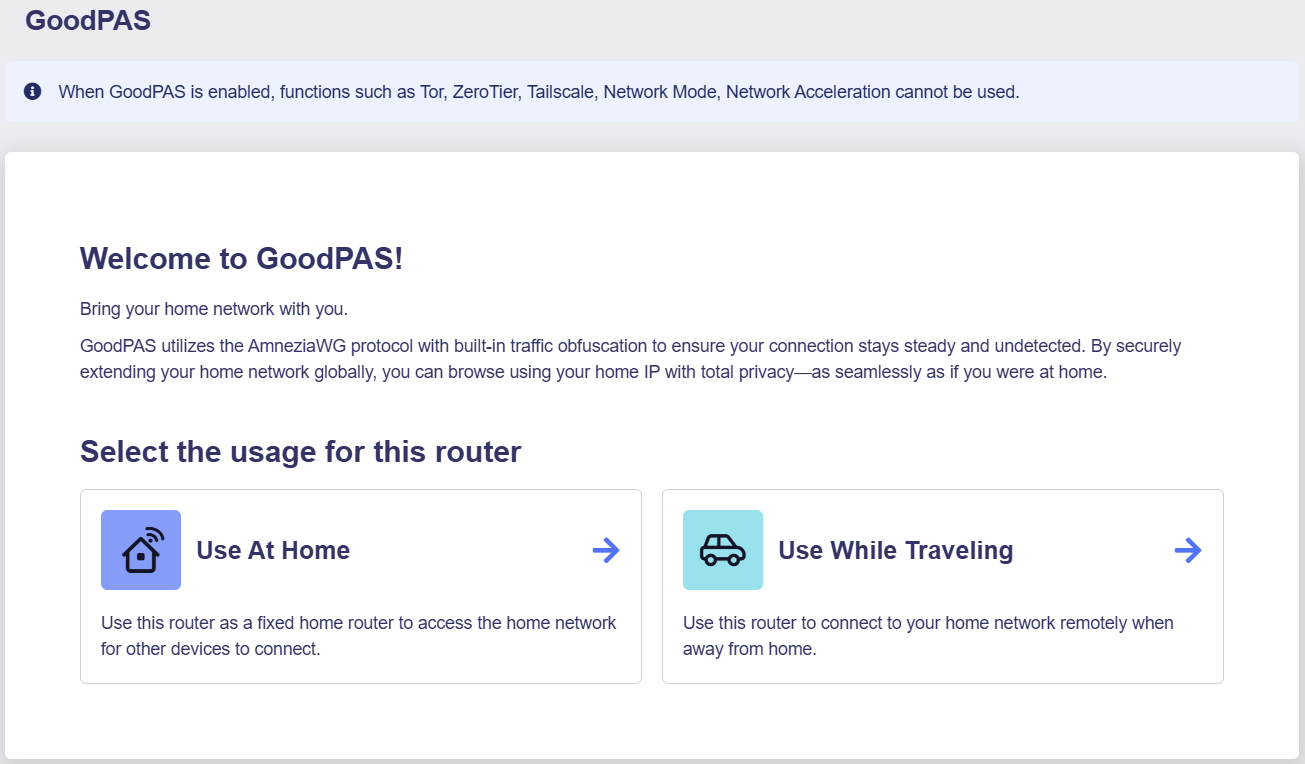
Click Go in the lower-right corner of the GoodPAS section to access the GoodPAS page, where you can establish a secure network between your travel router and your home network. This enables seamless remote access to your home network, and you can use your home IP for Internet access. For details, please refer to GoodPAS. In firmware v4.10, this section is named AstroWarp on models other than GL-MG1300; refer to AstroWarp.
glinet App
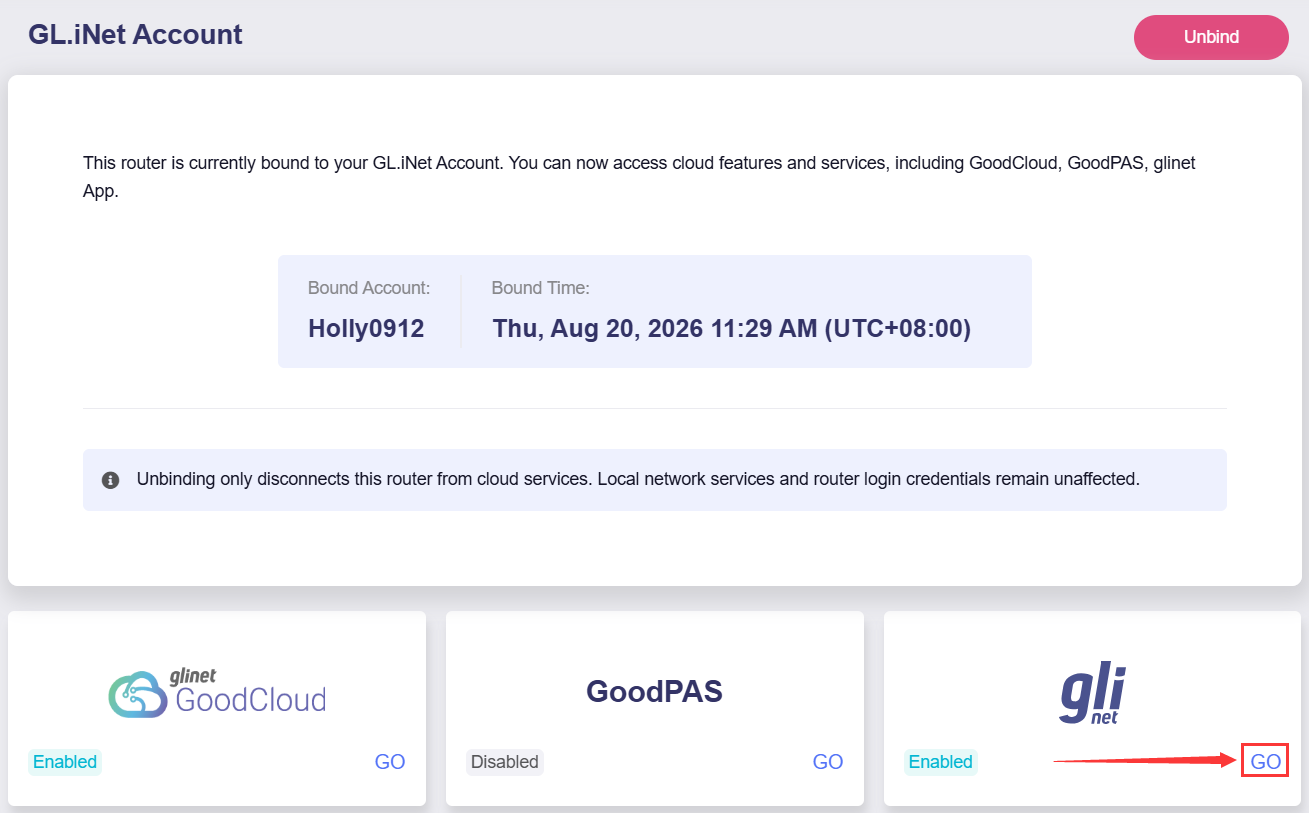
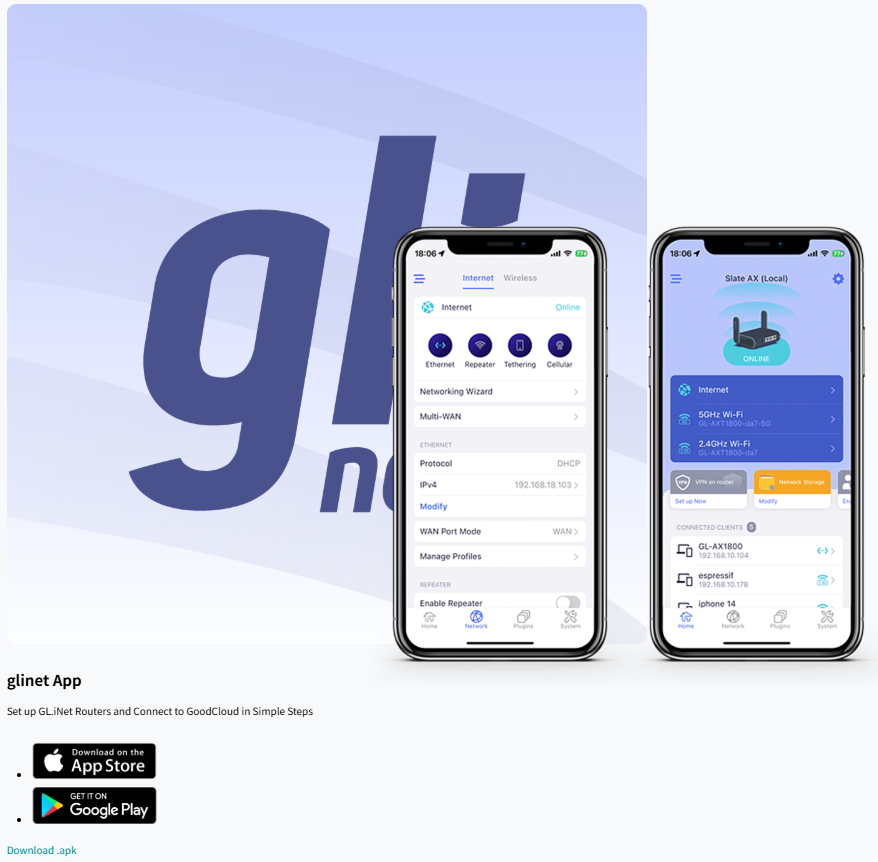
Click GO in the lower-right corner of the GL.iNet section to go to the app download center. You can download the glinet App, which allows you to manage your router easily on your phone.
Unbind GL.iNet Account
If you want to unbind this device from your GL.iNet Account, click Unbind. The device will then be unbound.
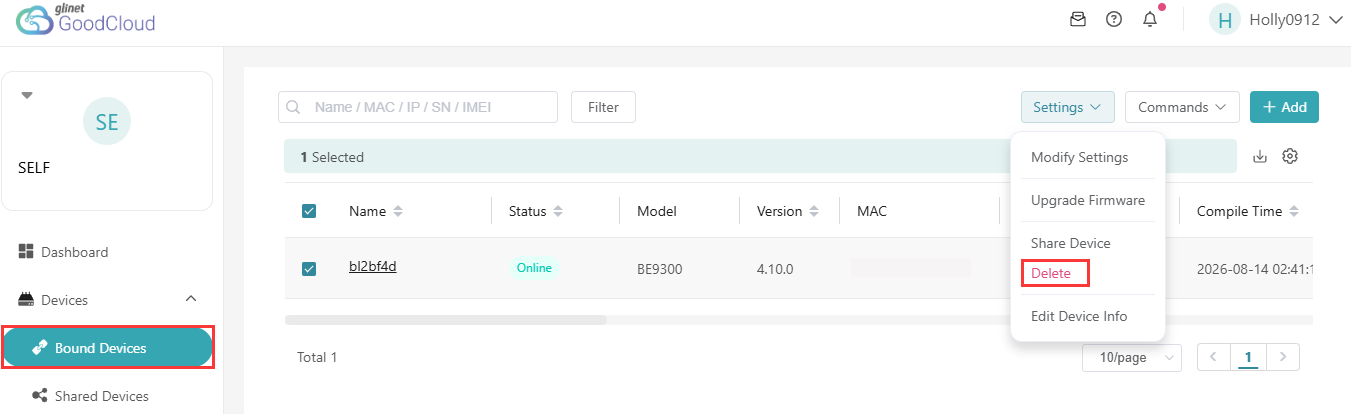
Alternatively, if you manage your device via GoodCloud, go to Devices -> Bound Devices. Select the device, click Settings in the upper right corner, and choose Delete. The device will then be unbound from your GL.iNet Account.
Still have questions? Visit our Community Forum or Contact us.