Securing RDP from an External Network with WireGuard
You may need to remotely access your PC from an external network, or vice versa. The most secure way is to do so through your own WireGuard tunnel. This provides better security than port forwarding and accessing your PC directly through your public IP address. After setting up the tunnel, you can use Windows Remote Desktop to access your PC from anywhere.
This tutorial takes two GL.iNet routers as an example to demonstrate how to secure Windows RDP over a WireGuard network.
Topology

Setup steps
-
Build your WireGuard network.
First, set up your own WireGuard server and WireGuard client using two GL.iNet routers. See Build your own WireGuard server with two GL.iNet routers.
-
Allow your WireGuard server to access the client LAN.
To enable bidirectional access between the server and client, please first allow the server to access the client LAN side. See How to access WireGuard client LAN side from Server.
The steps may vary due to differences in firmware versions.
-
Allow your WireGuard client to access the server LAN.
This step may vary due to differences in firmware versions. Select the firmware version of the router you set as WireGuard client below for reference.
For firmware v1.7 and earlier
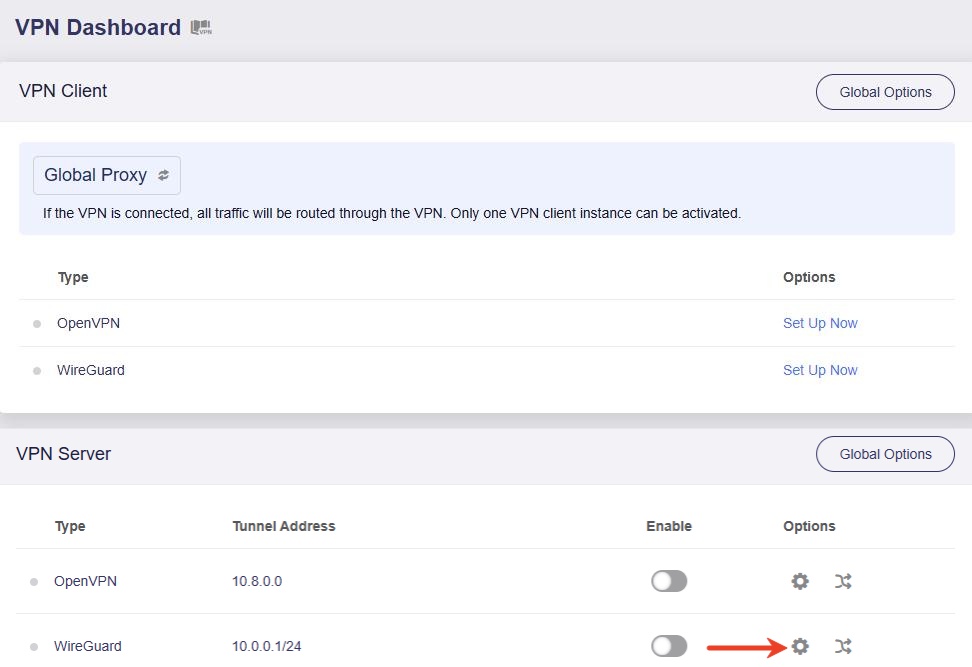
Log in to your WireGuard client and go to VPN -> VPN Dashboard. Locate the VPN Server and click the gear icon on the right.
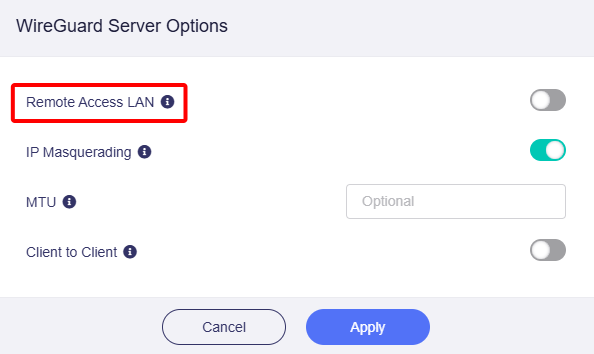
In the pop-up window, enable Remote Access LAN and click Apply.
For firmware v1.8 and above
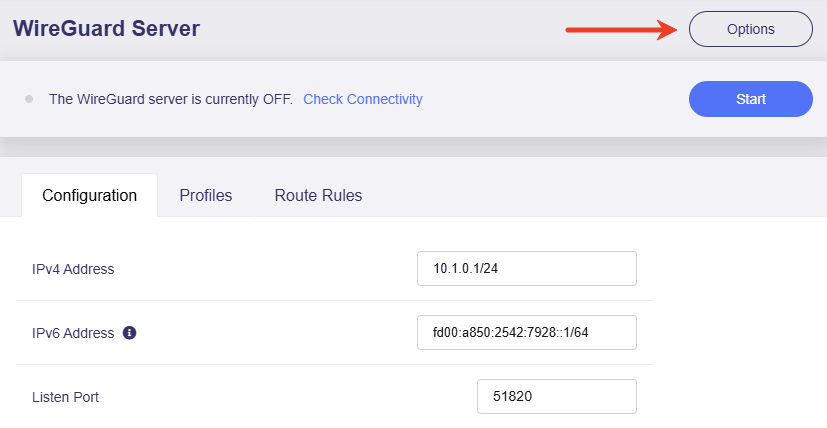
Log in to your WireGuard client and go to VPN -> WireGuard Server. Click Options in the upper-right.
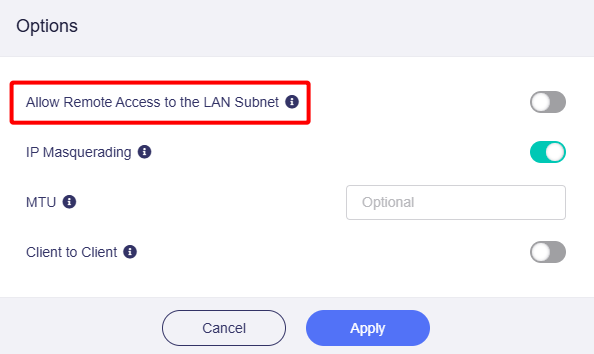
In the pop-up window, enable Allow Remote Access to the LAN Subnet and click Apply.
-
Connect the computer to be accessed to the VPN server and find its LAN IP address.
In the following example, the IP address of the server-side PC is 192.168.29.123.
-
Configure the server-side PC to be accessible.
On the server-side PC, go to the System Settings and click Remote Desktop.

Enable Remote Desktop and click Confirm.


-
Remote access from the client-side laptop.
Search Remote Desktop Connection in the search bar.

Launch the app and enter the IP address of the server-side PC, e.g., 192.168.29.123.

Enter the credentials of your server-side PC to connect.

You will then be able to remotely control your PC on the server side.
If you want to do it vice versa, simply reverse the steps of server-side PC and client-side laptop.
Still have questions? Visit our Community Forum or Contact us.